Creating QR Codes for Engineering Document Management
Applicable Scenarios
- Construction project document management
- Architectural supervision company archive management
Housing and urban-rural development bureaus frequently conduct special inspections of municipal engineering construction documents at construction and supervision companies. Physical originals are often left in disarray during these inspections and are difficult to reorganize—documents may even get lost. Converting digital versions of engineering documents into QR codes means inspectors no longer need to handle the originals. Even when originals are reviewed, document managers can use the archive box QR codes to restore order quickly and accurately.
Feature Overview
- Each electronic document gets its own QR code; documents of the same type can use a shared template for consistent management.
- Documents can be organized in multi-level directories—for example: project → document type → document—with a directory summary QR code automatically generated for each directory. Enter a file name to search.
- Create identifiers for archive boxes: scanning shows the box number and document list, with links to the electronic documents.
- Electronic document files can be exported in bulk from the workbench to a local computer.

Application Benefits
Reviewing paper archives is cumbersome: document managers must pull out all file boxes, inspectors use archive box labels to locate the needed documents, and then the document managers must painstakingly reorganize everything afterward without making mistakes or losing anything.
- Engineering documents are increasingly required to be digitized, but typically only on physical media such as CDs or USB drives, or in closed systems—none of which support shared access. Uploading existing electronic documents to QR codes enables archiving and sharing of engineering documents.
- No additional hardware or software installation required—scan with a phone to view documents, making access easy for external parties.
- Document information in the QR code can be updated in real time as the project progresses, and the QR code remains valid indefinitely.


Setup Tutorial
Part 1: Bulk Creation of Electronic Document QR Codes
Why use a bulk dynamic QR code template?
Bulk code generation improves efficiency and reduces workload:
- Each document QR code has a different number, name, and preparation date, but they all share the same format—using a template lets you configure the format once for all of them.
- The sub-code content forms an online data table that can be edited and exported in bulk.
- Functional settings, label layout, and printing for an entire batch of QR codes can be managed in the template—no need to configure each one individually.
Steps:
1. Design the document QR code template
We have shared an Engineering Document Management template in the Template Library. Select [Install to My Templates, Generate in Bulk] to apply it quickly.
- The "XXX Industrial Park Project" at the top is the project name—you can edit the text directly, and it will appear in all sub-codes generated from this template.
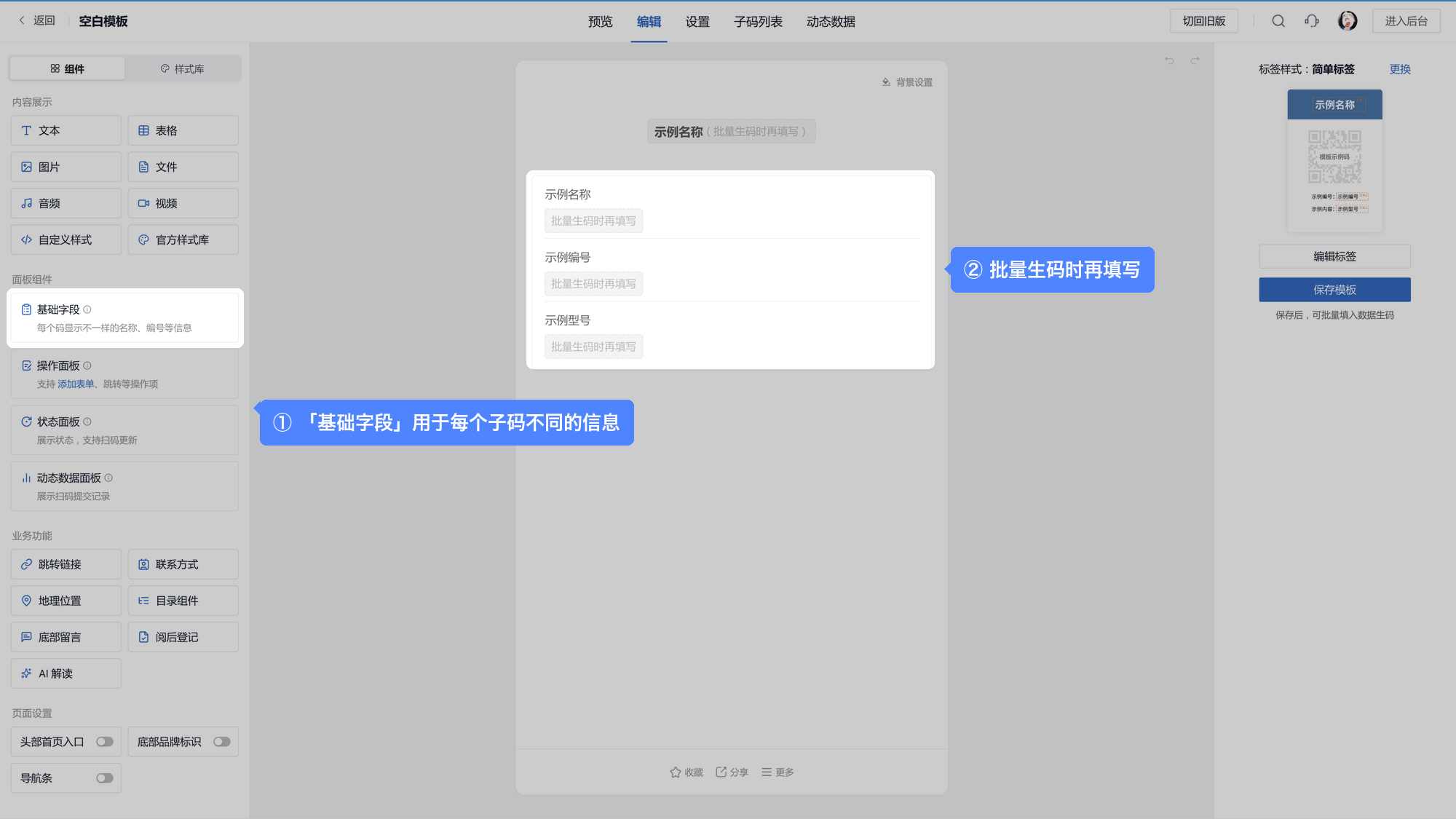
- The body section can display basic document information and uploaded electronic files. Content that varies per sub-code uses [Basic Fields] as placeholders, filled in when you generate the codes in bulk.
If you need to customize the template format, refer to the dynamic QR code bulk template editing tutorial.
2. Import content data into the template and generate sub-codes in bulk
On the template management page, click [Generate in Bulk] to enter the online spreadsheet. Each row of data generates one sub-code. In this interface, you can directly fill in text-type variable content—document number, document name, and preparation date—or upload a local Excel file in the required format. [Electronic Documents] is multimedia-type variable content that must be uploaded individually to each sub-code.

3. Set the naming rule for sub-codes
Each sub-code has a unique QR code pattern, but they are nearly impossible to tell apart by sight alone. Configure naming rules for sub-codes to distinguish between different document QR codes.
For detailed instructions, refer to the QR code naming tutorial.


Part 2: Organize Directories and Auto-Generate Directory Summary QR Codes
Sub-codes generated from the template are saved under [QR Code Management — Dynamic QR Codes] in the workbench, where you can manage directories. Each directory automatically generates a directory summary QR code that links to every QR code within it. When the directory is updated, the links in the QR code are automatically updated as well.
For the detailed tutorial, refer to the directory management tutorial.

Part 3: Create QR Code Identifiers for Each Archive Box
1. Generate archive box QR codes
You can refer to the Archive Box Identifier template in the Template Library.
- The text section contains the archive box's basic information—edit the text directly.
- Modify the [View Documents] link to redirect to the directory summary QR code for the electronic documents.
For detailed instructions, refer to the dynamic QR code editing tutorial.


2. Layout and print the archive box identifiers
Use the online tool provided by CaoLiao to quickly configure the label style and text, then download the source image file for printing.
For the detailed tutorial, refer to the label layout settings tutorial.

3. You can also consolidate all archive boxes for a single project into one QR code
Refer to the Archive Box Directory template in the Template Library.
- The text section includes the project name and document categories—edit both directly.
- Modify the redirect link module's text and links to point to each archive box's identifier QR code.
For detailed instructions, refer to the redirect link feature tutorial.