Tutorial: Creating a Check-In QR Code
Create a check-in QR code that includes a sign-in form. Attendees scan with WeChat to check in, with phone number and location auto-filled after authorization—no manual input required. Admins can log in from a phone or computer to view records, with support for filtering and exporting by time, person, and more. After check-in, the page can also link to other QR codes, such as a code for conference materials, so attendees can easily retrieve documents.
With CaoLiao QR Code, you can create a check-in QR code quickly. Print it on a standard printer using A4 paper at virtually no cost—ideal for meetings, training sessions, and events.
Step-by-Step Tutorial
1. Go to the CaoLiao QR Code Official Website
Search for "草料二维码" (CaoLiao QR Code) on Baidu, visit the CaoLiao official website, and click the "Log In / Register" button to log in or register by scanning the QR code with WeChat.

2. Select a Meeting Check-In Template and Modify the Content
Go to the Template Library and select a meeting check-in template. Click on the template to preview its content.

Click "Single-Code Generation" to enter the QR code editor, where you can delete content you don't need and modify the template to suit your requirements.

3. Anti-Fraud Check-In Settings
If you want attendees to be physically present to check in, you can configure some settings—for example, restricting QR code access so it can only be scanned within the meeting venue, and allowing the same phone number to check in only once.
- Set access so scanning is only possible within the meeting venue, preventing attendees from checking in remotely.

- Limit each person to one submission to prevent proxy sign-ins. Click "Form Editing & Settings" to enter the form settings, set the form to be accessible via WeChat Scan only, and restrict submissions to once per person.


4. Generate and Download the QR Code
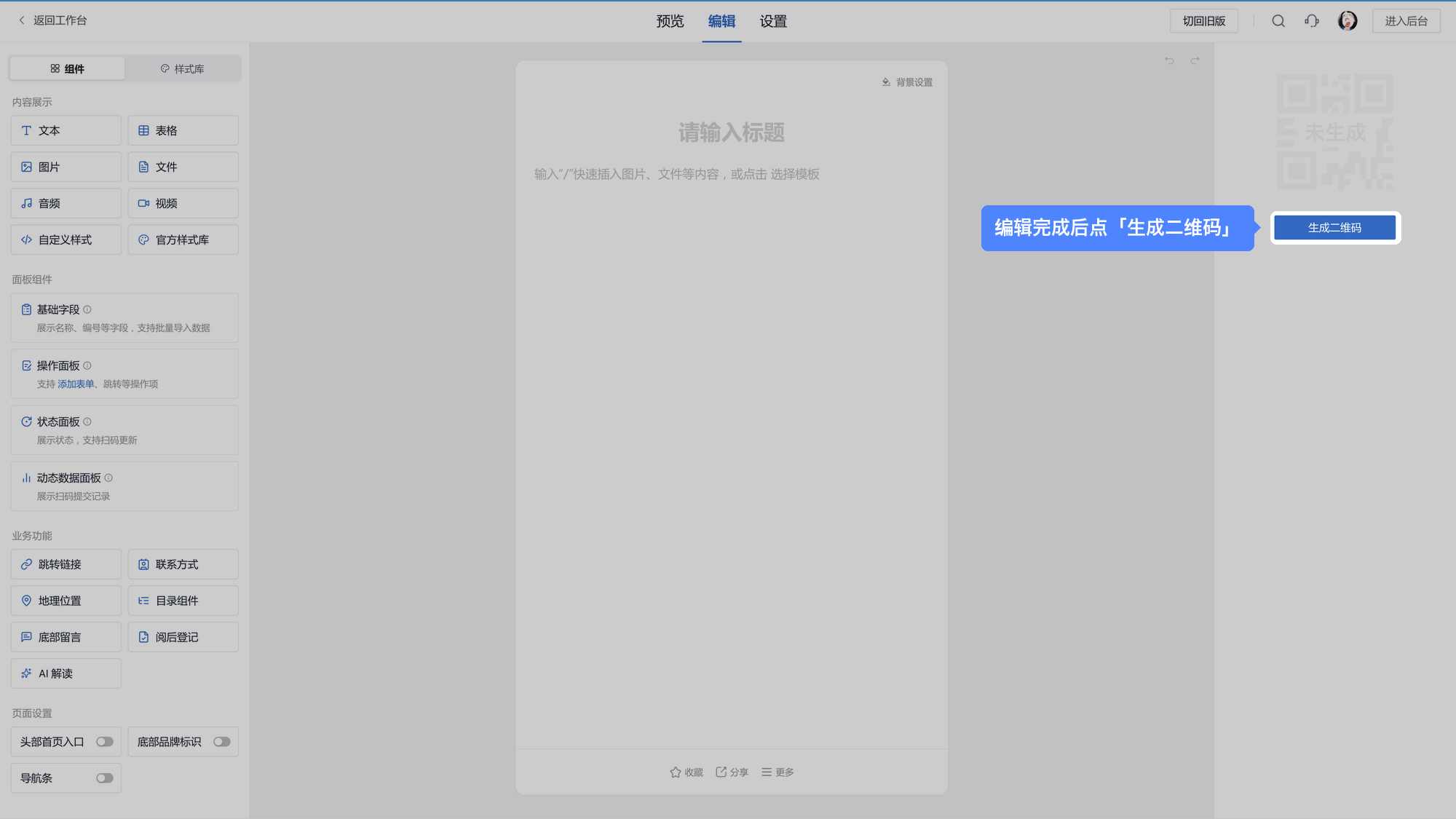
Once editing is complete, click "Generate QR Code" to create the QR code. Choose a label style that suits your needs, customize the color, icon, and background, then download the QR code image for use.
5. Manage and Export Data from the Workbench
After the meeting, log in to the workbench and view check-in data under "Dynamic Data Summary." Export the data for archiving.

