Recurring Tasks
1. Feature Overview
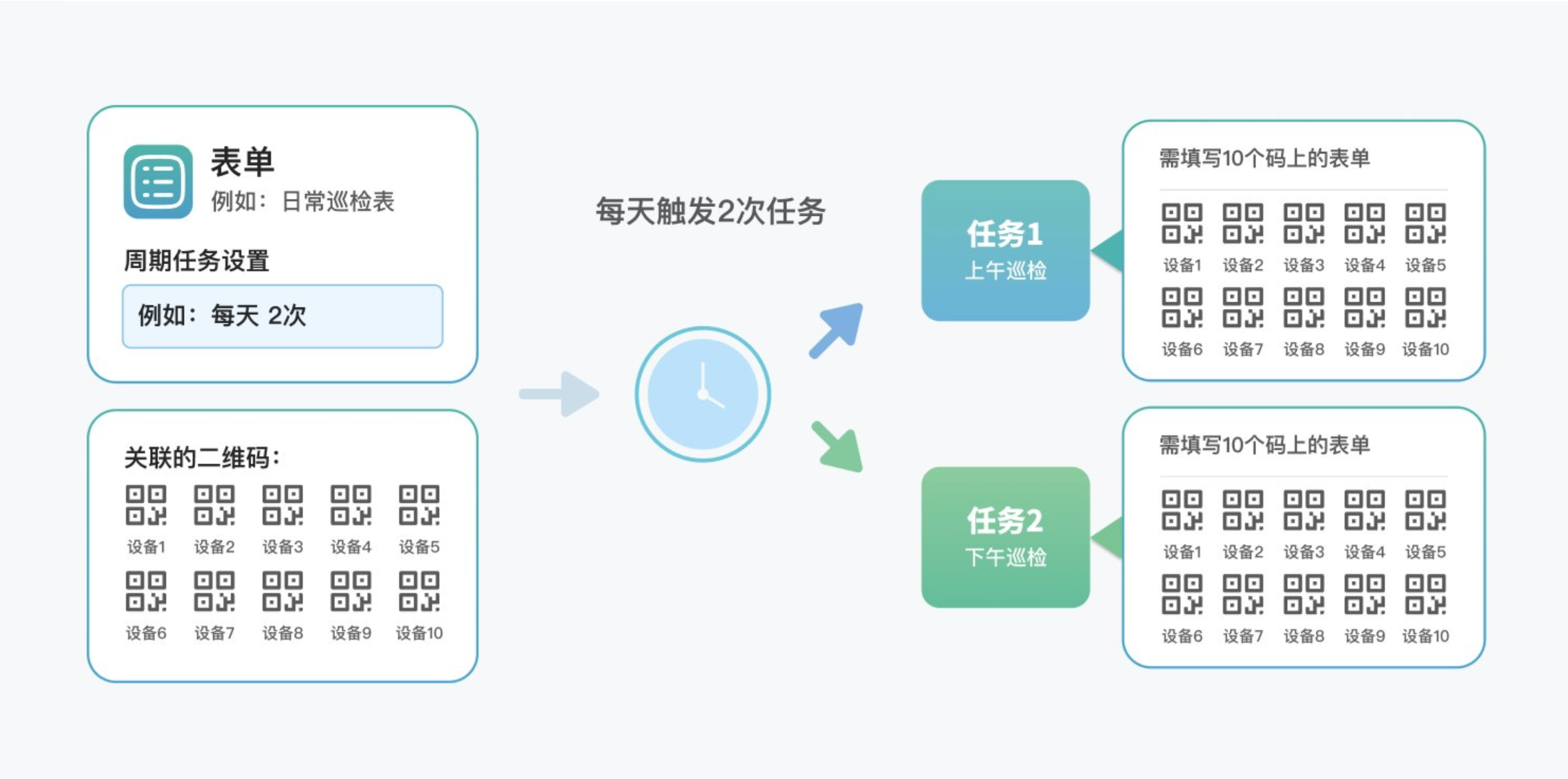
Recurring Tasks work like an alarm clock for your QR codes. Based on the frequency you configure (e.g., daily or weekly), the system automatically publishes form-filling tasks and monitors whether each task is completed on time.
Core logic:
- Form (task rule): Defines the rule, e.g., "inspect 3 times per day."
- QR code (task target): 10 device QR codes associated with that form.
- Result: The system automatically generates 3 to-do tasks per day, one for each of the 10 devices, and tracks completion status.
2. Mobile Display
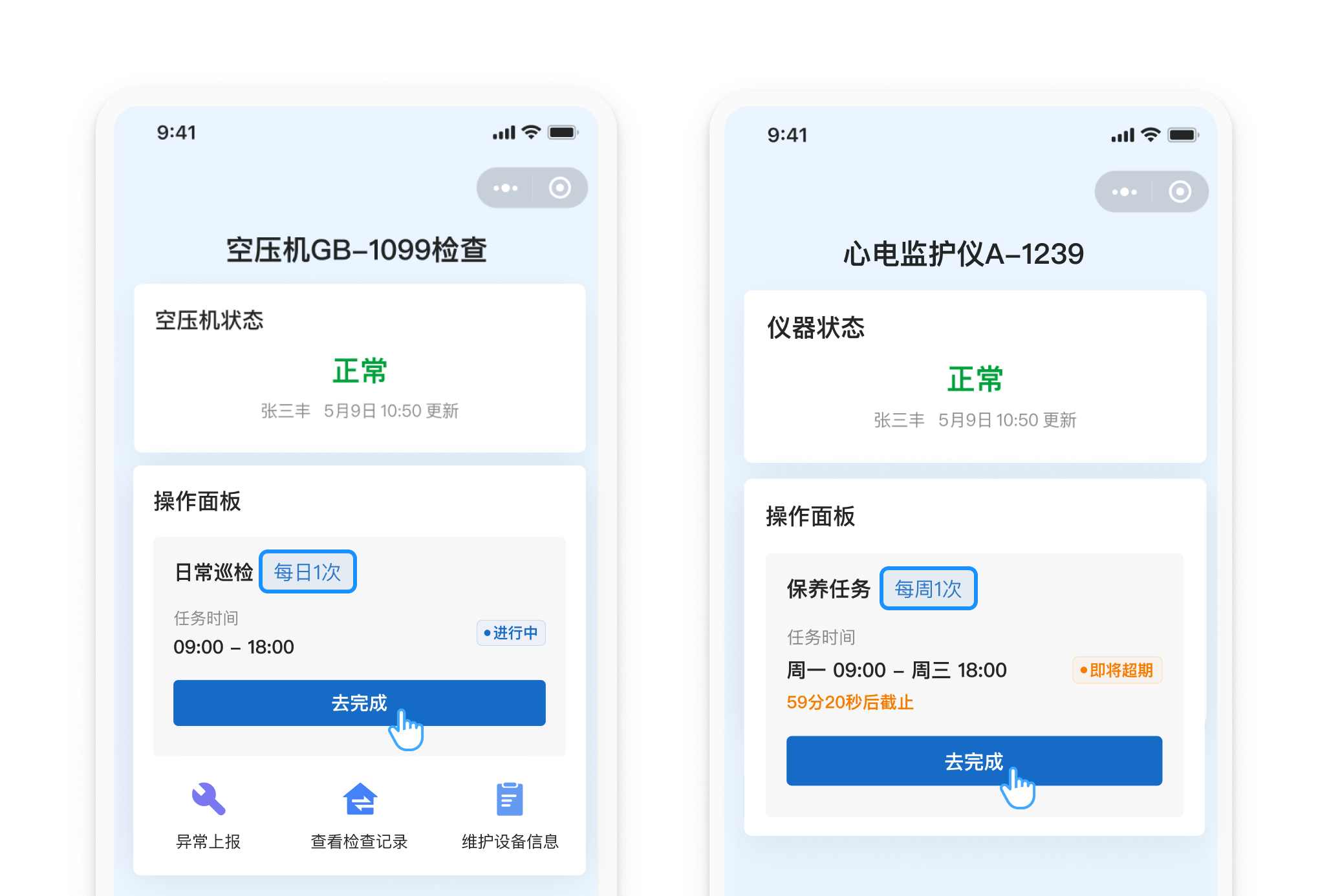
When frontline staff scan the QR code, they see a clear task dashboard:
- Task details: Includes the form name (e.g., "Daily Inspection"), frequency label (e.g., "Once per day"), and task validity window.
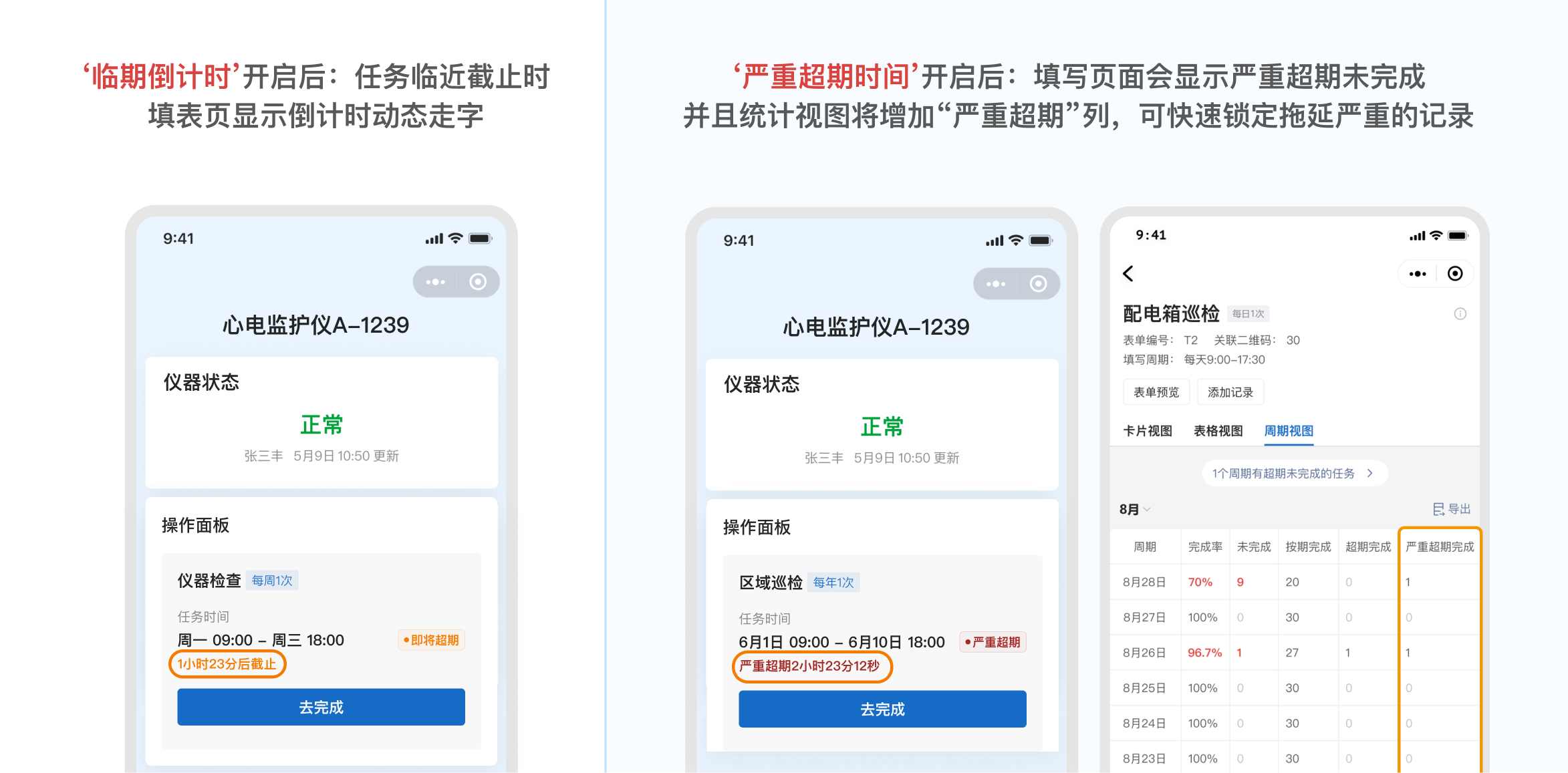
- Countdown highlight: When a task is approaching its deadline, a countdown is prominently displayed (e.g., "Deadline in 59 minutes 20 seconds").
3. Data Statistics and Views
The system automatically aggregates all task completion data and provides multiple viewing options. Currently only available on mobile — desktop is not supported.
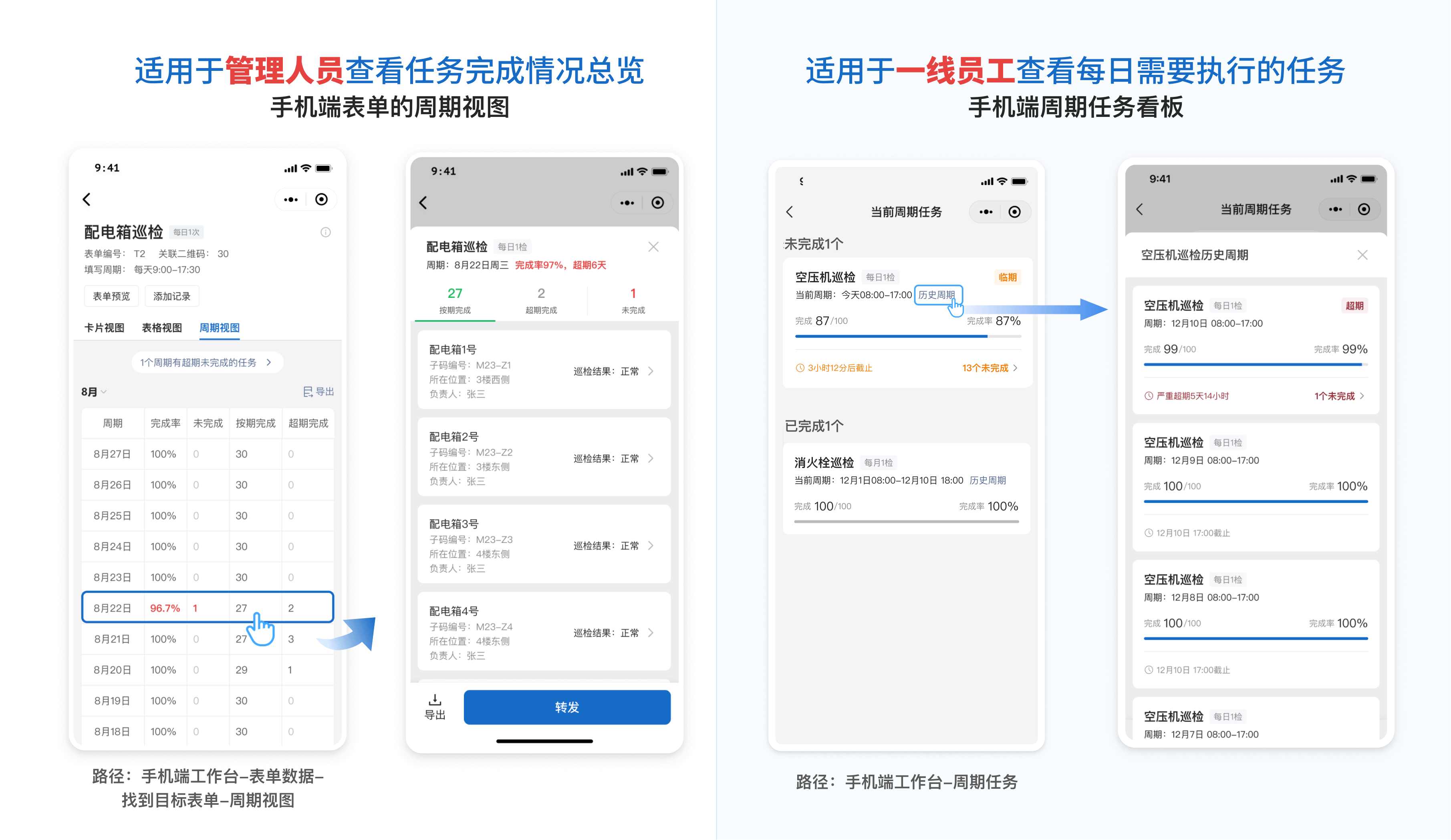
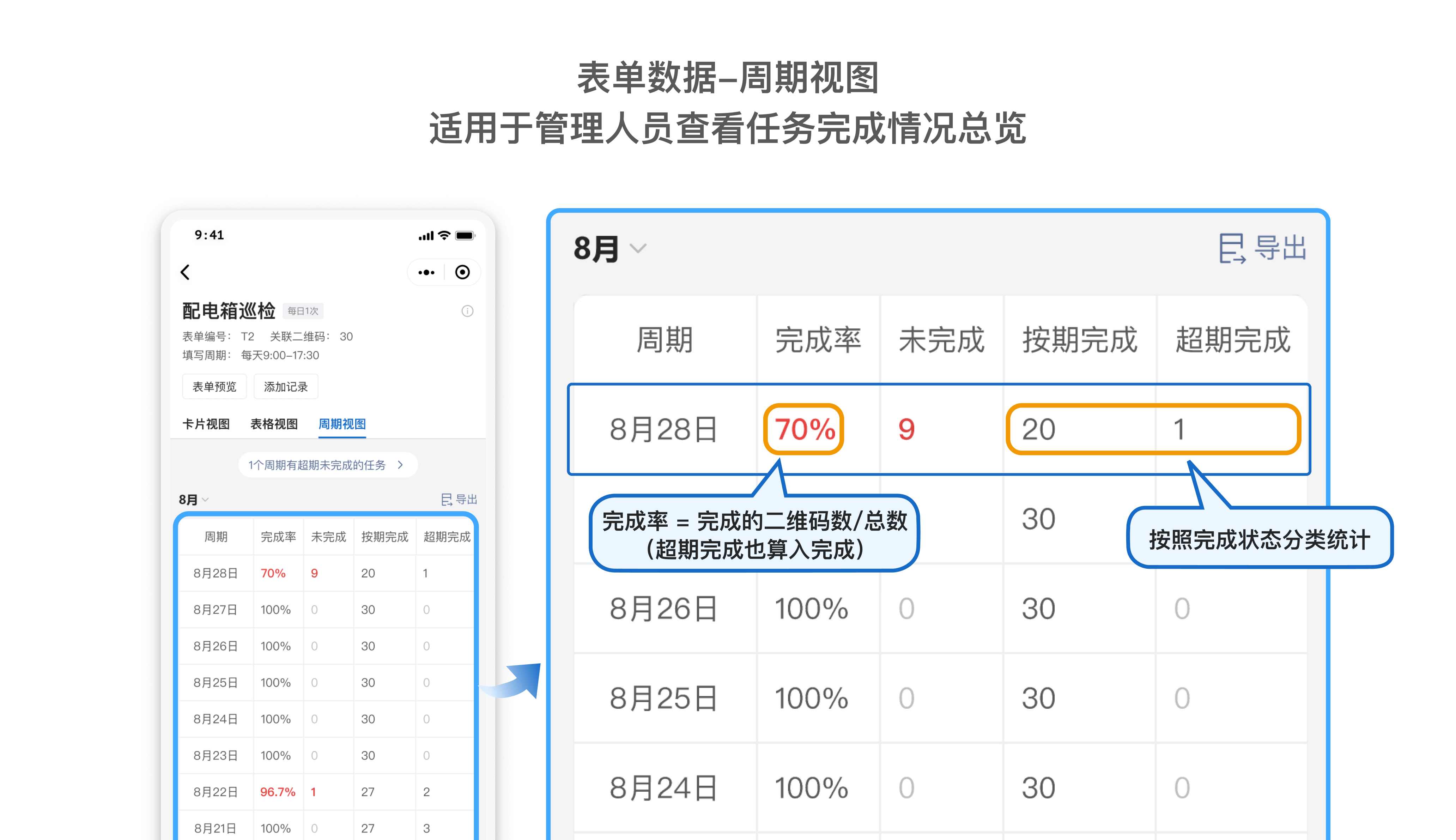
For Administrators: Global Overview
Path: Mobile → Workbench → Form Data → Target Form → Cycle View
Use this to quickly understand overall completion rates and identify which tasks were missed or completed late.
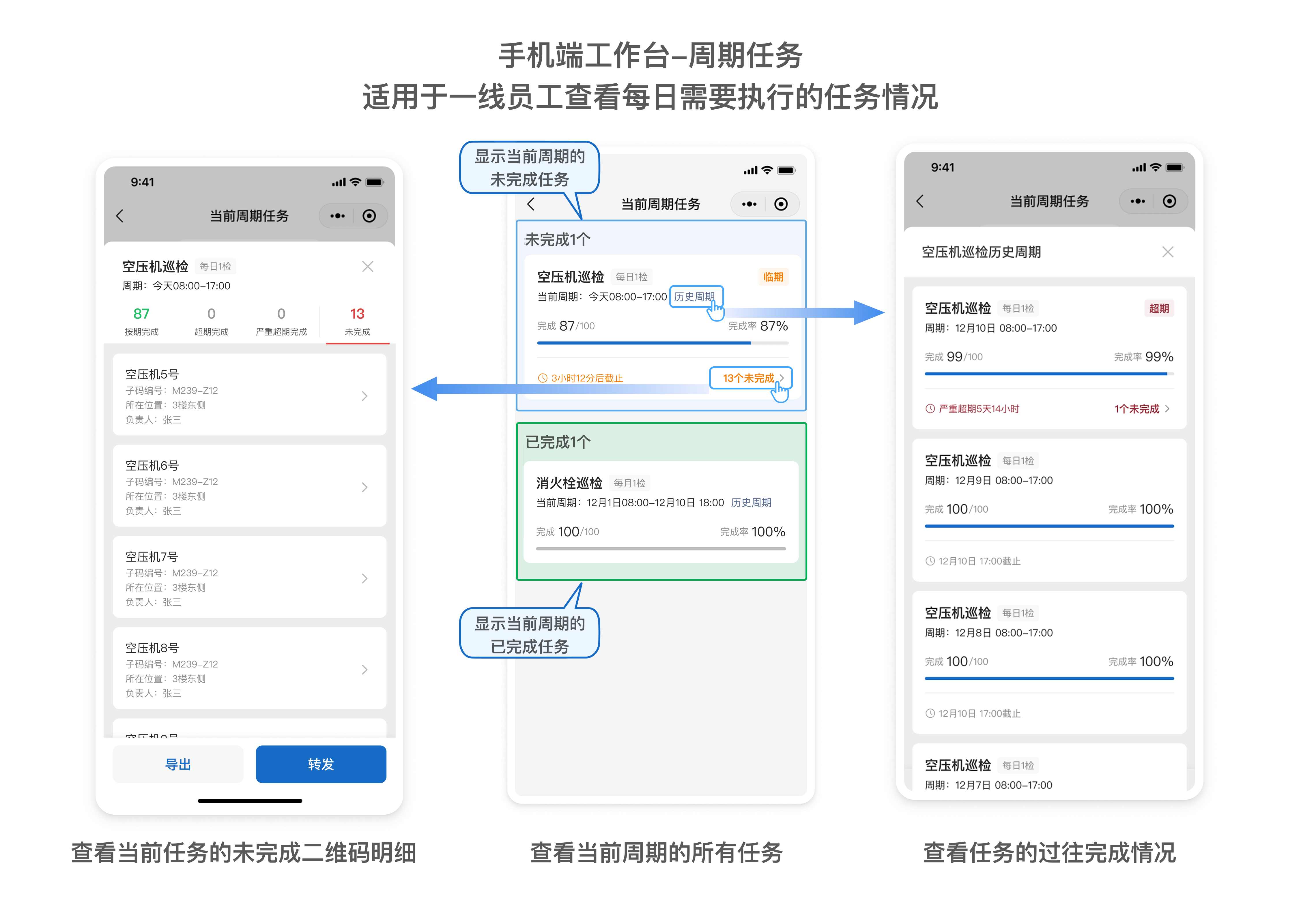
For Frontline Staff: Personal Dashboard
Path: Mobile → Workbench → Current Recurring Tasks
Ideal for frontline staff to check their daily to-do list — a quick glance at the start of each shift shows exactly which locations need attention.
Why can some staff not see tasks? The personal dashboard only shows tasks relevant to that individual. A task will appear only if at least one of the following is true: (1) the staff member has been added as a "notification recipient" for that task (the most common case); (2) the staff member has "QR code admin" permissions. If a staff member reports an empty dashboard, check whether they have been added to the notification recipients in section 5.3.
4. Before You Configure: Is Your QR Code Ready?
Recurring Tasks are dispatched based on existing QR codes. Before starting, confirm your current situation:
-
Situation A (Complete beginner): I haven't created any QR codes yet, or I don't know how to generate them in bulk. 👉 View: Planning your QR codes and tasks from scratch
-
Situation B (Needs splitting): I have bulk templates, but different devices have different inspection frequencies (e.g., some daily, some monthly).
Core principle: Devices with different inspection frequencies must be split into different bulk templates and associated with different forms.
If your devices have different cycle frequencies (e.g., elevators inspected every half month; fire extinguishers inspected monthly), you must set them up separately: (1) Create an "Elevator Inspection" bulk template → add the elevator form → import 50 elevators to generate QR codes → set a "once every half month" recurring task on the form. (2) Create a "Fire Extinguisher Inspection" bulk template → add the fire extinguisher form → import 100 extinguishers → set a "once per month" recurring task on the form.
Not sure how to create a bulk template? View the QR code generation tutorial
-
Situation C (Ready): My QR codes are already set up, and all codes within the same bulk template have consistent cycle frequencies. 👉 Continue to section 5.
5. How to Configure Recurring Tasks
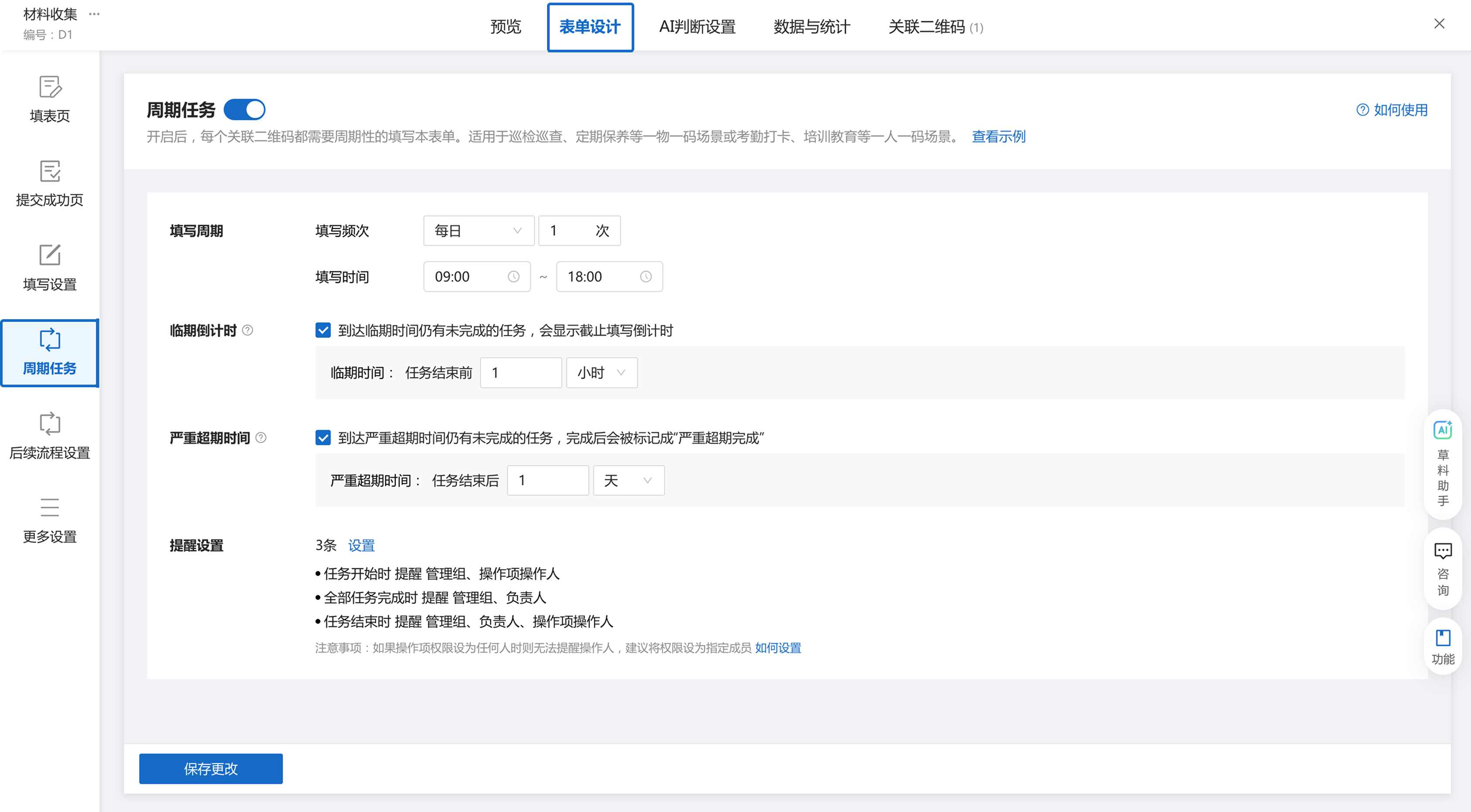
Configuration entry: Open the form, switch to the Settings tab, and select Form Filling Settings → Recurring Tasks in the left menu.
5.1 Cycle Settings (Basic Rules)
Tell the system how often to issue tasks and when they can be filled in.
- Frequency: Supports daily, weekly, monthly, yearly, or statutory working days.
- Example: "Air compressor daily inspection" can be set to "once per statutory working day" or "once per week."
- Valid time window: Set the time range during which task submissions are accepted (e.g., 09:00–18:00).
Note: Submissions are not accepted before the start time. Submissions after the end time are counted as "completed late (makeup submission)." For special situations such as equipment downtime, temporary holidays, or site adjustments, see Q2 in the FAQ.
5.2 Risk Control Settings (Approaching Deadline Countdown and Severe Overdue Time)
To prevent missed tasks and support performance evaluation, the system provides two-level monitoring:
-
Approaching deadline countdown (early warning): Set a time threshold (e.g., 1 hour before the task deadline). The mobile app will display a prominent countdown to remind staff to act.
-
Severe overdue time (performance tracking): Without this setting, all submissions after the deadline are simply "overdue." When enabled, you can define a threshold (e.g., 3 days after the task ends):
- Overdue (completed late): Submitted late, but within the threshold (minor).
- Severely overdue: Submitted well past the threshold (serious violation).
If you do not need fine-grained performance tiers, you can leave this unchecked.
5.3 Reminder Settings
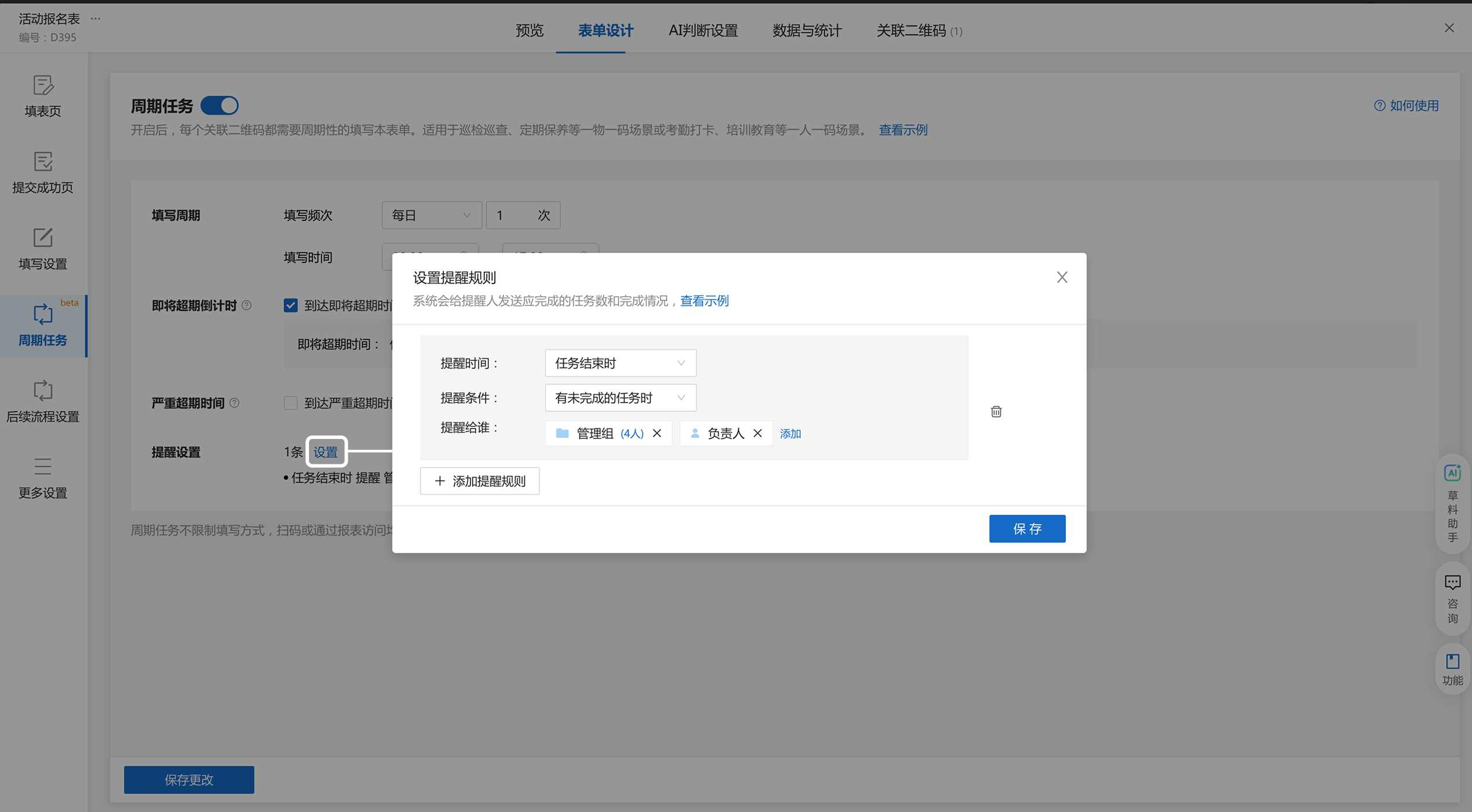
The system can send task notifications to relevant personnel to ensure tasks are completed.
-
Reminder triggers: Configurable for before task start, at task start, at task end, after task end, and more.
-
Reminder conditions: Supports conditional filters, e.g., "only remind if task is not yet completed."
-
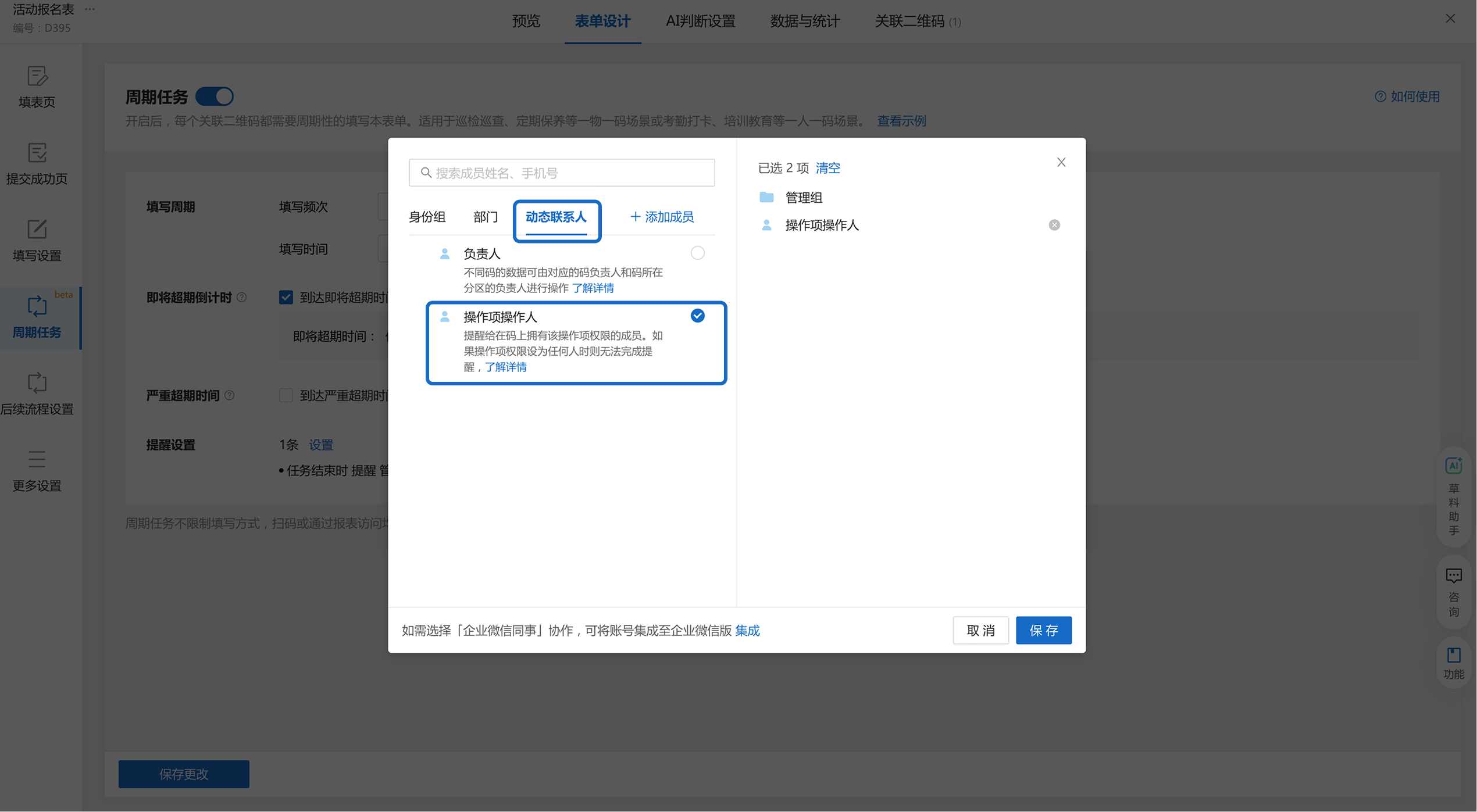
Notification recipients: Can be set by identity group, specific members, or by "task operation person."
Important: "Notification recipients" also determines who can see the task. If a member is not a QR code admin and is not added as a notification recipient, they will not see the task in Mobile → Workbench → Current Recurring Tasks. Make sure all task executors are added.
Advanced: What is "Task Operation Person"?
This is an advanced option for implementing dynamic, role-based notifications.
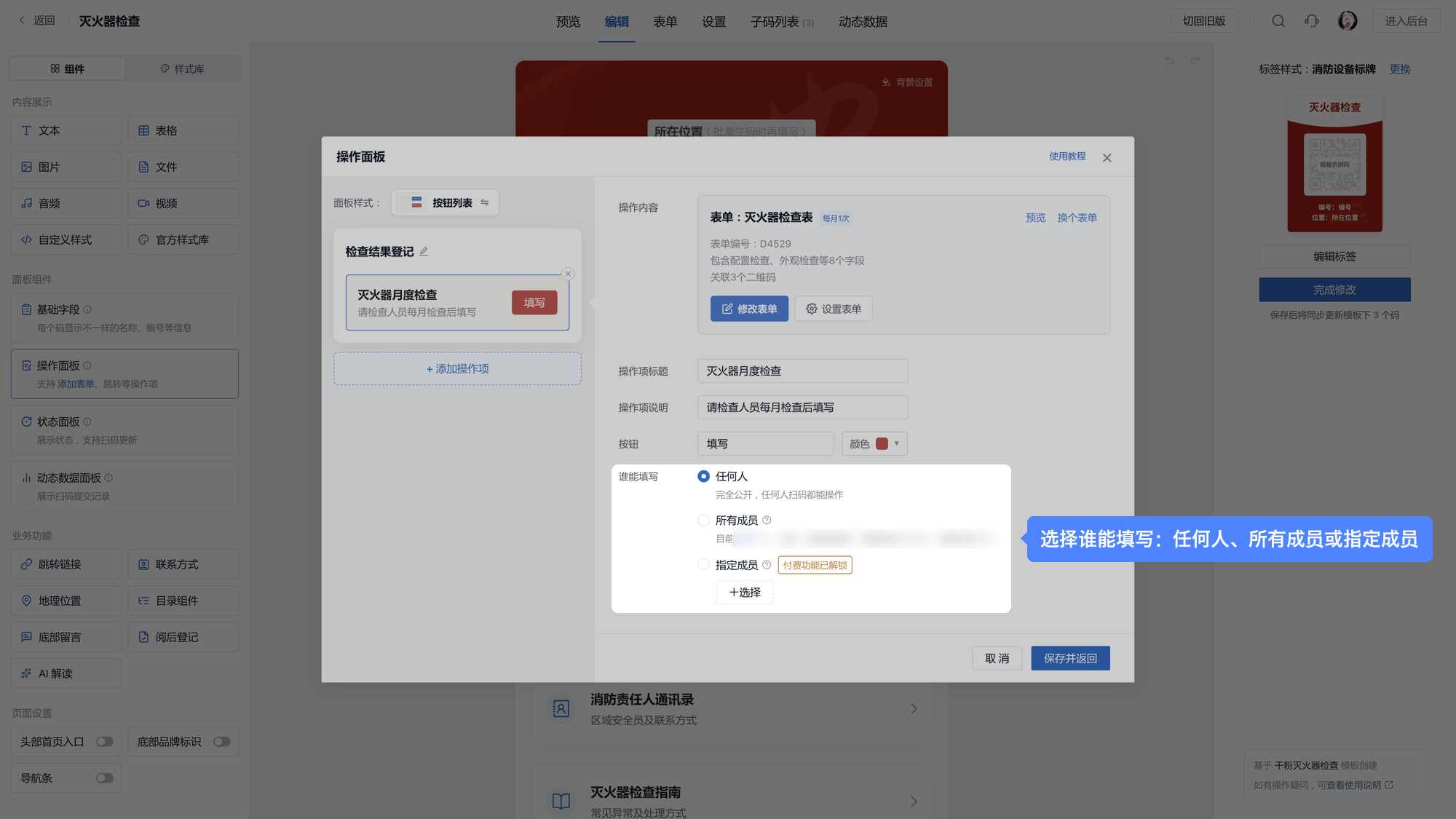
- Use case: When your form is associated with multiple single QR codes or multiple bulk templates, and each is managed by a different person. For example: an inspection form covers Machine A and Machine B, managed by different team leaders. You want Machine A task reminders to go to the Machine A manager, and Machine B reminders to the Machine B manager.
- How to set up: (1) When adding notification recipients, select "Task Operation Person." (2) Go to each bulk template or individual QR code editor and set the "Operation Permission" to the specific member or identity group responsible.
If all codes associated with your form are managed by the same group, you don't need this option — simply specify the recipients directly.
6. FAQ
Q1: An Employee Forgot to Complete a Task — Can They Fill It in Retroactively?
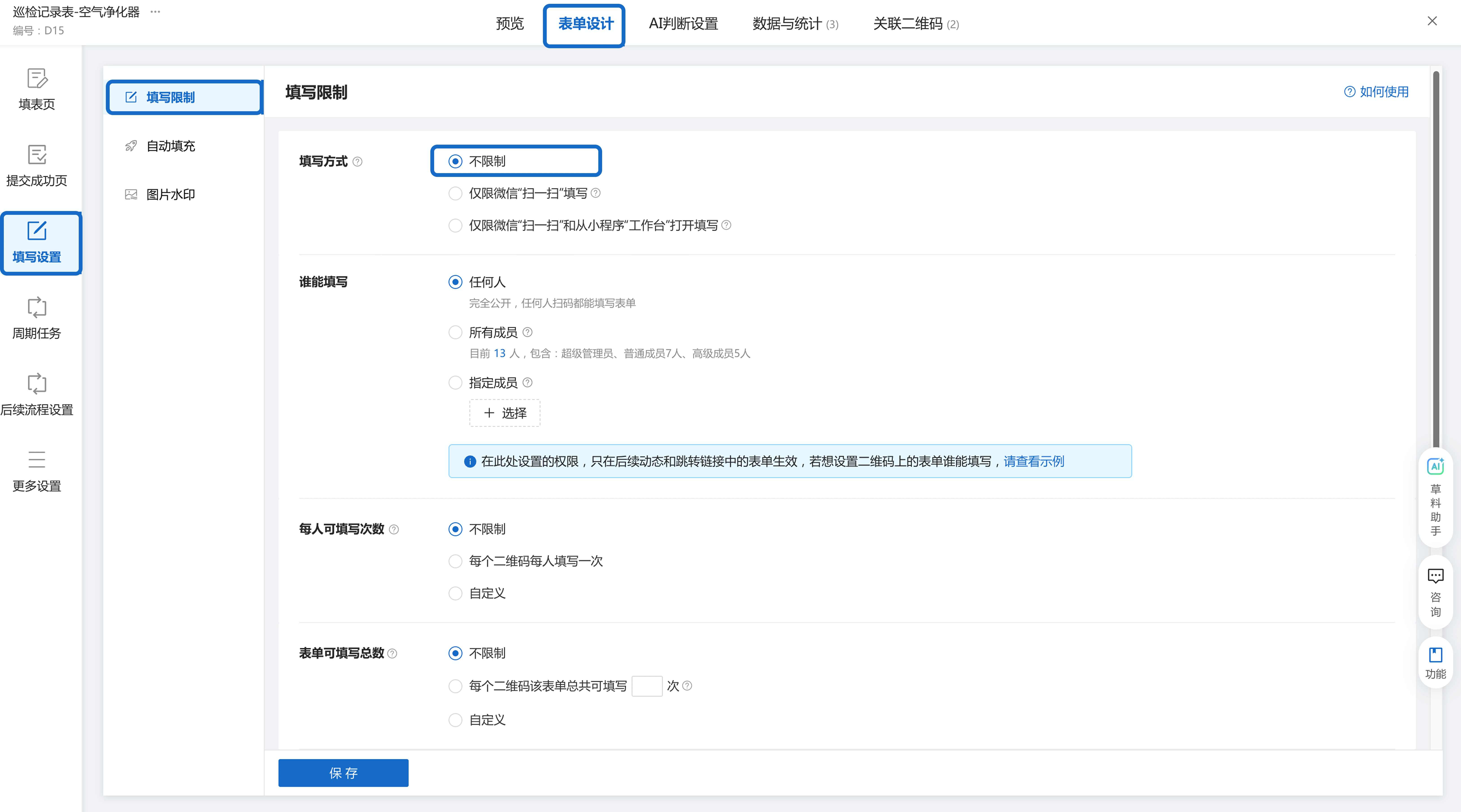
Yes, with conditions. Limitation: If the form's fill method is restricted to "WeChat Scan Only," employees cannot complete makeup submissions (due to WeChat's mechanisms); only super administrators or partition administrators can do so on their behalf. Solution: If you want frontline staff to be able to make up missed tasks, change the form fill method to "Unrestricted."
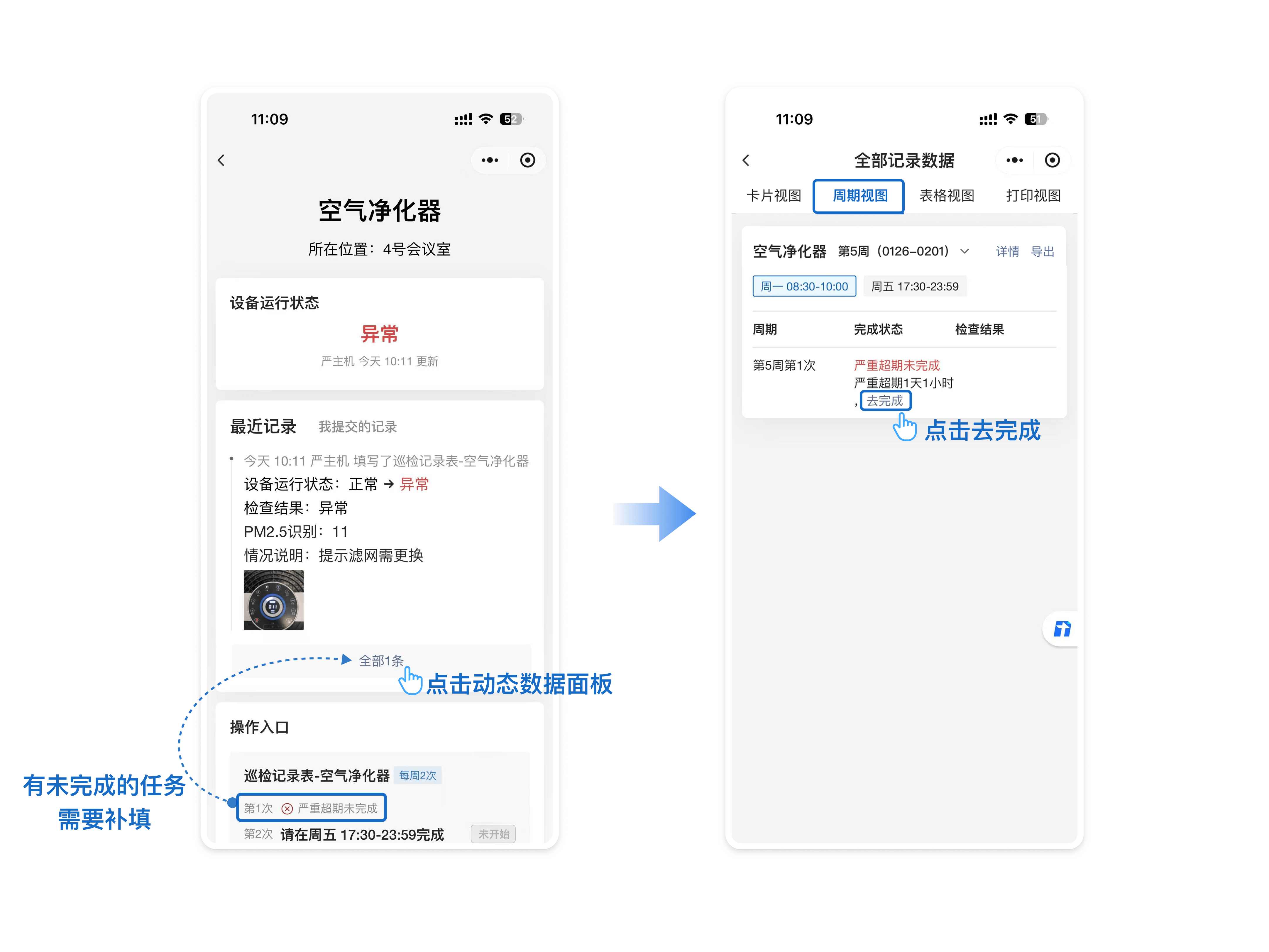
Makeup submission entry: After scanning the QR code, tap Dynamic Data Panel → Cycle View → tap the specific "Go Complete" task.
Note: If the dynamic data panel is not visible after scanning, add it in the workbench first. Learn how to add it
Q2: How Do I Handle Equipment Downtime, Temporary Holidays, or Site Adjustments?
The system supports batch processing of recurring tasks from mobile.
Administrators can manually override task statuses based on actual conditions — marking a batch of tasks as "Completed" or "Not Required."
Three processing modes:
- Apply to this cycle only: Affects only the current task instance; does not affect future cycles.
- Apply for a limited time: Define a custom end date; the system automatically handles tasks for that QR code during that period.
- Apply permanently: Permanently stops generating tasks for that QR code — suitable for decommissioned locations or long-term shutdowns.
Typical scenarios:
- Temporary shutdown: A production line undergoes maintenance for one week. Mark all QR codes as "Not Required for one week" to avoid generating false overdue records.
- Site reduction: Of 20 inspection points, only 10 need to be checked. Mark the remaining 10 points as "Permanently Not Required."

Entry path: Workbench → Current Recurring Tasks → find the tasks to process → click Batch Process.
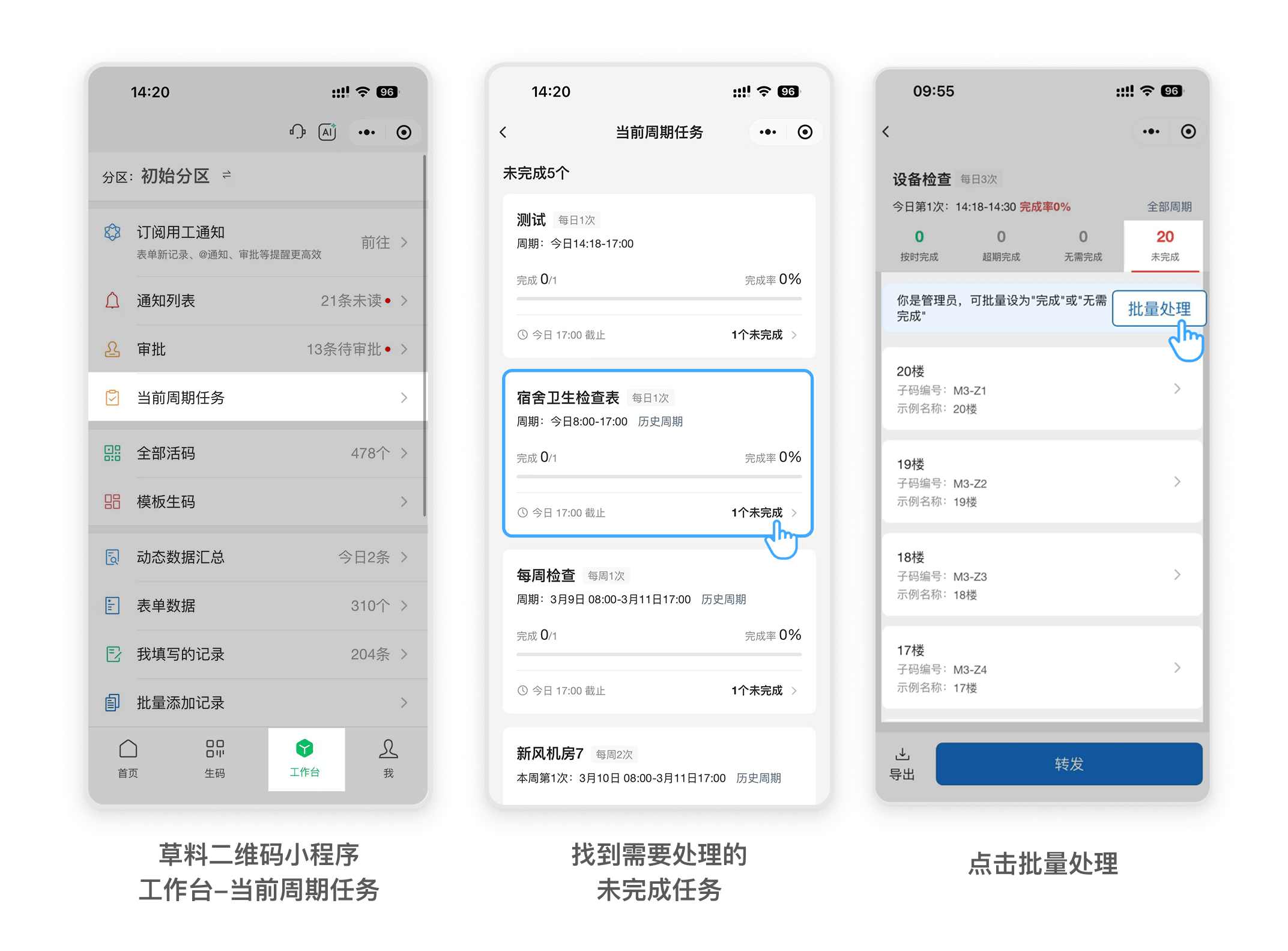
Q3: How Are Statutory Working Days Calculated?
The "Statutory Working Days" option currently generates tasks only on weekdays and makeup workdays (not on statutory public holidays), on a per-day basis. Support for "weekly/monthly tasks that automatically skip statutory holidays" is on the roadmap. For now, using a fixed frequency is recommended.
Q4: Can I Set a Custom Frequency Like "Once Every 10 Months"?
This is not currently supported. Only standard preset frequencies are available: daily, weekly, monthly, and yearly.
Q5: Does the Excel Export Include Task Cycle Status?
The current Excel export primarily covers submission record details. Task cycle view status statistics are not yet directly included. This feature is planned for a future update.
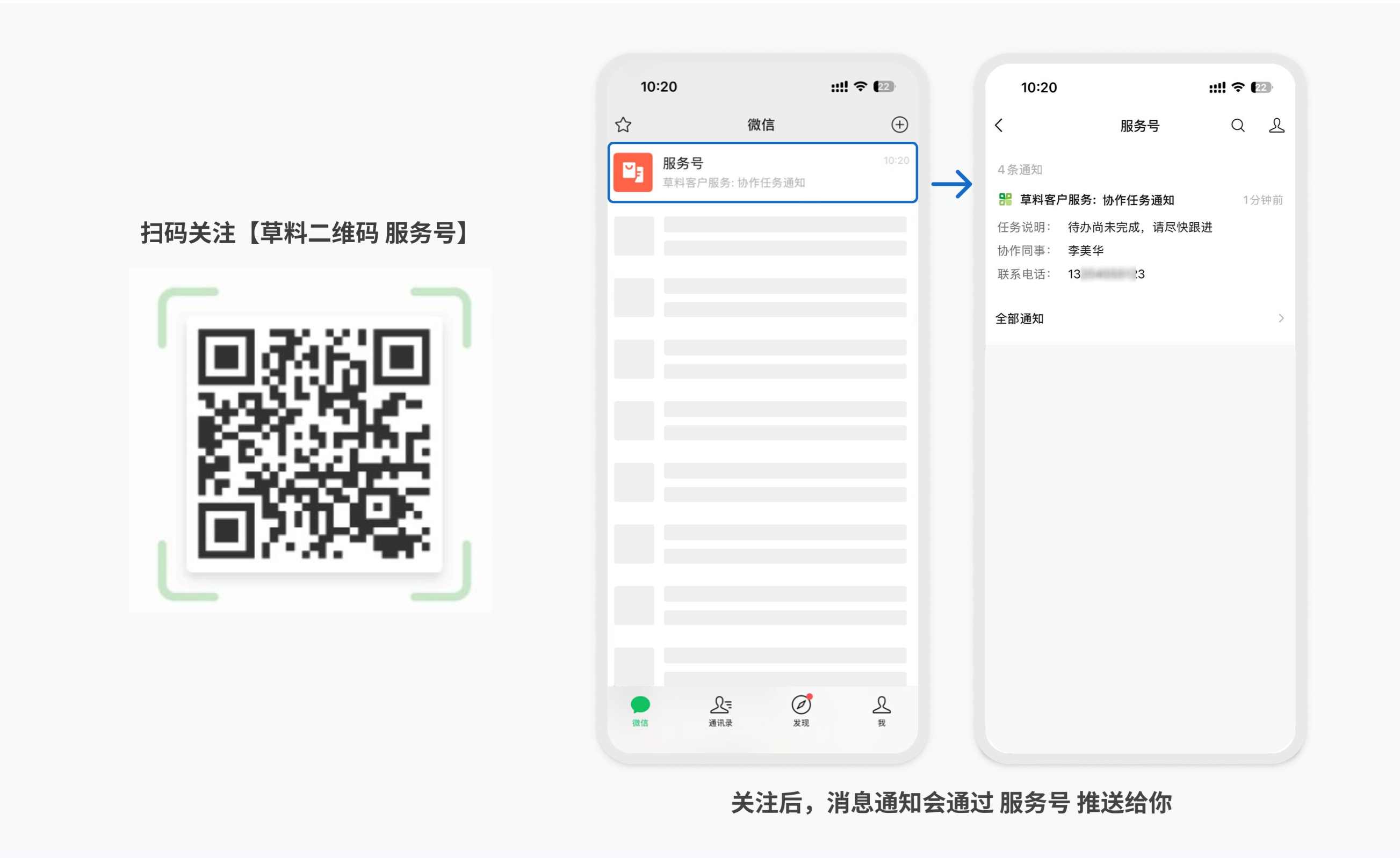
Q6: WeChat Service Account Messages Are Often Collapsed. How Can I Ensure Staff Don't Miss Important Reminders?
First, pin the CaoLiao QR Code service account in WeChat and turn off Do Not Disturb. Users on the Advanced version or above can also enable WeChat work messages to notify members through their phone's system notifications. For the full setup instructions, see How to set up CaoLiao WeChat notifications so you do not miss messages.
Q7: What Is the Difference Between Recurring Tasks and Plan Management?
Recurring Tasks can be thought of as an upgraded, more refined version of Plan Management.
- Plan Management (legacy): More basic experience; staff have limited awareness when scanning; relies more on managers reviewing reports after the fact.
- Recurring Tasks (current): Better experience with countdowns, status labels, and stronger execution drive for frontline staff.
Do they conflict? How do I choose? They do not conflict. New users are recommended to use Recurring Tasks directly.
Q8: Why can't I submit again after completing this cycle?
When a form has recurring tasks enabled, a QR code that has already been completed in the current cycle cannot accept another submission for that task until the next cycle.