How to Set Up CaoLiao WeChat Message Reminders So You Don't Miss Notifications
If your enterprise hasn't set up its own Official Account or exclusive Mini Program, business reminders such as approval reminders, exception to-dos, and new form data are all sent through the CaoLiao QR Code service account by default.
You need to follow the CaoLiao QR Code service account first to receive message notifications.
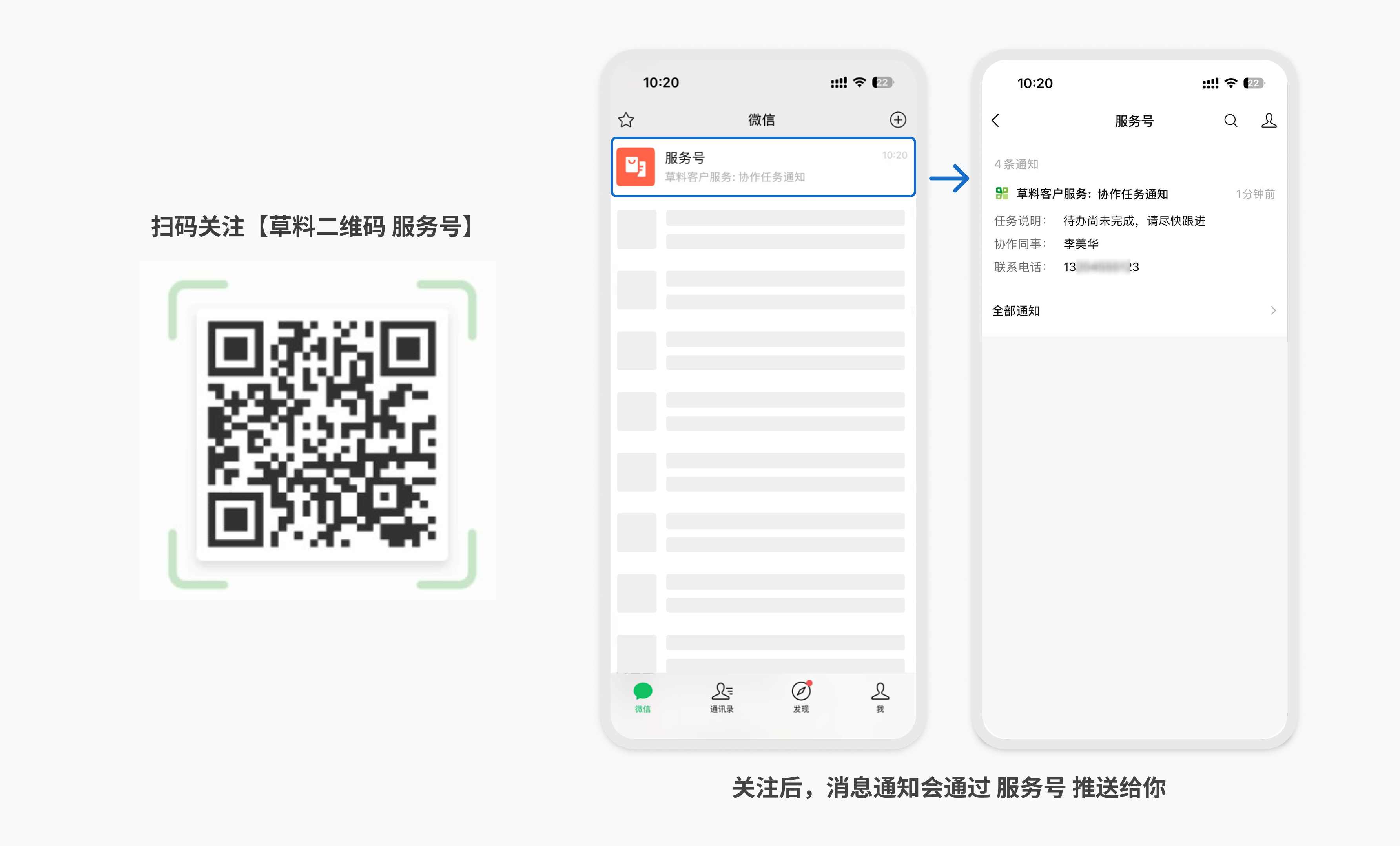
After following, complete the CaoLiao account binding as the service account prompts. Messages go into WeChat's "Service Accounts" list, and don't necessarily show up separately in the chat list like messages from regular friends.
Make Service Account Reminders More Noticeable
Service account messages may be folded away, or silenced by Do Not Disturb with no sound or pop-up. Depending on the problem you run into, use the settings below.
| Problem | Setting |
|---|---|
| Messages get buried under other service account notifications | Pin "CaoLiao QR Code" |
| There are messages in the service account but the phone gives no sound or pop-up | Turn off Do Not Disturb |
| You want reminders for certain messages to have higher priority | Mark as important notification (available on some WeChat versions) |
| WeChat still gives no sound, pop-up, or badge | Check WeChat and phone system notification permissions |
1. Pin "CaoLiao QR Code"
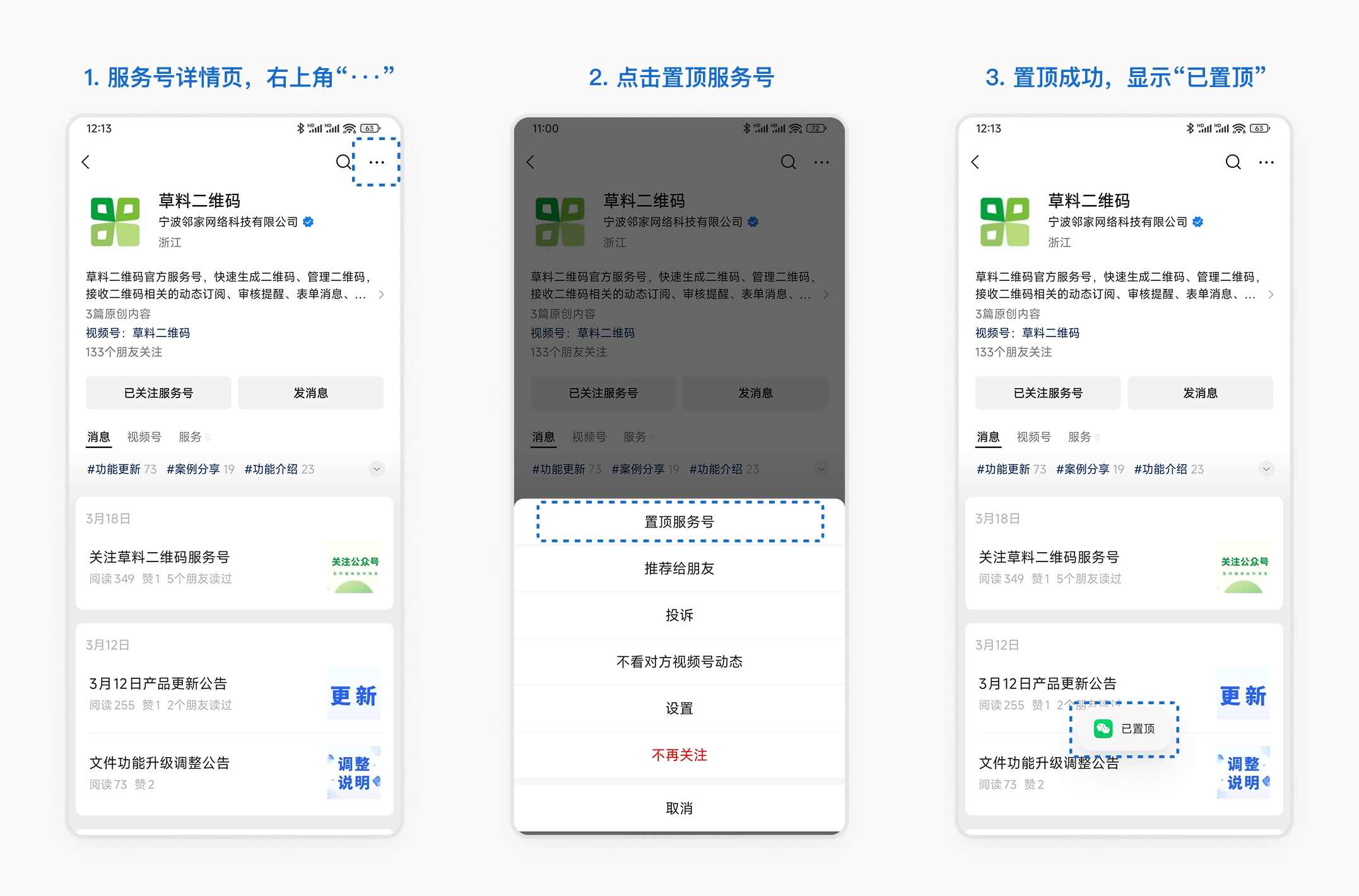
- In WeChat, open the "CaoLiao QR Code" service account.
- Tap "···" at the upper right.
- Go to the service account settings and turn on "Pin Official Account".
After pinning, "CaoLiao QR Code" shows on its own at the top of the WeChat chat list, instead of appearing only inside the folded "Service Accounts" entry.
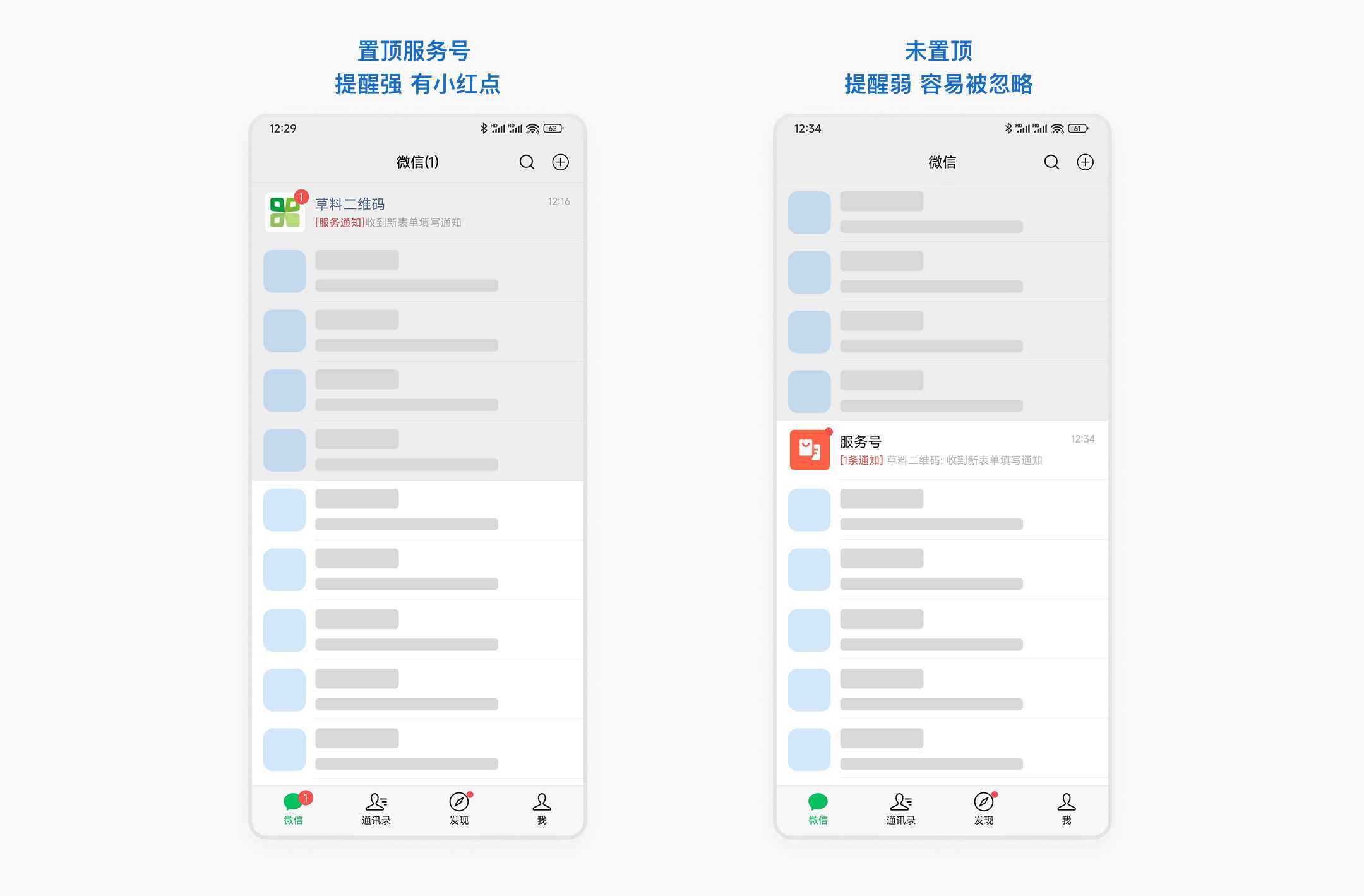
Note: Pinning only changes where the messages sit in the chat list. It doesn't turn on sound, pop-up, or badge reminders.
2. Turn Off Do Not Disturb
If you can see CaoLiao messages in the service account but the phone gives no pop-up or sound:
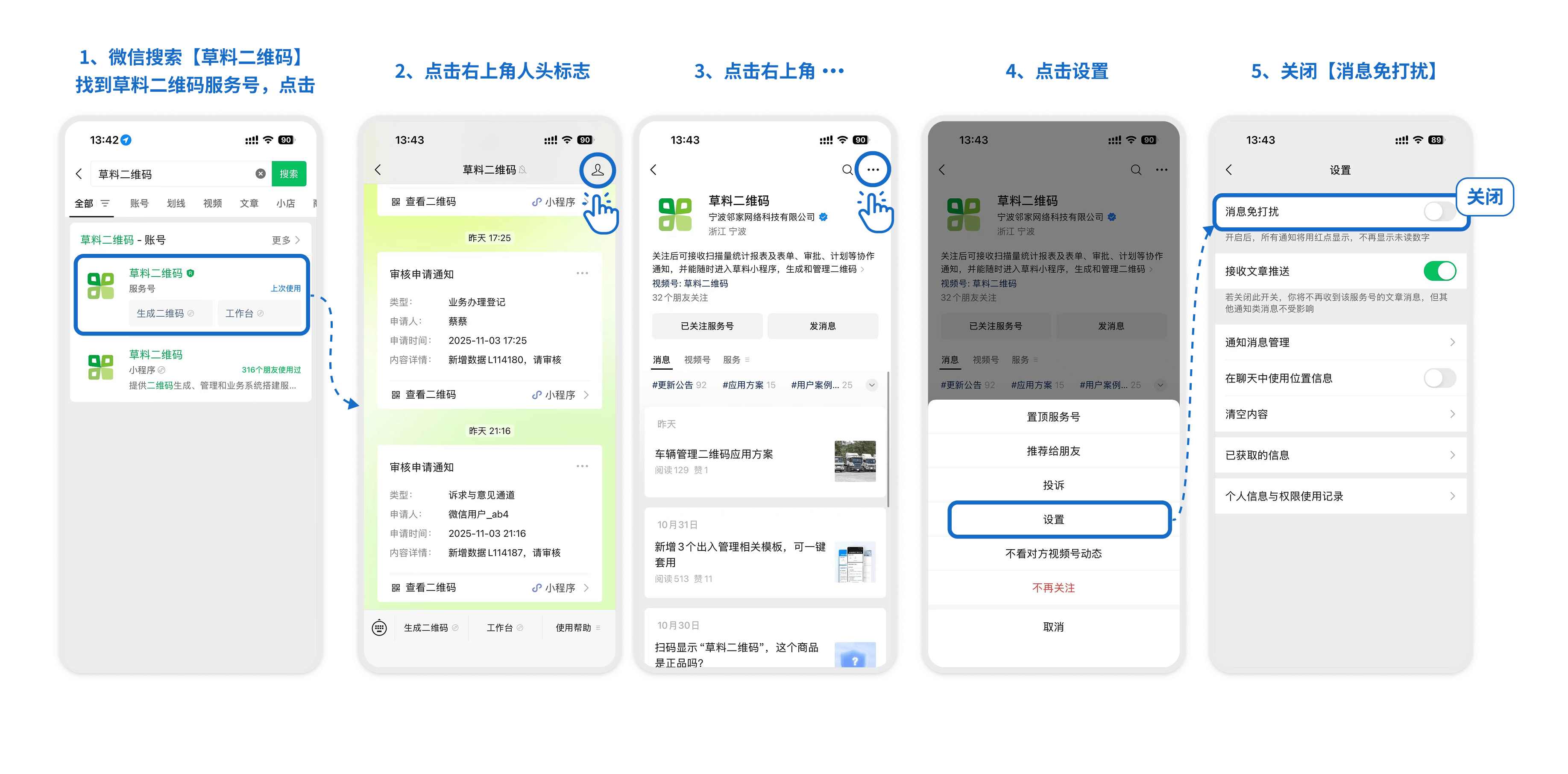
- Open WeChat and go to the "CaoLiao QR Code" service account.
- Tap "···" at the upper right.
- Go to "Settings".
- Turn off "Do Not Disturb".
3. Mark as Important Notification (Available on Some WeChat Versions)
Tap "···" at the upper right of a CaoLiao notification card. If the menu shows "Mark as Important Notification", you can turn that option on.
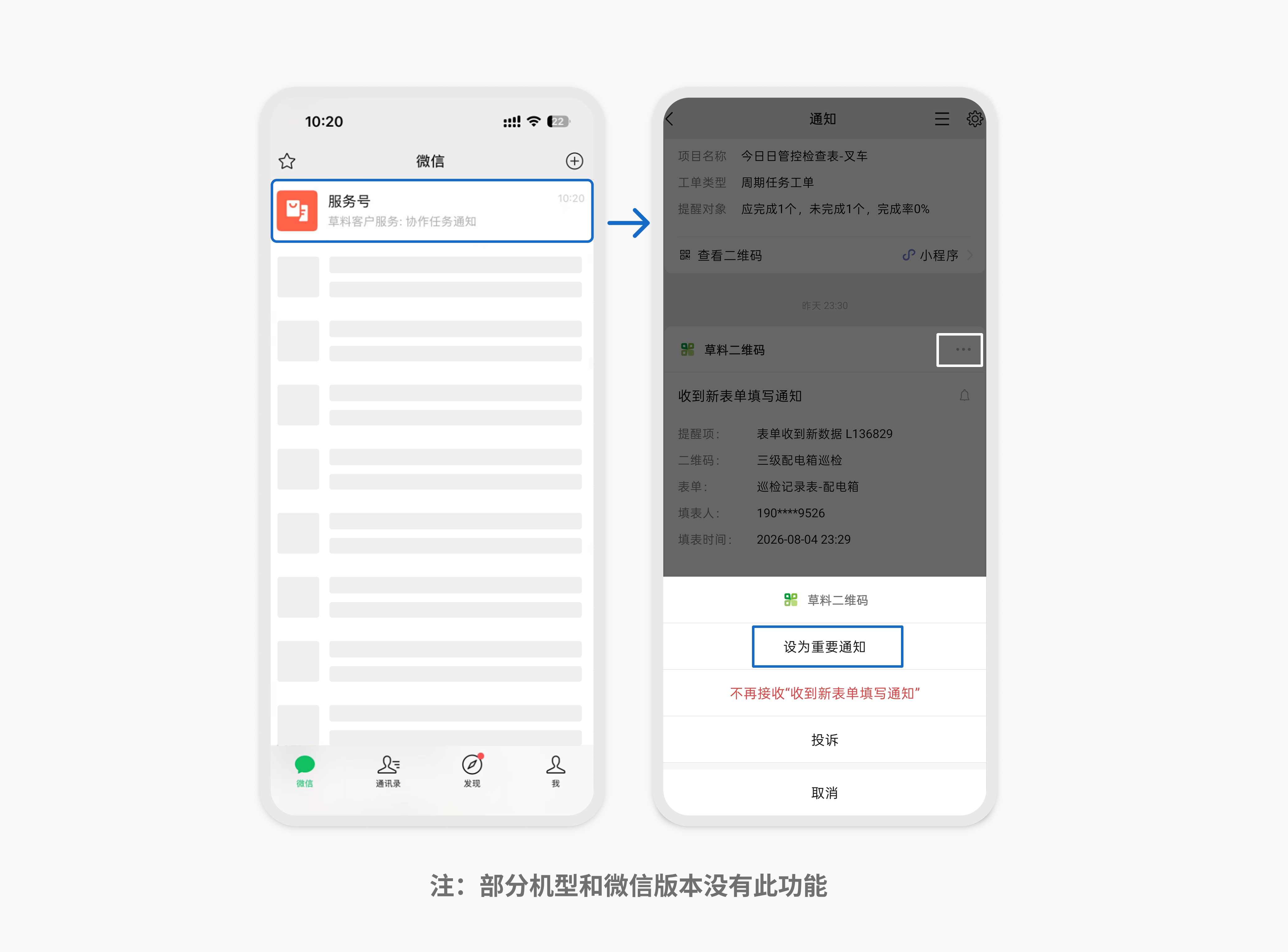
Note: This option depends on the WeChat version, phone system, or account status. It is normal not to see "Mark as Important Notification", so go by what the page actually shows.
4. Check WeChat and Phone System Notification Permissions
If the service account already has new messages and Do Not Disturb is off but the phone still gives no reminder, check these next:
- Whether WeChat is allowed to receive new message notifications;
- Whether the phone system allows WeChat to send notifications;
- Whether the phone is in silent or Do Not Disturb mode;
- Whether the phone restricts WeChat from running in the background.
The entry differs by phone. You can search for "WeChat" or "Notifications" in the phone's system settings.
If Service Account Reminders Aren't Noticeable Enough, Use WeChat Work Notifications
The Advanced Edition and above can turn on WeChat work notifications. These messages are sent through the WeChat system's Mini Program notifications, so they aren't affected by service account folding or Do Not Disturb, and they suit approvals, exception to-dos, and task reminders that need prompt handling.
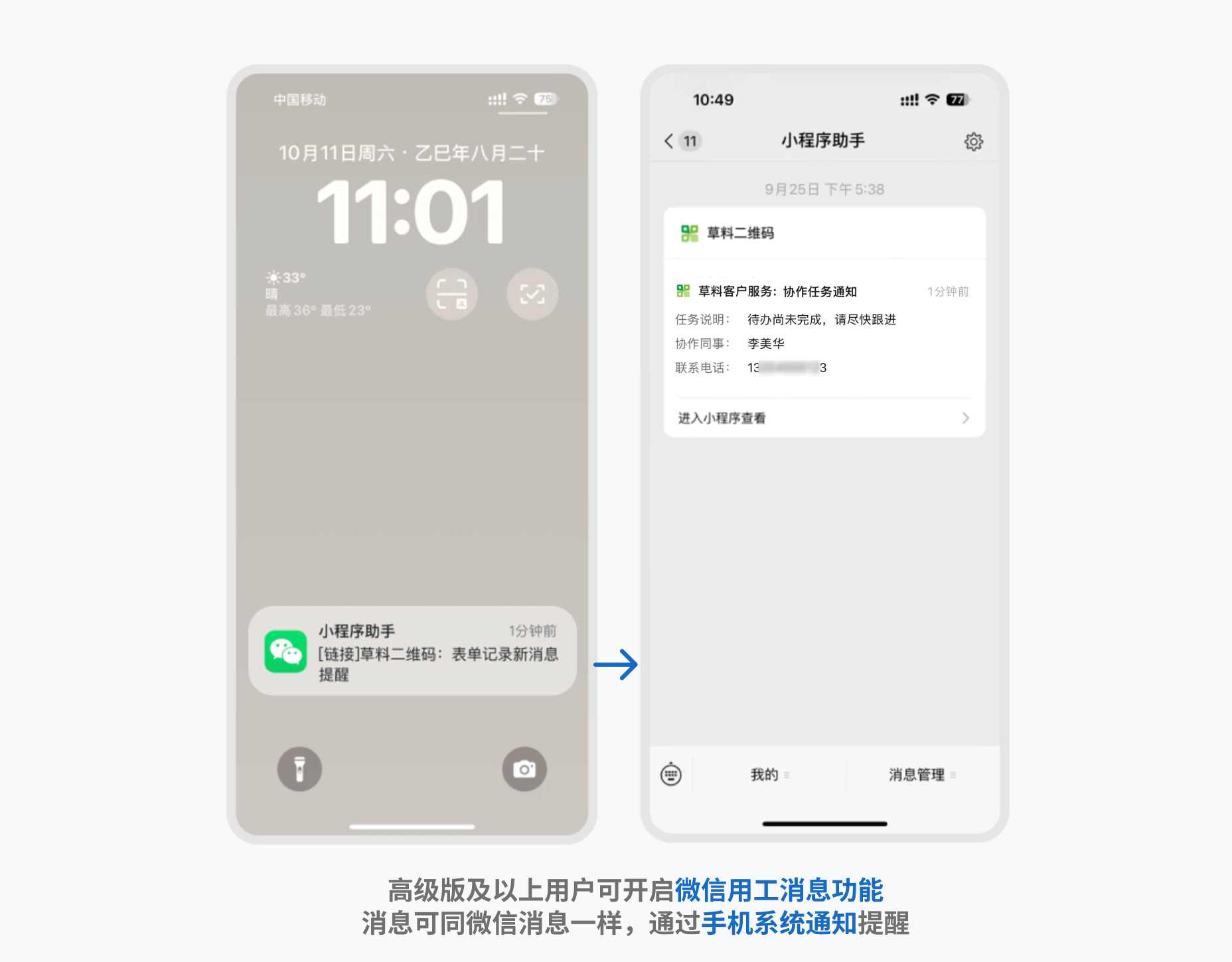
Note: Different business features may support different reminder channels. Whether work notifications are supported depends on the options shown on that feature's settings page.
Turning on work notifications takes two steps: the admin turns it on and members subscribe. If only one step is done, members may still not receive notifications.
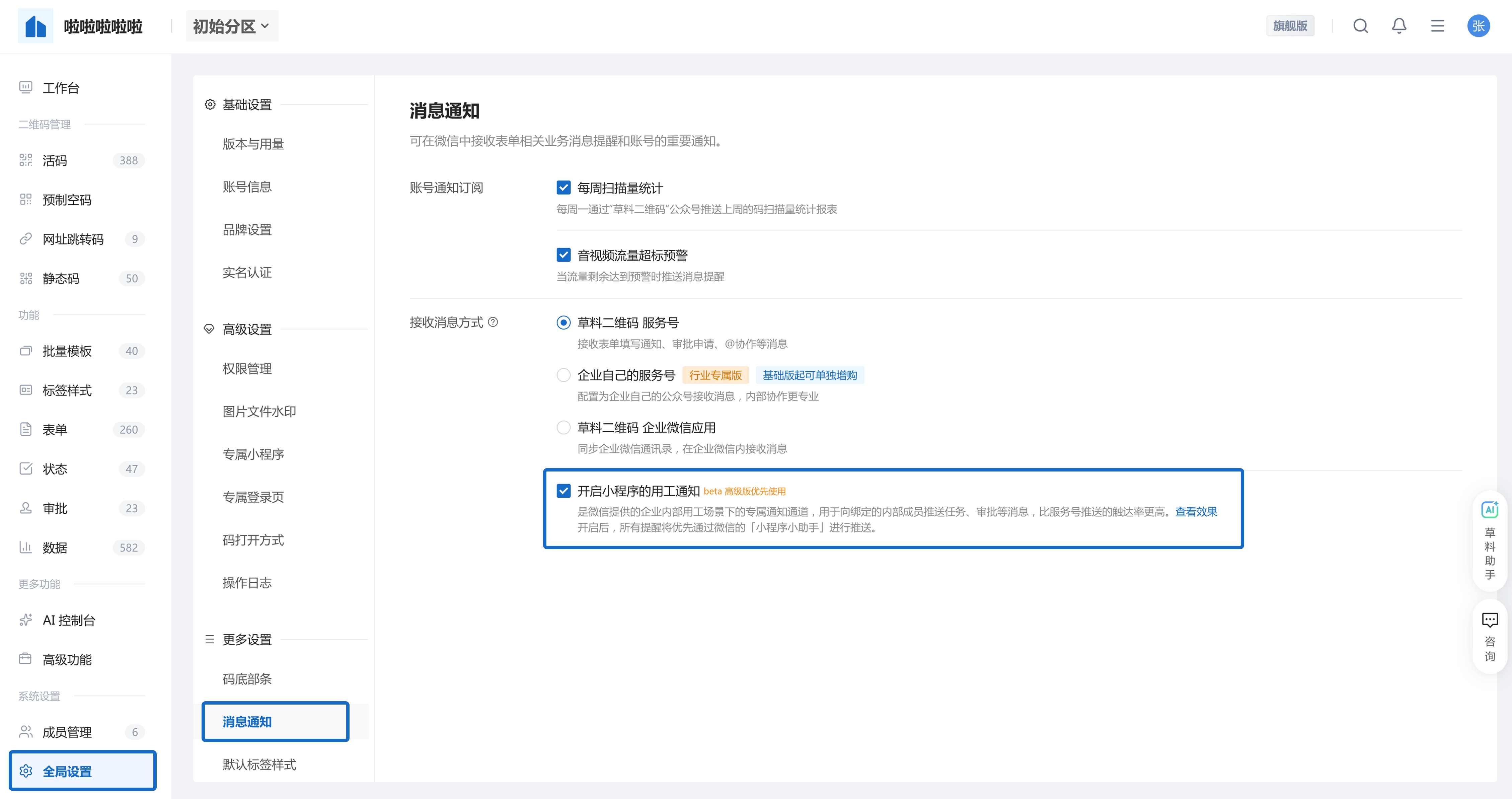
1. The Admin Turns on Work Notifications
The admin goes to Global Settings in the CaoLiao workbench and turns on "Mini Program Work Notifications".
2. Members Subscribe to Work Notifications
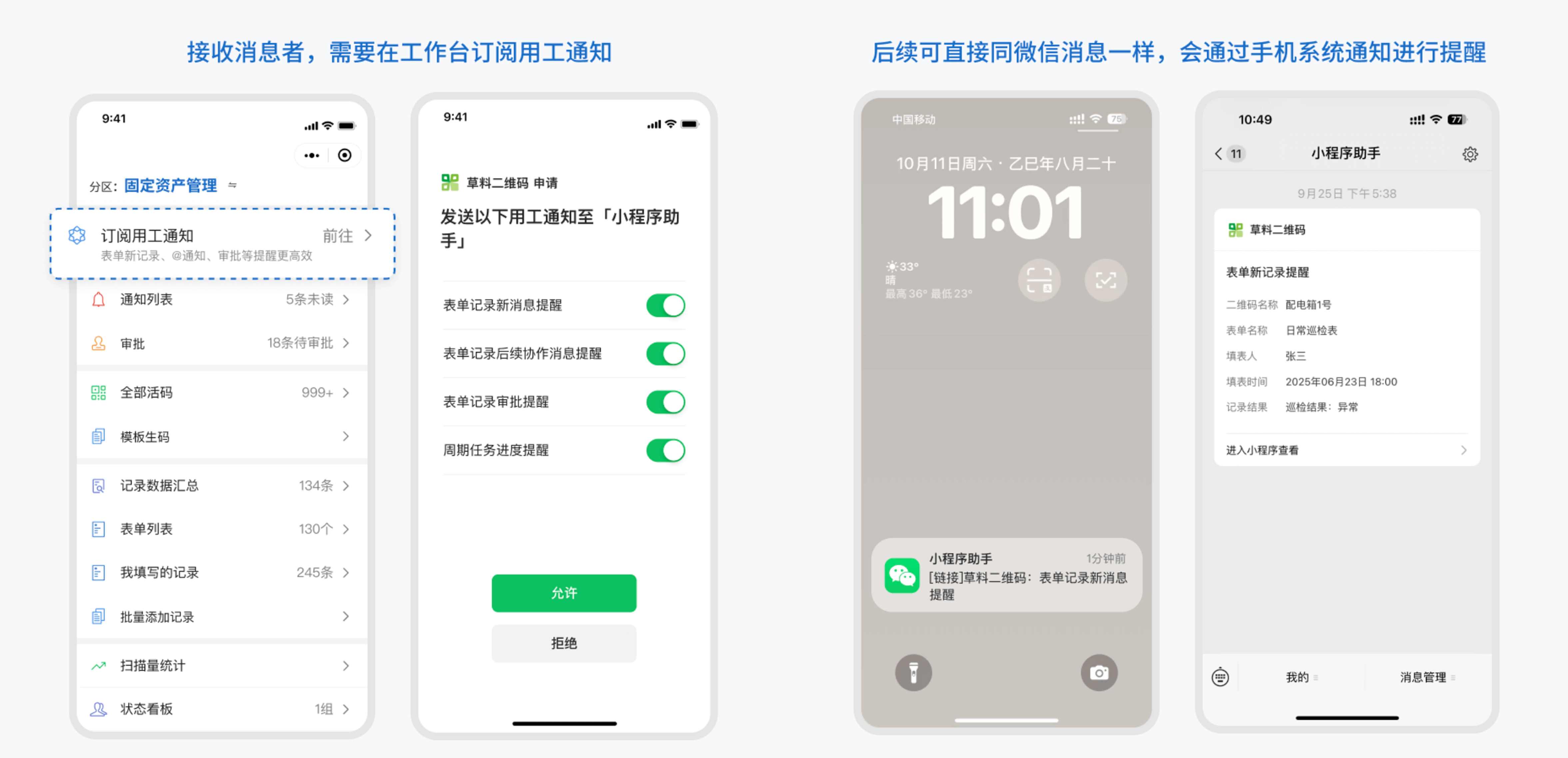
After the admin turns it on, members who receive reminders also need to:
- Open the CaoLiao QR Code Mini Program.
- Go to the Mini Program workbench.
- Subscribe to work notifications as the page prompts.
What to Check When You Don't Receive Messages
The CaoLiao QR Code Service Account Isn't Receiving
- Whether the related business has actually triggered a reminder, for example an approval was submitted, data met the reminder condition, or an exception to-do was generated.
- Whether the recipient set in the feature is correct.
- Whether the recipient's WeChat has followed the "CaoLiao QR Code" service account.
- Whether the service account is bound to the correct CaoLiao account.
- Whether WeChat and the phone system allow notifications.
If you still can't receive messages after these steps, click "Consult" → "Feedback" at the lower right of a CaoLiao page and give the business feature name, the recipient, and the trigger time so we can investigate further.