QR Code Workbench Management
Editing QR Code Content
Note: If you generated a text/URL static QR code on the CaoLiao homepage, its content cannot be modified.

Dynamic QR codes can have their content modified while the QR code pattern stays the same. Here's how:
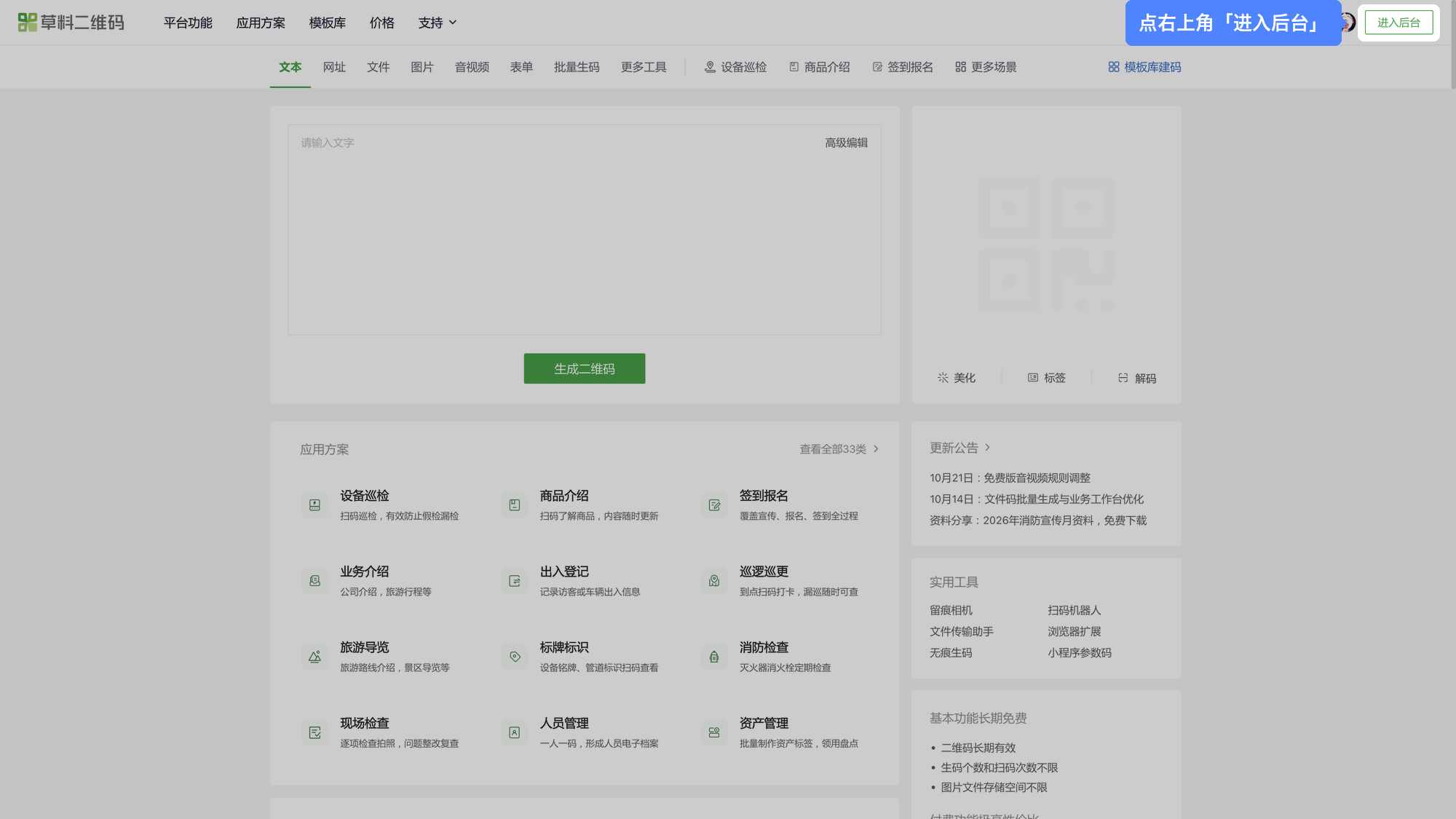
- Log in to your CaoLiao account and click [Enter Backend] in the top-right corner
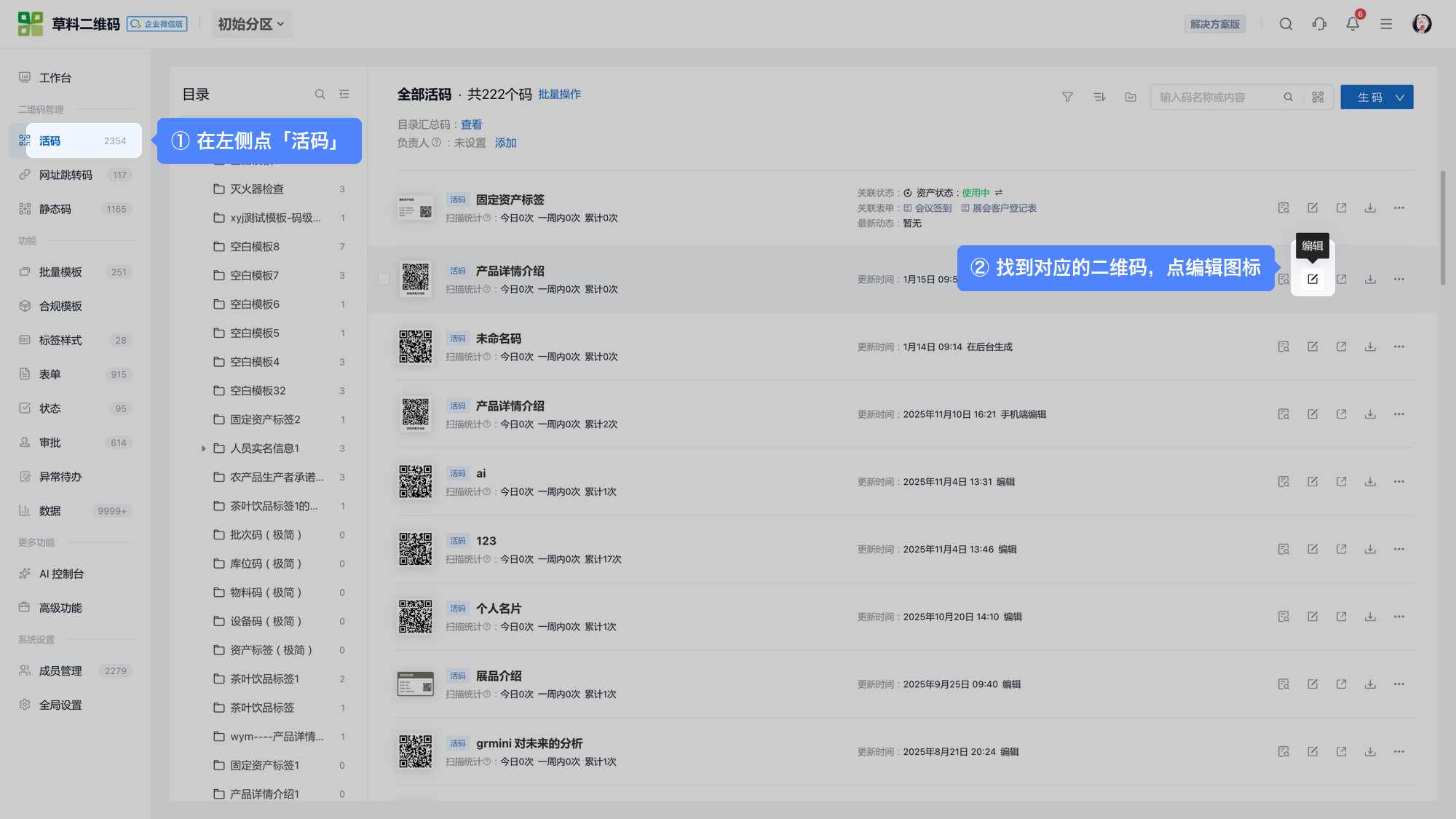
- Find the QR code in the Dynamic QR Codes list on the left and click the [Edit] icon;
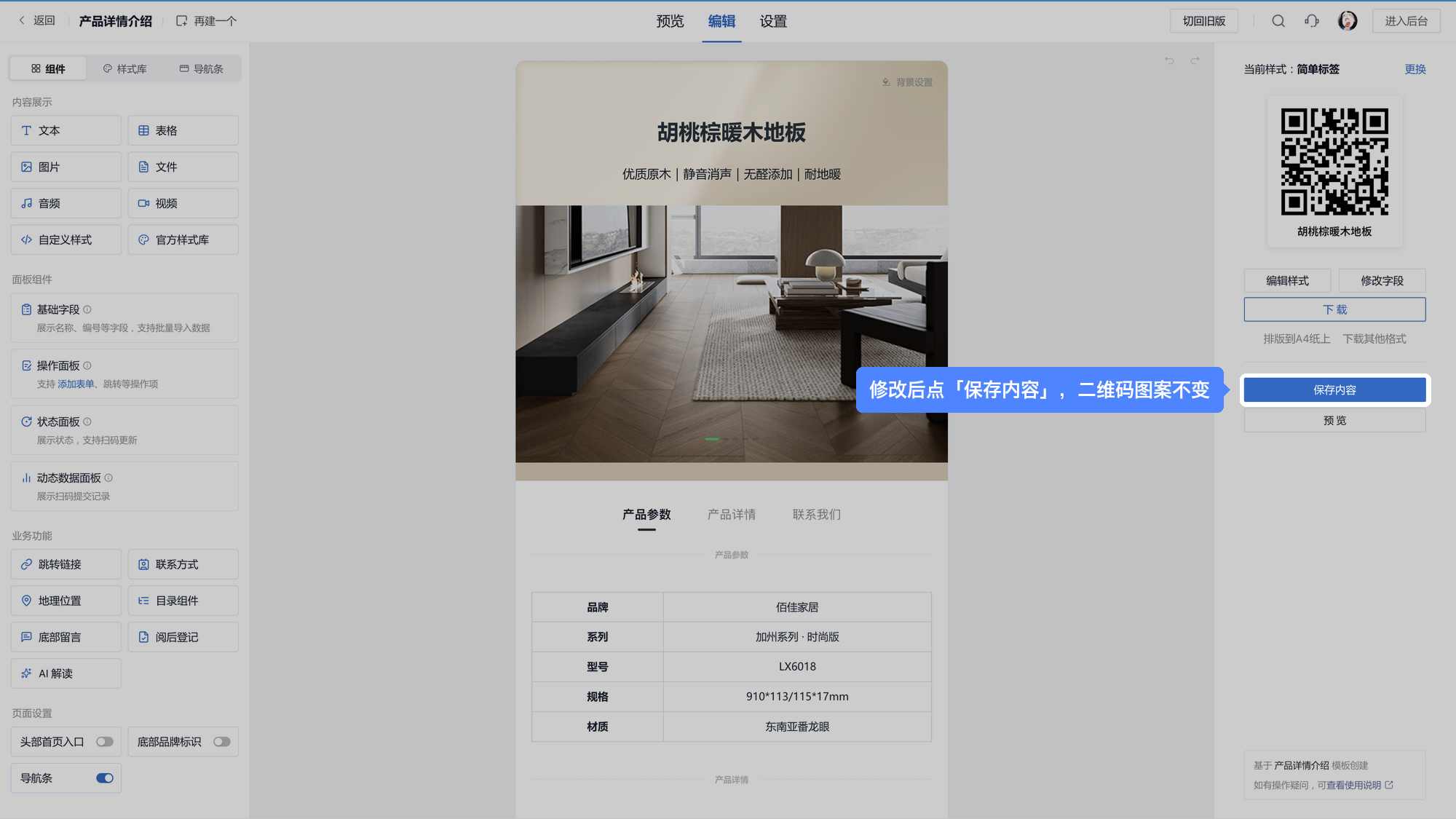
- Edit the content and click [Save Content];
QR Code Settings
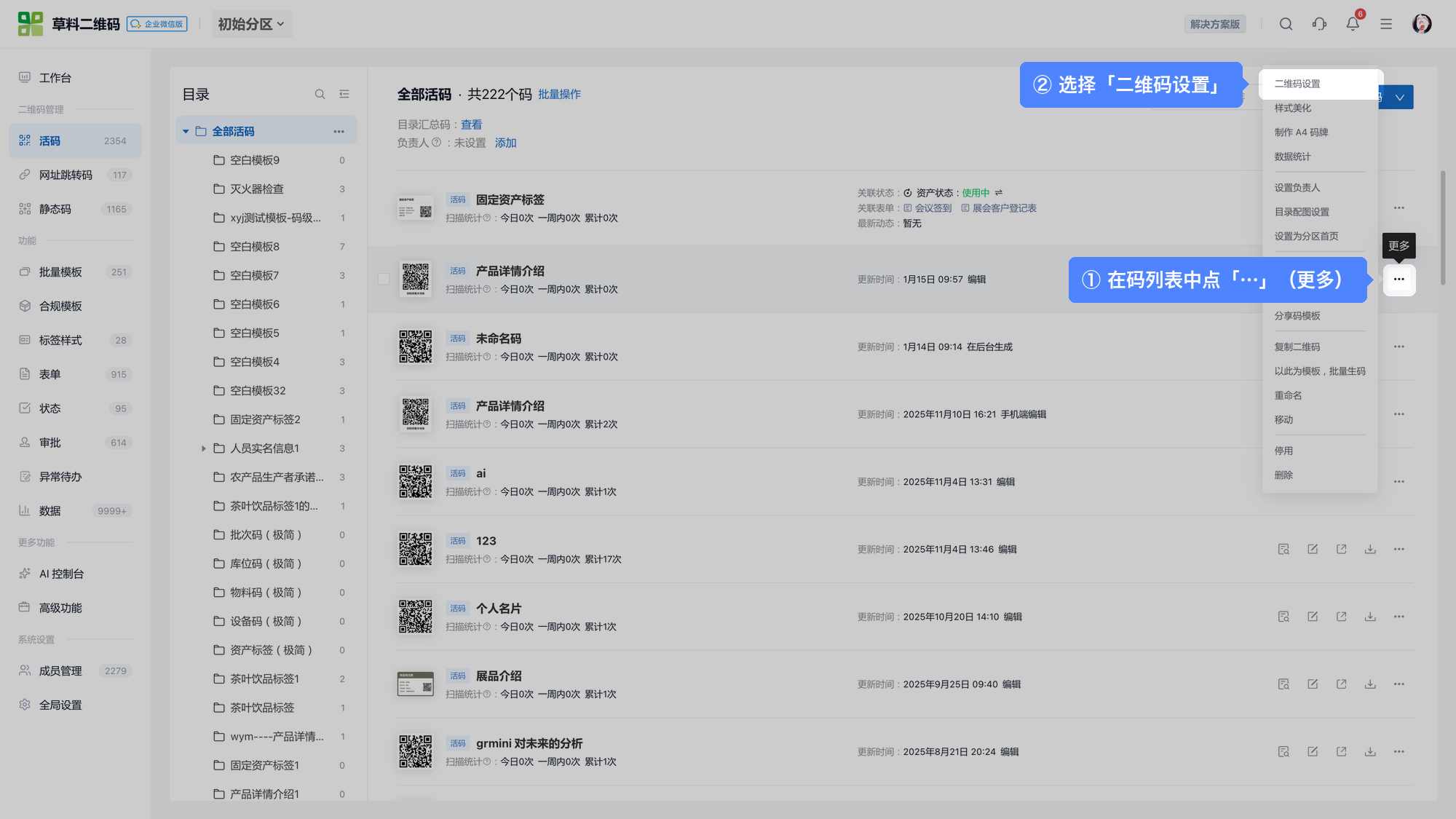
Find the QR code in the Dynamic QR Codes list and click … (More) → QR Code Settings on the right to access more settings.
1. Viewing Permission Settings
A QR code can have viewing permissions set — requiring access within a specified time window, geographic area, or with a password before its content can be viewed. Applicable to document distribution, on-site event promotions, and more.
Mobile preview:

Encryption settings
Dynamic QR codes support encryption. Set a password so that scanning the code requires entering the password to view the content.
Suitable for document distribution, educational materials, and similar use cases.
Viewing area settings
Supports setting a geographic restriction — only users in the specified area can view the QR code content. Users who scan outside the set area cannot view the content. Suitable for check-ins, on-site registrations, security patrols, and similar use cases.
Viewing time window settings
Supports setting a daily viewing window — only during the specified time each day can the QR code content be viewed. Outside the set hours, scanning will not show the content. Suitable for education and training, event promotions, and similar use cases.

2. Period of Validity Settings
You can set the valid date range during which the QR code can be viewed. After the date passes, scanning the code will not show the content. Suitable for check-ins, event promotions, on-site registrations, and similar use cases.

3. Mobile App Open Settings
The new dynamic QR codes support mobile app access settings, allowing you to restrict certain open methods — for example, only allowing WeChat to open the code, and specifying whether scanning, long-pressing, or forwarding/sharing is permitted within WeChat. Mobile preview:

QR Code Scan Statistics
Dynamic QR codes automatically track scan counts. Both [Long Press to Recognize] and [Camera Scan] are counted.

In addition to viewing scan statistics in the online workbench, you can also follow the "CaoLiao QR Code" Official Account to receive weekly scan count summary push messages every Monday.

QR Code Beautification
Find the QR code you want to beautify and select "Style Beautification" from the … (More) menu.
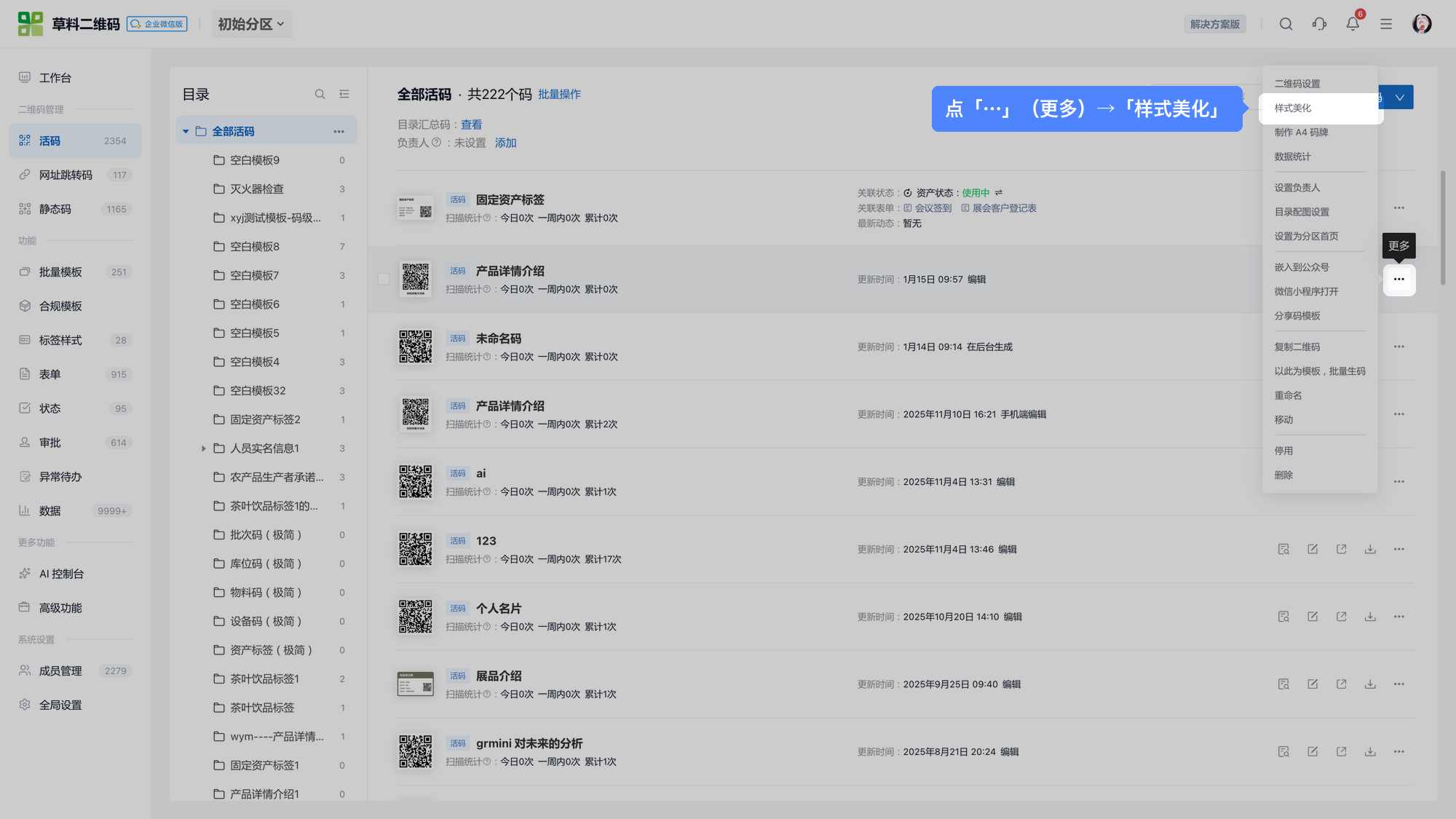
In the popup window, beautify the QR code.

Add a logo or text to the QR code (for a 300 px QR code, a logo of 80×80 px is recommended; for 400 px, use 100×100 px; for 1000 px, use 200×200 px; for an A4 full-page print, use 400×400 px).

After beautifying the QR code, click [Save Image] or [Other Formats] to choose an image format and download it.

Select [Save as Exclusive Beautification Template] to save it under [My QR Codes] → [Settings] → [Beautification Templates]. You can also set it as the [Default Beautification Template].

Note: Once saved as an exclusive beautification template, you can set it as the default. All QR codes generated afterwards will use that style.
QR Code Directory Management
Select the QR code type you want to organize — for example, dynamic QR codes. Go to [Dynamic QR Codes] on the left, create directories based on your needs — by product category, department, purpose, etc. Subdirectories can be created within each directory.
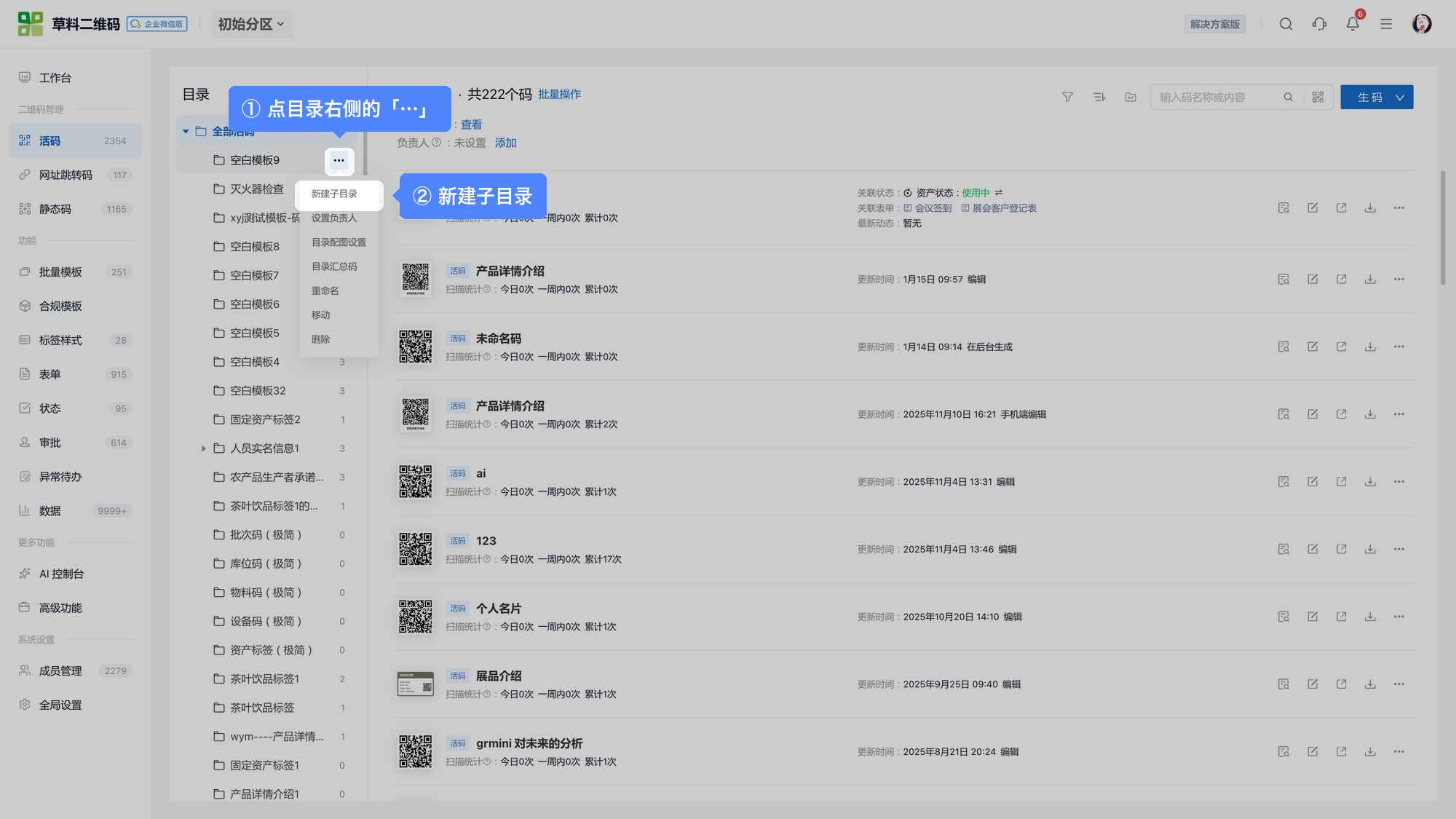
Click … next to a directory to add a subdirectory, or rename, move, or delete the directory.
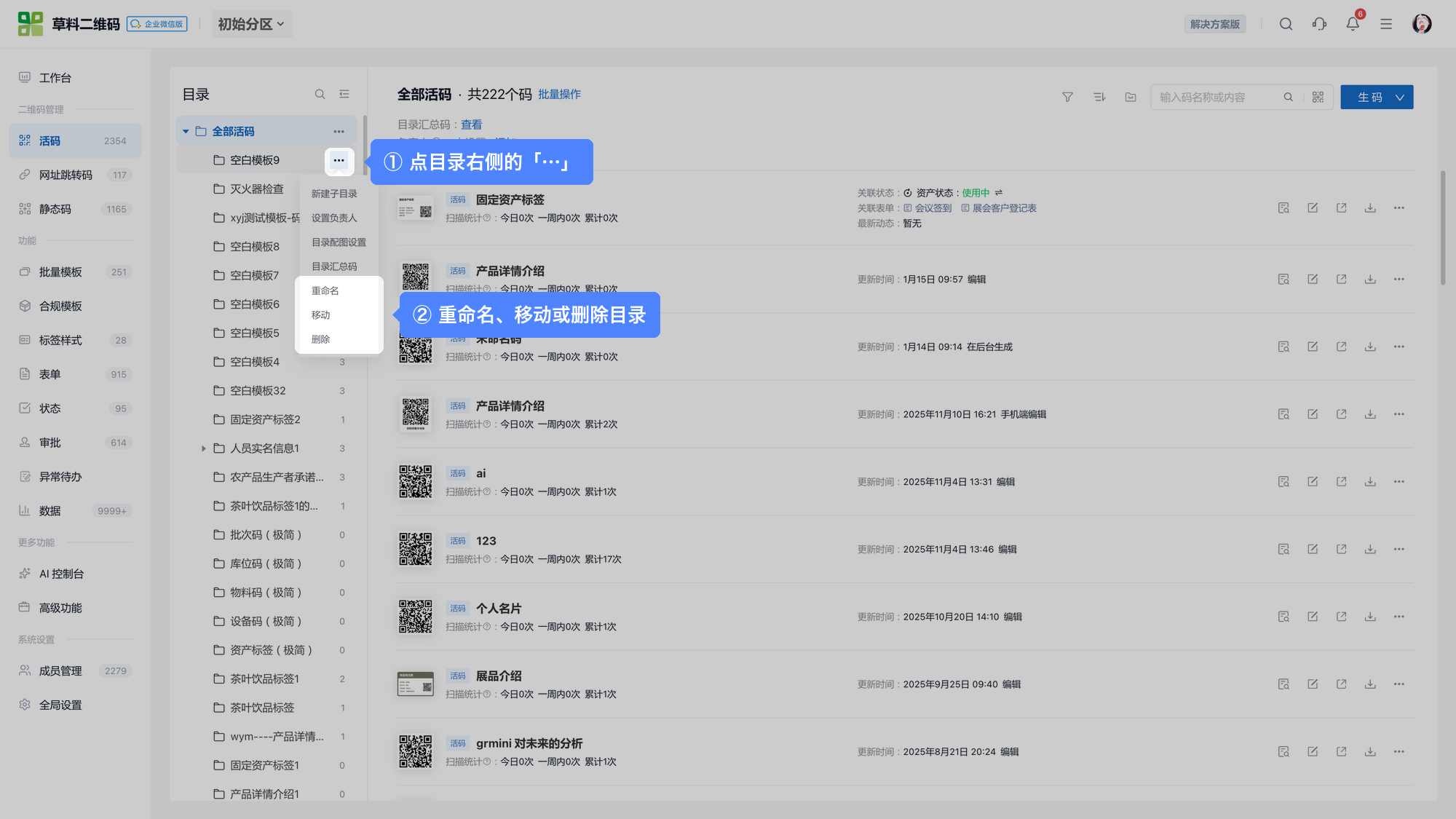
You can create QR codes directly within a directory, or move existing QR codes to another directory.

Enable the directory summary code feature — scanning it shows all QR codes in the entire directory.
