Workbench
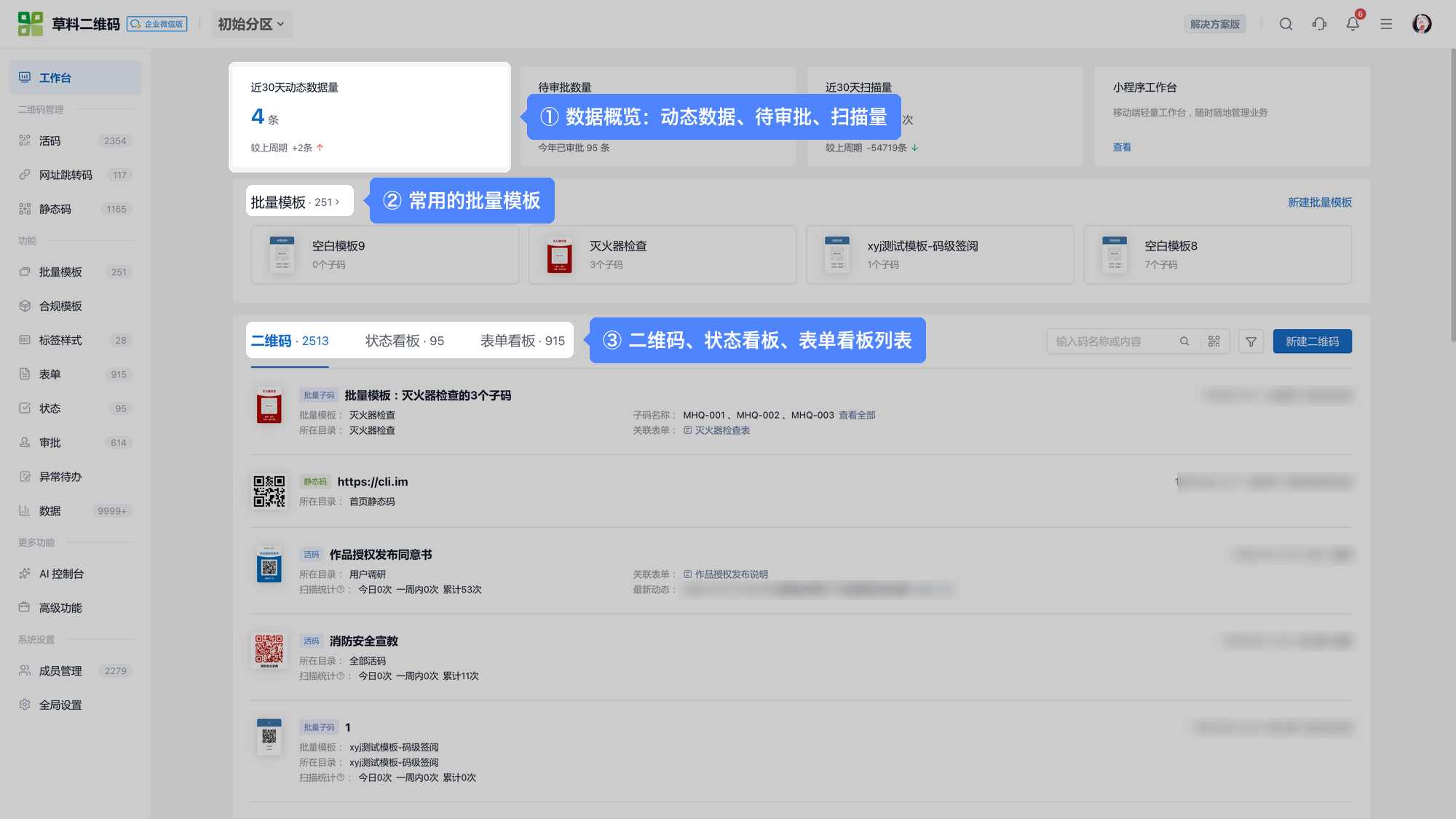
The workbench is the home page of the management backend. It brings together a data overview, frequently used bulk templates, and your QR code lists. You can generate QR codes and handle day-to-day management here. Both a desktop workbench and a mobile workbench are available.
Desktop Workbench
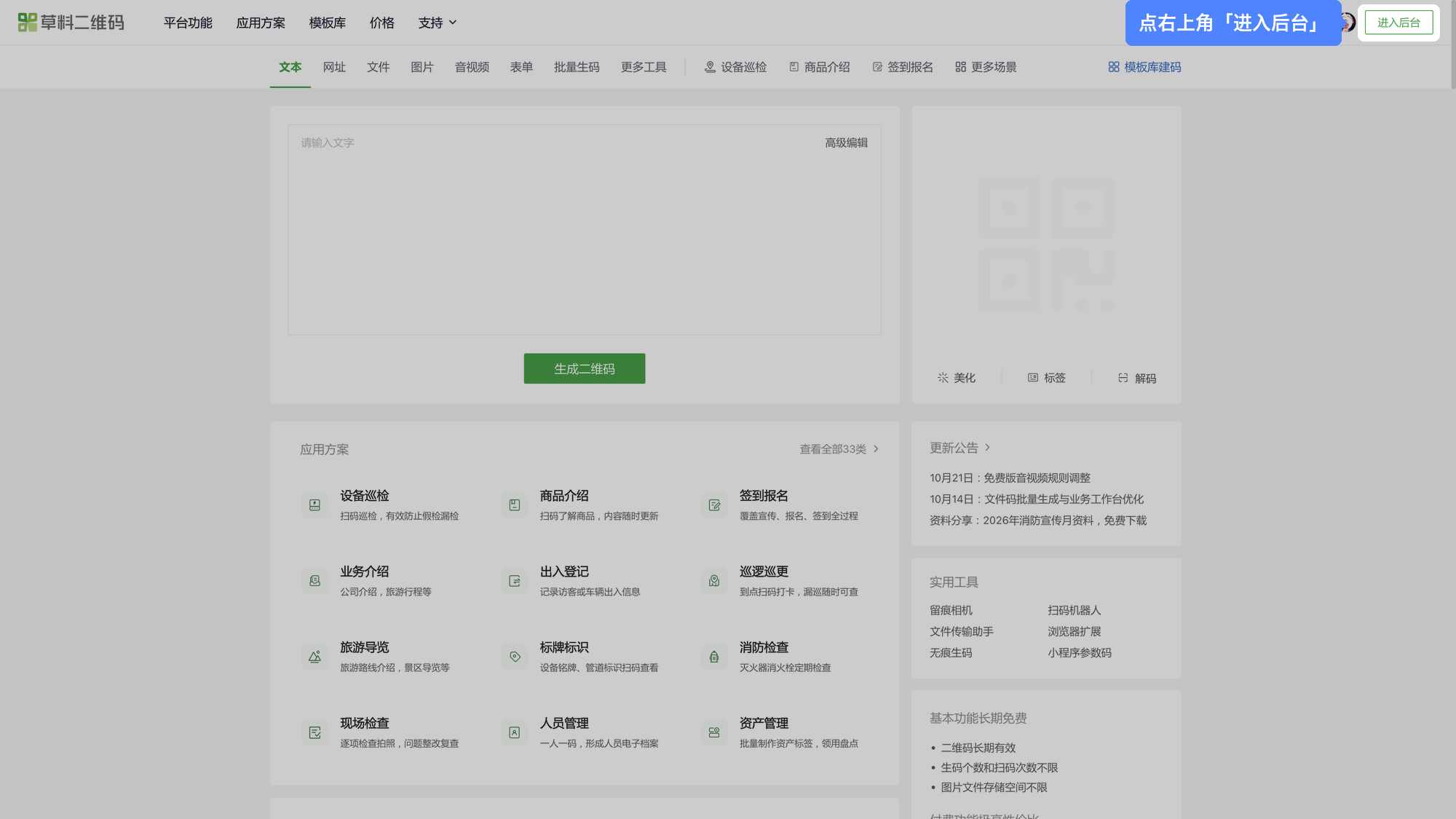
Log in to your CaoLiao account and click [Enter Backend] in the top-right corner to access the workbench.
Data Overview
The top row shows dynamic data in the last 30 days, pending approvals, scans in the last 30 days, and the entry to the mobile Mini Program Workbench.
Bulk Templates
Your frequently used bulk templates are listed here. Click New Bulk Template to create one.
QR Code Lists
Below, QR codes are grouped into QR Codes, Status Boards, and Form Boards, with search and filters. Click a QR code to open its details for preview, editing, and settings.
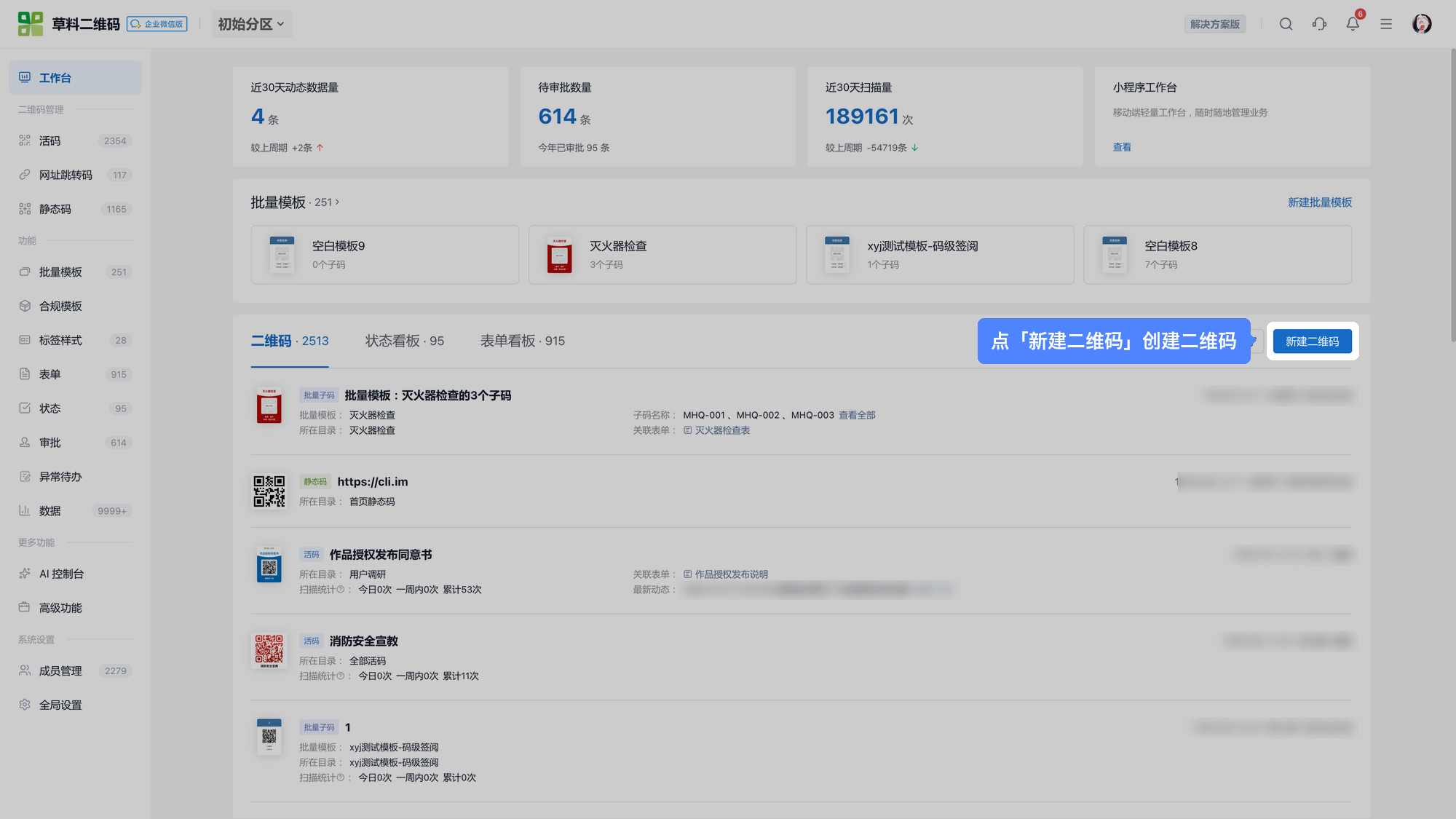
Click New QR Code on the right to create a QR code quickly.
Account Information
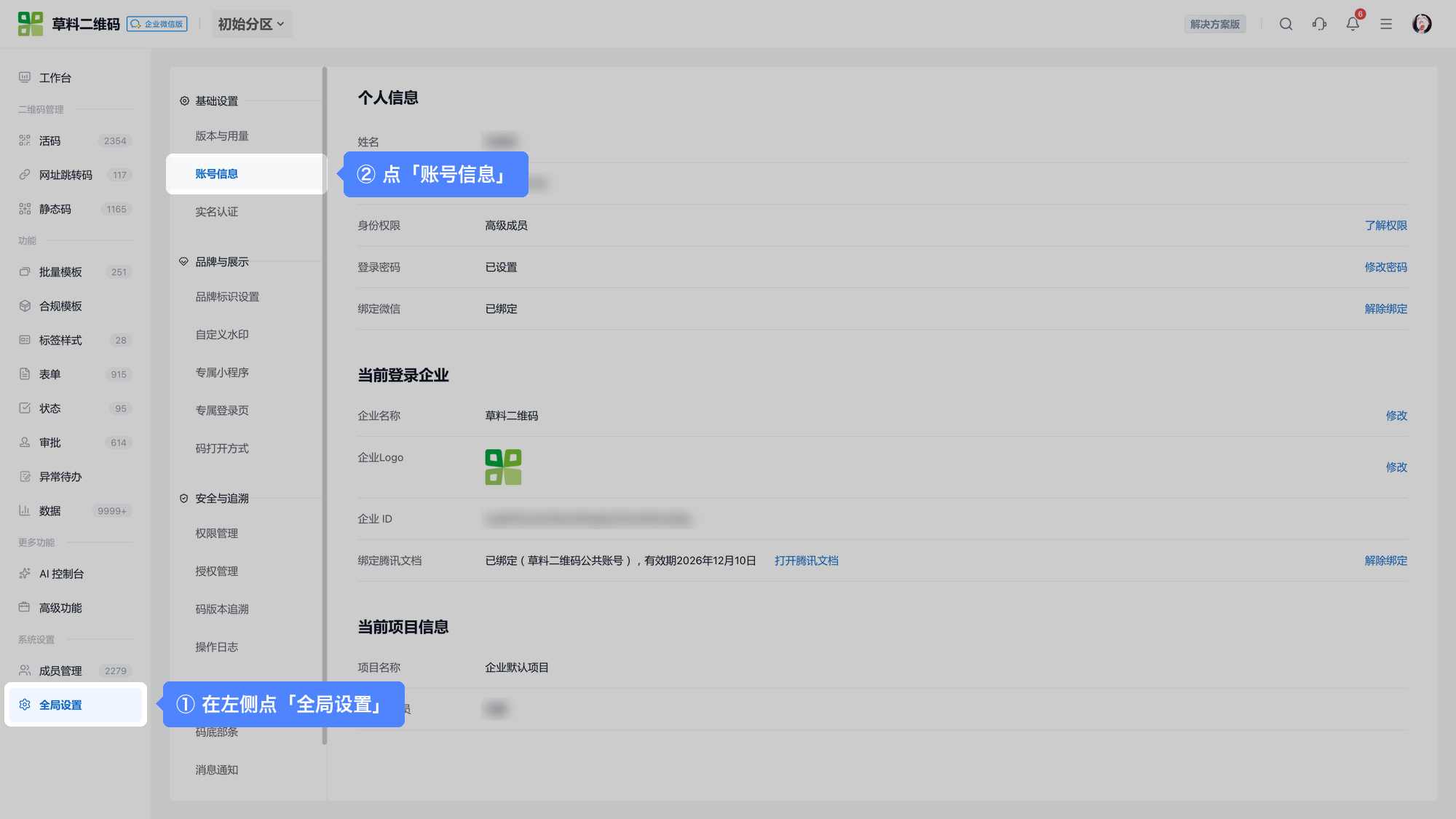
Go to Global Settings → Account Info on the left to view and edit your personal information and current organization.
Mobile Workbench
Open the CaoLiao QR Code Official Account, go to My → Workbench in the menu, or scan the QR code below to quickly access the mobile workbench.

Dynamic QR Code Management and Generation
Administrators and advanced members (with system management or data viewing permissions) can view all dynamic QR codes under the account, download or share QR codes, and check the scan count for each code. They can also generate QR codes from bulk templates.

Form Management and Data Summary
Administrators and advanced members (with system management or data viewing permissions) can view created forms and the data collected from them on mobile, with filtering by submission time, QR code, form, and more.

The mobile workbench also supports exporting dynamic data as Excel files, so you can export and download data at any time even when away from your computer.
Dynamic Data Export
Administrators and advanced members (with system management or data viewing permissions) can tap into a QR code's dynamic data details page and export the data collected by that QR code. They can also go to the Mini Program workbench, open the dynamic data summary page, and export the required data.
Currently, only Excel format is supported for export. To bulk export multimedia or PDF-format data, please use the desktop workbench.

Status Dashboard and Plan Reports
In addition to administrators, designated mobile collaborators can jointly view the device status dashboard and the completion status of scheduled tasks.

Review and Reply
In addition to administrators, designated mobile collaborators can jointly review submitted data and respond to submissions.
