Inventory In/Out Report
The CaoLiao platform does not support automatic calculation and cannot display real-time inventory levels directly. However, you can use an external data analysis tool — SugarBI — to connect to CaoLiao's official database and freely implement all kinds of calculations, including real-time inventory tracking.
The following tutorial and examples are based on QR codes created from a platform template. View the inventory in/out template
1. Example Output
Enter a material name to quickly query the real-time inventory of each item. View the report

Before You Begin
This tutorial involves basic database (SQL) and BI tool operations. Various technical terms will appear throughout, but don't be intimidated. You don't need to know how to program or have expert knowledge. Just follow the steps carefully and you'll be able to complete it.
2. Enable the Official Database
After logging in to CaoLiao, go to Data Management → Data API in the left sidebar and select official database (Go to use).

Here is an example of the database credentials you will receive after successfully applying for the official database:
Type: MySQL 5.7 Host: rm-bp1m4fy8d66u3c6xmbo.mysql.rds.aliyuncs.com Port: 3306 Database name: cli_13268724 (example) Username: cli_13268724 (example) Password: ekiji17jd02jk9md (example)
3. Build a Data Report Using a BI Tool
We recommend using SugarBI, which is also what the example above uses. It is affordable (the Basic Edition is ¥480/year; a Large Screen Starter plan is available at ¥60/year), supports real-time data updates, and offers a 1-month free trial. You can register an account on the official SugarBI website to learn and get started.
SugarBI official website: https://cloud.baidu.com/product/sugar.html
Basic Workflow (Real-Time Inventory Example)
First, clarify your analysis goal and identify the corresponding data tables. To calculate real-time inventory, you need the original (initial) stock levels and the in/out transaction data. Real-time inventory = initial stock + total inbound − total outbound. Initial stock is stored in the bulk template data table; in/out transaction data is in the form record table.

1. Prepare the Data
1.1 Connect to the Database
Select type: MySQL 5.X, fill in the connection details from CaoLiao's official database, and click Add.

Note: The data source name is a label you set yourself.
1.2 Create a Data Model
Create a data model and drag in the required data tables from the database. You need the template_codeinfo_XXXXX table (the material info table) and join it with table_dXX to get the in/out transaction data for each material. View all data documentation and common data models
Select the data model — drag in the items data table
You need the template_codeinfo_XXXXX table. The prefix template_codeinfo is the same for all; only the numeric suffix differs. View the bulk data table naming rules


Drag in the second data table (in/out transaction table)
You need the table_dXX table. The prefix table_D is the same for all; only the numeric suffix differs. View the form data table naming rules
Set the table join type to Left Join, with code_id as the join condition (to retain all material records).

1.3 Clean Up the Data
This step is where most users encounter issues — please read carefully.
- Rename fields Our fields have numeric suffixes to avoid name collisions. Renaming them makes them easier to work with.

- Change field types In/out quantity fields are recognized as strings by default and cannot be summed. Change them to numeric type.

- Convert to measures In/out quantities need to be aggregated (summed), so convert them to measures.

Apply the same settings to the other relevant fields: outbound quantity, inbound quantity, and initial stock.

- Add a calculated measure (real-time inventory)
Write a calculation formula similar to Excel. The formula is:
{Initial Stock} - sum({Outbound Quantity}) + sum({Inbound Quantity}). Note: use English parentheses().

- Add filter fields (optional) Remove data that shouldn't be included. For example, if the form has an approval feature and only approved records should count, filter out records with "Pending" or "Rejected" status.

2. Build the Report
Sugar supports both reports and large-screen dashboards. This section covers creating a report; the process for a large-screen dashboard is similar.
The difference: a large-screen dashboard displays everything on one screen with fine-grained layout control, ideal for display screens; a report scrolls vertically with more content, better for internal sharing and analysis.
2.1 Create a Report

2.2 Create a Chart or Table
Select Chart/Table. In this example, a table is used to display the real-time inventory for each item.

Steps: Select data model → Drag in the item number (unique ID) and other bulk info fields
Important: Do NOT drag any dimension fields from the in/out form table (such as submission time, submitter name, etc.) into the chart. Dragging in dimensions will cause the data to be grouped by those dimensions — if you use submission time, the data will be summarized per record instead of per item number, which is incorrect. Grouping should be by item number only.

3. Style the Report and Configure Filters
Add a filter component:
Filter components let you view data for specific items and are commonly used in reports.

Add the data model and select the data field.

Check the charts you want to link. The system will automatically associate all charts that reference this field.

4. Share the Report
Set the sharing (publishing) to Public and copy the link to start using it.

5. Link to a CaoLiao QR Code
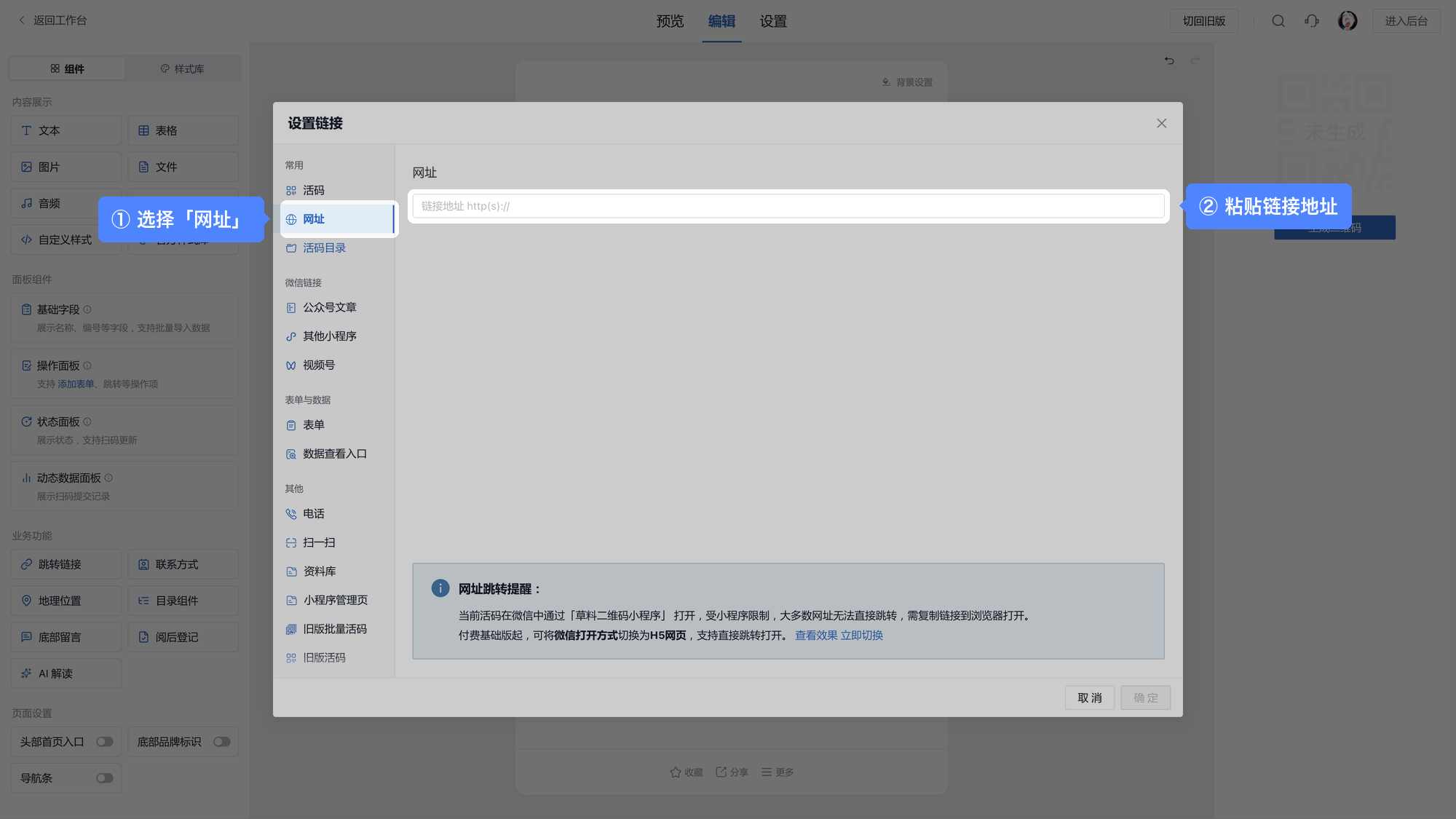
We have partnered with Baidu to support opening Sugar report links directly within the CaoLiao QR Code Mini Program — no prompt to copy the link to a browser. How to set it up: In the bulk template editor, click Redirect Link on the left → select a style → click Add Link on the button → choose URL in Set Link → enter the Sugar report URL.
4. Community and Support
You may encounter various issues during the process. You can visit the CaoLiao Community to find related discussions or post your questions. Engage with experienced data report users, and CaoLiao's official consultants and technical team will also check in and respond regularly.