Configure SSL Encrypted Connection to the official database
To improve data transmission security, our database has fully supported the SSL (Secure Sockets Layer) encryption protocol since September 12, 2025. You can configure SSL in your client to ensure that data transmitted between the client and the database is encrypted.
We have provided the required .pem file. You only need to configure it correctly in your database connection settings. The following examples use common tools to demonstrate the configuration steps.
Prerequisites
- Download and save the .pem file we provide. Click to download
- Verify that your database client version supports SSL:
- MySQL 5.7
- Client tools (Navicat, Sequel Ace, DBeaver, command line, etc.) all support SSL.
Configure SSL in Navicat
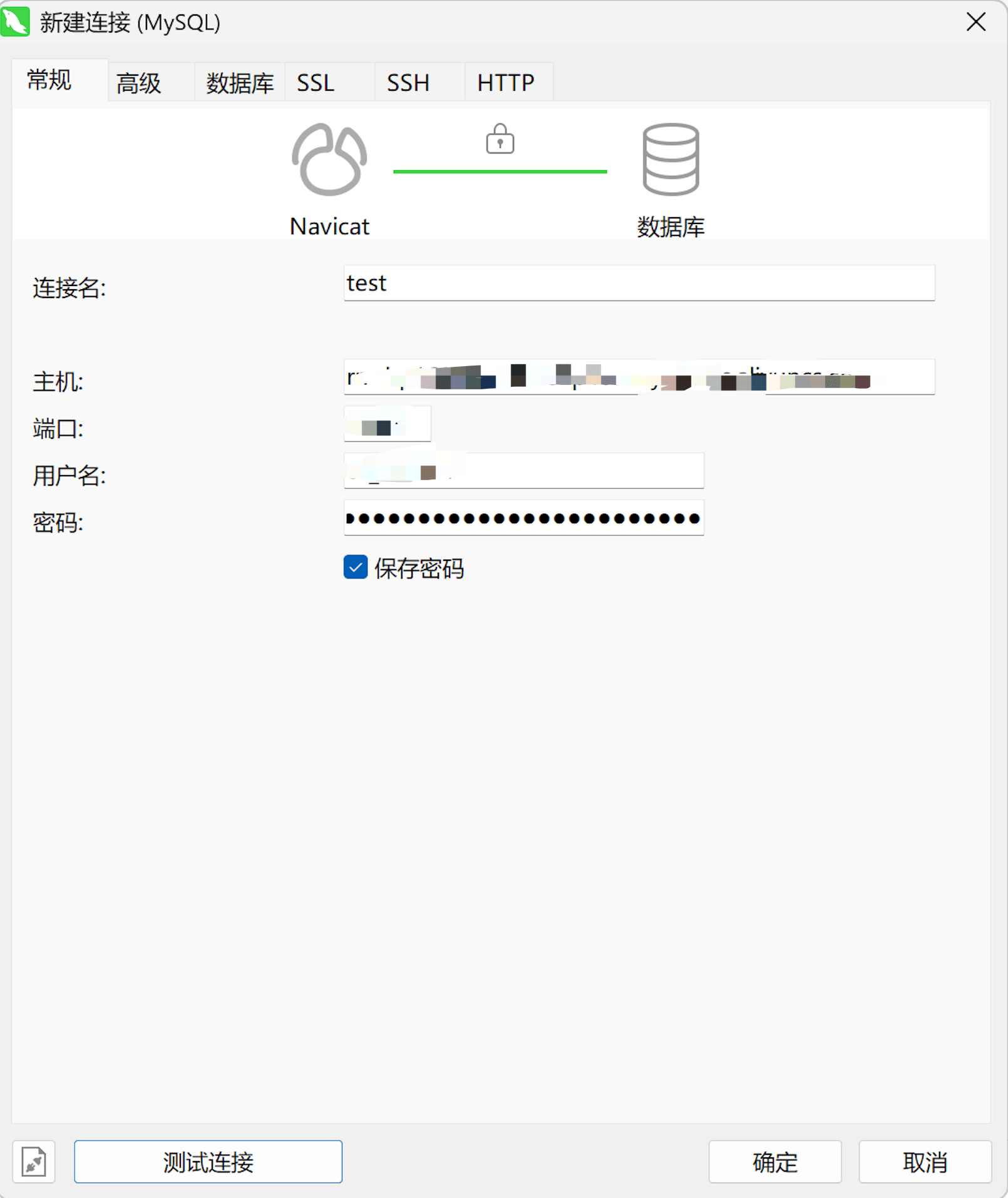
- Open Navicat and create a new or edit an existing database connection. Fill in the connection details. Click here to view the official database tutorial
- Click SSL, upload the .pem file we provided in the CA Certificate field, test the connection, and click OK once it succeeds.
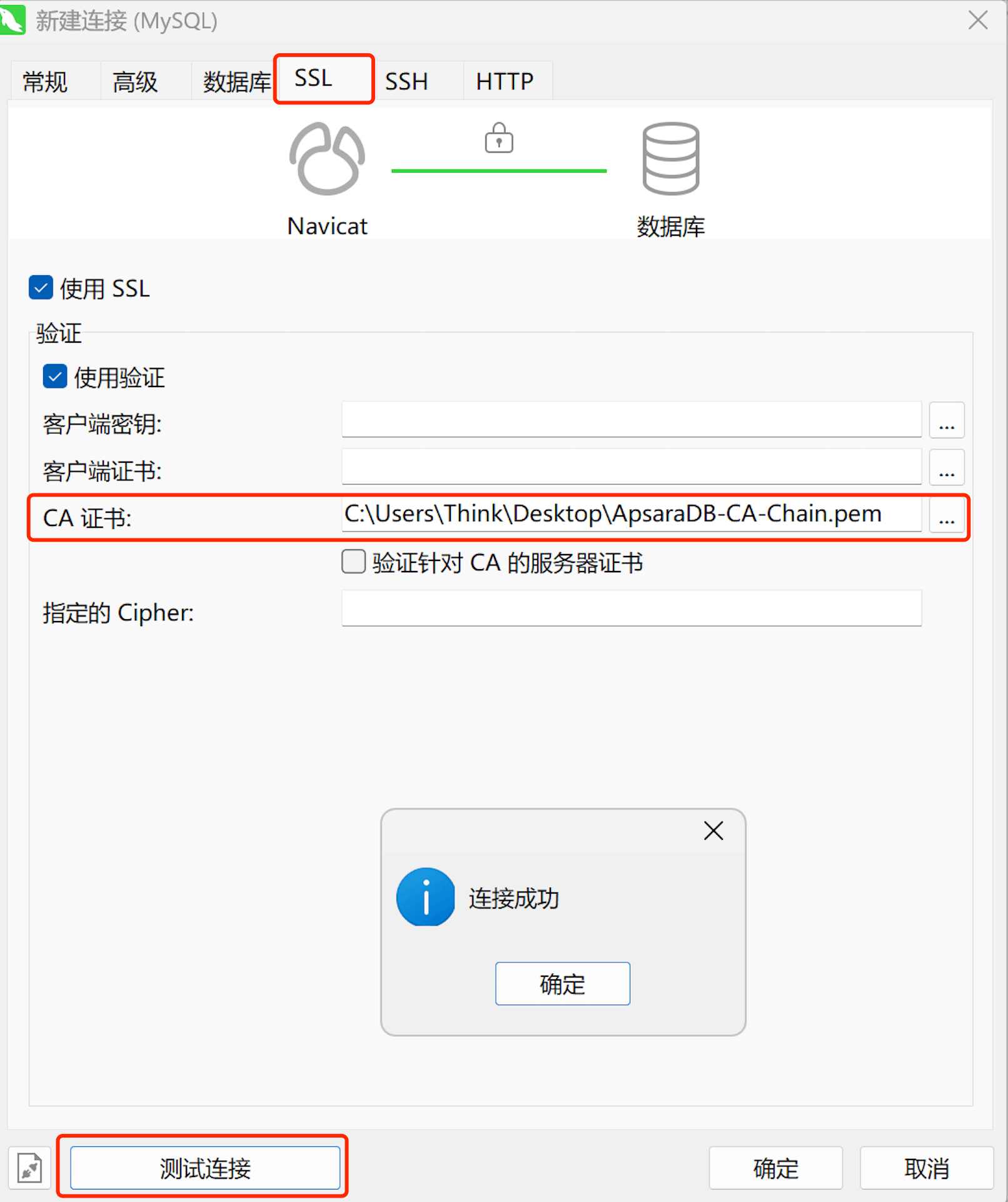
👉 Once configured, Navicat will transmit data using SSL encryption. If you have questions, click here to view the Navicat official tutorial
Configure SSL in Sequel Ace
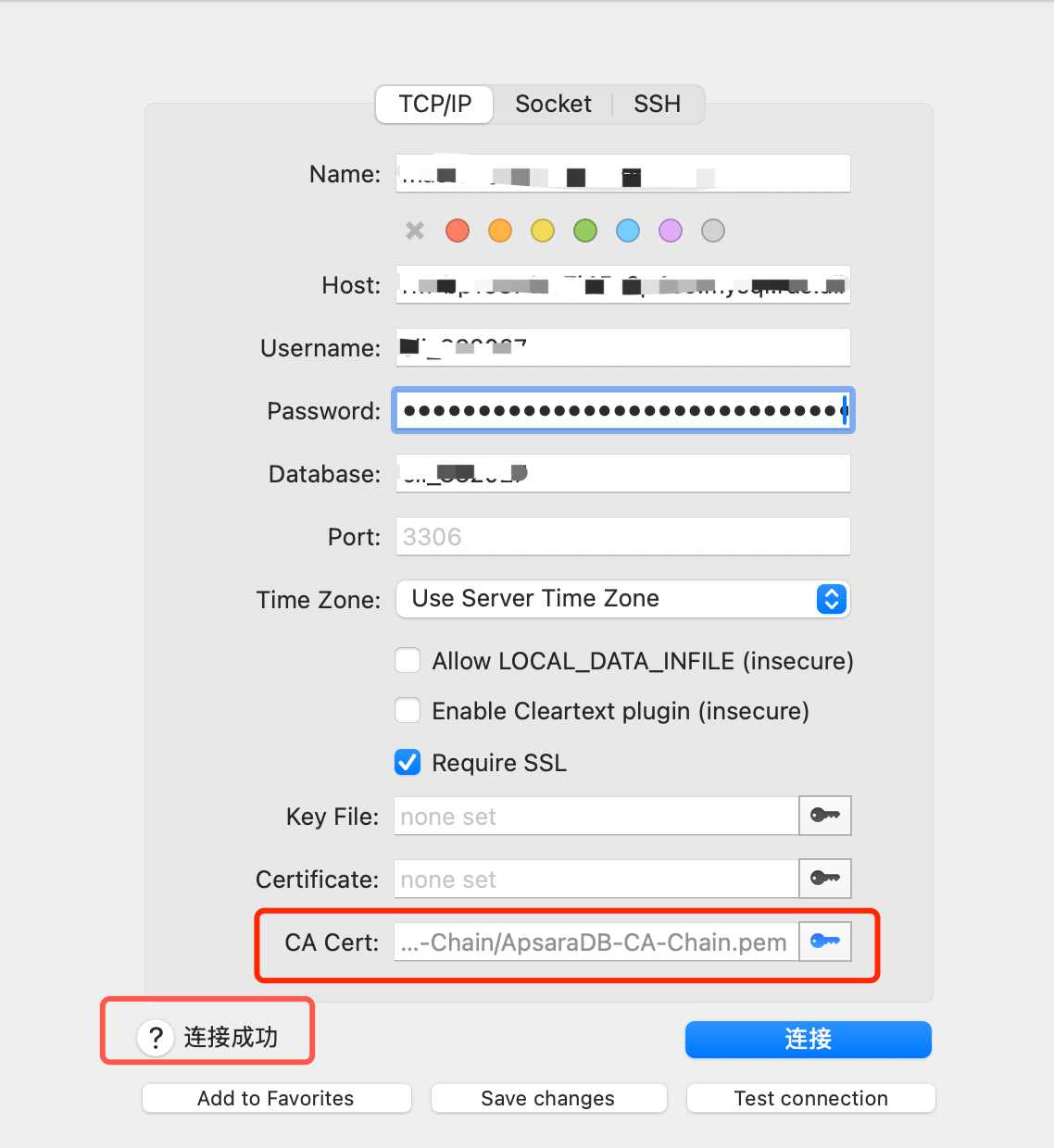
Open Sequel Ace, create a new or edit an existing connection, and upload the .pem file we provided in the CA Cert field.
Frequently Asked Questions
-
Connection errors Please check whether the .pem file matches correctly and confirm the file path is entered correctly. Windows users: please avoid paths that contain Chinese characters or spaces.
-
Certificate expiration If you experience connection issues, please contact us to update the certificate file.
-
Configuration in different software There are many database client tools (such as DBeaver), and each tool's interface and settings may vary slightly. However, the core principle is the same: enable SSL, import the CA certificate correctly, and establish an encrypted data transmission channel. If you encounter any issues during configuration, first consult the SSL connection help documentation for your database client. If the issue persists or you cannot connect successfully, please contact customer support and we will provide technical assistance.