Custom Watermark
Custom Watermark is a full-screen diagonal text watermark overlaid on the content people see after scanning. Once enabled, scanners will see the watermark text you set when they view images, file preview pages, or QR code preview pages.
It suits internal documents, business images, file sharing, and any content whose circulation you want to keep under control. A watermark cannot fully prevent screenshots, but it leaves a visible reminder on the captured or saved image, reducing the risk of your content being passed around freely.
Edition requirement: This feature is available from the paid Basic Edition.
I. Feature Overview
With Custom Watermark enabled, you can display a fixed reminder text over your scanned content — for example, your company name, "Internal Document", or "Do Not Distribute".
Key benefits:
- No need to pre-process images: once you upload an image, the system overlays the watermark automatically according to your settings.
- Adjustable watermark effect: set the density and opacity to balance visibility against content readability.
- Works across content types: applies to images, file preview pages, and QR code preview pages.
- Configurable per partition: different partitions can use different watermark settings.
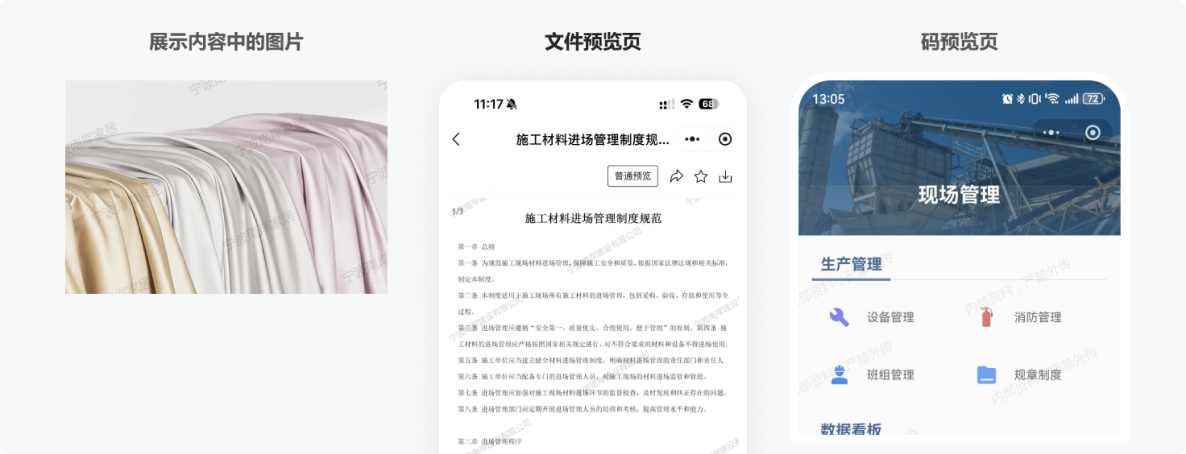
II. What the Custom Watermark Looks Like
The Custom Watermark covers the content as a diagonal pattern. You can adjust the following in the workbench:
- Watermark text: the text scanners will see, such as your company name, "Internal Document", or "Do Not Distribute".
- Watermark density: choose Loose, Standard, or Dense.
- Watermark opacity: choose Light, Medium, or Strong, or set a custom value.
We recommend checking the live preview on the settings page first. The watermark should be clearly visible without blocking the content underneath.
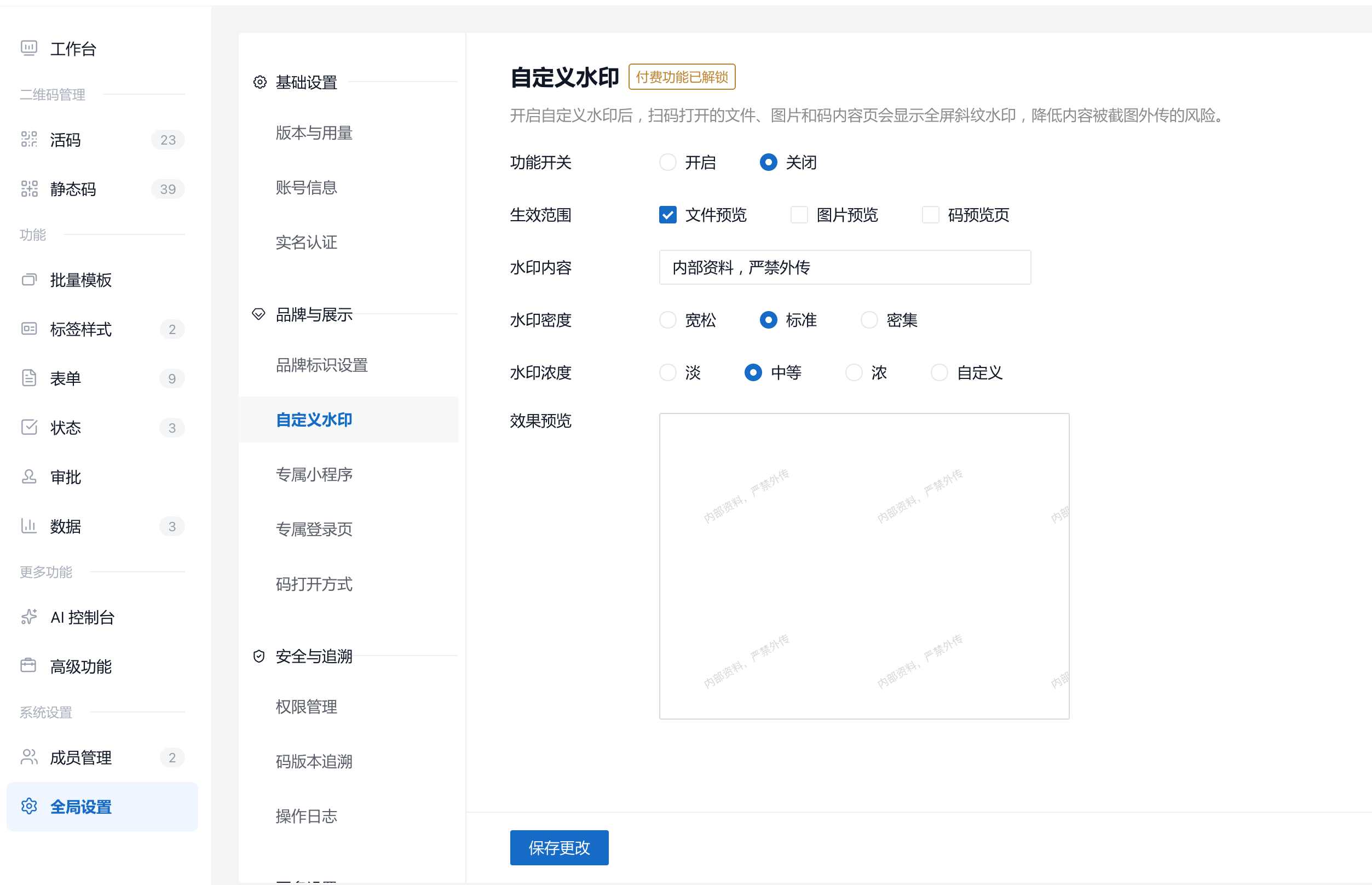
III. Where the Custom Watermark Applies
You can enable just one of these, or several at the same time.
| Scope | Description | Typical use |
|---|---|---|
| File preview page | Shows the watermark when scanners open Word, Excel, PDF, PPT, and similar file previews | Policy documents, reports, contracts, training materials |
| Image preview | Shows the watermark when images in your displayed content are previewed | Product photos, on-site photos, quotation images, business reference images |
| QR code preview page | Shows the watermark when scanners open the QR code content page | Internal notices, document directories, project information pages |
Note: the Custom Watermark is what scanners see when viewing your content. It does not appear on the QR code editing page.
IV. How to Enable the Custom Watermark
Go to workbench → global settings → Custom Watermark.
- Select Enable under "Custom Watermark".
- Choose where it applies: file preview, image preview, QR code preview page.
- Enter the watermark text.
- Set the density and opacity, and check the live preview.
- Click Save changes.
Once saved, the setting applies automatically to all dynamic QR codes in the current partition. You can configure each partition separately.
V. FAQ
1. Does the Custom Watermark Require a Paid Version?
Yes. This feature is available from the paid Basic Edition.
2. Is the Watermark Written into the Original Image or File?
No. The Custom Watermark is overlaid at preview time and never modifies the original image or file you uploaded.
3. Does It Apply to Dynamic QR Codes I Created Earlier?
Yes. After you save the watermark settings, all dynamic QR codes in the corresponding partition are updated automatically. The next time someone scans them, the content is displayed with the new watermark settings.
4. Can Different Partitions Use Different Watermarks?
Yes. When saving, you can choose which partitions the settings apply to. For example, the headquarters partition can use your company name, while a project partition uses the project name.
5. Can the Custom Watermark Completely Prevent Screenshots?
No. It mainly reduces the risk of content spreading after a screenshot, download, or forward. For more sensitive content, we recommend combining it with passwords, member permissions, and partition permissions to control access.