"AI Judgment Settings": Make AI Form Filling and Review More Accurate
AI smart form filling and AI image review are two powerful automation features: one handles "helping people write", the other handles "helping people see". AI smart form filling: Learn more AI image review: Learn more
Why Look at "AI Judgment Settings"?
In real-world business, administrators define the rules (prompts) while frontline staff do the execution (taking photos). But there is often an "information gap" between the two:
For form filling: An employee took a photo, but AI didn't fill it in — was the photo not clear enough, or did AI not recognize it?
For review: AI flagged a qualifying photo as "unqualified" — was the photo too blurry, or is AI's standard too strict?
The "AI Judgment Settings" page is the administrator's "debugging backend". It transforms AI's operation process into data, helping you quickly identify the root cause: Is it a prompt issue (standard alignment)? A photo issue (shooting guidelines)? Or a field issue (component splitting)?
Interpreting the Interface Data
AI Form Filling
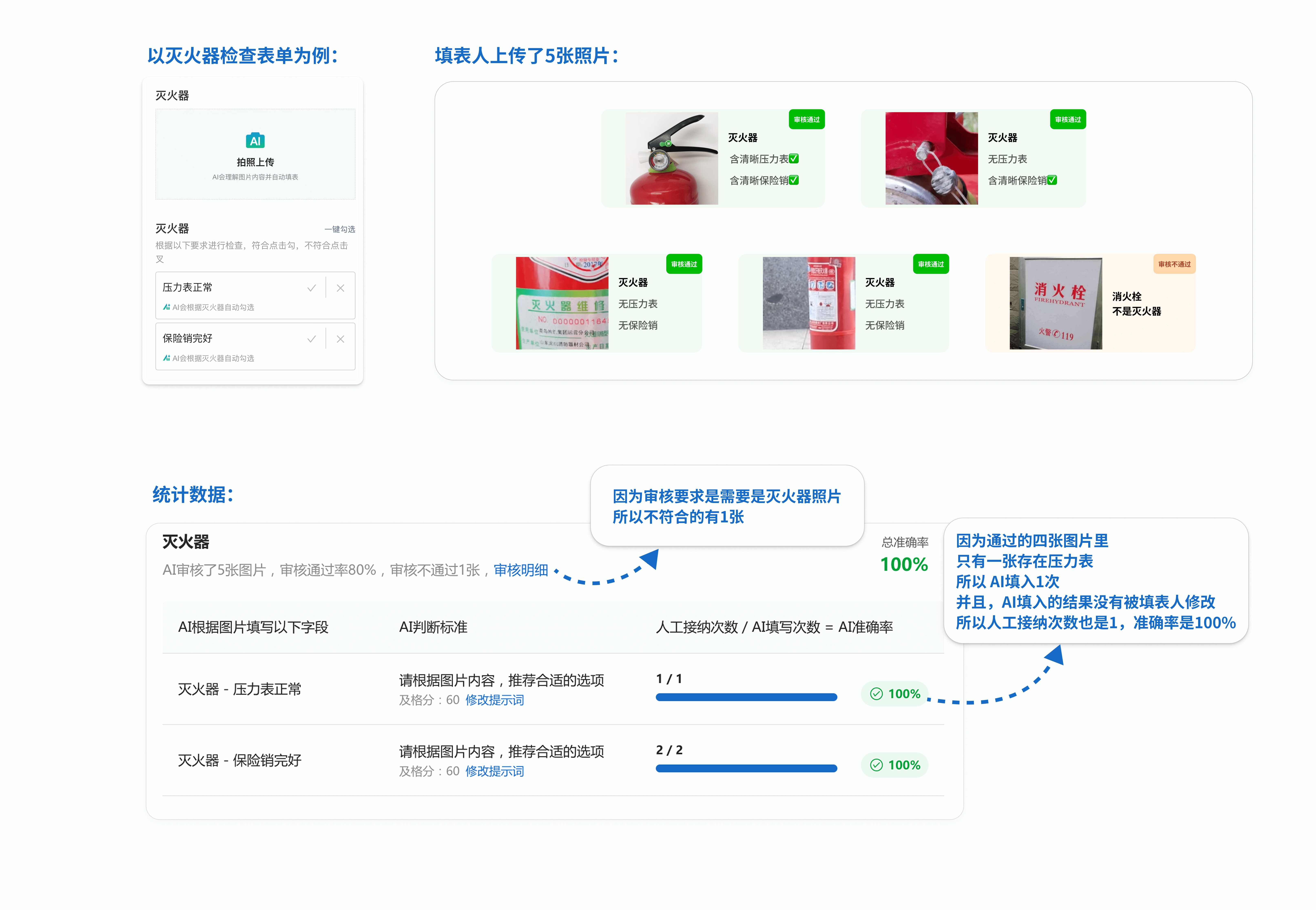
Common Issue Analysis
Case 1: High Accuracy, but AI Fills in Very Few Times?
Symptom: You may notice that a field's AI accuracy rate is 100%, yet across 5 or 10 images, AI only filled it in 1 or 2 times.
Root Cause: This indicates that AI's judgment logic is correct (everything it filled in was right), but in most images, AI couldn't find the target to recognize. For example, in a wide-angle photo, AI may not be able to clearly see a small "pressure gauge" or "safety pin," so to avoid errors, AI chose to skip the field rather than guess.
Optimization Suggestions:
- Standardize photo requirements (improve image quality): If the recognition target is small (such as gauge readings, nameplates, or components), instruct employees in the form description to "take a close-up shot" to ensure the subject is clearly visible in the frame. Avoid wide shots or blurry photos.
- Split photo components (reduce shooting difficulty): If a single photo needs to capture multiple details simultaneously (such as both a pressure gauge and a safety pin), shooting becomes very difficult. Consider splitting one image component into two:
- Image component A: dedicated to capturing "close-up of pressure gauge" (AI recognizes the pressure gauge)
- Image component B: dedicated to capturing "close-up of safety pin" (AI recognizes the safety pin). By splitting the task and guiding frontline staff to photograph specific parts, you can significantly improve AI's coverage rate and recognition performance.
Case 2: Low Accuracy, Frequently Requiring Manual Corrections?
Symptom: A field has a low accuracy rate (e.g., 20%), meaning AI's judgment results are frequently overridden manually.
Root Cause: This is usually because the judgment standard is too vague or highly subjective. For example, you ask AI to determine "whether the sanitation is acceptable," but AI considers "a piece of paper on the floor" not dirty, while your standard is "the floor must be spotless." This cognitive gap leads to misjudgment.
Optimization Suggestions: Click "Edit Prompt" next to the field to make adjustments:
- Change "abstract standards" to "specific characteristics": AI is better at identifying concrete objects rather than abstract concepts. Vague prompt: "Check whether the floor is clean." Improved prompt: "Check if the floor has any trash, paper, standing water, or mud. If none of these are present, judge as acceptable."
- Clearly define the "unacceptable" red lines: Tell AI explicitly what must be flagged as a failure. Improved prompt: "Whenever the fire extinguisher pressure needle is in the red zone, it must be recorded as 'pressure abnormal'; only when the needle is in the green zone should it be recorded as 'normal'."
- Add business background knowledge: If items can be easily confused, "teach" AI to differentiate in the prompt. Improved prompt: "Please note the difference between a fire hydrant cabinet and a fire extinguisher. This task only checks the red, cylindrical fire extinguisher. If you see a box embedded in the wall (fire hydrant cabinet), please judge it as non-compliant."
AI Review
Based on the standards you set (e.g., must wear work uniform, must wear safety helmet), AI determines whether the photo meets the requirements.
Core metric: Number of approved reviews / Total images = Approval rate
- If the approval rate is too low (e.g., 20%), it may mean frontline execution is not in place, or AI's review standard is too strict (it is flagging qualified photos as failing).
- If the approval rate is 100%, check whether AI's standard is too loose (it is passing non-compliant photos).

Edit Prompt
Click "Edit Prompt" next to any field to modify and test it.
When writing prompts, feel free to hand the problem to AI models like Wenxin, Yuanbao, Doubao, or Kimi to help you generate more suitable prompts.
Example phrasing:
"This is a fire hydrant inspection photo. The current prompt causes AI to incorrectly flag slight cracks as abnormal. I want: natural aging should not count as abnormal; only obvious deformation or damage affecting the on/off function should count. Please give me a prompt for a visual model."
You'll find that having AI help write AI is extremely efficient and rigorous.
Summary
"AI Judgment Settings" is more than just a statistics report — it is the bridge connecting administrator rules to frontline field operations. By observing the accuracy rate (form filling) and approval rate (review), and continuously fine-tuning prompts and photo-taking guidelines, you will be able to transform AI from a "novelty tool" into a truly business-savvy, highly efficient "gold-standard inspector."