Three Verification Methods
1. Feature Overview
The form verification feature is designed for events that require on-site validation and check-in, suitable for conference sign-ins, event admissions, training sessions, benefit distribution, and more. It makes event management more efficient by streamlining the check-in and verification process.
CaoLiao's verification codes support mobile scan, computer camera scan, and barcode scanner — three verification methods in total. The video below demonstrates the barcode scanner method.
2. Tutorial
Step 1: Form Design Phase
- Before distributing the QR code, go to Form Settings → Submission Success Page and enable the options to obtain a verification credential and track follow-up progress.
- Once configured, distribute the QR code. After registrants scan and submit the form, they will receive a verification QR code credential. At the event venue, staff can use this QR code to perform check-in verification.


Step 2: On-Site Verification Phase
When the event begins, staff can go to the form's Data & Statistics page or the QR code's dynamic data panel and click Start Verification.
- QR code dynamic data panel:

- Form data & statistics page:

The status after verification cannot be selected separately here.
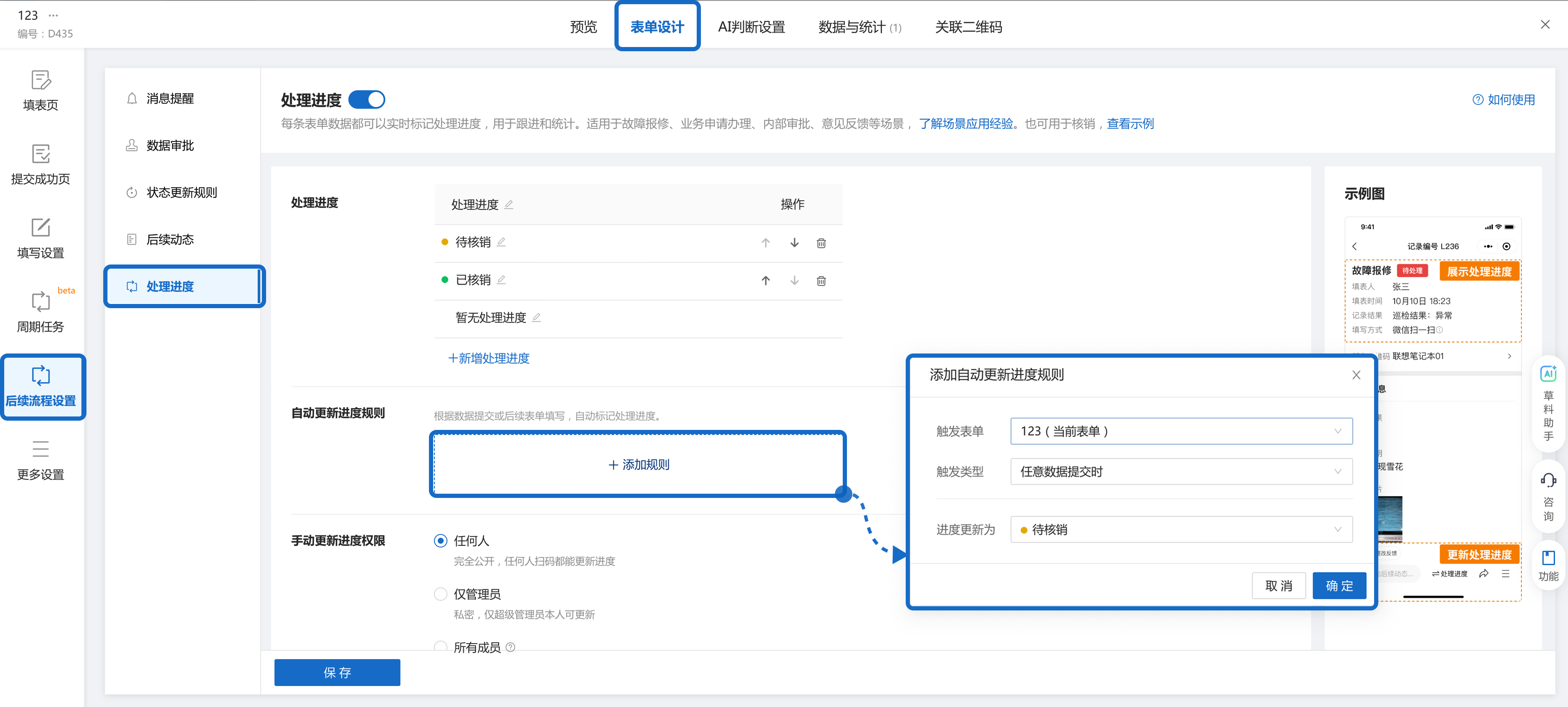
The system automatically updates the record from top to bottom based on the custom order you set in Processing Progress. For example, if the progress order is Unverified → Verified, and new submissions are automatically marked as Unverified through an automatic progress rule, then once the voucher is successfully verified, the record will automatically update to Verified.
Mobile Scan Verification
Select mobile scan verification. Staff can scan the on-screen QR code to enter the verification portal, or scan directly via WeChat. You can designate who is authorized to verify.

Computer Camera Verification
If you select computer camera verification, the verification interface will prompt you to allow camera access the first time you use it. Please click Allow.
If you accidentally clicked Deny, go to your browser's Settings → Camera to re-enable the permission.

Barcode Scanner Verification
If you select barcode scanner verification, connect the scanner to your computer and scan the on-screen QR code to complete the binding. Registrants present their QR code credential, and the scanner will automatically complete verification upon reading it.

3. Frequently Asked Questions
1. What Type of Barcode Scanner Should I Buy?
- Most handheld barcode scanners and barcode guns available on the market are compatible. However, please note that you must purchase a scanner capable of reading QR codes — 1D barcode-only scanners will not work.

2. What If a Registered User Can't Find Their Verification QR Code?
- They can scan the original registration QR code again to retrieve their verification credential.
3. Can a Verification QR Code Have an Expiration Date?
Yes. You can configure the validity period of verification QR codes based on your specific needs. Available options include:
- Fixed validity period: Set the verification QR code to be valid only during a specific time window, suitable for events with a known end time.
- Validity period based on submission time: Each credential's validity period is calculated from the time of submission. For example, a promotional credential can be set to expire 3 days after it is claimed.
