Form Settings Overview
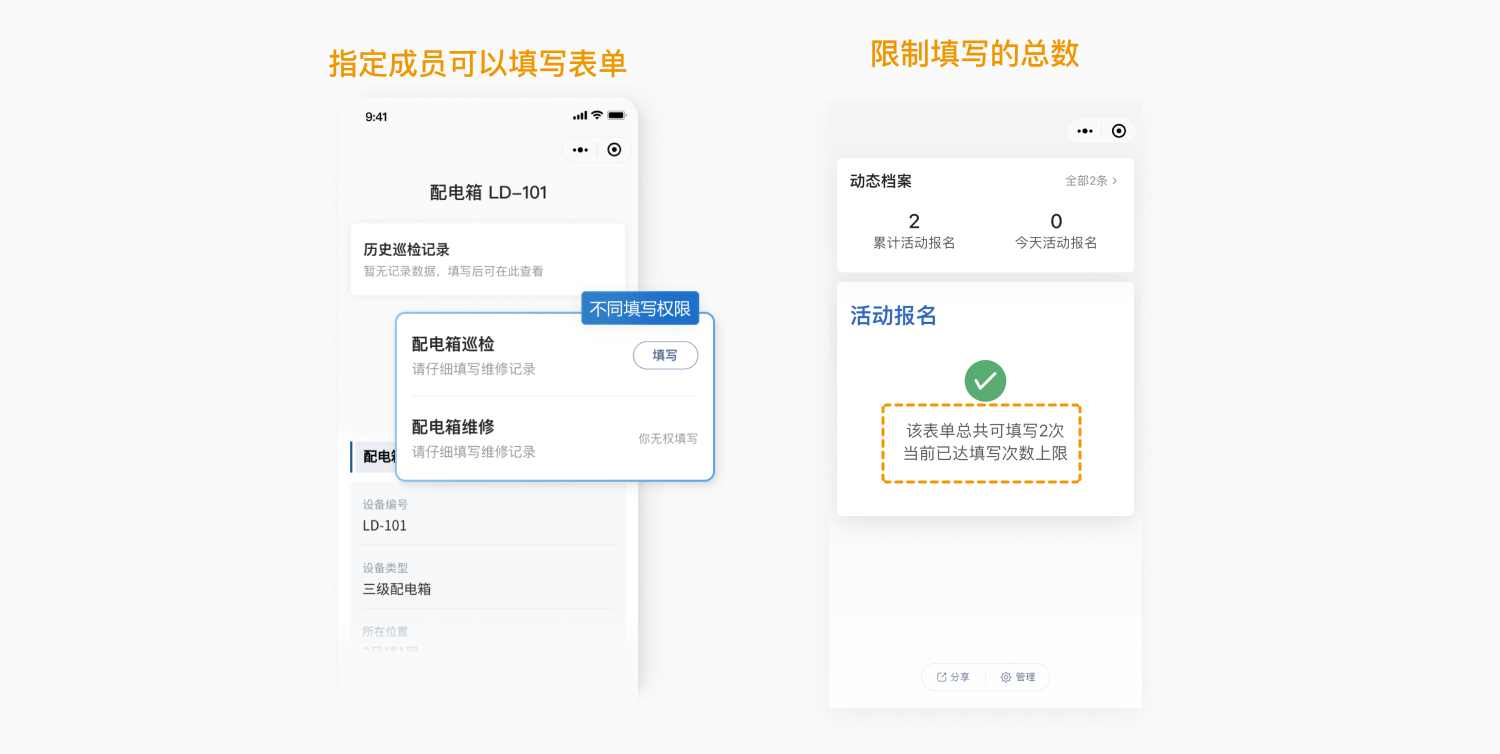
1. Fill Restrictions
You can specify which members can fill out the form, set the number of times per person/total allowed, and more. View detailed effects and setup tutorial
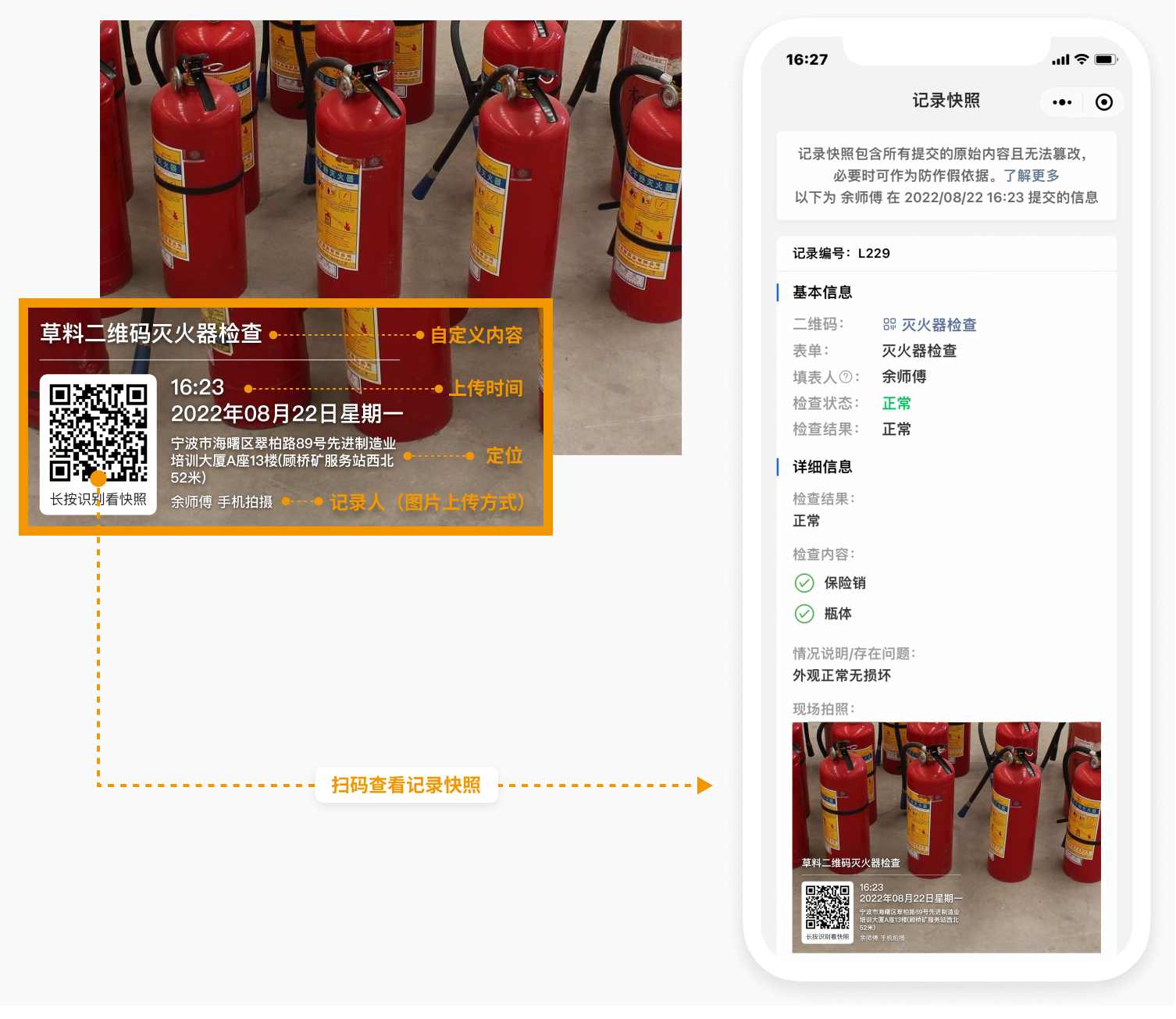
2. Image Watermark
Once the image watermark feature is enabled, uploaded images will include a watermark that automatically captures the submitter's location and phone number — preventing fraud and enabling traceability of inspection records. View detailed effects and setup tutorial
3. Submission Page Settings
After a form is submitted successfully, you can configure a custom message, automatically generate a submission voucher for verification or quick entry, redirect to another QR code, and more. View detailed effects and setup tutorial

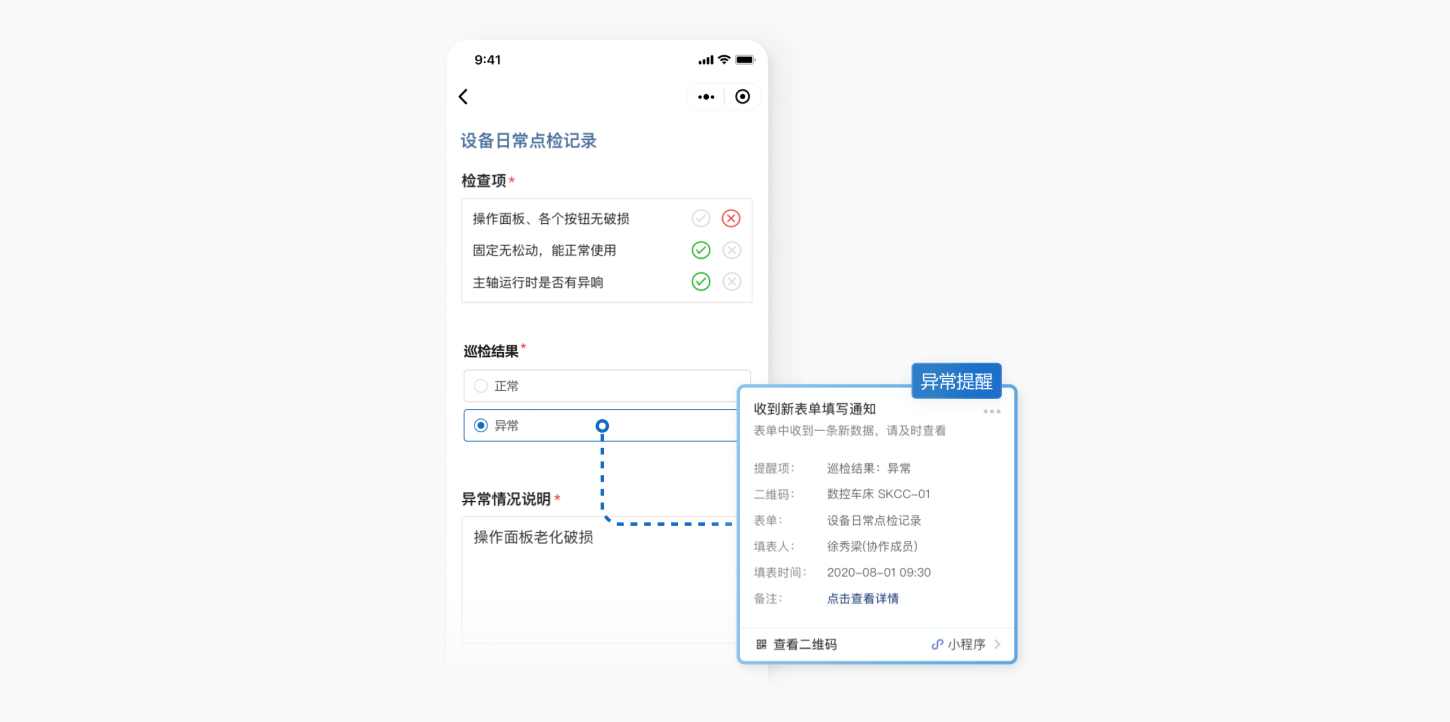
4. Notifications
Push submitted form data as real-time messages to designated members for quick follow-up. For example: send a notification to the responsible person when an inspection result shows an anomaly or a fault is reported. View detailed effects and setup tutorial
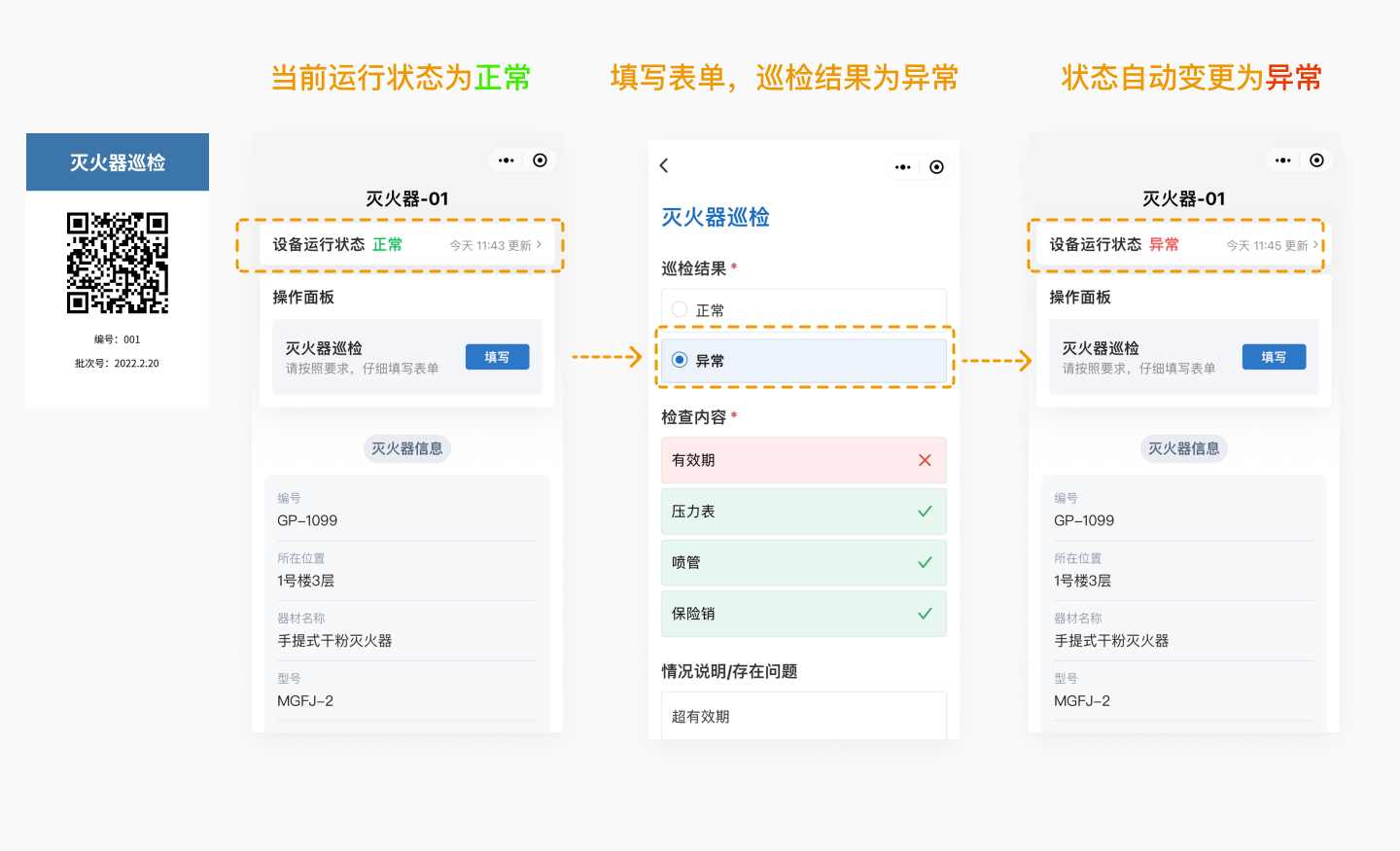
5. Status Update Rules
Automatically change the QR code's status when a form record is submitted, and supports different conditions triggering different status values. View detailed effects and setup tutorial
6. Data Review
You can configure single-level or multi-level review workflows. Each level can designate one or more reviewers to meet different review requirements.

Supports exporting PDF archive files that record the entire review process.

7. Add Follow-Up Actions
Enable the "Add Follow-up Actions" option in form settings. After frontline staff submit a form record, they can collaborate and communicate on the form data detail page — supporting voice messages, images with text, @-mentions, form submissions, handwritten signatures, and more.
Suitable for multi-person collaboration scenarios, such as the equipment inspection → repair request → maintenance → acceptance workflow, where multiple people need to collaborate on follow-up work for a single inspection record.
8. Follow-Up Progress Tracking
Enable the "Mark Processing Progress" option in form settings. After frontline staff submit a form record, each record can be tagged with a real-time processing progress status for tracking and statistics. Applicable to feedback handling, fault resolution, hazard rectification, anomaly resolution, order fulfillment, and similar scenarios.
Suitable for recording process progress: such as the shipment → transit → delivery workflow; feedback → rectification → closure; hazard reporting → rectification → acceptance → closure — scenarios where a single form record is progressed through stages to complete a workflow loop.
9. Data API
CaoLiao provides 3 types of data APIs. Through the data API, data syncs in real time, enabling data analysis, visual reports, integration with other systems, and more. View detailed effects and setup tutorial


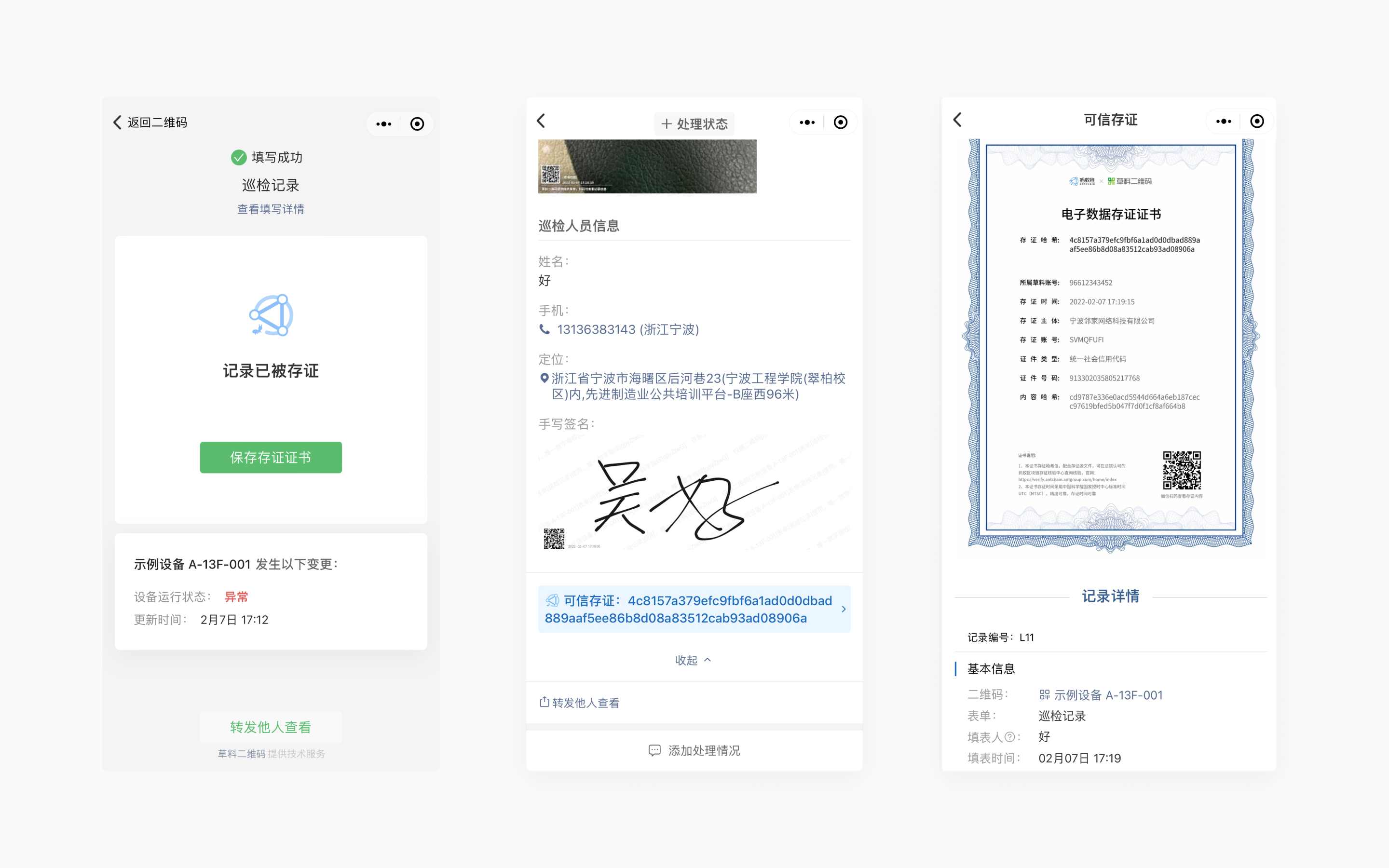
10. Ant Blockchain Notarization
Apply blockchain notarization to submitted form records — creating a tamper-proof, authentic activity log. Applicable for important agreement signing, replacing paper-and-pen signatures, and more. View detailed effects and setup tutorial
11. PDF Export Format Settings
Every form record can be exported as a corresponding PDF file — suitable for circulation or archiving.
If the default PDF format provided by CaoLiao doesn't meet your enterprise's requirements, you can use an existing Word template or download the default format, then replace the logo, hide unnecessary fields, adjust the layout, and upload it to customize the PDF export format.
Applicable to equipment inspection, hazard rectification, acknowledgment form signing, training certificates, and more.
