Status Update Rules
I. Feature Introduction
Add a status panel to a QR code to show the current status of an item or piece of equipment, for example equipment running status: Normal/Abnormal. Learn about the status panel
After a form is submitted, the QR code status can be changed automatically based on what was filled in for fields such as check items, numbers, and gauge readings. For example, when the equipment temperature goes above 80°C, the equipment status changes to "Awaiting Repair", and anyone who scans the code sees it.
Watch a video of the rule in action
II. Setup Tutorial
In the QR code editor, select the Control Panel and click Settings. Choose the form you want to configure, click Set Up Form, switch to the Settings tab, and on the left choose Follow-up Processing → Change QR Code Status.
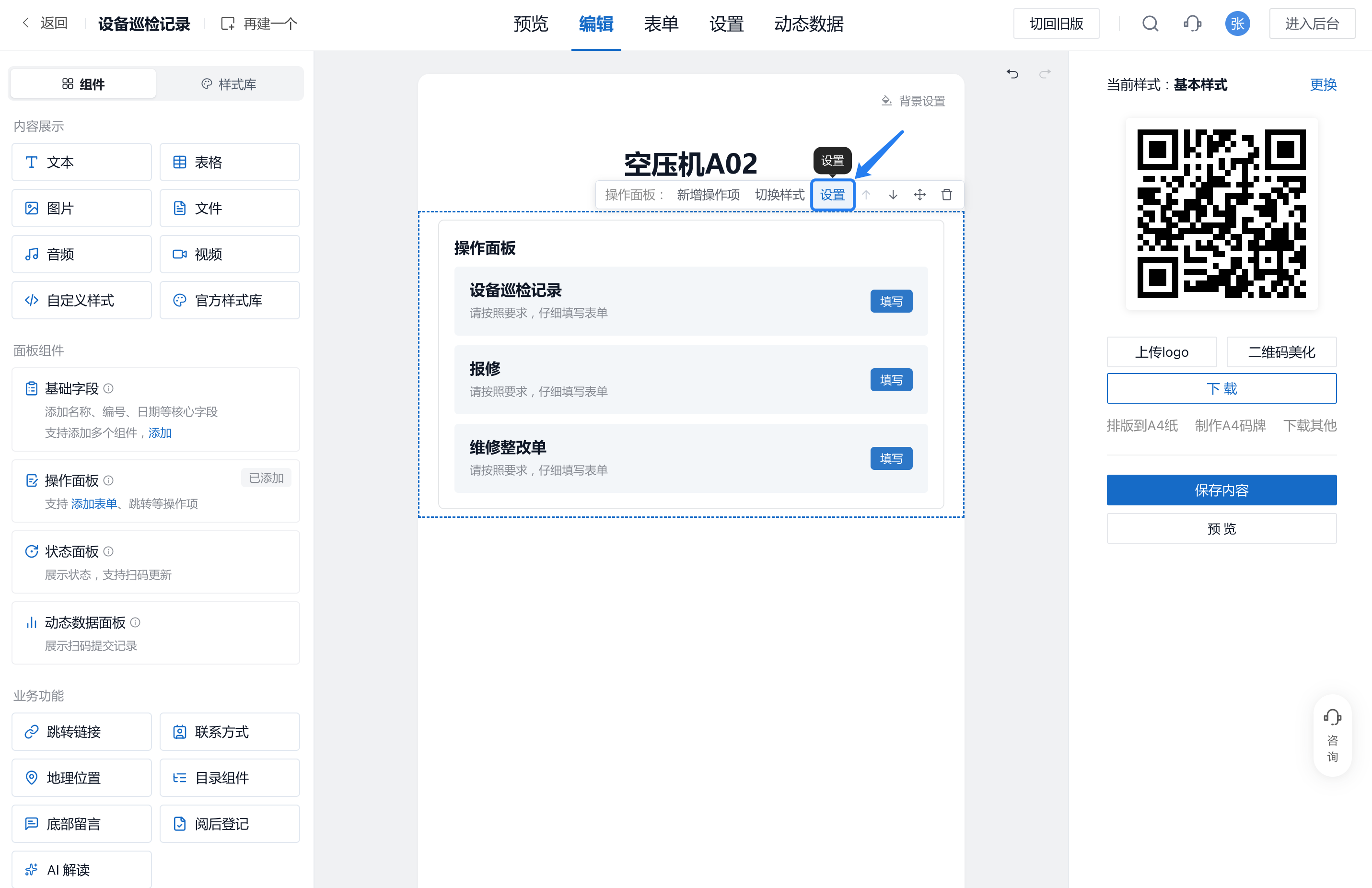
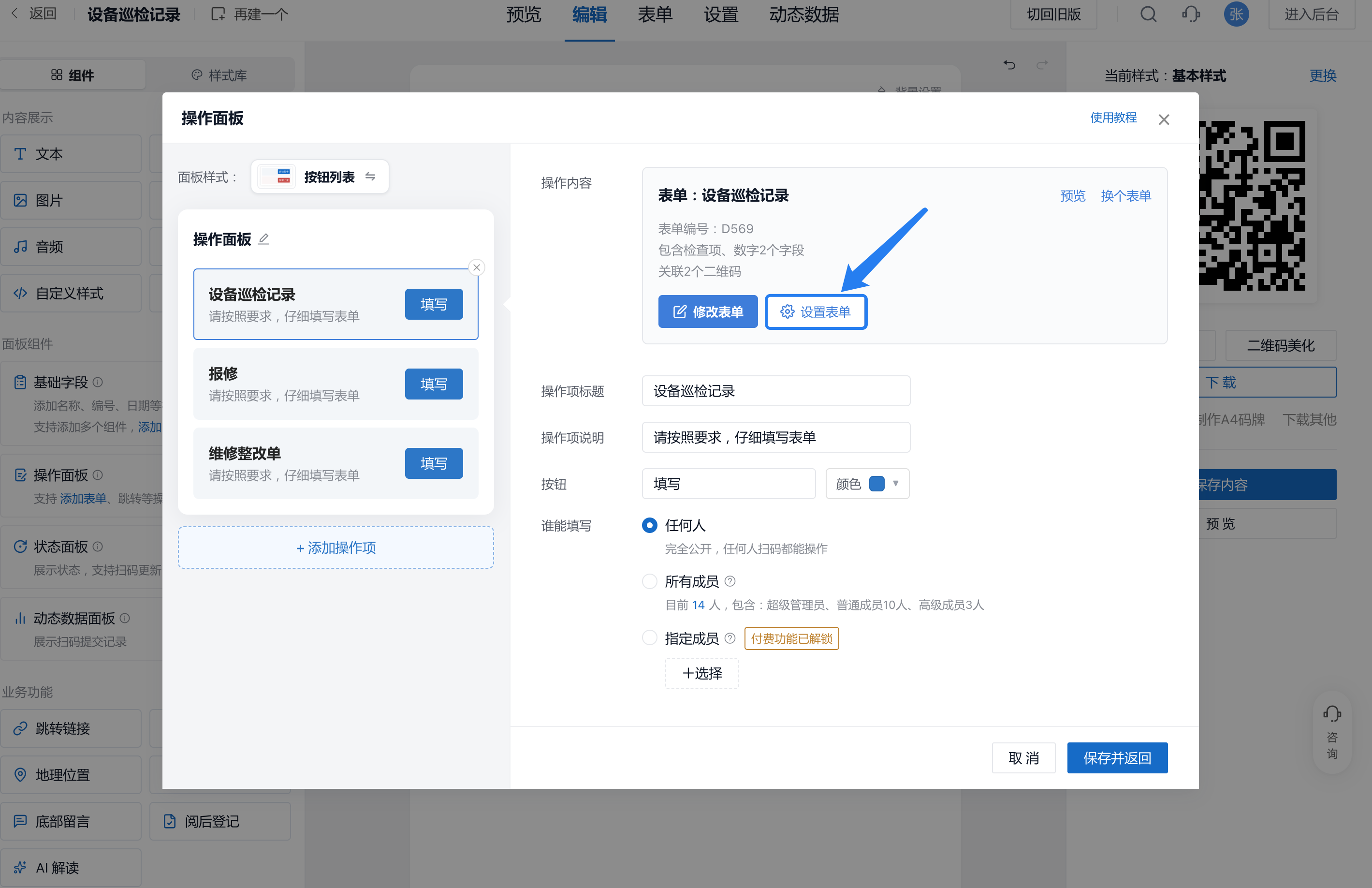
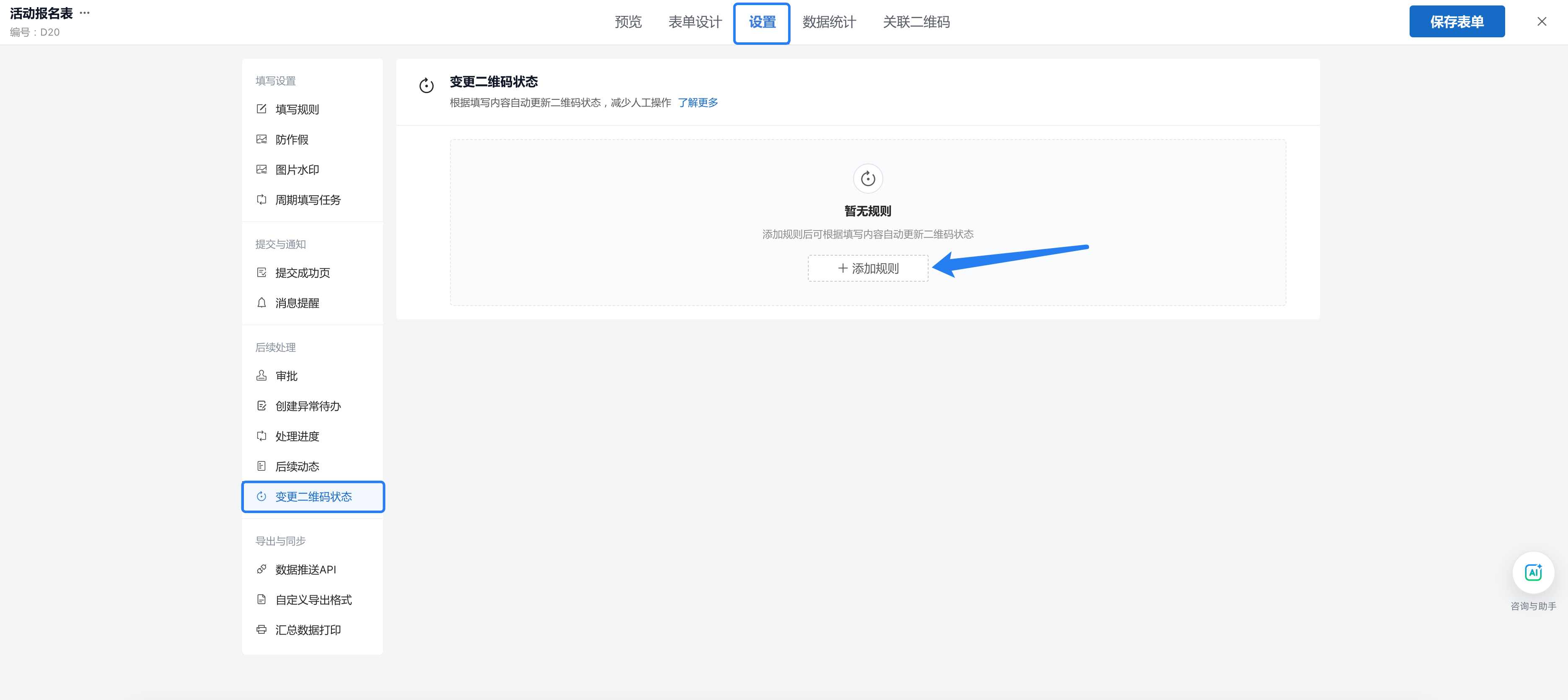
Set the Trigger Condition and Target Status
First confirm that the QR code already has a status panel, and prepare the target status (such as "Awaiting Repair"). On the Change QR Code Status page, add a rule, choose the form field used for the judgment, and set the trigger condition and the status to change to.
- Check items: you can specify one or more check items, and the rule triggers when the result is "Abnormal". For example, when an equipment check item is abnormal, the equipment status changes to "Awaiting Repair".
- Numbers: set conditions by the value of a number field. For example, when the temperature goes above 80°C, the equipment status changes to "Awaiting Repair".
- Gauge readings: readings from both electronic-screen gauges and pointer gauges can be used as conditions. For example, when the pressure reading goes outside the set normal range, the equipment status changes to "Abnormal".
Fill in thresholds such as temperature and pressure according to the equipment's actual requirements; the values above are only examples. After saving the rule, click Save Form. From then on, when submitted data meets the condition, the matching status change is carried out automatically.
Confirm the Setup Works
Submit a test record that meets the condition, then scan the code and check that the status panel has changed to the status the rule specifies. You can also submit a record that doesn't meet the condition and confirm it doesn't trigger this status change rule.