Single Record Export Format
I. Feature Introduction
Every submitted form record can be exported as a standalone file for archiving. Printing after submission is also supported, allowing records to continue their workflow on paper — for example, adding signatures or stamps. Learn about Forms
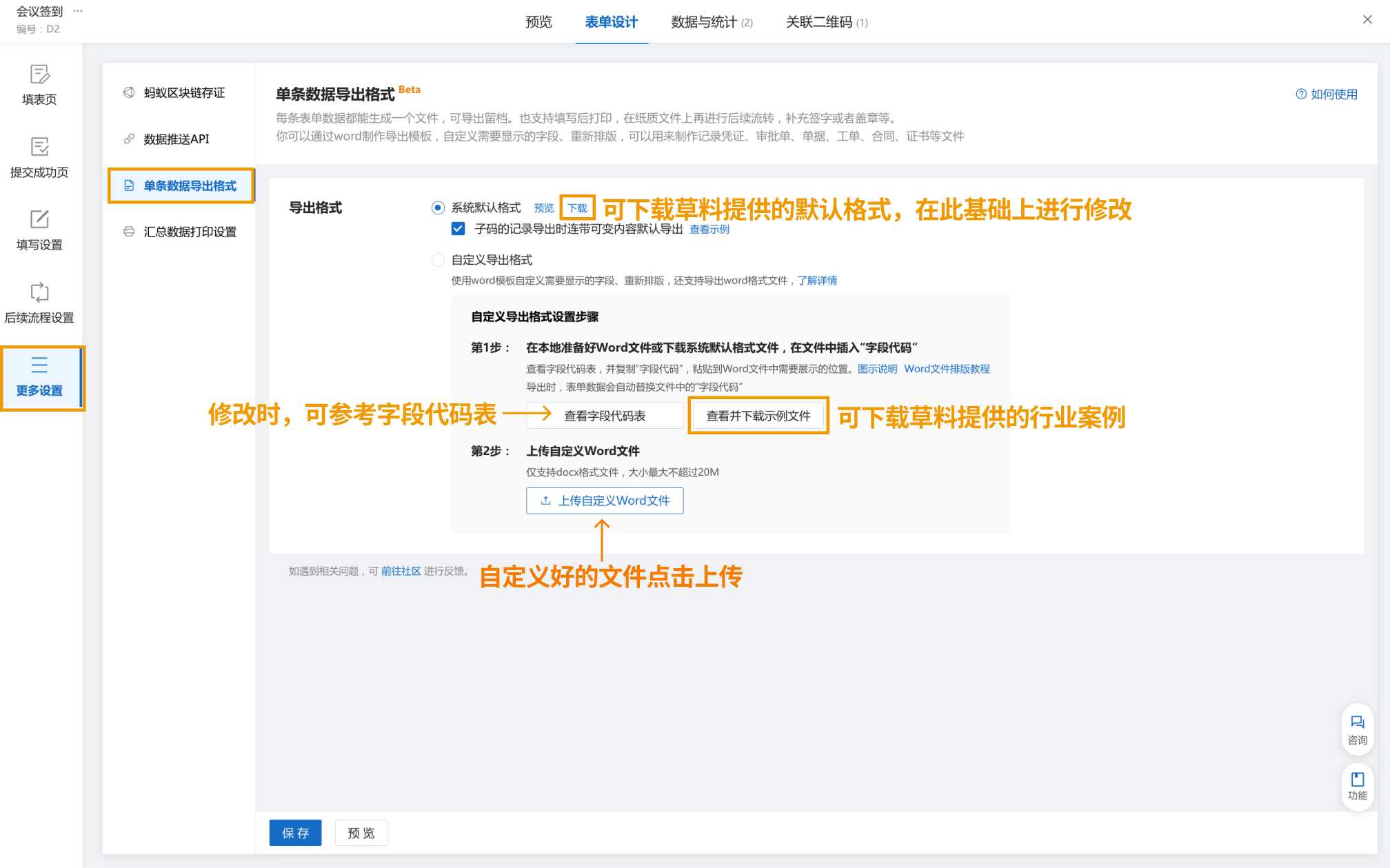
You can export a PDF in CaoLiao's default system format. If the default format does not meet your company's requirements, you can use an existing Word file or download the default format file, customize which fields to display, re-lay it out, and upload it.
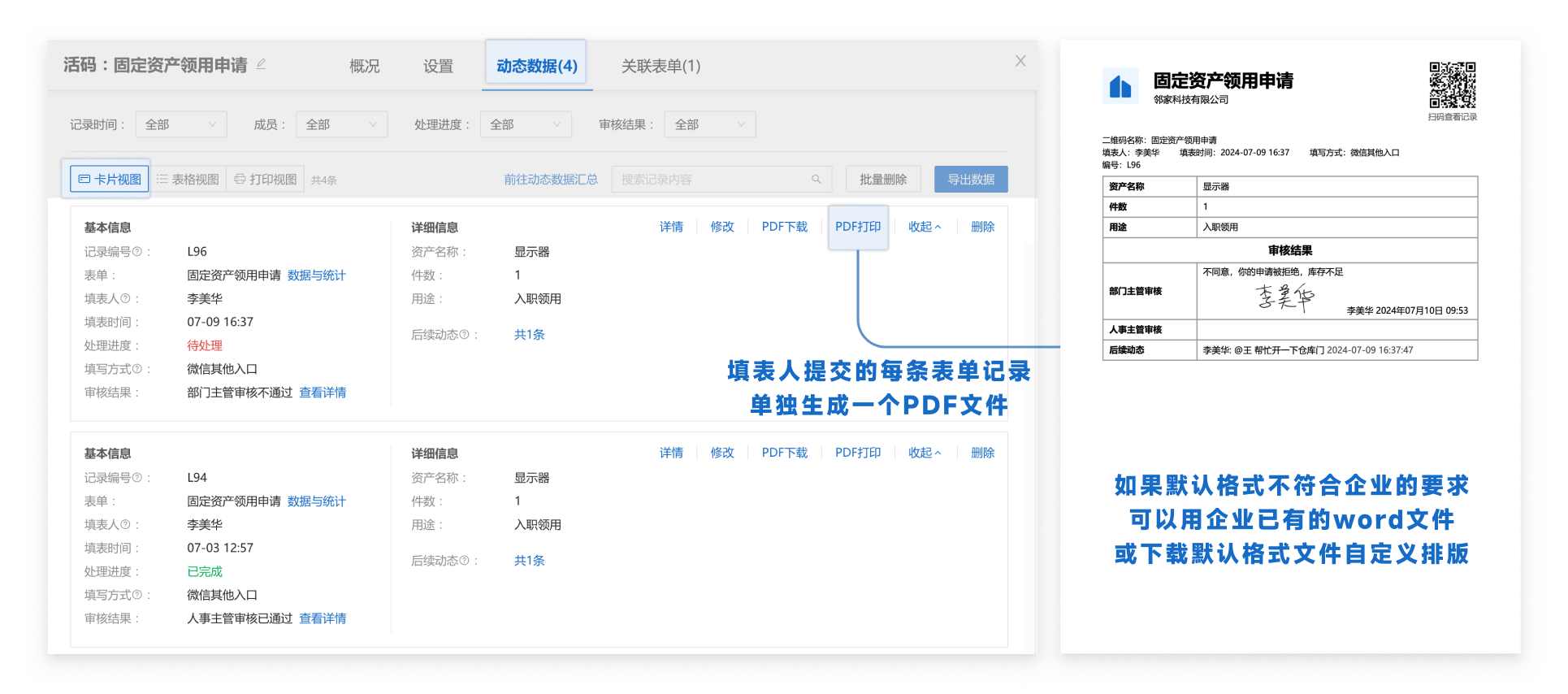
To export all form data consolidated into a single PDF, learn about summary data printing.
Feature Value
The custom export format feature enables:
- Replacing the company logo, adjusting logo size and position.
- Hiding unnecessary fields such as record number and submission method.
- Adjusting font size, spacing, and column width; merging cells.
This allows you to export files that meet your company's archiving requirements without any additional post-processing. Suitable for equipment inspections, corrective actions, acknowledgment forms, training certificates, and more.
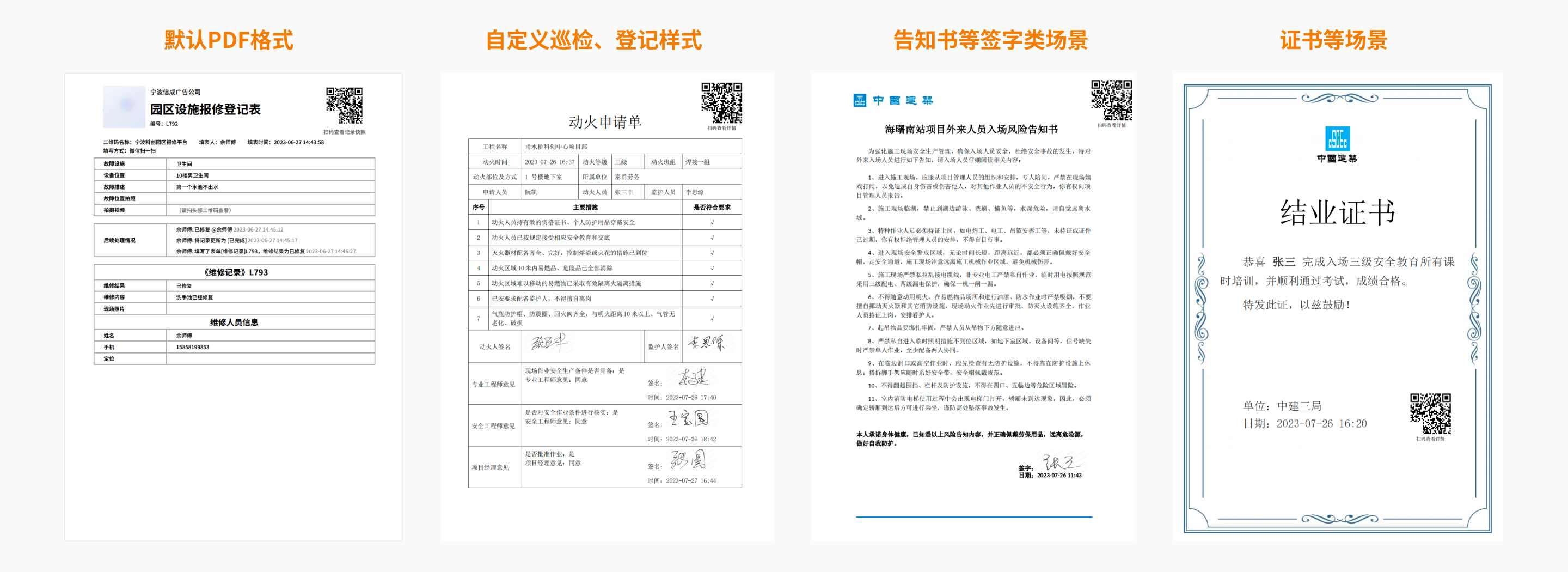
II. Customization Process
You can download the default format or an industry example, then refer to the field code table to create a custom Word template that meets your needs. The finished file must be uploaded to take effect. Uploaded files must be in .docx format and no larger than 20 MB.
A Word file layout tutorial and related guidelines are available for reference. View details
About Field Codes
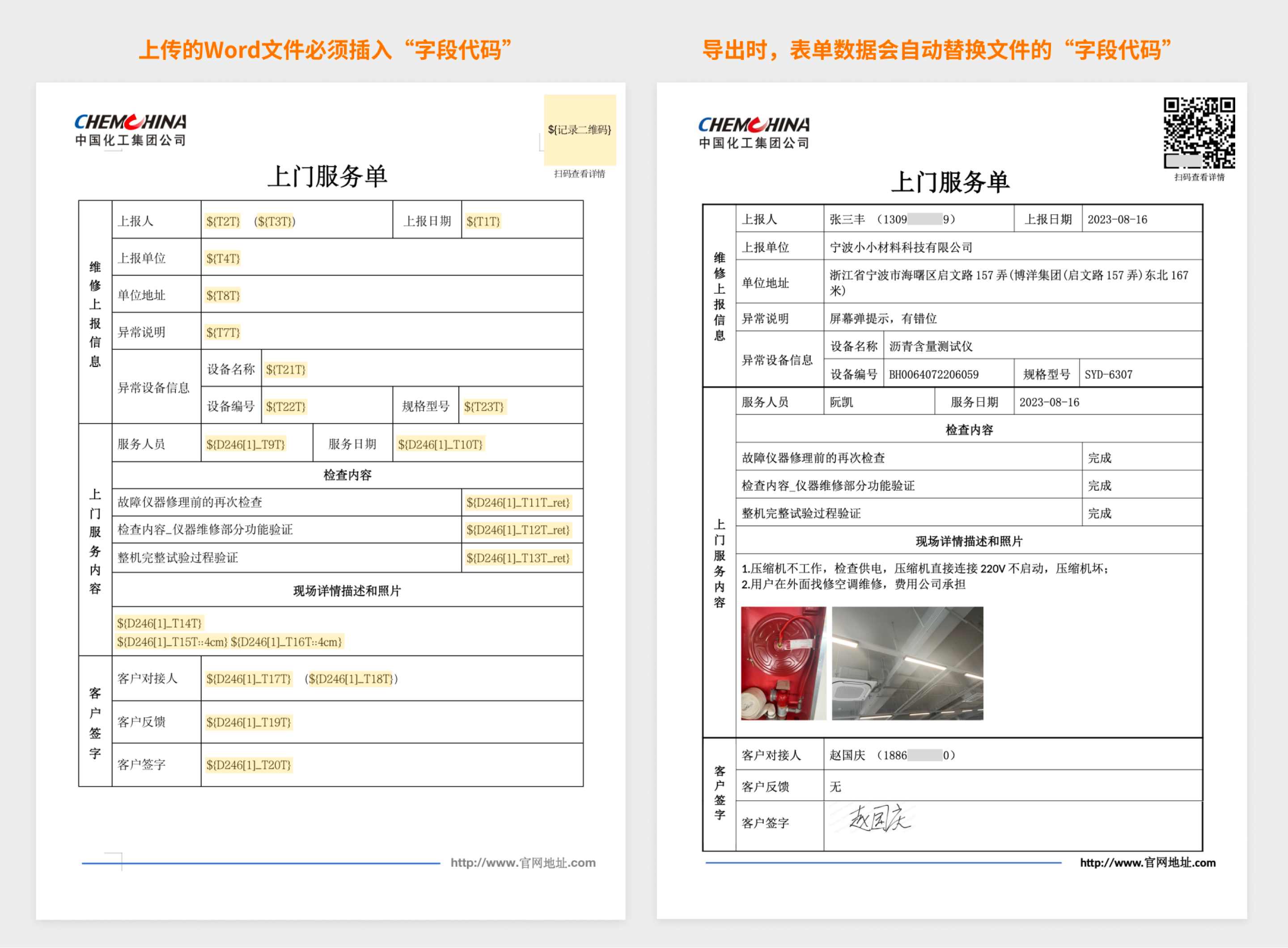
Each form has a corresponding field code table. Copy a "field code" and paste it into the corresponding location in your Word file where you want the data to appear.
The field code table includes the fields for the features turned on for that form, such as form fields, follow-up action fields, approval status fields, and record detail QR code fields. When to-dos are enabled and have to-do rules, linked to-do variables are also provided; when the completion method is "Complete after filling in a form", you can reference the fields of the matching completion form.
Video Tutorial: Inserting Field Codes
Export To-Dos and Completion Records in the Same Report
When exporting a record, you can use a Word custom template to put the to-do information linked to that record and the form records filled in when completing the to-dos in the same document. For example, after an inspection finds an abnormality and a to-do is created, an acceptance form is filled in when the rectification is done, and finally you export a report that holds the inspection, the to-do, and the acceptance result.
| What you want to export | How to configure it |
|---|---|
| To-do number, title, status, assignee, urgency, and related times | Use the to-do's own 8 fixed variables, for example ${TODO[1]_todo_title} |
| The form content filled in when completing the to-do | Copy the completion form variable from your own field code table, for example ${TODO[1]_D3_T5T}; D3 and T5T are only examples |
| The second to-do | Change TODO[1] to TODO[2], with the index still directly after TODO |
Each document handles at most 5 to-dos, and one to-do can reference several fields. Completing directly or filling in supplementary information doesn't automatically produce a completion form record, and you can't export all of a to-do's historical follow-up actions this way.
First copy the full field code into the template, save and upload it, then pick a record with a to-do to export, and check the to-do number and completion content. Word is the file format of the custom template, and the final download format depends on the actual export feature. See the full variables, prerequisites, and empty value troubleshooting.
III. Remove the CaoLiao Mark from PDFs
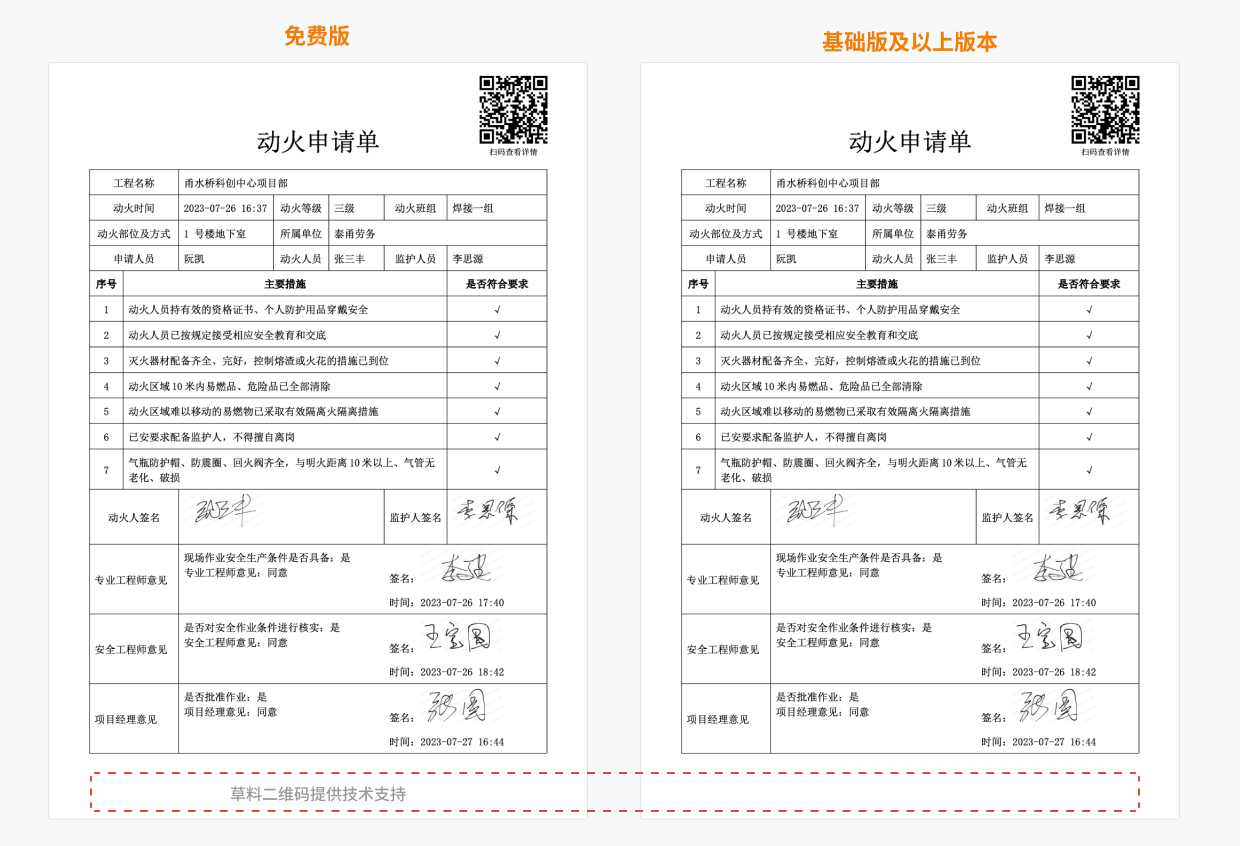
Free version users see the label "Technical support provided by CaoLiao QR Code" at the bottom of exported PDFs. Upgrading to any paid version removes it automatically.
IV. How Do I Export Record Files in Bulk?
In the data export section, you can tick "Bulk export a PDF file for each record".
Bulk PDF export is exclusive to the Flagship Edition. Learn about the Flagship Edition

V. FAQ
1. Which Word Versions Are Supported?
Recommended: Microsoft Word 2007-2019 (.docx).
2. Why Does My Word File Fail to Upload?
Only .docx format is supported. .doc files are not supported.
3. I Previously Set a Custom Export Format in the QR Code Editor. Why Don't Adjustments Made in the Form List Take Effect?
Previously, the custom export format set in the QR code editor was a private setting of the form for that QR code, and applied only to that code. Adjustments made in the form list were the form's public settings, and didn't affect codes that already had private settings, so they didn't take effect.
After the March 27 release, when you adjust the custom export format in the form list, all linked QR codes are updated to match.