Digitizing Paper Documents with Forms
When an enterprise has a specific paper form or downloads a file from our PDF sample library, you may need to convert it into an electronic form for faster, more convenient data collection, inspections, or registrations — while also exporting and archiving records in your required format. CaoLiao's Forms feature can be used to build and digitize paper documents.
The following is a step-by-step guide:
1. Convert the Paper Document into an Electronic Form
Take the fields in the paper document that others need to fill in — such as name, gender, or ID photo — and use them as component titles in CaoLiao's form editor. In the forms editor, select the appropriate components from the left panel and click or drag them into the form. Choose a component type that matches the format of information you want to collect. Click Save to generate an electronic form.
View the form creation tutorial

2. Link the Form to a QR Code
A form must be linked to a QR code to collect data. When others scan the published QR code and fill in the form, their submissions are saved under your account as dynamic data.
There are two ways to link a form:
- Add a control panel to an existing QR code, then link the form as an operation item.
- Generate a QR code directly from the form list — the generated QR code is automatically linked to that form.

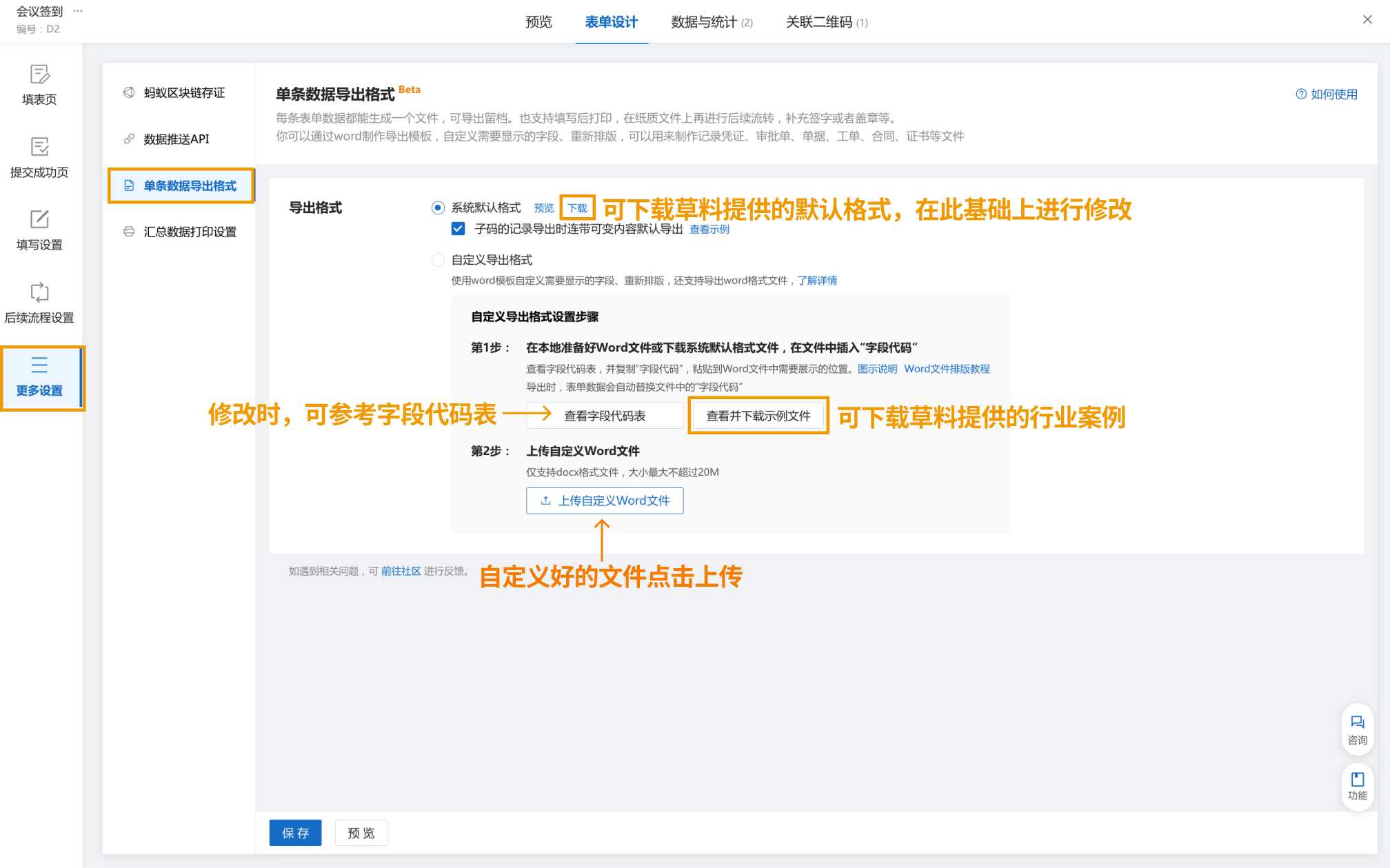
3. Set Up PDF Export Format
While using an electronic form to collect data, you may also want each record to be exportable like a paper document for archiving. To do this, set up a custom PDF export format in the form settings.
The customization process is:
- Prepare a local Word file — either an existing company document or the default format file downloaded from CaoLiao.
- Insert the CaoLiao field codes for each form component into the corresponding positions in the Word file. Each form has a corresponding field code table; when exporting, form data automatically replaces the "field codes" in the file.
- Upload the customized Word file with inserted field codes. Subsequent data exports will follow the custom PDF format.
4. Publish the QR Code to Collect Data
After setting up the QR code and form, download the QR code image or print QR code labels. Once published, others can scan the QR code and submit forms — all submitted data is saved under your account as dynamic data.
5. Data Statistics and Export
All data collected through the form can be viewed by super admins and advanced members (system management, data management) in both the desktop workbench and the mobile workbench's form data section. Data can also be exported in Excel or PDF format for archiving.
