How to Receive QR Code Activity Notifications via the CaoLiao Service Account
To stay up to date with your QR code activity, you can configure which notifications to enable. Once set up, you will receive updates through the CaoLiao QR Code service account.
Supported Notification Types
1. Weekly Scan Count Report
Every Monday, receive an automatic report of the previous week's scan activity, including scan details, traffic sources, and scan count trends.
2. Form Record Reminders
Set up reminders when new form records are received, or when records containing a specific option (such as "Abnormal") are submitted.
3. Form Data Approval Alerts
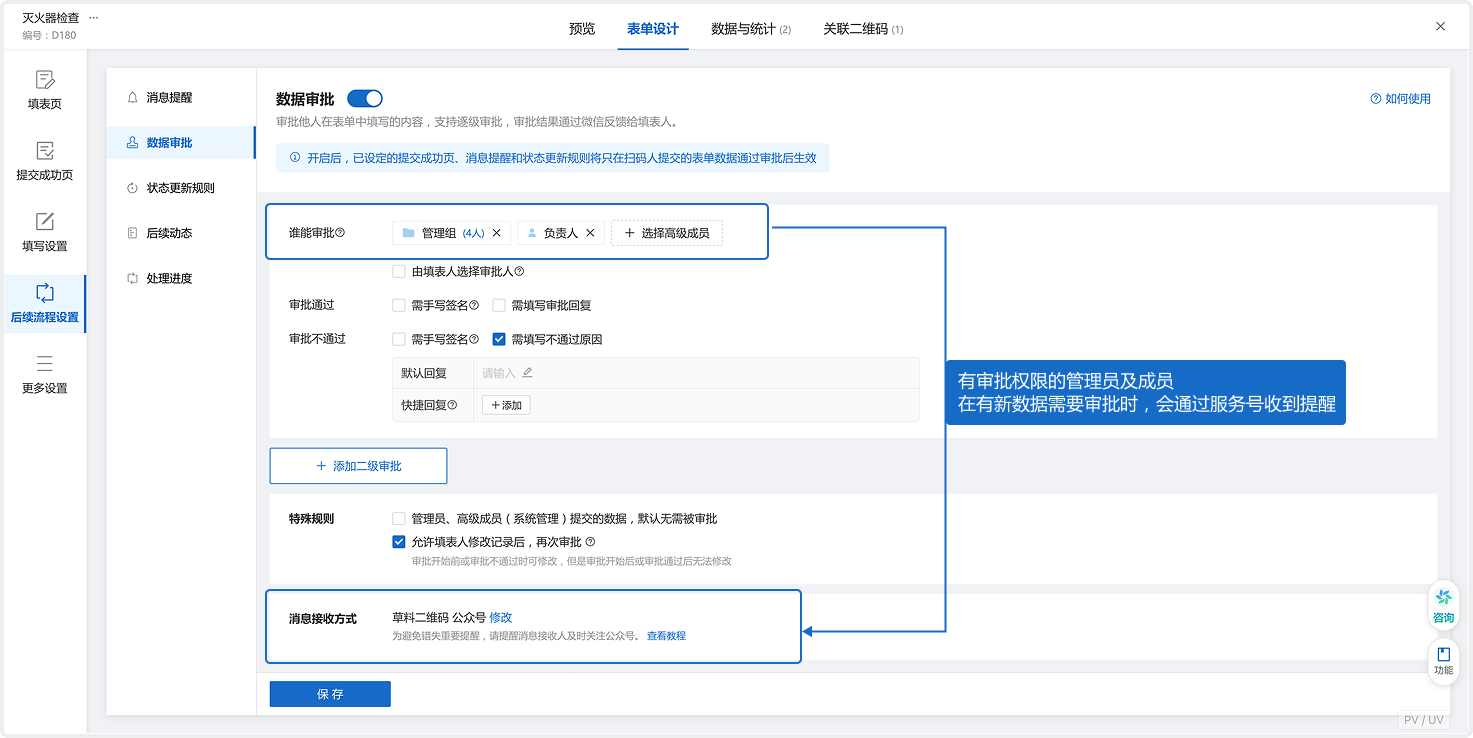
When a user submits form data that requires your approval, the service account will send a prompt notification.
4. Message Notifications
Once the message panel is enabled, new messages will trigger automatic notifications.
5. Plan Overdue Reminders
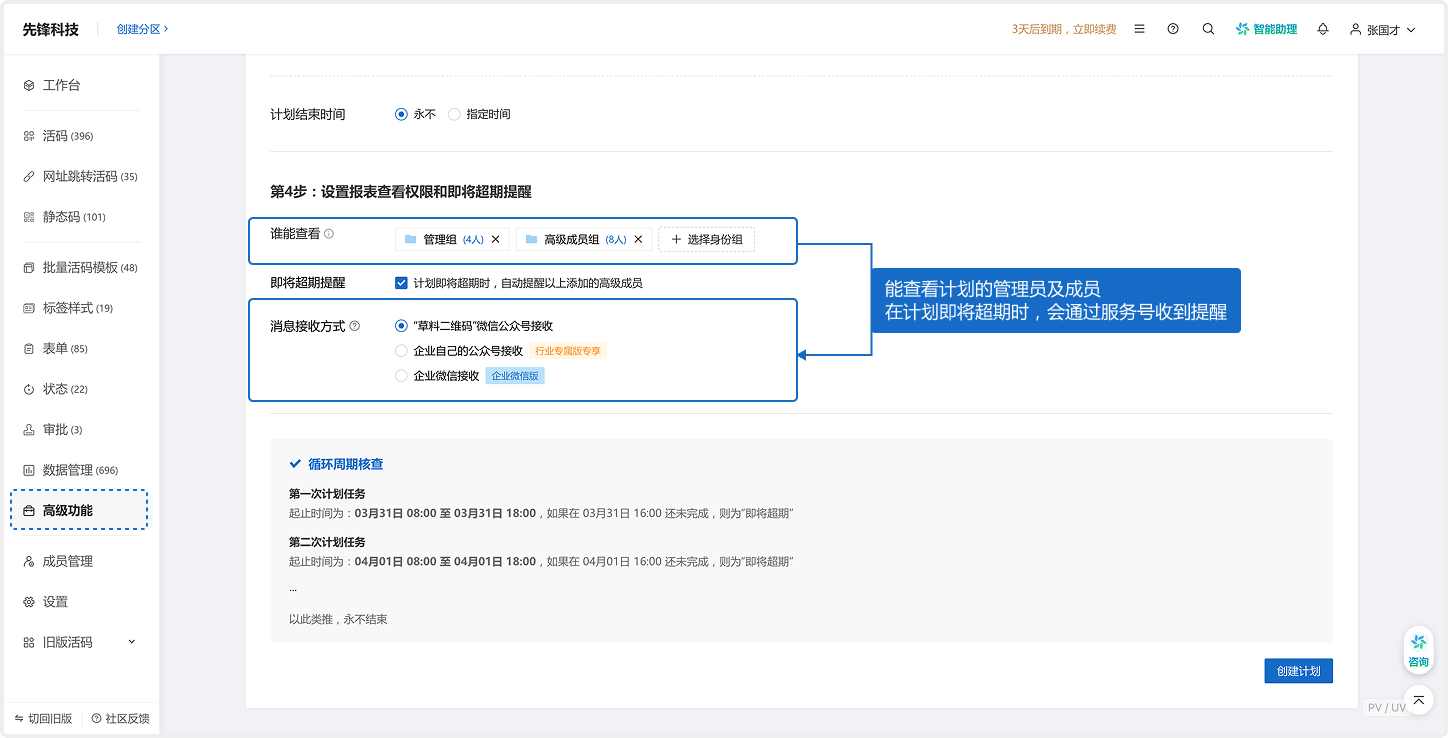
For plans that are approaching their deadline without being completed, an upcoming overdue reminder will be sent to all members who have permission to view the plan.
Configuration Methods
1. Weekly Scan Count Report
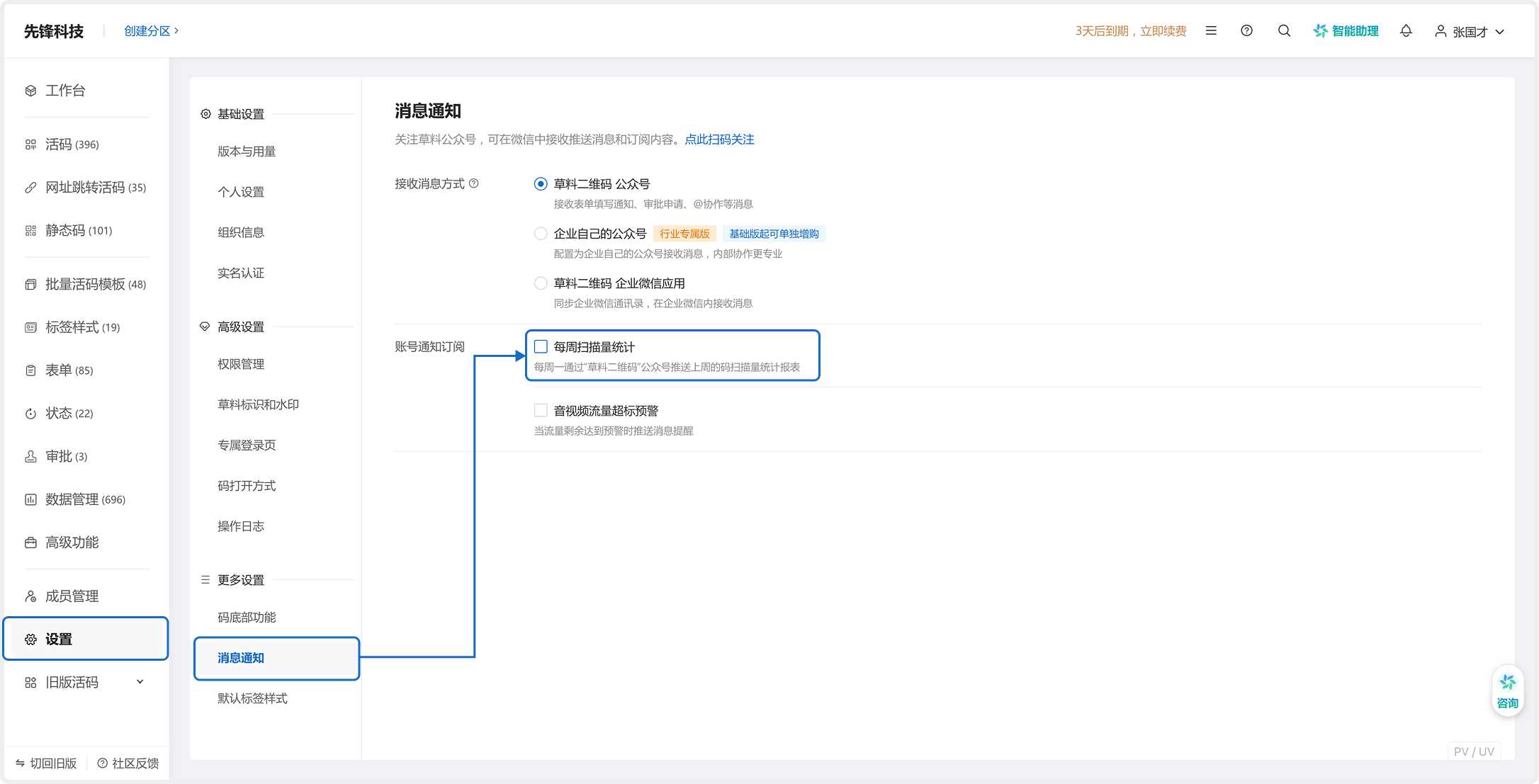
Desktop setup: Log in to your CaoLiao account, go to Workbench > Settings > Notifications, and check Weekly Scan Count Report.
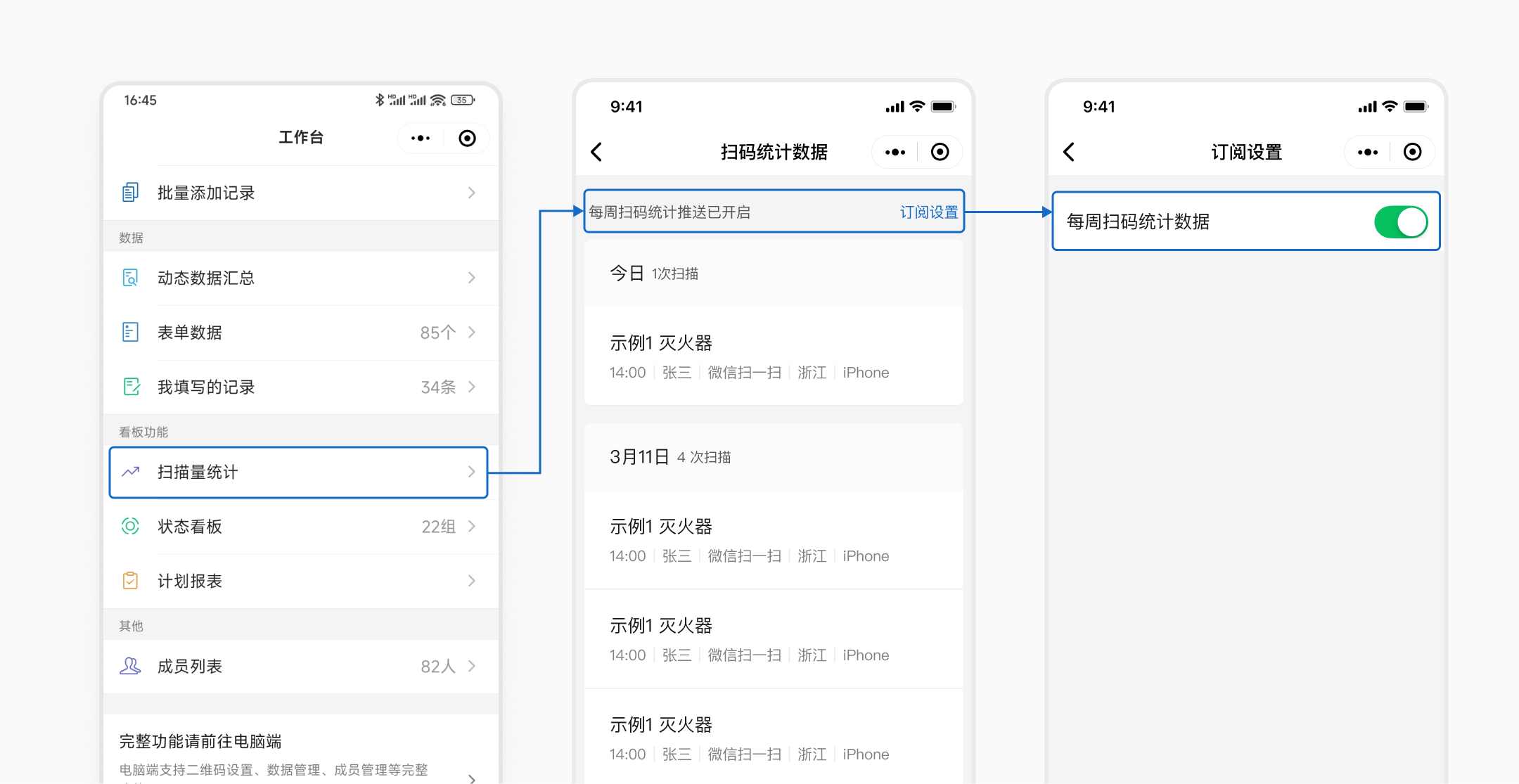
Mobile setup: Open the CaoLiao QR Code Mini Program, go to Workbench > Scan Count, and turn on the push notification toggle in the subscription settings at the top.
2. Form Record Reminders
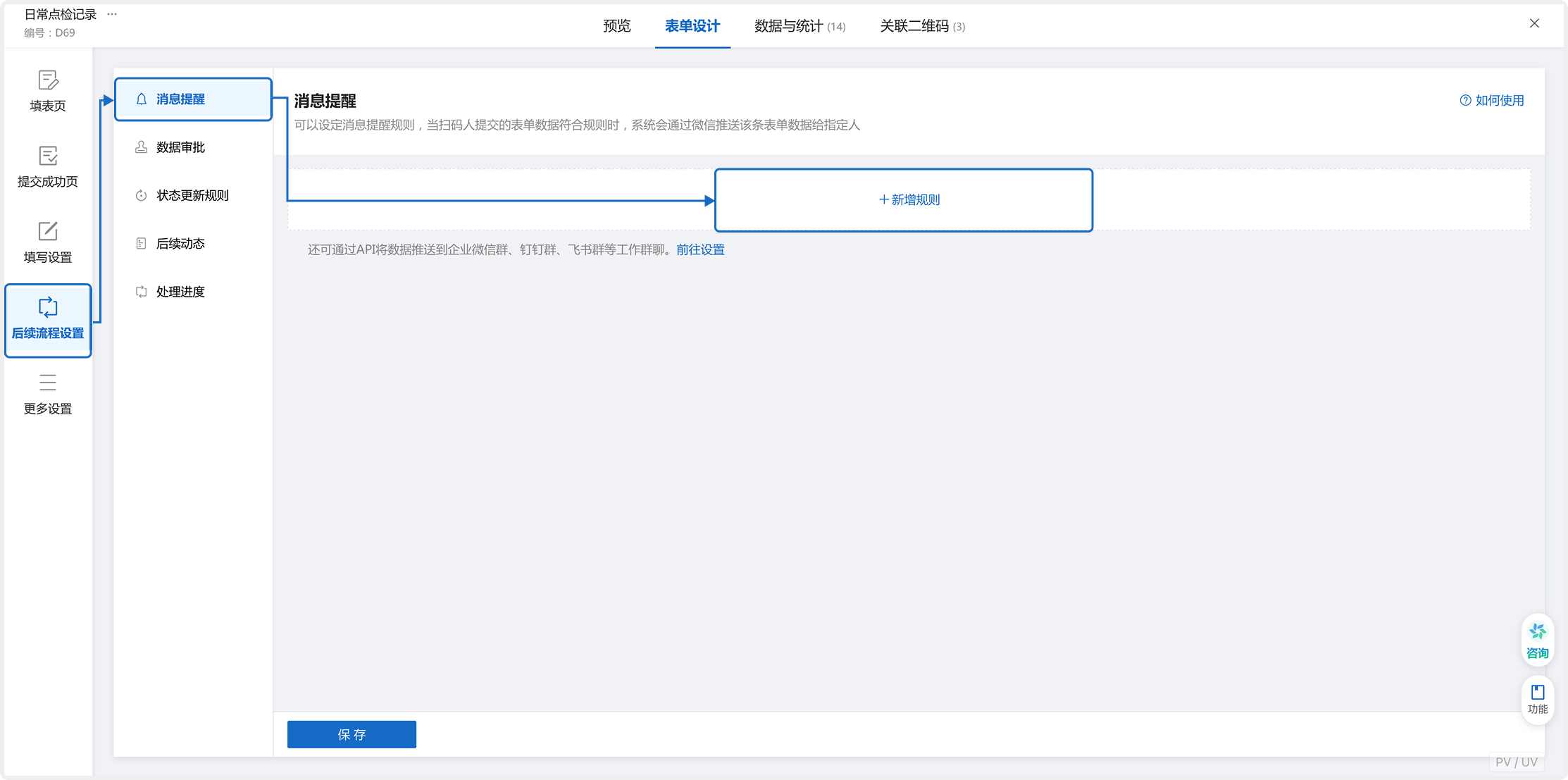
In the QR code editor, open the form, switch to Settings, and go to Submission and Notifications > Notifications. Configure the trigger conditions as needed:
- On any data submission: Notify the designated recipient immediately when a new record is submitted
- On conditional data submission: Notify the designated recipient when a record matching specific conditions is submitted
For more details on form features, see Form Feature Introduction.
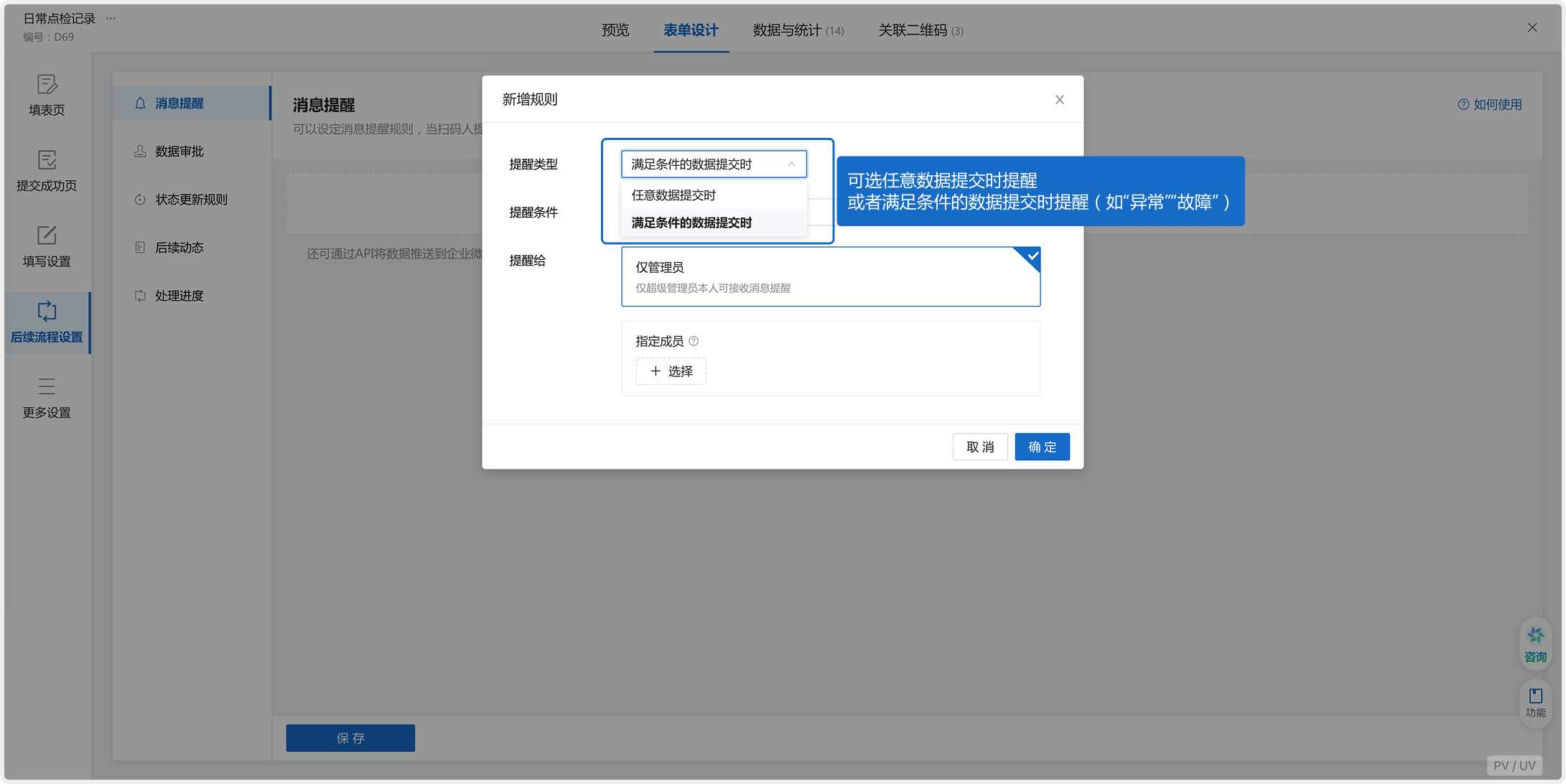
3. Form Data Approval Alerts
In the QR code editor, open the form, switch to Settings, and go to Follow-Up Processing > Data Approval to enable approvals.
For detailed instructions on using the data approval feature, see Data Approval Feature Introduction.
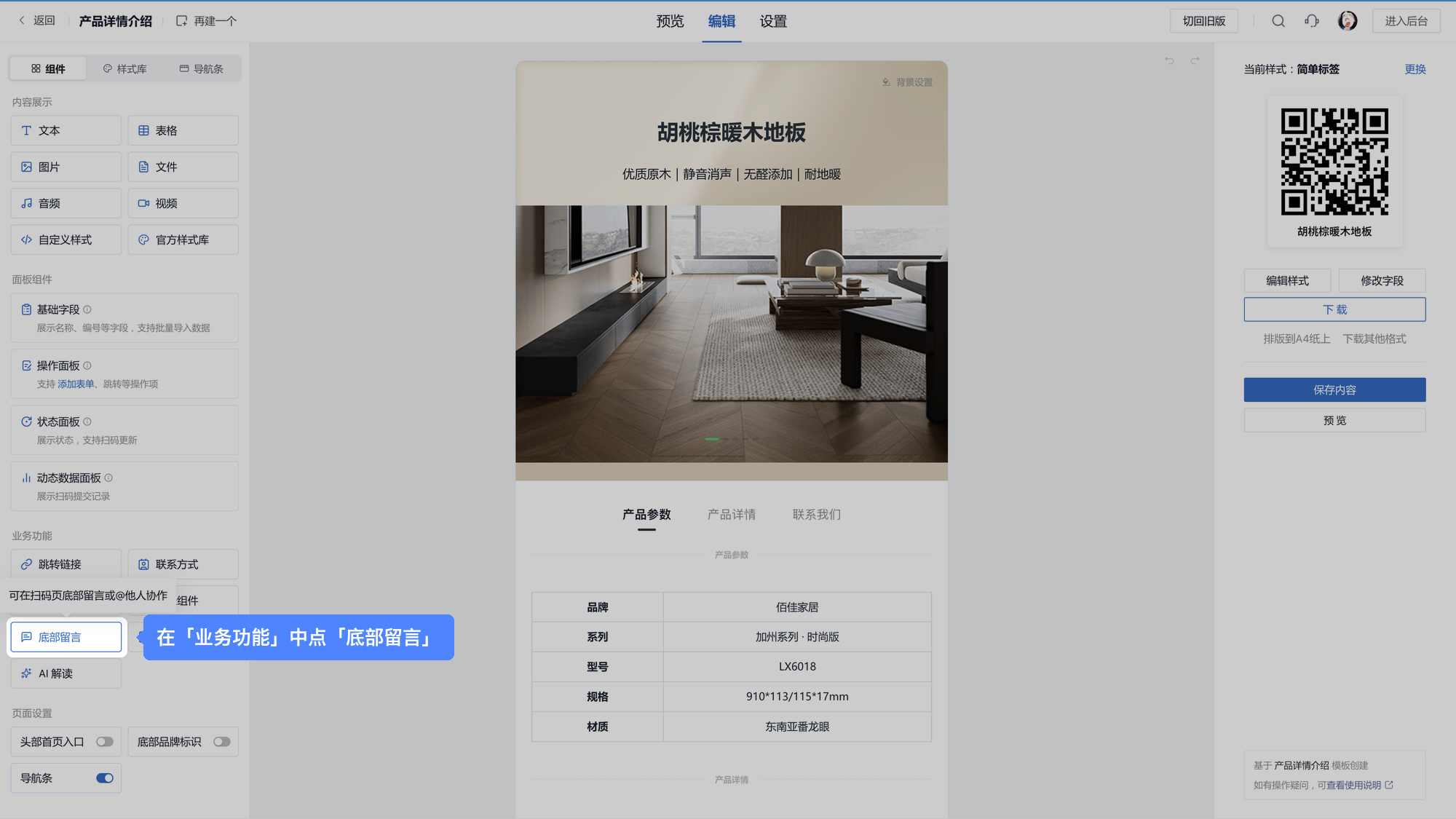
4. Message Notifications
In the dynamic QR code editor, go to Business Features on the left and click Bottom Messages to add the bottom message panel. Once added, no further configuration is needed — new messages will automatically trigger notifications through the CaoLiao QR Code service account.
For more details on the message feature, see Bottom Message Panel Feature Introduction.
5. Plan Overdue Reminders
Go to the CaoLiao QR Code workbench, select Advanced Features > Plan Management. In Step 4 of the feature setup, configure Upcoming Overdue Reminders. All members with permission to view the plan will receive reminders, allowing them to quickly review the plan report via the service account and check the number and details of items approaching their deadline.
For detailed setup steps for the plan feature, see Plan Management Feature Introduction.
Follow the CaoLiao Service Account
Scan the QR code below to follow the CaoLiao QR Code service account and receive activity notifications for your QR codes.
If you have important reminders, pin the service account and check "Do Not Disturb" and your phone's system notification permissions. For complete instructions, see How to Set Up CaoLiao WeChat Notifications to Avoid Missing Messages.