Recurring Form Submission Task Pre-Configuration Guide: Planning Your QR Codes and Tasks from Scratch
Before configuring recurring form submission tasks, you need to first set up the underlying "QR codes." The creation method varies depending on your business scenario. Start by assessing your actual management needs: do you only need to manage a single object, or do you need to manage large numbers of similar objects? 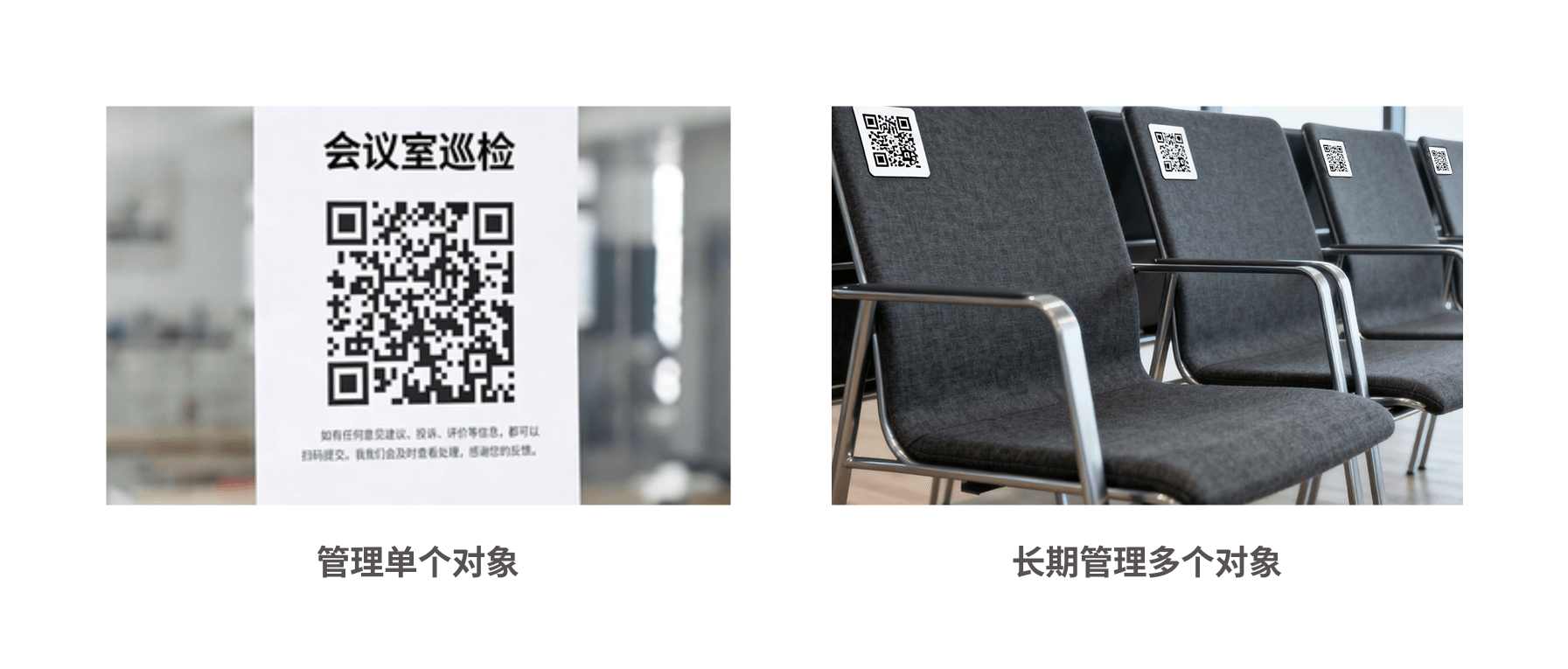
I. Managing Only a Single Object (Create a "Single Code")
Applicable scenario: You have only one specific object that requires periodic management.
Example: The company has only 1 core server room that needs daily inspection, or only 1 generator that needs weekly maintenance.
In this case, you only need to generate a single standard QR code. Two creation methods are available:
1. Create with One Click from the Template Library (Fastest, Zero Learning Curve)
CaoLiao's template library includes a large number of pre-built industry scenario templates. This is the most recommended path for beginners.
Steps: Select a template in the template library, click "Use Template", and a ready-to-use single QR code will be generated. Afterwards, simply add a "Recurring Form Submission Task" in the form settings.
2. Create from Scratch (for Special Business Workflows)
If you are familiar with the system or have a special business workflow, you can build from scratch.
Entry point: On your computer, go to [Workbench] – [Forms] – New Form. After completing the form design, the system will prompt you to "Generate QR Code." Click to automatically create a single QR code for scanning and submitting. 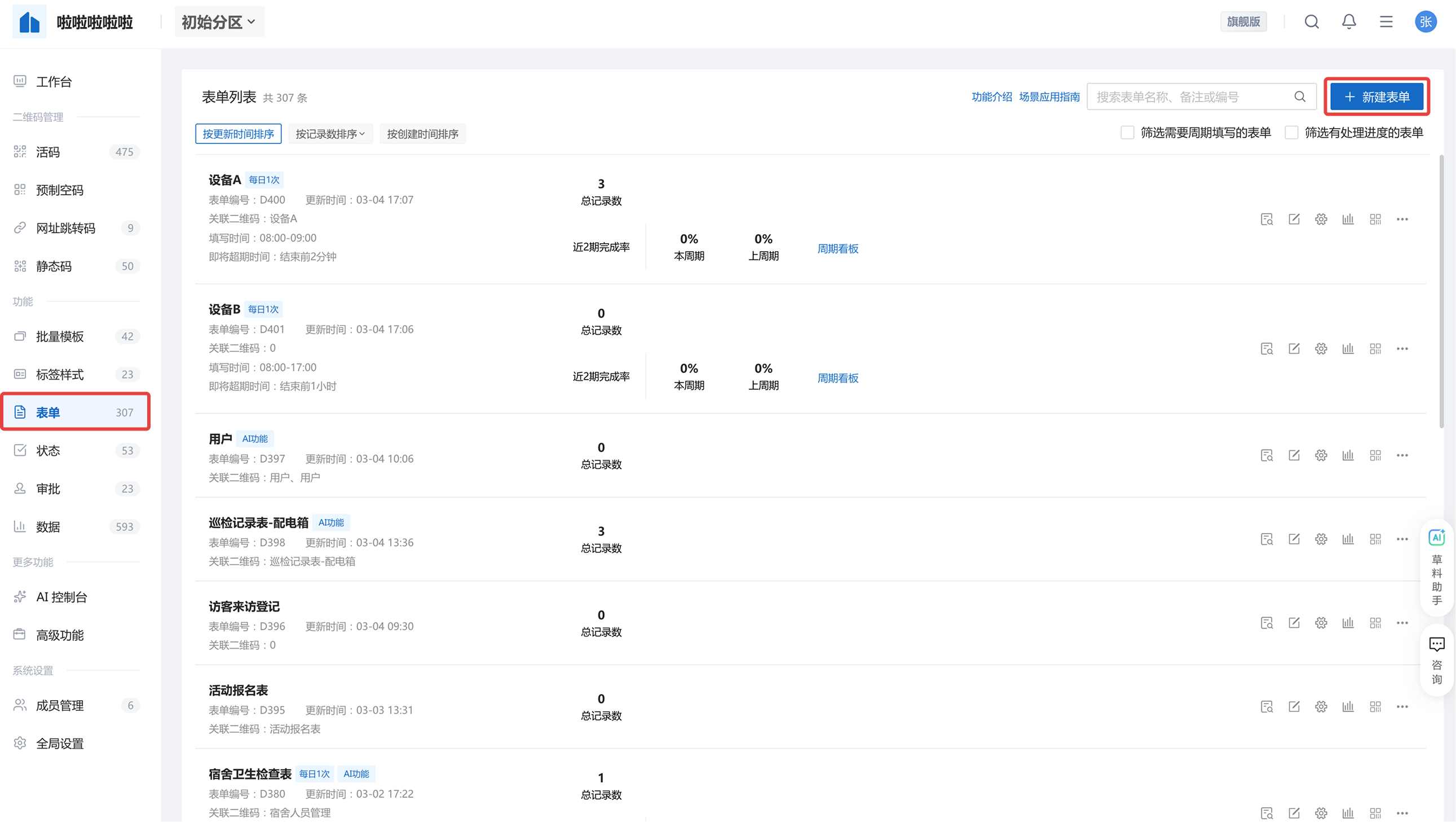
II. Managing Multiple Objects Long-Term (Create "Bulk Templates")
Applicable scenario: You need to manage a batch of similar equipment or locations, one QR code per item or one QR code per person.
Example: A property management company has 50 elevators and 100 fire extinguishers that require regular inspection. After staff scan and fill out the form, records are automatically filed by the specific elevator or fire extinguisher.
Core principle: Equipment with different inspection frequencies must be split into separate bulk templates, each linked to a different form.
If your equipment has different inspection cycles (e.g., elevators every half month, fire extinguishers every month), be sure to create codes separately following this logic:
1. Set Up an "Elevator" Management System:
- Create an [Elevator Inspection] bulk template.
- Add a dedicated elevator inspection form.
- Import data for 50 elevators to generate 50 elevator sub-codes.
- On the corresponding elevator form, set a recurring form submission task frequency of "once every half month."
2. Set Up a "Fire Extinguisher" Management System:
- Create a separate [Fire Extinguisher Inspection] bulk template.
- Add a dedicated fire extinguisher inspection form.
- Import data for 100 fire extinguishers to generate 100 fire extinguisher sub-codes.
- On the corresponding fire extinguisher form, set a recurring form submission task frequency of "once per month."
Not sure how to create bulk templates? Click to view the QR code creation tutorial
Once created, return to the recurring form submission task tutorial and see Section 5 for specific configuration instructions. Click to view