Getting Started Tutorial
CaoLiao QR Code offers a range of standard feature modules. Combine them as needed to build a business system with QR codes as the entry point at low cost, and use it to display information, collect data, and keep managing your business. Once built, it can run for the long term.
To generate a text static QR code only, click Text on the homepage and enter your text. Generate a text QR code To generate a URL QR code only, click URL on the homepage, choose static QR code or redirect dynamic QR code, and enter the URL. Generate a URL QR code
1. Create from the Template Library
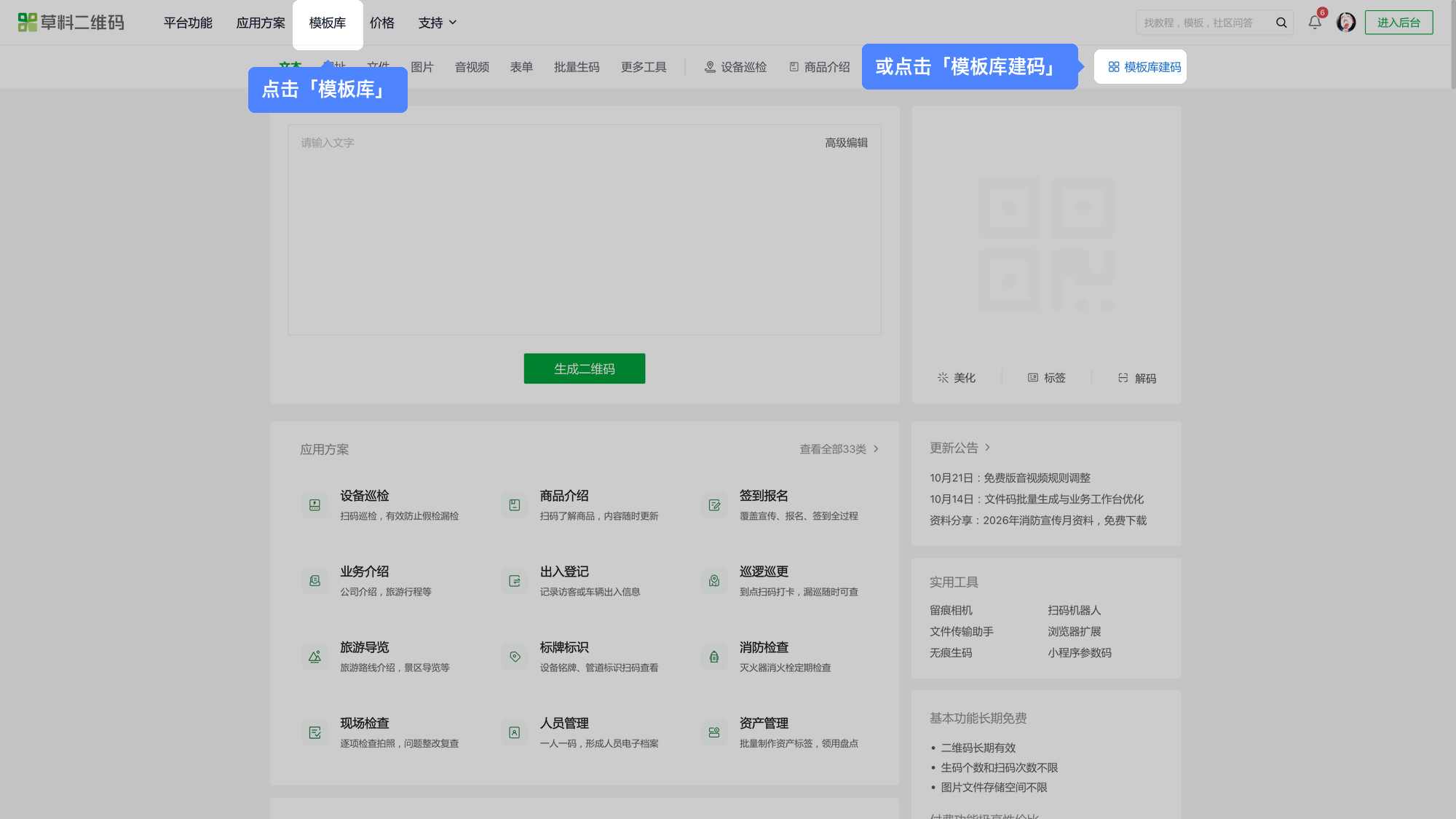
On a computer, open the CaoLiao website (cli.im) and click "Template Library" or "Create from Template Library" at the top to open the template page.
2. Choose a Template or Start Blank
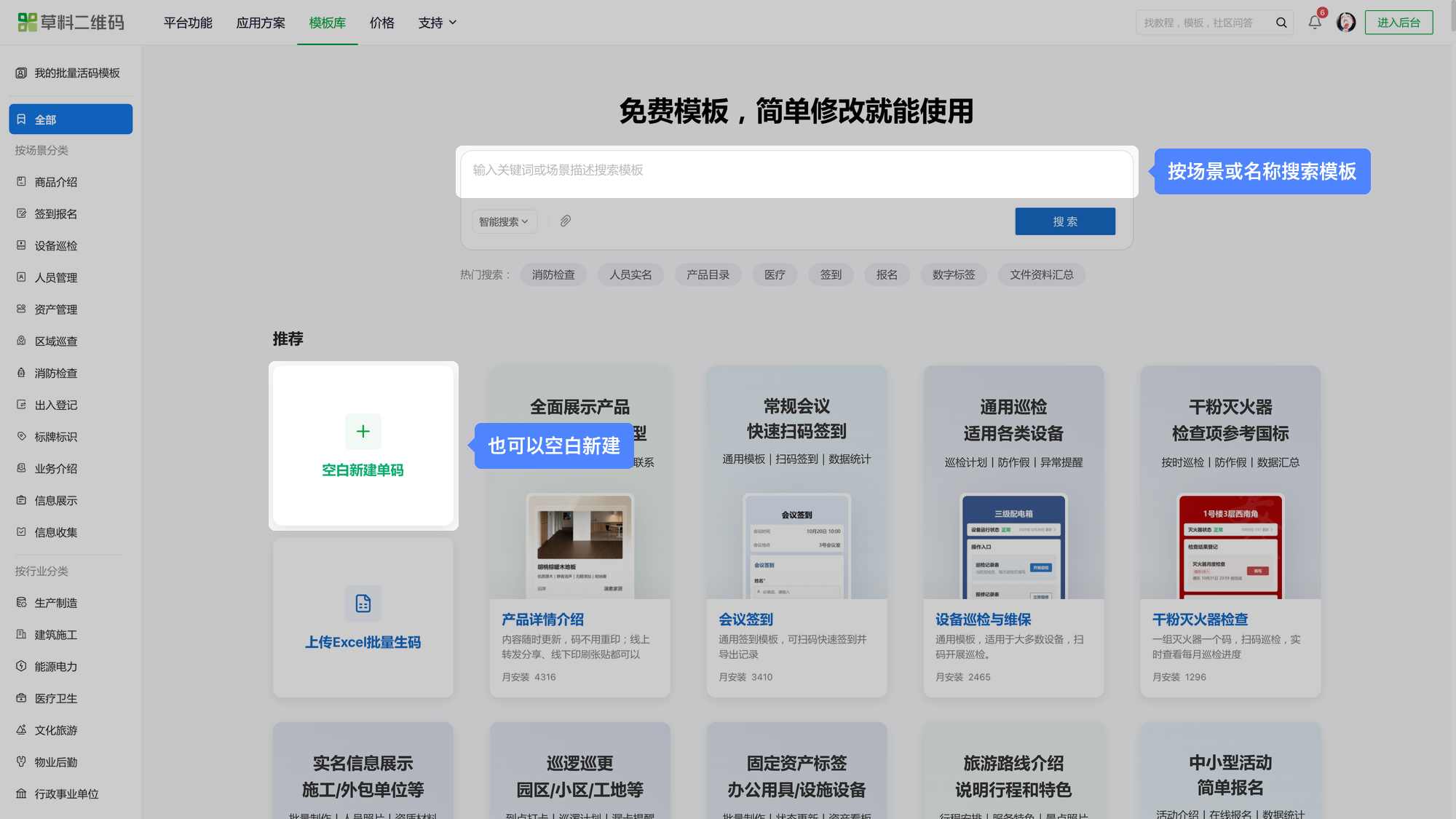
Hundreds of templates covering mainstream industries are available. Search by scenario or name and pick a template that fits your needs, or click "Blank single code" to start from scratch.
3. Edit QR Code Content
3.1 Text and Multimedia
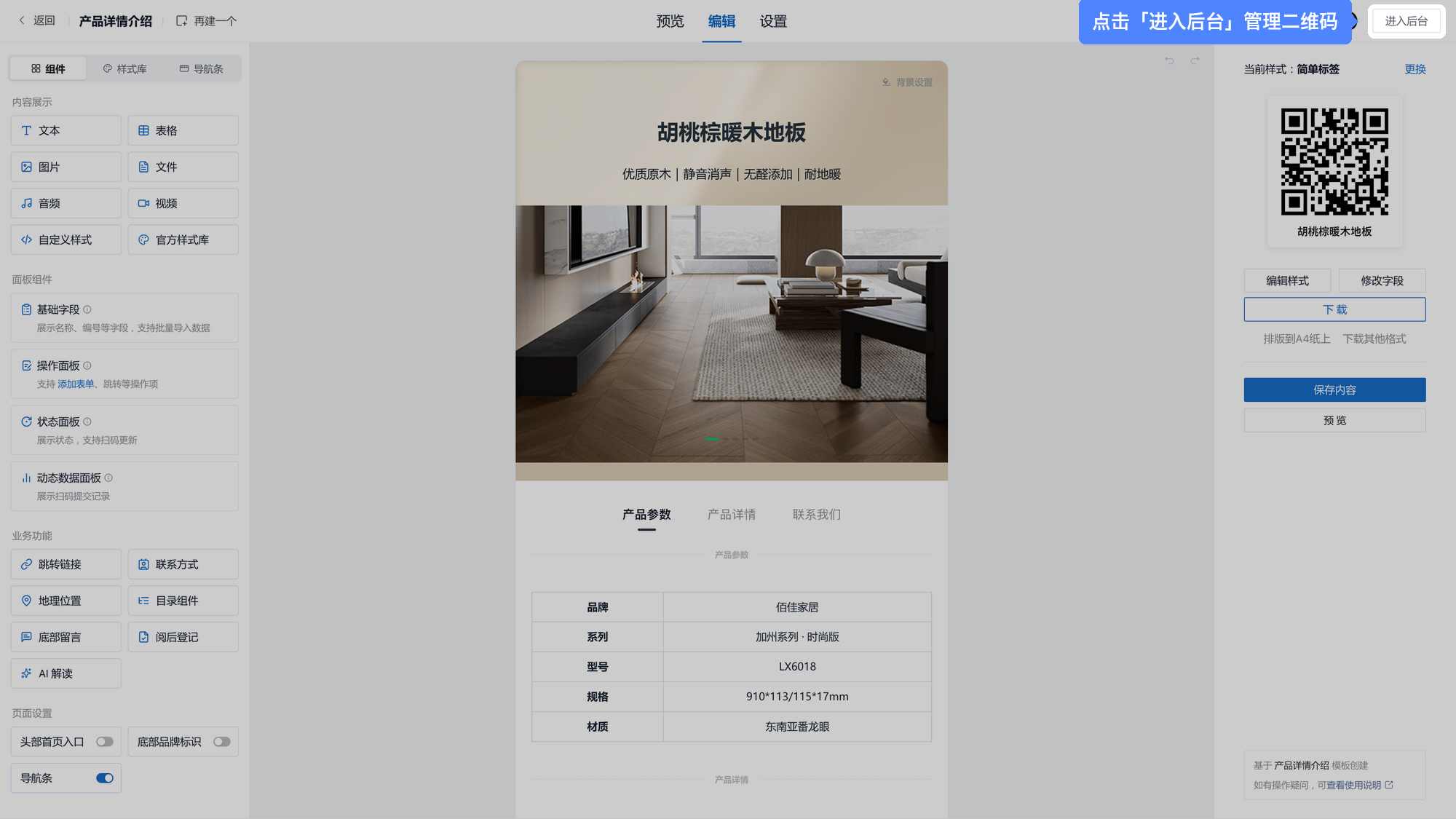
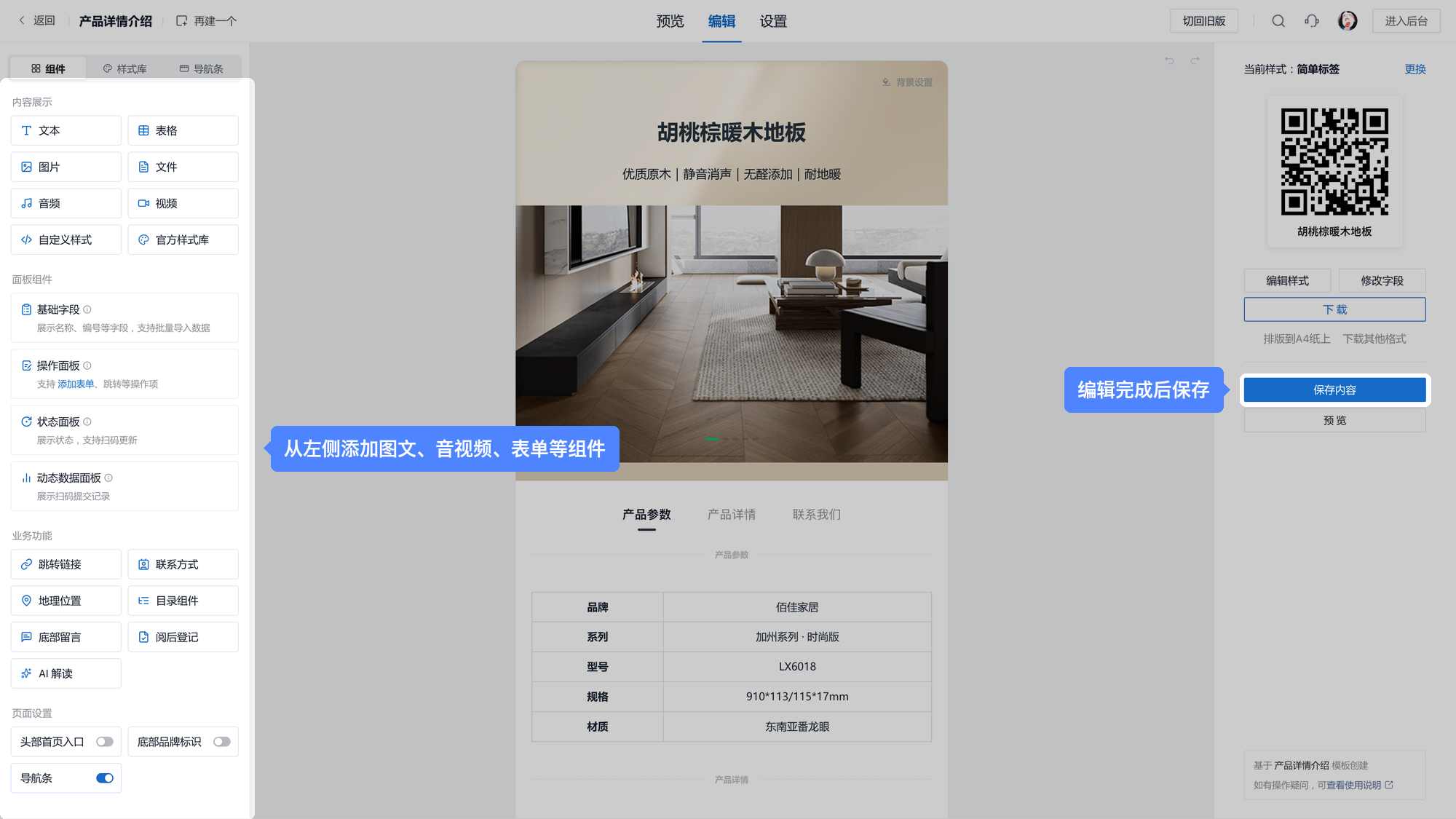
Content can include mixed text and images, multiple files and videos, tables, locations, redirect links, and more. Click a component in the editor's left panel to add it to the page; editing works much like other H5 pages or official account articles. View the detailed tutorial
3.2 Information Collection
Collect information by scanning, such as equipment inspection records, repair records, and personnel registration.
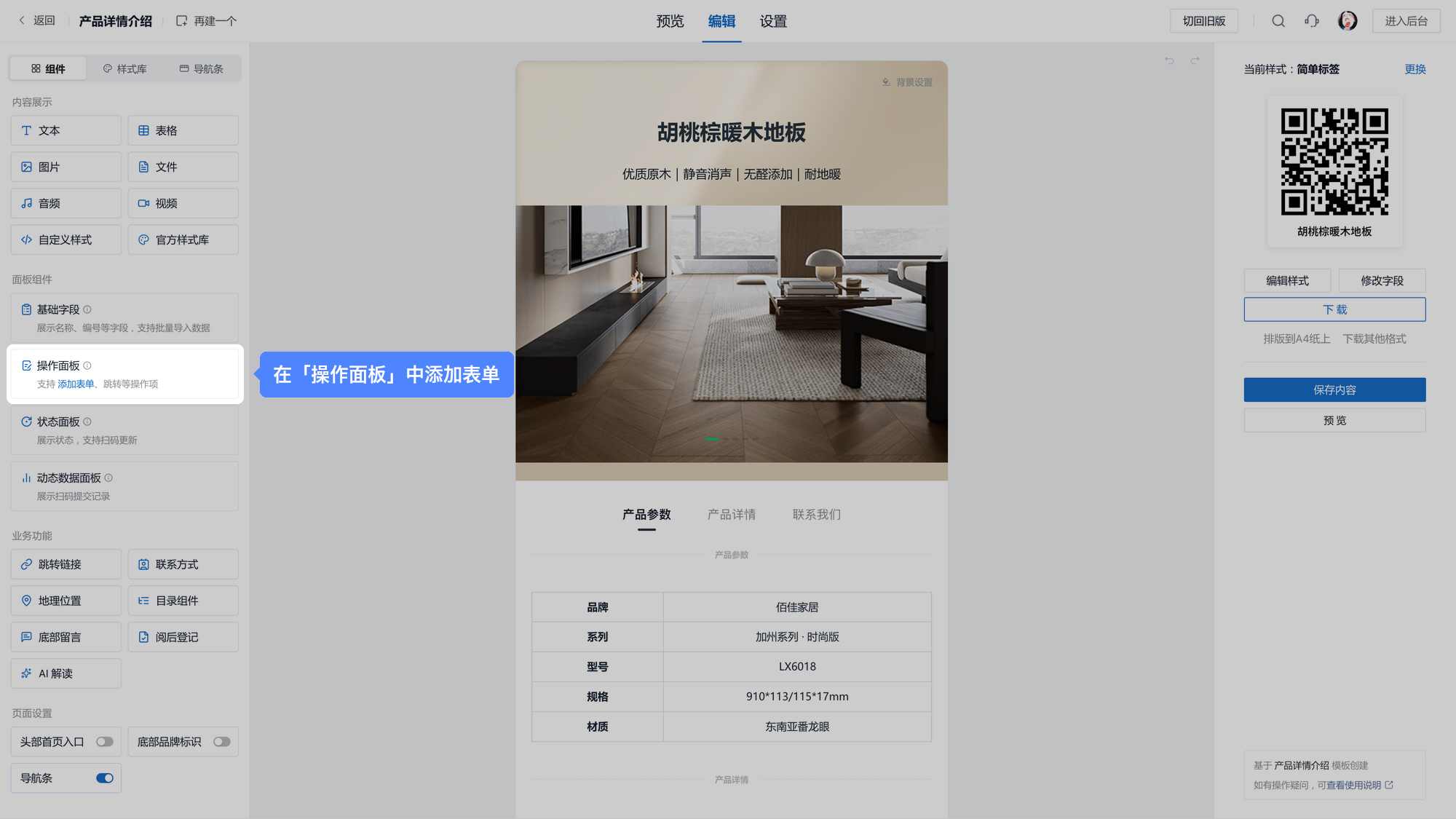
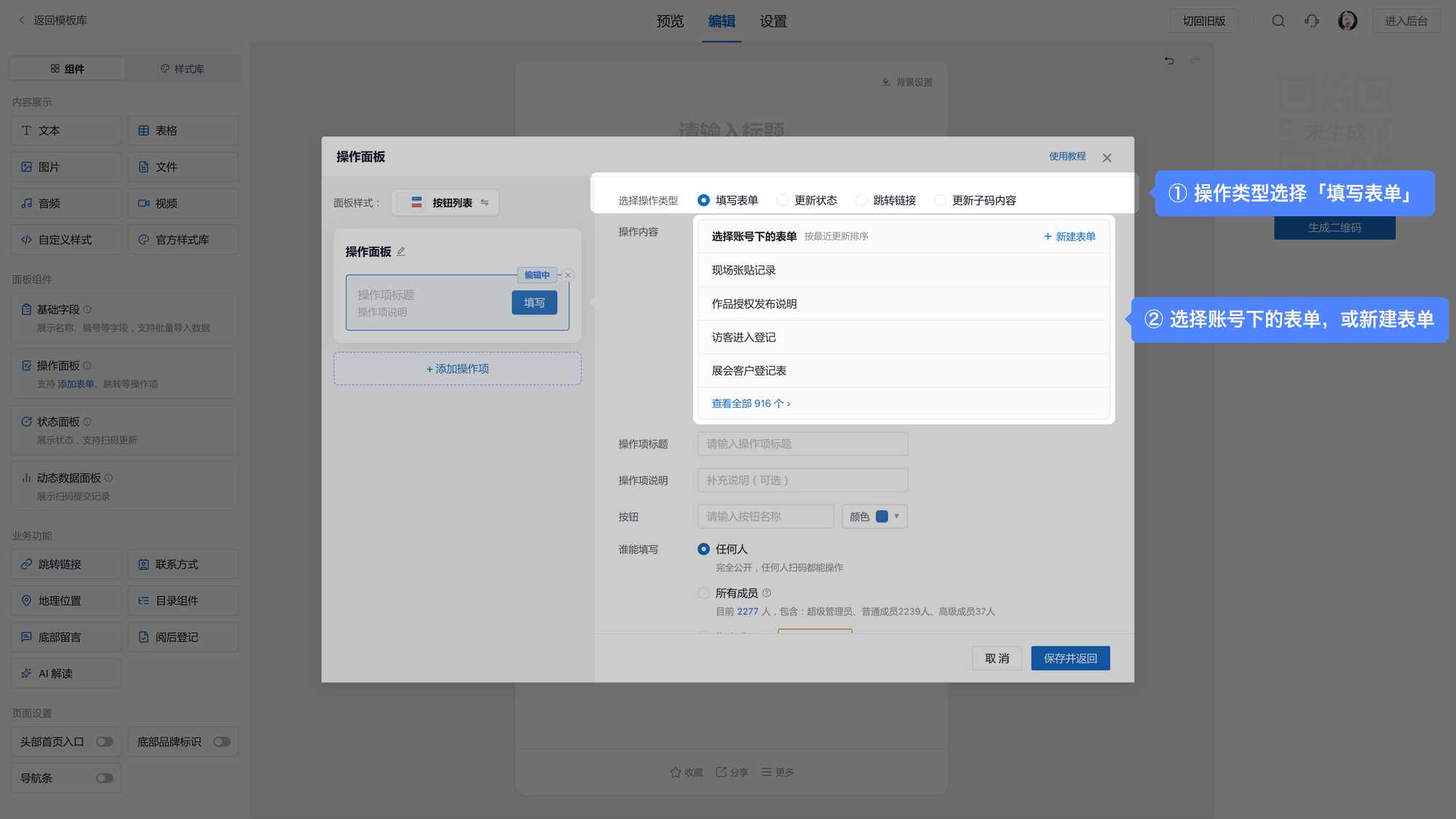
How to: in the editor's left panel, under "Panel components", click "Control panel", choose "Fill in form" as the action type, then select a form in your account or create a new one. View the detailed tutorial
4. QR Code Settings
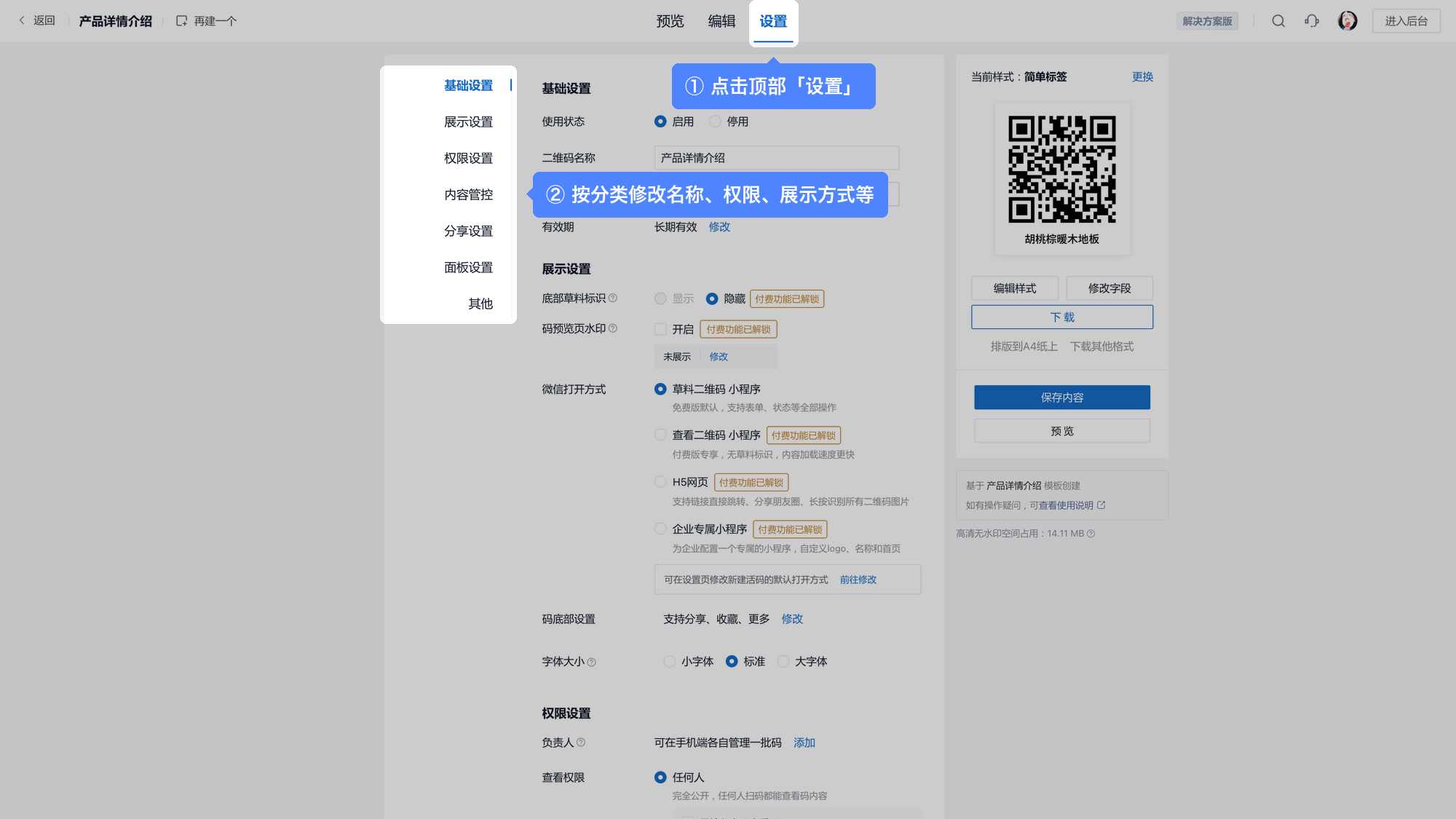
Click "Settings" at the top of the edit page to set the QR code's validity period (long-term by default), viewing permissions, WeChat opening method, sharing and favorites, and more. View the detailed tutorial
5. Download and Beautify Labels
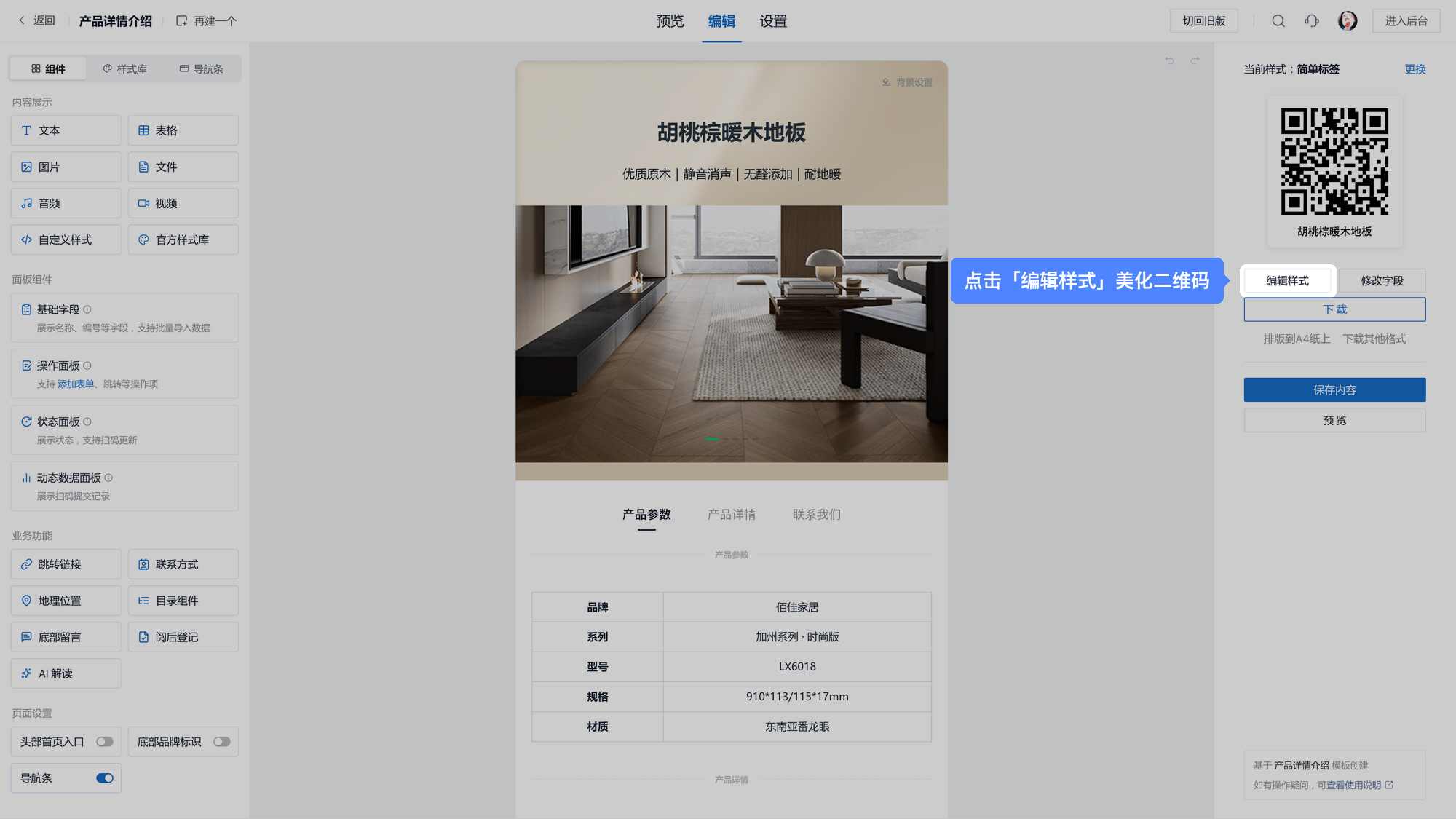
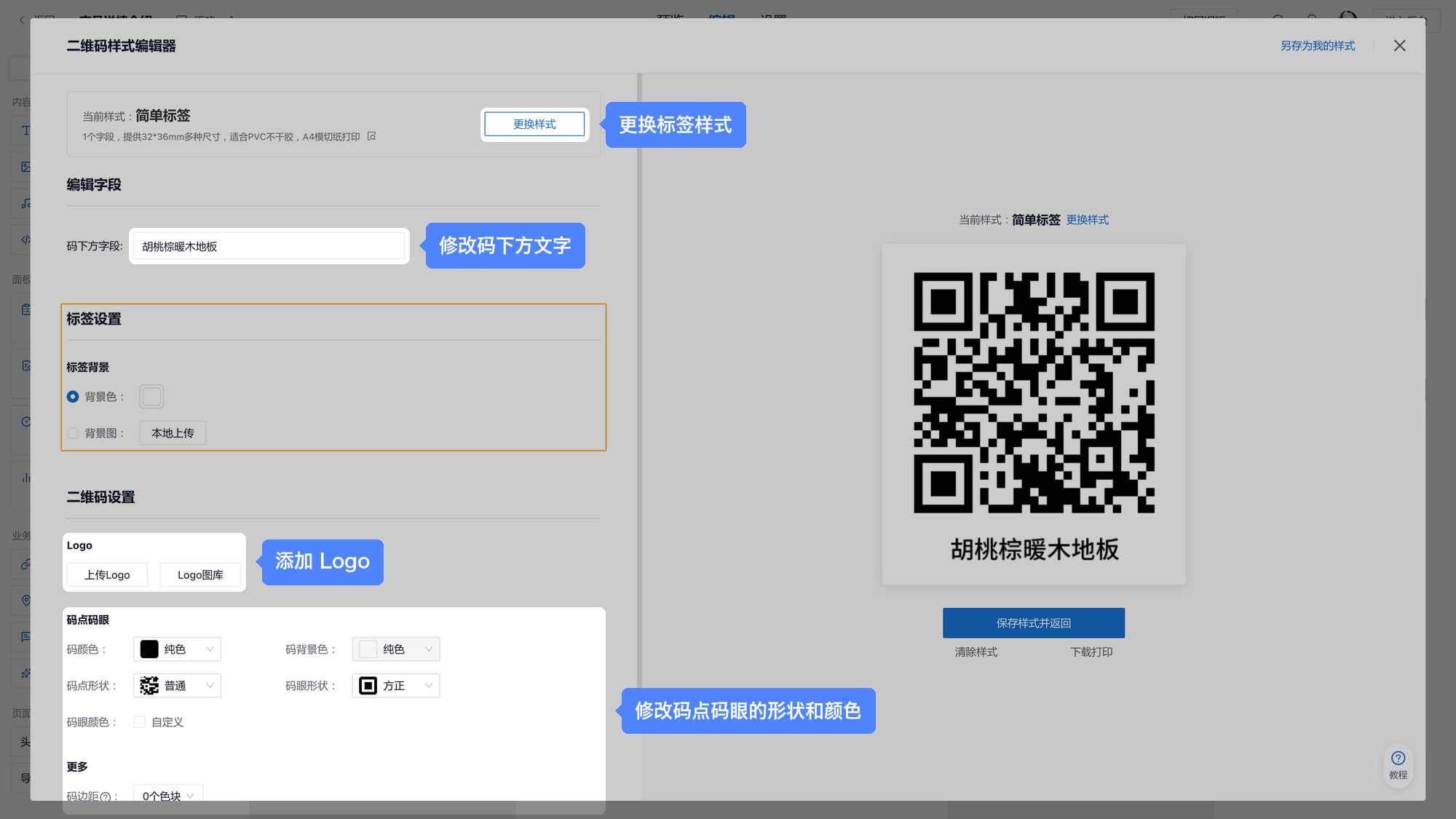
After the QR code is generated, you can download the QR code image directly from the right side of the edit page, lay it out on A4 paper, or download other formats. Click "Edit style" to change the label style, add a logo, or change the shape and color of the dots and eyes before downloading. View the detailed tutorial
6. Manage QR Codes
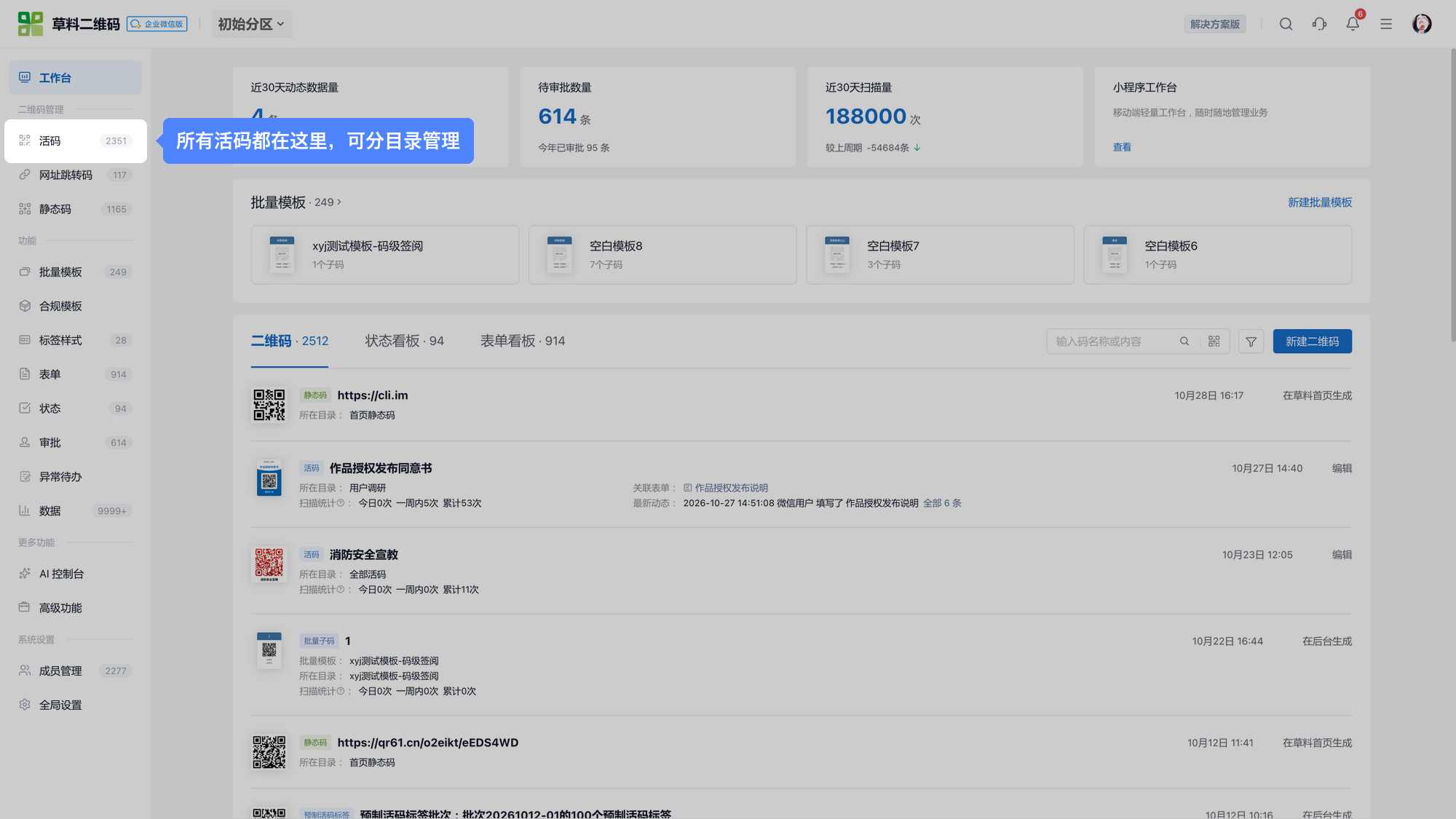
After creating a QR code, manage it later in the workbench: click "Go to workbench" in the upper-right corner of the edit page. In the workbench you can manage all QR codes in your account, organize directories, edit QR codes, and use advanced features such as forms and statuses. View the detailed tutorial