Disabling and Enabling QR Codes
I. Overview
- QR codes can be disabled or enabled at any time; bulk operations are supported.
- While disabled, scanning the code will not show any content. (Administrators who scan the code will see an access entry at the bottom that allows them to bypass this restriction.)
- Disabled codes remain in the workbench and can be re-enabled by the administrator at any time.
- Disabled codes still count toward the account's high-definition watermark-free storage quota.

II. Tutorial
1. PC Workbench
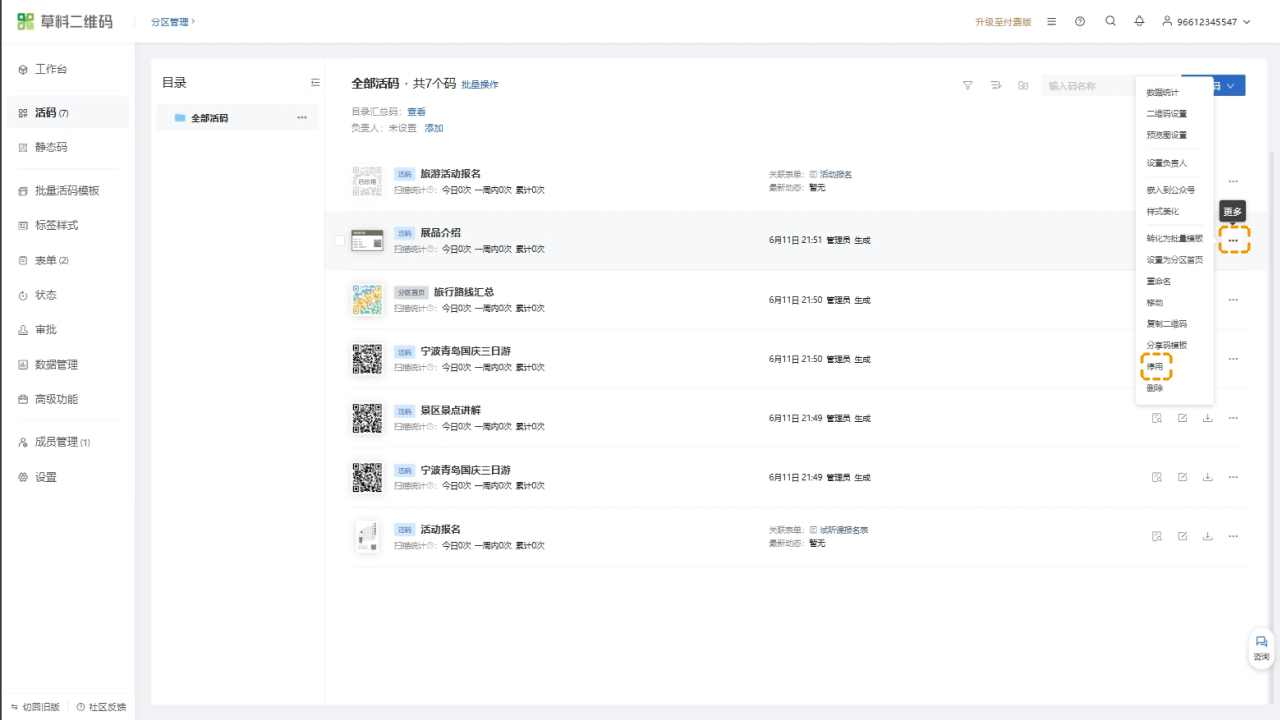
Log in to the account workbench and go to the [Dynamic QR Codes] directory. You can disable or enable individual QR codes or bulk-selected codes.

2. Mobile
Administrators with the appropriate permissions can disable or enable a QR code directly from the [More – Manage QR Code] entry at the bottom of the scan page. Bulk operations are not supported on mobile.

3. Bulk Disable/Enable Multiple Sub-Codes Under a Bulk Dynamic QR Code Template
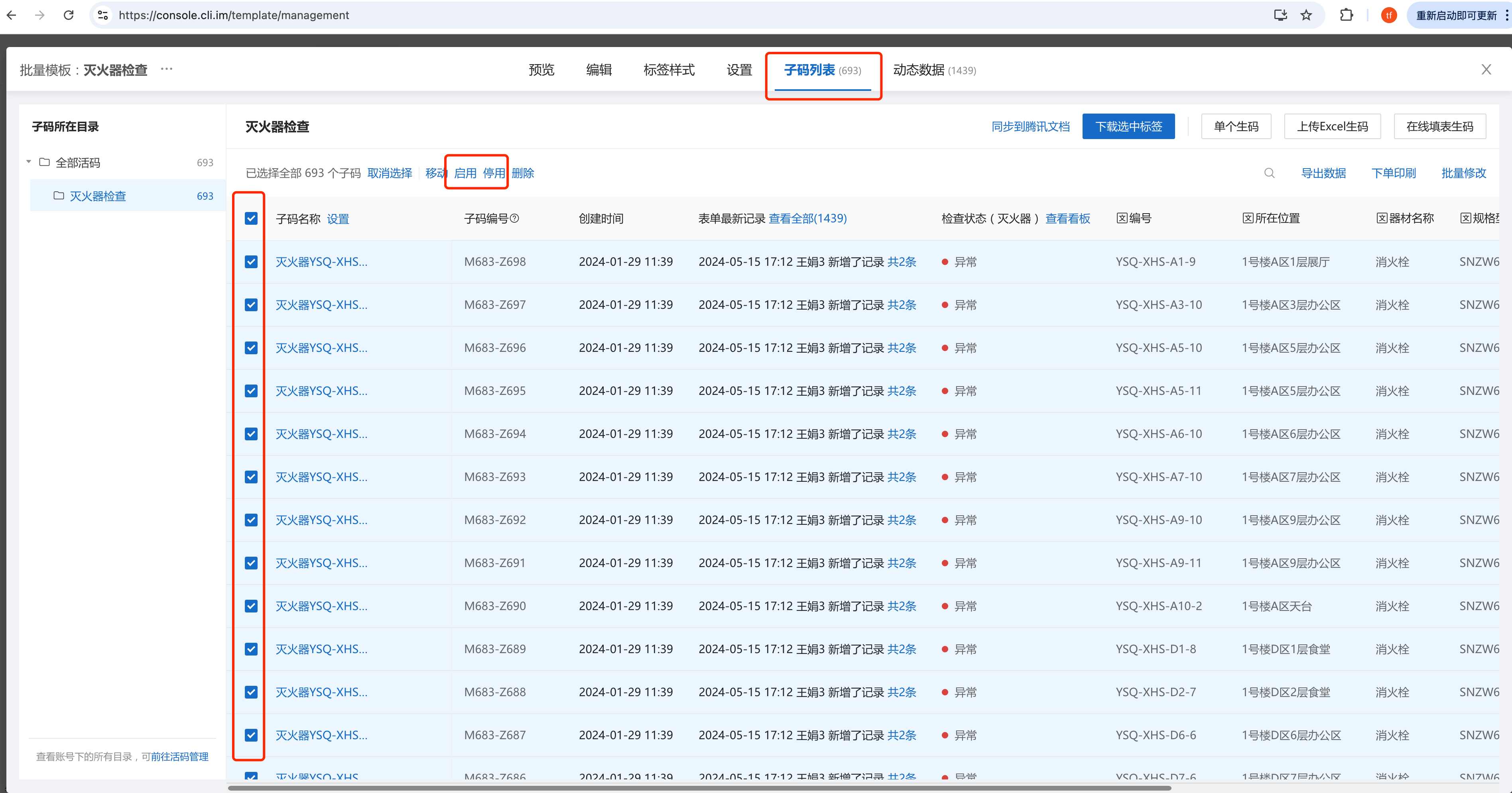
Go to the desktop workbench, find the relevant bulk dynamic QR code template, open the [Sub-code List], select the sub-codes to disable (you can select multiple or all), and click Disable or Enable.
III. FAQ
1. If a QR Code Is Disabled, How Does the Associated Plan Feature Execute?
A currently disabled QR code remains linked to the plan feature as normal. You can still view the execution status of the disabled code in the plan report. The disabled status is only shown when you open the code itself.
When a QR code is disabled and a form cannot be filled out as scheduled, the plan will show it as overdue and incomplete.