Bulk Generate Labels from Existing System Data
Feature Overview
If you need to generate multiple static QR codes from a set of serial numbers, part numbers, URLs, text, or similar data, you can use the bulk static QR code generation feature. Fill in data via an online spreadsheet or upload an Excel file to quickly populate QR code data — each row of data corresponds to one QR code label. One column's content is used to generate the QR code, while other columns can be displayed as content on the label.
Note: Once a static QR code is generated, its content cannot be changed. It supports scanning by barcode scanners or internal apps and does not require an internet connection.
Tutorial
1. Enter Data
1.1 Fill in an Online Spreadsheet for Bulk QR Code Generation
Enter content directly in the spreadsheet rows — each row generates one QR code.
By default, the first column is used to encode the QR code, and other columns serve as label display content. The first row is the header row; data starts from the second row.

1.2 Upload an Excel File for Bulk QR Code Generation
If you have already organized your QR code data in a local Excel file, you can upload it for bulk generation to save time.
Excel requirements:
- The first row contains column headers; the header row does not generate QR codes.
- Data starts from the second row; each row generates one QR code.
- Excel files must not contain images, merged cells, formula calculations, or other special content.
- When the Excel file contains multiple worksheets, the system reads only the first worksheet by default.
- The maximum number of rows per import is 20,000. If you need more than 20,000 codes, import in batches — there is no total limit.
Step 1: Download the Excel template and fill in your data — Table Example.xlsx — or upload a locally saved Excel file directly.
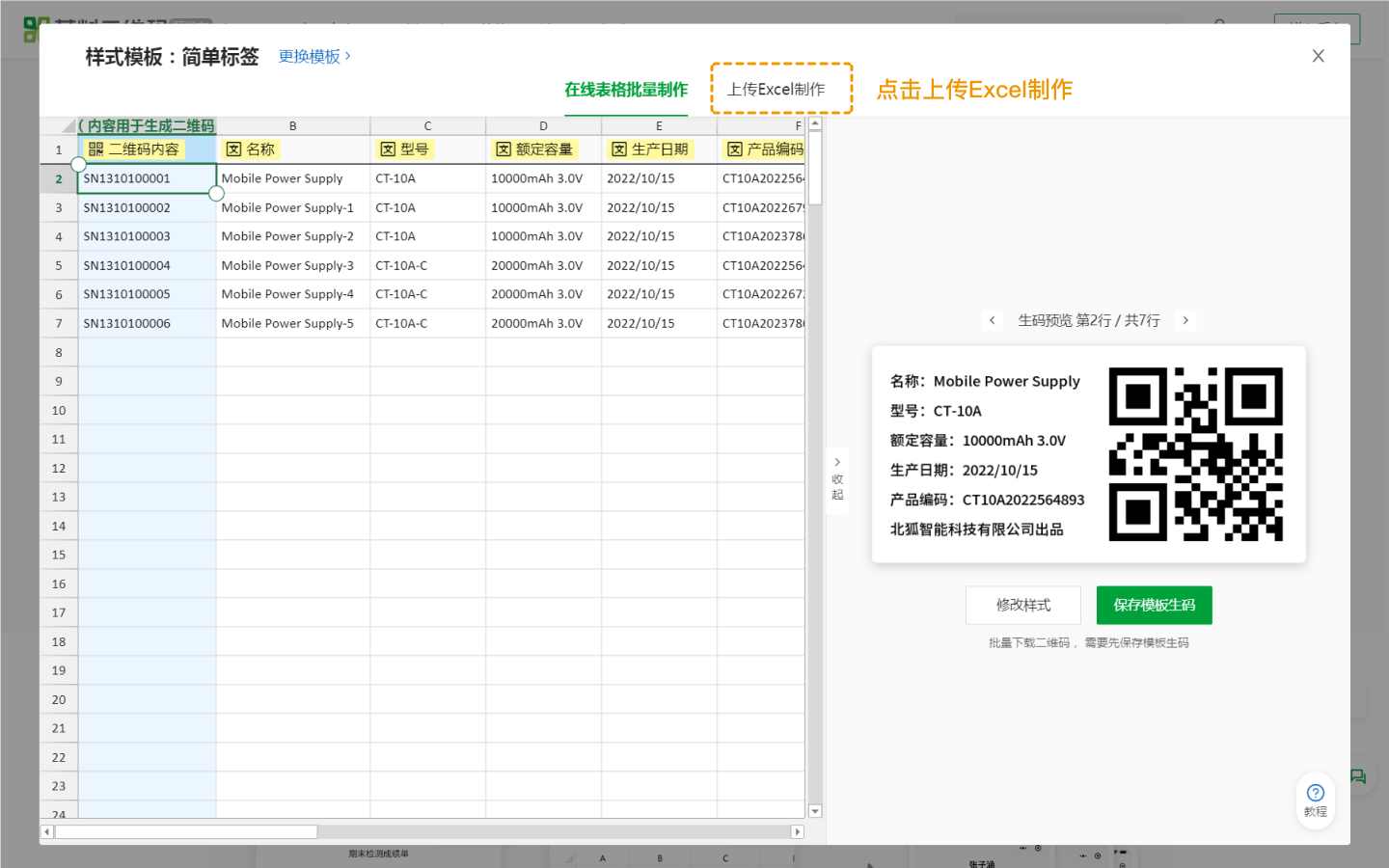
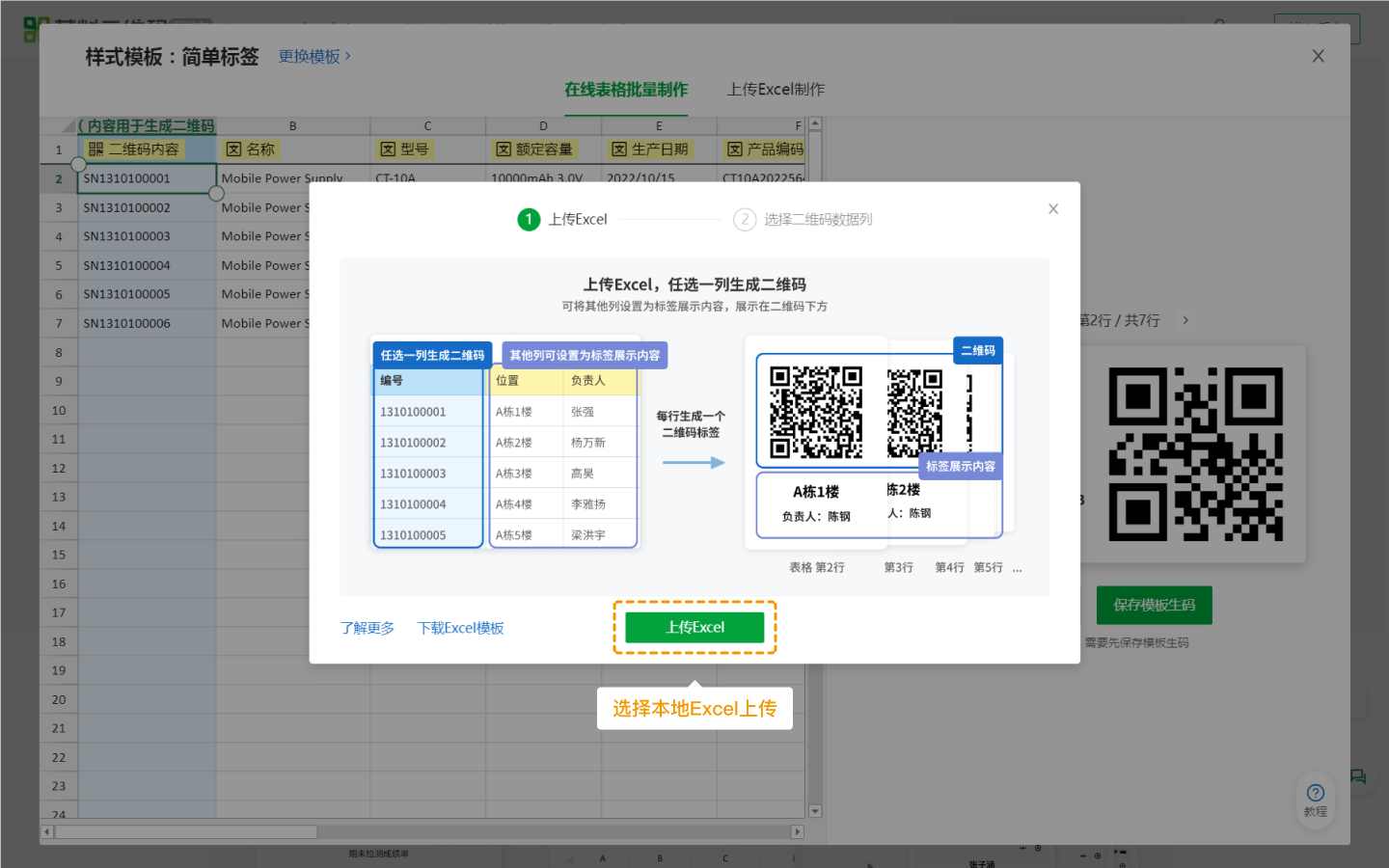
Step 2: Select one column as the QR code encoding content; other columns serve as label display information. Each row generates one QR code label.

2. Modify Label Style and Fields
In the label preview area on the right, you can modify the label style and the content (field content) displayed on the label to create QR code labels that better reflect your brand. Click [Modify Style] to enter the style editor. View tutorial
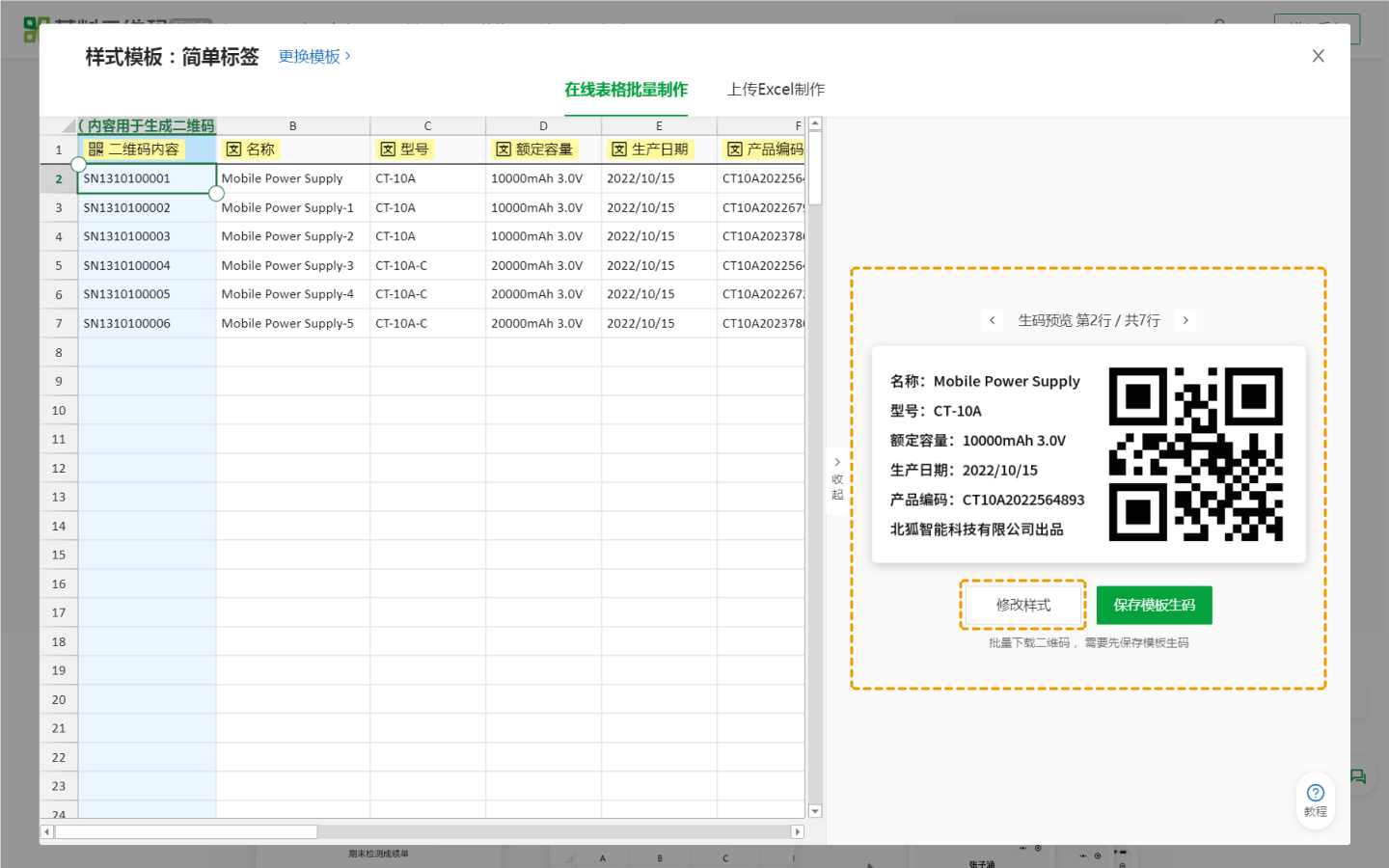
3. Generate QR Code Labels
Click [Save Style & Generate Codes]

4. Label Layout and Printing
You can download QR code label images and print them yourself. We provide files in multiple formats to accommodate different printing methods. View printing tutorial
CaoLiao also offers a printing service with 8 carefully selected materials, next-day shipping available, free reprinting for quality issues, and door-to-door delivery — making the process effortless. Learn about CaoLiao printing service

5. Workbench Management
Log in to the CaoLiao QR Code workbench to manage your bulk labels in one place. Next time you create codes, you can select a previously saved label style, import data, and bulk-generate a new batch of QR code labels with the same layout. You can also download and reprint labels at any time.

Get Started
Go to the bulk label generator, select a label style, enter data or upload an Excel file with existing data, and bulk-generate labels.