How to Fix Garbled Characters When Exporting Data
Garbled characters when opening a .csv file in Excel are caused by a mismatch between Excel's default encoding and the .csv file's encoding. The solution is to re-encode the .csv file to a format supported by Excel. Two methods are provided below:
Method 1
- Right-click the .csv file and choose "Open with" → "Notepad" (make sure to close the file in Excel first to avoid file lock conflicts).
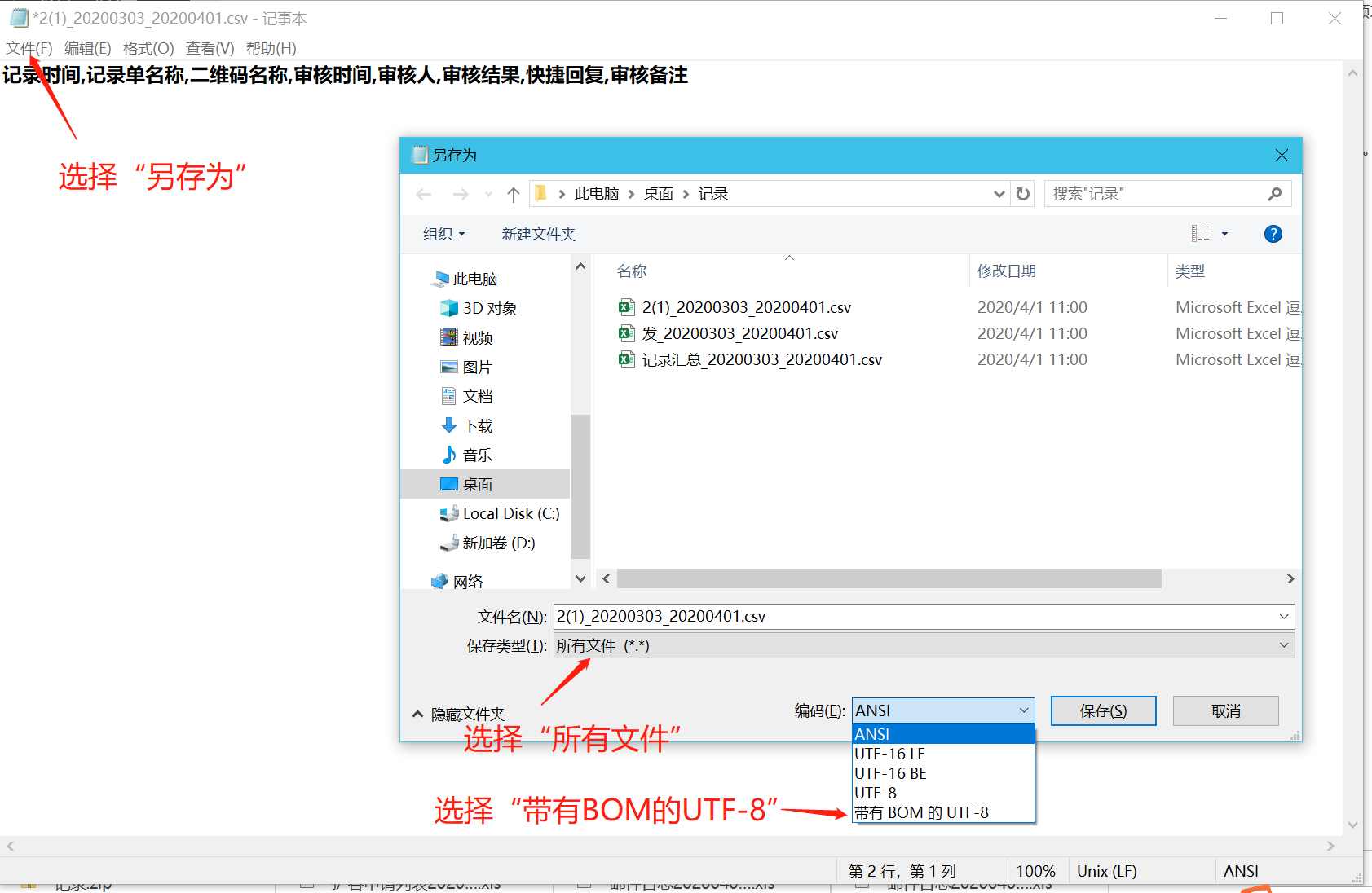
- Once opened in Notepad, click "File" in the top-left corner and select "Save As".
- In the Save As dialog, set "Save as type" to "All Files" and set "Encoding" to "UTF-8 with BOM", then click "Save". (See the screenshot below.)
- Open the saved .csv file in Excel again — the garbled character problem should now be resolved.
Method 2
If Method 1 does not resolve the garbled characters, you can convert the .csv file directly to an .xlsx file that Excel can open. This can be done using an online file conversion tool. The example below uses Tencent Docs.
- Go to the Tencent Docs website (https://docs.qq.com/), register and log in, click "New File", and select "Online Spreadsheet".

- Open a blank template.

- After the spreadsheet opens, click "File" → "New" → "Import Local File" in the toolbar, and open the .csv file from your folder.


- After importing the .csv file, you can view the data directly on the page, or export it as an .xlsx file, save it locally, and open it in Excel.
