QR Code Content Update Protection
QR codes on products, equipment, and materials often remain in use for a long time. The content people see after scanning needs to stay stable and trustworthy.
If team members can edit QR code content and have it take effect immediately, accidental changes or unconfirmed information may be published.
CaoLiao's "Content Protection" feature addresses this: when enabled, content edits take effect only after verification. This helps prevent tampering and keeps the content people scan stable and reliable.
What Is QR Code Content Update Protection?
With "Content Update Protection" enabled, QR code content can still be edited, but changes do not take effect immediately.
After each edit, a member of the admin group or the QR code creator must verify the changes before the new content is displayed.
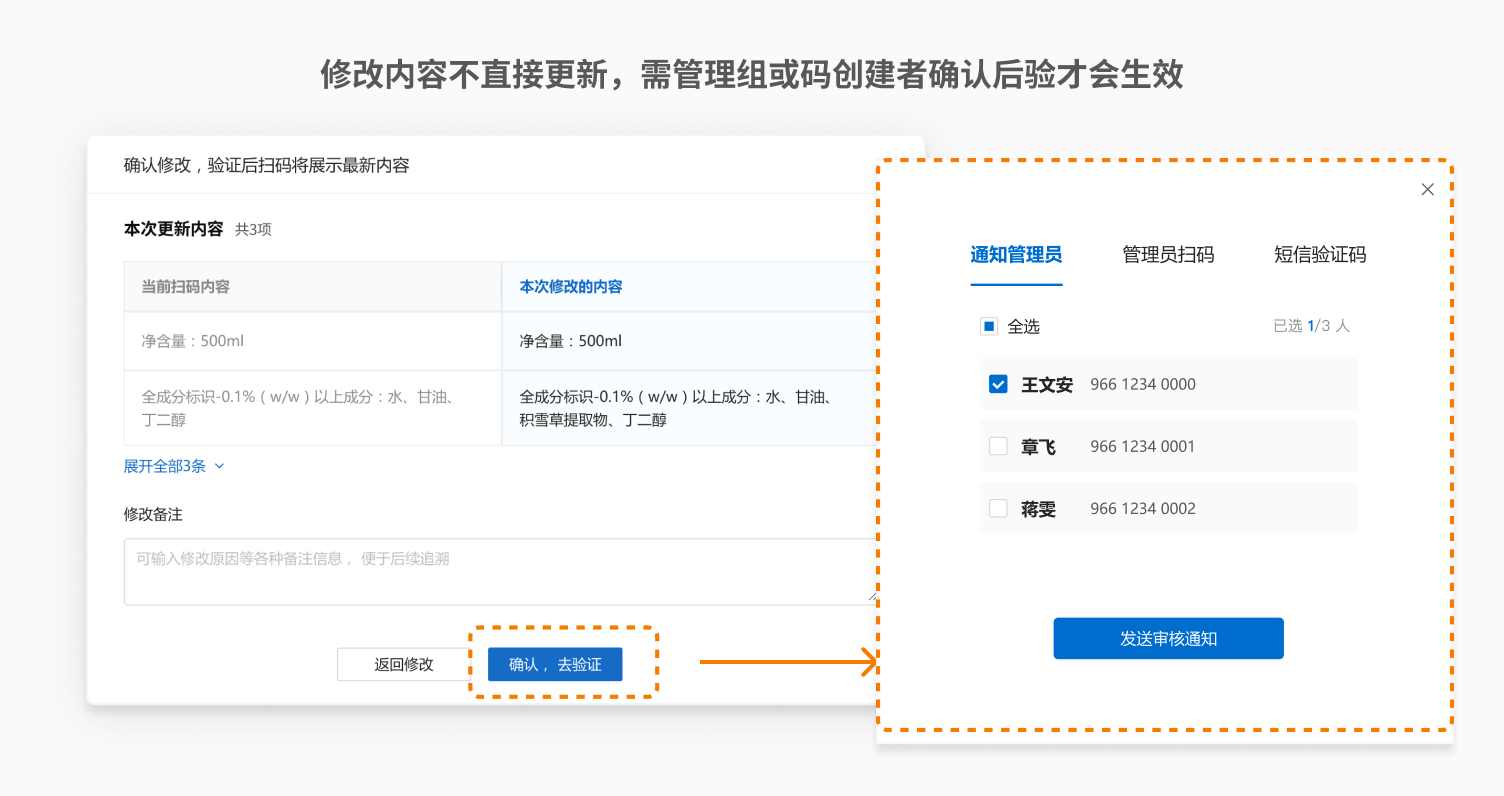
Typical use cases:
- Equipment management: Equipment QR codes stay posted for a long time, and equipment instructions and inspection requirements should not be changed without checks.
- Product and material labels: Product specifications, compliance information, and batch details need to stay stable and trustworthy.
- Store or showroom display codes: Public content such as event information and product descriptions should not change immediately after an edit.
- Team collaboration: Editors and reviewers have separate roles, with edits verified before publication.
Key Benefits
1. Prevent Accidental Changes or Tampering
Once a QR code has been printed, posted, or distributed, content changes directly affect what people see when they scan it.
With content protection enabled, verification is required before changes take effect. A mistaken action or unconfirmed edit will not immediately publish incorrect content.
2. Control Updates to Important QR Codes
Teams usually prioritize stability for equipment labels, registration codes, promotional codes, and bulk sub-codes already in use.
Content protection replaces immediate updates on save with a confirmation step, giving teams more control over content changes.
3. Define Team Responsibilities and Permissions
When operations staff, project leads, store staff, and on-site workers maintain content together, it can be hard to tell which edits should go live immediately.
Content protection separates responsibility for editing from responsibility for confirming an update, making roles clearer and reducing the need for back-and-forth communication.
4. Combine Protection with Version History
Content protection controls how changes take effect safely. Version snapshots let you review the history after a change takes effect.
Together, they reduce the risk of incorrect edits going live immediately and let you trace what changed, who changed it, and when. Learn about version history
How to Enable Content Update Protection
Available in the Flagship Edition and above.
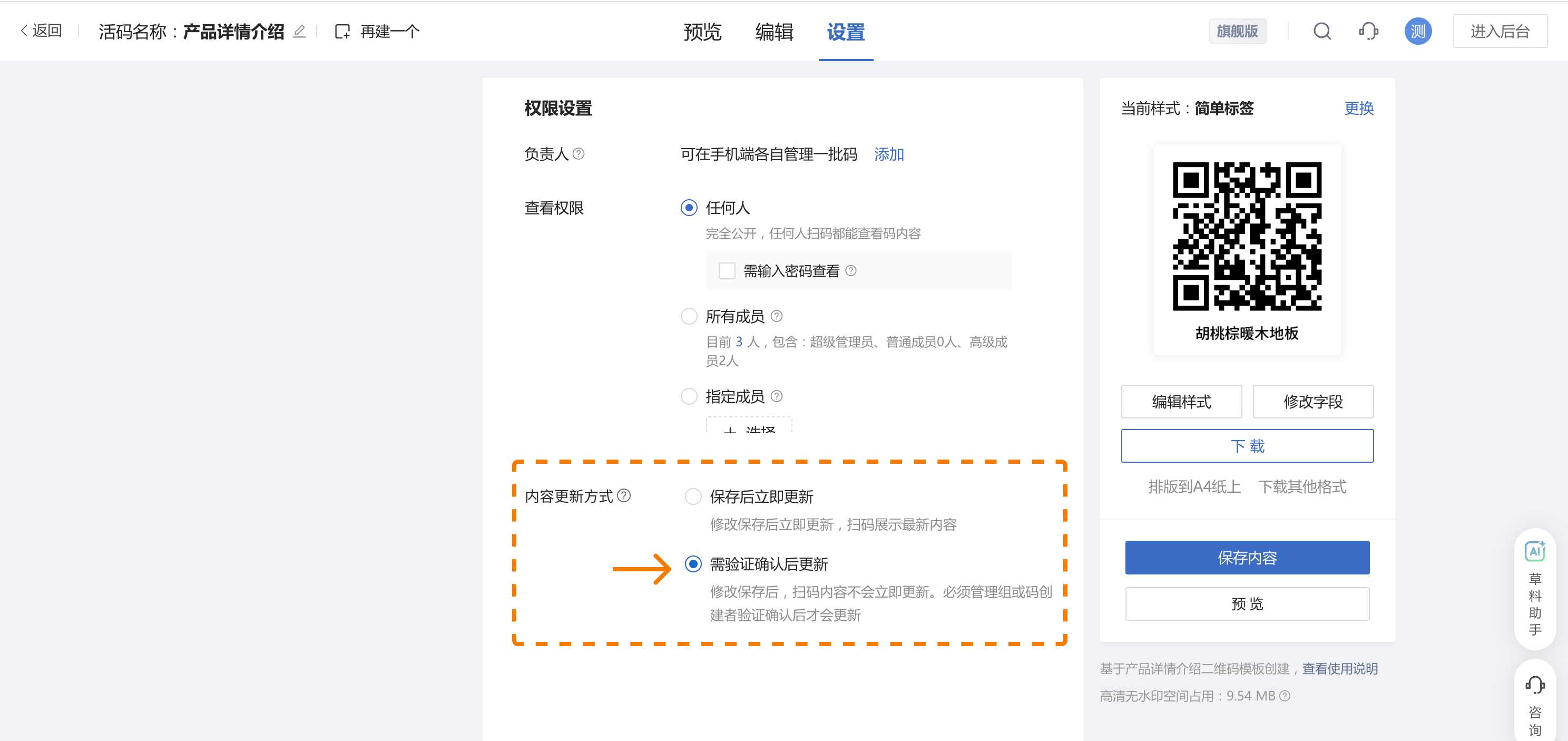
Step 1: Enable Content Update Protection
Go to QR Code Settings → Permission Settings → Content Update Method and select "Update After Verification". The QR code is then protected, and content changes must be verified by the admin group.
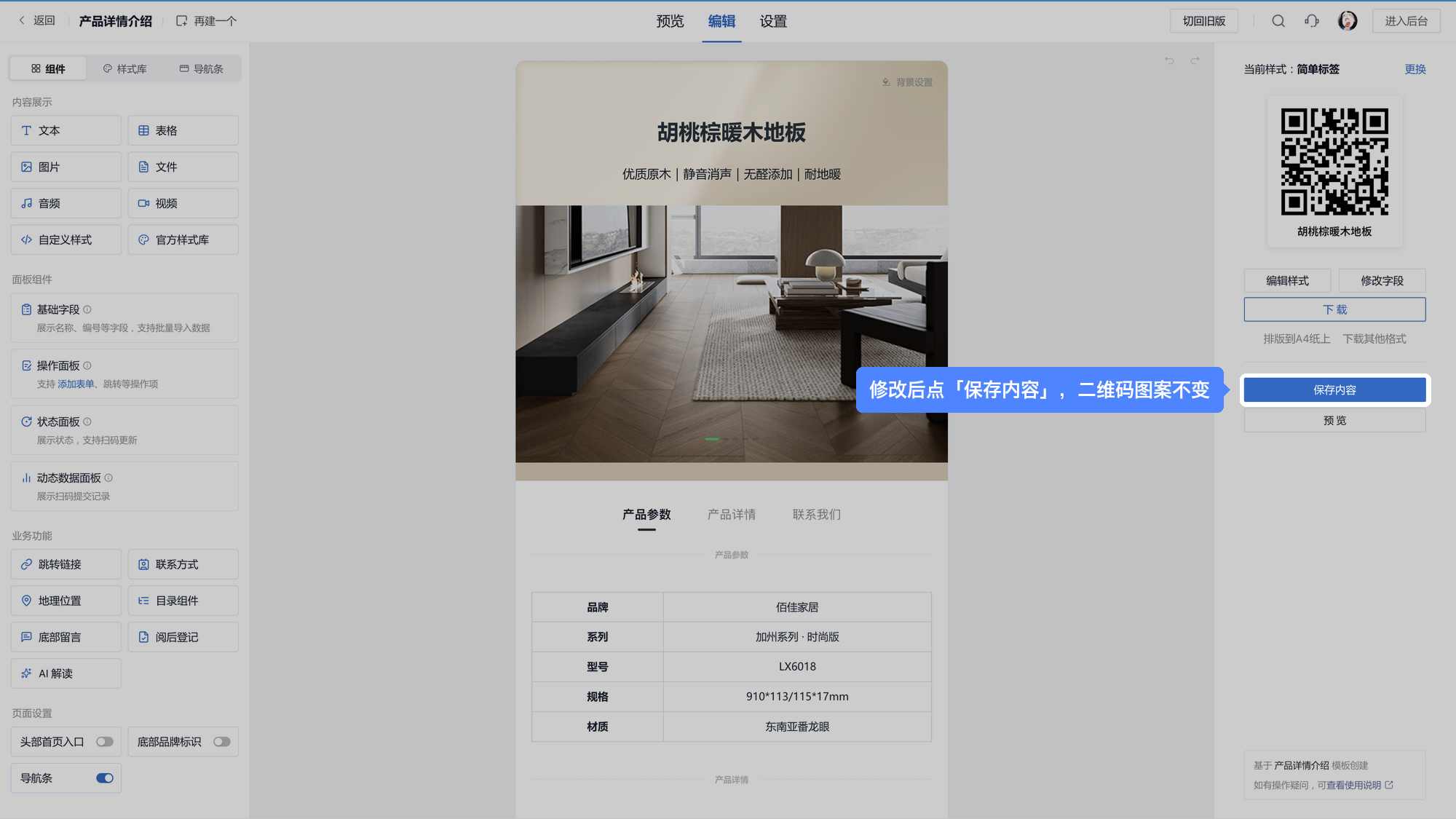
Step 2: A Team Member Edits the Content
When a team member edits the QR code content and saves it, the changes do not take effect immediately. They need to contact the admin group or the QR code creator for a second verification step.
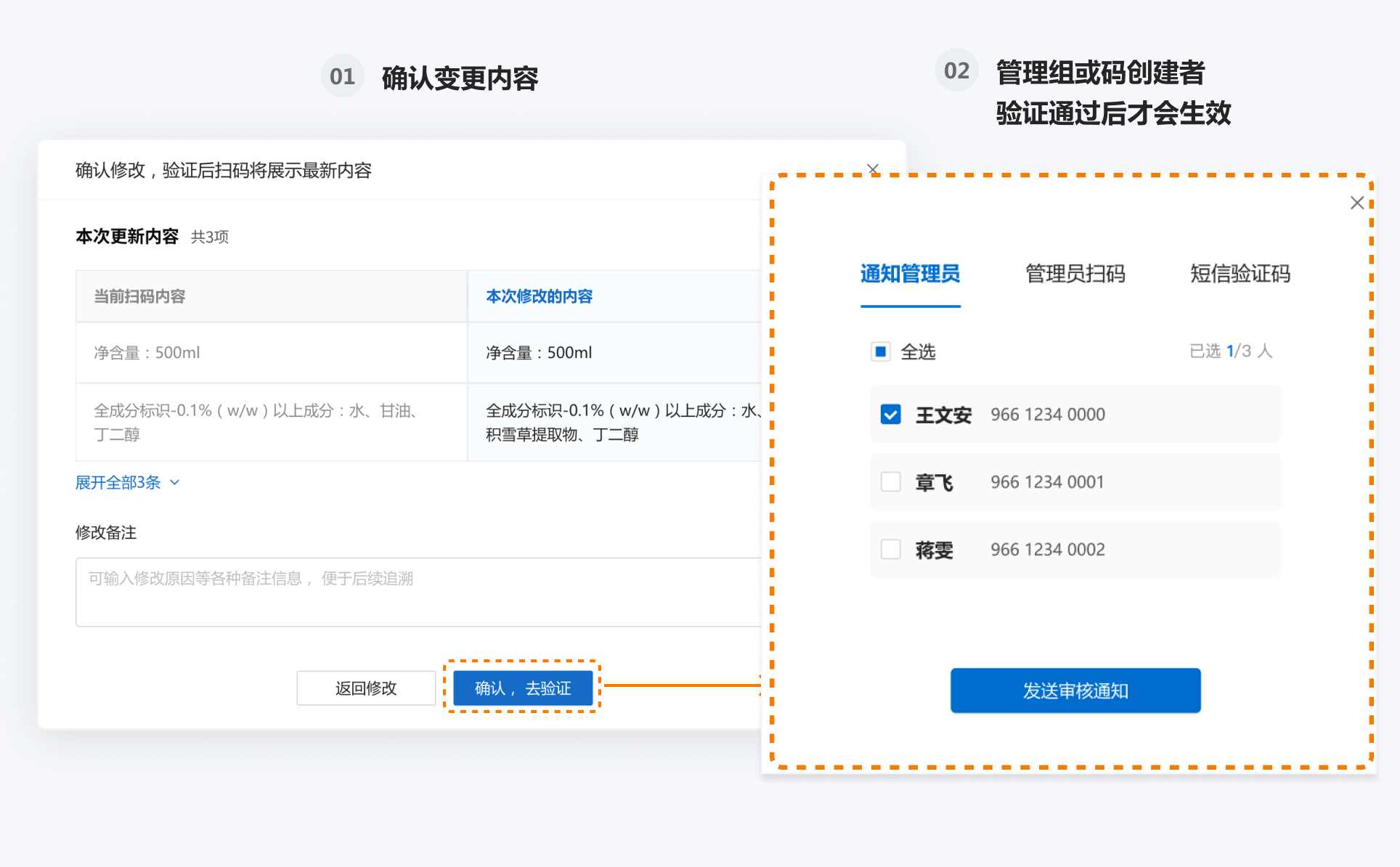
Step 3: An Admin Verifies the Update
The changes take effect only after verification by an admin with management permission or by the QR code creator.
- Confirm the changes: Notify an admin, use a phone verification code, or have an admin scan to verify.
- Verify the update: After verification, the edited content takes effect. Subsequent scans display the updated content.
FAQ
1. Who Can Verify Content Changes?
The admin group (members with management permission) and the QR code creator can verify the changes.
2. Can Members Still Edit QR Codes After Protection Is Enabled?
Yes. Content update protection controls whether edits take effect immediately; it does not prevent members from editing.
Members can continue editing as usual, but the new content takes effect only after verification.
3. Can I Keep Using It After My Flagship Edition Expires?
QR codes with content update protection enabled before expiration can continue using it normally.
After expiration:
The feature cannot be enabled for new QR codes.
If content update protection is turned off for a QR code, it cannot be enabled again.
To keep enabling it for new QR codes, maintain an active Flagship Edition or higher subscription.
4. Can I Trace the Edit History?
From the Flagship Edition, the system automatically records QR code version snapshots for each QR code or template content update, including who made the change and when. View details