How to Configure Redirects to Other Mini Programs
In the redirect link settings of a dynamic QR code, you can configure a redirect to open any Mini Program page.

1. Add a Redirect Link
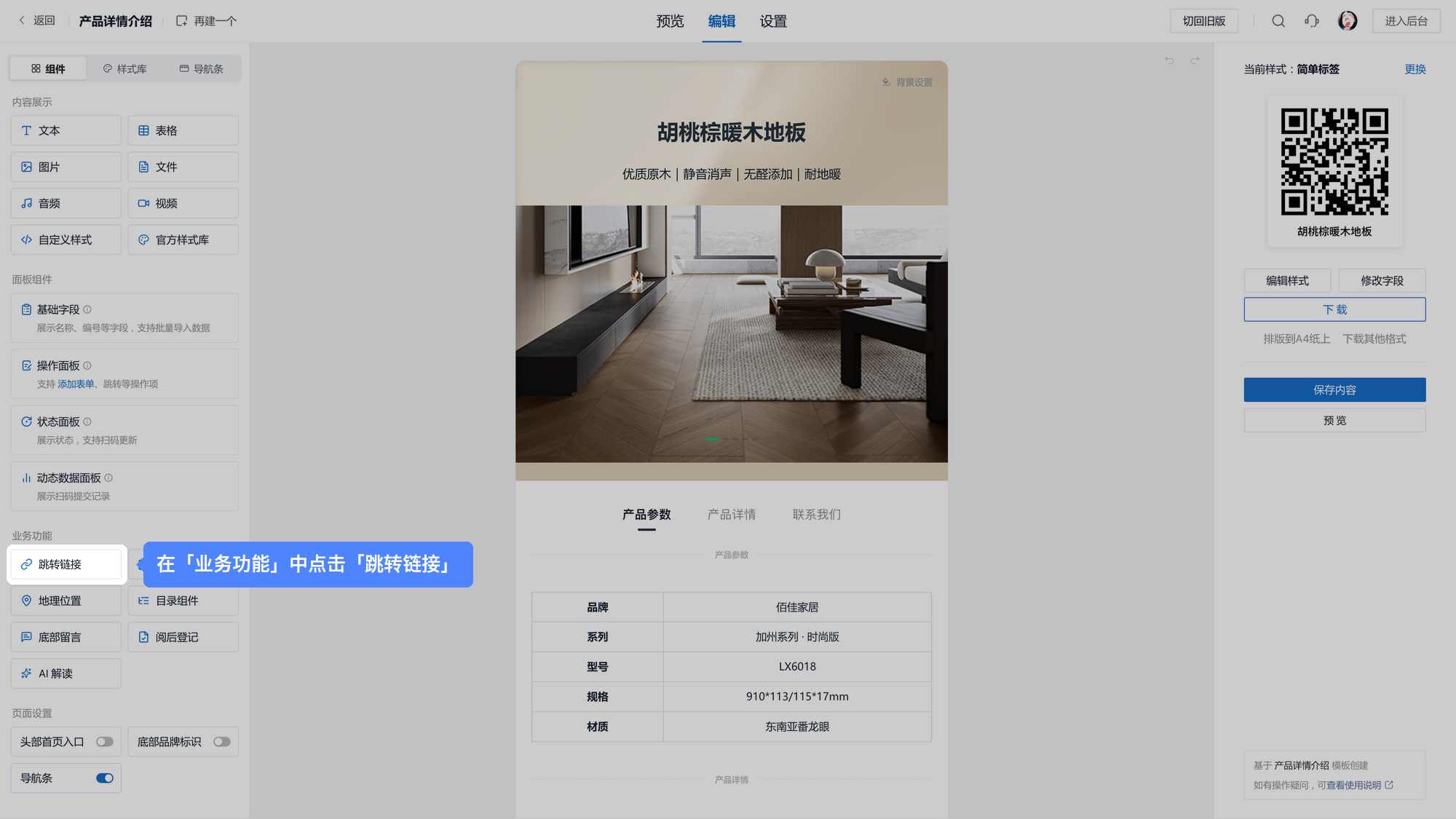
In the editor, click "Redirect Link", select a style, and add the link. For basic redirect link configuration, see Redirect Link Overview.
2. Configure Redirect to Mini Program
There are two methods. Method 1 is recommended.
Method 1: Paste a Mini Program Short Link (Recommended)
Open the target Mini Program page, tap the "..." button in the upper right corner, copy the link, and paste it into the configuration area.

Method 2: Manually Enter Mini Program Path Parameters
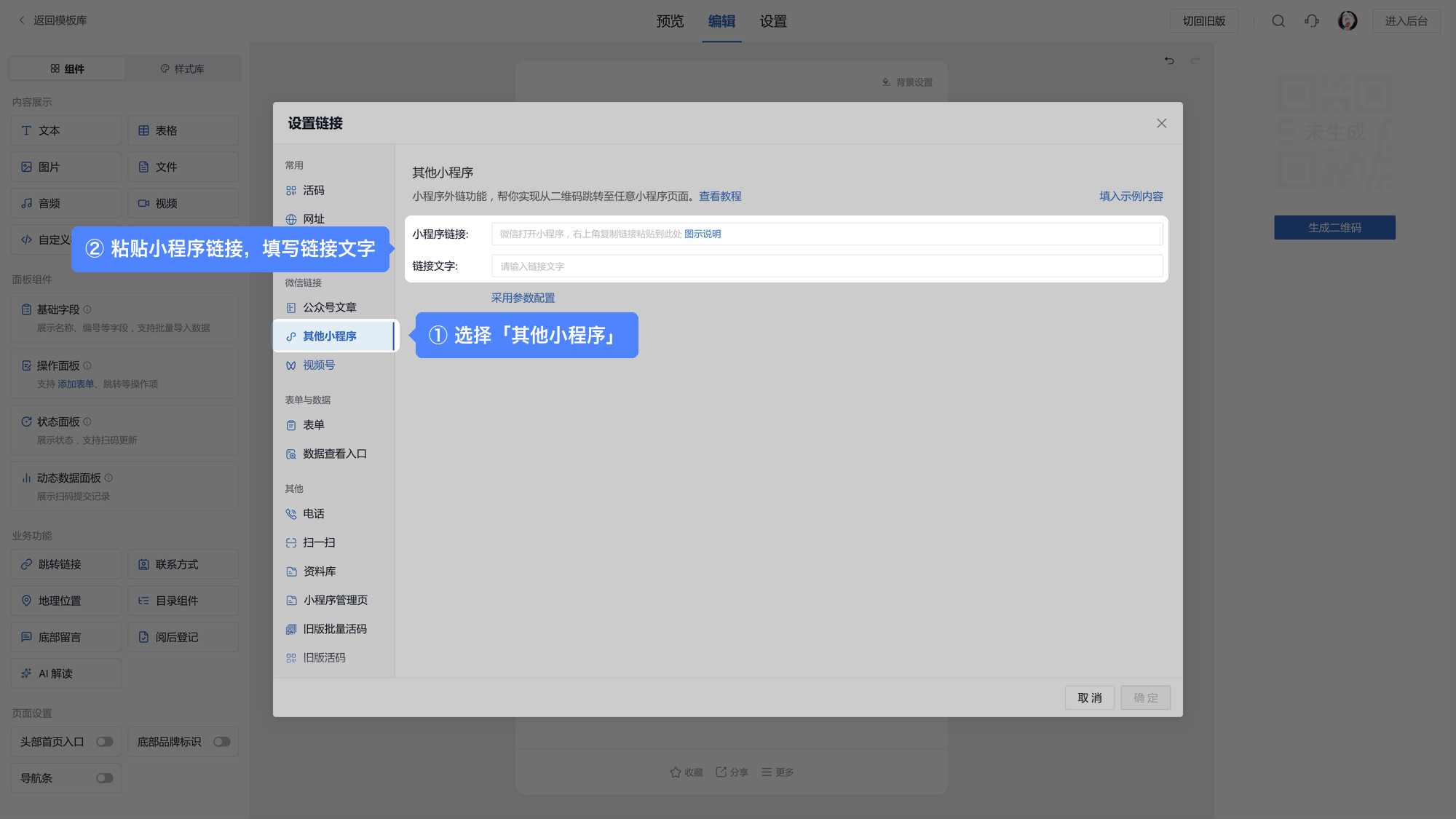
In "Set Link", select "Other Mini Program", click "Use Parameter Configuration", and fill in the following parameters:
- The target Mini Program's AppID and Original Account ID
- The target page's access path
Step 1: Obtain the AppID and Original Account ID
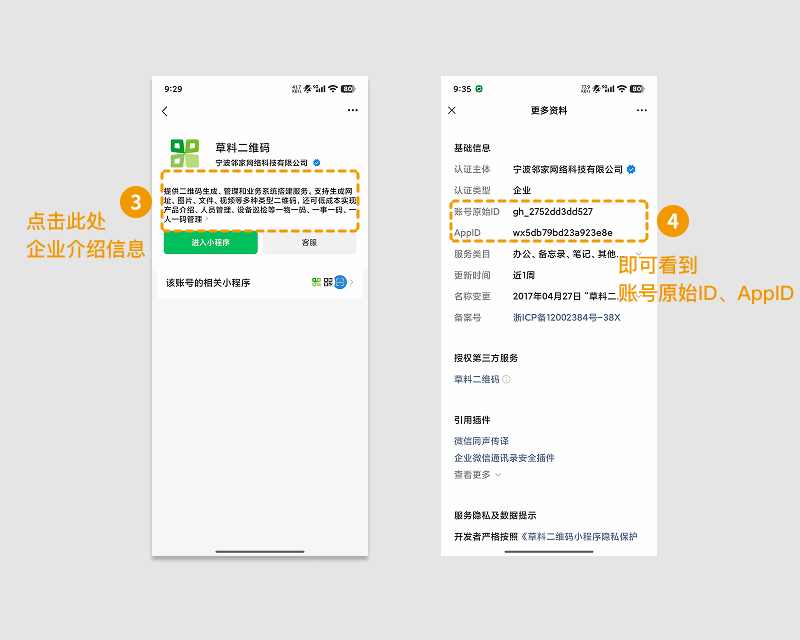
- Open the target Mini Program in WeChat, tap the three dots in the upper right corner to go to the Mini Program details page

- On the details page, tap "Business Information". You can find the Original Account ID and AppID in the basic information section
Step 2: Obtain the Mini Program Path
Note: You need a WeChat Official Account management account. If you don't have one, you can register at the WeChat Official Account Platform. What you obtain here is the Mini Program path, not the Mini Program link.
- Log in to the WeChat Official Account Platform and open the article editor

- Click "Mini Program" in the toolbar and enter the Mini Program name

- Click "Get More Page Paths". In the pop-up dialog, enter your WeChat ID and click "Enable"


- Open the target Mini Program page with your own WeChat, tap the three dots in the upper right corner, and select "Copy Page Path"
Note: Select "Copy Page Path", not "Copy Link".

3. Additional Notes
If you have your own Mini Program and need to redirect from within it to a CaoLiao dynamic QR code's Mini Program page, you can contact us for an integration solution.