Why Does the Downloaded CSV File Show Garbled Text?
This is caused by an encoding mismatch between Excel and the CSV file. The quickest fix is to use Notepad to re-save the file with UTF-8 with BOM encoding, or choose Excel format (.xlsx) when exporting data to avoid encoding issues entirely.
Troubleshooting
Cause 1: Encoding Mismatch Between Excel and CSV (Most Common)
Symptom: Chinese characters all appear as garbled text or squares when the .csv file is opened directly in Excel.
Solution:
Method 1: Re-encode using Notepad
- Right-click the .csv file, choose Open with → Notepad (close the file in Excel first to avoid file lock conflicts).
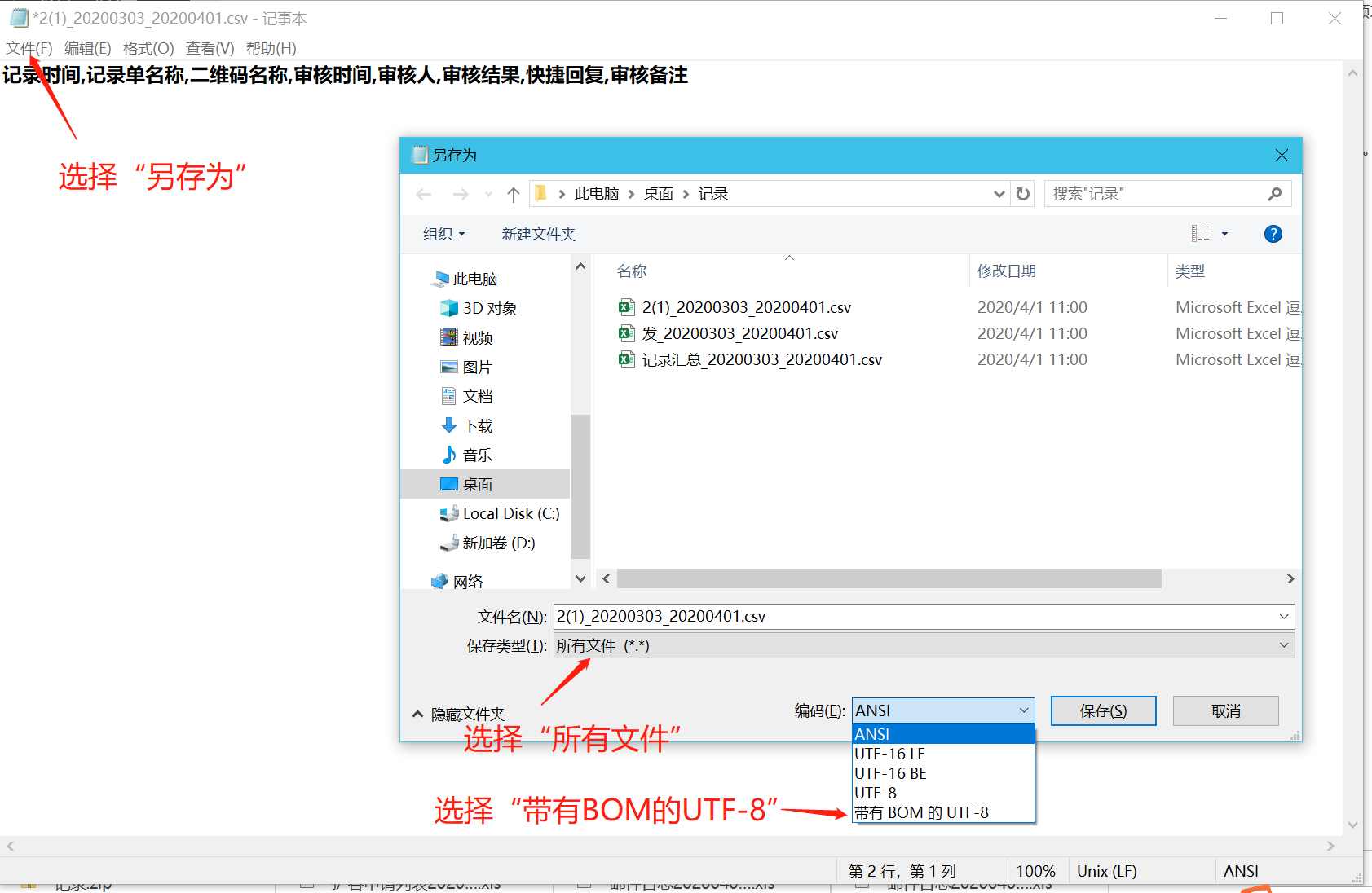
- In Notepad, click File → Save As.
- Set the file type to All Files and the encoding to UTF-8 with BOM, then click Save.
- Reopen the saved file in Excel — the garbled text issue should be resolved.
Method 2: Convert the format using an online tool
- Open Tencent Docs (docs.qq.com) or WPS Online Spreadsheet.
- Create a new online spreadsheet, then go to File → Import local file and import the .csv file.
- The content will display correctly after import. You can view it online or export it as .xlsx to open in Excel.
Cause 2: CSV Format Was Selected Instead of Excel Format When Exporting
Symptom: Every export requires extra encoding work.
Solution:
When exporting data from the workbench, if the system offers a format choice, select Excel (.xlsx) to eliminate encoding issues at the source.
Still Not Resolved?
If none of the above solutions work, click Contact Us → Submit Feedback in the bottom-right corner of any CaoLiao page. Our technical team will help investigate.