Management structure setup guide
With many QR codes, their locations and ownership can become harder to track than the codes themselves. A management structure organizes them in a tree such as building > floor > area, or by department, equipment type or project. The register, inspection records and reports can then follow the same structure.
Use management structures for large code collections, long-term registers or location-, type- and area-based reporting. Before starting, sign in to the CaoLiao QR Code workbench and confirm you have permission to manage the relevant codes or bulk templates.
1. What Is a Management Structure?
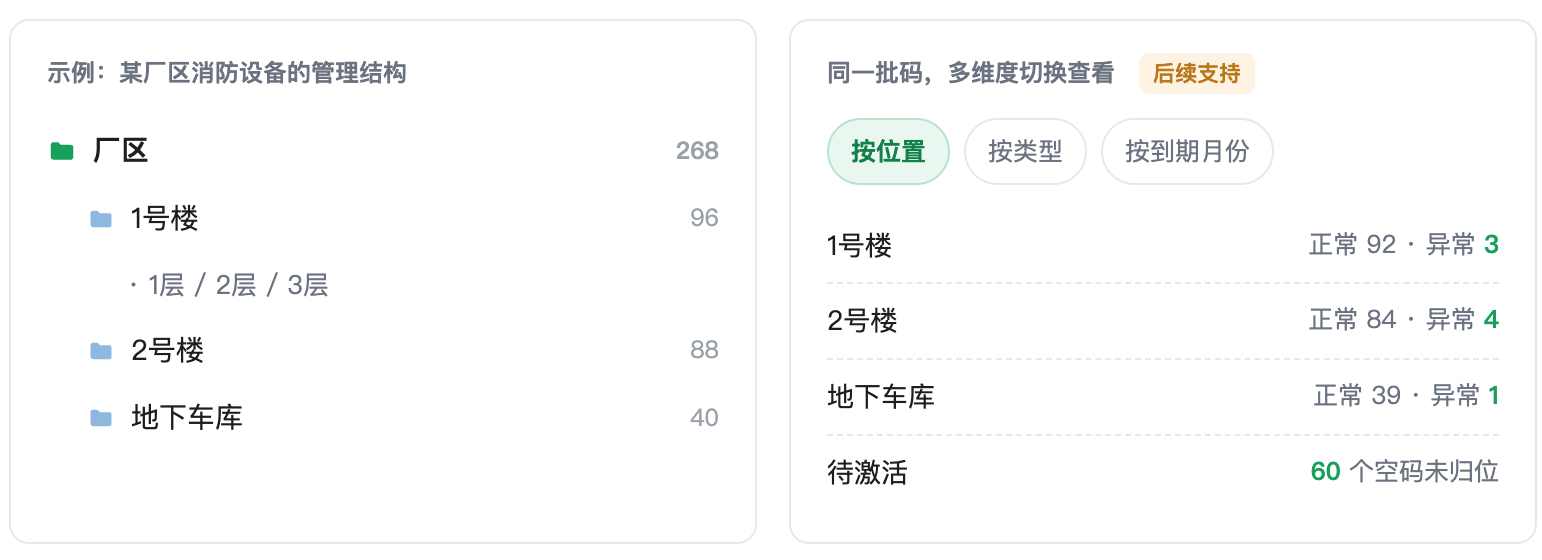
A management structure is a hierarchy for a collection of QR codes. Organize it by building > floor > area, department, equipment type or other categories. Assigning a code to a node establishes its location and grouping for viewing and reporting.
2. What Does It Provide?
- Organized codes: Browse buildings, floors and areas like folders instead of searching a flat list of thousands of codes.
- Registers and reports by structure: View equipment counts, exceptions and incomplete inspections by node.
- Multiple views: Switch between location, equipment type, expiry month and other dimensions for the same codes.
- No replacement labels after a move: Move the code to another node in the workbench. Its scan page, register and statistics update accordingly.
- Reusable structures: Manage multiple batches with one structure and select it again for future batches.
3. When Should I Use One?
Consider a management structure when you:
- Want separate structures for fire equipment, assets or production equipment.
- Have too many codes to find conveniently in one list.
- Need grouping by location, type or expiry date.
- Maintain, report on and export a long-term register.
- Have multiple people managing different areas and need node-based permissions.
One account can create multiple independent structures. For one or two codes without grouping needs, you can create a structure later.
4. Create a Management Structure
There are two ways to generate a draft quickly. Adjust the draft manually to match your site.
Method 1: Generate with AI
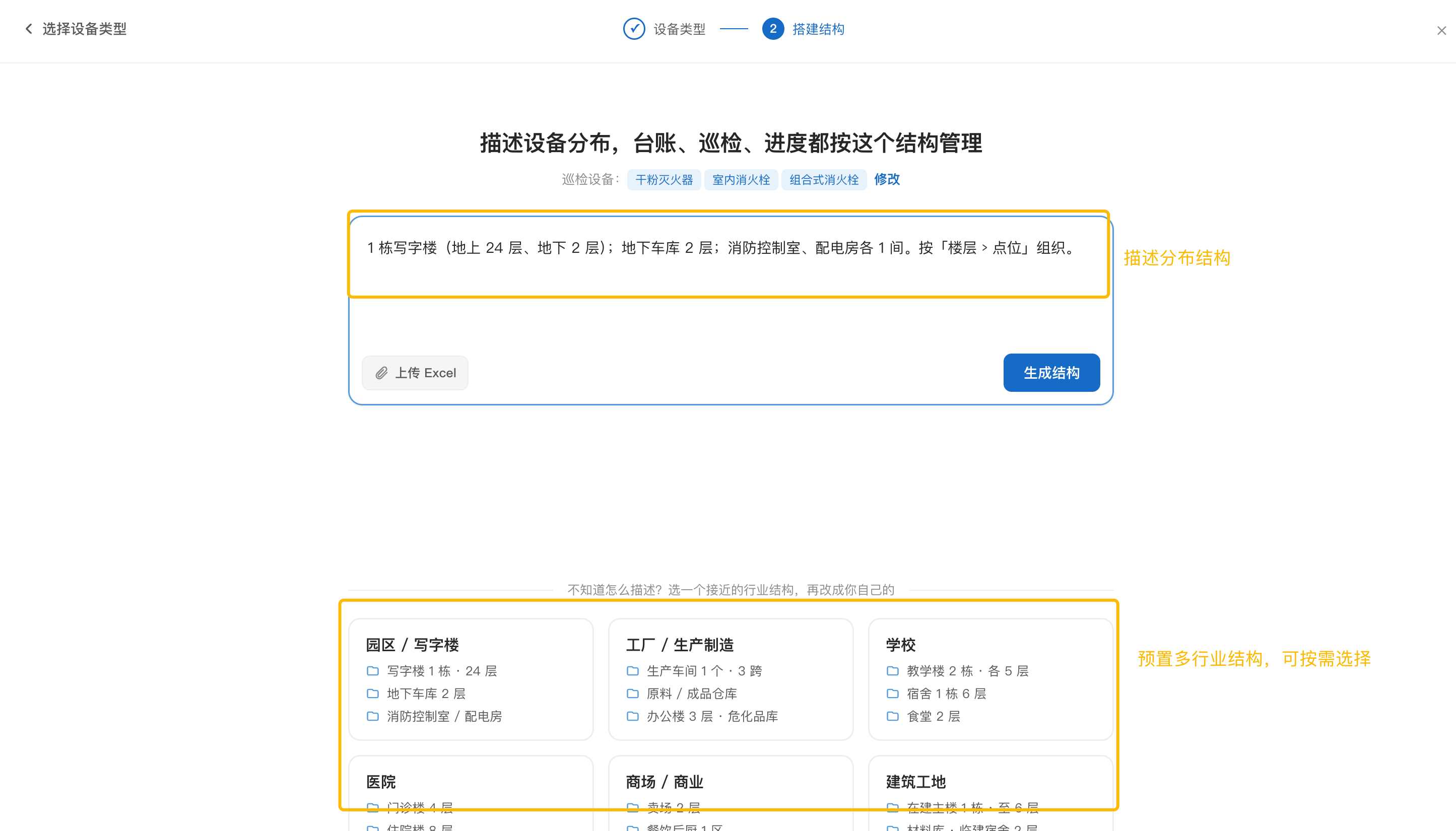
Describe the site, for example: “3 buildings, each with 5 floors, with east and west areas on every floor.” AI creates a draft structure for you to edit.
If you are unsure how to describe it, choose a similar industry structure below as a starting point.
Method 2: Upload an Excel File
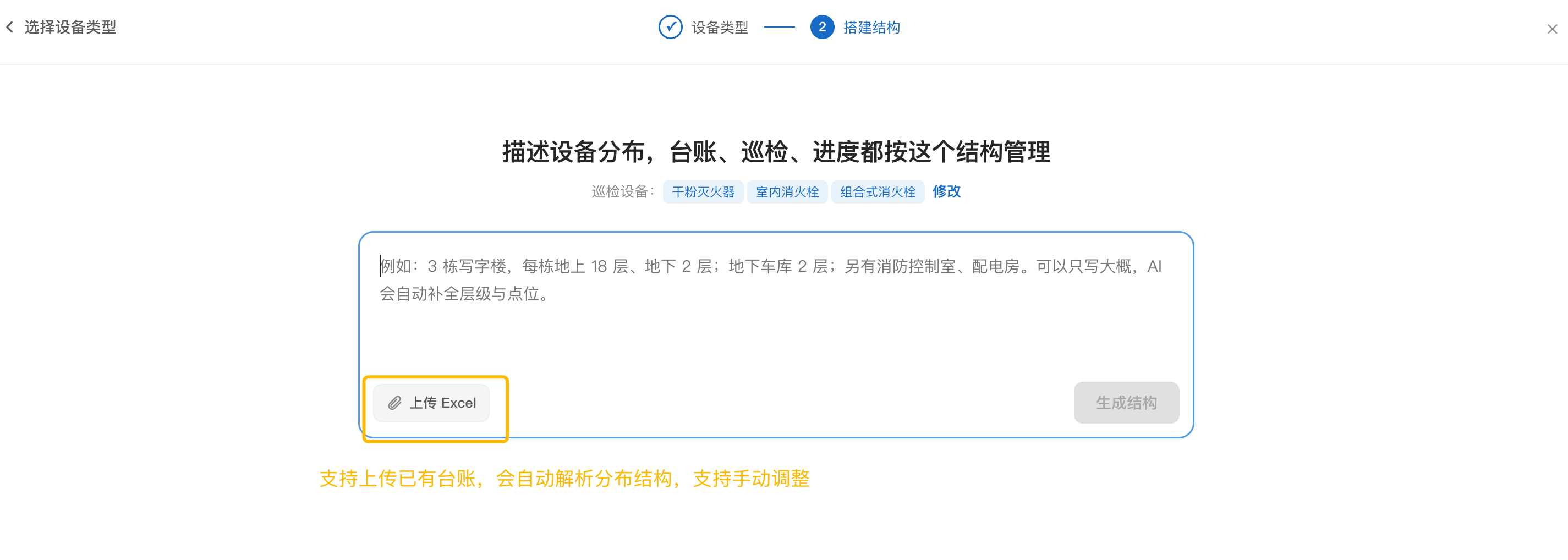
If an existing equipment register contains building, floor and area columns, upload it. The system recognizes the fields and builds a management structure for manual adjustment.
Create and Adjust Nodes Manually
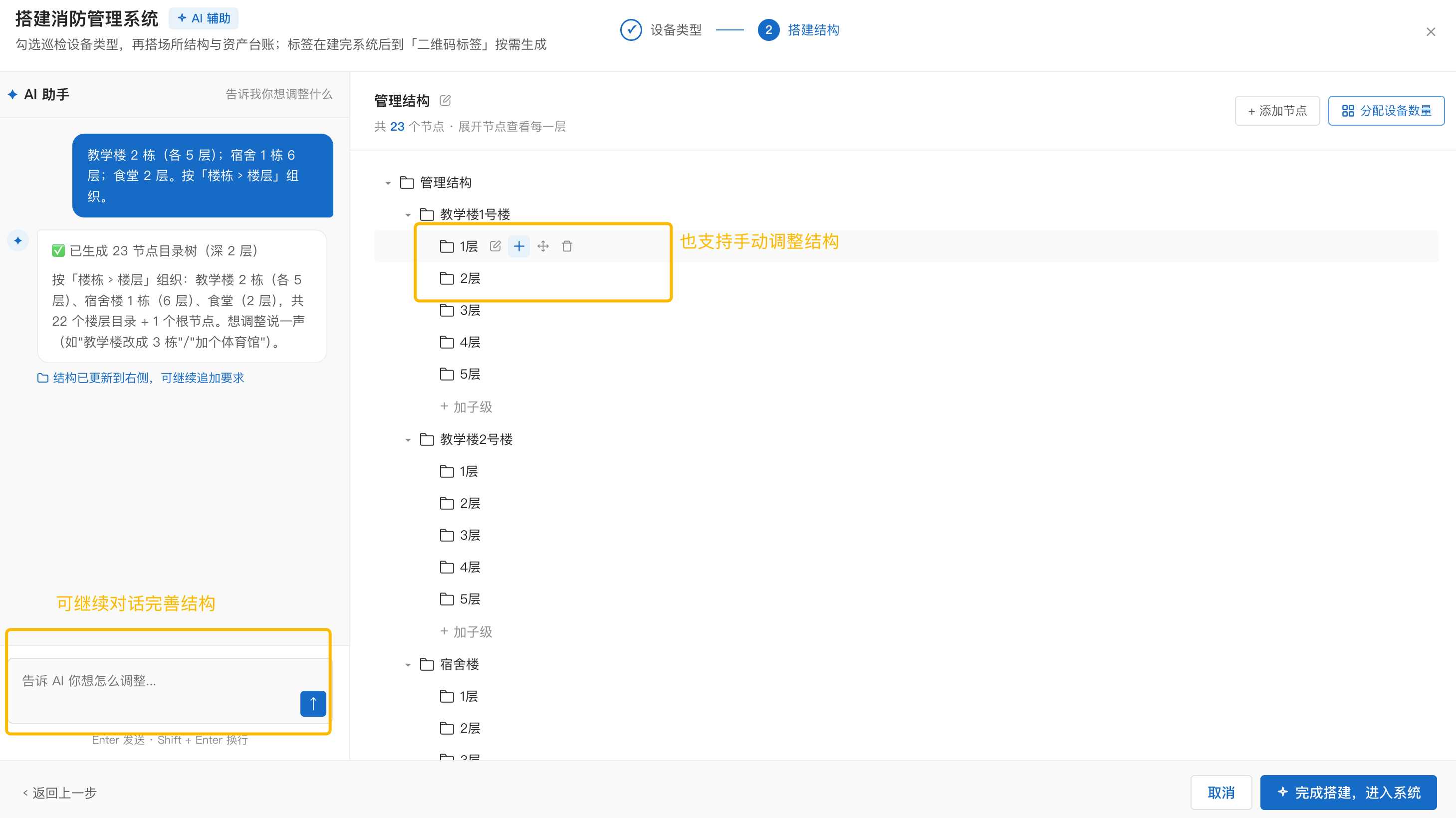
Refine an AI- or Excel-generated structure, or add nodes level by level as you would create folders.
Hover over a node to rename it, add a child, move it or delete it. You can also describe changes to AI on the left, such as “Add a wastewater treatment station” or “Change the office building to 5 floors”.
5. Use the Structure
Scenario 1: Use a Scenario Setup Wizard
When you enter a setup wizard from a scenario such as fire inspections, create the structure in the second step. It is associated with that scenario automatically.
After setup, open “QR code labels” to generate and print labels. Field staff select the location when scanning to activate a code. The code joins the structure automatically, and its register, inspection records and deployment progress follow the structure.
Scenario 2: Create a New Batch of Codes
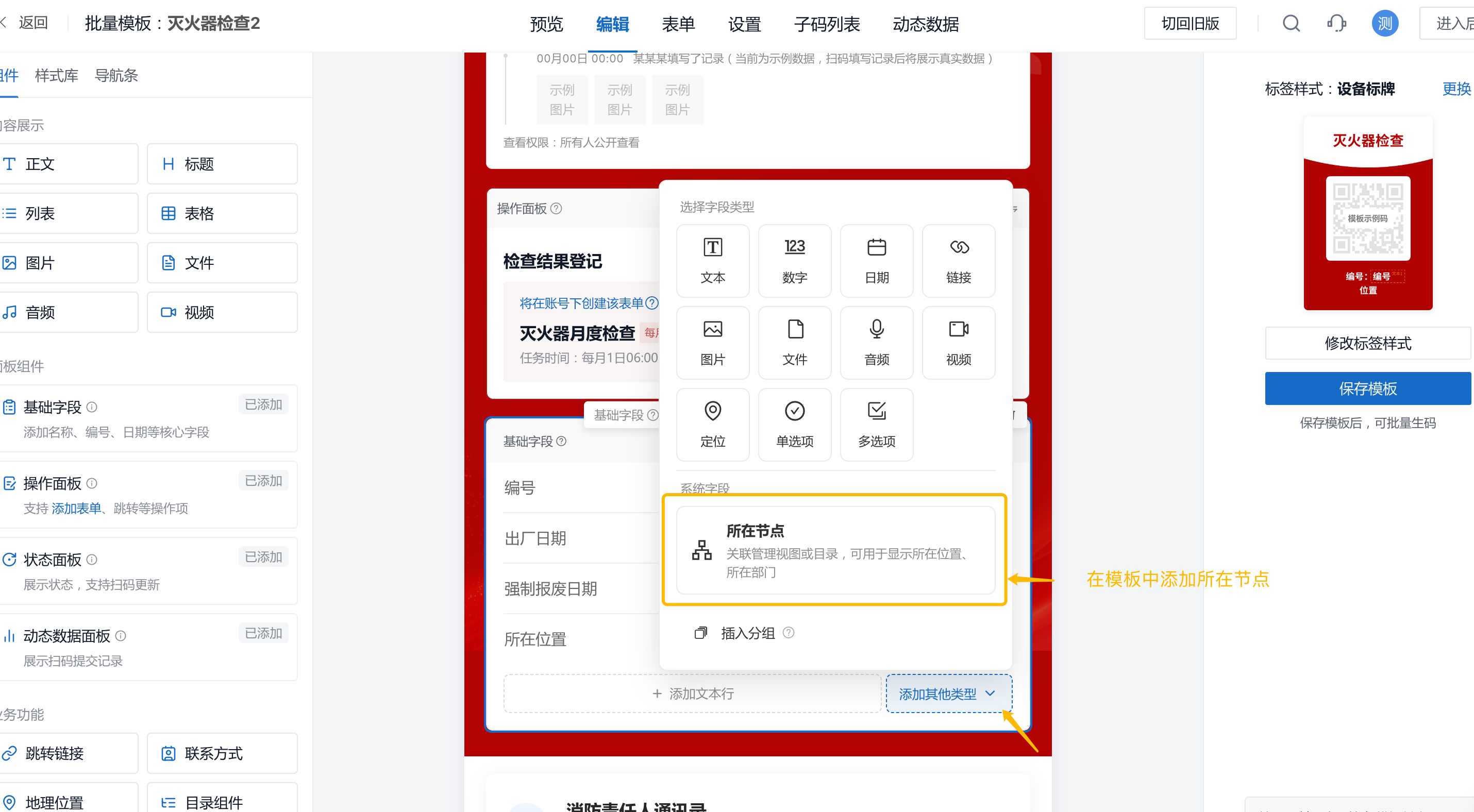
Add a “Location node” basic field to the bulk template, then select or create a management structure. Generated codes are associated with this structure.
After labels are printed and attached, field staff scan, select the location in the structure and save to activate the code. Its scan page shows the location path, such as “Building 1 / Floor 1 / West area”.
For field configuration, see using basic information components.
Scenario 3: Classify Existing Codes
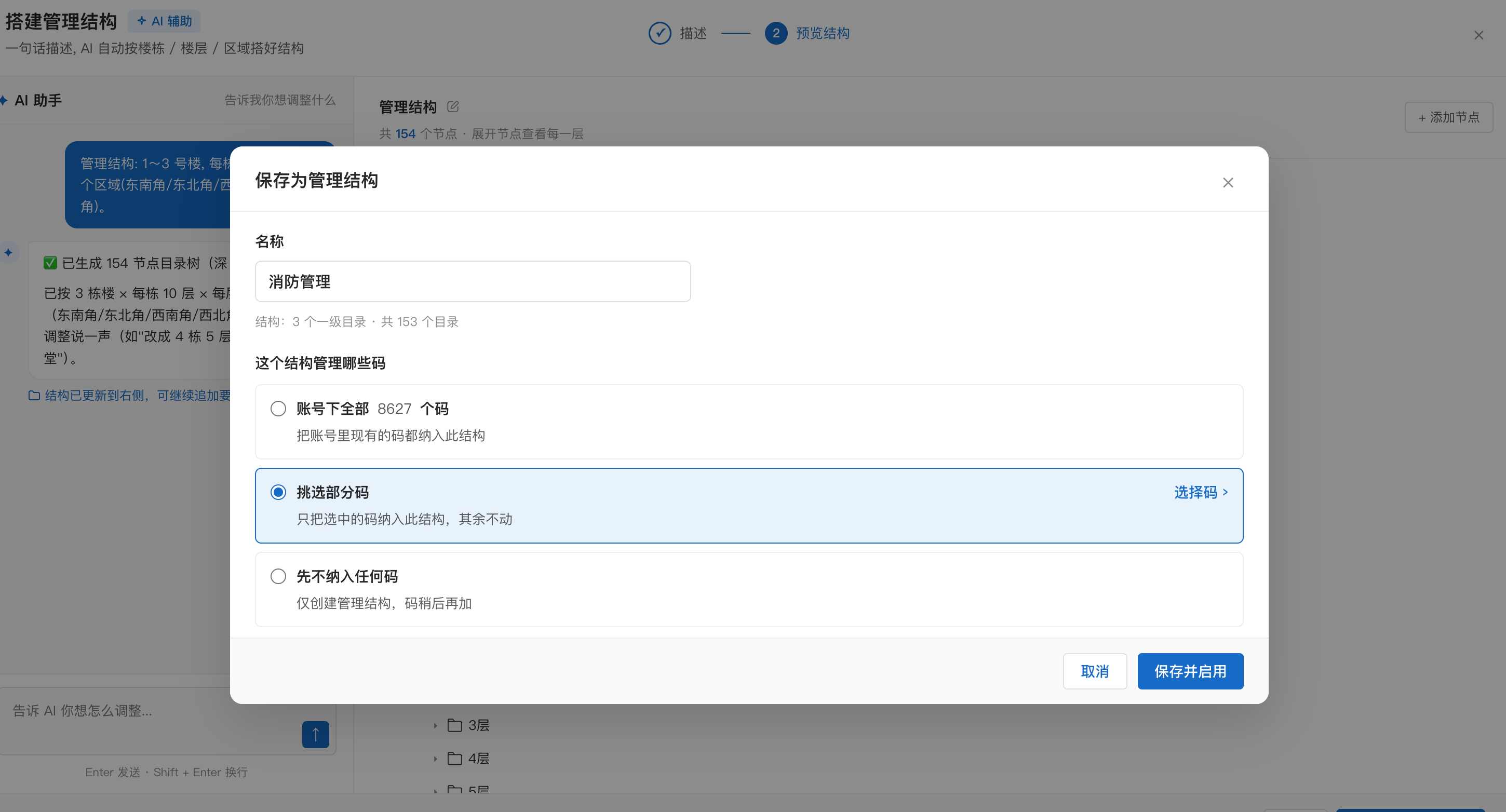
Associate an existing batch of codes with structure nodes in bulk. You can then view and report on them by structure without recreating the codes.
6. Frequently Asked Questions
1. Must the Structure Use Buildings and Floors?
No. Use areas, equipment types, departments, projects or another grouping that makes viewing and management convenient.
2. Must Every Individual Location Be Created in Advance?
No. The area level is usually sufficient. Field staff can select the individual equipment location when attaching labels and scanning to activate them.
3. How Many Structures Can an Account Create?
Multiple structures. Fire equipment, assets and production equipment can each have their own independent structure.
4. Can I Change a Structure, and What Happens to Associated Codes?
You can edit it at any time. Associated codes follow node changes, and scan pages update accordingly. There is no need to associate codes again or replace labels.
5. Can Existing Codes Be Added?
Yes. Associate existing codes with nodes in bulk without affecting their content or existing data.
6. How Does This Relate to QR Code Directories?
QR code directories are the existing classification folders in the workbench. If they already reflect locations, you can use them as the associated structure. If they group codes by customer, batch or another dimension, consider a separate structure that reflects the physical site.