Use Caoliao MCP in DeepSeek Harness
The Caoliao plugin includes the MCP account connection and caoliao-admin Skill. You do not need to configure MCP separately, install another Skill, or enter an API key.
Before you start
Have DeepSeek Harness desktop ready and a Caoliao account you can sign in to. Use a browser on the same computer as Harness for authorization.
Plugin source and installation instructions.
1. Install and enable the plugin
Open Plugins → Add plugin, paste this repository URL, and select Install:
https://github.com/caoliao/dsh-caoliao-qrcode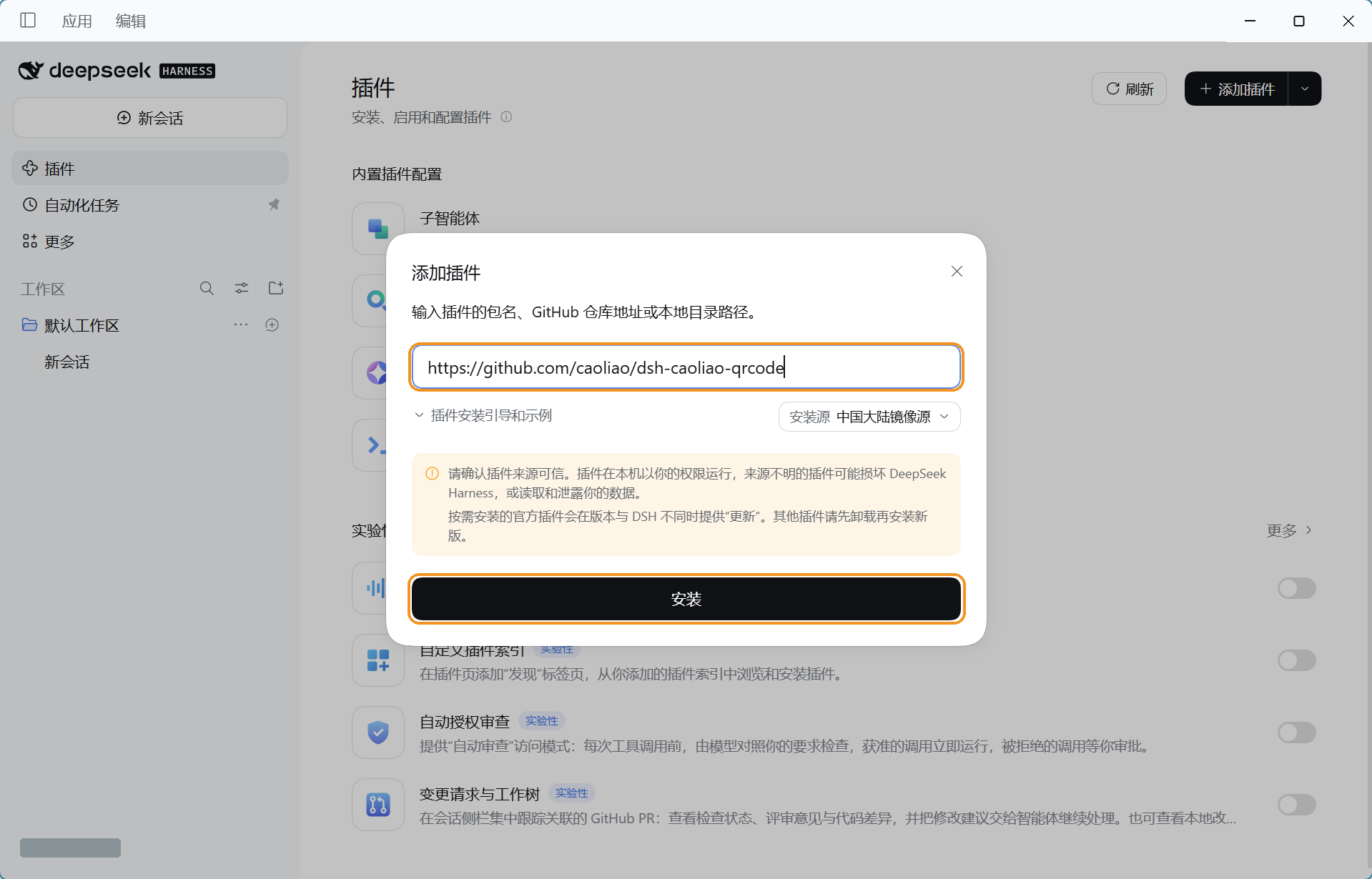
Alternatively, paste the latest package URL in the same field. No download or local file path is required:
https://github.com/caoliao/dsh-caoliao-qrcode/releases/latest/download/dsh-caoliao-qrcode.tgzChoose one method. The repository URL installs the current repository version; the package URL installs the latest published release.
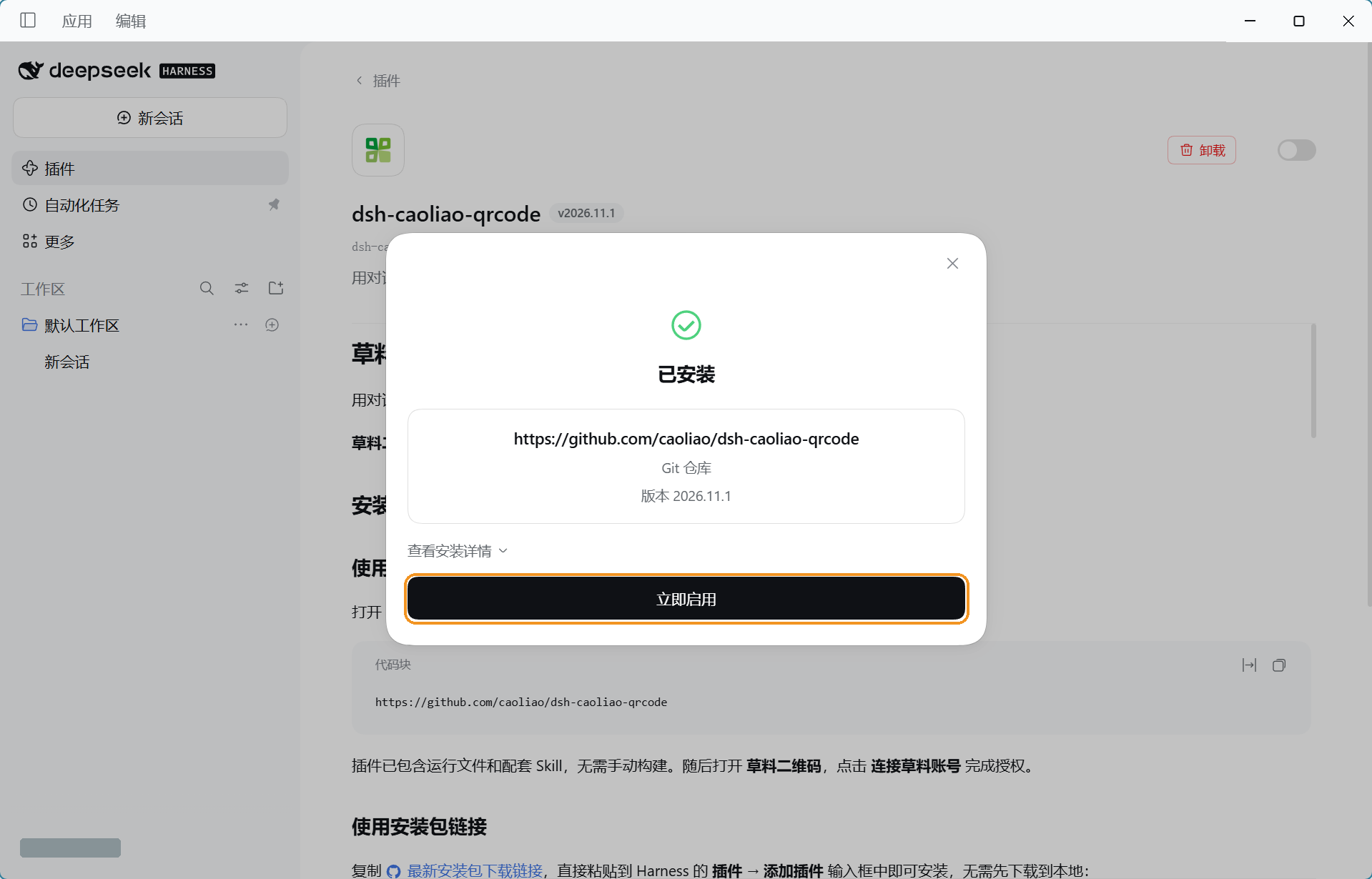
After installation, click Enable now. Restart Harness if the Caoliao sidebar entry does not appear.
2. Connect your Caoliao account
Open Caoliao QR Code in the sidebar and click Connect Caoliao account.
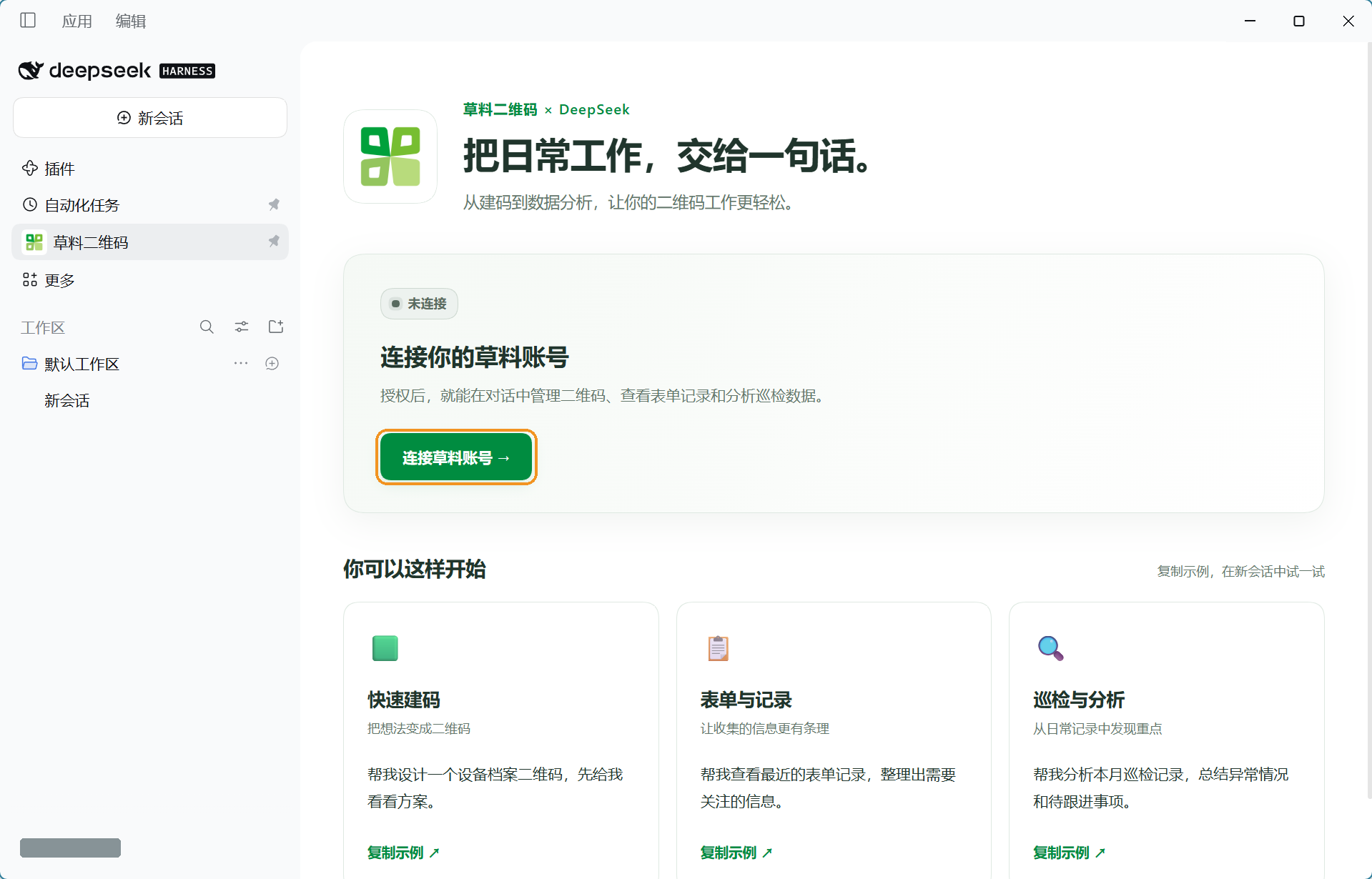
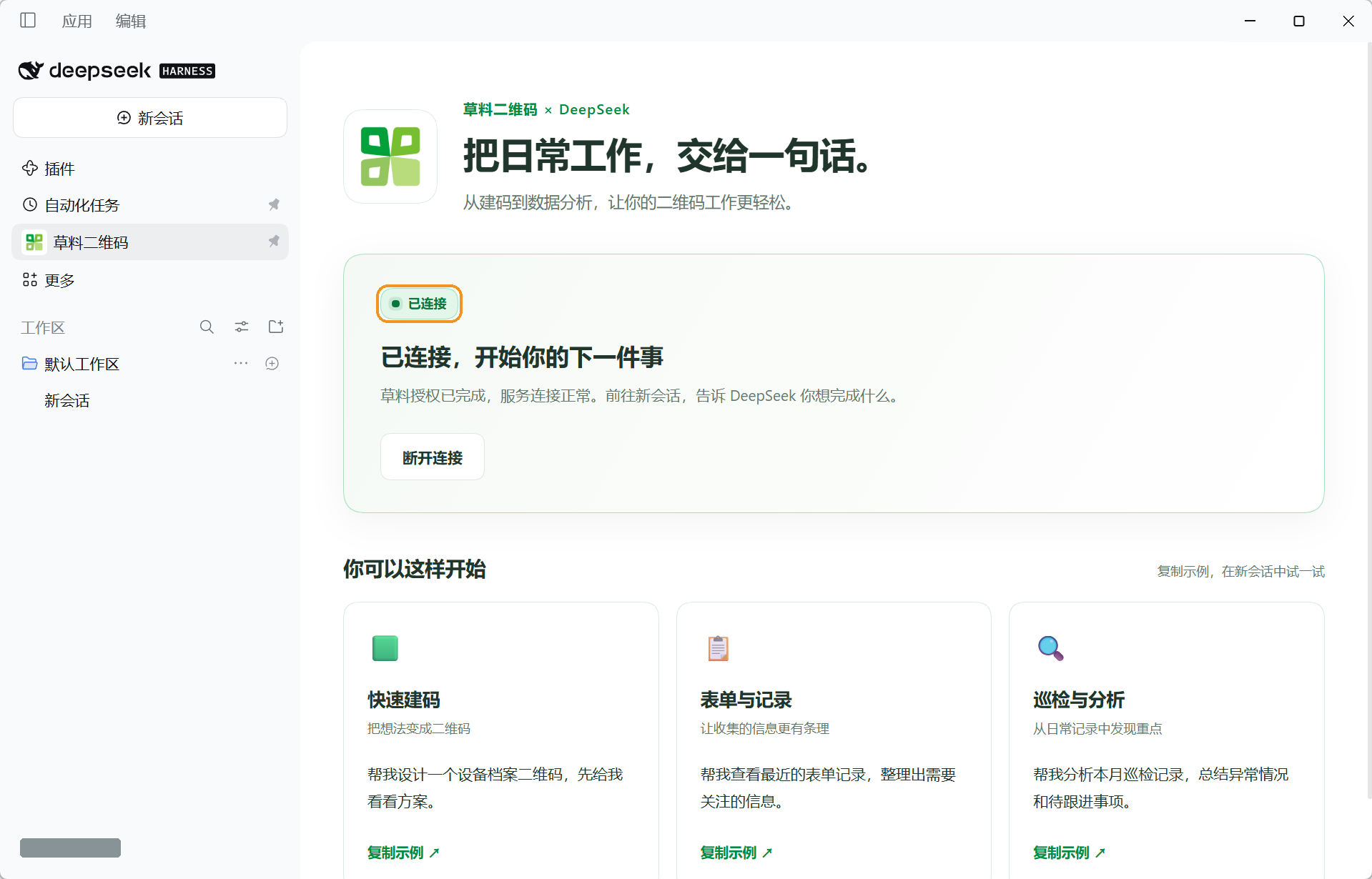
Sign in in the browser, select your organization when prompted, and authorize access. Close the authorization page and return to Harness. Wait for the green Connected status.
Access depends on your account, selected organization, and resource permissions. See Quotas and pricing.
3. Start a new conversation
First verify the Skill and organization:
Use the Caoliao QR Code plugin to confirm that the caoliao-admin Skill is loaded, then check the connected organization and available capabilities. Do not create or modify business data.Then try a task:
- Design equipment QR codes from this spreadsheet. List missing information and show a plan before creating anything.
- Summarize exceptions from the last seven days of inspection records. Ask me to select a form if needed.
- Analyze this month's inspection completion and list unfinished tasks. Explain the scope and calculation method.
You can also copy examples from the plugin page into a new conversation. Creating, editing, and uploading affect real data; confirm the plan and scope first. See Capabilities and tools.
Update or disconnect
To update, uninstall the old plugin, then reinstall using the repository or package URL above. To disconnect, open the plugin and select Disconnect. You can also review or revoke authorization in the Caoliao management console under Global settings → Security and traceability → Authorization management.
Common questions
Do I need another MCP connection or Skill? No. The plugin manages the caoliao-qrcode MCP connection and loads the caoliao-admin Skill. Avoid duplicate Caoliao connections.
Authorization succeeded, but is MCP connected? Check the plugin's green Connected status. Connection setup may take a moment after browser authorization.
Can it read local files? You must allow the client to access selected files. The remote MCP service cannot directly browse local folders.
For interface differences or connection issues, confirm the plugin is enabled, then if needed.