Existing CaoLiao Account Integration with WeCom
Integrate with the WeCom edition while retaining all original features and login methods without disruption. Access exclusive collaboration features for free, allowing internal employees to work efficiently within WeCom.
Integration Process
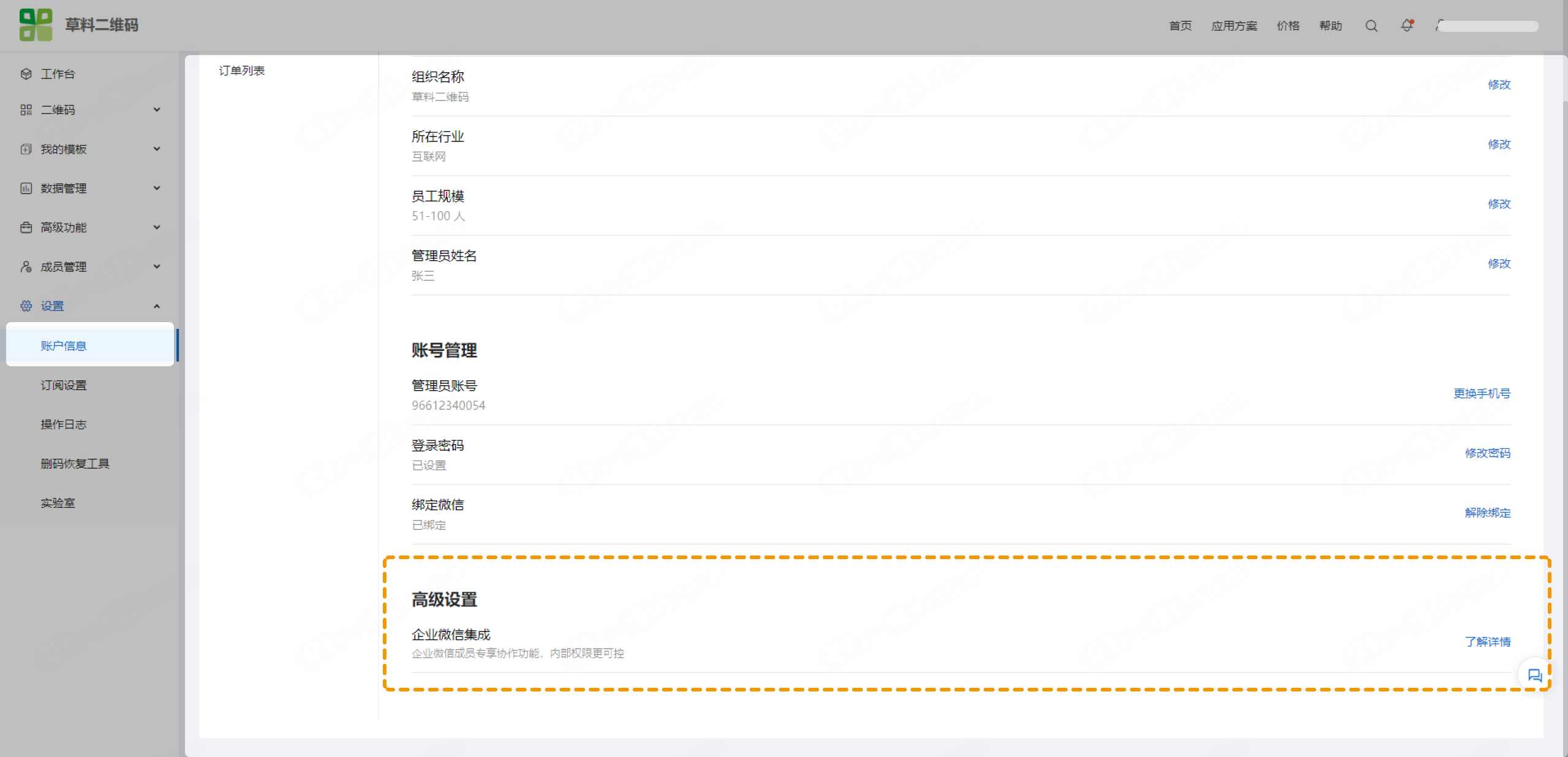
- Log in to your account, navigate to Account Information > Organization & Accounts, and click "WeCom Integration".
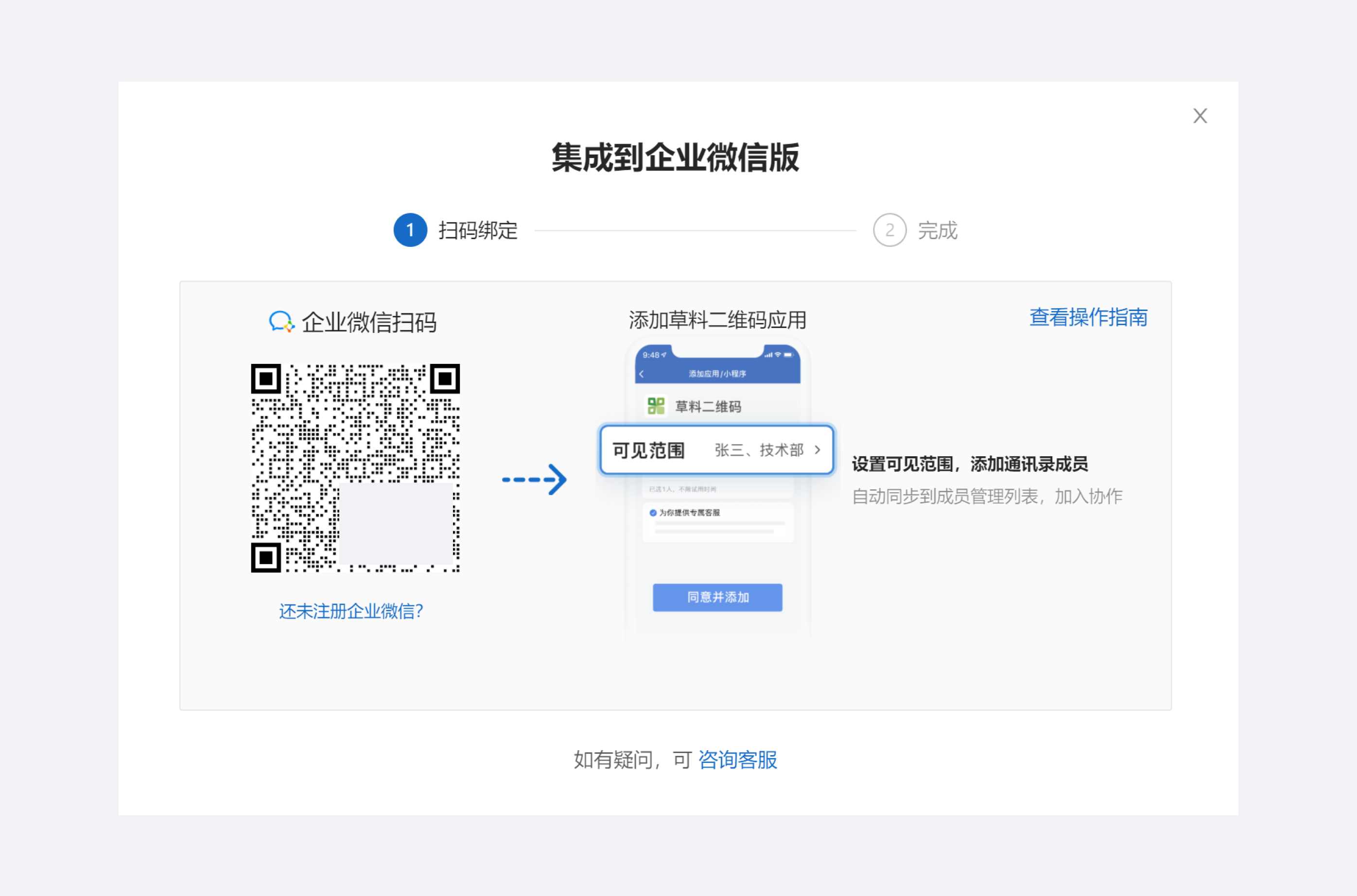
- Scan the QR code using WeCom to add the CaoLiao QR Code application, then set the visible range for the application.
Recommended to select by department, including all internal employees who need to collaborate. This enables efficient teamwork within WeCom.
After successful account binding, data integration to the WeCom edition will begin automatically.
Upon successful integration, re-login is required. You can log in via WeCom QR code scanning or use your original login method. The workbench will then switch to the WeCom edition.
Post-Integration Effects
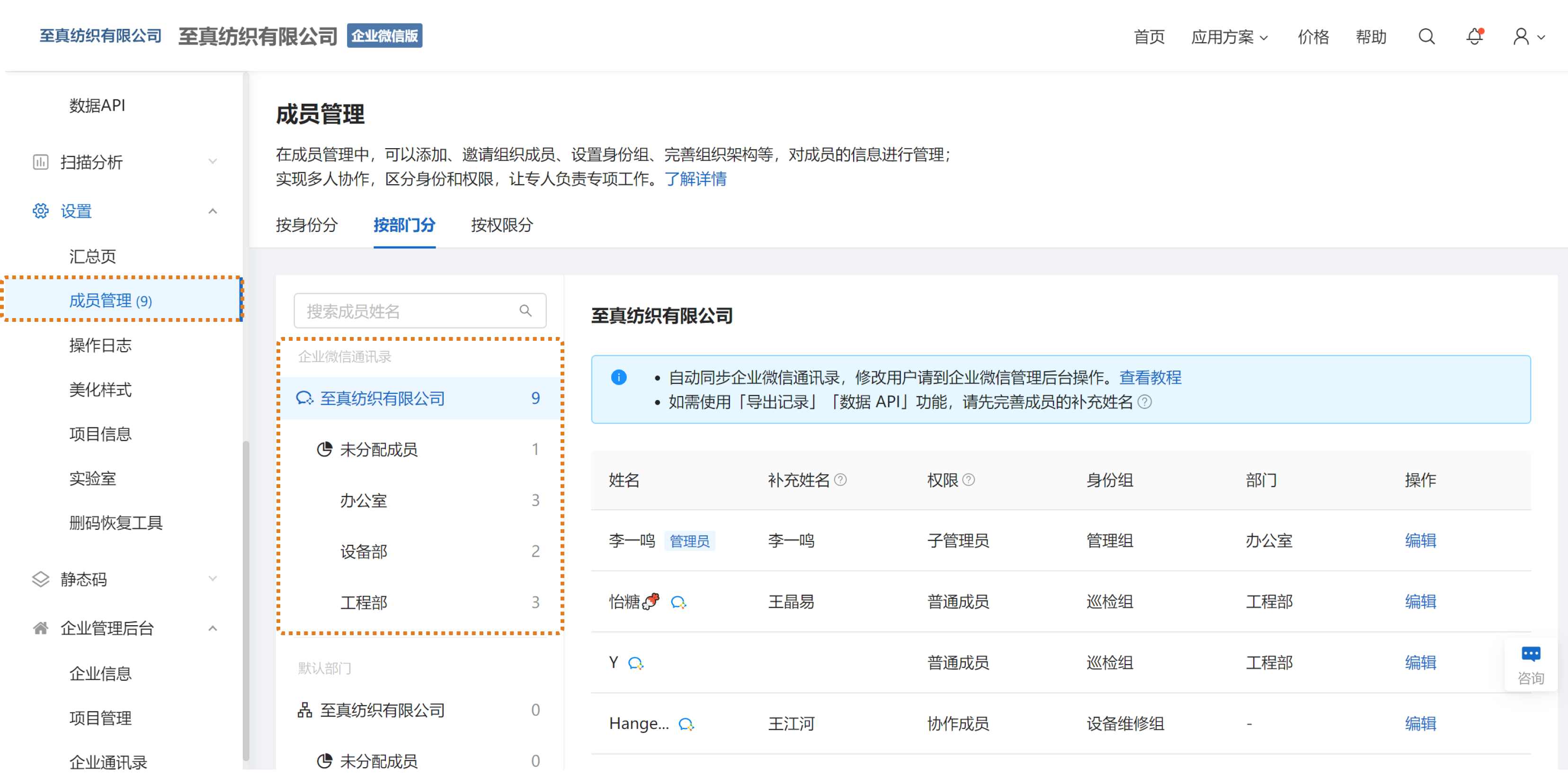
- WeCom contacts (members added to the application's visible range) are automatically synchronized to CaoLiao.
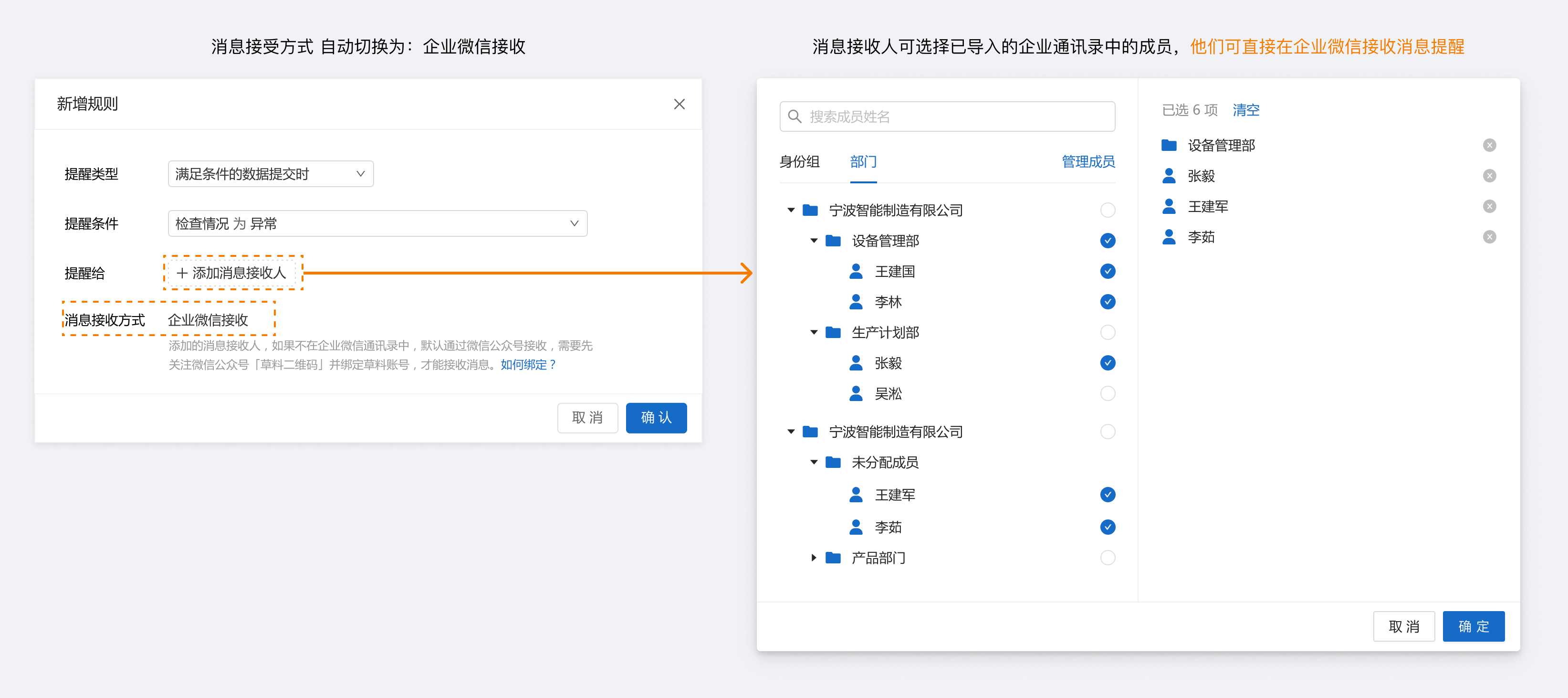
- For settings like notification recipients, reviewers, and viewing permissions, you can select WeCom members for more efficient internal collaboration.
WeCom Edition Pricing Model Adjustment
WeCom adjusted its pricing model on May 16, 2022. Under the new rules, using the CaoLiao QR Code application within WeCom requires payment for WeCom API licenses based on the number of visible range members. See the announcement: WeCom Edition Pricing Model Adjustment Notice.
- Free version users can use WeCom API for free for 90 days. After 90 days, a WeCom API license purchase is required.
- To access paid features like advanced members, users must pay for the corresponding CaoLiao version (same as the official website) plus additional WeCom API fees.
FAQs
1. Why does my paid account display as a free version in WeCom with restricted visible range members?
If your paid account shows as a free version during integration and limits visible range members to fewer than 50, ignore the prompt and continue adding members. After binding, synchronize paid entitlements in WeCom. View tutorial.
2. What if I've already added the CaoLiao QR Code application in WeCom and the integration QR code doesn't respond?
Log out, then select "Log in via WeCom QR code" from the login popup. After logging in, you'll see the "Import Existing Account Data" function on the right side of the workbench. View import tutorial.
3. Why does scanning the WeCom QR code only show "Recommend to Admin" without the option to add the application?
This is due to WeCom's policy: organizations with 500+ members cannot directly add third-party applications. You can recommend the application to an admin for addition and configuration. View tutorial.