Use Caoliao MCP in QwenWork
Once connected, you can analyze Caoliao data in QwenWork with plain language: reports, anomaly summaries, data pages — the AI reads live data from Caoliao, no manual export needed.
Warning: Caoliao is not in QwenWork's built-in connector list. Add it manually using the steps below.
Before you start
- A Caoliao account you can sign in with
- The QwenWork client.
Tip: we recommend using the organization's super administrator account. Authorization covers the whole organization's data (see Step 2), so having a super admin grant it centrally is easier to govern.
Step 1: install the connector
Option A: let the AI install it (recommended)
Open a new conversation and send QwenWork this message in full — braces included. It looks like code, but sending it straight to the AI is exactly right:
Please install the Caoliao QR code MCP for me. The MCP server configuration is:
{
  "mcpServers": {
    "caoliao": {
      "type": "streamable-http",
      "url": "https://open.cli.im/mcp",
      "timeout": 60
    }
  }
}
The AI configures the connector for you. If it asks for confirmation, approve it. You will know it worked when an entry named caoliao appears in the connector list — then go to "Step 2: authorize".
Note:
timeoutis how many seconds to wait for Caoliao to respond.60is the recommended value — leave it as is.Note: if the AI replies that it cannot install, use Option B below.
Option B: add it manually
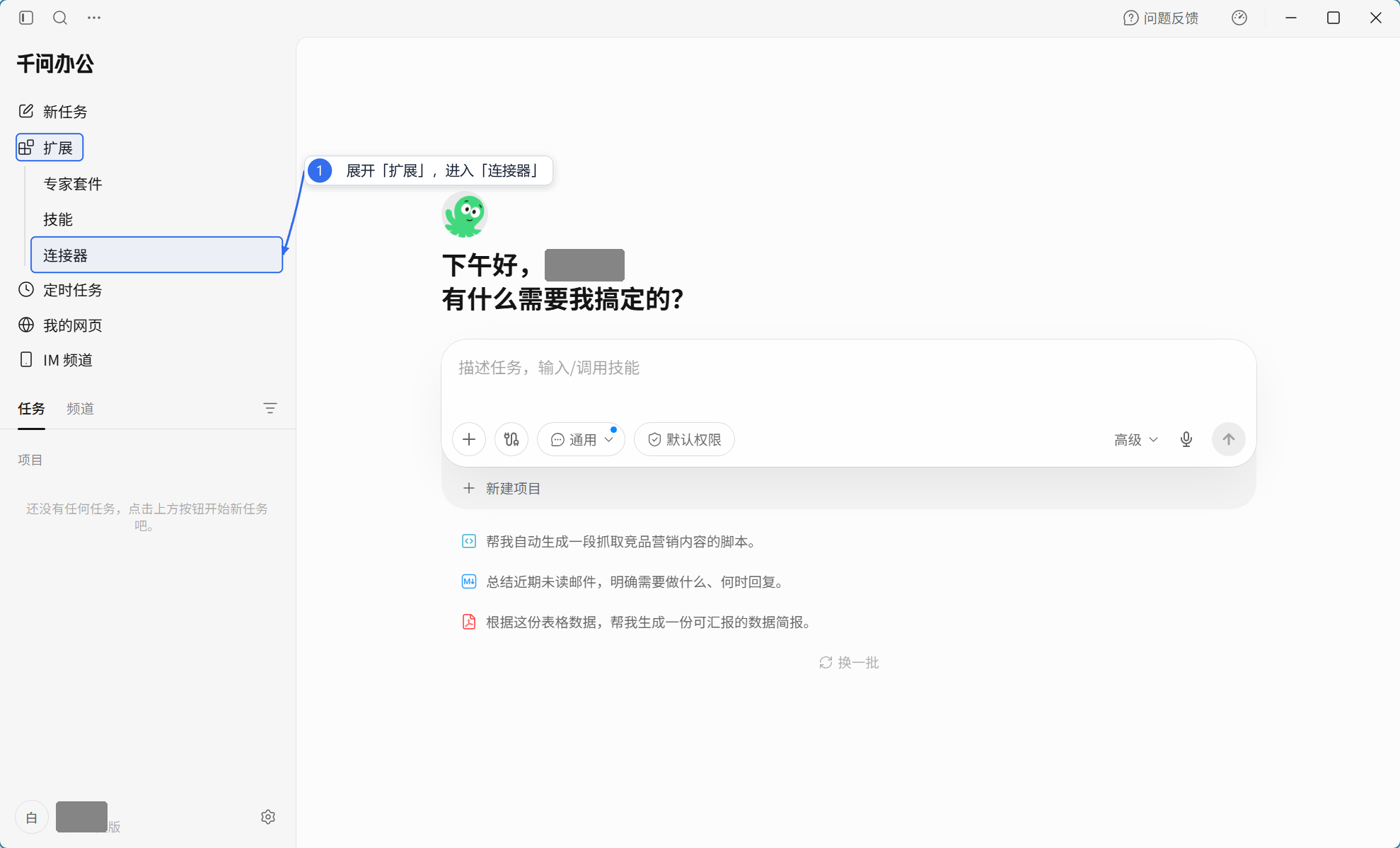
- Open QwenWork, expand "Extensions" in the left sidebar and click "Connectors".
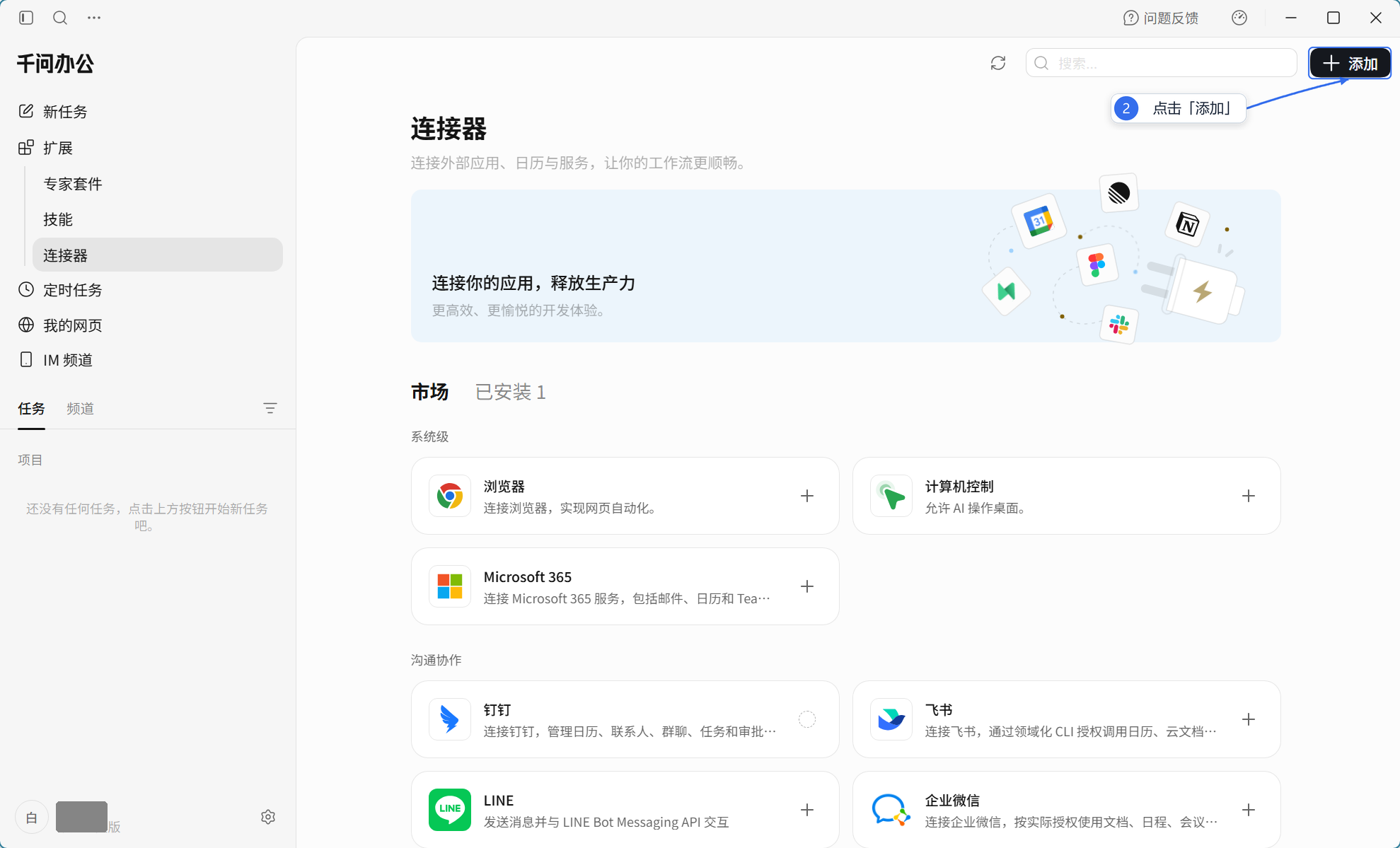
- Click "Add" in the top-right corner.
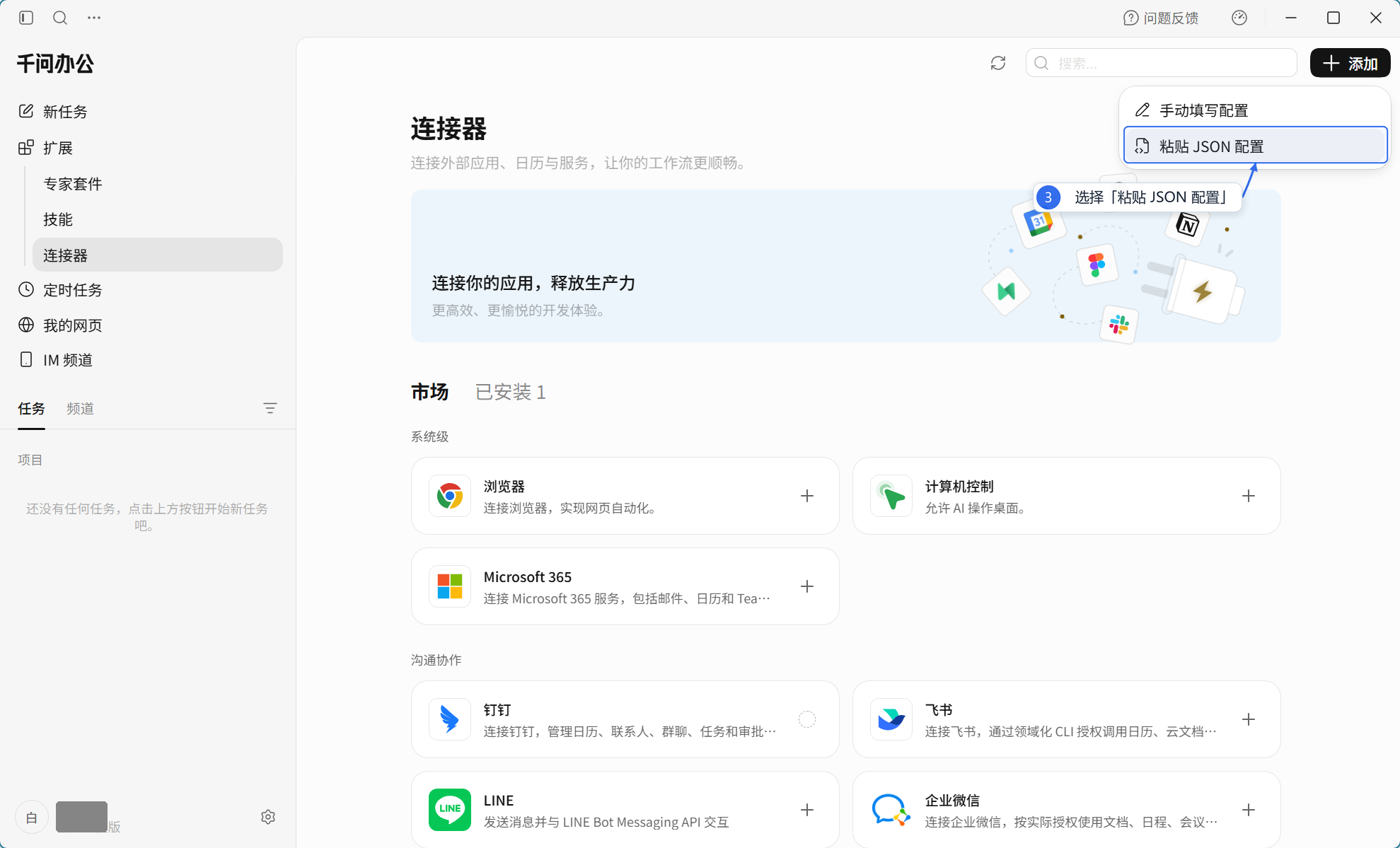
- Choose "Paste JSON configuration" from the menu.
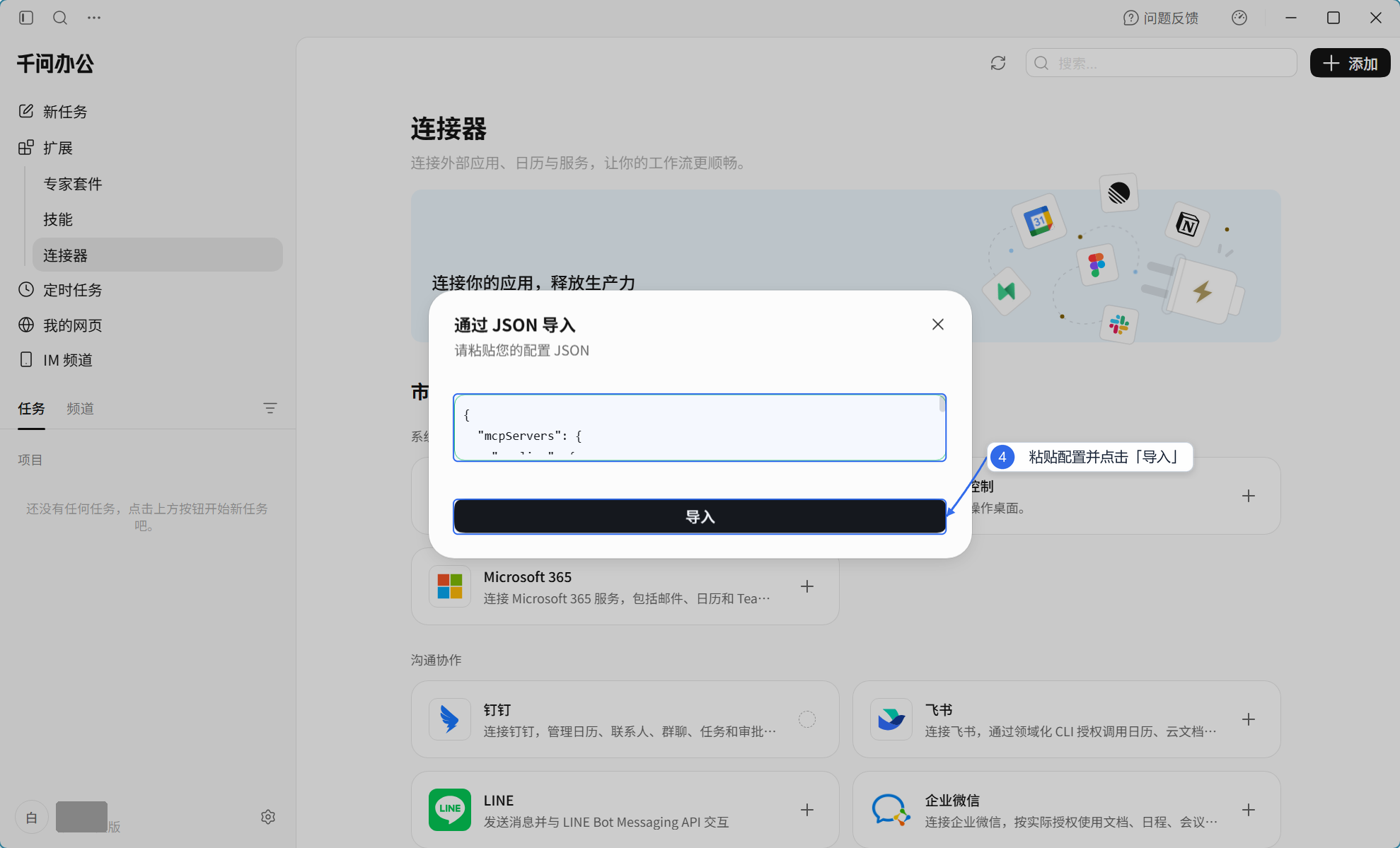
- Paste the configuration below into the input box, then click "Import".
{
  "mcpServers": {
    "caoliao": {
      "type": "streamable-http",
      "url": "https://open.cli.im/mcp",
      "timeout": 60
    }
  }
}
After you click "Import", QwenWork opens the Caoliao authorization page automatically — continue with Step 2 below.
Note: QwenWork also supports filling in the configuration manually — choose Streamable HTTP as the service type and
https://open.cli.im/mcpas the URL. Neither method needs a token or any other secret.
Step 2: authorize
- On the Caoliao authorization page that opens, sign in to your Caoliao account, choose the organization to authorize, and confirm.
- Return to QwenWork, switch to "Installed", and confirm
caoliaoappears in the list with its toggle on.
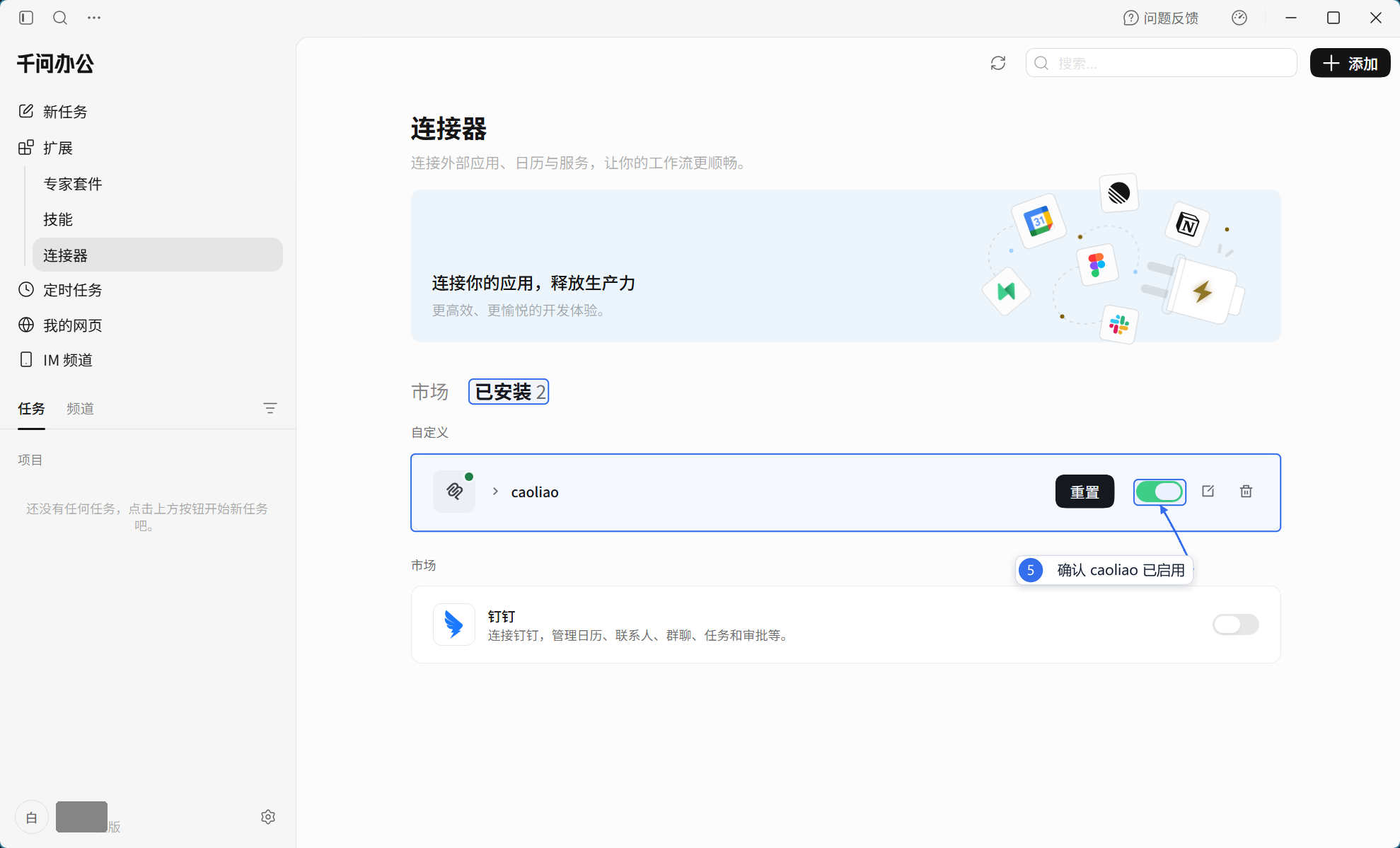
Note: if your account belongs to only one organization, the page will not ask you to choose; the selection appears only when you belong to several. If you pick the wrong one, revoke it under "Global Settings → Security & Traceability → Authorization Management" in the Caoliao console and authorize again.
Note: if the authorization page did not open, or you closed it by accident, delete
caoliaofrom the "Installed" list and import the configuration again — the page will reopen.
Before you authorize, be aware of this
Warning: after authorizing, the AI can read all data of that organization — records across every project, QR code and form are in scope, and scoping to a single project is not supported yet.
This scope is per organization, not per your own visibility in Caoliao: even if you can only see some projects in the product, the AI can read the whole organization's data once you authorize. If your organization holds forms that should not be analyzed (payroll or personal identity data, for example), assess this before authorizing.
- Authorization is bound to "your account + the organization you chose." Each person in an organization authorizes separately, and each can read all of that organization's data. For organizations with many administrators, we suggest authorizing only the few people who need to run analyses.
- To revoke authorization, sign in to the Caoliao console (console.cli.im) and open "Global Settings → Security & Traceability → Authorization Management": it lists every AI client you have authorized and the organization each one is bound to; click revoke to withdraw access immediately.
- All Caoliao MCP tools are read-only. The AI can query data and compute metrics, but cannot modify any QR code, form, or record in your organization.
Step 3: start chatting
Open a new conversation, describe what you want, and tell the AI to use the caoliao MCP.
For your first run, start with a simple connection check:
Using the caoliao MCP, list the projects, QR codes, and forms I can access.
Only list their names for now. Do not modify any data.
If the AI lists objects from your account, the connection works. Continue in the same conversation:
Using the caoliao MCP, report this month's record submissions per project,
weekly totals, and highlight the three projects with the steepest decline.
The AI discovers your organization's forms and metrics on its own, then fetches and analyzes step by step. Refine with follow-up questions if needed.
Tip: field names in the examples are only illustrative. Use the field and option names from your own forms — the AI will read the form structure to match them.
Tip: include "use the caoliao MCP" in every new conversation. QwenWork may have several tools connected at once; naming the one you want reduces the chance it picks the wrong tool or answers from memory.
Keep talking after the report is ready
Caoliao MCP queries the data; QwenWork creates, publishes, and schedules the report. If you want colleagues to see the result, or want it refreshed regularly, stay in the current conversation and state the next outcome you want. For example:
Publish the report we just created as a link that other people can open.
Before publishing, check for sensitive fields such as names and phone numbers,
explain who will be able to access it, and wait for my confirmation.
Update this report automatically every Monday at 9:00 AM, covering the previous
calendar week and keeping the current metric definitions. Before creating the
schedule, repeat the run time and data range for confirmation.Which publishing and scheduling capabilities exist is up to QwenWork; the AI will tell you how far it can go.
Warning: anyone with a published link may be able to view its content. Confirm that the report and its referenced data are suitable for sharing, and disable public access when it is no longer needed.
FAQ
The AI says it cannot reach Caoliao Confirm you signed in with the correct Caoliao account, the URL is https://open.cli.im/mcp, and the type is Streamable HTTP.
The authorization page never appeared If no page opened after importing, or you closed it by accident, delete caoliao from the "Installed" list and import the configuration again to reopen it.
Can the AI add a record or edit a code for me? No. Caoliao MCP is read-only for now, and the AI will not modify any of your data. If you need to write records or verify certificates programmatically, that is a developer scenario — see the OpenAPI V2 API.
Can I trust the numbers? Every set of data Caoliao returns to the AI carries its calculation definition, and the AI is instructed never to estimate when real data is available. If a number looks off, ask the AI to "list the records behind this number".
The UI does not match this page QwenWork iterates quickly and entry names may differ. Prefer Option A (let the AI install); if problems persist, and we will walk through it with you.
Next steps
- Open Platform MCP · Service & Setup — full tool list and authentication
- Use in WorkBuddy / Use in Doubao Work