Completing Supplementary Name Information for Members
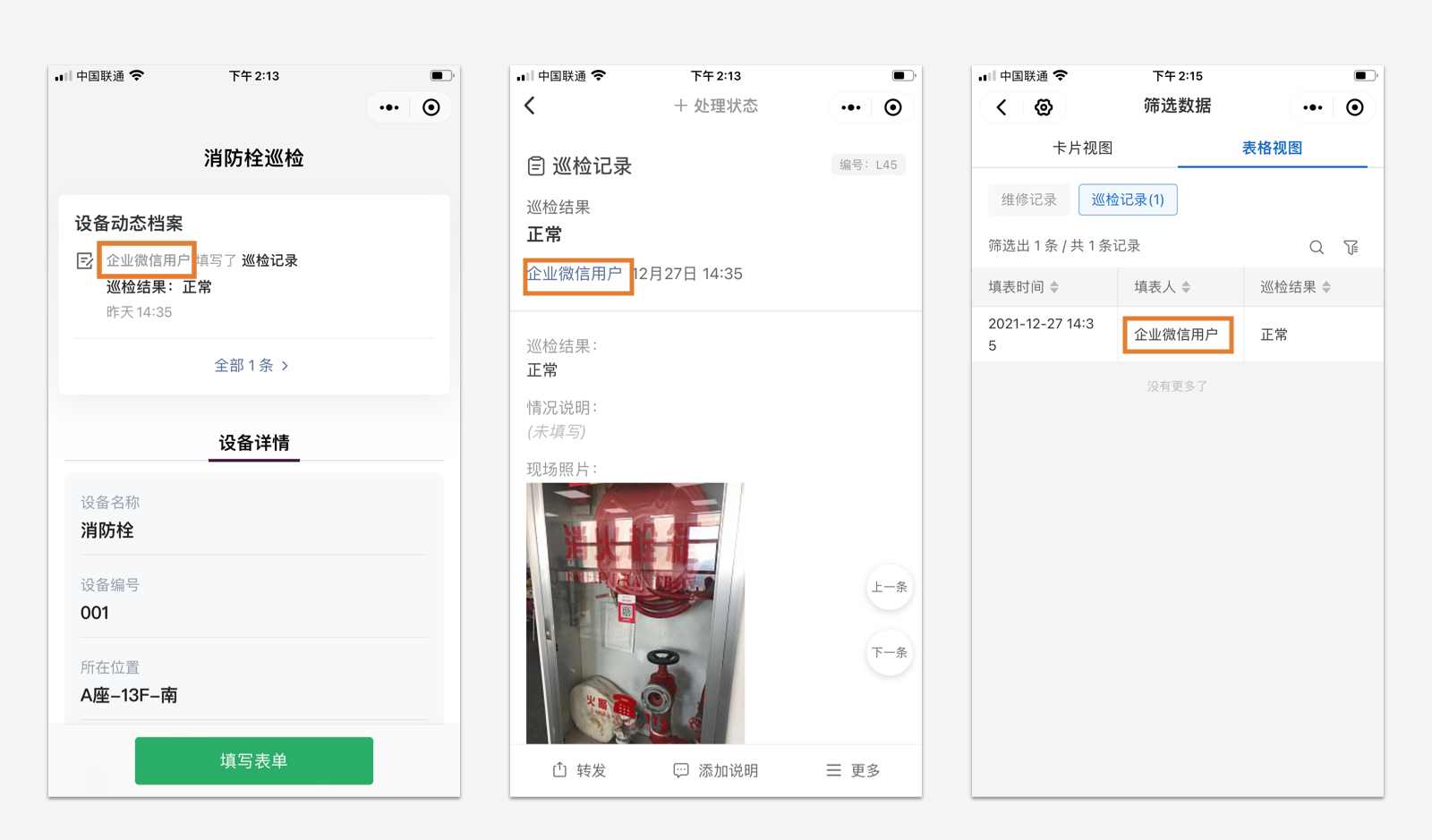
After integrating with WeCom, contact member information within the visible range will be synchronized. However, due to WeCom restrictions, the CaoLiao platform cannot retrieve and store name information for later use. This results in form data submitted by WeCom members displaying the submitter and name information as a string of characters like "wodkFjCwAAkjJTzgDHDcbf" when exported.
Administrators need to complete the 【Supplementary Name】 field for members on the CaoLiao platform, or members can complete it themselves via mobile, to ensure the submitter and name information in form records display correctly. (This setting does not apply to non-WeCom members.)
Administrators Completing Information via Desktop
1. Navigate to Settings > Member Management
In the 【Organization Structure】 section, locate members without supplementary names and edit their information.
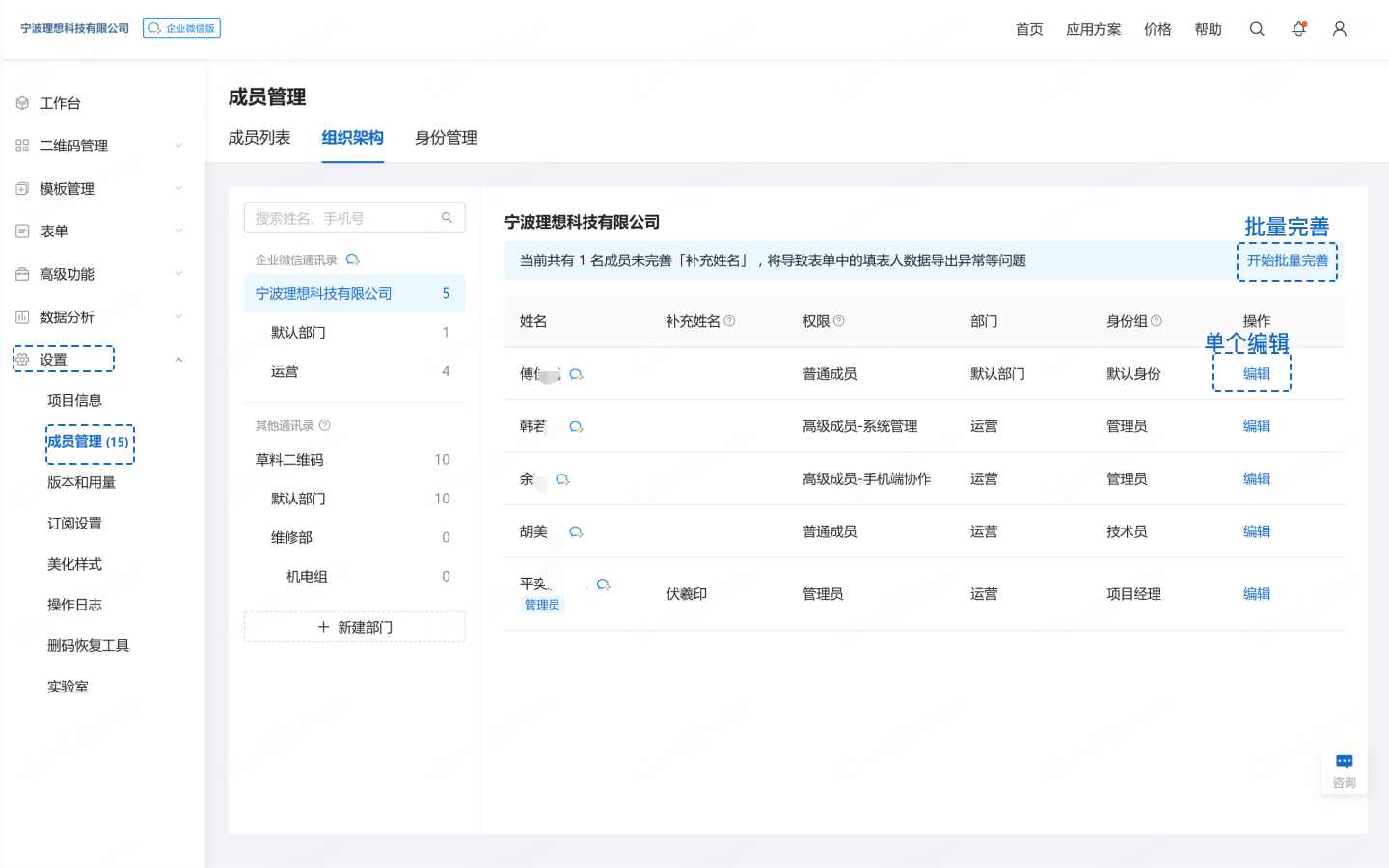
2. Edit Individually (Click Edit)
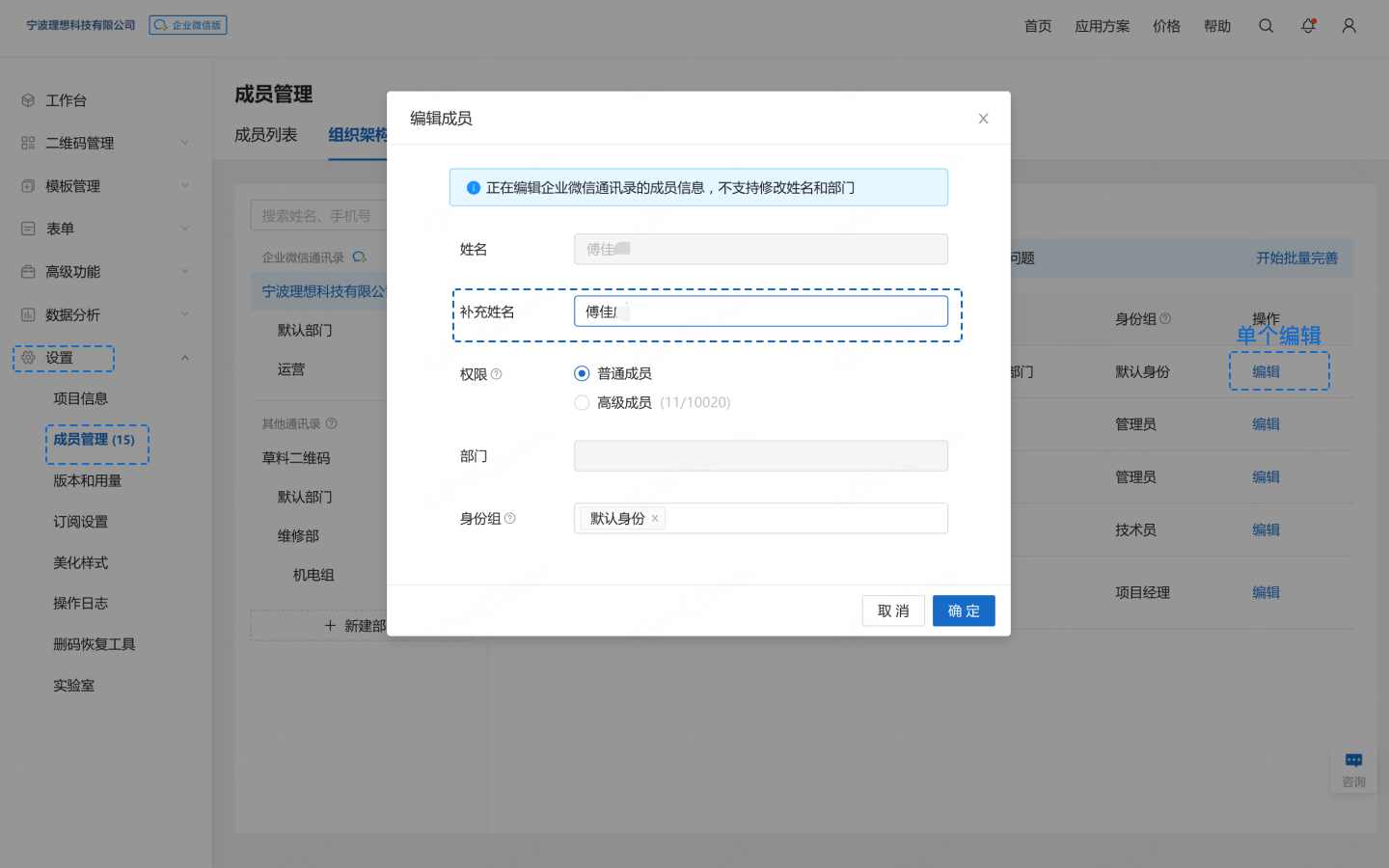
Note
The supplementary name should ideally be the member's real name, matching the name displayed in the contacts. Otherwise, the name seen in the backend will differ from the name in exported data.
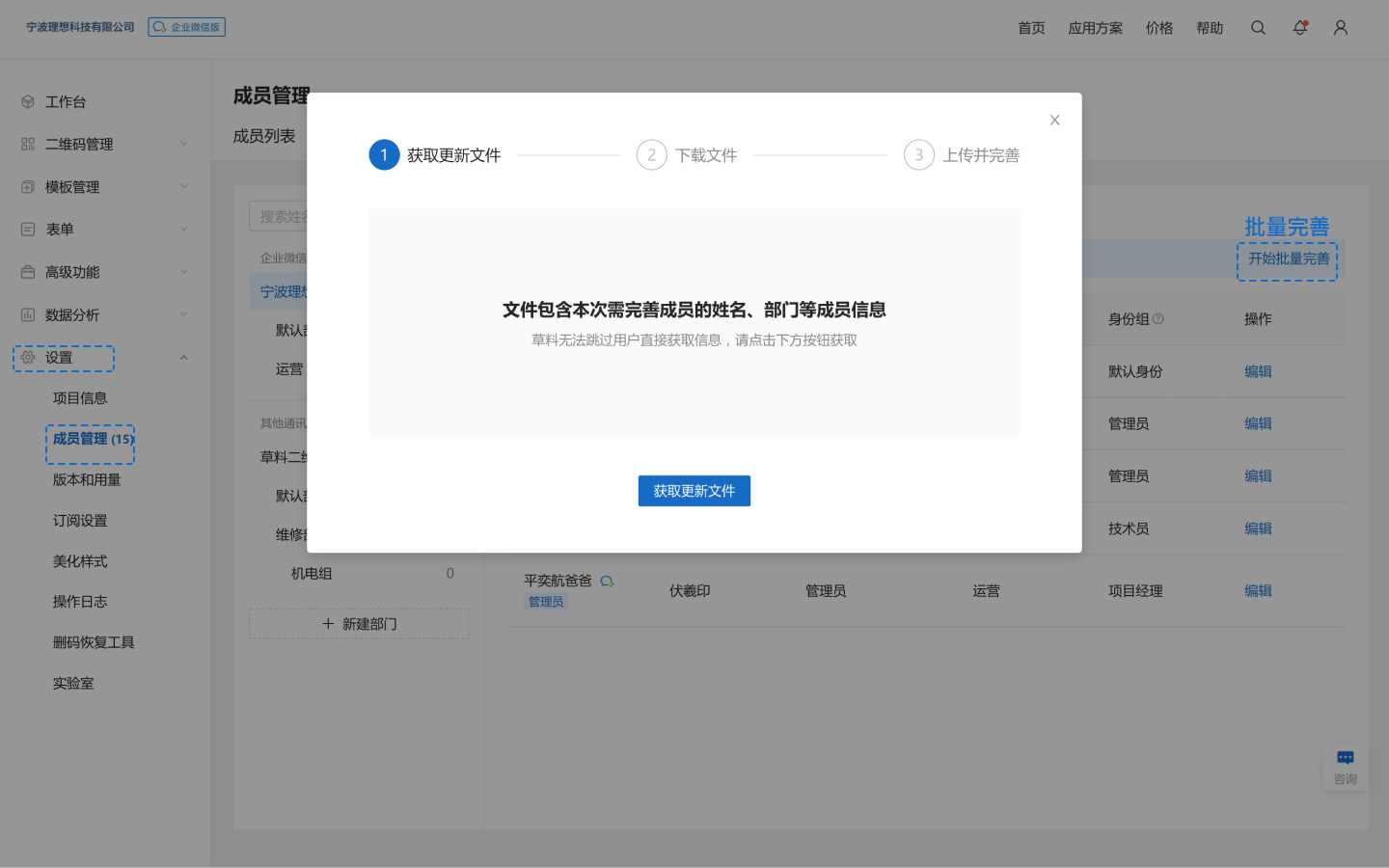
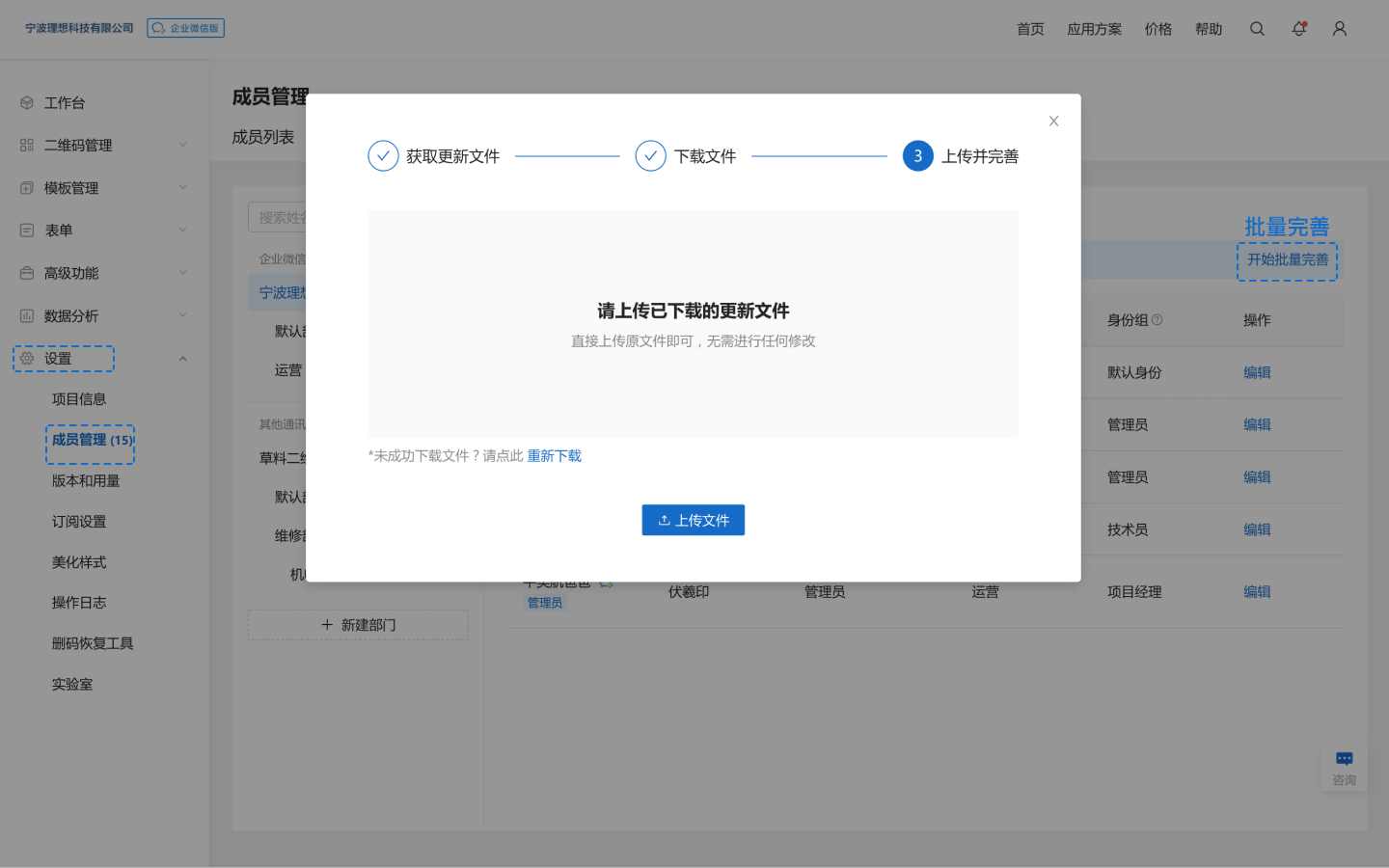
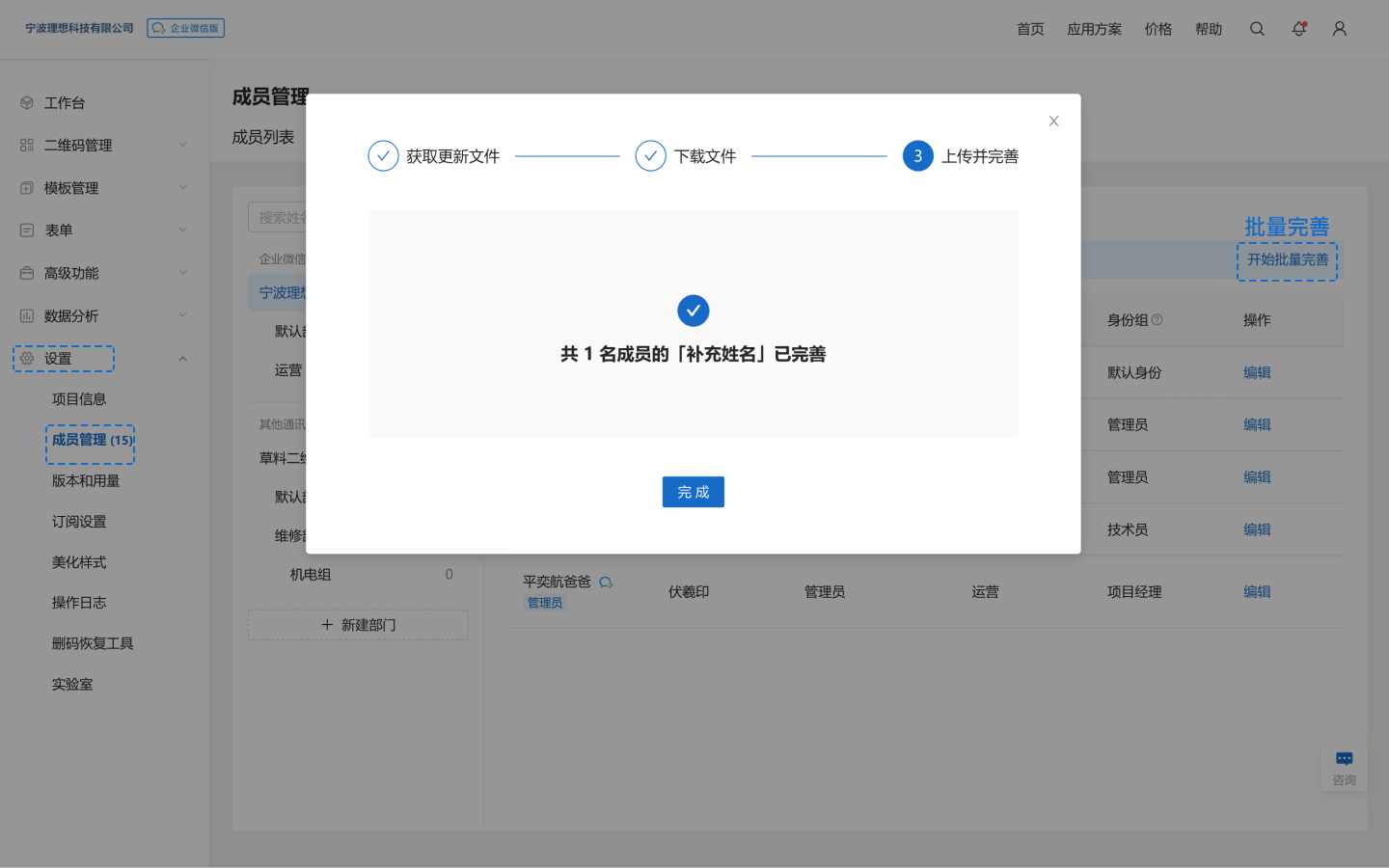
3. Bulk Completion
Click 【Bulk Completion】, download the update document, fill in the supplementary names, then upload the document to complete the bulk update.
Members Completing Information via Mobile
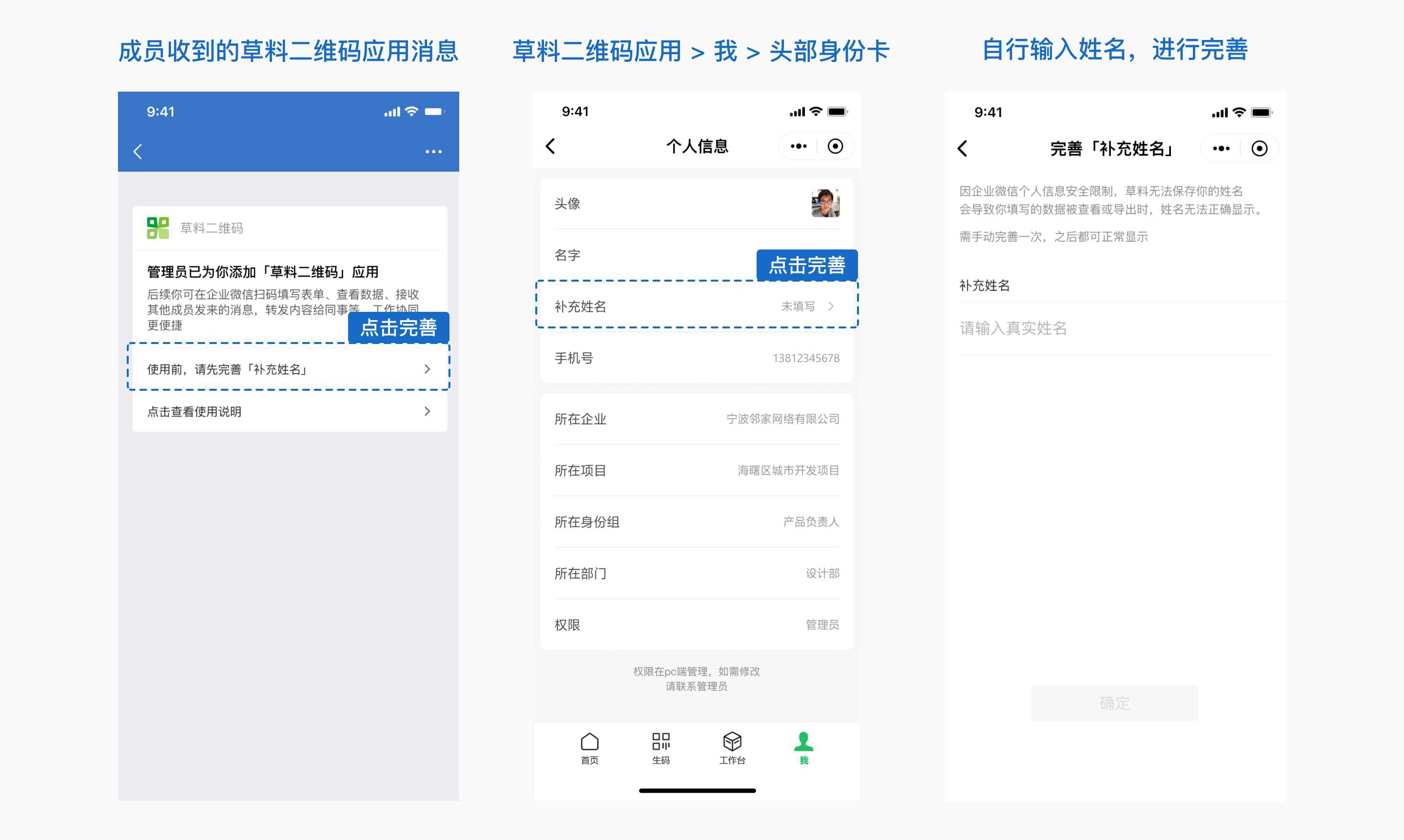
If there are too many members requiring updates, members can complete their own information via the WeCom mobile app to reduce the administrator's workload.
Impact of Incomplete Information
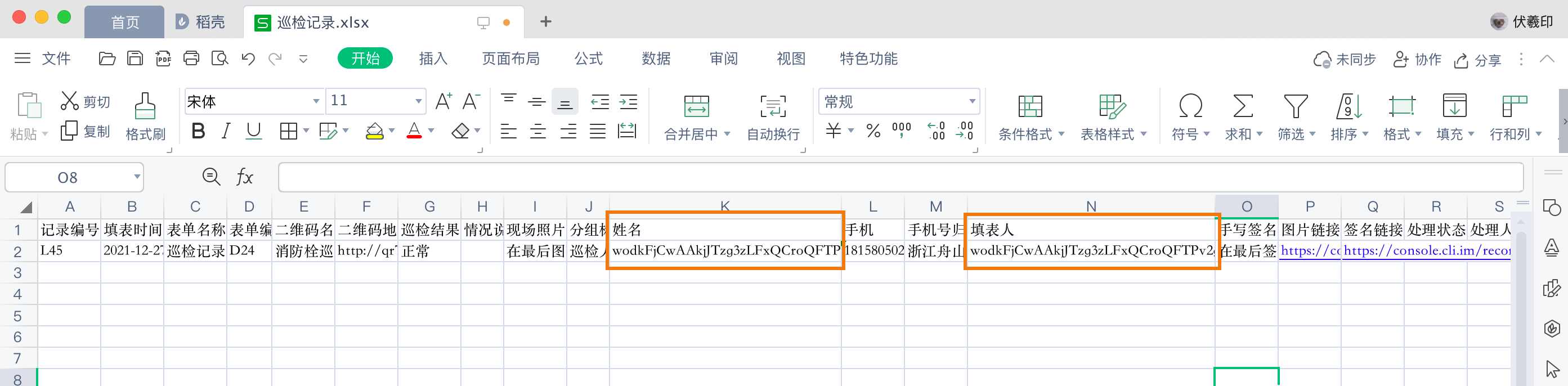
1. Exporting Form Records
The submitter and name information in the exported spreadsheet appear as a string of code.
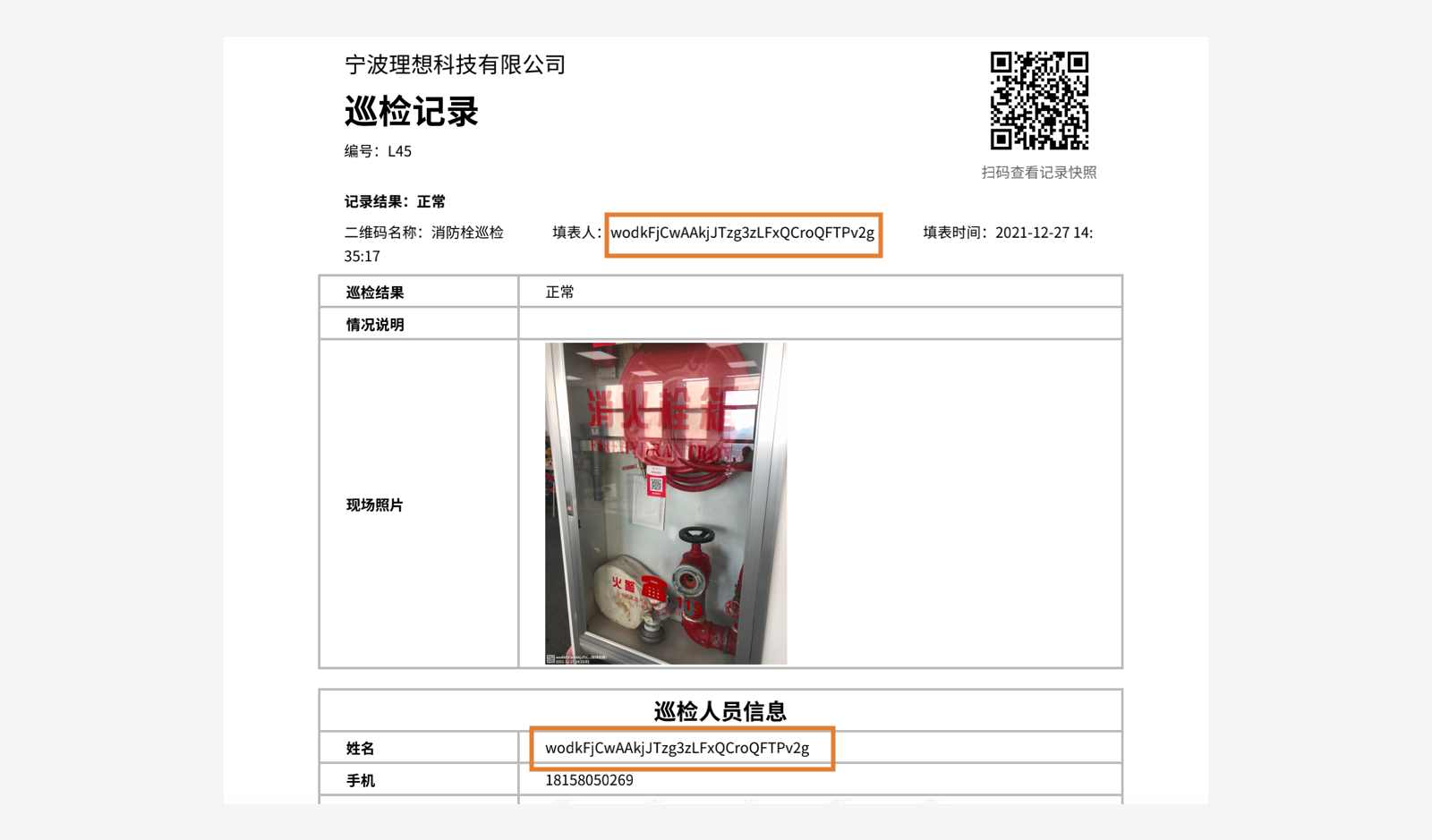
2. Exporting Records as PDF
The submitter and name information in the PDF also appear as a string of code.
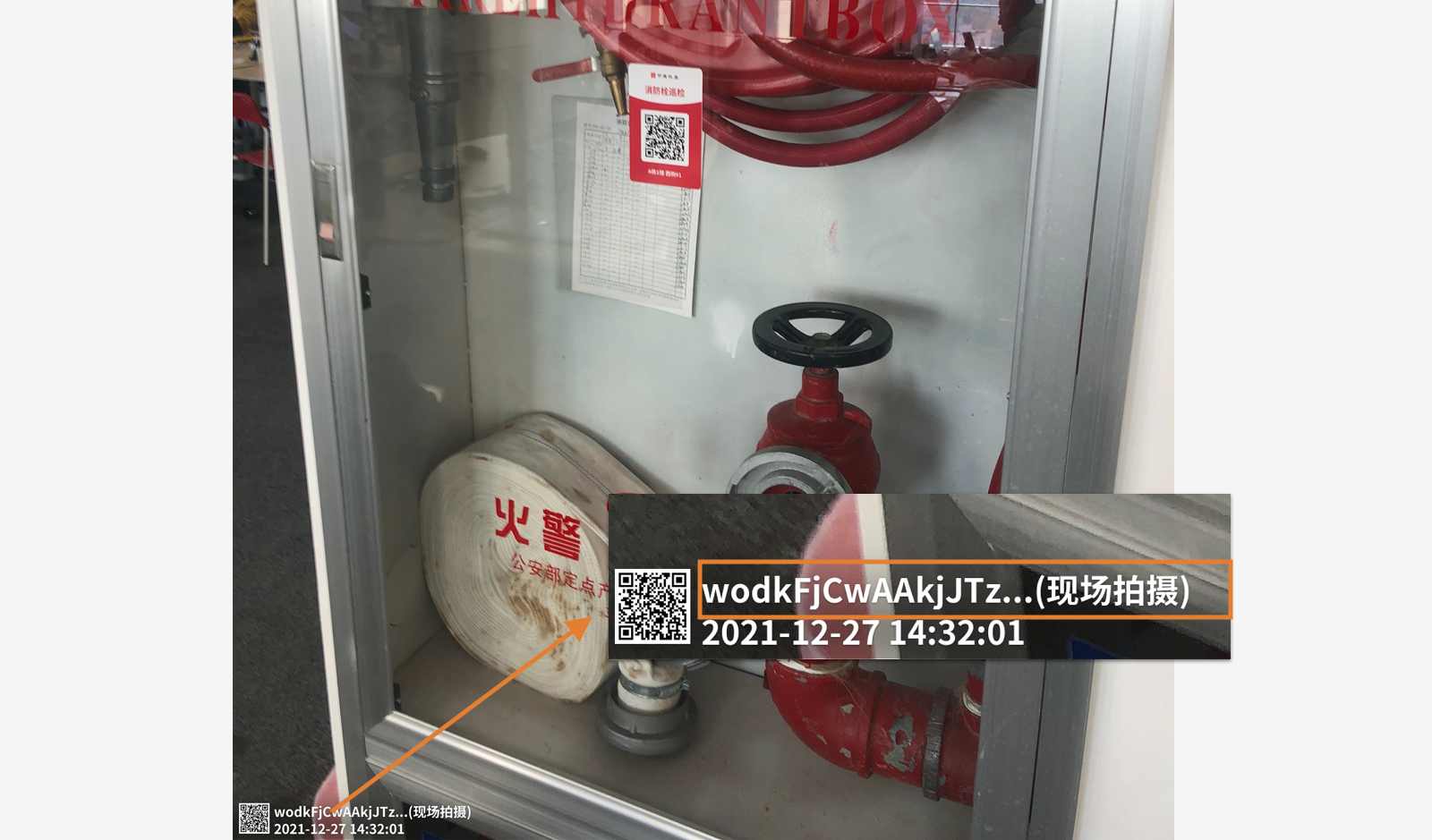
3. Image Watermark
The submitter and name information in the image watermark also appear as a string of code.
4. API Interface
Form data retrieved via the API interface displays the submitter and name information as a string of code.

5. QR Code Mini Program Display
For paid users scanning QR codes via WeChat, the default access method is to view the QR code. (WeCom scans are unaffected, and free version users accessing via the CaoLiao Mini Program are also unaffected.)