Modify Contacts Member List
If you are already using the WeCom edition, you can automatically synchronize contacts members by adjusting the Visible Range of the CaoLiao QR Code application in WeCom.
Adding or Removing Contacts Synchronization Members
Below is a step-by-step guide, divided into two scenarios based on whether you are a WeCom administrator.
If you are not a WeCom administrator and added the CaoLiao application as a member, refer to Scenario 1.
If you are a WeCom administrator, refer to Scenario 2.
Scenario 1: Application Added by a Member
- Open WeCom on your mobile device and navigate to the
Workbench. - Open CaoLiao QR Code.
- Click the three dots in the top-right corner of the application, select
Add Colleagues to Use the App, and choose the contacts members to synchronize.
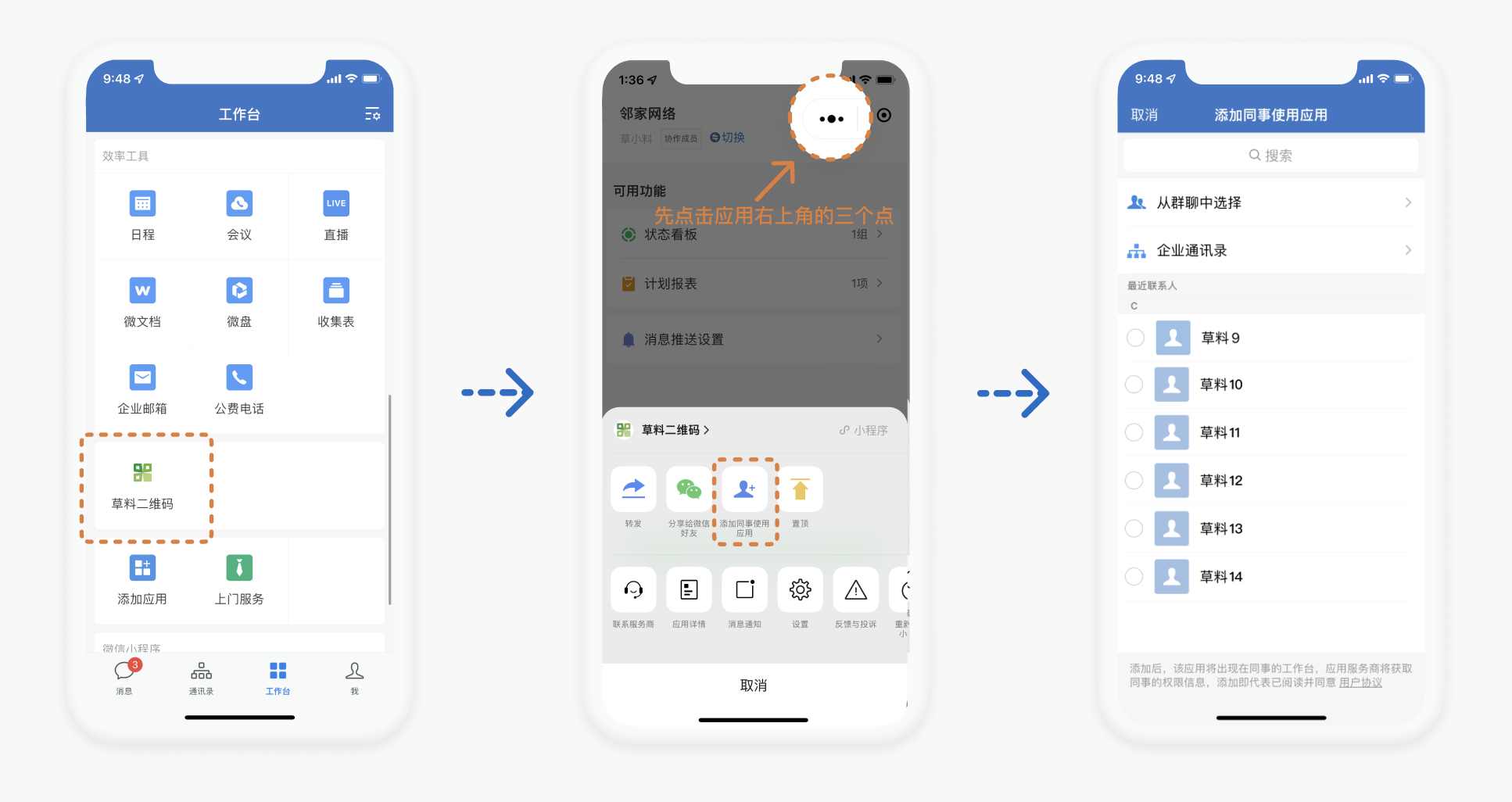
If the Add Colleagues to Use the App button is not visible, it means the application was installed by an administrator. Notify your WeCom administrator to follow Scenario 2.
Scenario 2: Application Added by an Administrator
Quick Mobile Operation
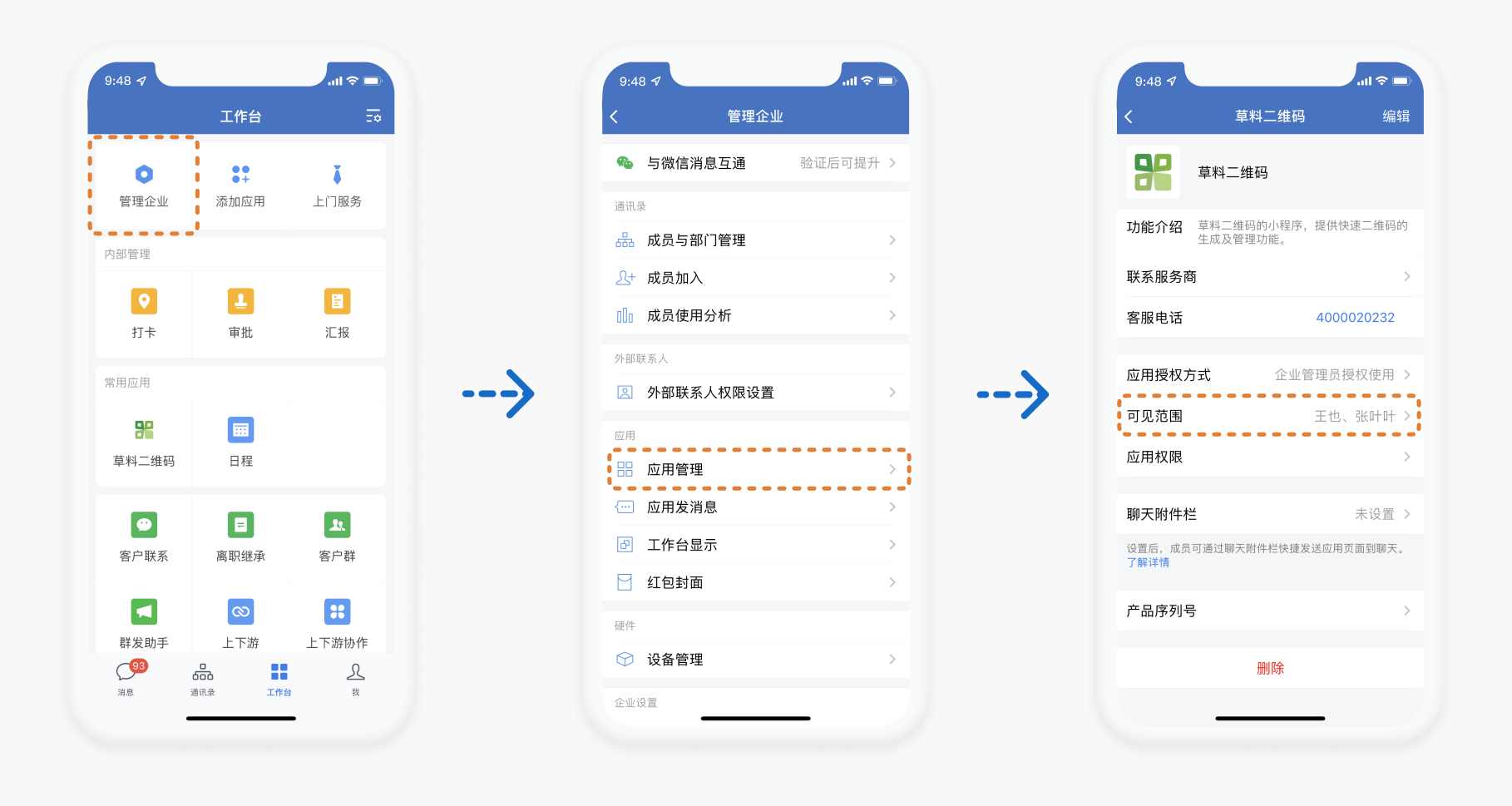
- Open WeCom on your mobile device and navigate to the
Workbench. - Open
Manage Enterprise. - Click
Apps and Mini Programs Management, selectCaoLiao QR Code, and modify the visible range in the application management page.
Operation via WeCom Admin Console on PC
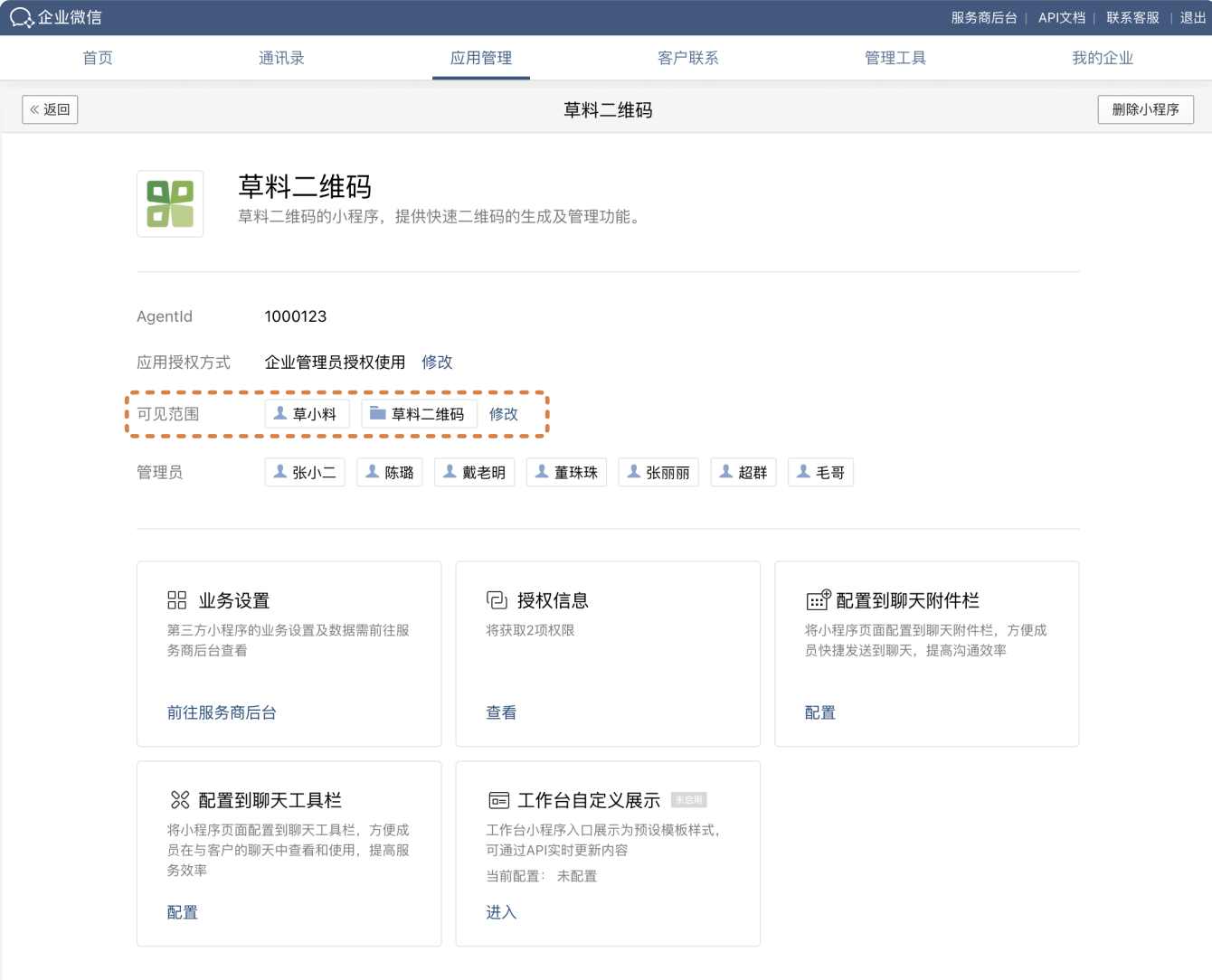
- Scan the QR code to log in to the WeCom Admin Console as an administrator.
- Locate CaoLiao QR Code under
Apps Managementand click to adjust the visible range.
WeCom Pricing Model Adjustment
WeCom adjusted its pricing model on May 16, 2022. Under the new rules, using CaoLiao QR Code in WeCom requires paying a WeCom interface license fee based on the number of members in the visible range. For details, refer to the announcement: WeCom Edition Pricing Model Adjustment Notice.
- Free version users can use the WeCom interface for free for 90 days. After 90 days, a WeCom interface license must be purchased.
- To access paid features like advanced members, users must pay for the corresponding CaoLiao version (same as the official website) and additionally purchase the WeCom interface license.
How to Purchase
Contact CaoLiao customer service to purchase WeCom interface licenses to avoid disruptions in using CaoLiao QR Code.
FAQs
Which member operations require payment for WeCom interface licenses?
In short, members must pay before performing any operations in WeCom. Examples include: logging in to the PC backend via WeCom QR code, opening the mini program in the Workbench, viewing QR code content in WeCom, filling out forms, updating statuses, viewing dynamic data, forwarding submitted form data to colleagues, viewing shared form data or QR codes, receiving and viewing notifications, adding follow-up actions to records, etc.
Can the WeCom interface license account be reassigned to another user?
Yes. When changes occur in the members using CaoLiao, activated interface licenses can be reassigned between members. Two methods are supported: reassignment for active members (with a 30-day cooldown) and reassignment for departed members (no time restriction). For specific reassignment steps, contact CaoLiao customer service.
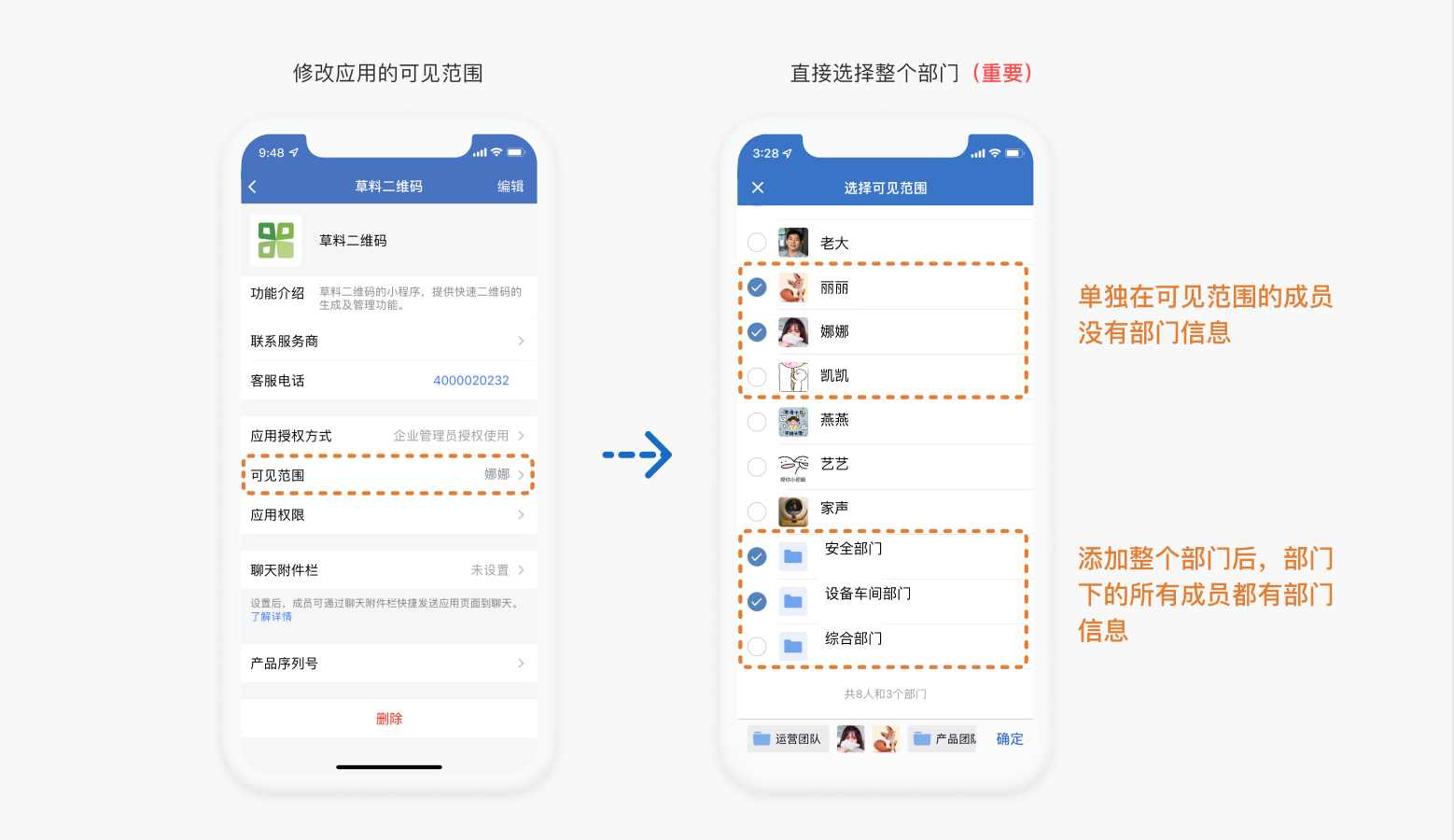
Why do synchronized members lack department information, and how to resolve it?
Due to WeCom limitations, department information is unavailable when synchronizing individual members. To add department information, modify the contacts synchronization range to include entire departments.