Adding a QR Code to the WeCom Workbench
You can add QR codes as self-built applications to the WeCom workbench, enabling employees to quickly access them from their workbench.
1. Access QR Codes Anytime in WeCom
You can add QR codes that require frequent viewing or filling to the workbench, making them ideal for scenarios like item requisition or hazard reporting. These QR codes will remain accessible in the WeCom workbench, allowing employees to open them directly without repeated scanning or time-consuming searches, ensuring flexible and convenient registration.
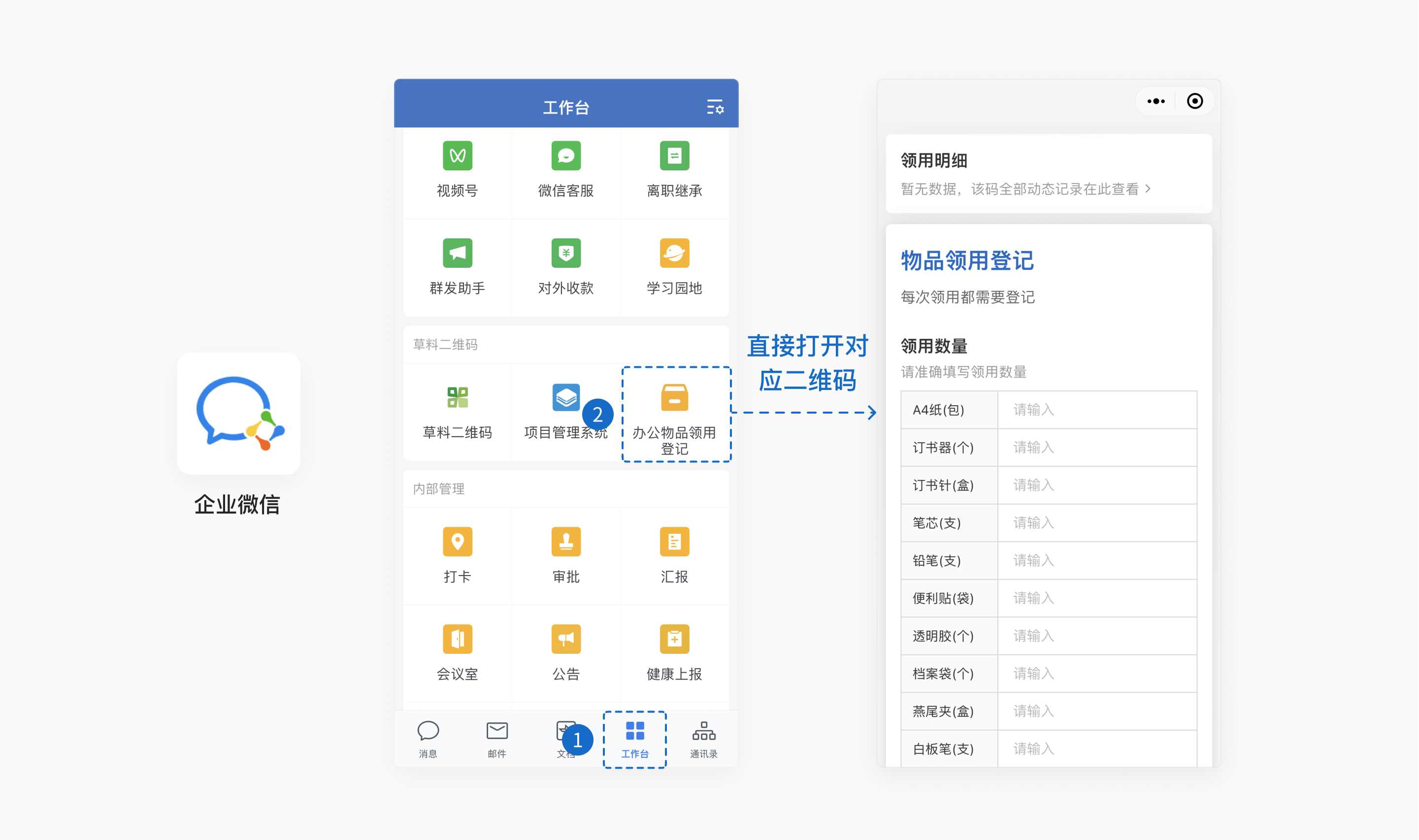
2. Personalized Workbenches for Different Employees
You can assign specific QR codes to the workbenches of corresponding responsible personnel, ensuring dedicated individuals handle specialized tasks.
Prerequisites
- The CaoLiao QR Code application must be installed in WeCom. If not installed, refer to the Installation Guide.
- The operator must be a WeCom super administrator.
Steps
1. Log in to the CaoLiao Workbench and Configure the QR Code
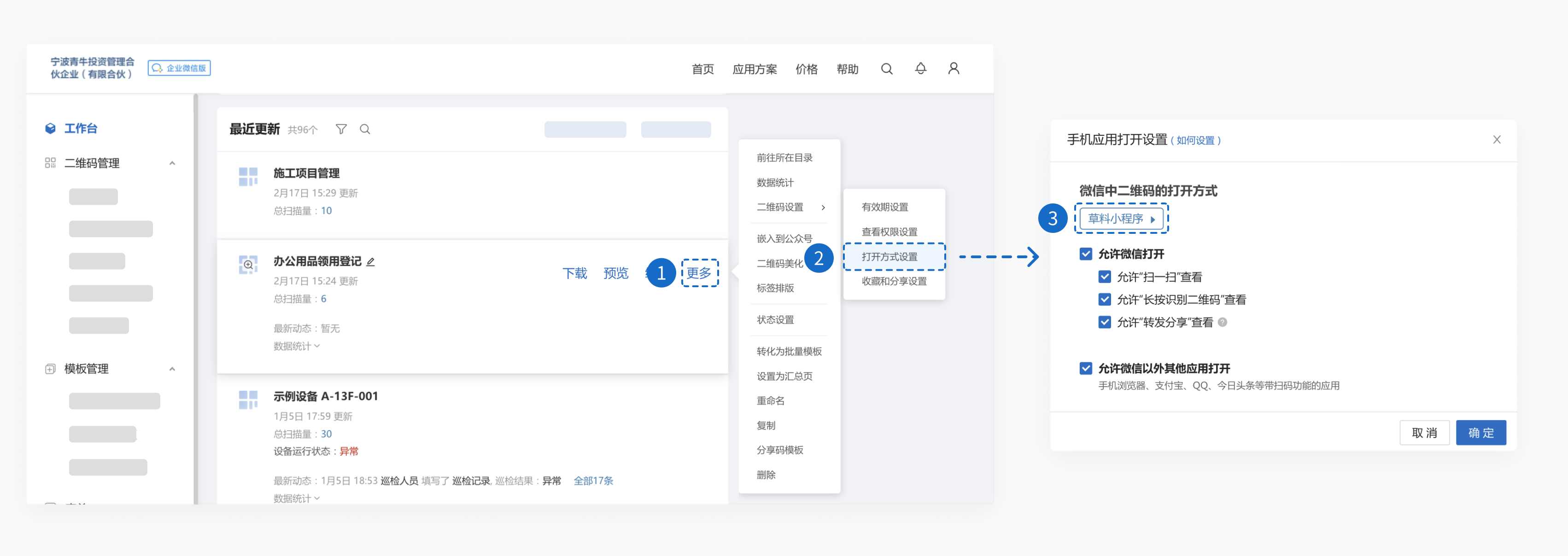
Locate the QR code you wish to add to the WeCom workbench. Set the access method to [CaoLiao QR Code Mini Program], then download and save the QR code image.
2. Decode the QR Code and Copy the Link
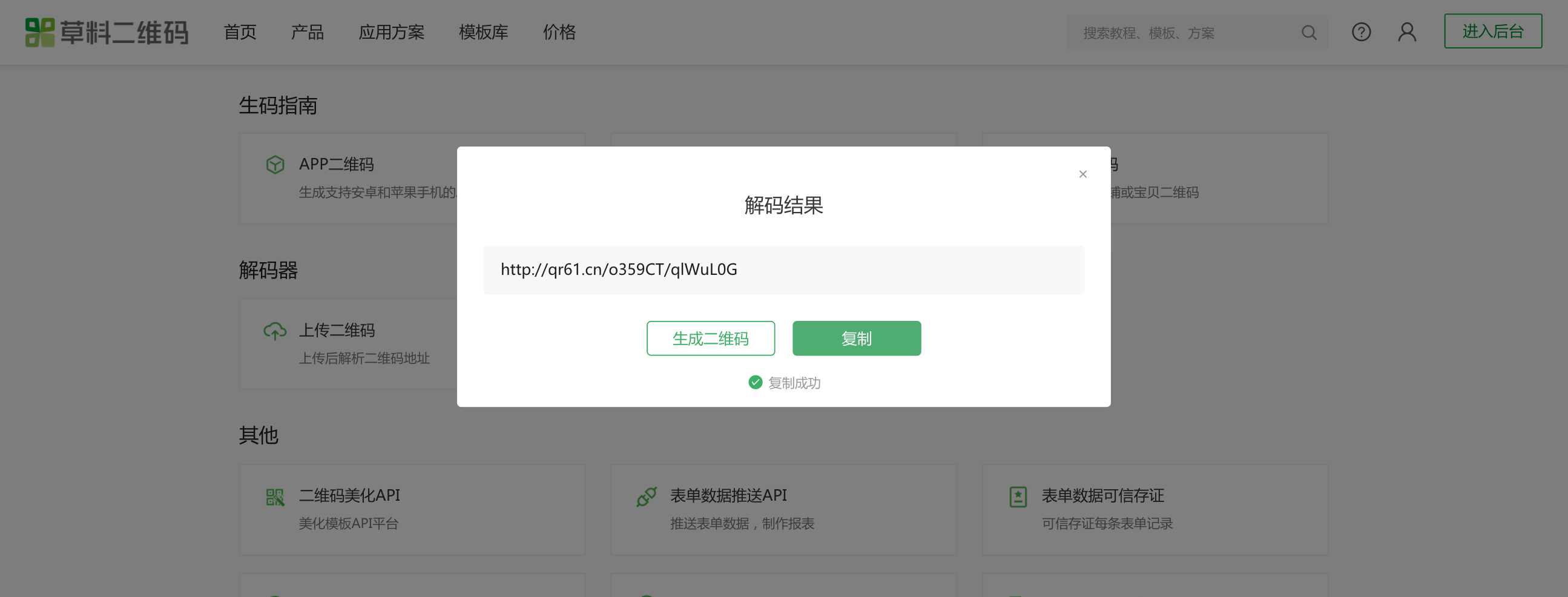
Open the CaoLiao QR Code Tools Page, navigate to the [Decoder], upload the saved QR code image, and copy the decoded link.
3. Log in to the WeCom Admin Console and Create an Application
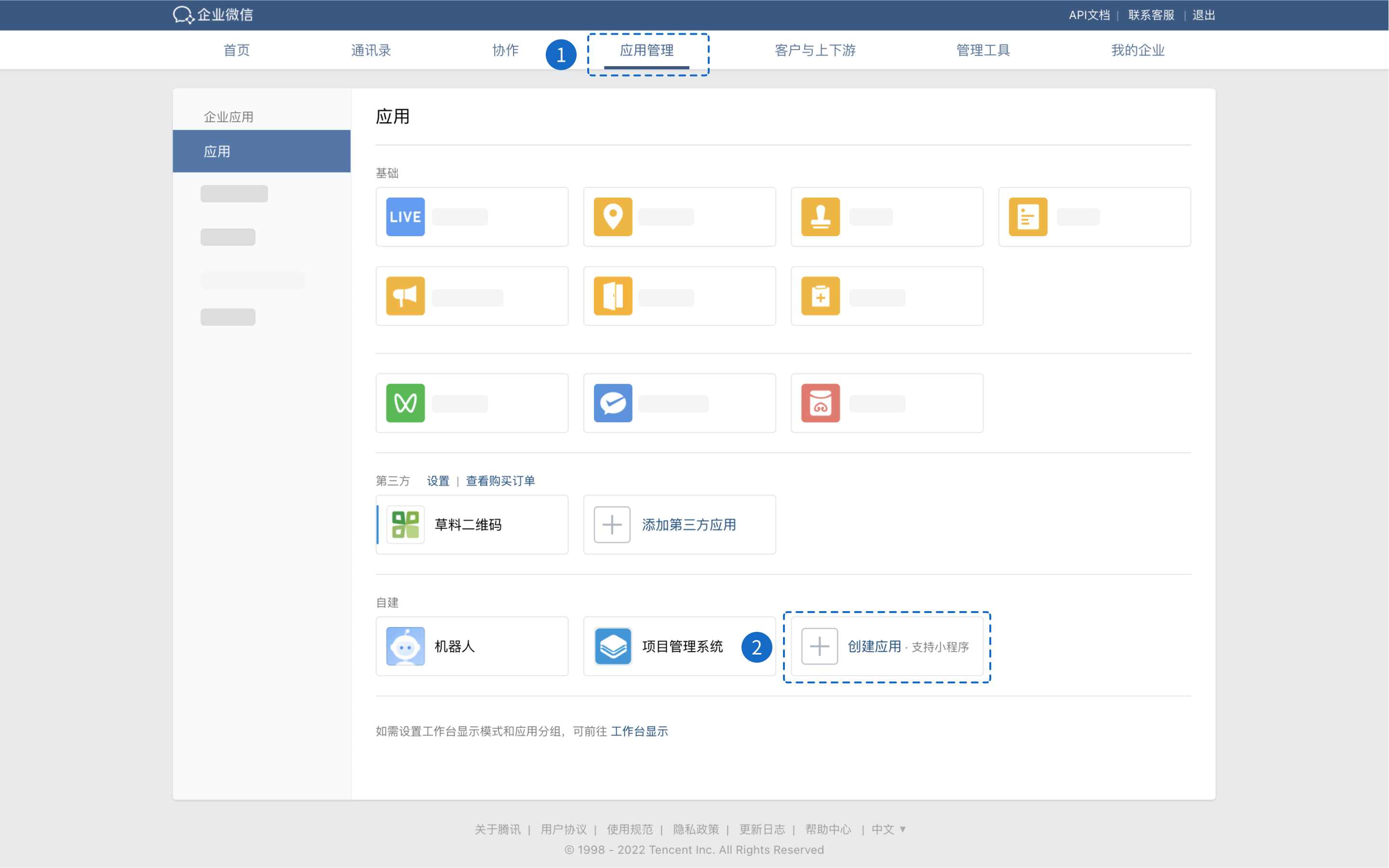
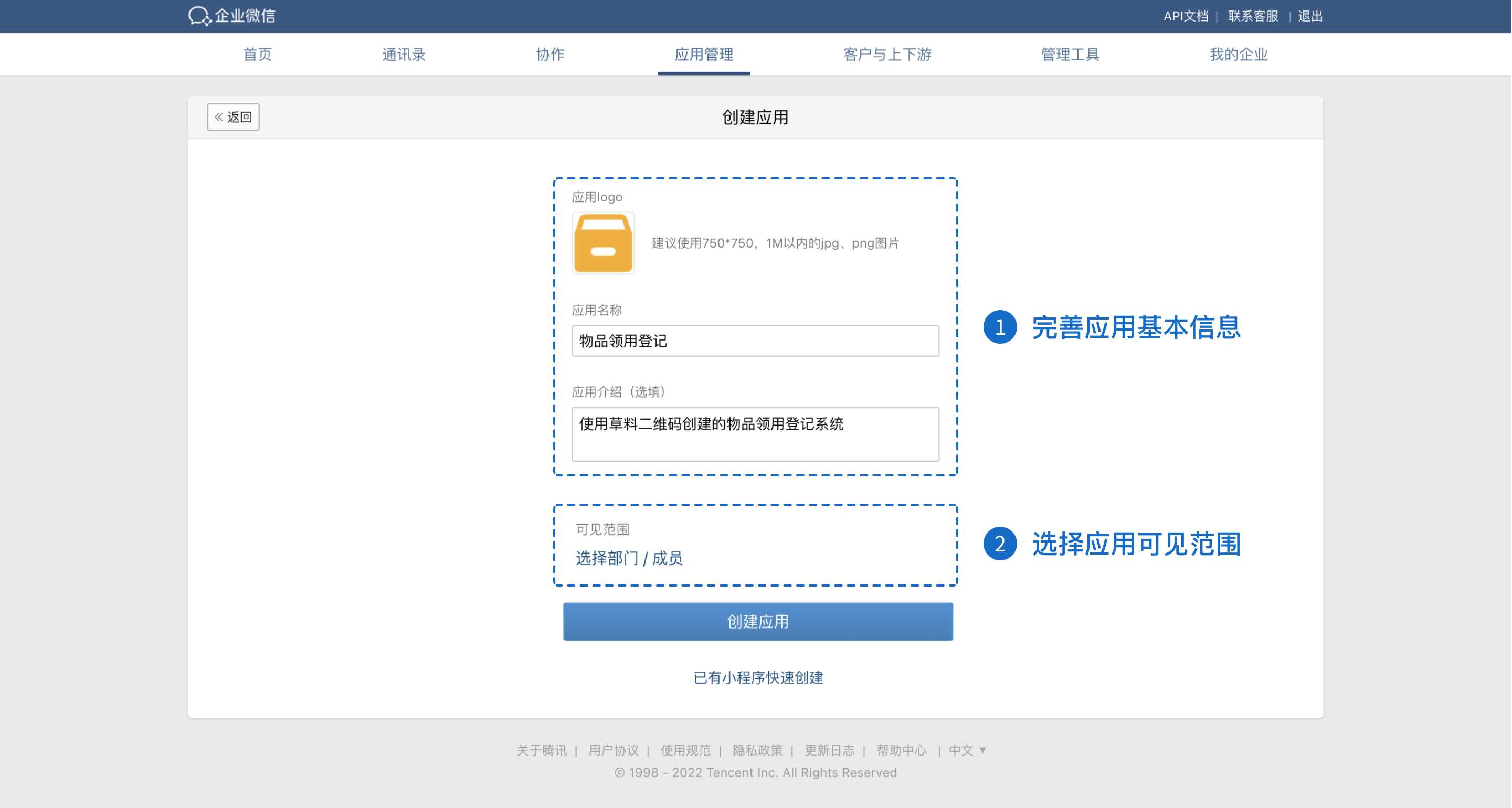
Log in to the WeCom Admin Console, switch to [Application Management], and under the self-built section, click [Create Application].
4. Complete the Self-Built Application Information
Upload the application logo, fill in the name and description, and select the colleagues who need access to this application under [Visible Range].
Note: The visible members of the self-built application must be within the visible range of the CaoLiao QR Code application.
For example, if the CaoLiao QR Code application's visible range includes Zhang San, Li Si, and Wang Wu, the self-built application's visible members must be selected from these three individuals.
5. Set the Self-Built Application Homepage
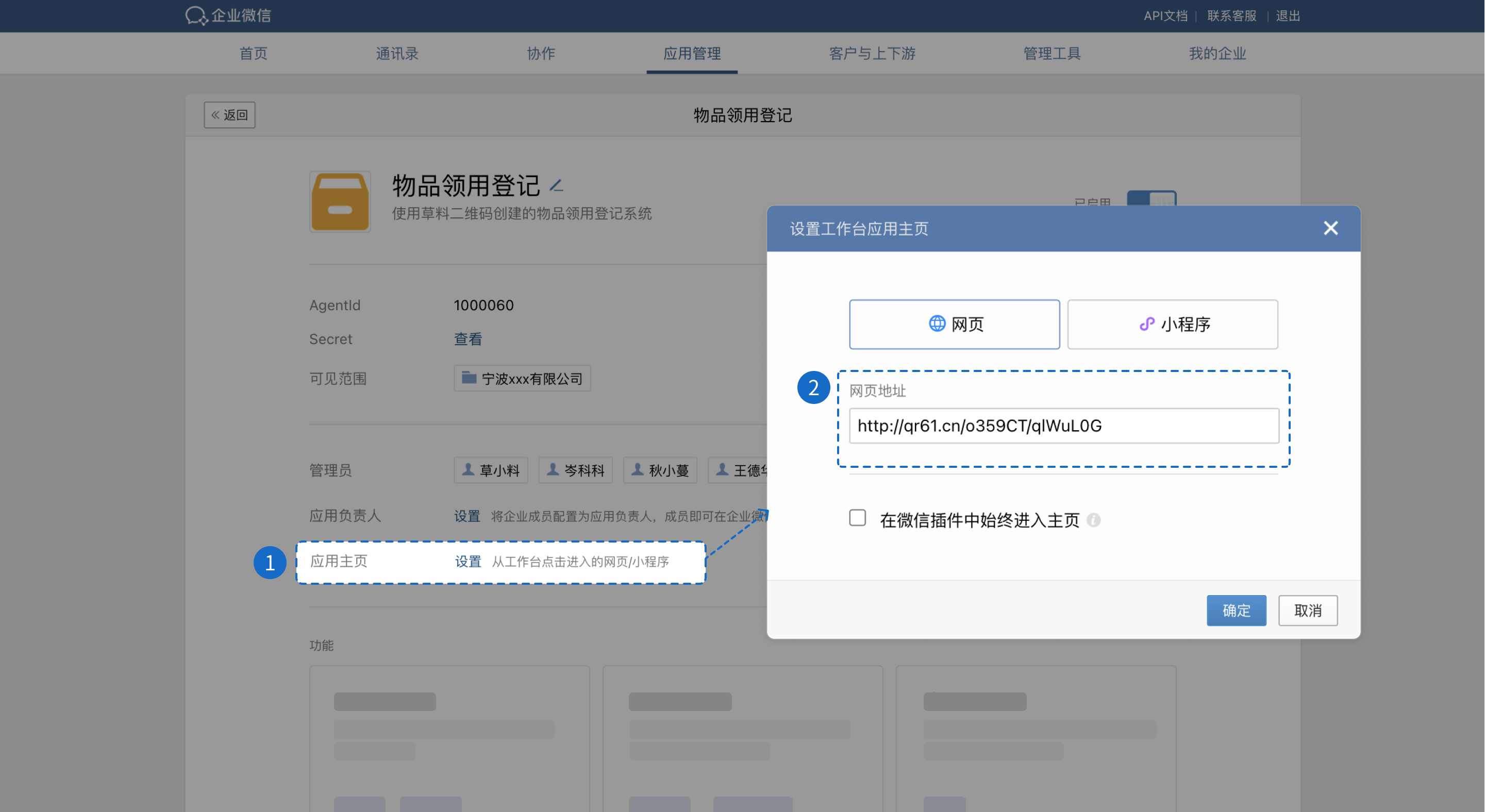
Paste the QR code link obtained in Step 1 into the [Application Homepage] field of the self-built application. The QR code will then be directly accessible from the WeCom workbench.
You can also add multiple QR codes as self-built applications to different employees' workbenches, streamlining their workflow.