AI Feature Extension
Scenario Overview
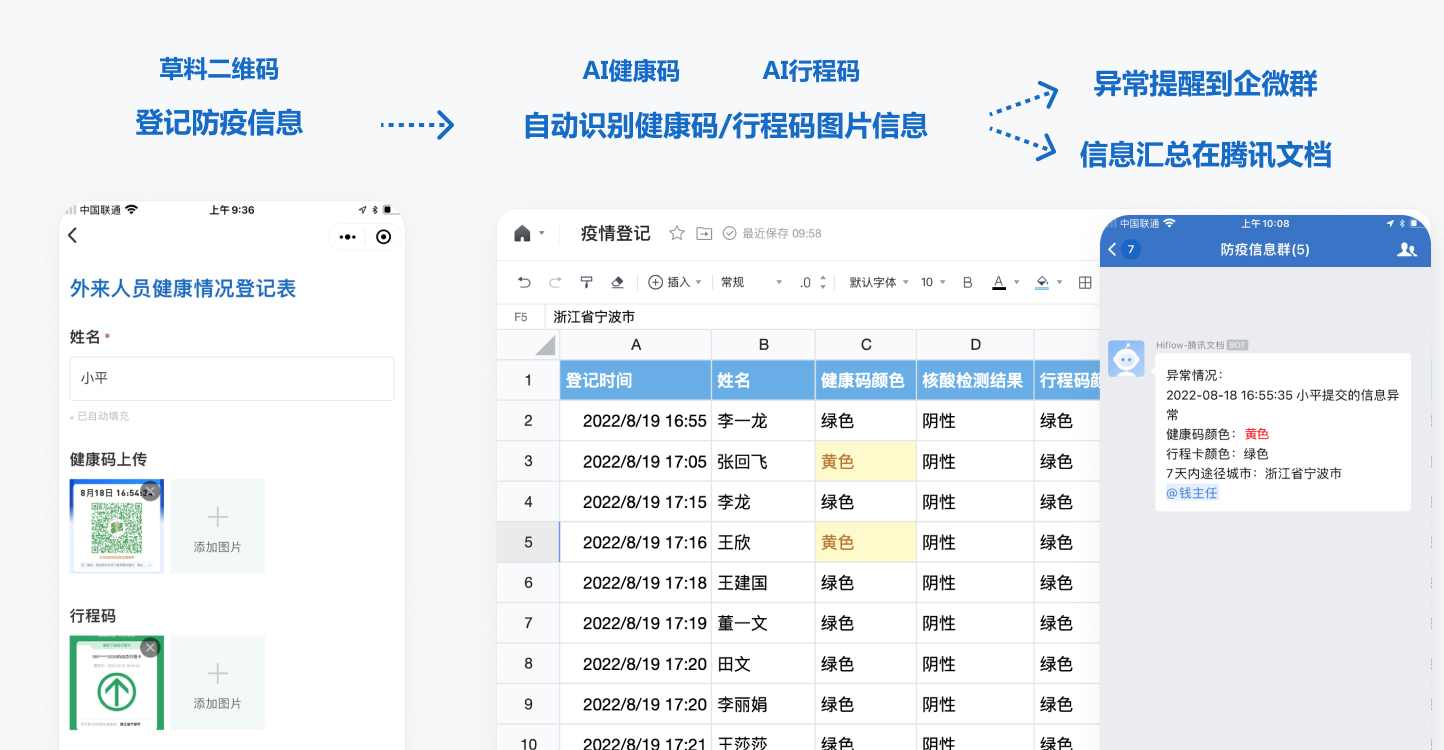
Tencent Qinglian Application Center comes with rich intelligent AI applications that can automatically recognize images, voice data, and more to further improve work efficiency.
Supported Applications: ID card OCR, epidemic health code recognition, bank cards, invoices, table image parsing, voice-to-text, etc.
Applicable Scenarios: Automatic epidemic record recognition, labor personnel bank card reporting, etc.
Hands-on Experience
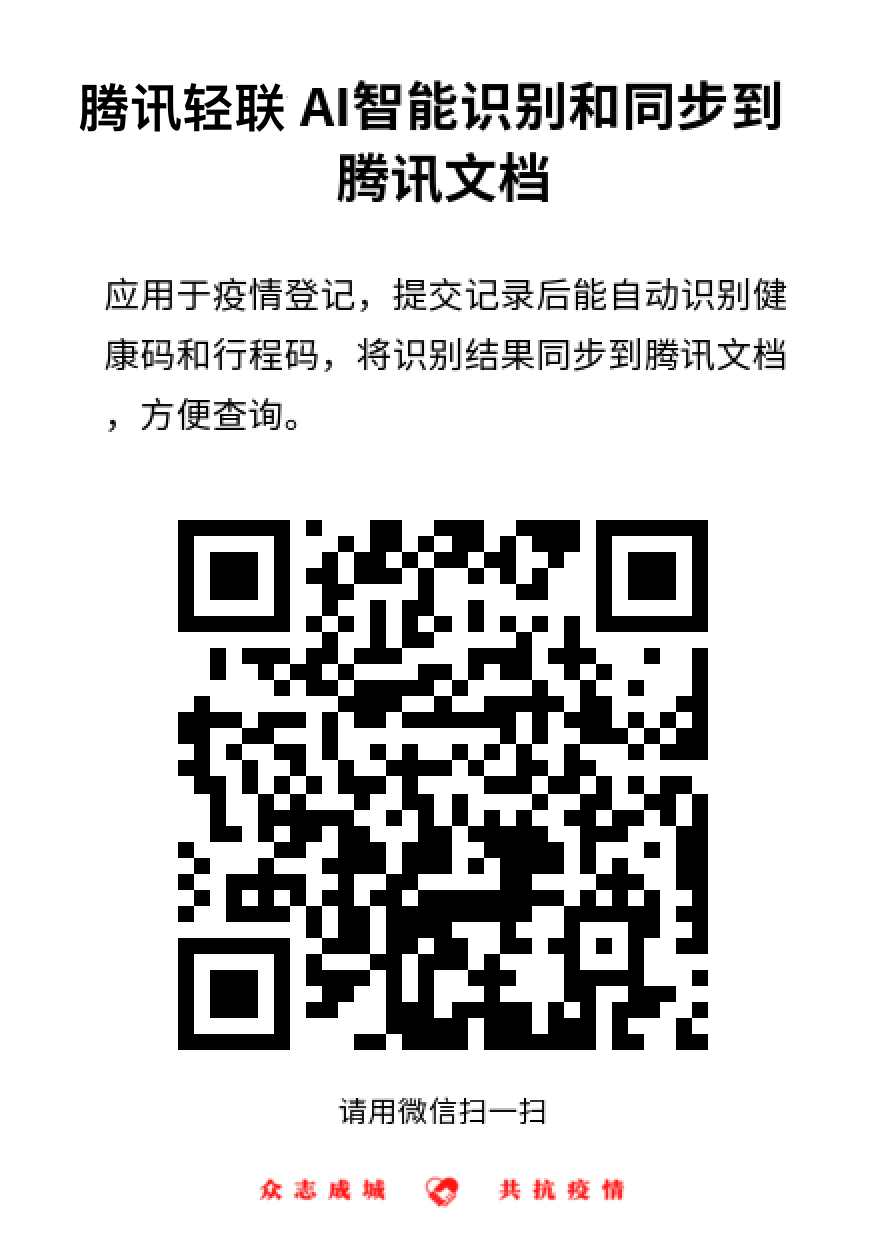
Scan the QR code below, fill in the epidemic prevention information, and view the epidemic registration form. *Note: Remember to delete the row of data you submitted, but do not modify other data.
Tutorial:
Taking epidemic prevention registration as an example, automatically recognize health codes, synchronize the results to Tencent Docs, and notify abnormal cases in the WeCom group.
Note: The AI components in Qinglian are currently being upgraded. There are two versions of the same AI application—choose the one labeled V2, as the other is unavailable.
Preparations:
- Create an epidemic QR code or a scenario-specific QR code. Example template
- Create a registration table in your personal Tencent Docs and edit the headers. Example table
1. Create a Workflow
Log in to the Tencent Qinglian backend and select New Workflow.
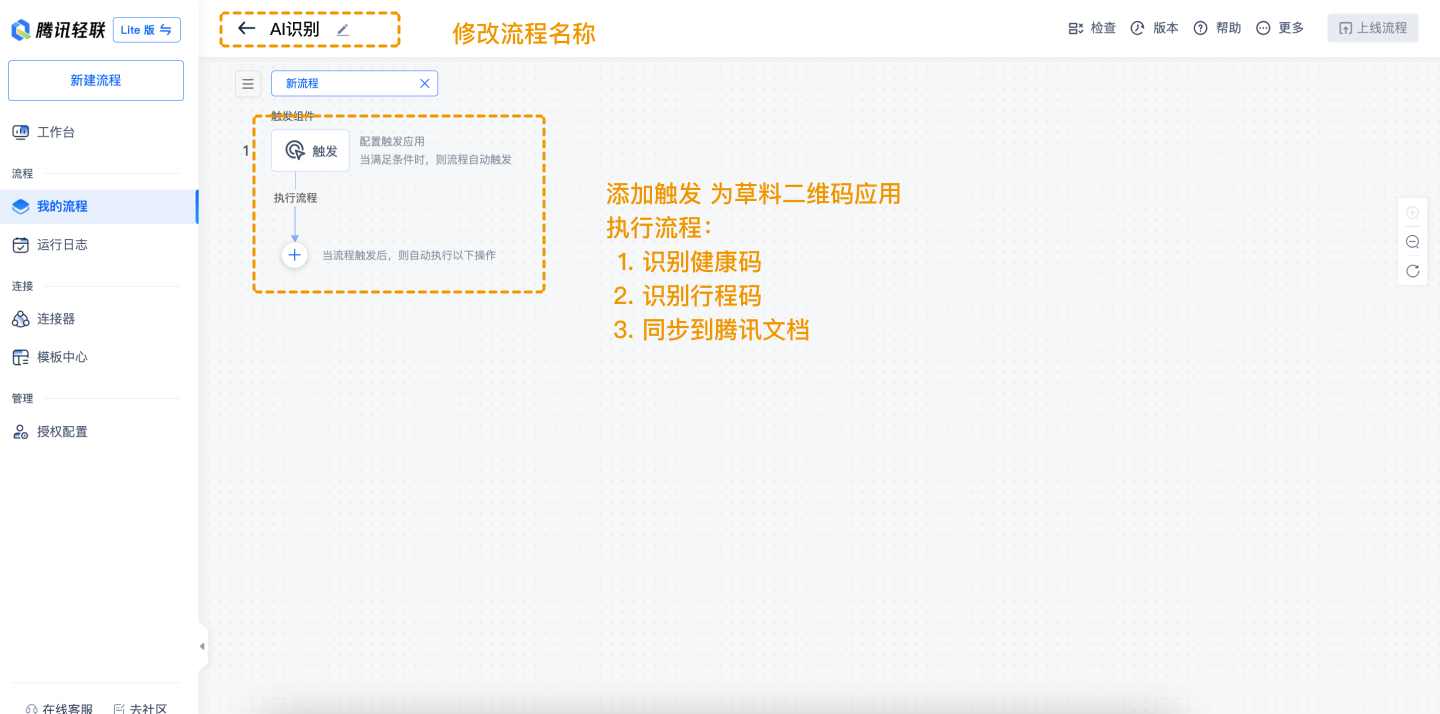
2. Configure CaoLiao Application
- Add the CaoLiao QR Code application and select the trigger method: New form submission;
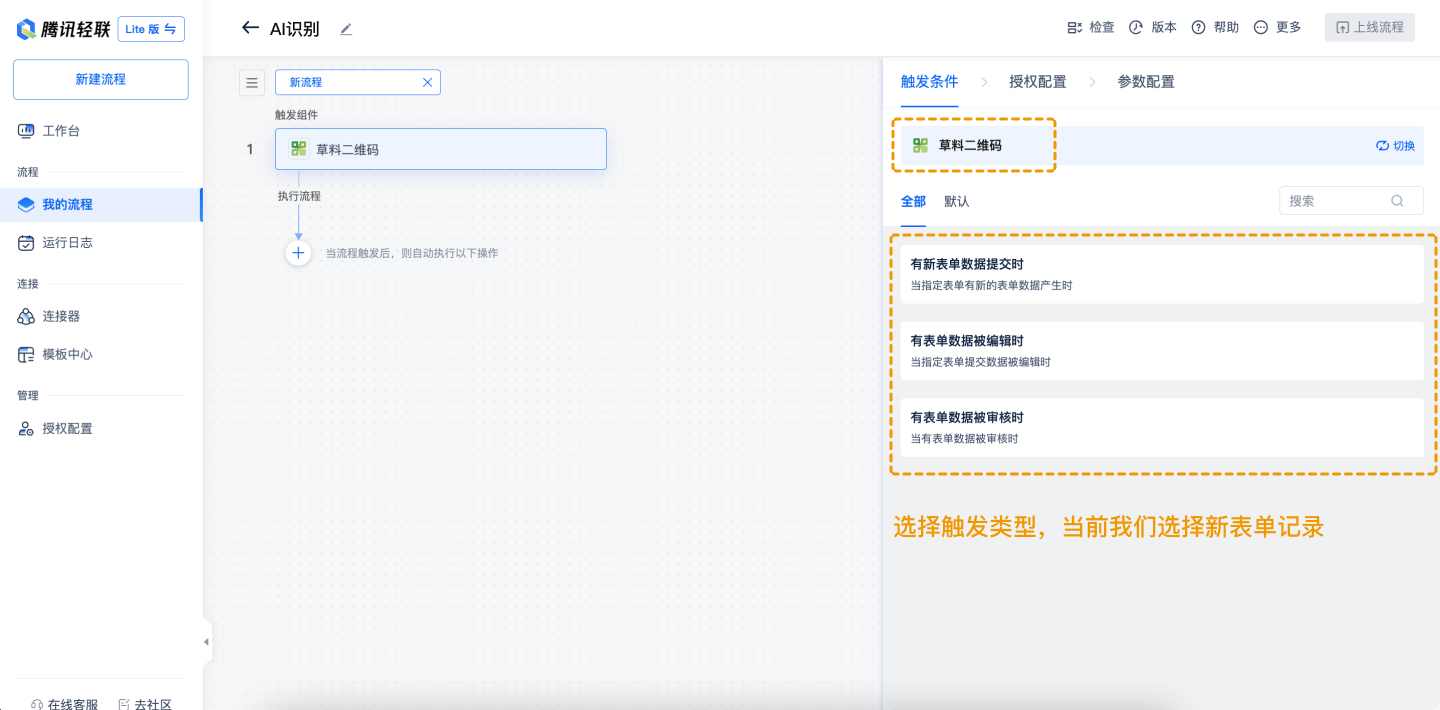
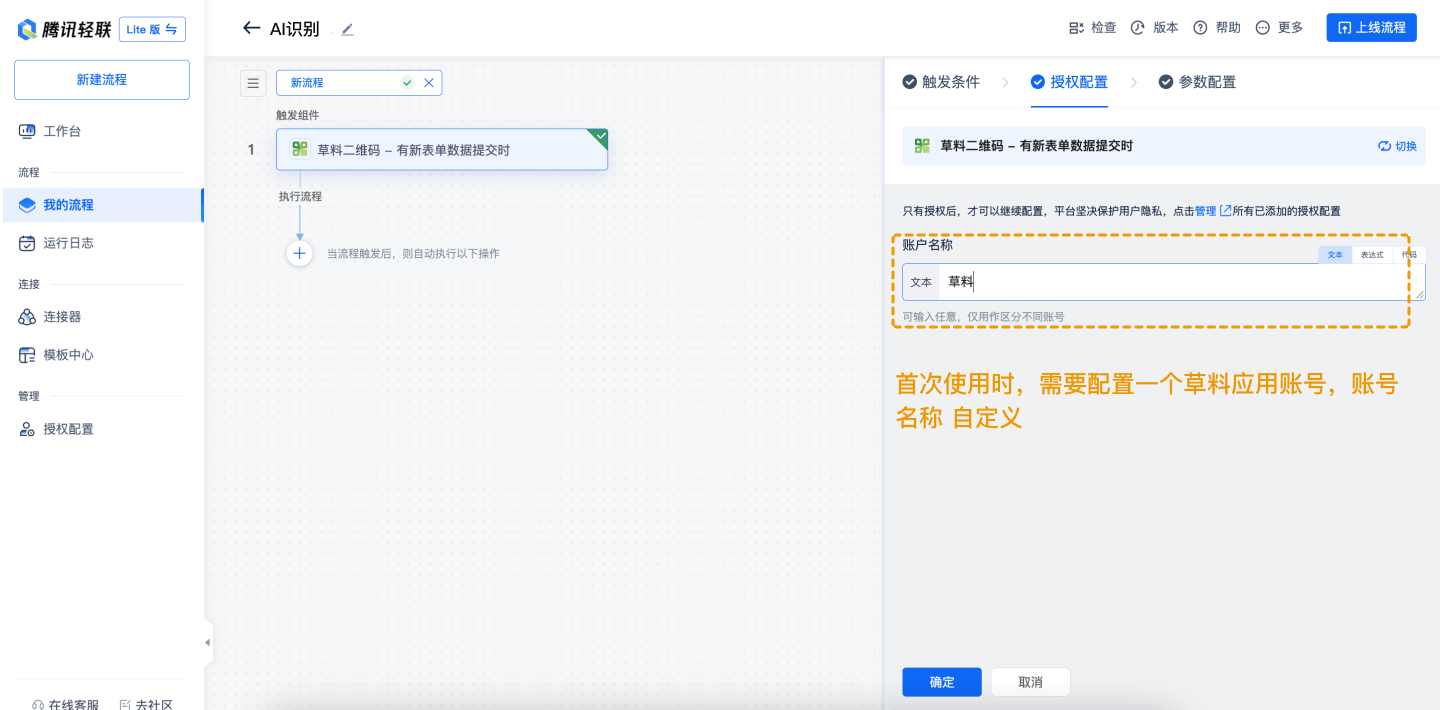
- Authorization Configuration
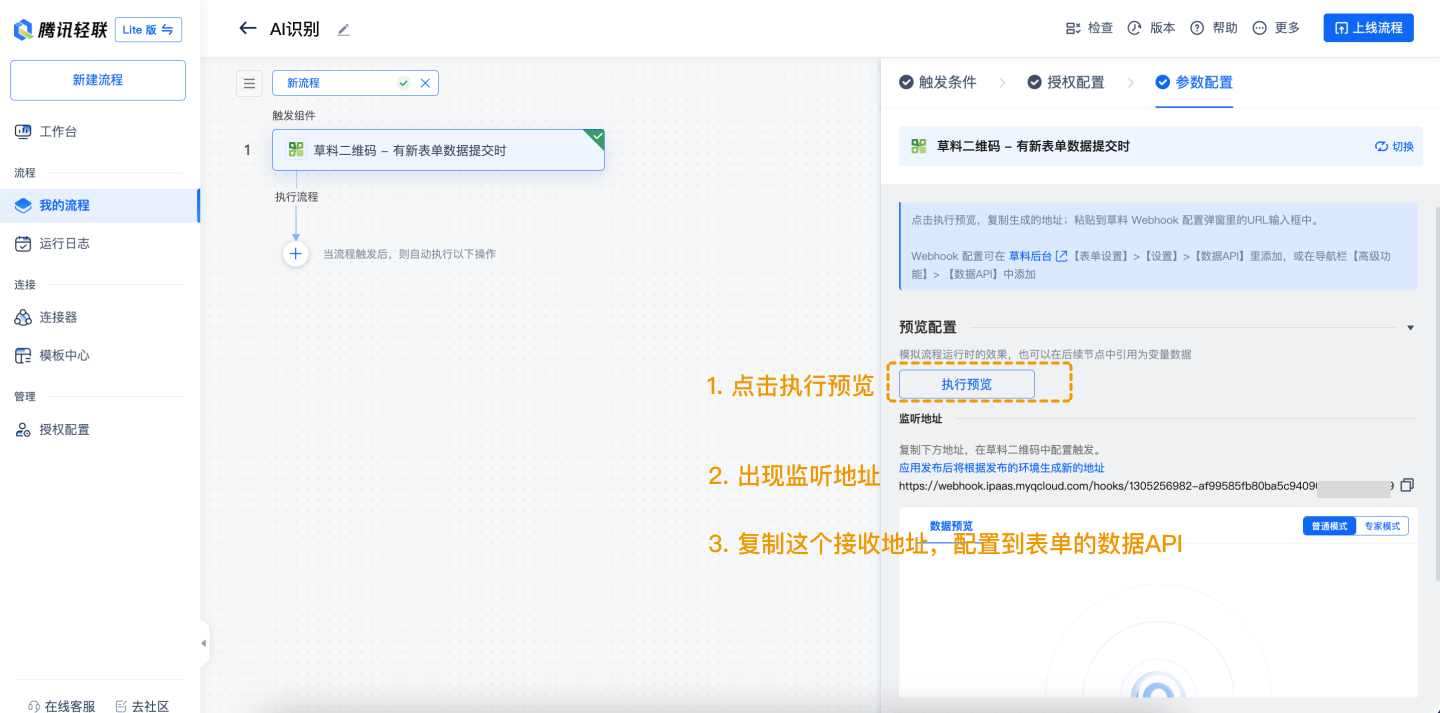
- Parameter Configuration Click Execute Preview, and a listening address will appear below. Copy this address and configure it in the form's data API.
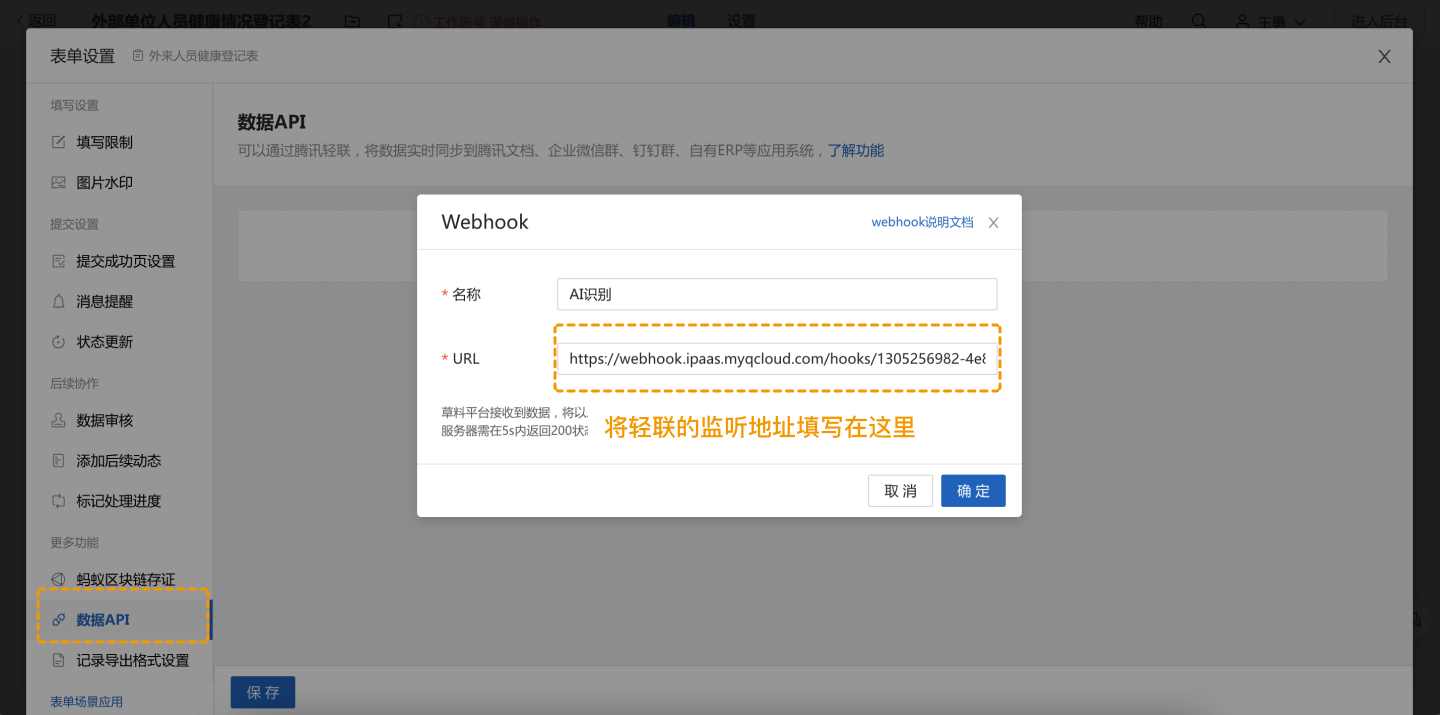
- Configure Webhook Address Copy the Tencent Qinglian push address to the webhook push address in the CaoLiao backend. Add it in Form Settings > Settings > Data API, or navigate to Advanced Features > Data API.
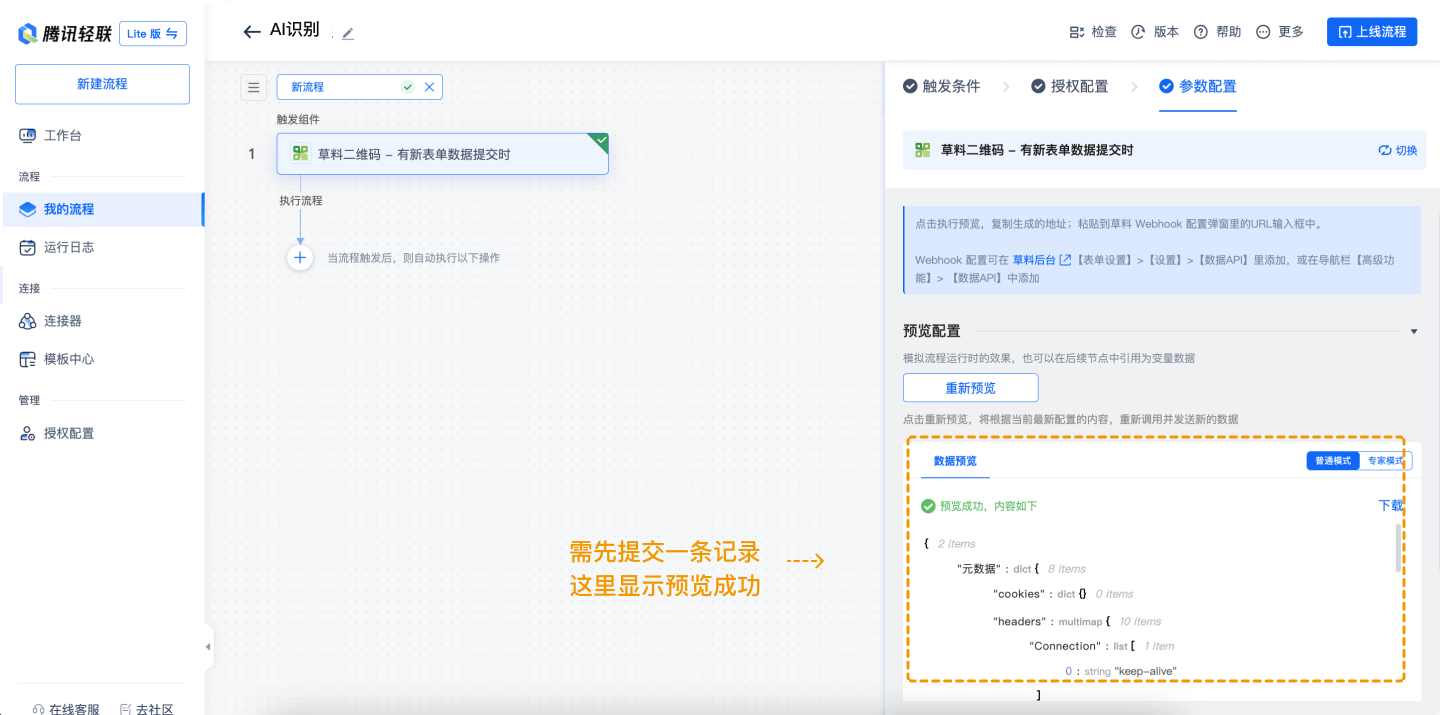
- Sample Data Scan the QR code and add a piece of data. Qinglian will automatically detect the sample data. *Note: If the form is updated, add another form record. You can select the latest record in the sample data and click Preview Again.
3. Add AI Epidemic Health Code Recognition
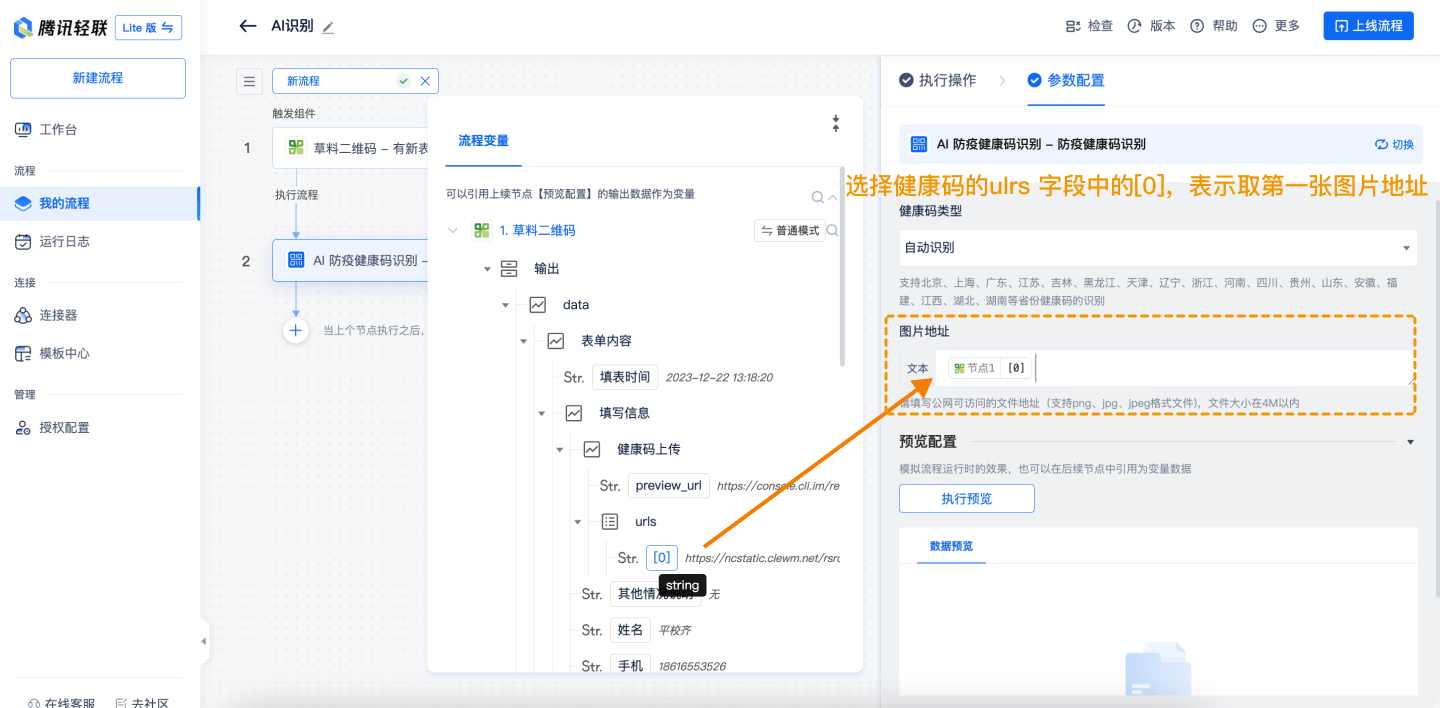
Add AI Epidemic Health Code Recognition-V2. In the parameter configuration, set the image address to the first URL (urls[0]) in the health code field. The form retrieves the address of the first image in the health code component. (The image component supports multi-image uploads.)
4. Add AI Travel Itinerary Card Recognition
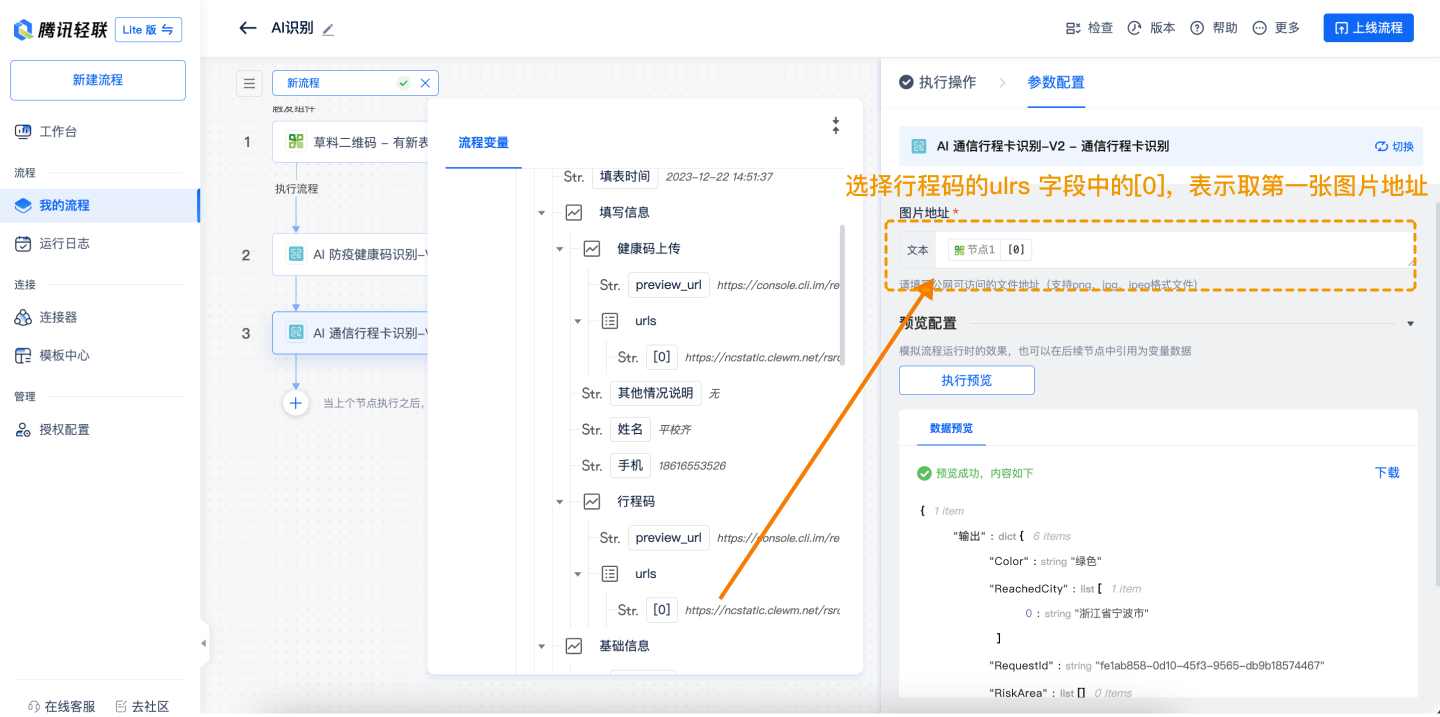
Add AI Travel Itinerary Card Recognition-V2. In the parameter configuration, set the image address to the first URL (urls[0]) in the travel code field. The form retrieves the address of the first image in the travel code component. (The image component supports multi-image uploads.)
5. Add Tencent Docs
Add the Tencent Docs application. Only the personal version of Tencent Docs is supported here. Configure your account.
- Select the target spreadsheet: Create a table in Tencent Docs beforehand, edit the column headers, and select the table and worksheet.
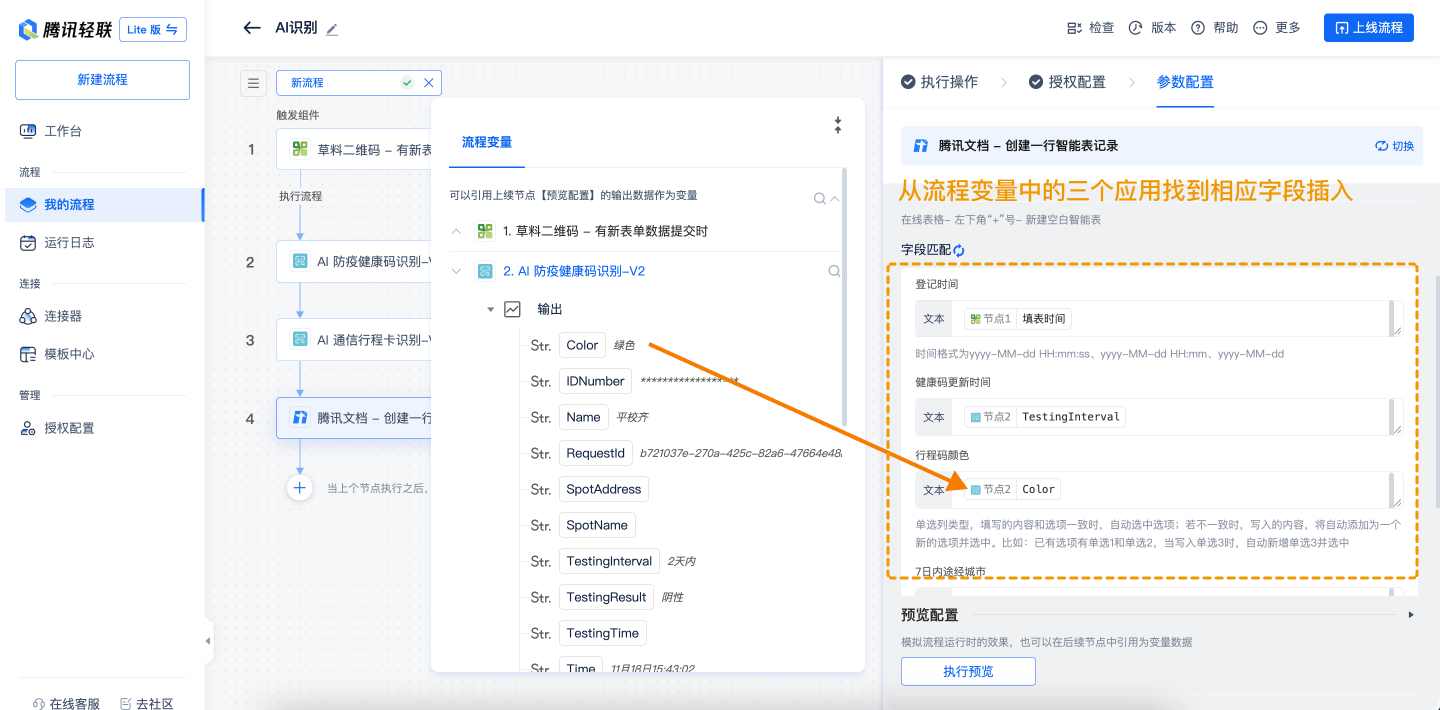
- Field matching: Map the corresponding form component data by header. Test and preview to check if the data appears in Tencent Docs.
6. Publish the Workflow
Finally, click Publish Workflow in the upper-right corner to complete the workflow creation.
References
- Tencent Qinglian Scenario Connector Website
- Tencent Qinglian Scenario Connector Beginner's Guide
- CaoLiao Webhook Documentation
More Application Scenarios
CaoLiao Community
If you have questions about data API functionality or want to share your experience, we welcome you to join the discussion in our community. Product and technical teams will actively participate. Join the Community