Group Message Push
Scenario Overview
Through Tencent QuickLink, instantly push form submission records to internal work groups, supporting WeCom, Feishu, and DingTalk, with additional options for email and SMS notifications.
Applicable Scenarios: Hazard detection alerts, fault repair reminders, appointment notifications, inspection anomaly alerts, etc.
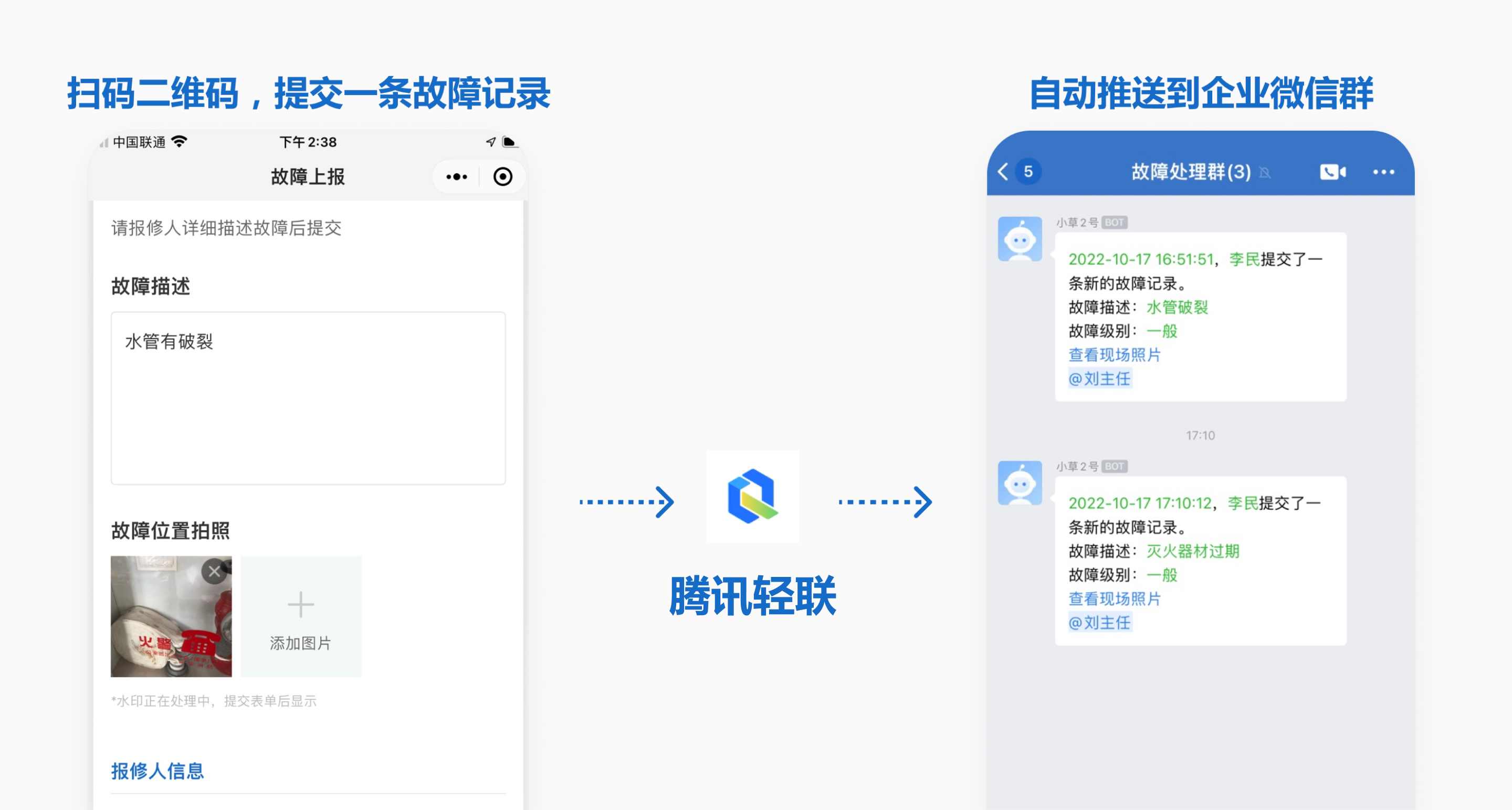
Step-by-Step Tutorial
Using a common fault reporting application as an example, this guide demonstrates how to push submitted fault records to a WeCom group. The process is similar for DingTalk and Feishu groups.
Summary
Access Tencent QuickLink to create a new workflow, with CaoLiao QR Code as the trigger application and WeCom Group Bot as the execution application.
Prerequisites
- Create a fault reporting QR code or a scenario-specific QR code. Example template
- Add a group bot to your WeCom group. How to enable a WeCom group bot
1. Create a Workflow
Log in to the Tencent QuickLink backend and select New Workflow.
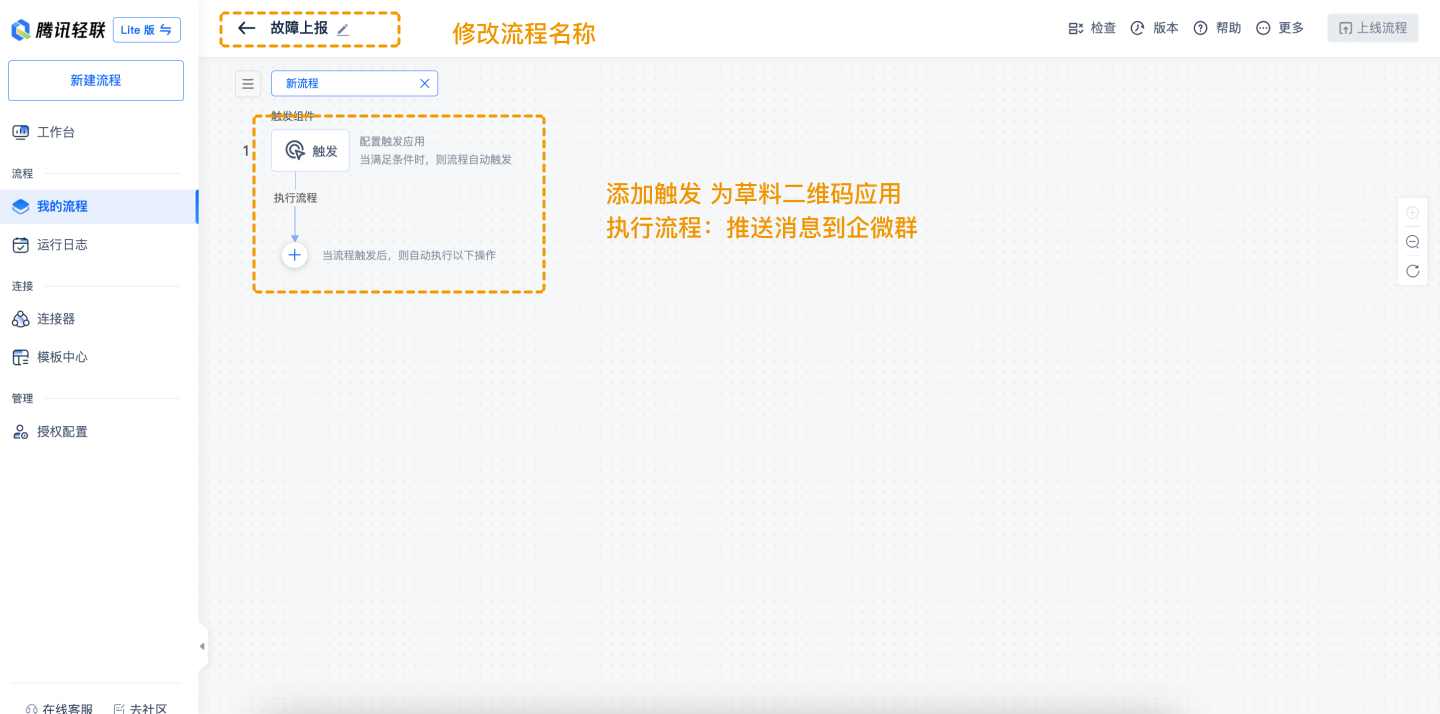
2. Configure the CaoLiao Application
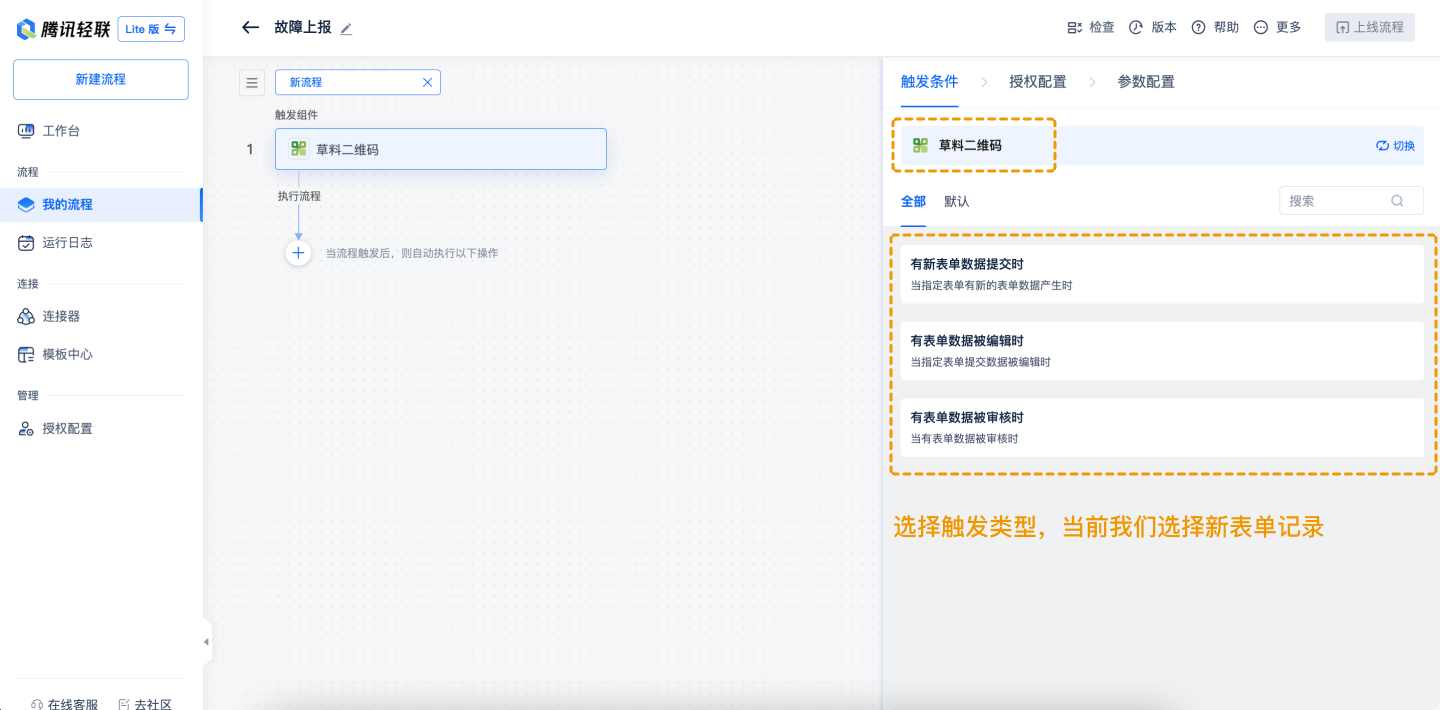
- Add the CaoLiao QR Code application and select the trigger method: New form submission.
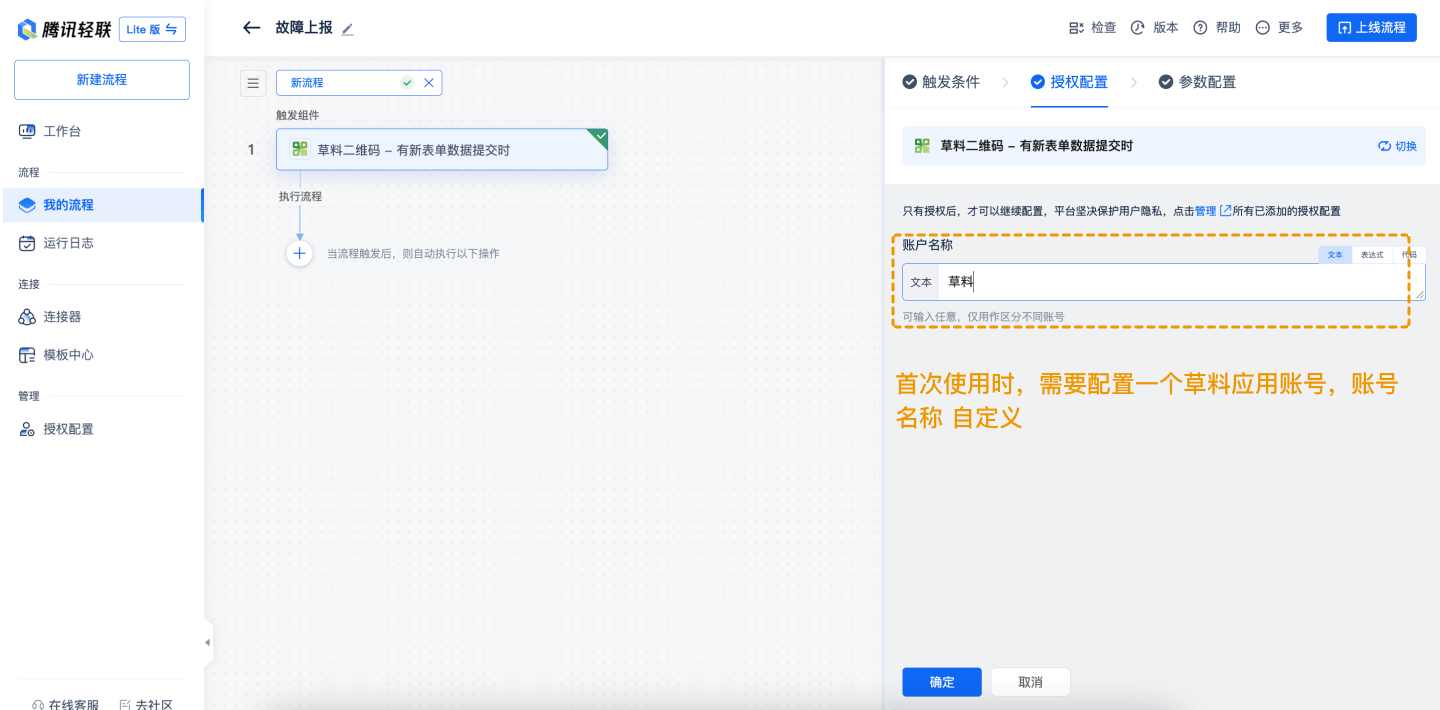
- Authorization Configuration
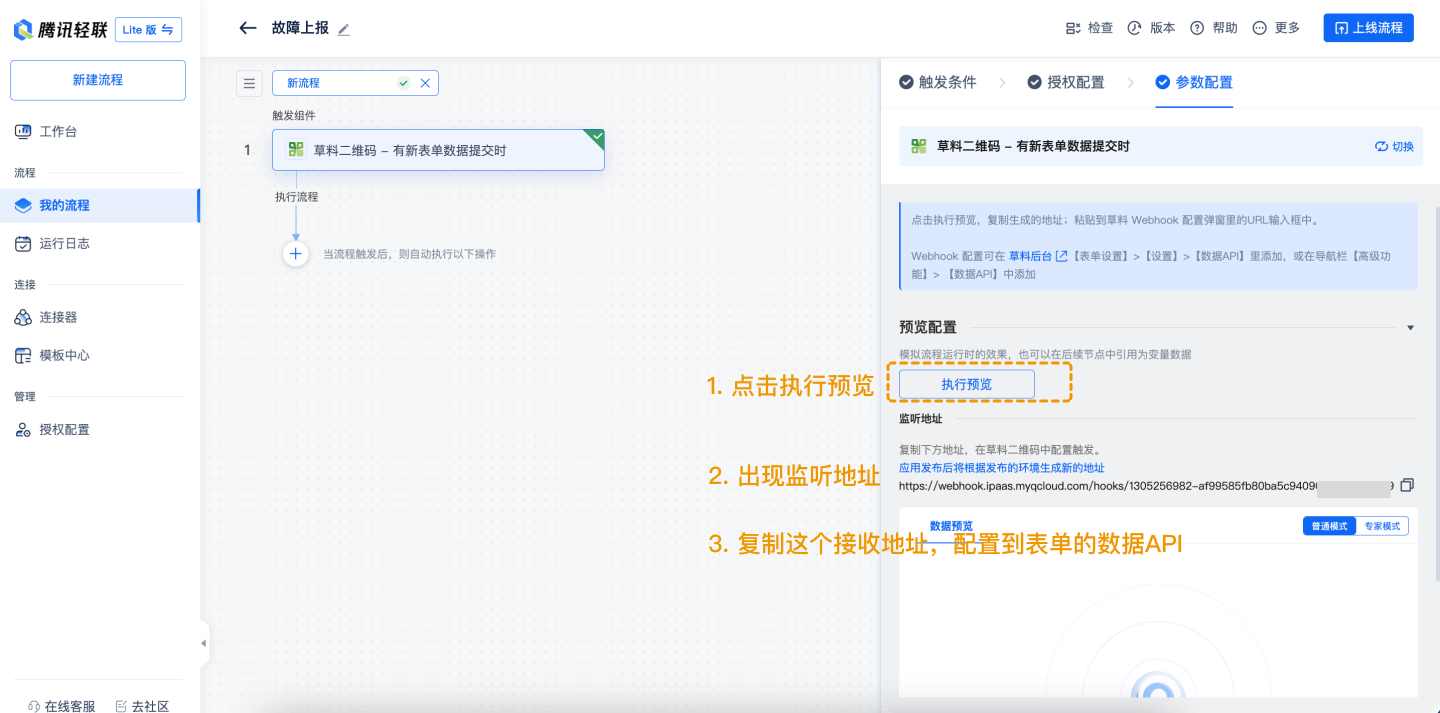
- Parameter Configuration Click Execute Preview to generate a listening address. Copy this address and configure it in the form's Data API settings.
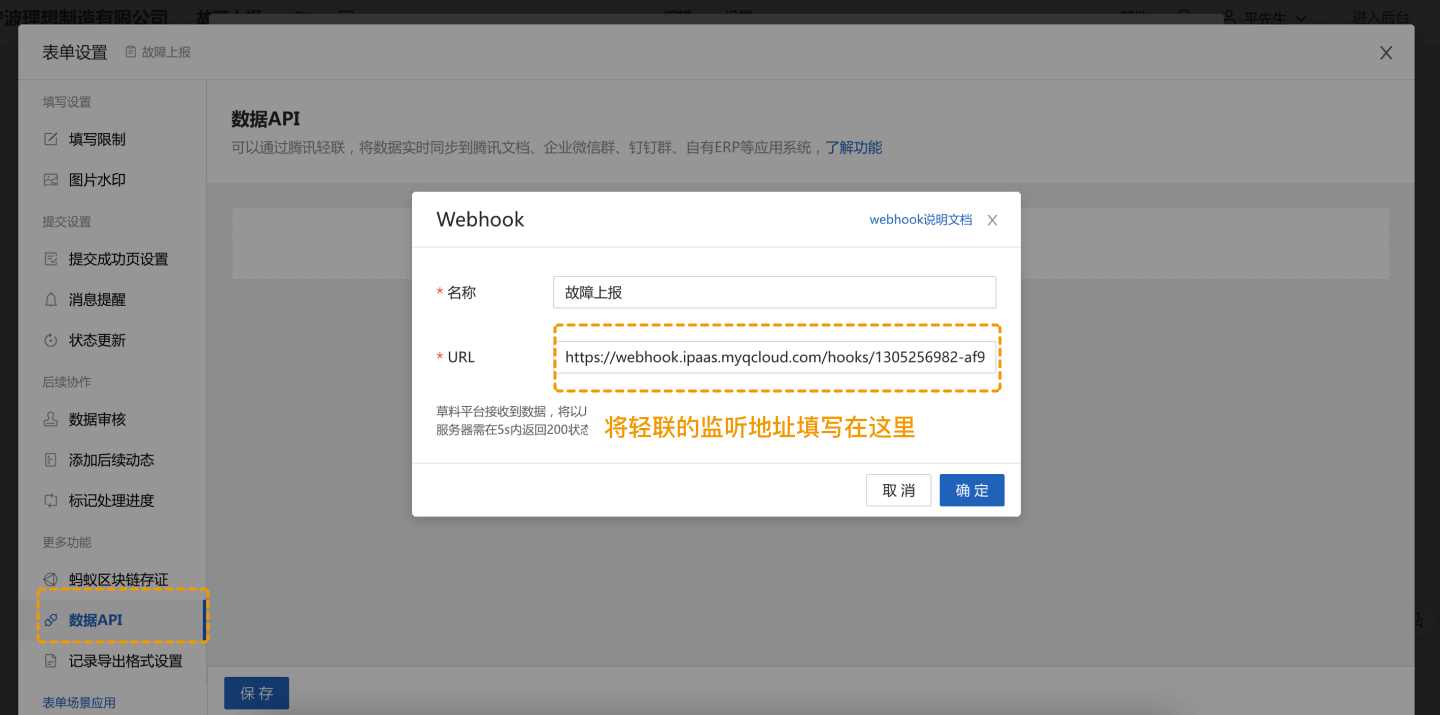
- Configure Webhook Address Copy the Tencent QuickLink push address and add it to the webhook push address in CaoLiao's backend. Navigate to Form Settings > Settings > Data API or Advanced Features > Data API.
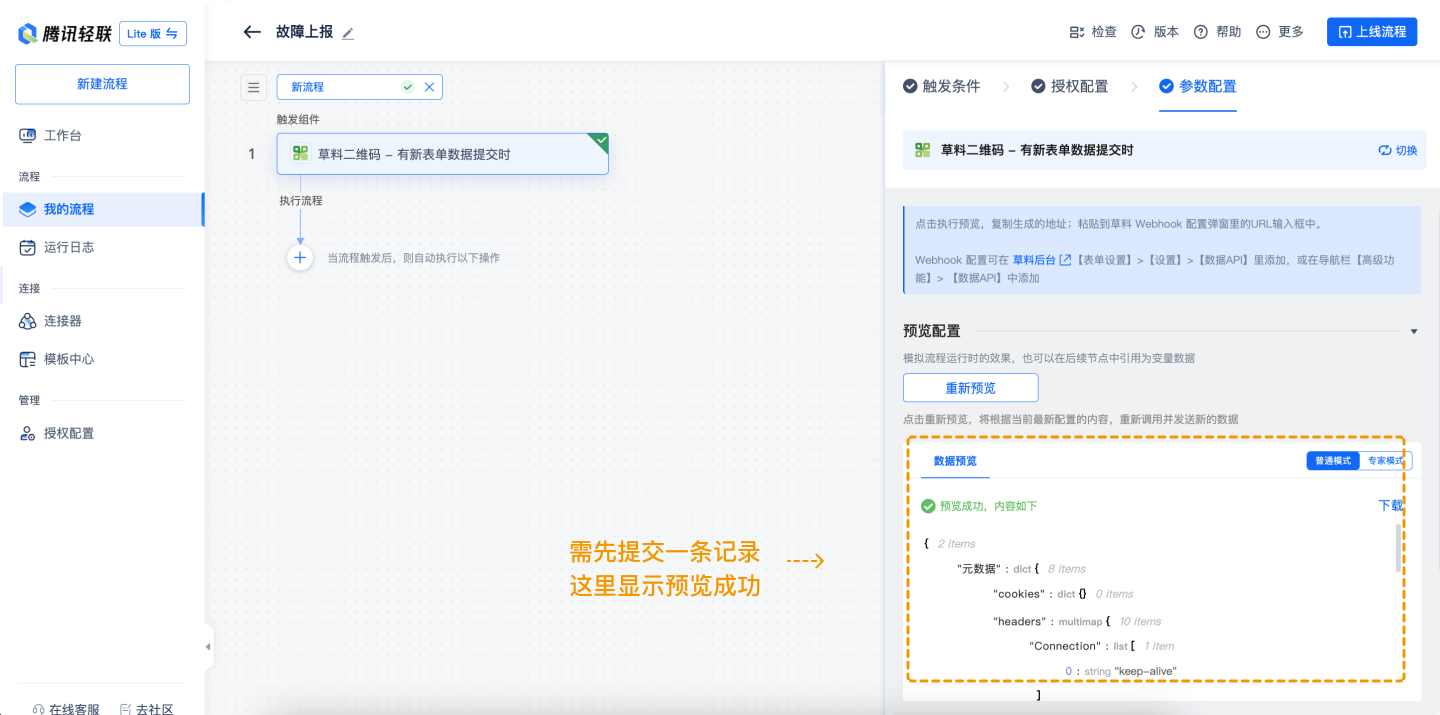
- Sample Data Scan the QR code and submit a test record. QuickLink will automatically detect the sample data. *Note: If the form is updated, submit another record and select the latest entry before clicking Re-preview.
3. Add Execution Application: WeCom Group Bot
The same method applies to DingTalk and Feishu group bots.
- Add the WeCom Bot and select the execution action: Send rich text message.
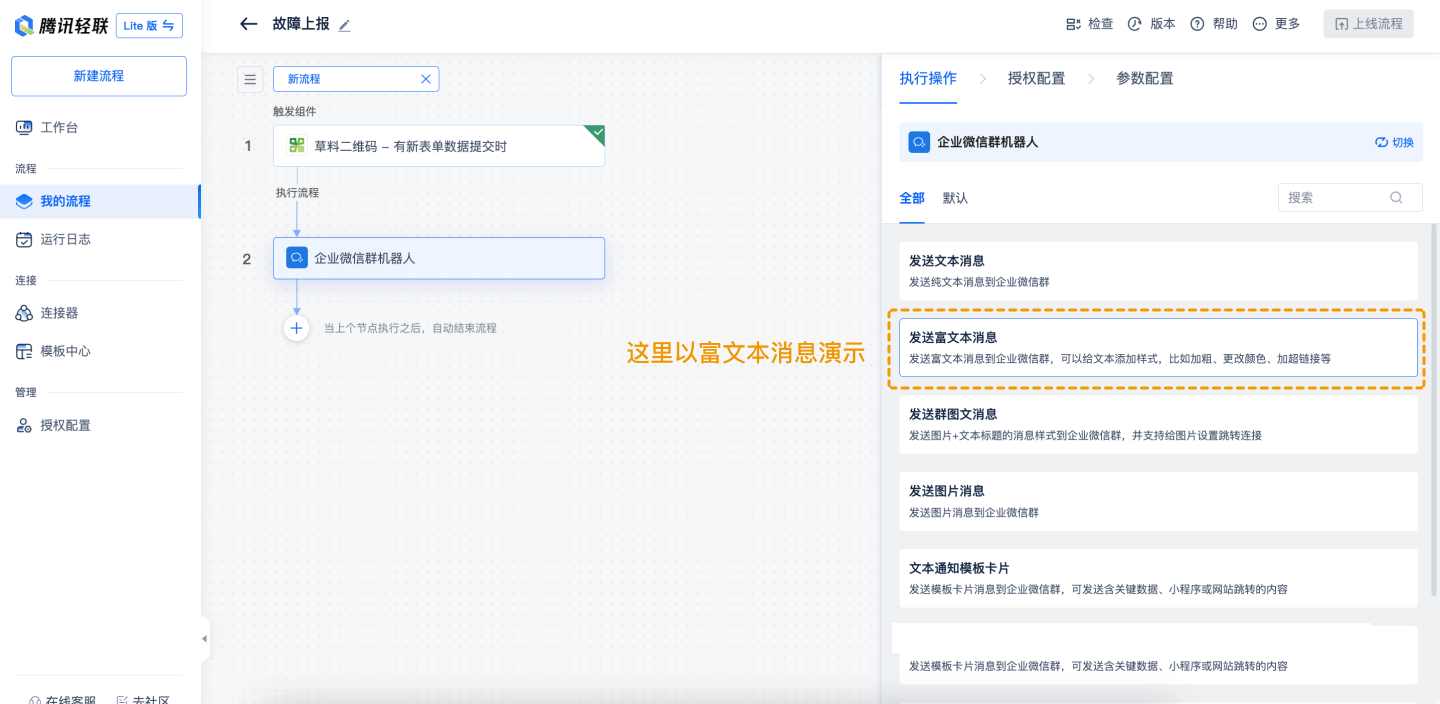
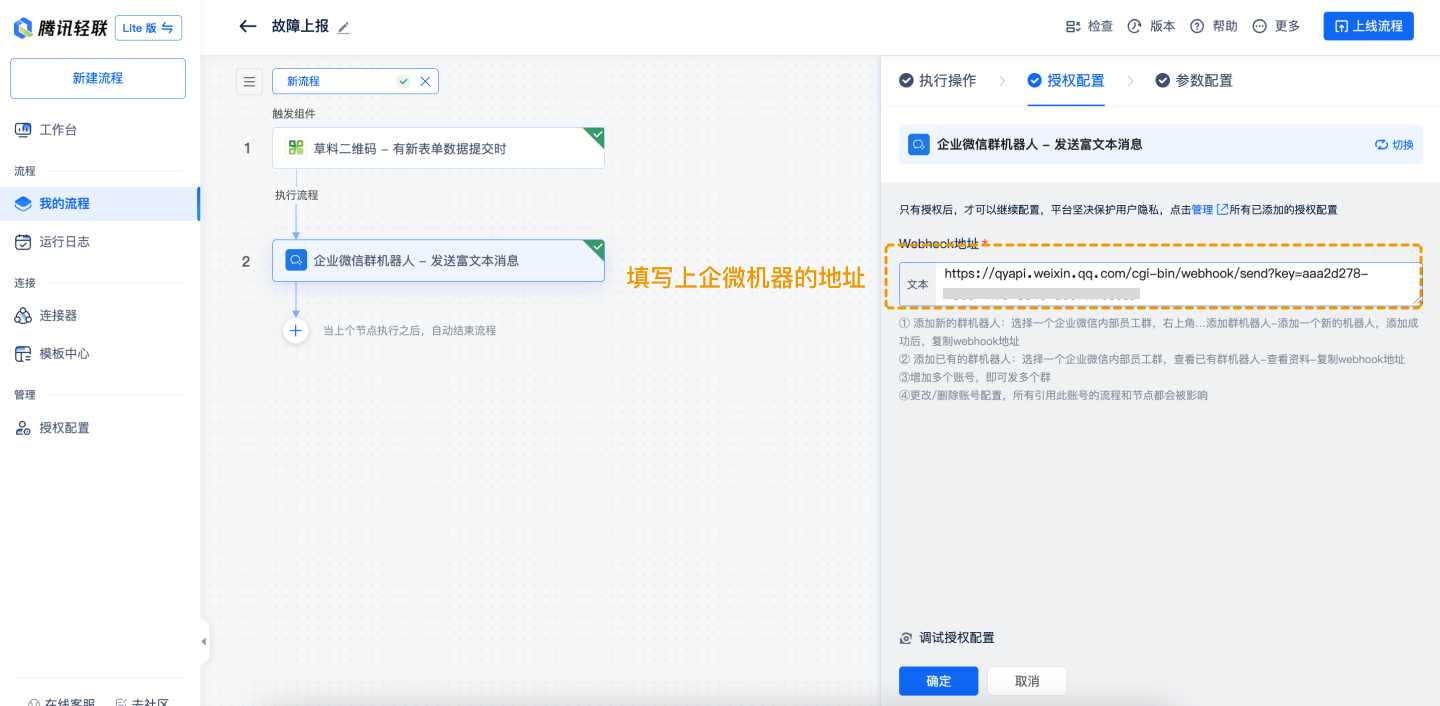
- Authorization Configuration: Add the WeCom group bot address. Obtain the bot address by adding a group bot in WeCom. How to enable a WeCom group bot
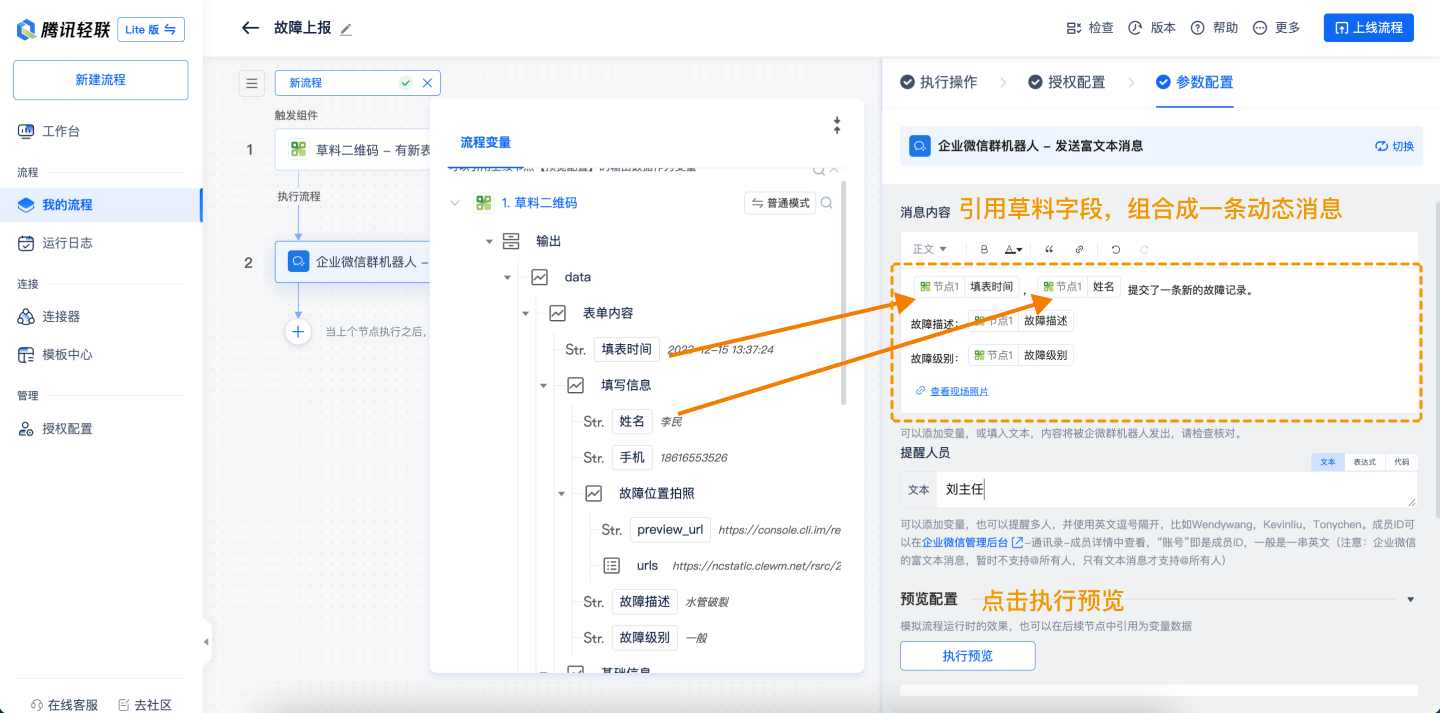
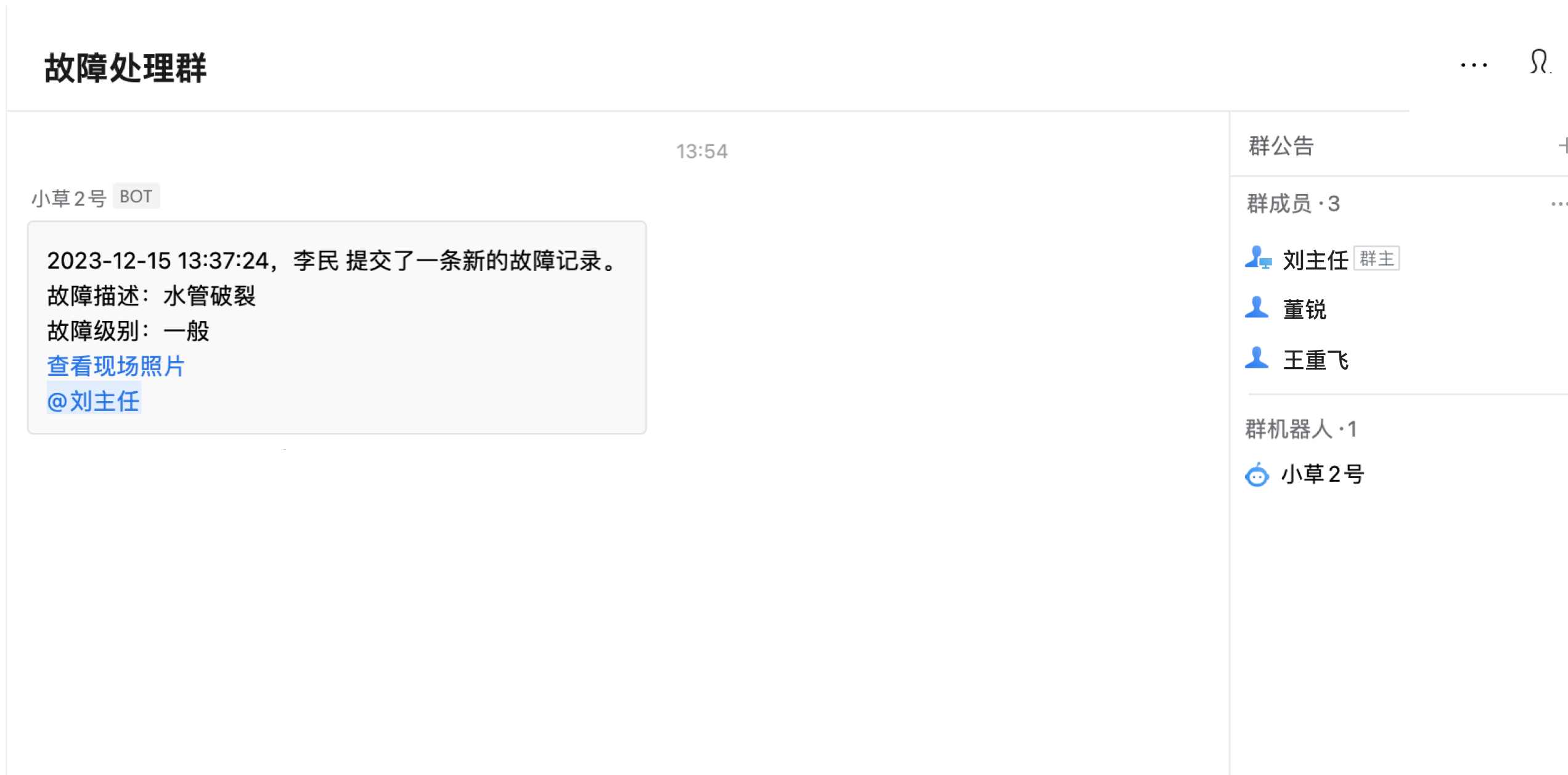
- Parameter Configuration Configure the rich text message using variables and static text for dynamic content. After setup, click Execute Preview to receive the message in the WeCom group.
4. Publish the Workflow
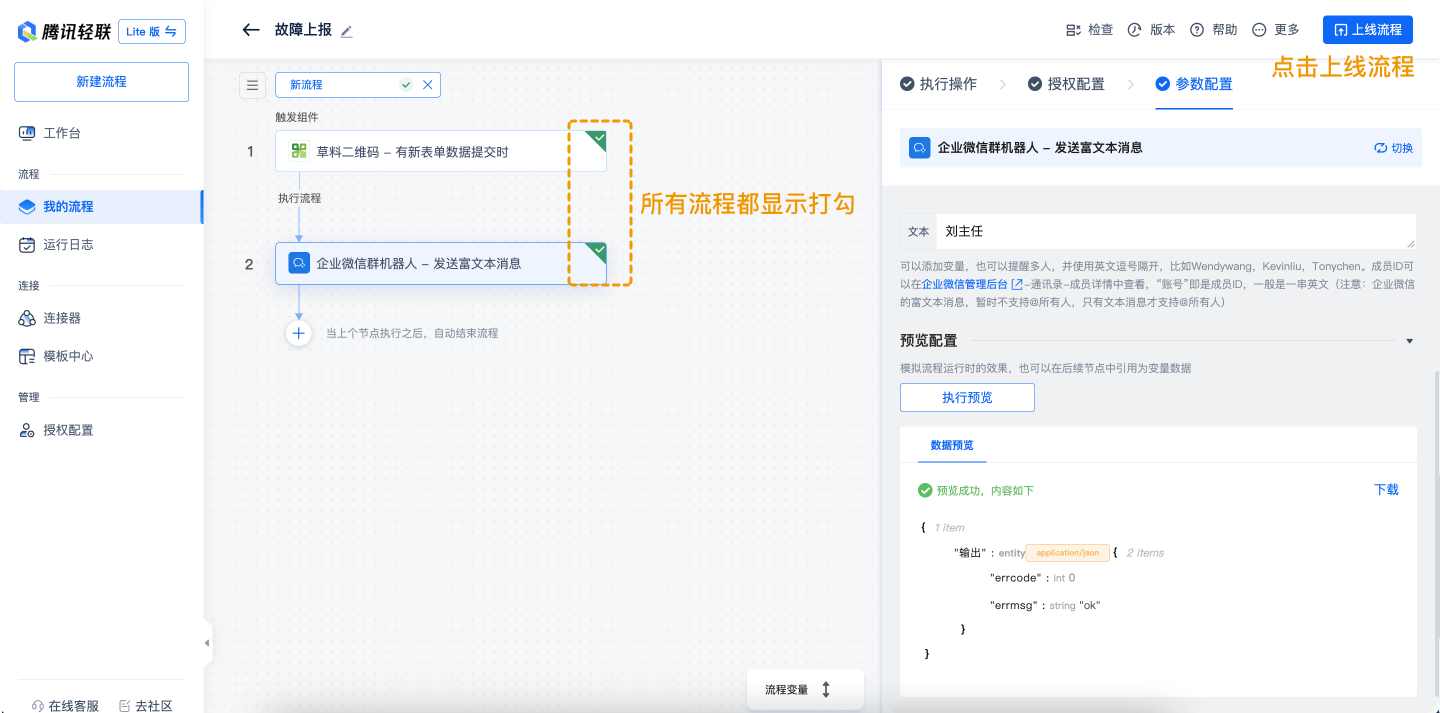
After saving, both applications should show as verified. Click Publish. If errors prevent publishing, use Check to identify issues.
References
Additional Use Cases
FAQs
1. Why don't my variables match the form content?
This occurs if you've reselected the form. Resubmit a record and re-test with the new sample.
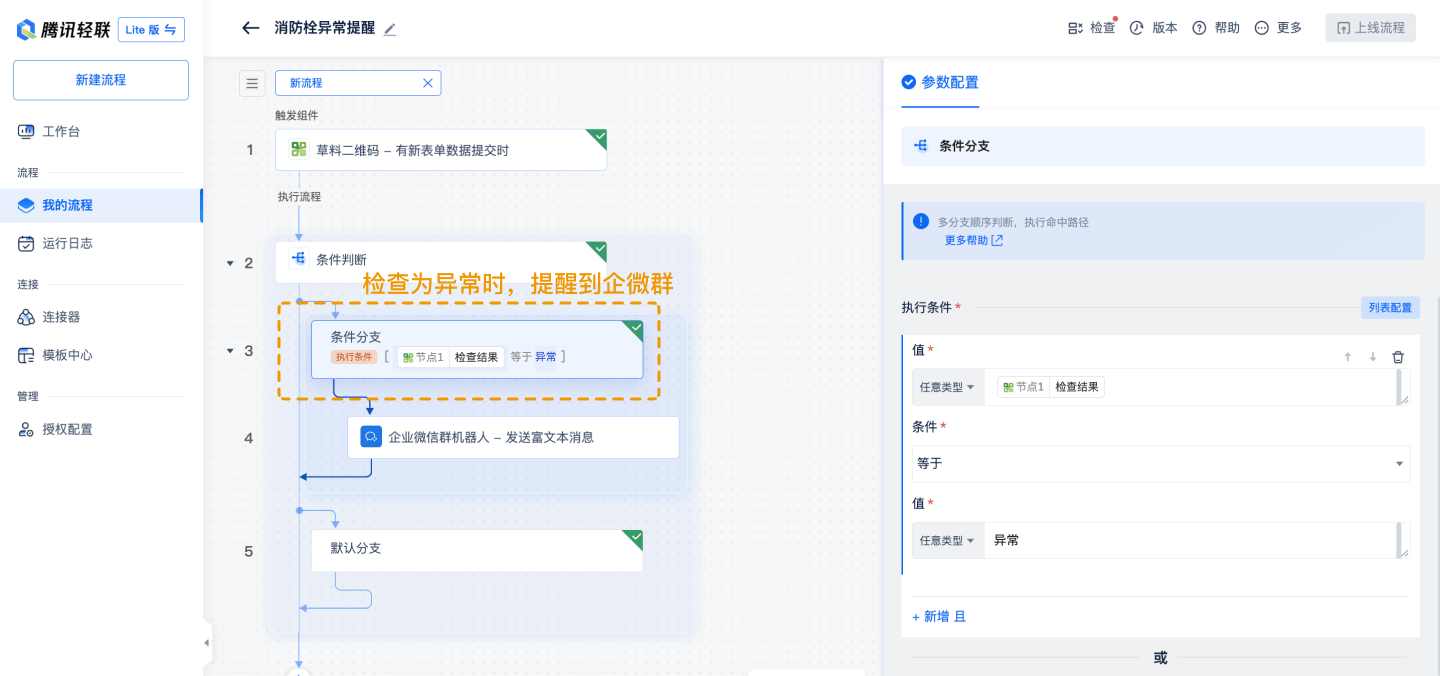
2. How to implement conditional alerts (e.g., inspection anomalies)?
Add a built-in conditional judgment application after the CaoLiao step. Set conditions to trigger group alerts only when met.
3. Can alerts be sent to multiple groups simultaneously?
Yes. Add a new workflow with a different group bot address (new account).
4. Can alerts be routed to different groups based on conditions?
Yes. Combine conditional judgment with multiple group bot applications, each targeting a different group.
CaoLiao Community
A dedicated community version is available for sharing experiences and Q&A with expert support. Visit Community