Account Transfer
An account transfer changes the super admin phone number for a CaoLiao account and transfers super admin permissions to the new number. Common reasons include an employee leaving, a phone number being deactivated, or handing the account over to a new owner.
After the transfer, the account login phone number is updated to the new number, and super admin permissions are transferred to it. The original phone number no longer has super admin permissions for the account.
1. Choose the Method That Fits Your Situation
Before you start, choose a method using the table below.
| Current Situation | Method | Takes Effect Immediately? | Edition Requirements |
|---|---|---|---|
| The original phone number can still receive SMS verification codes | Change the phone number yourself in the workbench | Yes | Available in both free and paid versions |
| The original phone number cannot receive verification codes (deactivated, no longer in your possession, etc.) | Submit materials for customer support to transfer the account manually | No; processed after the materials are verified | Paid versions require proof of purchase; the free version requires proof of phone number ownership |
| You use a CaoLiao WeCom edition account | WeCom edition account transfer | No; processed after submission | Depends on the account's actual circumstances |
Note: You can complete the transfer yourself in the workbench as long as the account associated with the new phone number contains no QR codes. If that account has previously created QR codes, delete them first, then transfer the account yourself.
2. Method 1: Change the Number Yourself When the Original Number Can Receive Codes
If the original phone number can receive SMS verification codes, you can transfer the account yourself in the workbench. The change takes effect immediately after verification. The account associated with the new phone number must contain no QR codes; delete any existing ones first.
1. Log in to Your CaoLiao Account
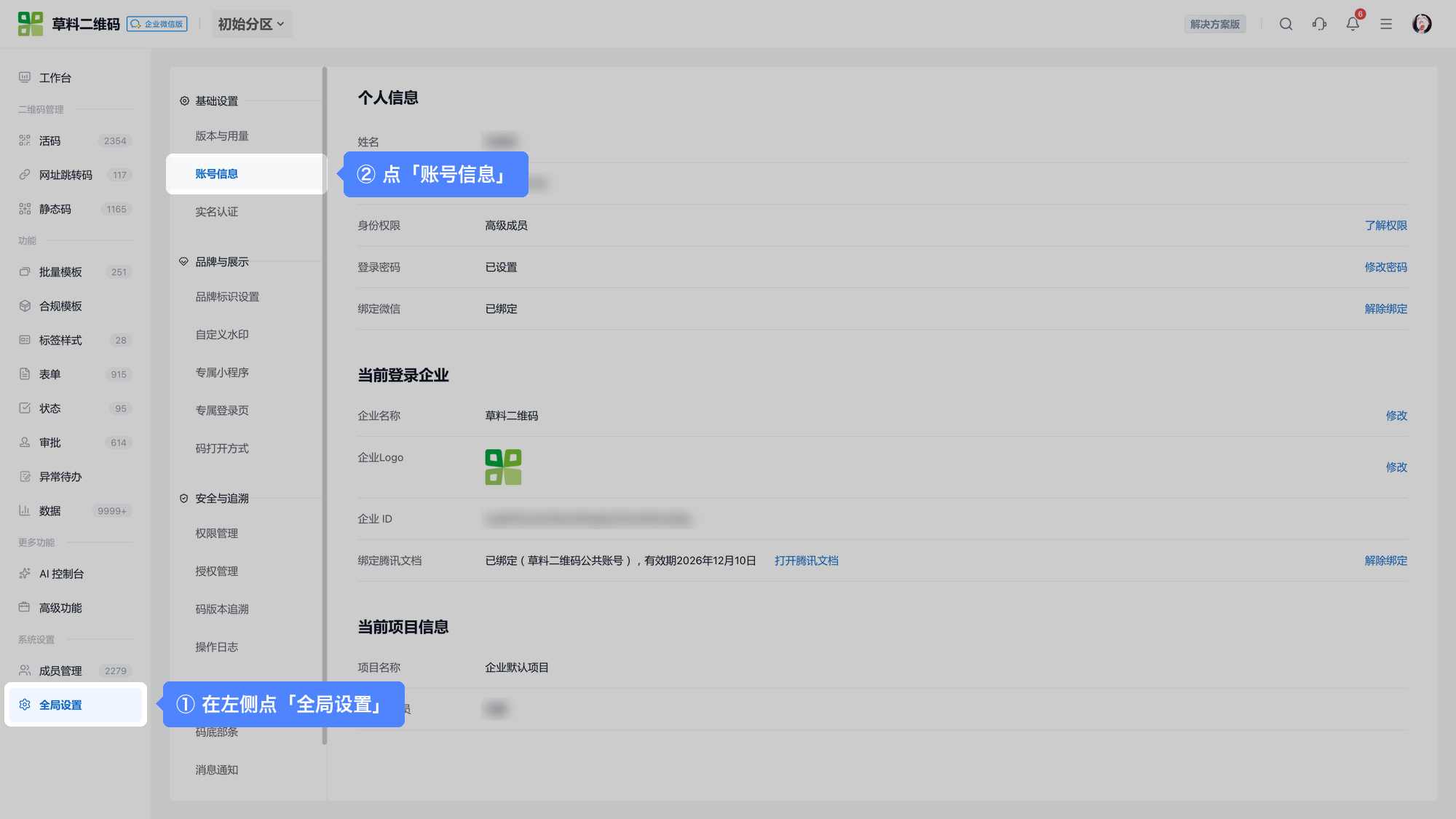
Log in to the CaoLiao workbench with the current super admin account. Click "Global Settings" on the left, then open "Account Info".
2. Open Change Phone Number
Go to "Global Settings" → "Account Info" → "Account Management".
Under "Admin Account", click "Change Phone Number".

3. Verify the Original Phone Number and Link the New Number
Follow the page instructions to complete two steps:
- Enter the SMS verification code received by the original phone number to verify current account ownership.
- Enter the new phone number and complete SMS verification for that number.

4. Confirm the Transfer Succeeded
After the transfer, log out of the current account and log in to the CaoLiao workbench with the new phone number.
If you can log in normally and still access the original account's QR codes, partitions, members, and data, the transfer has taken effect.
3. Method 2: Request a Manual Transfer When the Original Number Cannot Receive Codes
You only need to submit materials for customer support to transfer the account manually if the original phone number cannot receive SMS verification codes, for example because it has been deactivated or is no longer in your possession. If the original number can still receive codes, use Method 1 directly.
Note: Manual transfers require verification of account ownership. Paid version accounts must provide proof of purchase, while free version accounts must provide proof of phone number ownership. Once the materials are complete and verified, processing is usually completed within 1 business day.
1. Prepare Proof of Account Ownership
Paid version accounts: Prepare proof of purchase that establishes account ownership, such as:
- A billing screenshot.
- An invoice.
- Other materials that demonstrate the account's purchase history.
Free version accounts: In place of proof of purchase, provide proof of ownership of the original phone number, or documentation issued by your mobile carrier showing that the number was registered in your name.
2. Download and Complete the Account Transfer Consent Form
Choose the file for your account type:
- Download: Individual Account Transfer Consent Form
- Download: Enterprise Account Transfer Consent Form
After filling out the form, sign or stamp it, then photograph or scan it to create an electronic copy.
3. Submit an Account Transfer Request
When submitting the request, include:
- The reason for the transfer, such as an employee leaving or the original phone number being deactivated.
- The original super admin phone number.
- The new super admin phone number.
- Proof of purchase (paid versions) or proof of phone number ownership (free version).
- A photo or scan of the signed or stamped Account Transfer Consent Form.

Note: Missing materials will delay processing. Before submitting, check that you have uploaded both the proof of purchase (or proof of phone number ownership) and the consent form.
4. Wait for Processing and Verify the Result
CaoLiao will verify the materials after receiving a complete submission. Once processing is complete, log in to the workbench with the new phone number and check that the original account's QR codes, partitions, members, and data are intact.
4. Method 3: WeCom Edition Account Transfer
If you use your CaoLiao account through WeCom integration, follow the WeCom edition process.
1. Before You Start
Before submitting, confirm that:
- You are logged in to the CaoLiao account to be transferred.
- The new admin is within the CaoLiao application's "Visible Range".
- If you are a legacy integrated user who also needs to change the phone number, you have a new number ready. It must either be unregistered with CaoLiao or belong to an account with no QR codes.
View WeCom visible range setup instructions
2. Submit a WeCom Edition Account Transfer Request
Submit a request through the account transfer entry and provide the new admin's information as prompted.

CaoLiao will review the request after submission. With complete materials, the account transfer is usually completed within 1 business day.
5. What to Check After the Transfer
Whichever method you use, check the following afterward:
- The new phone number can log in to the CaoLiao workbench normally.
- The original account's QR codes, directories, and partitions are still visible.
- Form data, action records, and other data are intact.
- Member and permission settings meet the management needs after the handover.
- If the account is linked to WeChat, WeCom, or notifications, check whether notification recipients also need to be updated.
6. Frequently Asked Questions
1. How Long Does an Account Transfer Take?
Self-service phone number changes take effect immediately. Manual transfers by customer support and WeCom edition transfers require verification of the materials. Once the materials are complete and correct, processing is usually completed within 1 business day.
2. Is There a Limit on the Number of Account Transfers?
There is no fixed limit. You can transfer the account again if needed.
3. Can a Phone Number Already Registered with CaoLiao Become the New Super Admin Number?
Yes. You do not need to cancel the account; it only needs to contain no QR codes.
- If the account has no QR codes, you can transfer directly.
- If it has QR codes, log in to that account, delete all QR codes, then proceed with the transfer.
4. Can Free Version Accounts Request a Manual Transfer?
Yes. Free version accounts do not have proof of purchase. Instead, obtain documentation from your mobile carrier or provide proof that the original phone number was registered in your name. Submit it with the Account Transfer Consent Form.
This applies only when the original phone number can no longer receive verification codes. If it can still receive codes, change the phone number yourself in the workbench.
5. Does an Account Transfer Delete QR Codes or Data?
No. An account transfer only changes the super admin phone number and permission ownership. It does not delete existing QR codes, partitions, members, or data under the account.