Account Information Settings
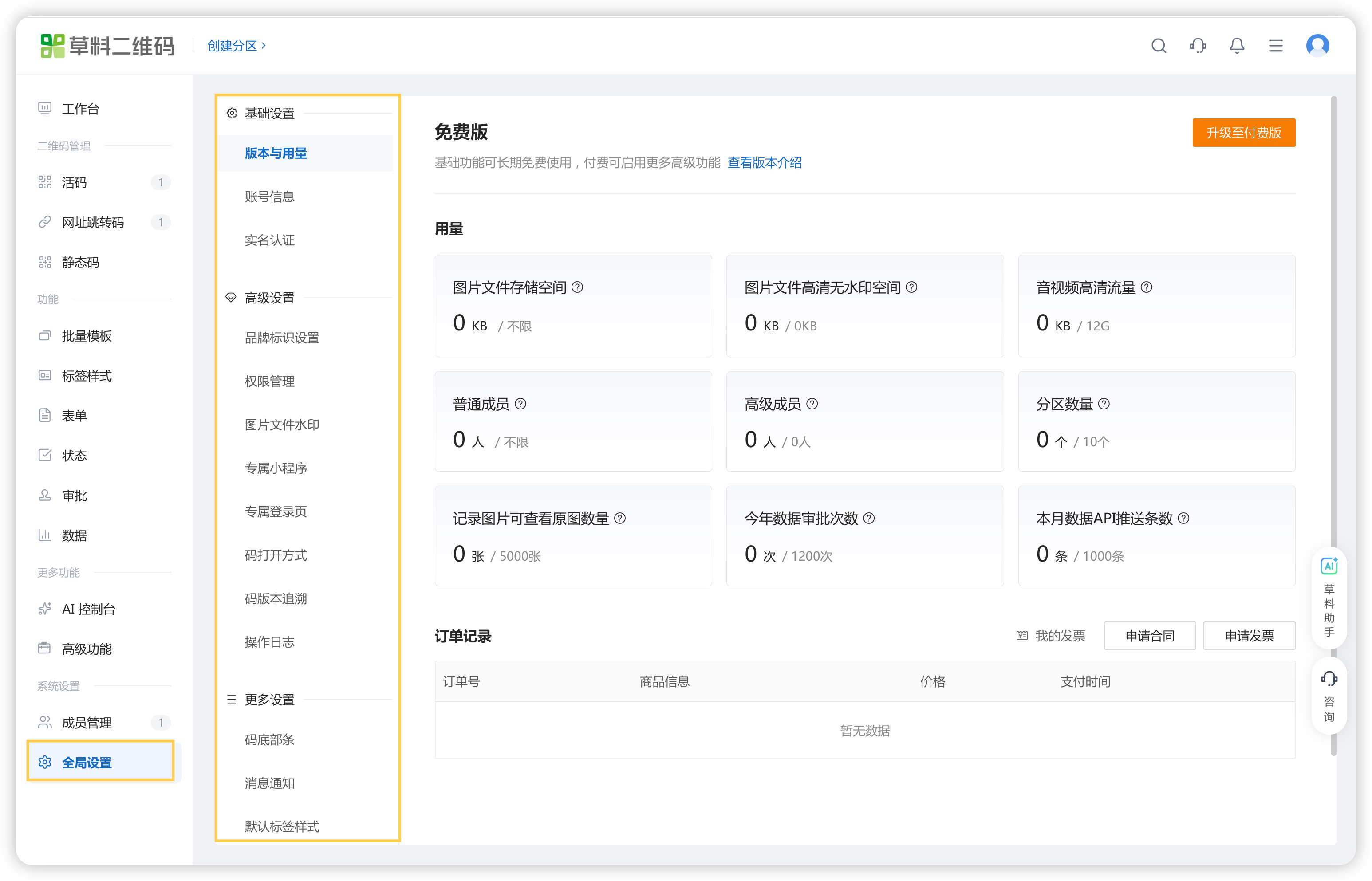
Account information settings are located in "Global Settings" in the workbench. They let you manage basic account details and rules that apply across the account. Here you can view edition usage, update account information, and complete real-name verification. You can also configure advanced settings such as brand identity, permission management, image and file watermarks, a custom login page, and QR code access methods.
If this is your first visit, start with the menu on the left: "Basic Settings" is at the top, followed by "Advanced Settings" and "More Settings". Basic settings mainly show the status of your account. Advanced settings define how QR codes and members under your account operate.
1. Where to Find Account Information Settings
To open the settings:
- Log in to the CaoLiao workbench.
- Find "System Settings" in the left menu.
- Click "Global Settings".
- Select the item you want to view or configure from the menu on the left of the Global Settings page.
2. What Is Included in Global Settings?
Global Settings is divided into three categories by purpose.
| Category | Settings | Purpose |
|---|---|---|
| Basic Settings | Edition and Usage, Account Info, Real-Name Verification | View the account edition and usage, maintain super admin information, and verify the account |
| Advanced Settings | Brand Identity Settings, Permission Management, Image and File Watermarks, Exclusive WeChat Mini Program, Custom Login Page, QR Code Access Methods, QR Code Version History, Operation Logs | Configure account-wide display, member permissions, file display, and QR code access rules |
| More Settings | QR Code Bottom Bar, Notifications, Default Label Style | Configure bottom features on QR code pages, message reception, and the default label style |
Tip: To change your phone number, login password, or company name, start with "Account Info". To configure default QR code access methods, member permissions, or brand display, find the corresponding item in "Advanced Settings".
3. Basic Settings
1. Edition and Usage
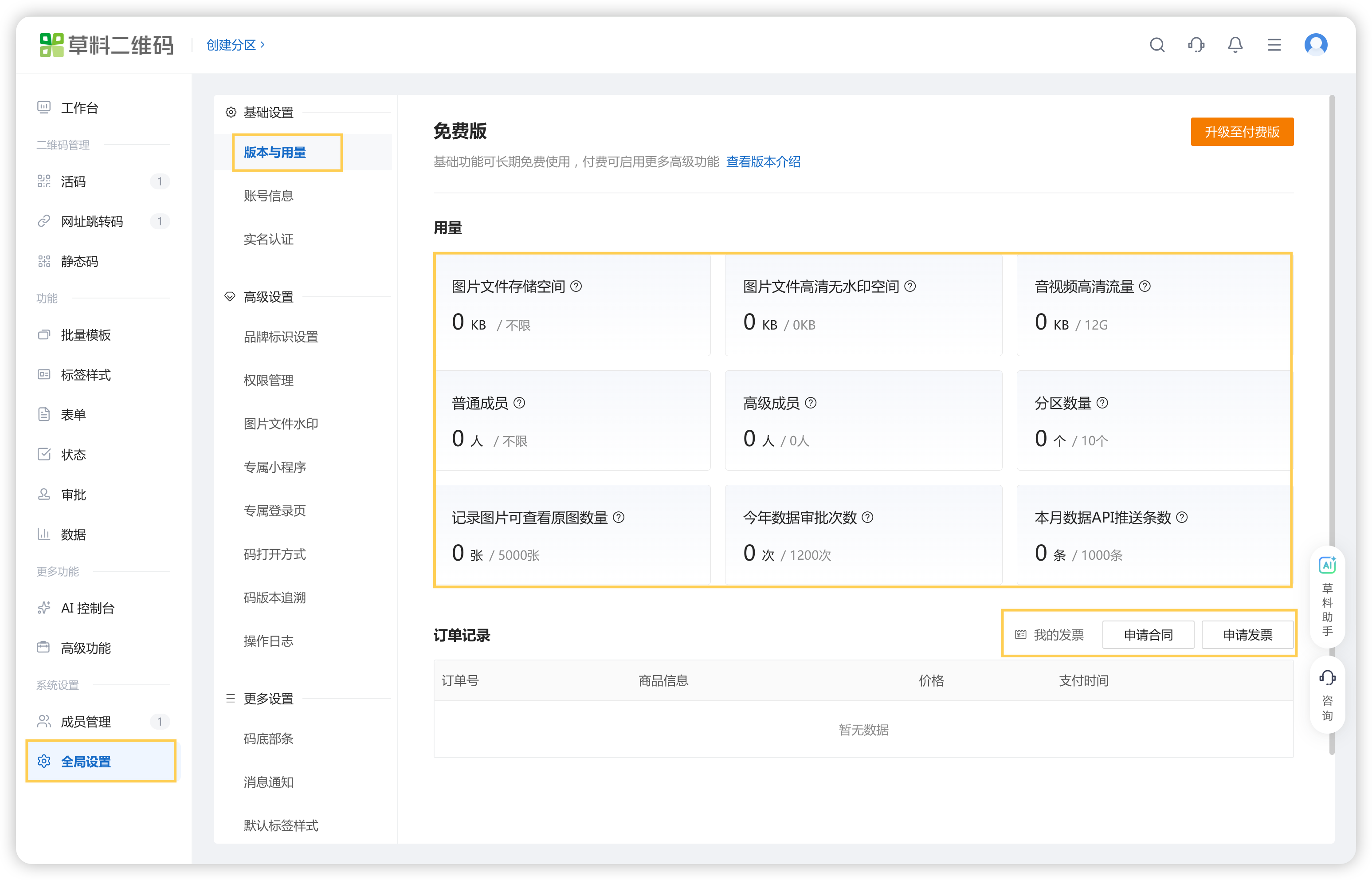
"Edition and Usage" shows your account's current edition, usage, and order information.
Here you can view:
- Your current account edition, such as the free version, Basic Edition, Advanced Edition, or Flagship Edition.
- Image and file storage space.
- HD watermark-free image and file storage.
- HD audio and video traffic.
- The number of basic members and advanced members.
- The number of partitions.
- The number of record images whose originals can be viewed.
- The number of data approvals.
- The number of data API pushes.
- Order history, contract requests, invoice requests, and historical invoices.
Check this page when you need to:
- Confirm your current account edition.
- Determine whether storage, traffic, member, or partition usage is approaching its limit.
- Request a contract or invoice.
- Check past orders.
2. Account Info
"Account Info" is used to maintain the super admin's personal information and company information.
The page has two sections:
| Section | Information You Can View or Change | Description |
|---|---|---|
| Personal Info | Name, account phone number, role and permissions, login password, linked WeChat account, account cancellation | Affects super admin login and account security |
| Company Info | Company name, company logo, Tencent Docs linking, WeCom integration | Affects account display, collaboration, and some integration features |
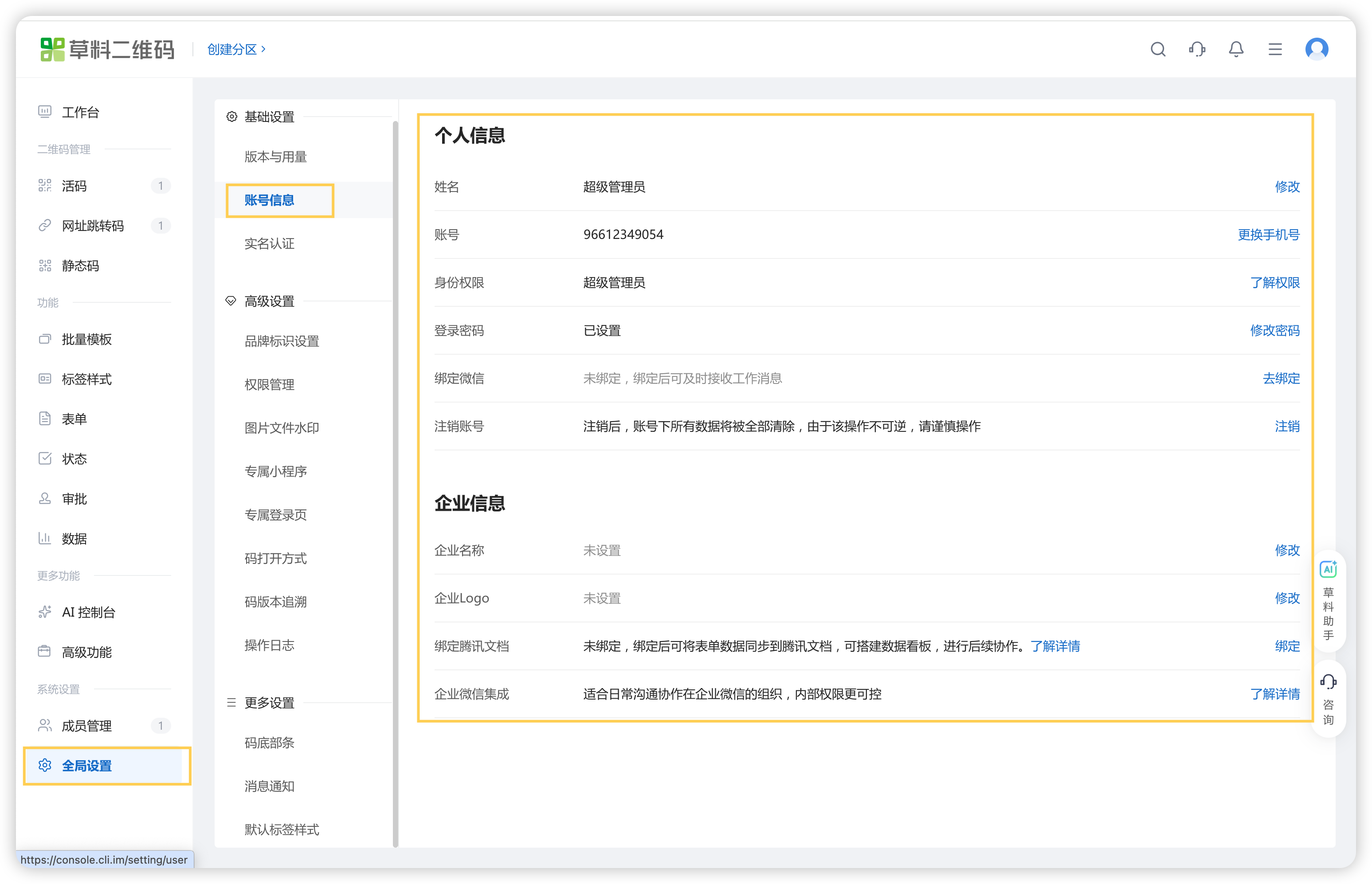
Common actions include:
- Changing the super admin's name.
- Changing the super admin's phone number.
- Changing the login password.
- Linking or unlinking WeChat to receive work notifications.
- Changing the company name and logo.
- Linking Tencent Docs to sync form data to Tencent Docs.
- Viewing WeCom integration instructions.
- Cancelling the account.
Note: Cancelling an account clears all data under it and cannot be undone. Before proceeding, check whether you need to keep any QR codes, form data, member information, or order information.
For employee departures or account handovers, read Account Transfer first to determine whether you need to change the super admin's phone number.
3. Real-Name Verification
"Real-Name Verification" confirms account ownership. Verification makes ownership clearer in certain display and trust-related contexts and can help confirm ownership later.
Available verification types include:
- Personal Verification: For individual users; the account belongs to the individual.
- Enterprise Verification: For enterprises, individually owned businesses, public institutions, schools, and similar entities; the account belongs to the enterprise.
- Other Organization: For social organizations, private non-enterprise entities, foundations, and similar organizations.
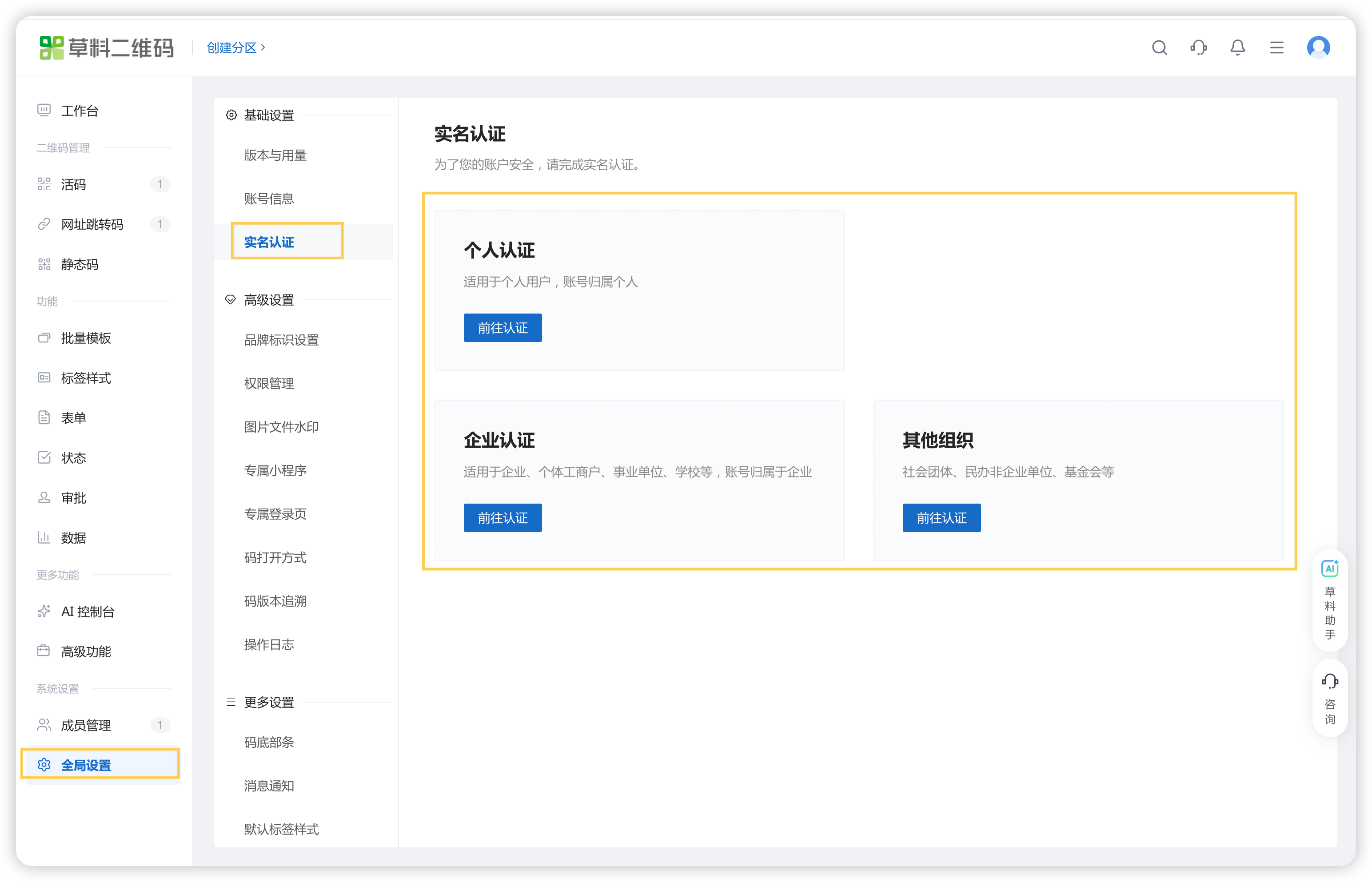
Choose the verification type based on the account's actual ownership. Enterprise verification is recommended for QR codes used for external company information, customer service, equipment management, asset management, and similar purposes.
4. Advanced Settings
Advanced settings affect QR code display, permissions, file previews, and access methods across the account. Before making changes, check their scope to avoid affecting existing workflows.
1. Brand Identity Settings
"Brand Identity Settings" displays your company name and logo on scanned QR code pages, making it easier to recognize the content as your company's own.
Here you can:
- Edit brand information.
- Enable brand identity display.
- Set its scope, such as all dynamic QR codes in a partition.
- Set the display style, such as fixed to the bottom of the screen, floating above the bottom, or at the bottom of the page.
- View previews on the right, including the QR code bottom bar, shared screenshots, and the page revealed by pulling down.
Edition note: "Enable Brand Identity" is a paid feature. Availability depends on the edition notice shown for your account in the workbench.
For more about brand display locations and setup, see Brand Settings.
2. Permission Management
"Permission Management" assigns management scopes to different members. It is useful for accounts where multiple people manage QR codes, partitions, and data together.
Common permission levels on this page include:
- Super Admin: Manages everything.
- Admin Group: Can be assigned a management scope covering all content under the organization.
- Responsible Person: Can be assigned specified partitions or dynamic QR codes.
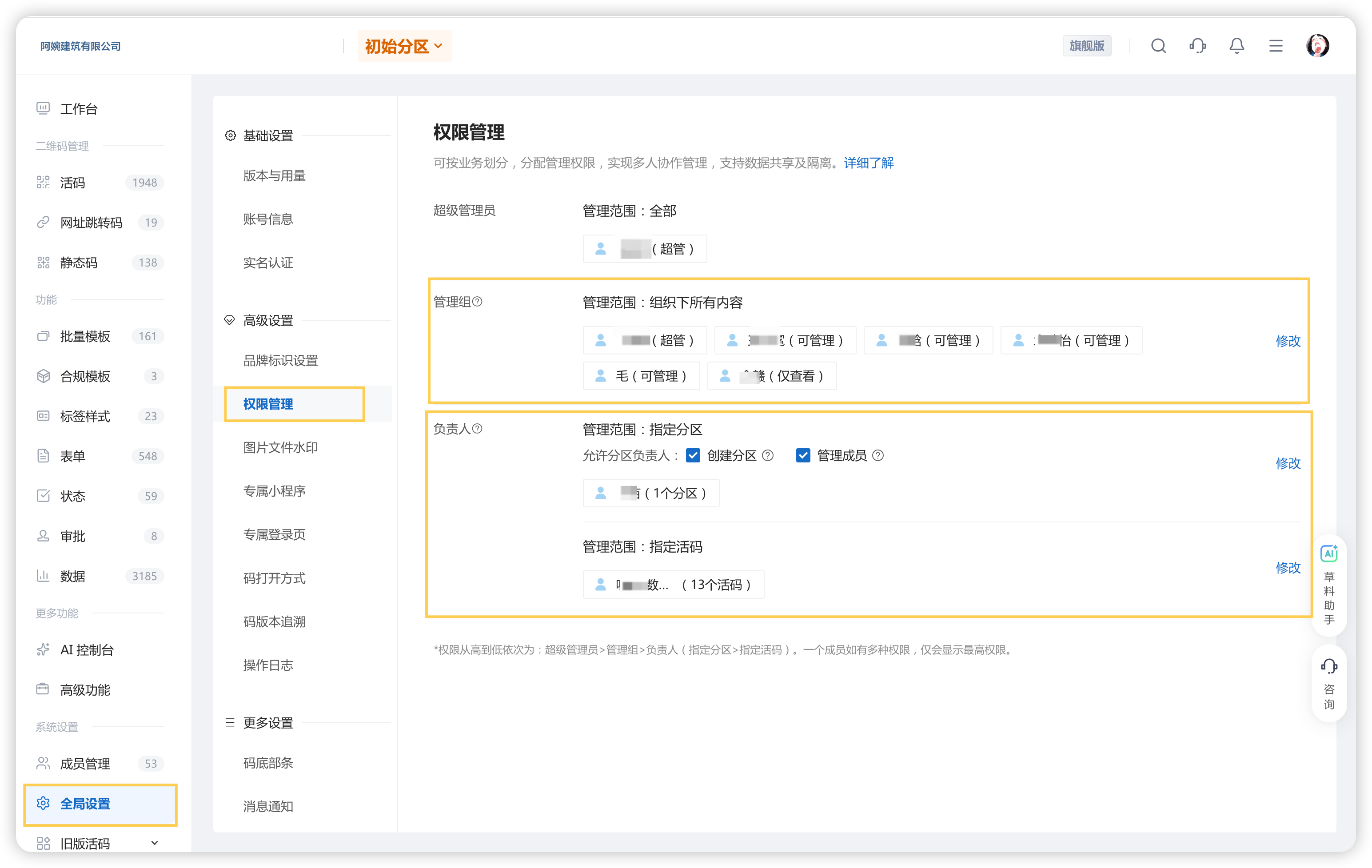
From highest to lowest, permissions are: super admin > admin group > responsible person (specified partition > specified dynamic QR code). If a member has multiple permissions, only the highest is displayed.
Typical uses include:
- Different departments managing their own partitions.
- Frontline responsible persons managing only the QR codes for specified equipment, assets, or areas.
- Admins viewing or handling form data without having all account permissions.
Edition note: Permission management is an advanced capability. Availability depends on the edition notice shown for your account in the workbench.
3. Image and File Watermarks
"Image and File Watermarks" controls whether the CaoLiao watermark appears when previewing images and files, and whether to enable a full-screen watermark to deter screenshots.
Common settings include:
- CaoLiao Watermark: Images and files in the free version display the CaoLiao watermark, which can be disabled with a paid version.
- Custom Watermark: Overlay diagonal text watermarks on image, file, and QR code preview pages.
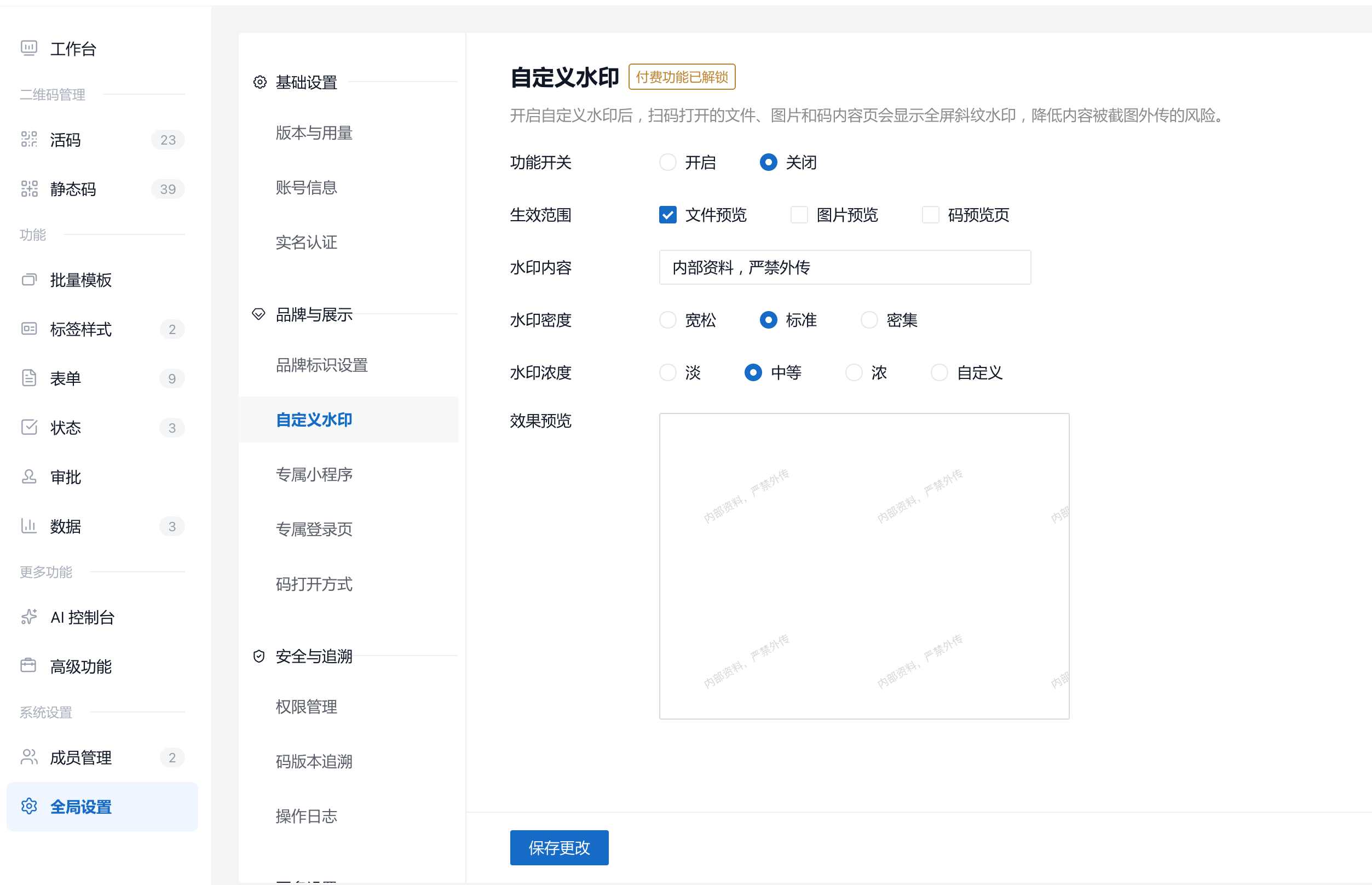
Edition note: Features such as watermark removal and full-screen watermarks to deter screenshots may require a paid version. Refer to the current notice in the workbench.
4. Custom Login Page
"Custom Login Page" provides a dedicated login entry for your company. Advanced members can log in directly through the custom login URL. The page can display your company's custom name, logo, and background image.
Here you can configure:
- Login page status.
- Custom name.
- Note text.
- Login page logo.
- Background image.
- Login URL.
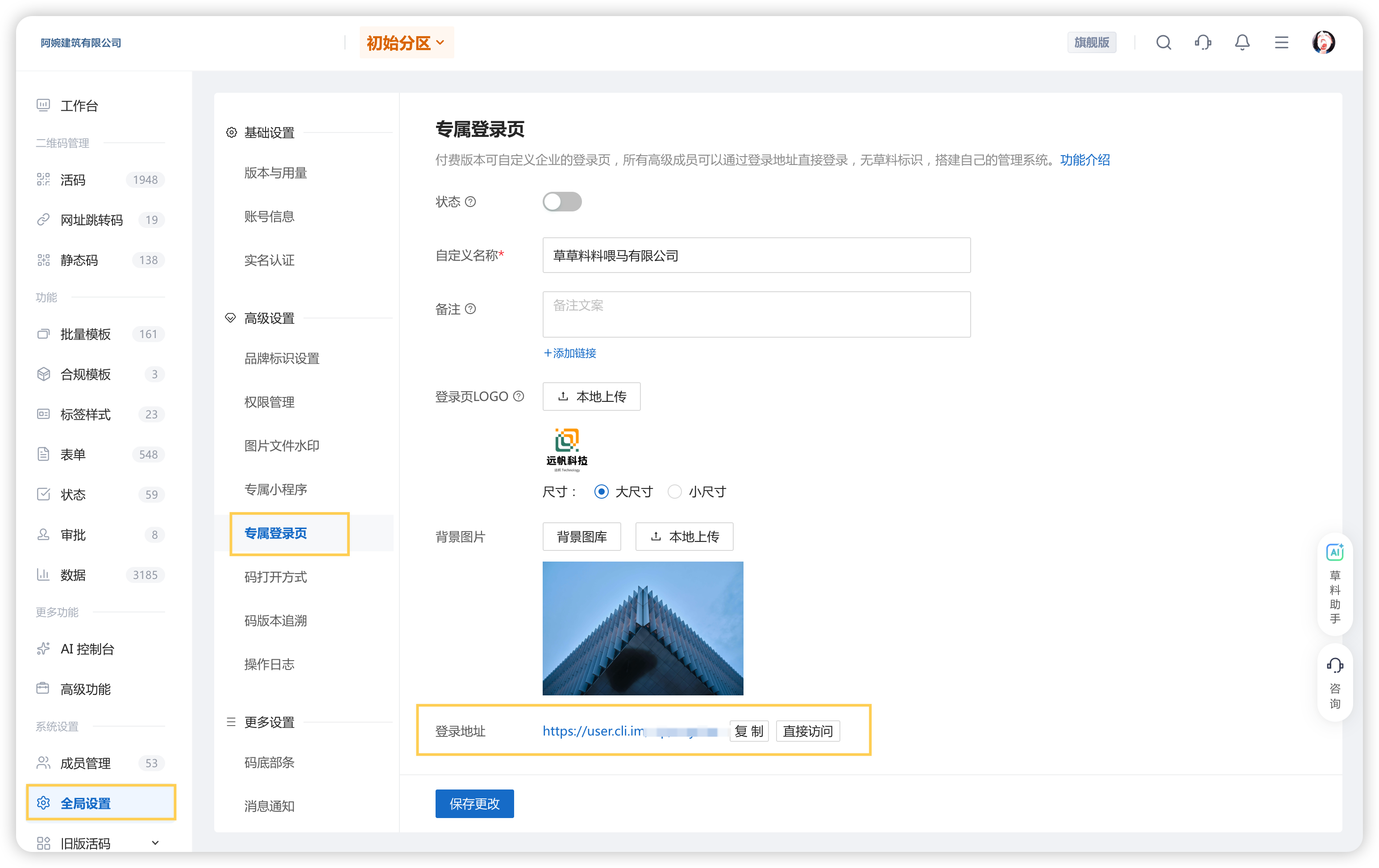
After setup, copy the login URL and send it to members, or click "Visit Directly" to check the page.
Edition note: The custom login page is a paid feature. Availability depends on the edition notice shown for your account in the workbench.
Learn more about the custom login page
5. QR Code Access Methods
"QR Code Access Methods" sets the default access method for QR codes created under your account in the future.
The following access methods are available when scanning with WeChat:
| Access Method | Description | Edition Requirements |
|---|---|---|
| CaoLiao QR Code Mini Program | Default for the free version; supports all operations, including forms and statuses | Default for the free version |
| View QR Code Mini Program | Exclusive to paid versions; no CaoLiao logo and faster content loading | Paid feature |
| H5 Web Page | Supports direct link navigation, sharing to WeChat Moments, and long-press recognition of all QR code images | Paid feature |
| Enterprise Exclusive WeChat Mini Program | A dedicated Mini Program for your company with a custom logo, name, and home page | Available as a separate add-on from the Basic Edition |
Other apps open an H5 web page by default when scanning.
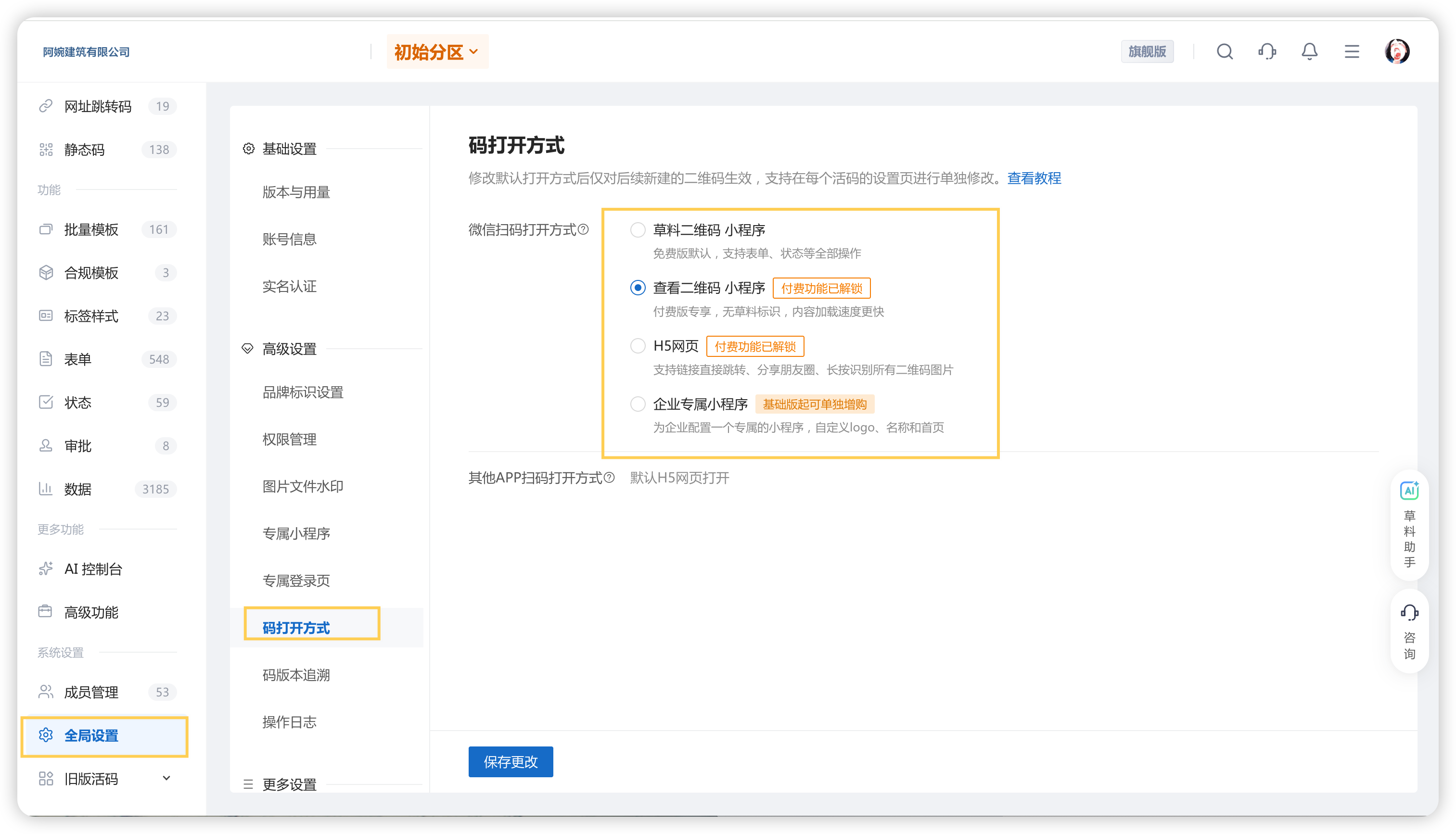
Note: Changing the default access method only affects QR codes created afterward. Existing QR codes do not change automatically. To change an existing QR code, open its settings page and update it individually.
View the QR code access methods tutorial
6. QR Code Version History and Operation Logs
"QR Code Version History" tracks versions of QR code content. Use it to view historical changes or trace edits.
"Operation Logs" shows desktop operations by admins and advanced members. It is commonly used to investigate accidental deletions or edits. In some cases, operation records can help recover accidentally deleted QR codes or data.
Edition note: QR code version history and operation logs are advanced capabilities. Availability depends on the edition notice shown for your account in the workbench.
5. More Settings
1. QR Code Bottom Bar
"QR Code Bottom Bar" configures the display and feature entries at the bottom of QR code pages, such as brand identity, sharing, and favorites. It affects the bottom area that scanners see when opening a QR code.
Here you can:
- Choose a bottom bar style, such as fixed to the bottom of the screen, floating above the bottom, or at the bottom of the page.
- Enable or disable feature entries such as favorites and sharing.
- Enable brand identity and edit the brand information displayed.
- Use the phone preview on the right to see the bottom bar as scanners will see it.
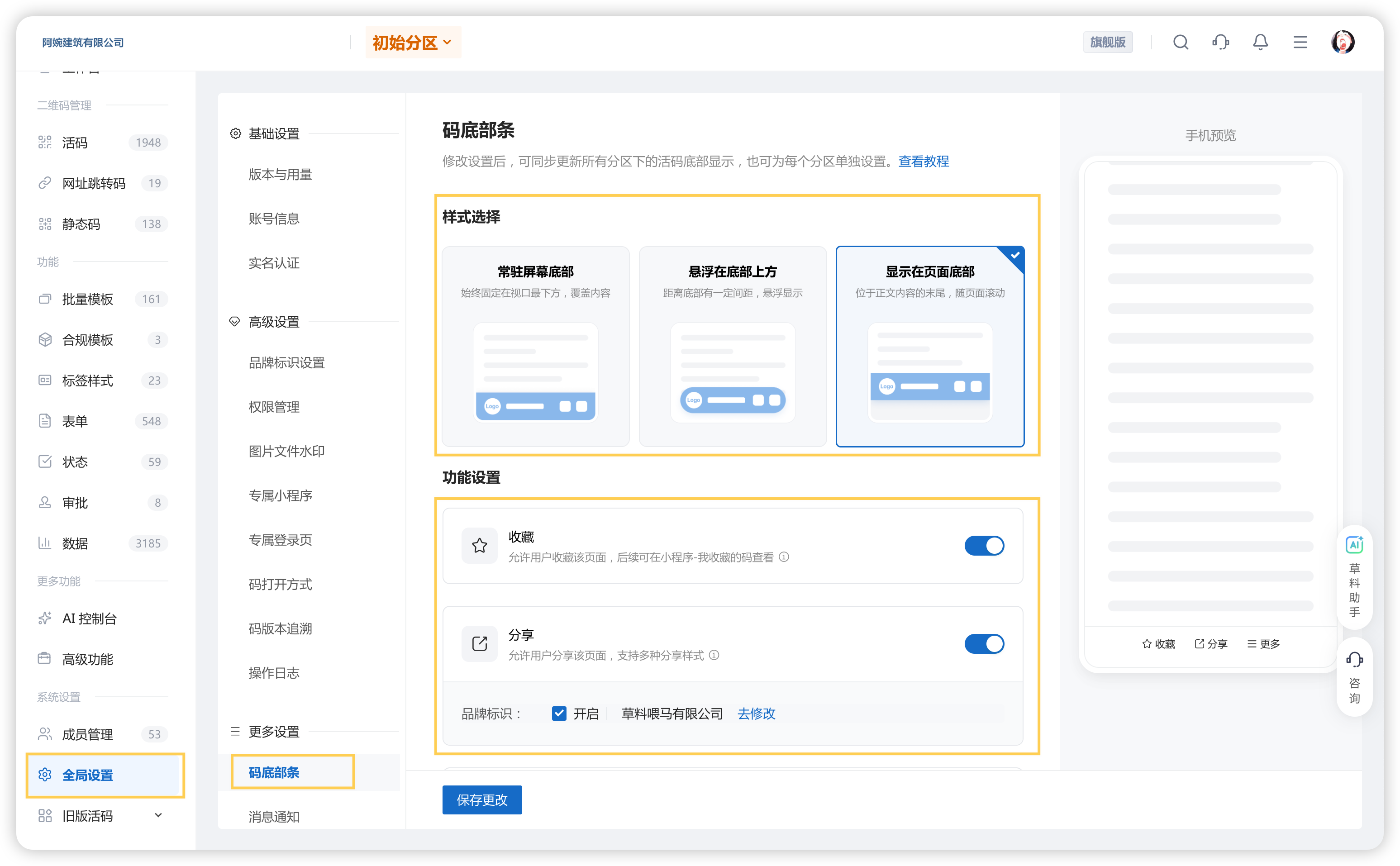
After changes, you can sync the bottom display to dynamic QR codes in all partitions or configure each partition separately. If most QR codes under the account need the same display rules, set the defaults here first, then adjust individual partitions or QR codes as needed.
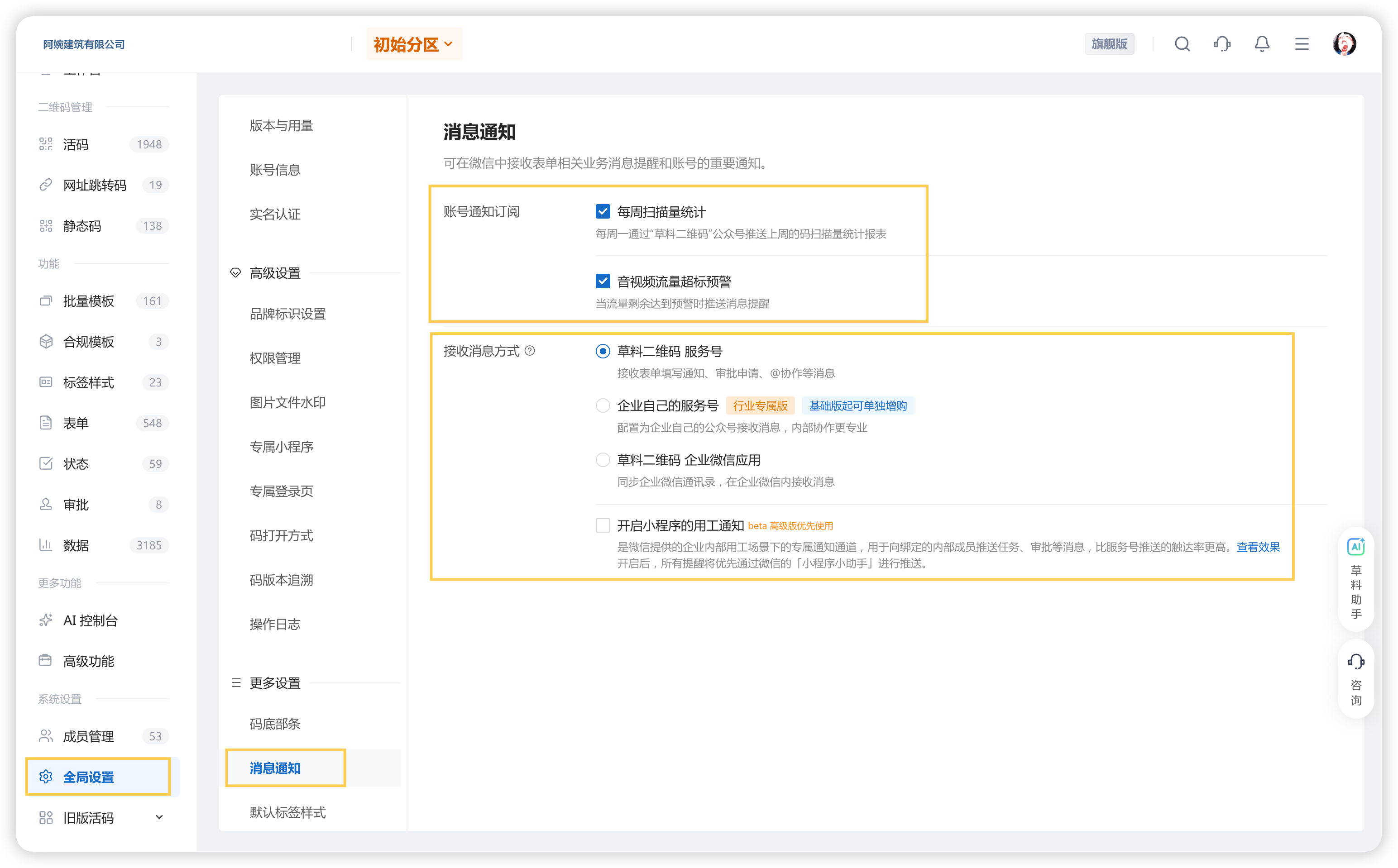
2. Notifications
"Notifications" configures how you receive messages about form data, reviews, scan statistics, and more. You can also subscribe to weekly scan count statistics.
Here you can:
- Subscribe to weekly scan count statistics.
- Enable alerts when audio and video traffic exceeds its quota.
- Choose how to receive messages, such as through the CaoLiao QR Code Service Account, your company's own Service Account, or the CaoLiao QR Code WeCom application.
- Enable Mini Program work notifications to send task and approval messages to linked internal members.
To learn how to follow and pin the CaoLiao QR Code Service Account, turn off "Do Not Disturb", or enable WeChat work notifications, see How to Set Up CaoLiao WeChat Notifications to Avoid Missing Messages.
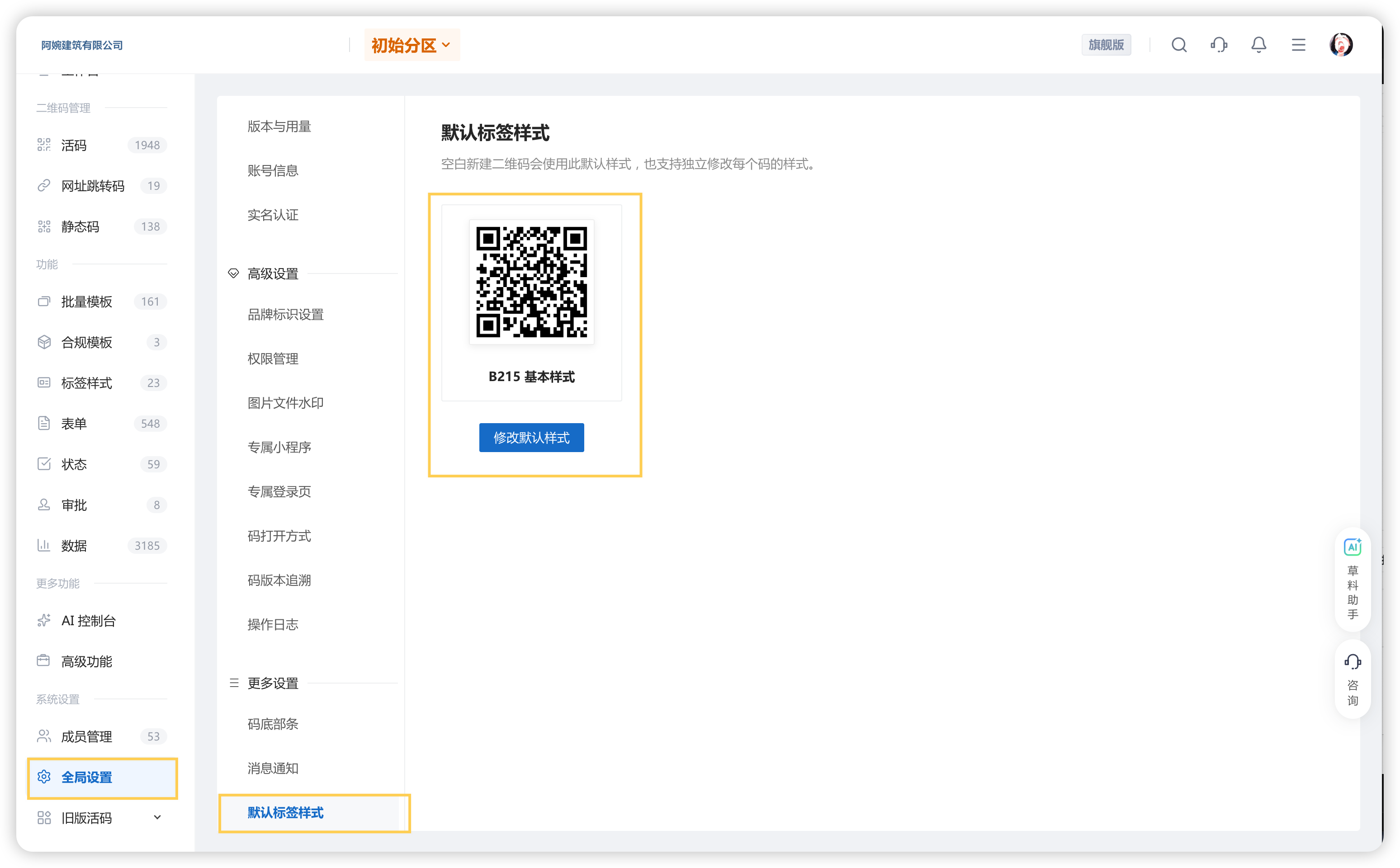
3. Default Label Style
"Default Label Style" sets the default style for QR code images under your account. QR codes created afterward automatically use this style.
The page displays the current default label style. Click "Change Default Style" to select or adjust the QR code label style.
6. Frequently Asked Questions
1. Will Changes to Global Settings Affect Existing QR Codes?
It depends on the setting. For example, the default "QR Code Access Methods" value only affects QR codes created afterward. Display settings such as brand identity and the QR code bottom bar may affect existing QR codes within their enabled scope. Check the page instructions and scope before making changes.
2. Which Setting Should I Use to Change My Phone Number?
Go to "Global Settings" → "Account Info", find the account phone number under personal information, and click "Change Phone Number".
3. What Should I Do If the Super Admin Has Left the Company?
If the original phone number can still receive verification codes, change it in "Account Info". If it cannot receive codes, or you need to submit materials for manual processing, see Account Transfer.
4. Why Do Some Settings Show "Paid Feature Unlocked" or Cannot Be Enabled?
Different settings have different edition requirements. Availability depends on the edition notice shown for your account in the workbench. Check your current edition in "Edition and Usage" first, then decide whether you need to upgrade or purchase an add-on.
5. Can I Still Log in from the CaoLiao Website After Setting Up a Custom Login Page?
Yes. The custom login page is simply your company's own login entry. It does not affect the login entry on the CaoLiao website.