Preprinted Dynamic QR Code Label Bulk Assignment
In agricultural harvesting, batch production, and other on-site workflows, efficiency directly affects compliance progress. To solve the pain points of "repetitive data entry and cumbersome steps" when assigning content to codes on-site, CaoLiao QR Code has launched the Preprinted Dynamic QR Code Label Bulk Assignment feature, making on-site code assignment as efficient as an assembly line.
What Is a Preprinted Dynamic QR Code Label?
A preprinted dynamic QR code label is a preprinted QR code label that has not yet been linked to any specific content. It supports a "post first, fill in later" workflow: post the code on a package or piece of equipment first, then scan with a phone to quickly bind real-time production information. View the full overview
Bulk Assignment Feature
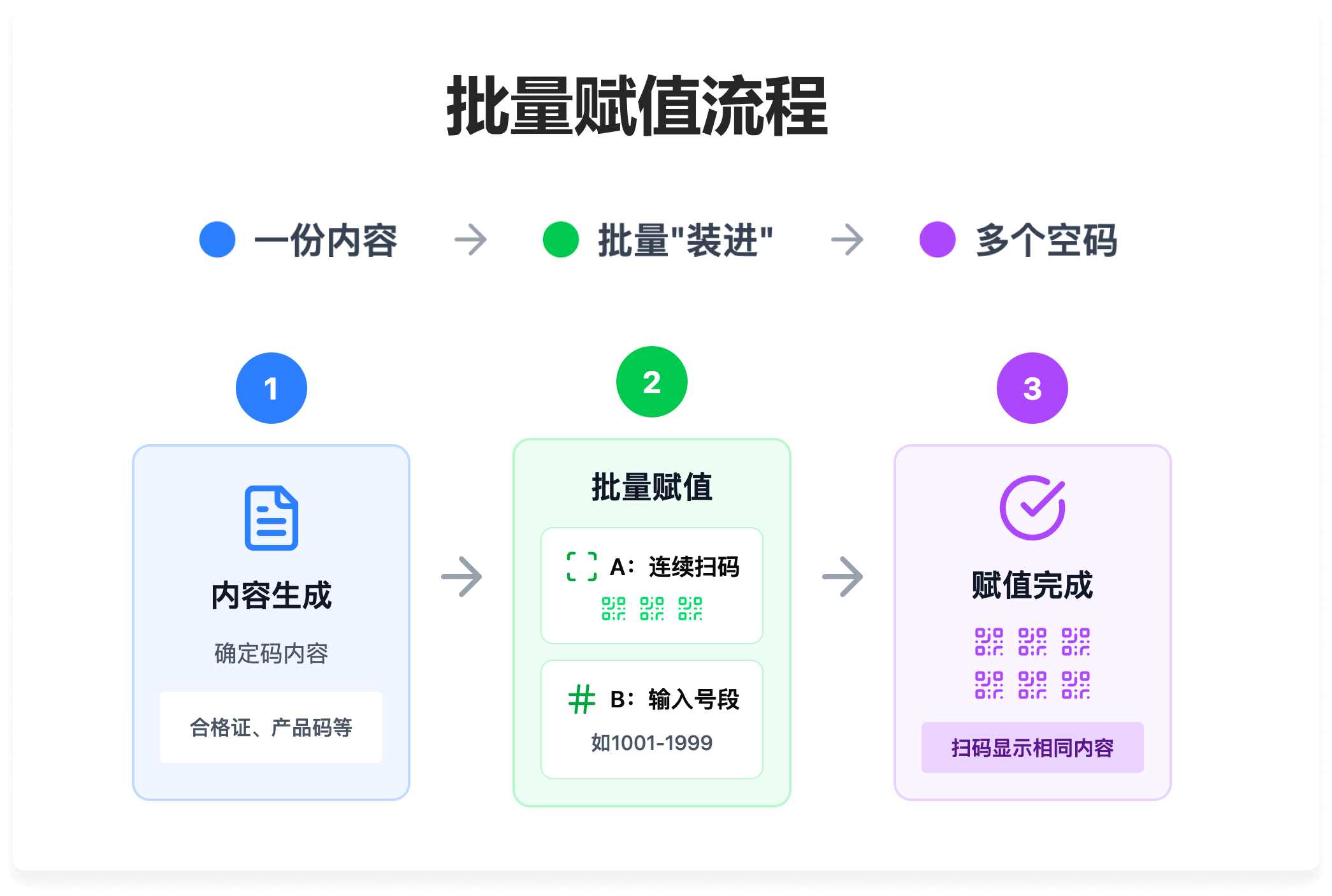
Previously, the same information had to be entered individually for each code (e.g., production variety, origin, test result). With bulk assignment, enter the information once and activate an entire batch of preprinted labels in a single step.
Two assignment modes, suited to different workflows:
- Continuous scan assignment: Scan multiple preprinted labels one by one with a mobile device. The system automatically links the current content to all scanned codes — no repeated submissions needed.
- Number range assignment: Enter the start and end number of a batch of preprinted codes (e.g., 001–100) to activate hundreds of QR codes with one tap. Maximum efficiency.
Video demonstration:
Key Use Cases
- Agricultural produce compliance certificates: At the harvest and packing site, for the same batch of vegetables or fruit, a single data entry activates an entire sheet or roll of compliance labels.
- Batch product labeling: For manufacturing floors that need to quickly label same-batch, same-specification parts or finished products at intake.
Tutorial
Three steps to get started:
- Prepare preprinted labels: Generate and print a batch of preprinted dynamic QR code labels in the workbench, or purchase ready-made CaoLiao preprinted labels directly. Purchase labels
- Create or select an existing code: Quickly create a new code on mobile, or scan a preprinted label, fill in data, and save it.
- Bulk assign: Use the "Bulk Assignment" feature to sync the above content to all other preprinted labels at once, achieving "assign content to a batch of preprinted labels — all show the same content when scanned."
Step 1: Prepare Preprinted Dynamic QR Code Labels (Pre-Requisite)
- Before starting bulk assignment, make sure you have a batch of preprinted labels ready:
- Create a new batch of preprinted labels and generate/print them from the workbench.
- Or purchase a batch of ready-made CaoLiao preprinted labels directly from the CaoLiao WeChat store. Purchase labels
Step 2: Enter the Assignment Interface
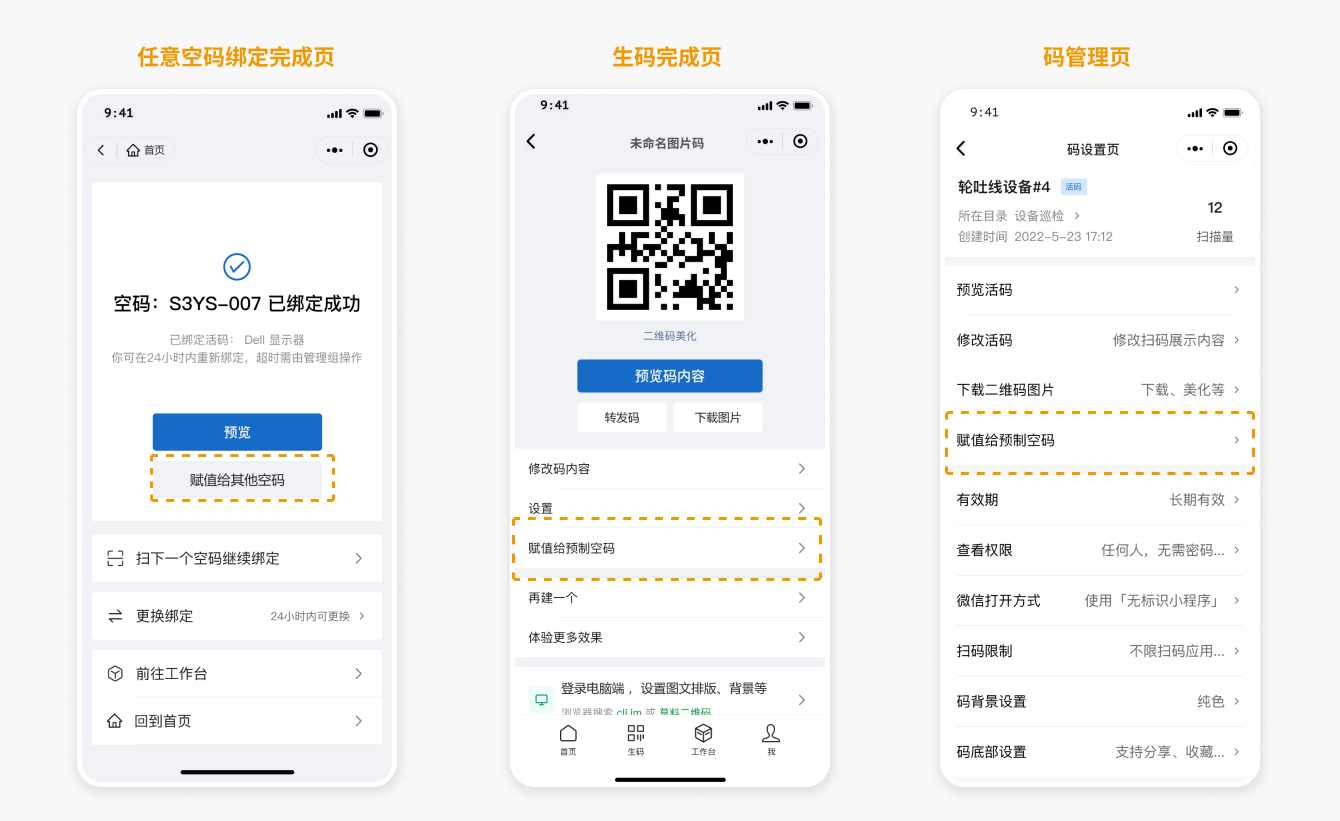
You can initiate bulk assignment from either of these entry points:
- Entry A (when binding a preprinted label): After scanning any preprinted label and completing the first assignment, tap "Assign to Other Preprinted Dynamic QR Code Labels" on the binding success screen.
- Entry B (from an existing or newly created dynamic QR code): On the mobile code creation success page, or the management page of an existing code, tap "Assign to Preprinted Dynamic QR Code Labels".
Step 3: Start Bulk Assignment
Select the assignment mode that suits your workflow (continuous scan or number range) and complete the entire batch activation.
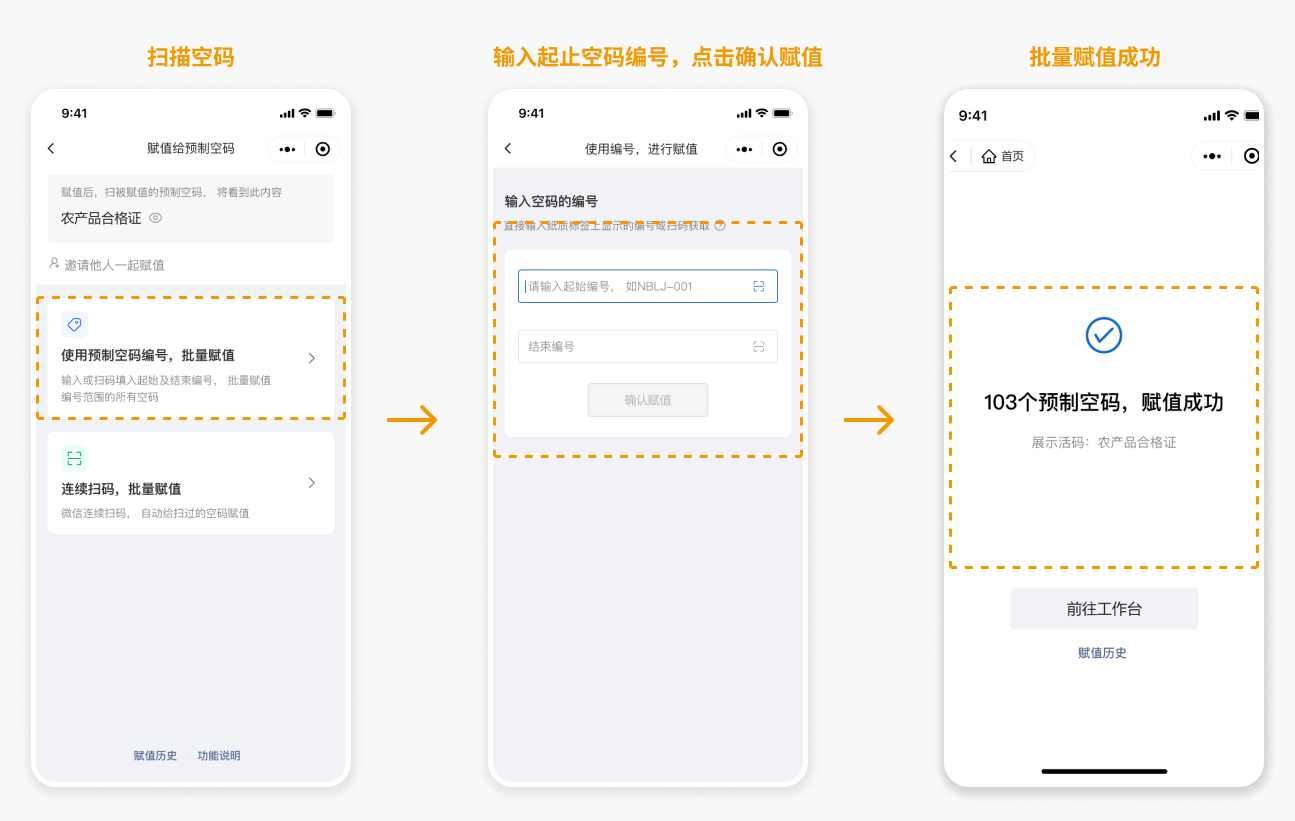
Number Range Assignment:
If your preprinted labels are organized and used in sequential order, you can enter or scan a label to input the start and end numbers (e.g., 001–100). This method can assign content to hundreds, thousands, or tens of thousands of preprinted labels at once — the highest-efficiency option.
Continuous Scan Assignment:
If label numbers are not used in a sequential order, you can also use your phone to scan multiple preprinted labels one by one. The system automatically links the current content to all scanned codes — no repeated submissions needed.
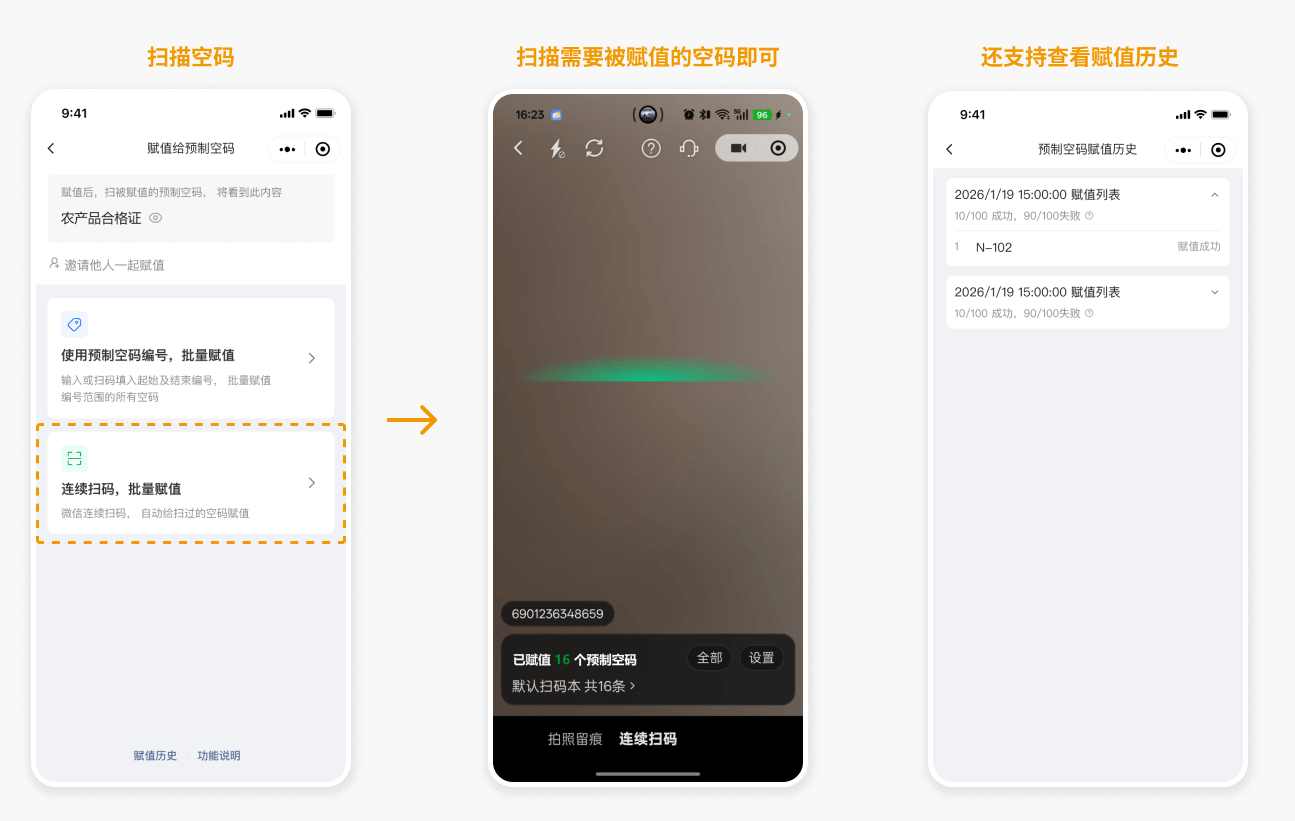
Assignment Failure Explanations
If the system reports a failure during the process, it is typically caused by one of the following:
- Preprinted label already assigned: The preprinted label is already linked to other content (non-blank state) and cannot be assigned again.
- Number not found: The number entered was not found in the current organization. Please verify that the preprinted label number belongs to the current account.
Invite Others to Collaborate on Assignment
To handle larger-scale production tasks, we provide an "Invite Others to Assign" feature:
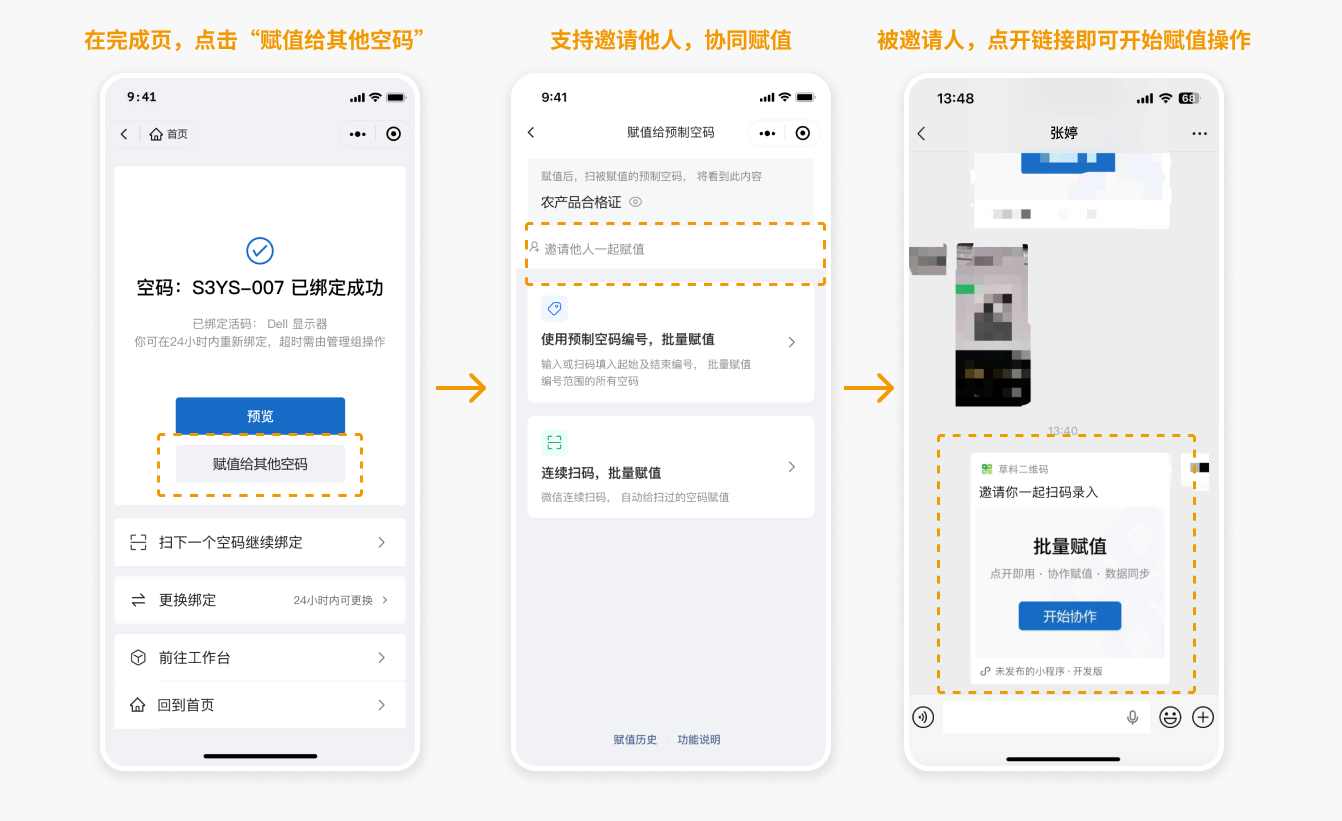
- Multi-person collaboration: Once the admin or person in charge has confirmed the code content, they can tap "Invite Others to Assign" and send the invite to on-site coworkers.
- Doubled efficiency: Coworkers don't need to log into the workbench or create codes from scratch. Simply scan to accept the invite and start bulk assignment on their own phones.
- Controlled progress: The person in charge can monitor the activation progress for the entire batch in real time, ensuring the on-site assignment task stays organized even under pressure.