Prefabricated dynamic QR code labels for the business workbench
Print a batch of labels showing only serial numbers, attach them to equipment on site, and scan to register each item. Your equipment register builds itself in the business workbench.
Key benefits
Larger print runs also have a lower unit cost. We recommend printing about 20% extra for new equipment, replacement labels, and relabeling.
How it works
Administrators generate labels on a computer. On-site staff attach them and register equipment by phone. The equipment register and progress update in real time:
In the business workbench, open “Label printing,” enter the quantity and serial number prefix, then generate, download, and print the labels.
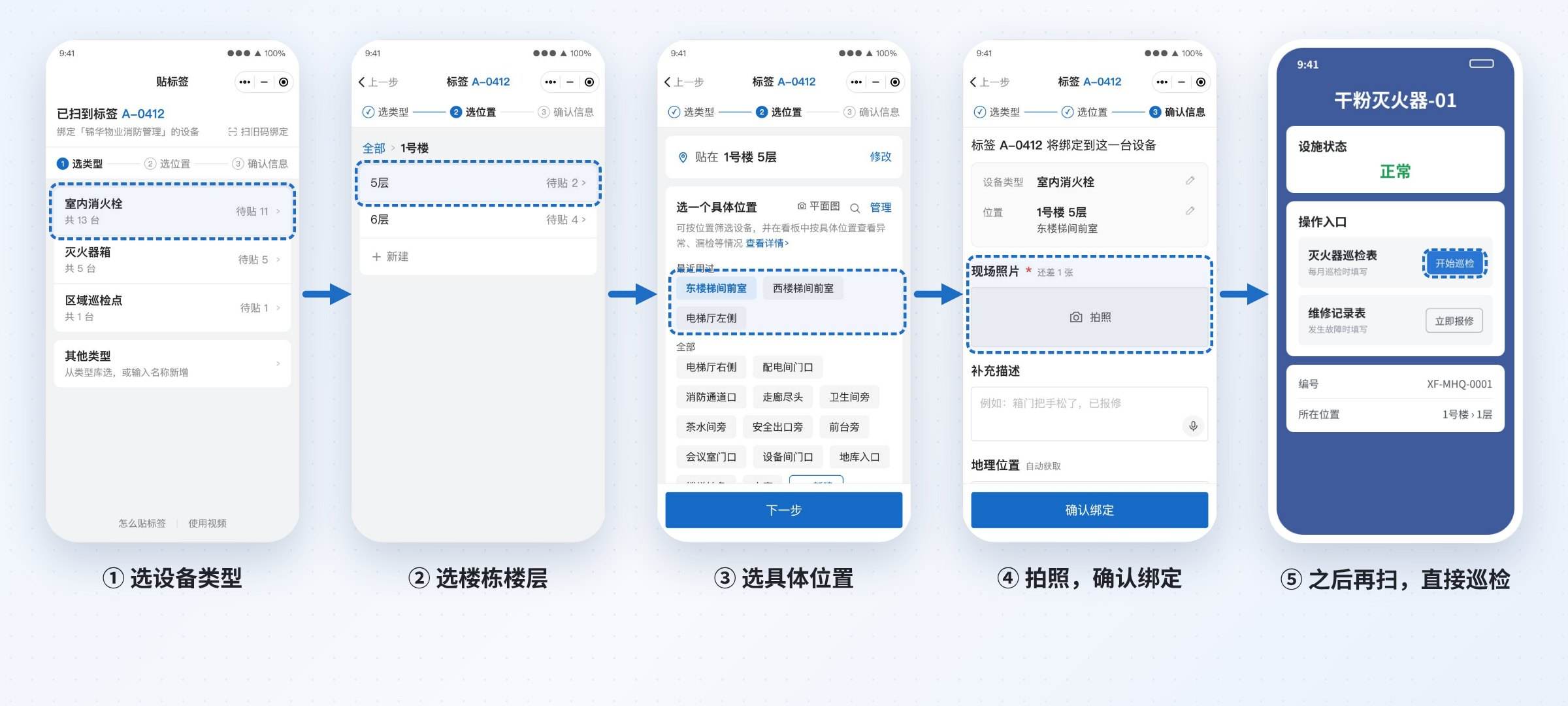
Attach a label, scan it with WeChat, choose the equipment type and location, then take photos and confirm.
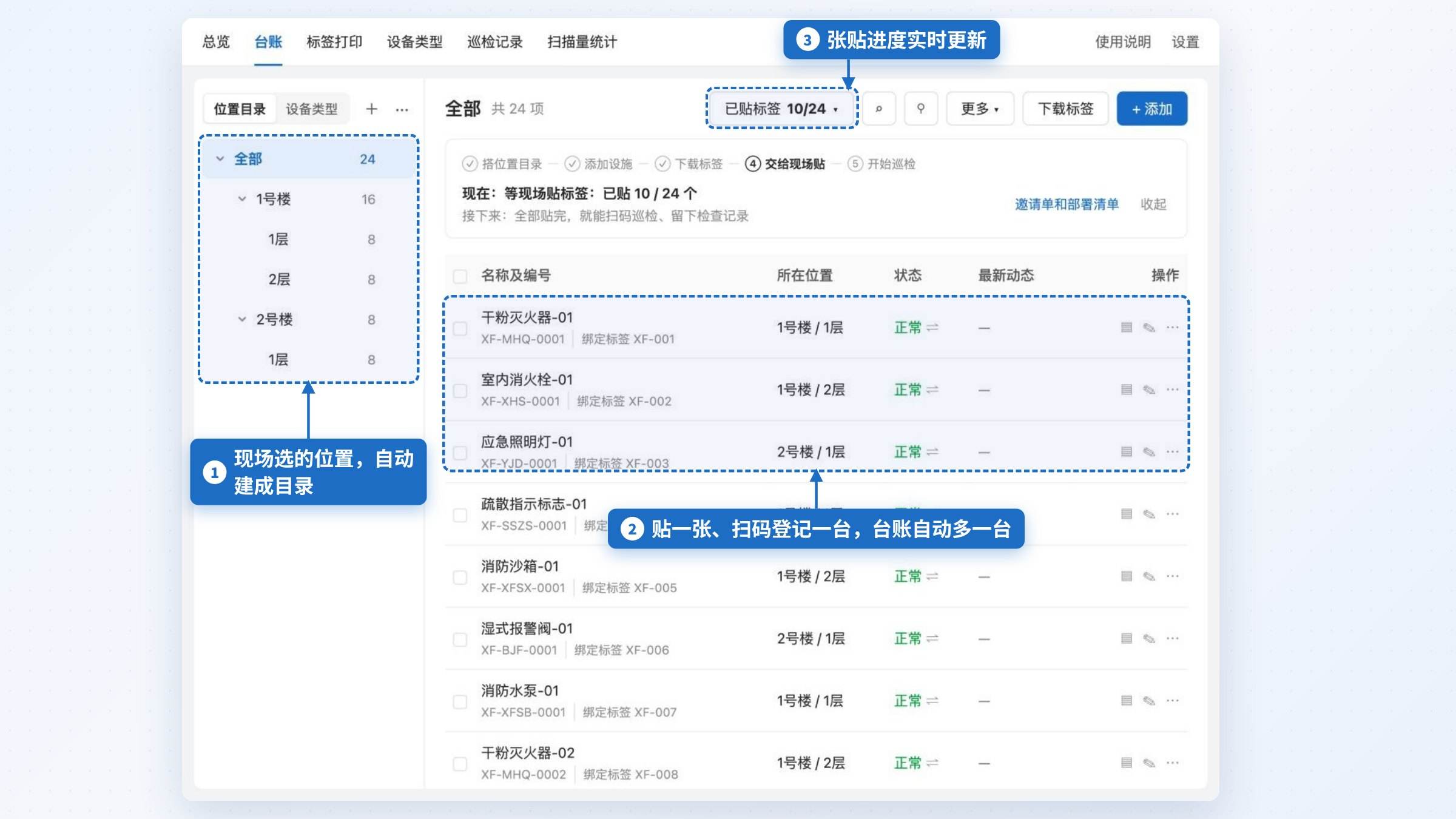
Registered equipment is added to the register and location directories are created automatically. Scan the label again to perform an inspection.
1. Generate and print labels
Open “Label printing” in the business workbench to generate prefabricated dynamic QR code labels. Enter a quantity and serial number prefix. When you first open the workbench, you can also click “Generate labels first” below the setup guide. You can set these registration requirements:
- Photo records: Require a minimum number of on-site photos before submission, making later checks easier. For example, require at least one photo per item showing both the equipment and its label.
- Complete other information: Have staff fill in other fields during registration, such as the manufacture and expiry dates for fire extinguishers, or the responsible person for fire hydrants.
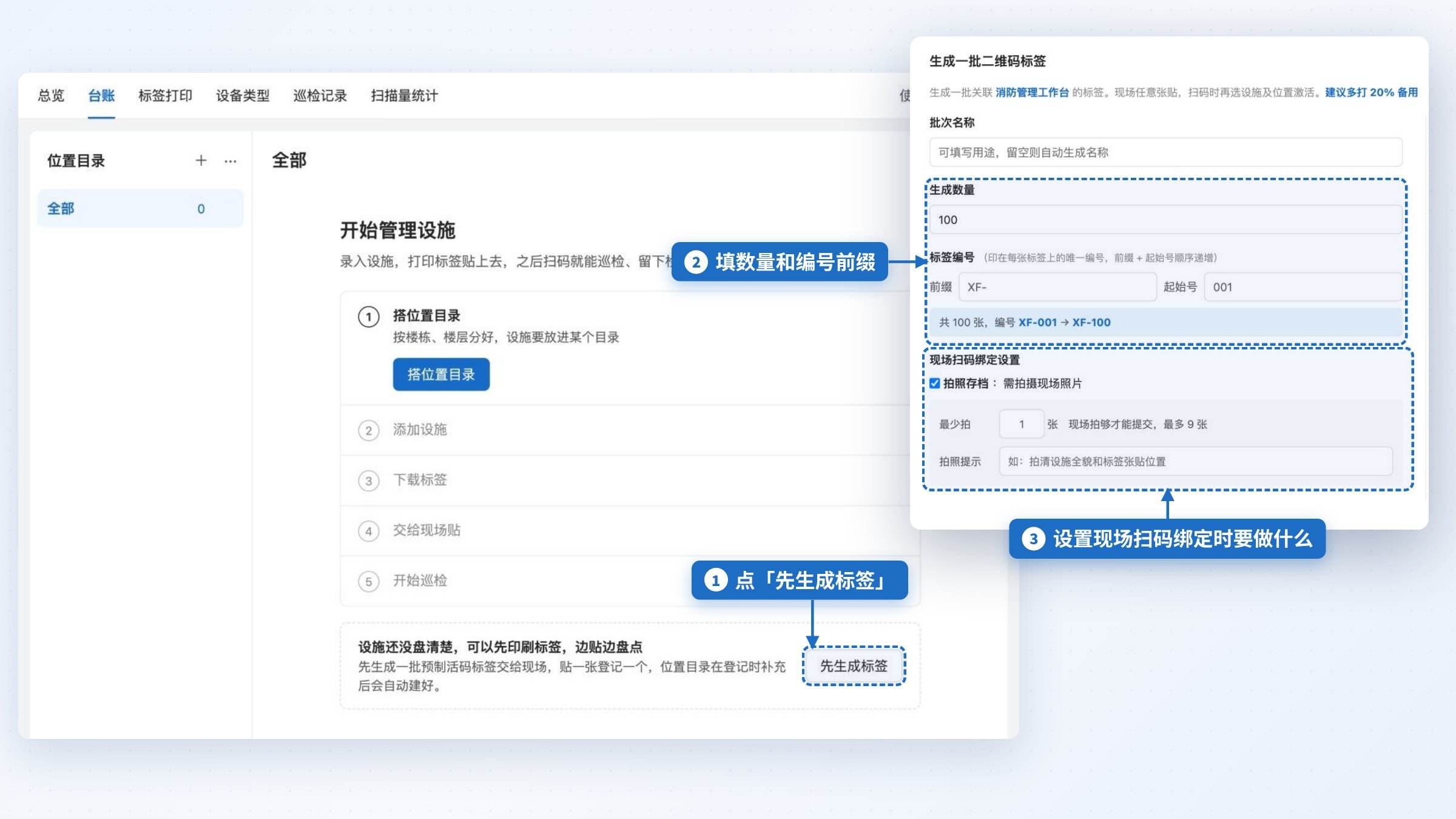
You can try printing on A4 paper first, then switch to PVC, metal, or other materials once you confirm the setup works for you. The same batch of QR codes will open the same content. See the Label printing and deployment guide.
2. Attach a label and register each item on site
Attach the label in a visible, easy-to-scan place on the equipment. Scan it with WeChat, select the equipment type and location, take photos, and confirm. The item is now registered. Scanning the label again opens that item so you can perform an inspection.
- Register even without existing locations: Enter a location such as “Building 1, Floor 3” to create the building and floor automatically. If locations already exist in the workbench, select them on site.
- Reuse specific locations: Once a specific location such as “East stairwell lobby” has been created, it can also be selected on other floors.
- Join the organization first: First-time users should follow the scan-page prompts to request to join the organization. They only need to join once.
3. Build your register automatically
Each item registered on site is added to the equipment register with its name, serial number, location, and linked label. The selected location automatically creates the corresponding location directories. For complete setup instructions, see the Business workbench setup guide.
Trace every deployment
The workbench records who attached each label, when, and where, along with on-site photos. Use these records for checks, audits, and handovers:
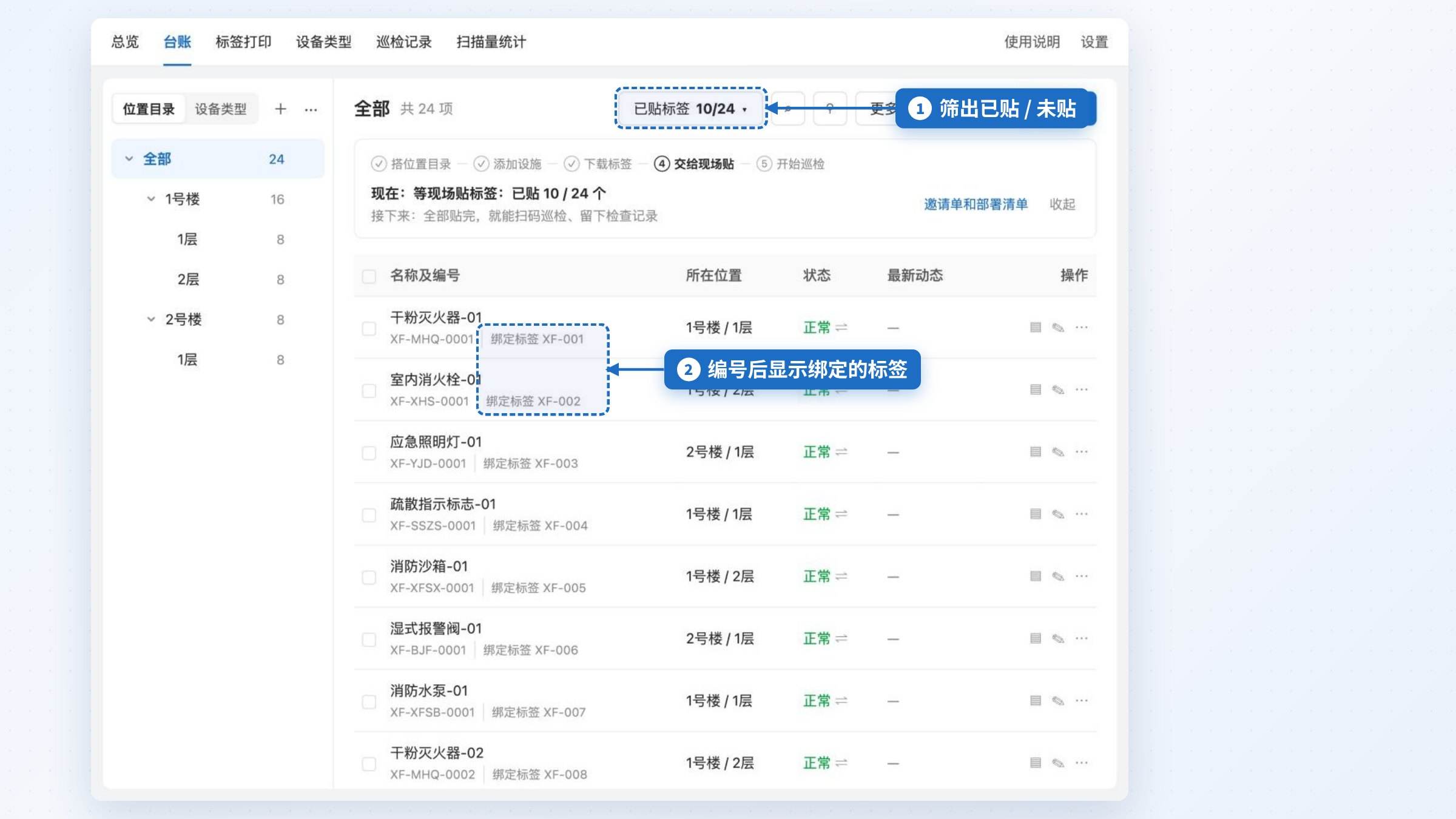
“Attached labels” in the toolbar shows how many labels have and have not been attached, and lets you filter for equipment still needing labels. Check progress by floor without visiting the site. In the equipment details, click “Deployment records” to view on-site photos and registration information:
Replace labels without losing records
A label is the scan entry point for an equipment item, rather than the record itself. Replacing a label does not remove the equipment or its records:
- Damaged or lost label: Attach a new prefabricated dynamic QR code label, scan it, choose “Scan to relink,” and link it to the original equipment. All inspection history is retained.
- Incorrect registration: Correct the type or location on the confirmation page. After registration, an administrator can also adjust it in the workbench; the content shown when scanned updates automatically.
- Existing QR codes: QR codes already attached to equipment can be added directly to the business workbench without relabeling. See Add existing QR codes to the business workbench.
Choose between prefabricated and dedicated labels
“Label printing” in the business workbench offers two label types. Both support inspections by scanning. The key difference is whether each label must match a specific item when attached:
Prefabricated dynamic QR code labelsRecommended · Use any label
- Printed content
- Serial number only
- How to attach
- Attach any label and register the equipment when you scan it
- When to print
- Enter a quantity and print, even before the register is ready
- Replacements / New items
- Attach a new label and scan it; existing records are retained
Dedicated labelsMatch each item
- Printed content
- Name, serial number, and location
- How to attach
- Find the matching equipment item before attaching the label
- When to print
- The equipment item must already be in the register before you can download its label
- Replacements / New items
- Download the label again for that item; add new items to the register first
Suitable scenarios
Prefabricated dynamic QR code labels suit large equipment inventories spread across multiple buildings and floors, especially when you want to begin without preparing the register first:
Other uses: general-purpose prefabricated labels
If you do not need to manage equipment by location, you can use labels separately under “Advanced features → Prefabricated dynamic QR code labels.” Scan to link an existing dynamic QR code, or enter content to create a new one. Suitable uses include:
- Fixed labels with changing content: For storage locations, workstations, reusable containers, and pallets, scan to relink when the content changes. You can schedule automatic unlinking to reuse labels.
- Marketing channel statistics: Link multiple labels to the same QR code, distribute them across different channels, and track scans for each channel separately.
- Display content before linking: Set a default page, such as your company introduction, to display before a label is linked to content.
For instructions, see the General-purpose prefabricated label guide.
Frequently asked questions
1. Can I start without an equipment register?
Yes. Generate prefabricated dynamic QR code labels for your on-site team. Attach a label and scan to register each item. The location directories and equipment register are created automatically.
2. Do I need to match hundreds of labels to individual items?
No. Prefabricated dynamic QR code labels show only serial numbers, so you can attach any label. Select the equipment item when scanning to register it.
3. How can I check whether labels were attached correctly?
Each registration records the person, time, geolocation, and on-site photos. Check labeling progress by location in the workbench, and scan a sample of items to verify their types and locations.
4. What if a label is damaged or lost?
Attach a new prefabricated dynamic QR code label and scan to relink it to the original equipment. All historical records are retained.
5. What should staff do if scanning prompts them to join the organization?
Only organization members can register equipment. Follow the prompts to request to join; this is only needed once. You can also download an invitation sheet in advance so staff can join before going on site.
6. How many labels should I print?
Estimate the number of equipment items on site and print about 20% extra for new items, replacements, or relabeling.
Contact us
If you need help printing labels or deploying them on site, scan the QR code to contact a dedicated consultant. We can help you complete setup and deployment.