General-Purpose Preprinted Dynamic QR Code Label Guide
Preprinted dynamic QR code labels use a "post first, scan on-site to add content" deployment method. You can print QR code labels in bulk ahead of time, post them on-site, then scan to bind an existing dynamic QR code or enter information to create a new one, increasing overall efficiency severalfold.
View the full introduction to preprinted dynamic QR code labels
The workflow has 3 stages
-
Create and configure: Generate a batch of preprinted dynamic QR code labels and set the binding rules for scanning.
-
Download and deploy: Print labels in bulk and post them on-site.
-
Scan and bind: Scan on-site to enter information or bind an existing code. Bulk binding is also supported.
1. Preparation in the Workbench
Step 1: Create Preprinted Dynamic QR Code Labels (Skip If Already Created)
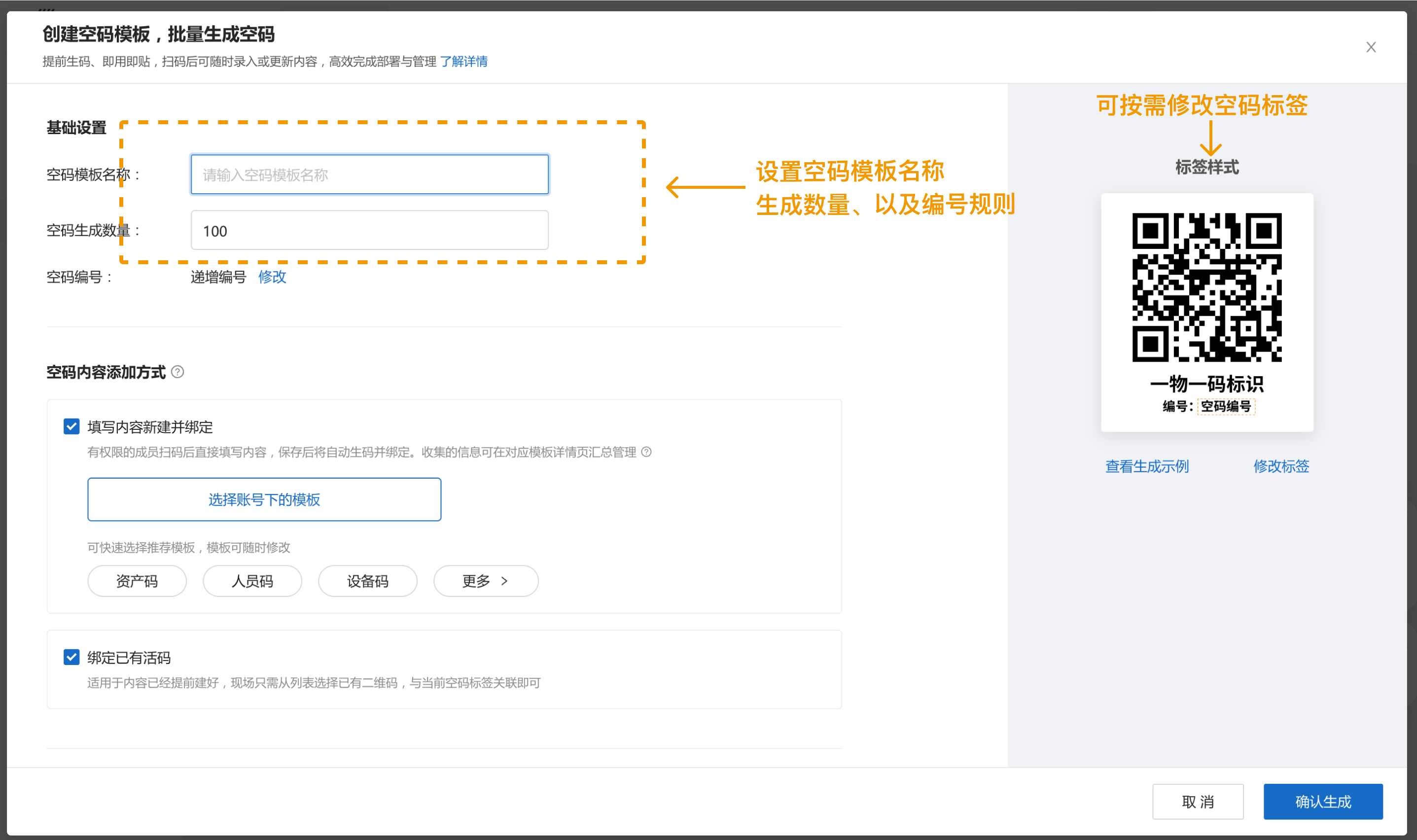
Log in to CaoLiao QR Code and open the workbench. Under "Advanced Features," select "Preprinted Dynamic QR Code Labels". Click "Create Preprinted Dynamic QR Code Labels" and enter the quantity, template name, numbering rules, and label style.
Create separate preprinted label templates for different purposes or scenarios, such as assets or equipment, to make ongoing management easier.
Step 2: Set How Content Is Added After Scanning (Key Step)
Many users enter only a quantity when creating labels and skip the content binding method, leaving them unsure how to use the labels after posting them.
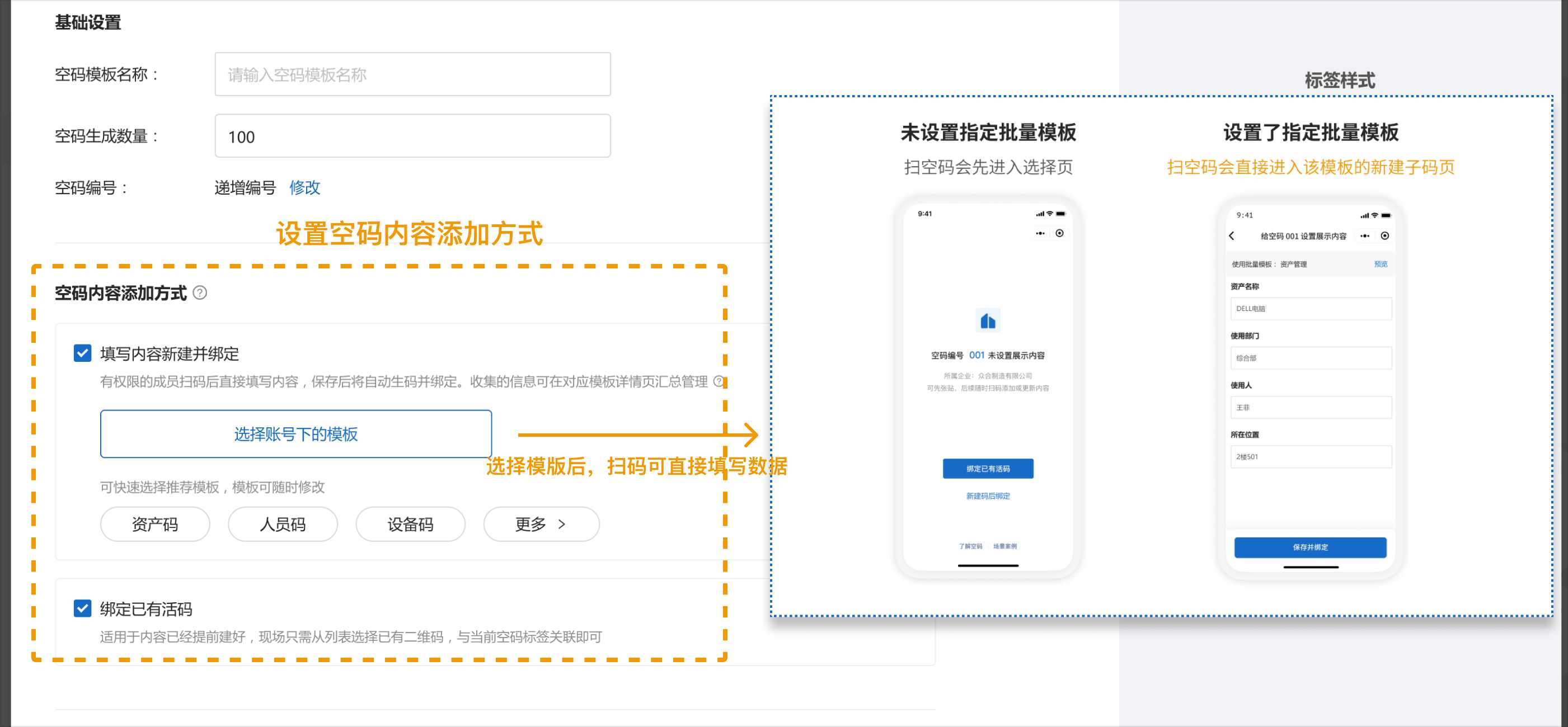
This step determines what on-site staff can do after scanning. On a computer, open "Preprinted Dynamic QR Code Label Template Settings" and select the "Preprinted Dynamic QR Code Label Content Binding Method":
1. Method 1: Bind an Existing Dynamic QR Code (If Content Is Already Prepared)
-
When to use it: Equipment or item codes have already been created on a computer and just need to be matched to labels on-site.
-
On-site workflow: The admin creates dynamic QR codes in advance → Staff scan a label → Select a dynamic QR code from the list to bind.
-
Advantage: Fewer errors; staff only need to select a code and bind it.
2. Method 2: Enter Content On-Site, Then Create and Bind a New Code (If Information Must Be Entered On-Site)
-
When to use it: Information needs to be added on-site, and you want consistent fields to avoid inconsistent entries.
-
Setup: The admin prepares a bulk template on a computer, such as an asset label template, and links it in the preprinted label template.
-
On-site workflow: Staff scan, fill out the form, and submit. A dynamic QR code is automatically created and bound.
⭐ Strongly Recommended: Set a "Linked Template"
If you already know the purpose, such as assets, equipment, or visitors, link a specific template. Staff who scan can then:
- Go directly to the information entry page
- ❌ Skip template selection
- Work with the greatest on-site efficiency and fewest errors
Step 3: Set Who Can Bind Content to Preprinted Dynamic QR Code Labels
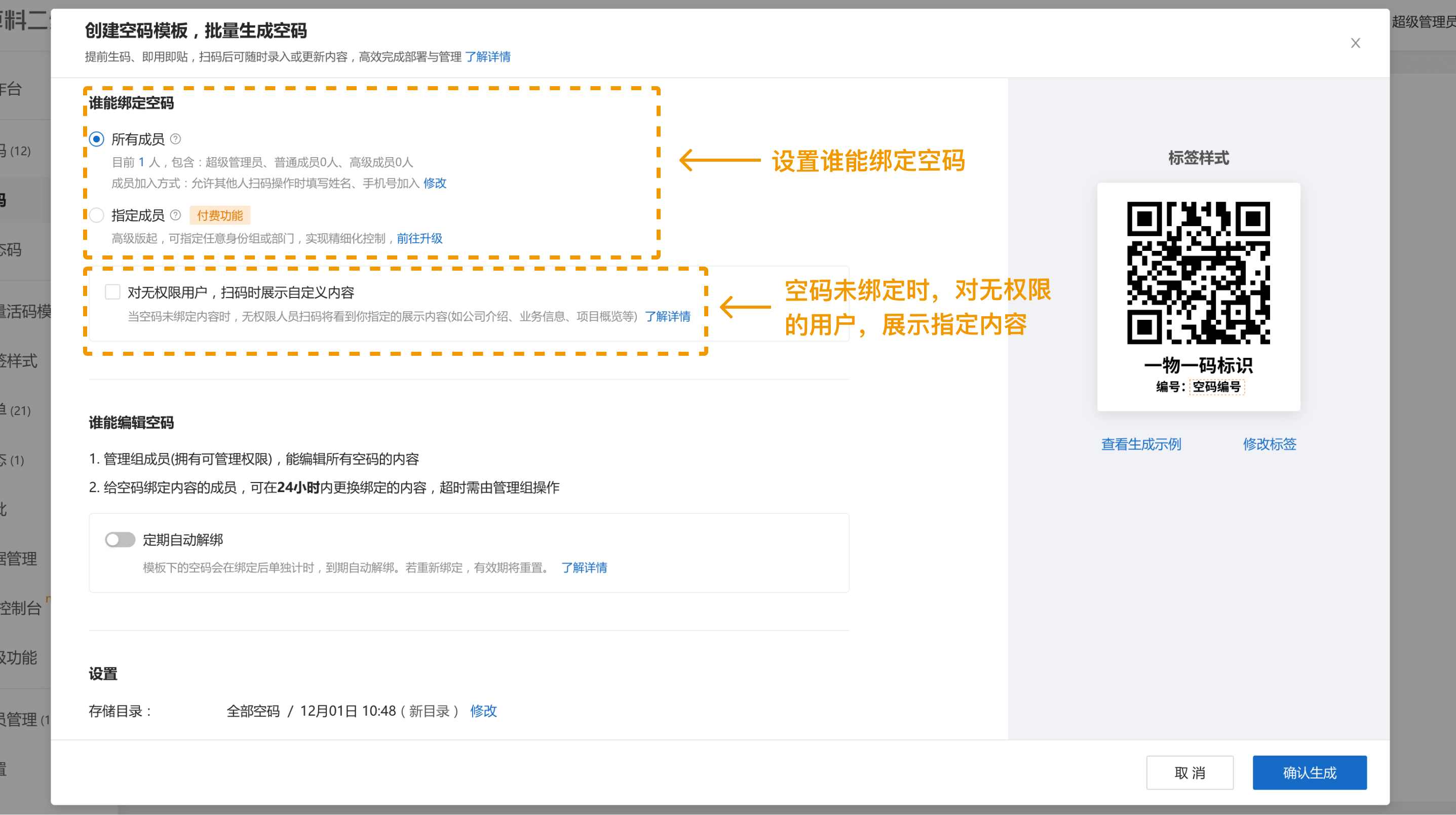
Set member permissions in the template to control binding and subsequent changes:
-
By default, all members in the organization can bind labels on mobile.
-
Starting with the Advanced Edition, you can restrict binding to designated members.
-
The admin group can rebind preprinted labels at any time.
-
Members who bind content can change the binding within 24 hours. After that, the admin group must make the change.
-
Scheduled automatic unbinding is supported for reusable visitor passes, circulating materials, and similar scenarios. Labels automatically unbind when the period ends, avoiding reprinting.
After configuration, click "Confirm Generation" to generate multiple preprinted dynamic QR code labels at once, ready to download and print.
2. On-Site Deployment
Step 4: Print and Post Preprinted Dynamic QR Code Labels
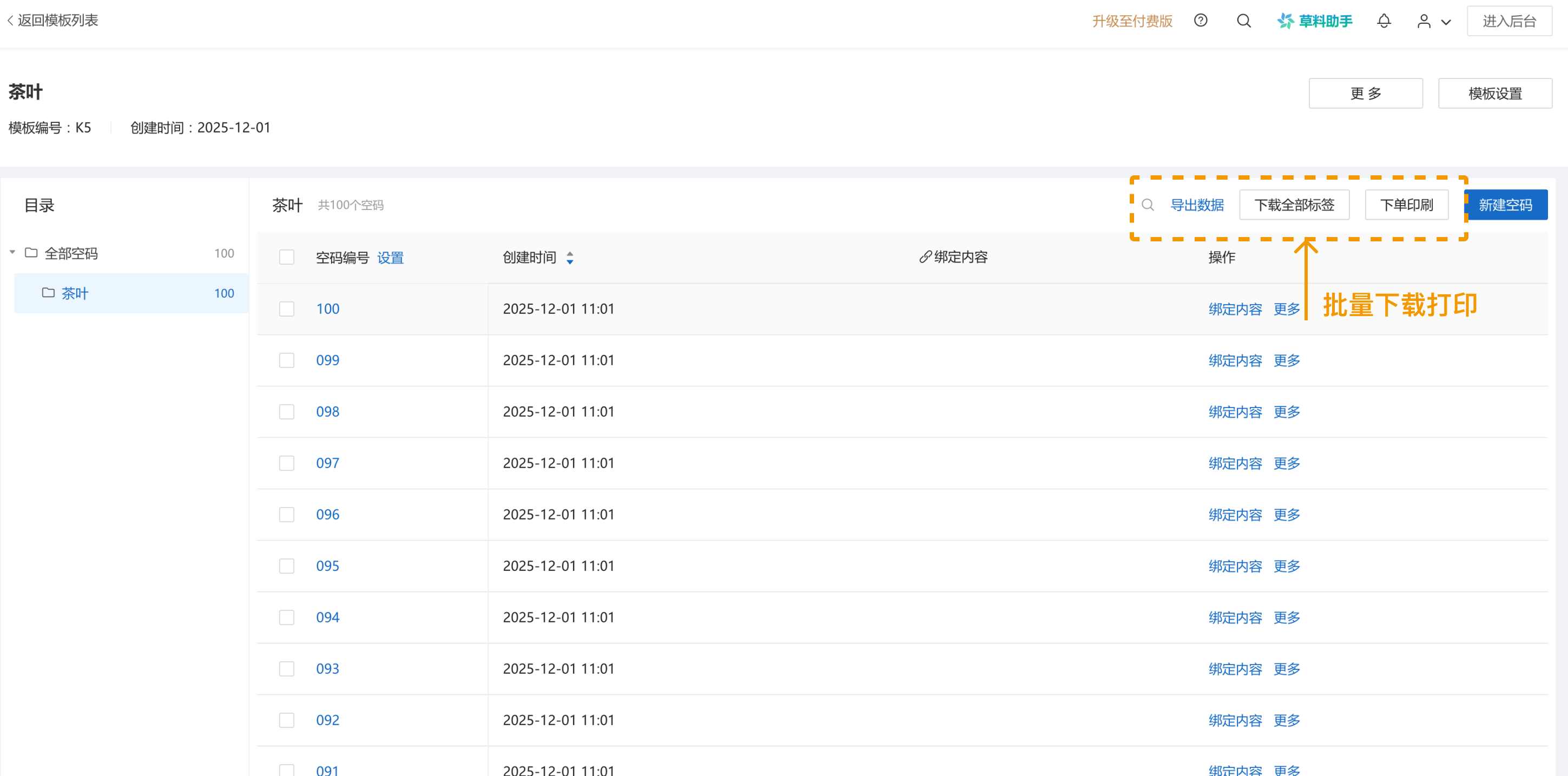
After completing the settings above, download, print, and post the labels. In the workbench, click Download All Labels. Print the preprinted labels and distribute them to staff to post on equipment, shelving, or materials. At this point, they are still unactivated "empty shells."
Step 5: Scan and Bind On-Site
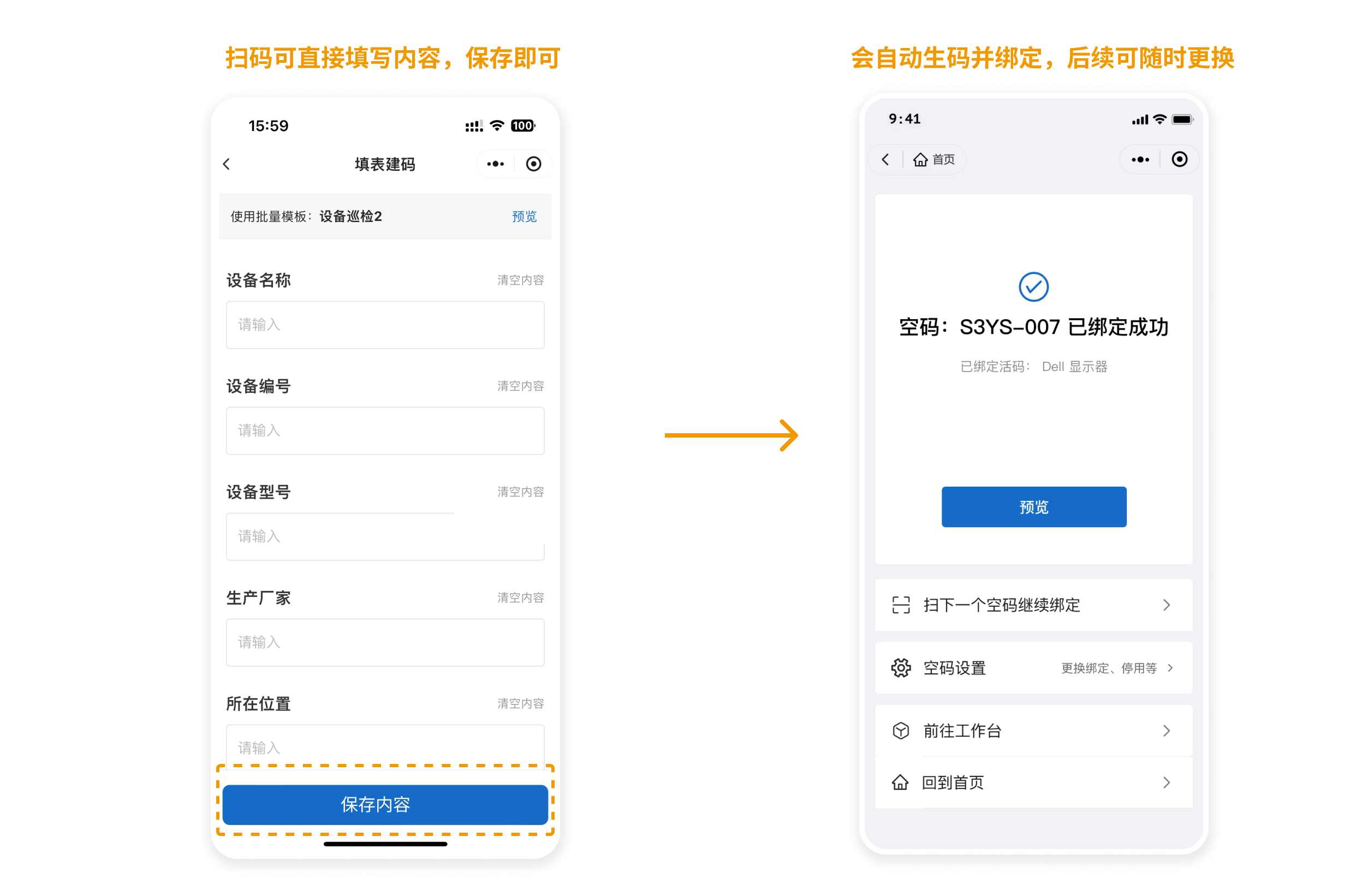
Staff can use WeChat on their phones to scan preprinted dynamic QR code labels and bind content on-site. Once configured, scanning the label opens the bound dynamic QR code directly.
- If a "Linked Template" is configured: Scanning opens the sub-code content entry page for that template directly. Staff just enter the information and save.
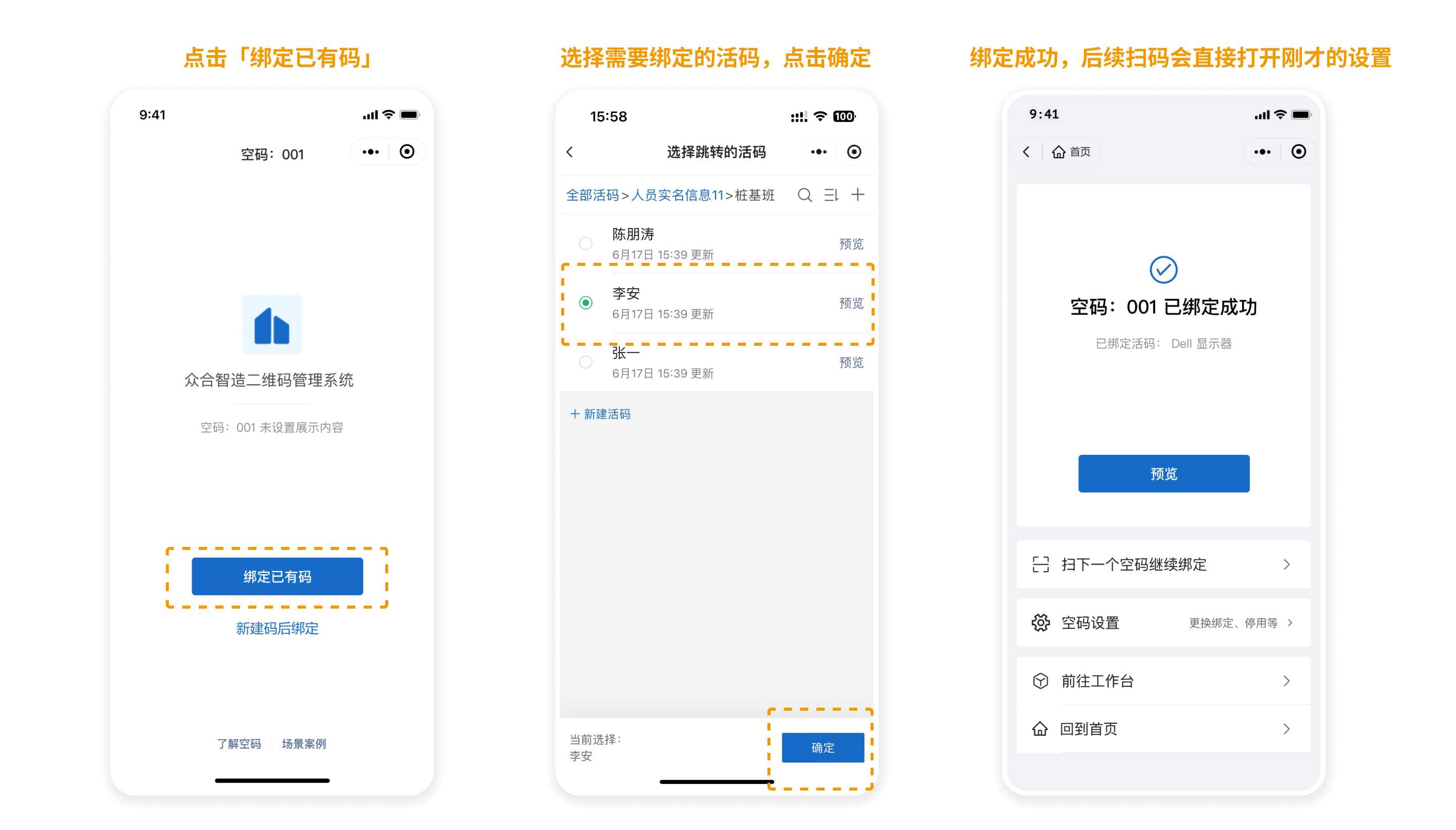
- If "Bind an Existing Code" is configured: Staff select the corresponding code from the list and confirm.
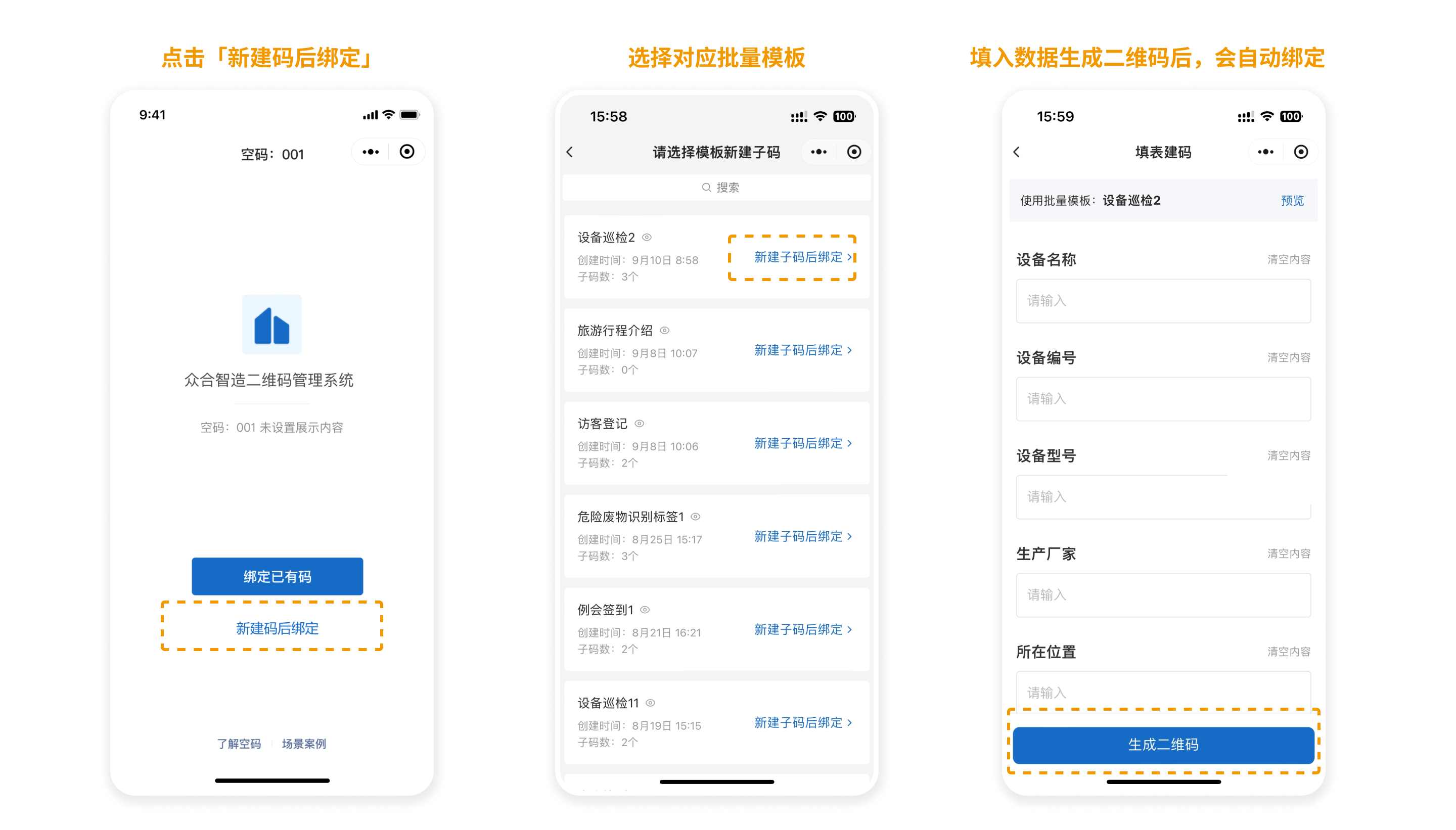
- If "Enter Content to Create and Bind a New Code" is configured without a specific linked template: Staff first open the template list, select a template, then enter the content and save.
Efficient Bulk Assignment
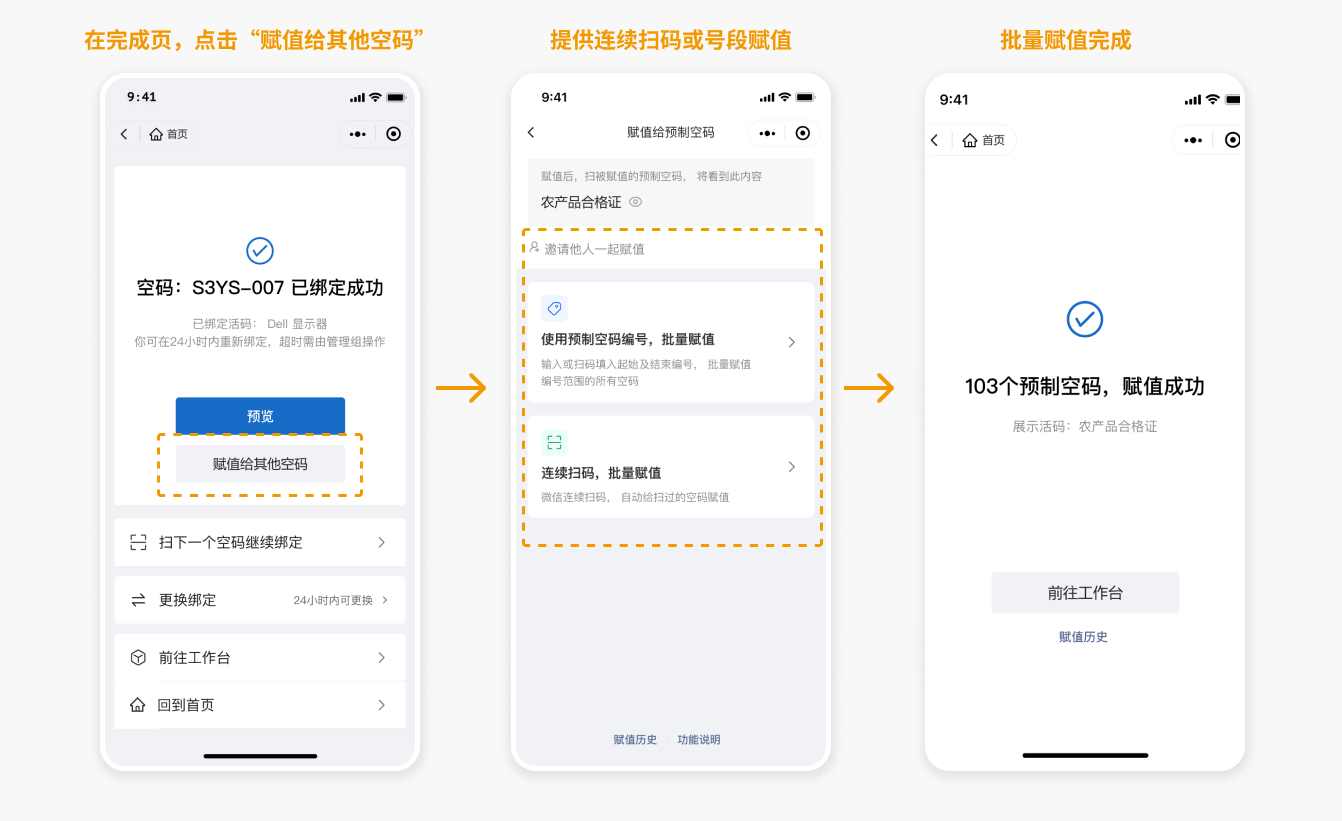
To reduce repetitive data entry and cumbersome steps when assigning content on-site, we introduced "Preprinted Dynamic QR Code Label Bulk Assignment." It quickly binds code content to multiple preprinted labels at once, making on-site assignment as efficient as an assembly line. Learn about bulk assignment
What If the Binding or Entered Information Is Wrong?
-
Within 24 hours: The staff member who bound the label can scan again and use "Rebind" in the lower-right corner to make changes directly.
-
At any time: Admins have the highest permissions in the workbench and can unbind or rebind at any time.
How to Export a Sub-Code Ledger
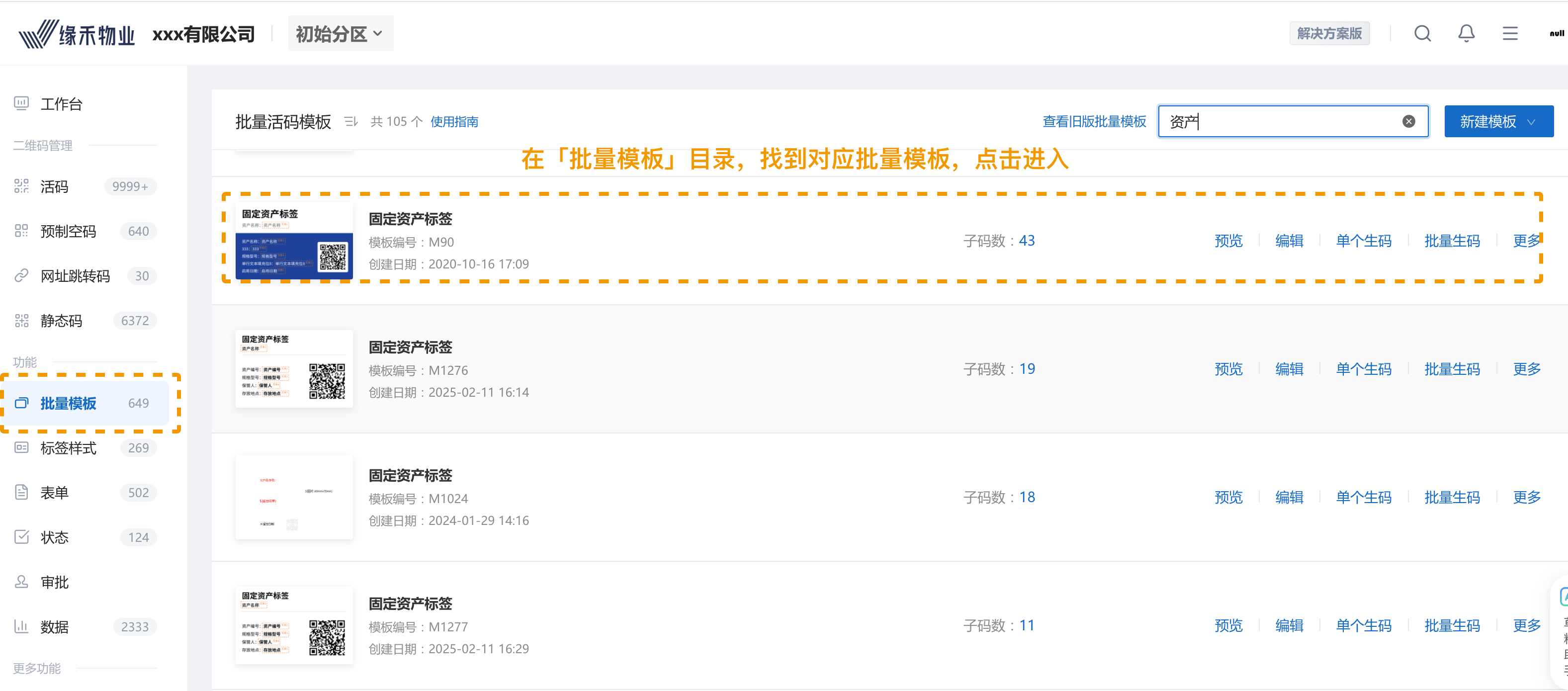
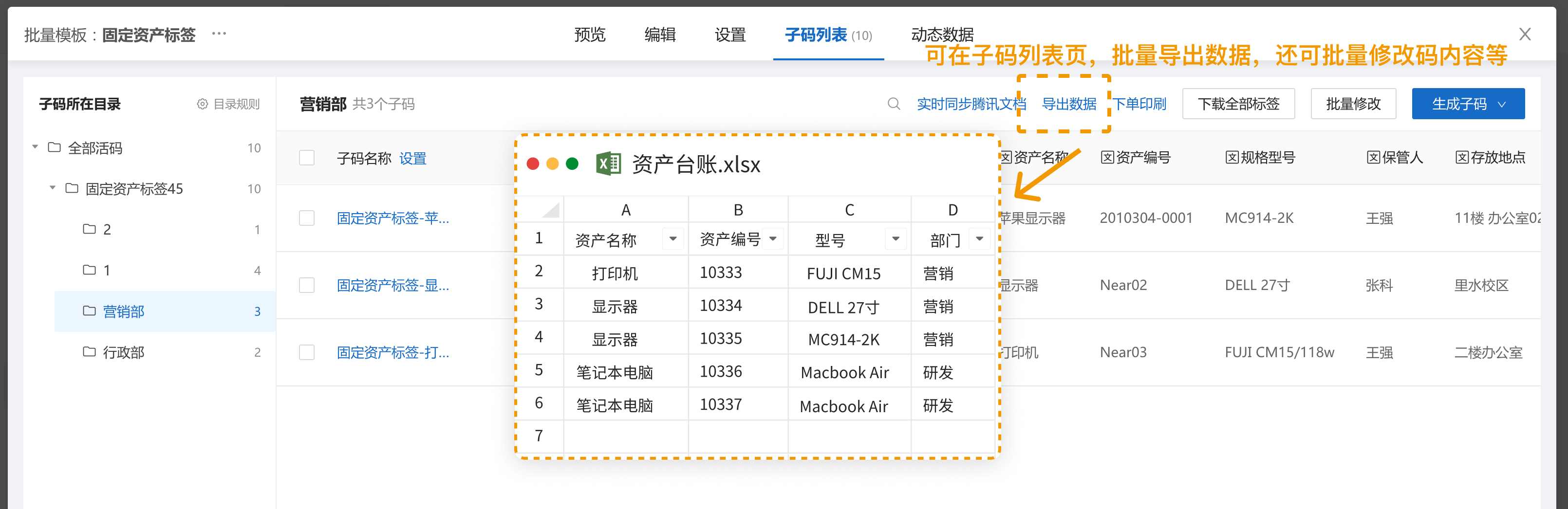
If you linked a specific bulk template when creating the preprinted label template, find that template under "Bulk Templates" in the workbench and export the code field information to keep as a ledger.
3. Advanced Usage
1. What Appears When a Label Is Scanned Before Binding?
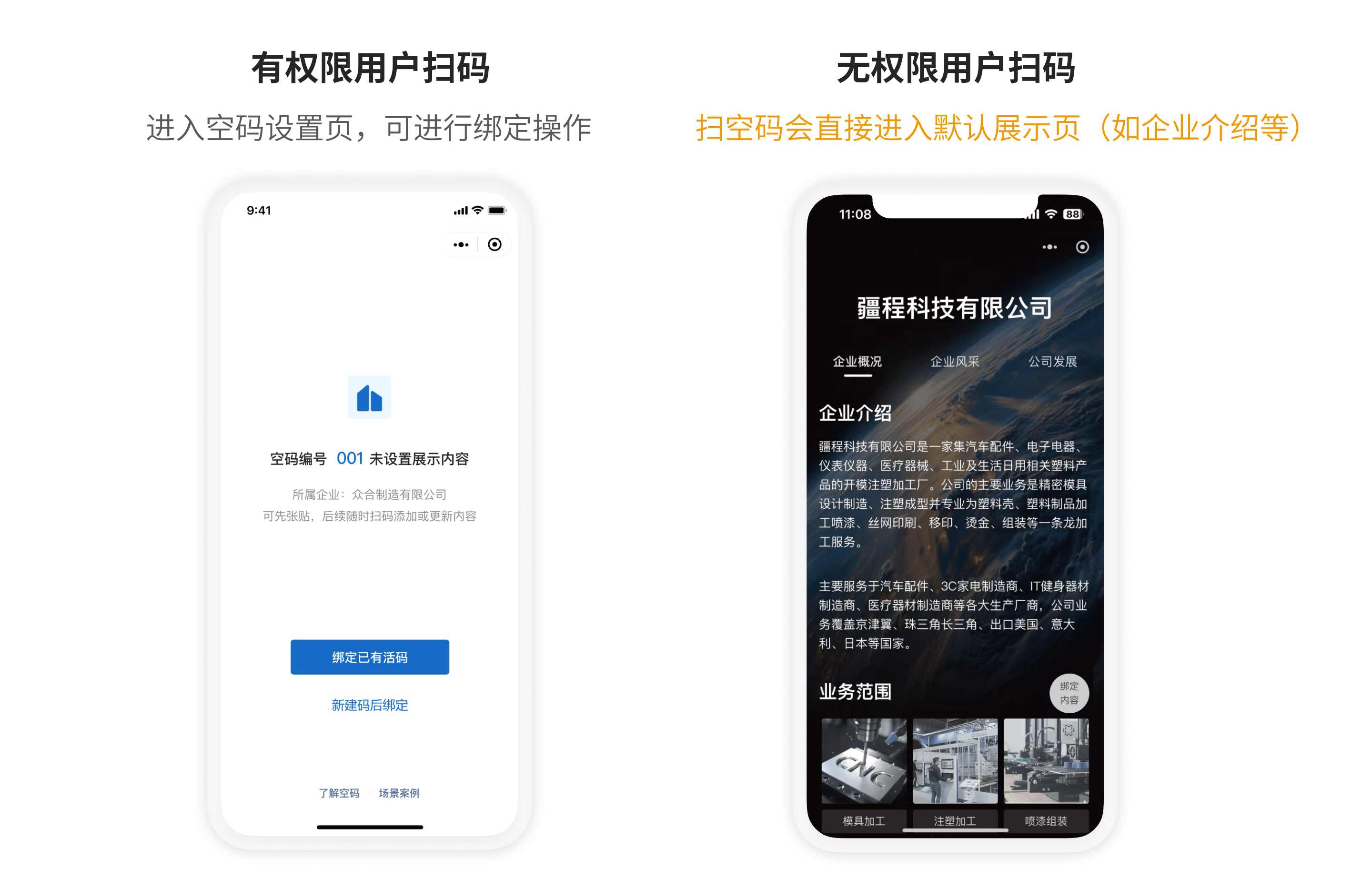
If labels have been posted but no content is bound yet, you can set a default display page.
Users without binding permissions see your custom content page, such as a company introduction, business overview, or project summary. This allows preprinted labels to support both internal management and external brand presentation.
Example: A security equipment company posts preprinted labels on showroom demo units. Customers who scan see the company's business introduction and contact information. Internal staff can access the settings to add content to the labels.
2. Reuse: Scheduled Automatic Unbinding
Set an automatic unbinding interval for preprinted labels, such as 1 day, 3 days, 7 days, or half a month. After the specified time, bound labels under the template automatically unbind and return to their initial unbound state. Automatic unbinding and reuse reduce manual maintenance and keep labels ready for long-term use.
Example Scenarios:
1) Warehouse circulation: Tote bins and pallets circulate between production stages and automatically unbind when the period ends, ready for reuse.
Example: A manufacturing plant posts preprinted labels on production-line tote bins. Each shipment is bound to a new batch. After 7 days, the labels automatically unbind, clearing the old data at the end of the cycle so the bins can be used again.
2) Temporary ID badges / passes: Temporary visitors scan to register, and access expires after the period of validity.
Example: A construction site gives temporary workers preprinted label passes with a 15-day period of validity. They automatically unbind on expiry. The next group can reuse the badges, saving time on badge creation and cleanup.
4. FAQ
1. What Should I Do After Creating Preprinted Dynamic QR Code Labels?
-
If you have already created dynamic QR codes or templates: Set the content binding method first (see Step 2 above), then download the preprinted labels in bulk, print them, and distribute them for use.
-
If you have never created any dynamic QR codes or bulk templates:
Go to "Bulk Dynamic QR Code Templates" and create a template for entering information by scanning on mobile later. New template tutorial
Then return to the preprinted labels and link the template.
2. What If I Have No Dynamic QR Codes or Templates Yet?
Go to [Bulk Dynamic QR Code Templates] and create a template first. New template tutorial
Then return to the preprinted labels and link it.
3. Who Can Bind Content to Preprinted Dynamic QR Code Labels?
-
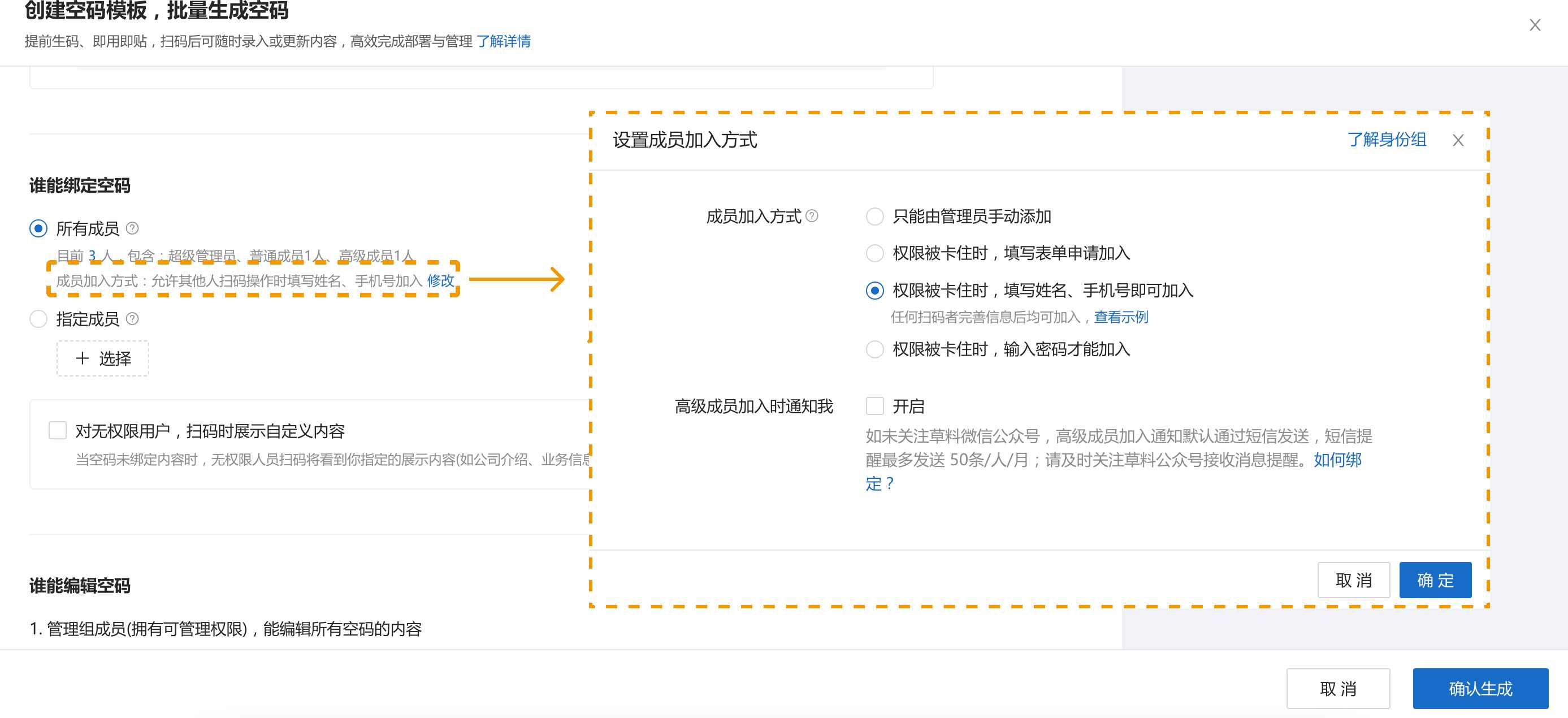
By default, all organization members can bind content. Joining follows the organization's member enrollment settings, which can require a name and phone number, a password, or other methods.
-
You can restrict binding to designated members.
-
The admin group and advanced members can bind content on desktop or mobile. Basic members can only bind on mobile.
4. Who Can Create or Delete Preprinted Dynamic QR Code Labels?
- Only the admin group with management permissions can create or delete labels in the desktop workbench.
5. What If a Label Is Bound Incorrectly?
-
The admin group can rebind at any time.
-
Members who bind content can change it within 24 hours. After that, the admin group must make the change.
6. What If Staff See a No-Permission Message When Scanning?
-
By default, all organization members can bind content.
-
Joining follows the organization's member enrollment settings, which can require a name and phone number, a password, or other methods.