A4 Die-Cut Adhesive Sticker Printing Tutorial
Die-cut adhesive paper is a self-printable adhesive product. With A4 die-cut adhesive paper and an A4 laser printer, you can quickly print a batch of QR code labels. The sheets are pre-cut, so after printing you can peel the labels off and use them right away, which is quick and convenient.
Read Before You Start
Recommended use cases: Indoor use, low durability requirements, or one-time use; you can quickly print more later with a printer.
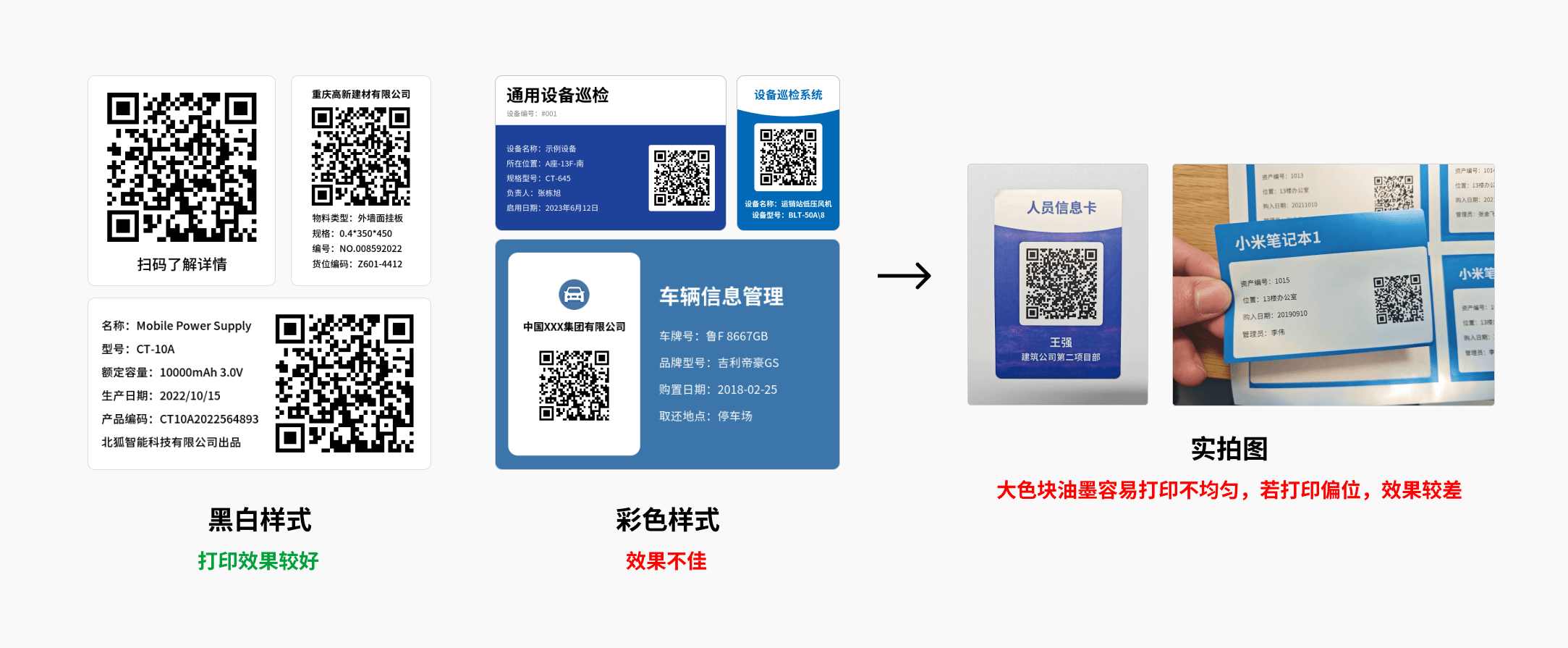
Recommended styles: Black-and-white styles are recommended. Color styles demand more from the printer and often cause misalignment, poor results, or ink flaking. If you want to print them, buy a small quantity to test first.
Printer requirements: You need an A4 laser printer (the printer must support heavyweight paper or label paper!). Inkjet printers are not recommended.
Notes: Die-cut adhesive paper is not laminated, is only slightly waterproof, and the print rubs off easily with repeated friction, so it is not suitable for places that are wiped or rubbed often. Download the PDF print file on the website first, then buy die-cut paper that matches its size. Don't buy first and generate codes afterward, or the sizes may not match.

CaoLiao offers die-cut paper in two materials, coated paper and silver PET. The paper weighs 150 g/m² and fits the layout files on the website. The cost per label is ¥0.03-0.06.
| Coated-paper die-cut adhesive | Silver die-cut adhesive | |
|---|---|---|
| Cost | About ¥0.03 each | About ¥0.06 each |
| Material | Coated paper (white surface) | Silver PET (silver surface) |
| Pros and cons | Tears easily; average adhesion | Hard to tear; better adhesion than coated paper |
| Edge finish | Rounded corners | Rounded corners |
| Printer | A4 laser printer | A4 laser printer |
| Coated-paper die-cut adhesive | Silver die-cut adhesive | |
| ------ | ------ | ------ |
| Result | 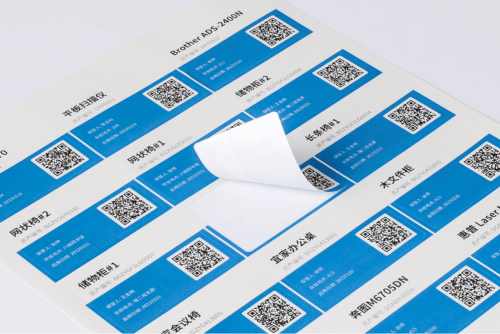 | 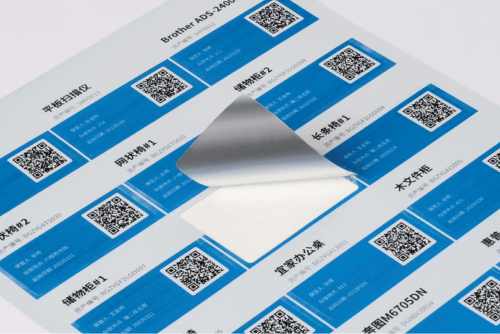 |
| Where to buy |  |  |
1. Printing Tutorial

Download the Print File
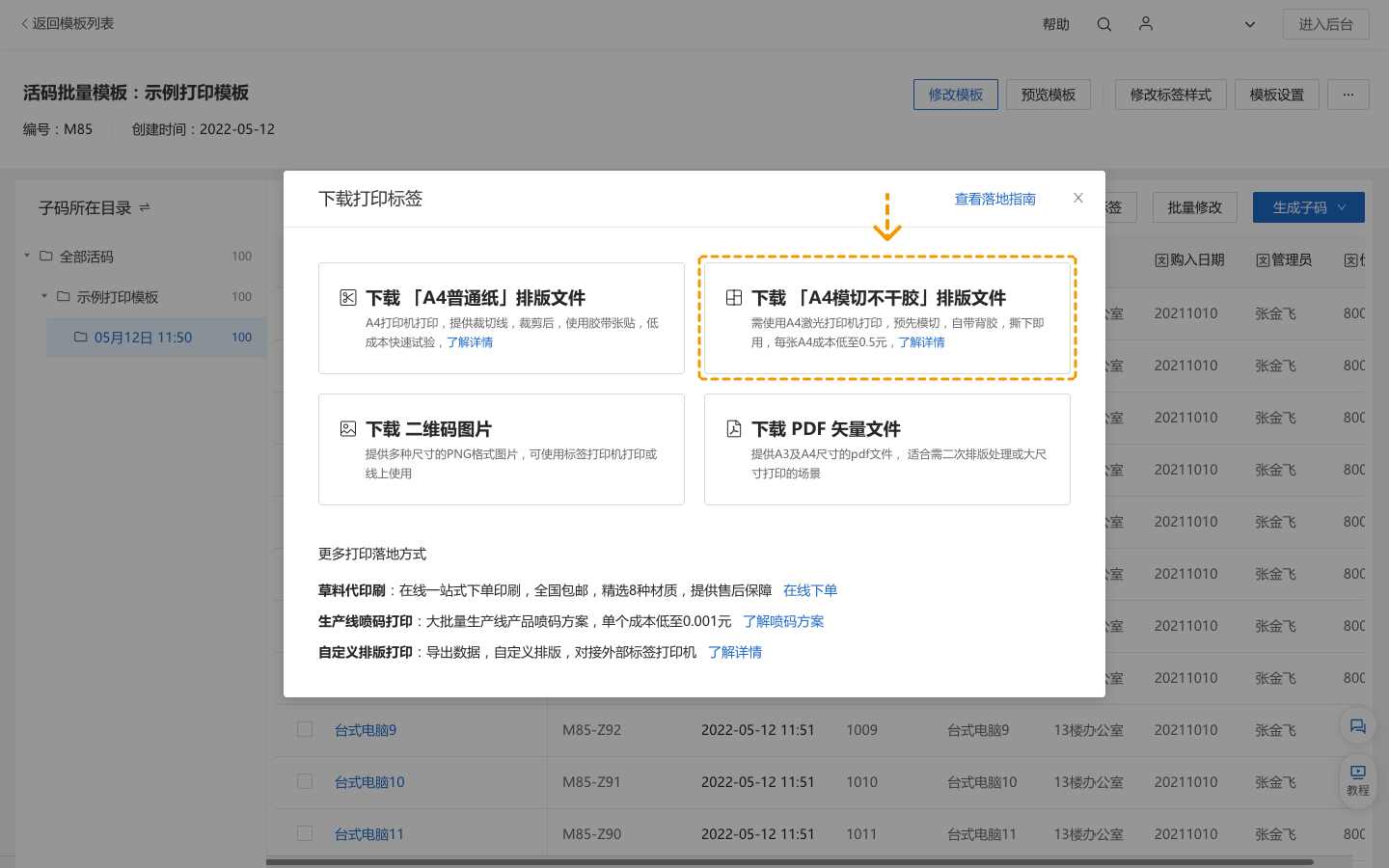
Go to the bulk template detail page and click [Download Print Labels].
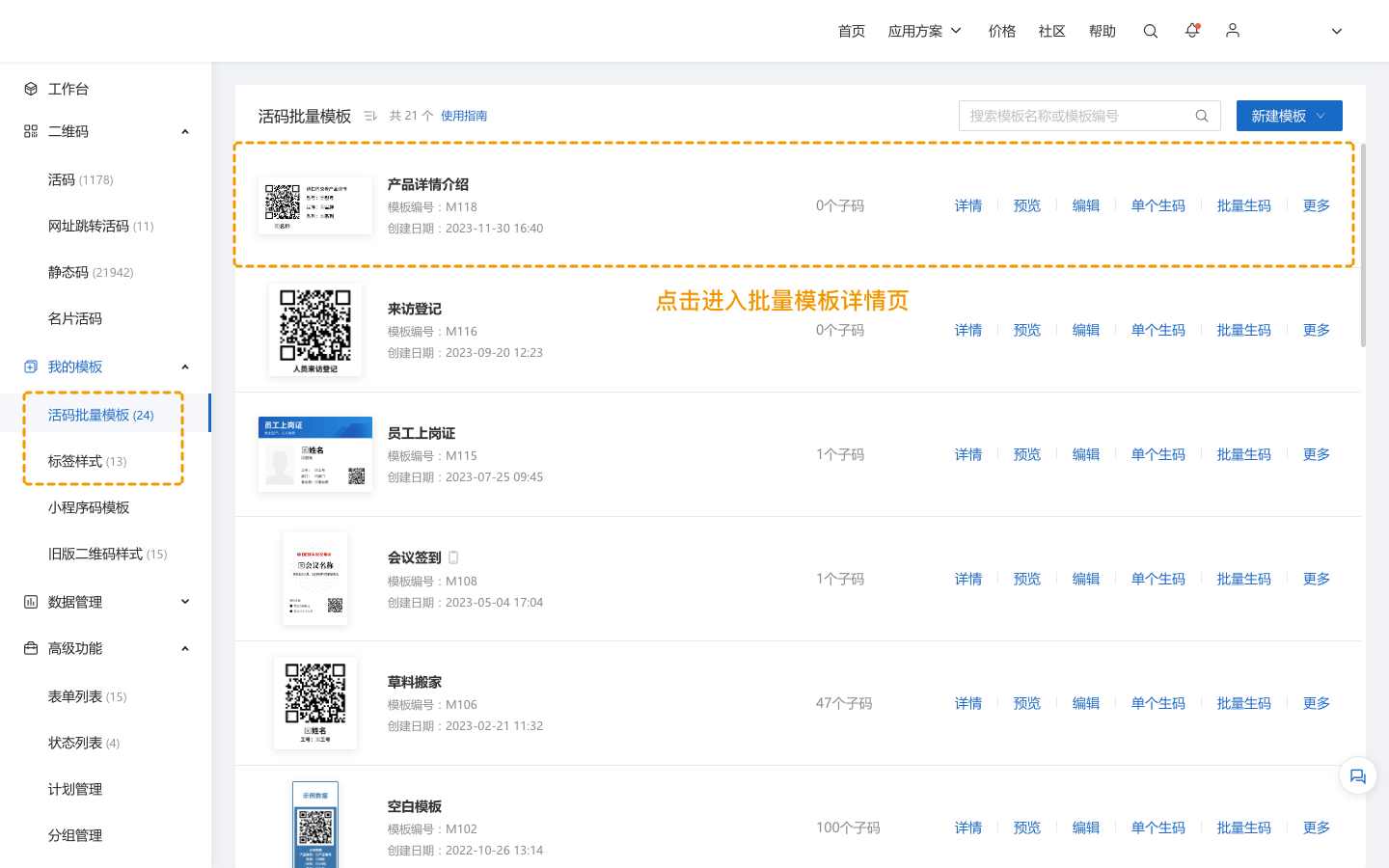
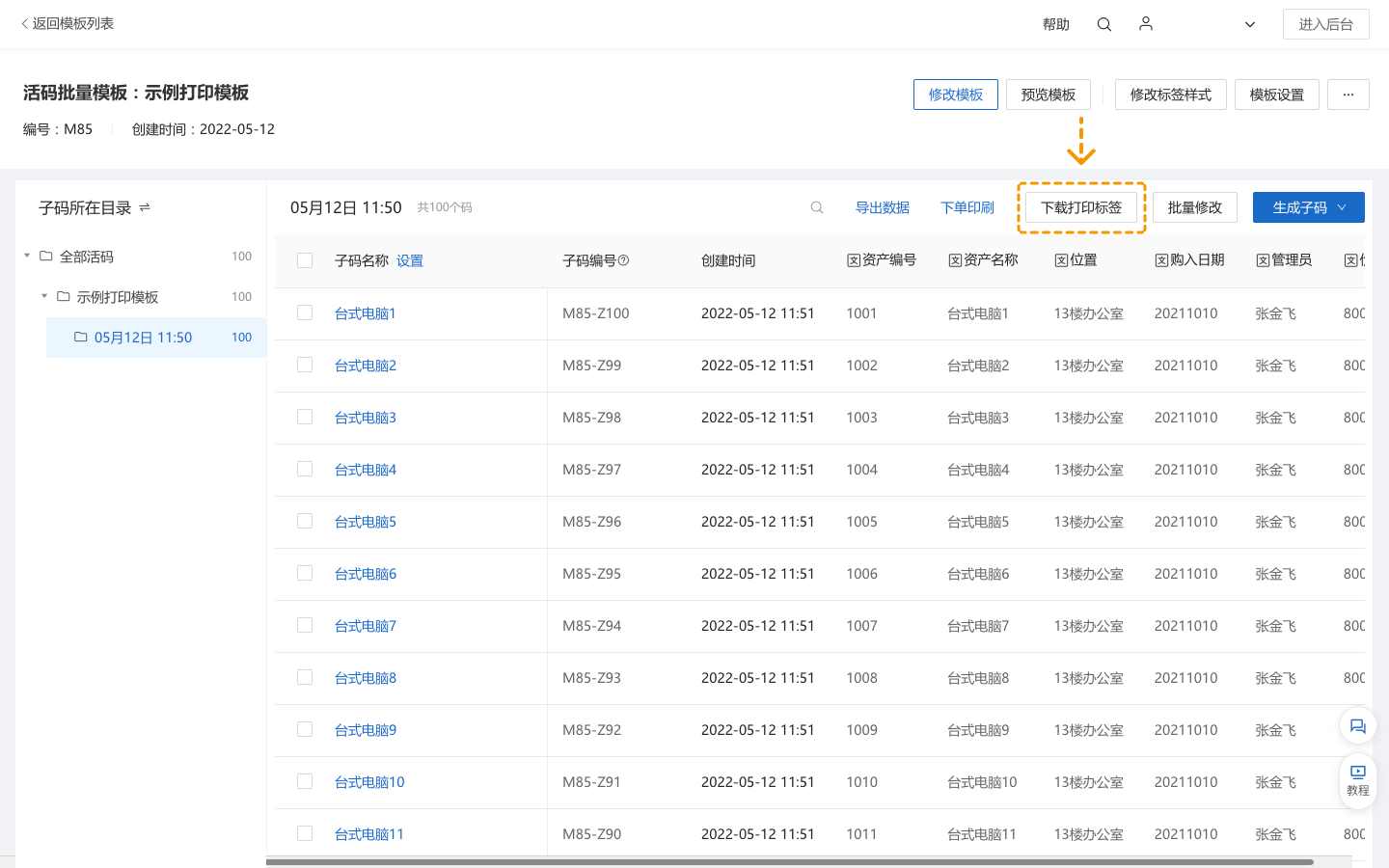
Click [Download A4 Die-Cut Adhesive Layout File].
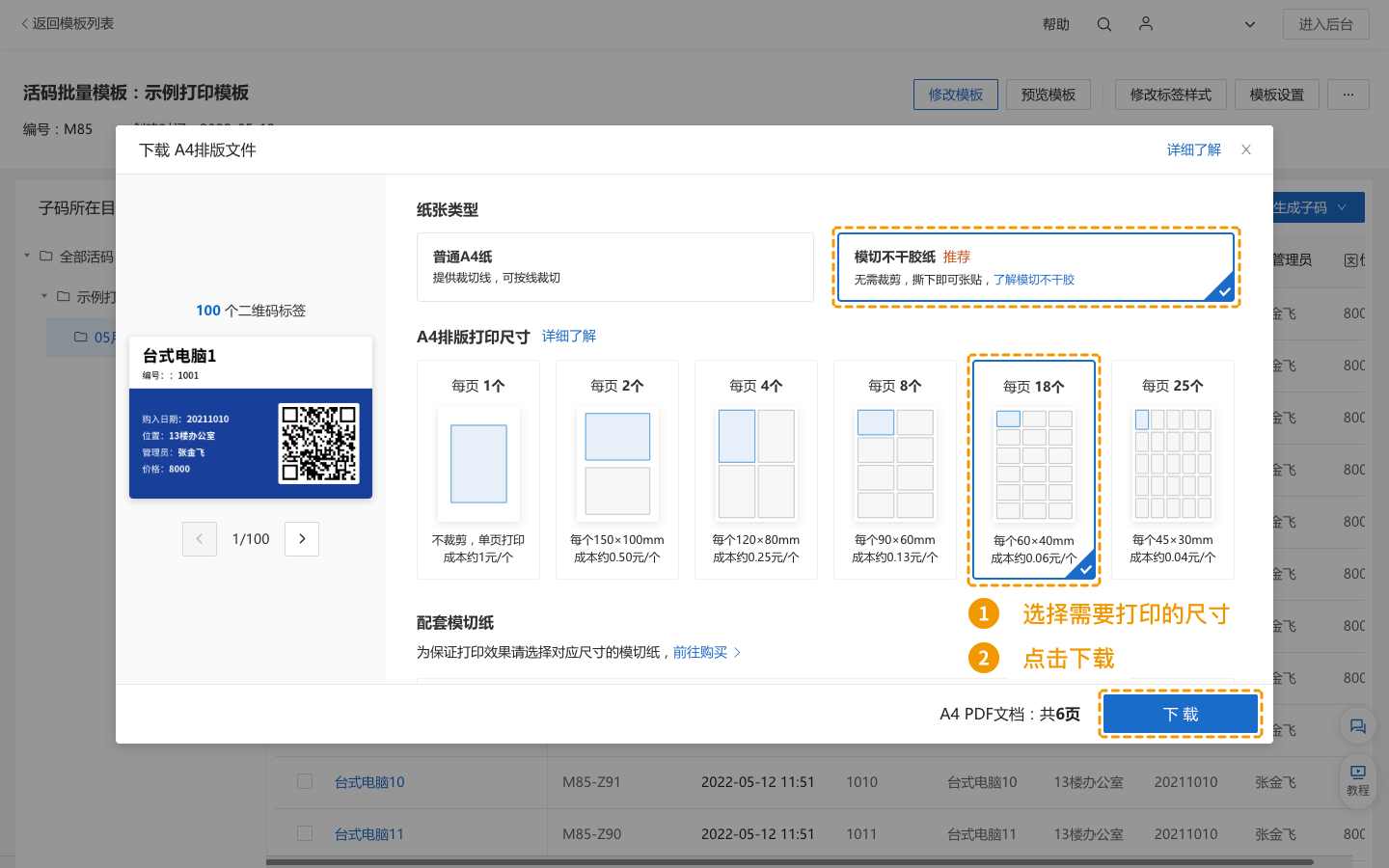
Select [Die-Cut Adhesive Paper], choose the matching size and layout size, and click download.
How to Load the Paper (Must Read!)
- Don't put die-cut adhesive paper together with regular A4 paper. Mixed sheets tend to stick to each other and jam.
- Pay attention to which side is printed, and don't load it upside down. (You can test with regular A4 paper first.)
- When loading paper, adjust the tray guides so they press right against the paper edges. Neat loading reduces label misalignment.
- Don't print more than 50 sheets in a row. Too many sheets make the printer heat up and hurt print quality; let it cool down completely before using it again.
Print Dialog Settings (Must Read!)
(1) Open the PDF with Microsoft Edge
How to open: right-click the downloaded PDF file and choose Microsoft Edge as the program to open it with. Note: Other PDF readers are not recommended, as they may have compatibility issues.

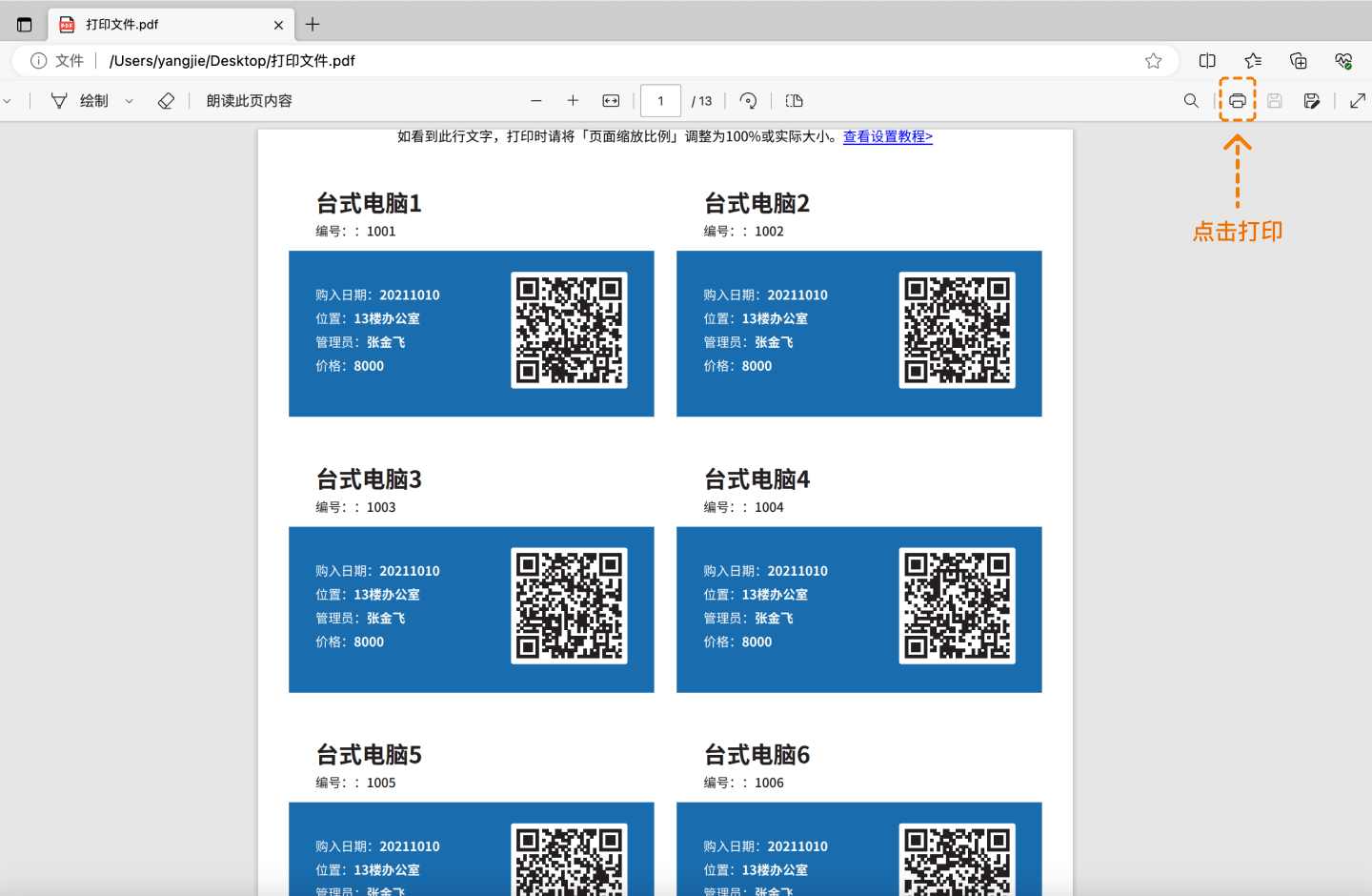
(2) Print Dialog Settings
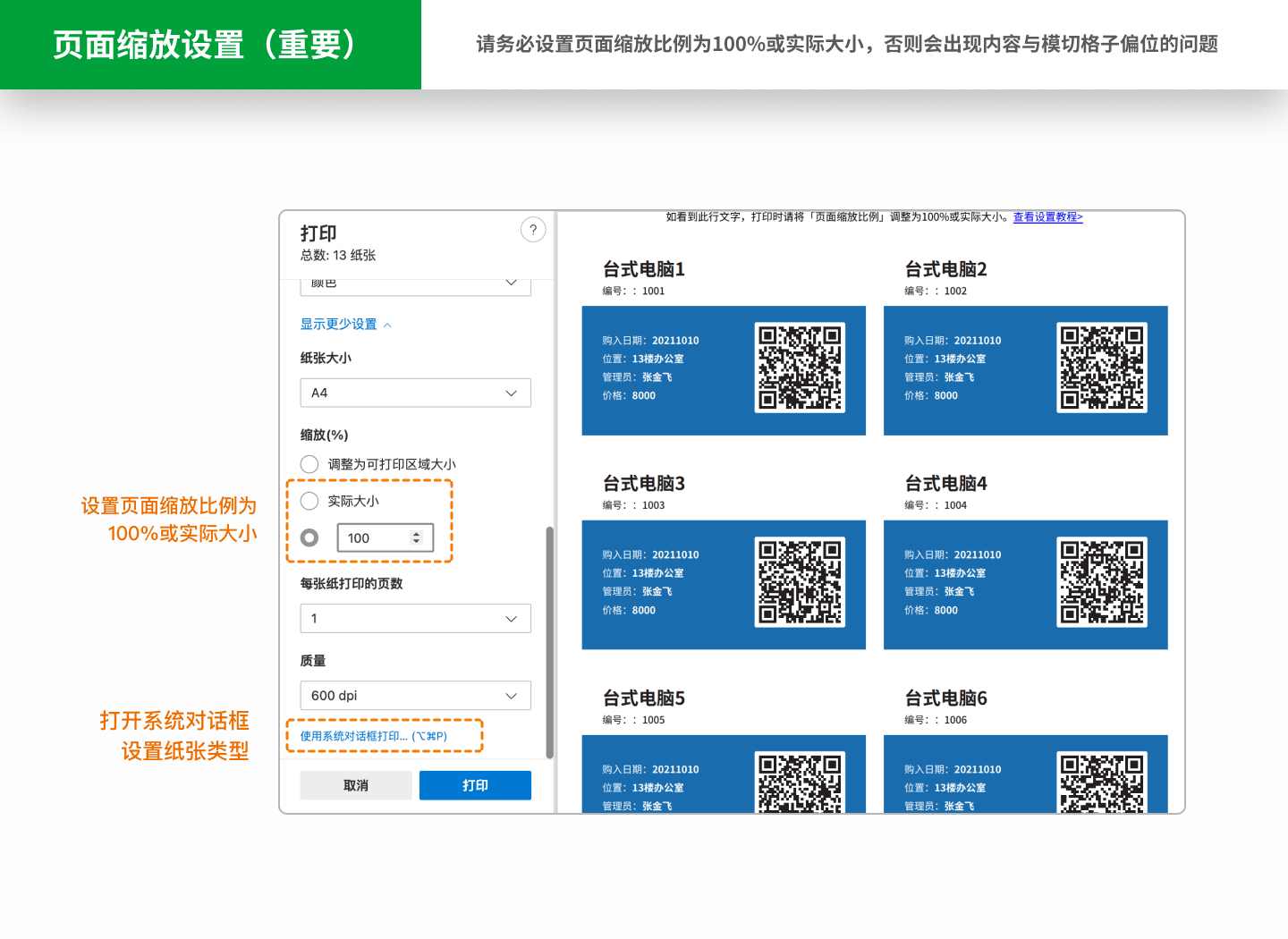
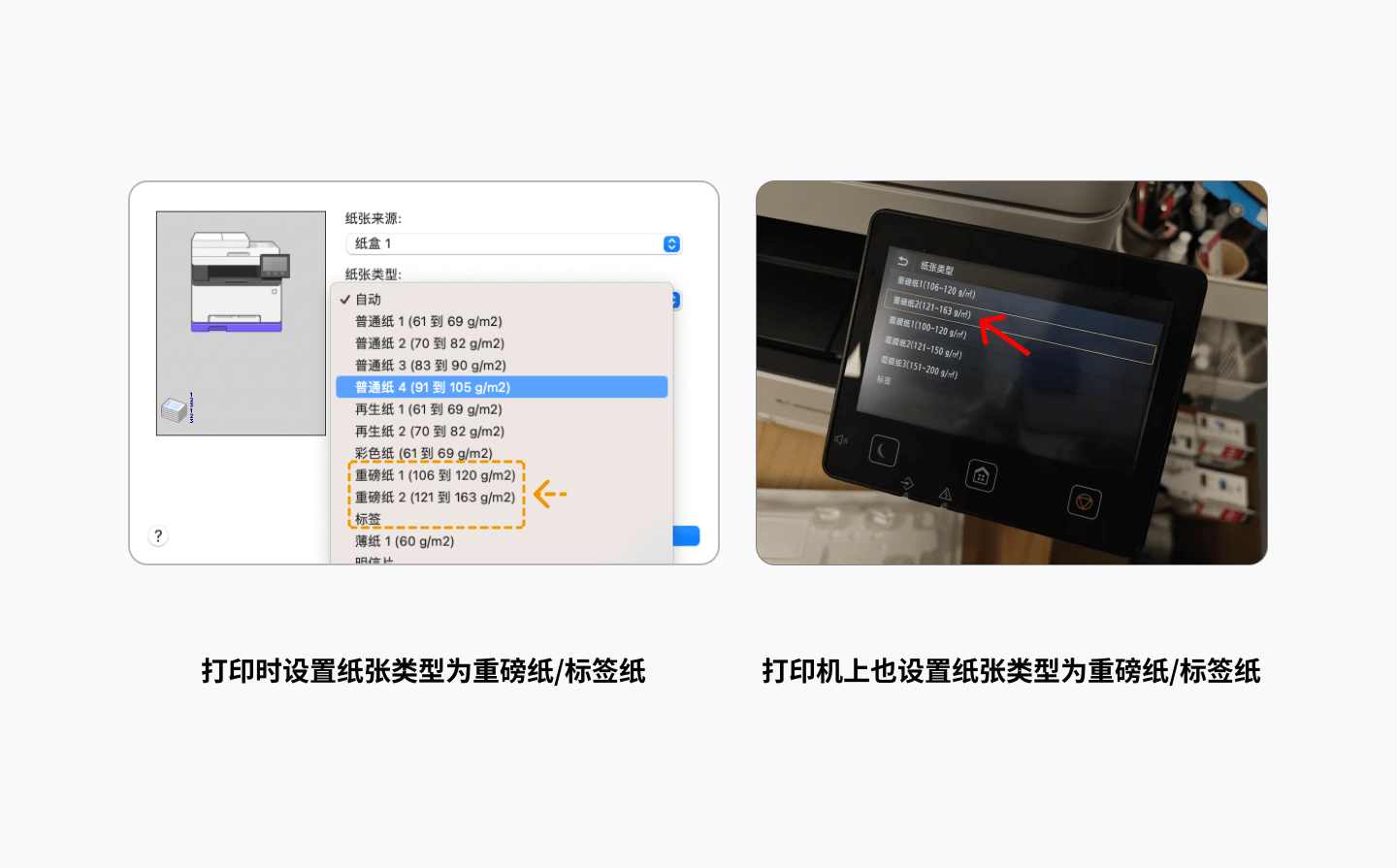
In Edge's print dialog, click [Print using system dialog], then set the paper type and page scaling in the system print dialog. Page scaling: when printing, be sure to set the page scaling to Actual Size or 100%. Paper type: open the system dialog and set the printer's paper type to Heavyweight Paper or Label Paper (if there is no such option, choose Thick Paper or Photo Paper). Note that on some printers this option is called Media Type.
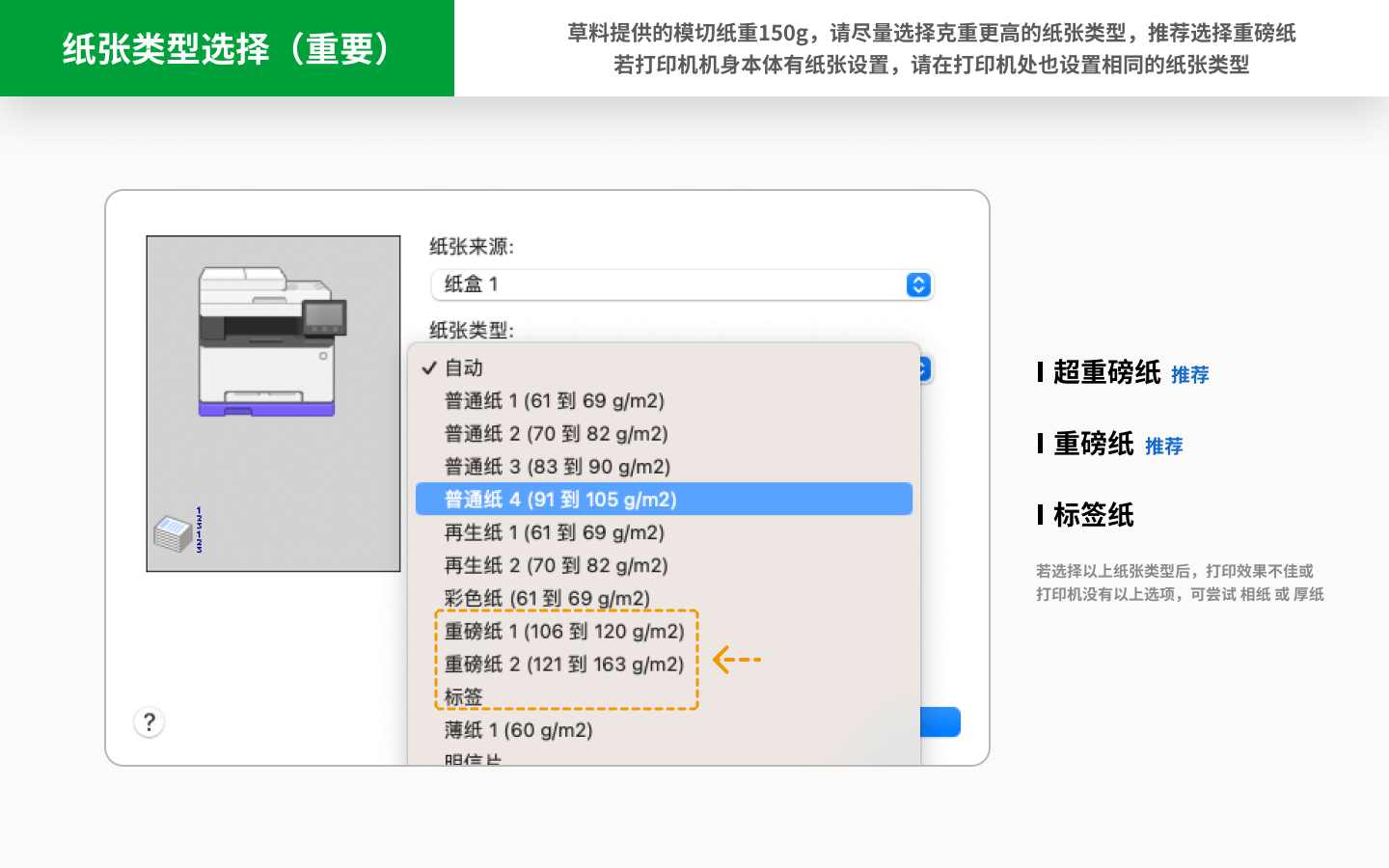
Note:
- Don't choose "double-sided printing".
- Printing methods and settings dialogs differ slightly across operating systems and software, so set the page scaling and paper type according to your own situation.
- If the printer itself also has a paper type option, set it to Label Paper or Heavyweight Paper as well.
Reprinting Labels / Printing at Custom Positions
If you later need to reprint a few labels, or print QR code labels at specific positions on the die-cut paper, you can download the Word-format A4 die-cut layout file and copy the QR code label images into the matching positions to print. For details, see A4 Die-Cut Printing with a Word Layout.
Buying Die-Cut Adhesive Paper and Printer Recommendations
Note: Be sure to download the die-cut adhesive print file first, then buy die-cut paper that matches its size and format, to avoid mismatched sizes.
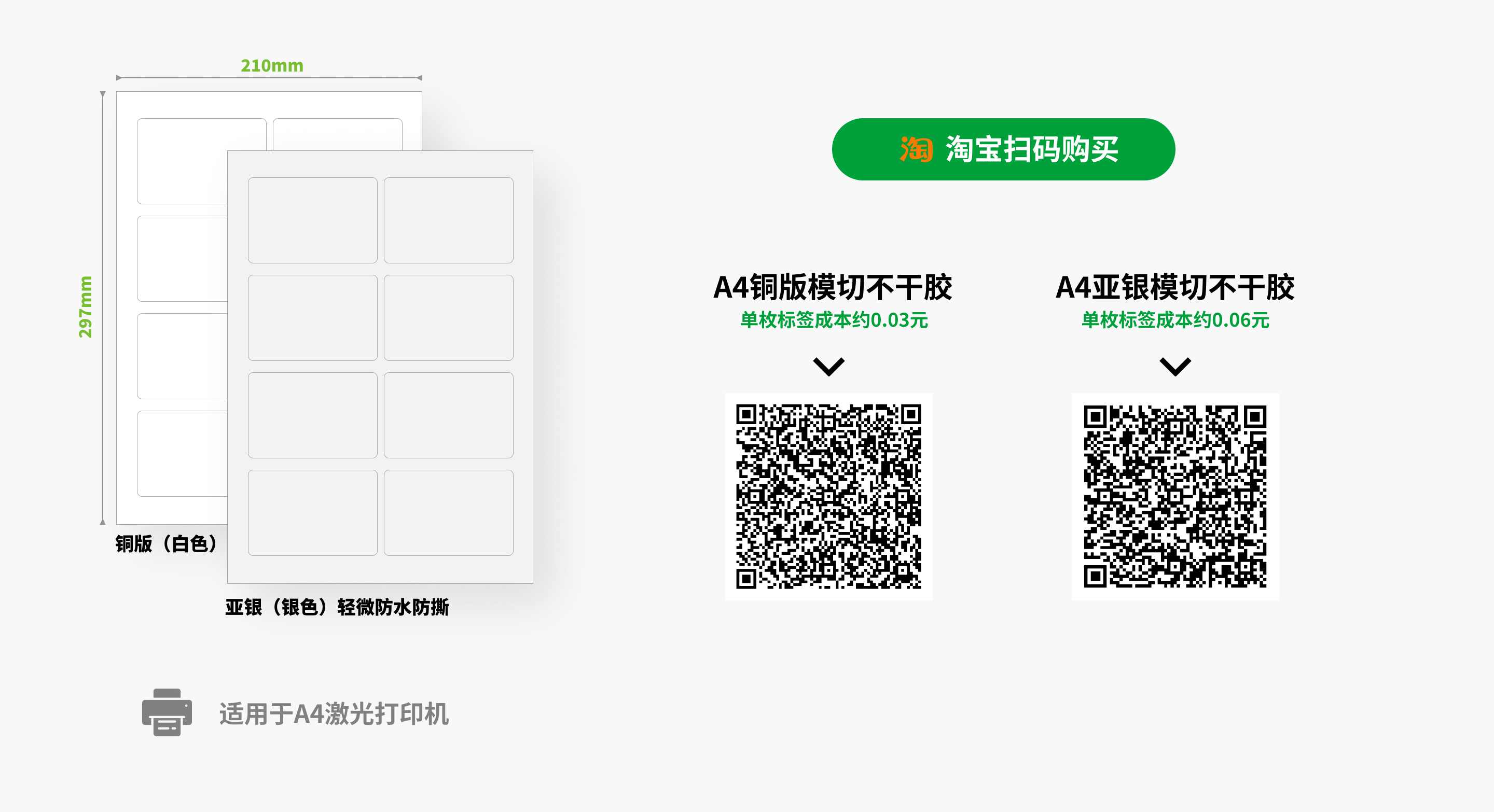
If you don't have an A4 laser printer, we recommend a few models. The following models have been tested by CaoLiao, so you can buy them with confidence: A4 Printer and Consumables Recommendations. Canon printers tested well, with few jams when printing on adhesive paper. Brother printers are not recommended, as they tend to jam.
2. FAQs
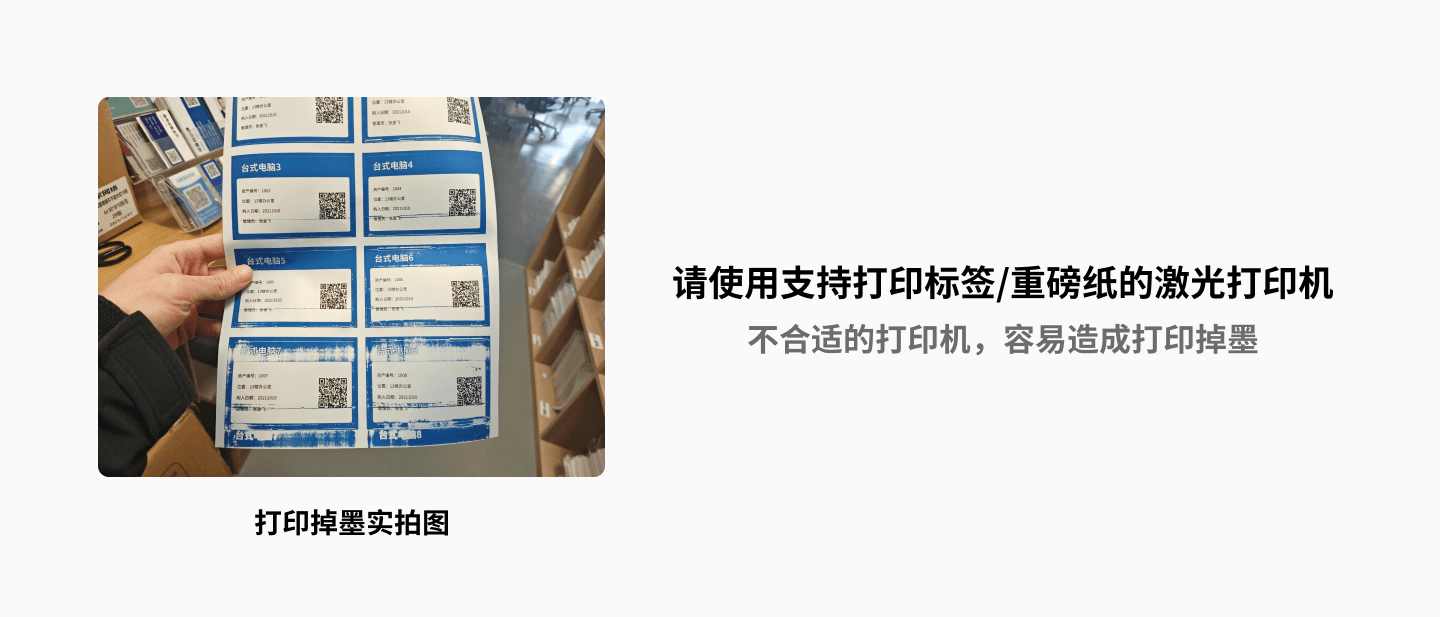
How Do Labels with Large Blocks of Color Print?
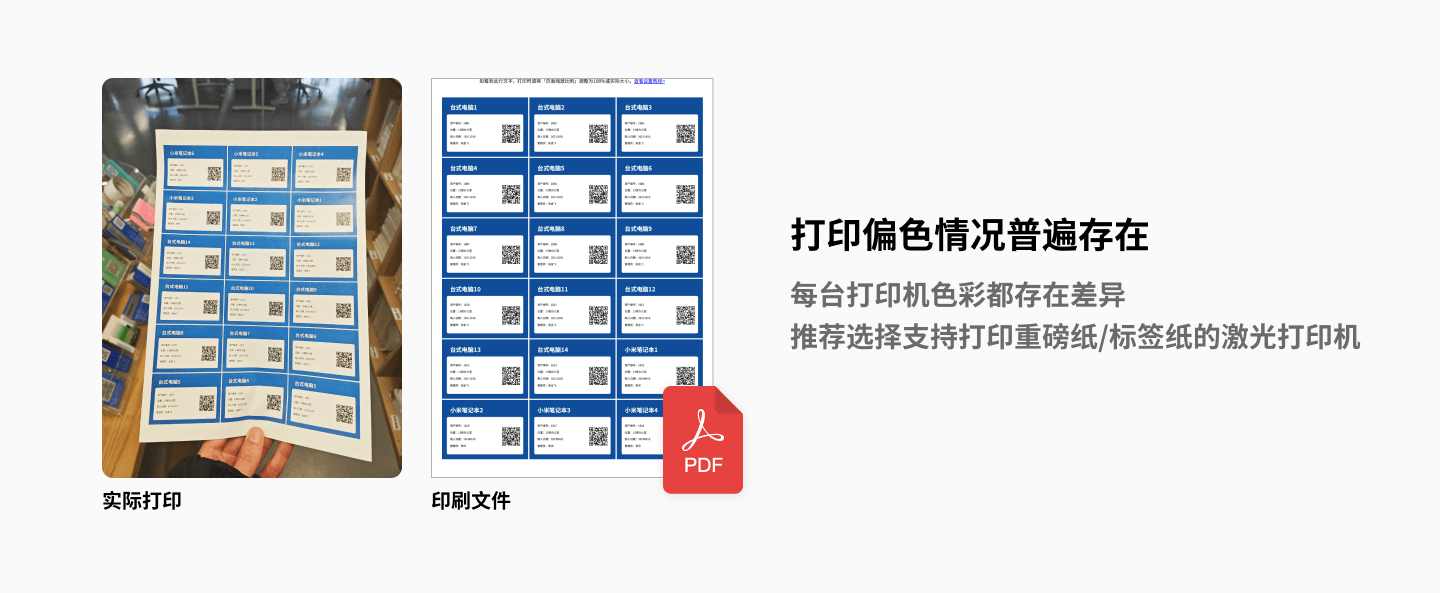
It depends on the laser printer's print precision or the ink quality. You can test on regular A4 paper first. If the result on regular A4 paper is mediocre, die-cut paper won't be any better. When there is an offset, large color blocks make it more obvious, and you may see white edges or off-center printing, which looks worse, so you may need to try a few times. Small color areas such as ordinary text and logos are less demanding on the printer. For die-cut paper, keep color blocks as small as possible, or use a white background with dark logos and text, for a better overall result.
Can I Use an Inkjet Printer?
Not recommended, as the ink easily flakes off or looks blurry. If you do need to use one, print a small batch first to check the result. Make sure your laser printer supports heavyweight paper/label paper. If you need to buy a laser printer, we have recommended printers and consumables, all tested, so you can buy with confidence. See purchase recommendations
How to Choose Between the Two Die-Cut Adhesive Papers
Neither paper is laminated, and both are slightly waterproof. The biggest differences are the base color and how easily they tear. Silver: silver base, hard to tear. Works better on metallic, black, white, and wood-colored surfaces. Coated paper: white base, tears easily. Works better on white and gray surfaces.
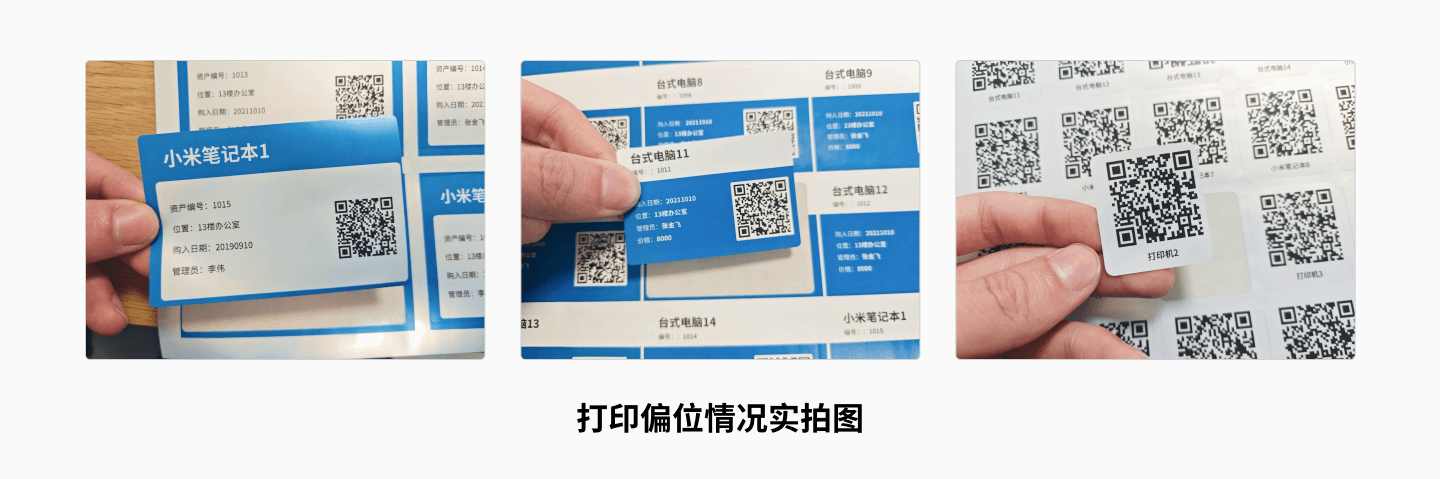
Printing Is Misaligned. How Do I Fix It?
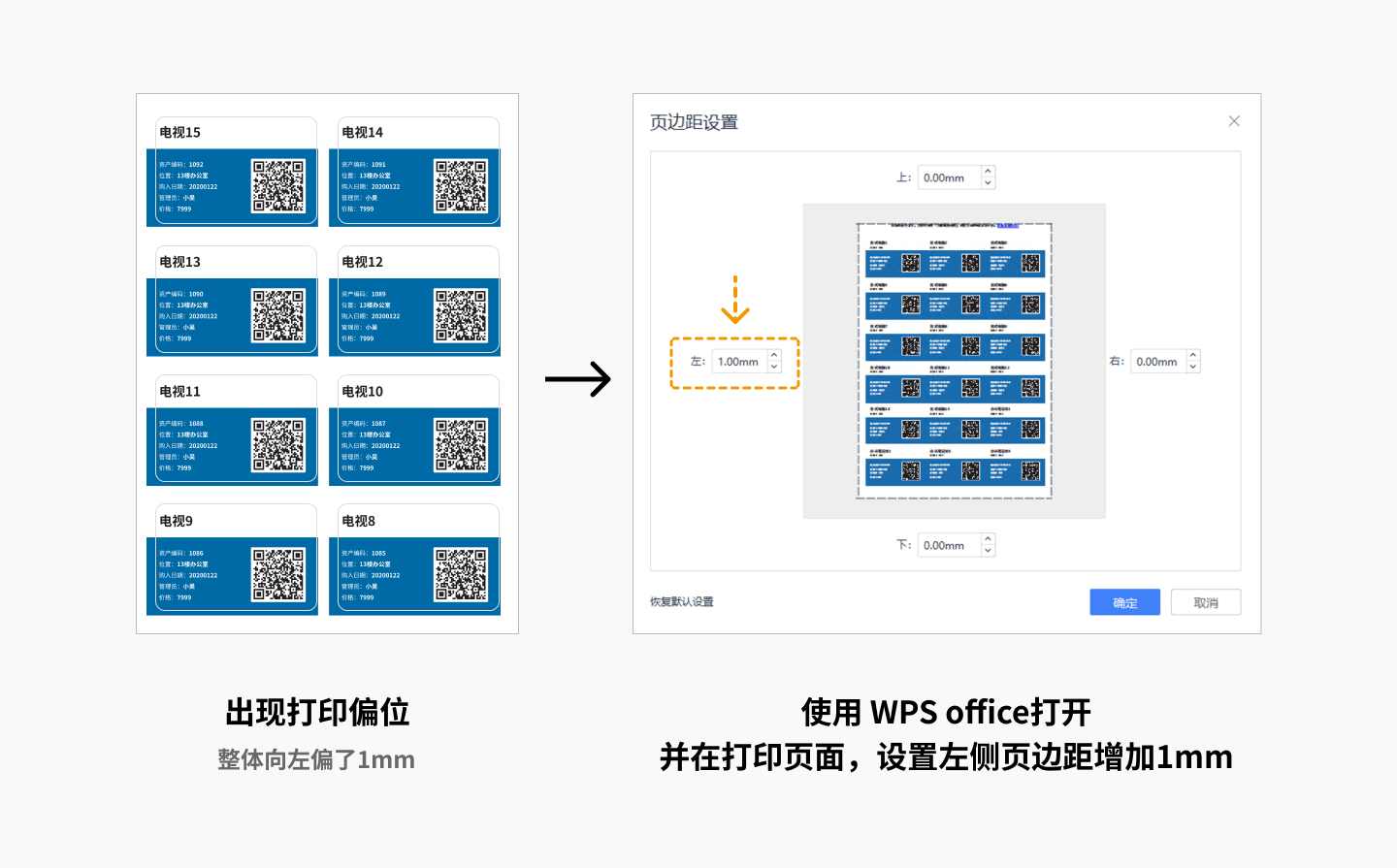
First make sure the file was opened in Edge and the scale is set to 100. If the problem persists, try opening the file in WPS and adjusting the [Margins] manually in the print settings. For example, if everything is 1 mm too far left and needs to move right, increase the [Left Margin] by 1 mm. Also, there is a little room for the paper to move in the tray, which can cause misalignment, so we suggest fixing two sides when loading (for example, always push the paper against the left and bottom). Note: Some printers don't support margin settings. Test with regular A4 paper first to see whether margins work. If they don't, use it with caution.
Colors Look Blurry or the Ink Flakes Off
The paper type may be set incorrectly. Change it to [Heavyweight Paper] or [Label Paper]. If there are several heavyweight options, choose the one with the highest weight. (CaoLiao die-cut paper weighs about 150 g.) Note!! On some printers, you also need to set the paper type on the printer itself, not just on the computer. If you run into this problem, check the paper type setting on the printer too.
The Printed Colors Differ from the Web Preview?
The web preview uses the RGB color mode, while printers use CMYK, so some color shift is normal. Colors also differ between printer brands and models, so some shift always exists and they can't match exactly. If the shift is severe, the ink or toner cartridge may be running low. Printing on die-cut paper uses a lot of ink, so replace the toner cartridge promptly.
The Scaling Is Set but I Still See the Line of Text at the Top. How Do I Fix It?
First confirm that the file was opened in Edge. If the problem persists, try opening it in WPS Office and [set the scale to 100] in the print settings. Note:
- After setting this, the line still appearing in the print preview is normal. Just print.
- Opening the file in a regular PDF reader is not recommended, as it causes compatibility problems when printing.
Why Is There a Ring of Color Spilling Over When Printing?
This is a bleed line reserved for a better print result. Because precision differs between printers, the printed content may shift slightly, and the bleed prevents missing color caused by that shift.
How Many Sheets Can I Print at Once?
We suggest no more than 50. Otherwise the heat can affect the machine; stop and let it cool down before printing again.
What If the Paper Jams?
The paper type may be set incorrectly. Make sure it is [Heavyweight Paper] or [Label Paper]. If your printer has no such option, we suggest changing printers. In CaoLiao's tests, Brother printers tend to jam. If you don't have a printer, we also offer printer and consumables recommendations.
I Bought a Lot. How Should I Store It, and Will the Adhesive Weaken?
Adhesive label material keeps for about 2 years. Store it indoors in a cool, dry place to prevent moisture and warping. Put any opened, unused die-cut paper back in its bag as soon as possible.
What If the Edges Curl Up After Sticking?
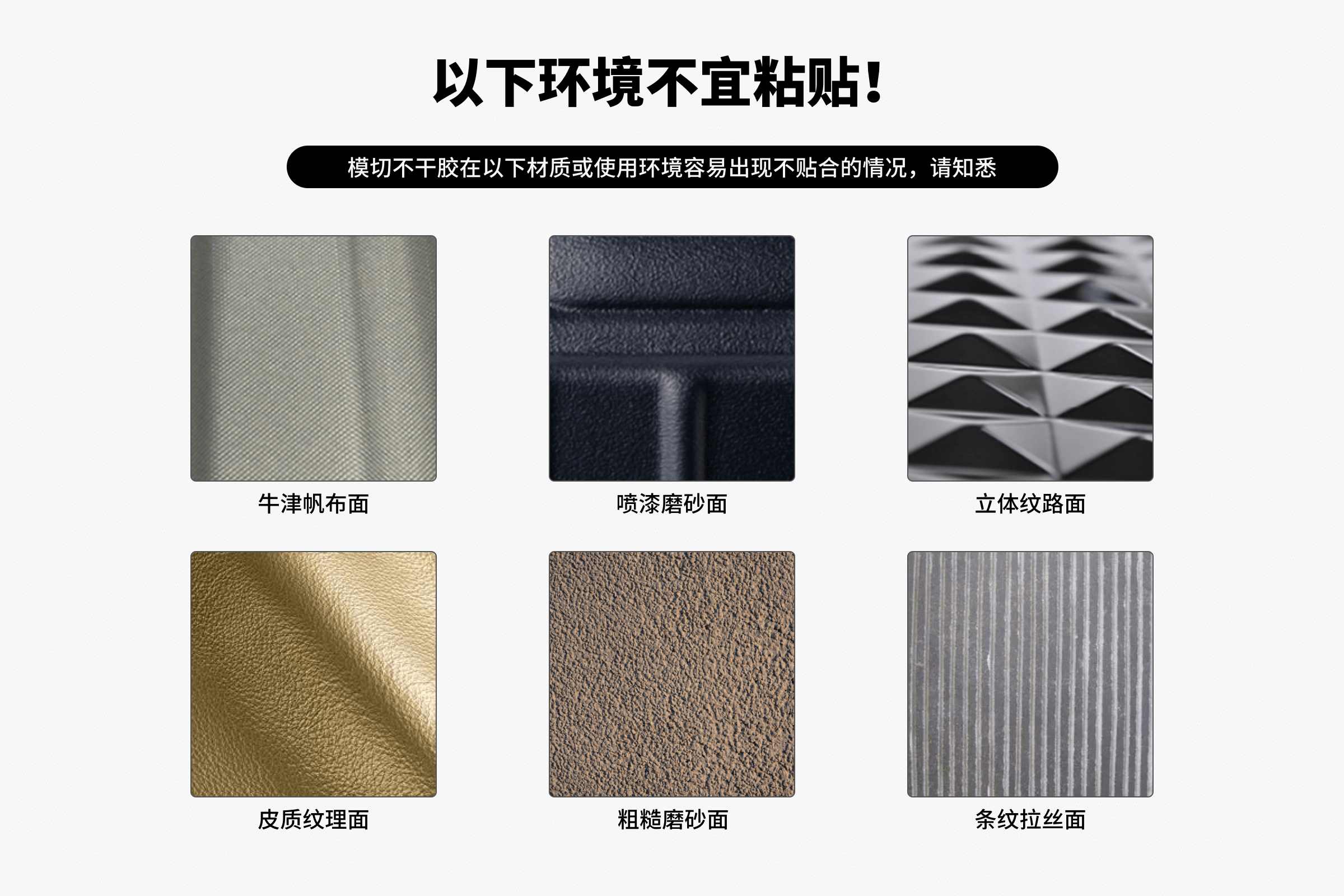
All CaoLiao die-cut paper uses water-based adhesive. Don't stick it where there is water, oil, or dust, and wipe the surface clean before sticking. Adhesive paper also isn't suited to leather, canvas, frosted, striped, textured 3D, or painted surfaces, so avoid using it in these environments.

3. CaoLiao Print Service
If you need waterproof, outdoor, or long-term use, we also offer a QR code label print service. We offer PVC adhesive stickers (waterproof stickers), stainless steel, hard cards, acrylic, and other materials, made by carefully selected professional factories. Orders can ship the same day at the earliest, small batches are accepted, and quality problems are redone for free, making deployment easier for you. Learn about the CaoLiao print service