A4 Paper + Card Sleeve Tutorial
A4 paper + card sleeve is a very convenient way to deploy QR code labels. After purchasing card sleeves, simply print the QR code labels with a standard office printer, trim them, and insert into the sleeves.
Important! Before buying card sleeves, check the layout dimensions of your QR code on A4 paper — this size is provided by CaoLiao. Choose sleeves that match these dimensions. The method for viewing layout dimensions is the same as downloading the layout file — see the steps below.
Card sleeves come in wall-mount, desk stand, and other styles. View card sleeves purchased and tested by CaoLiao: Card Sleeve Purchase Recommendations

1. Download the Layout File
(1) Bulk QR Code Generation
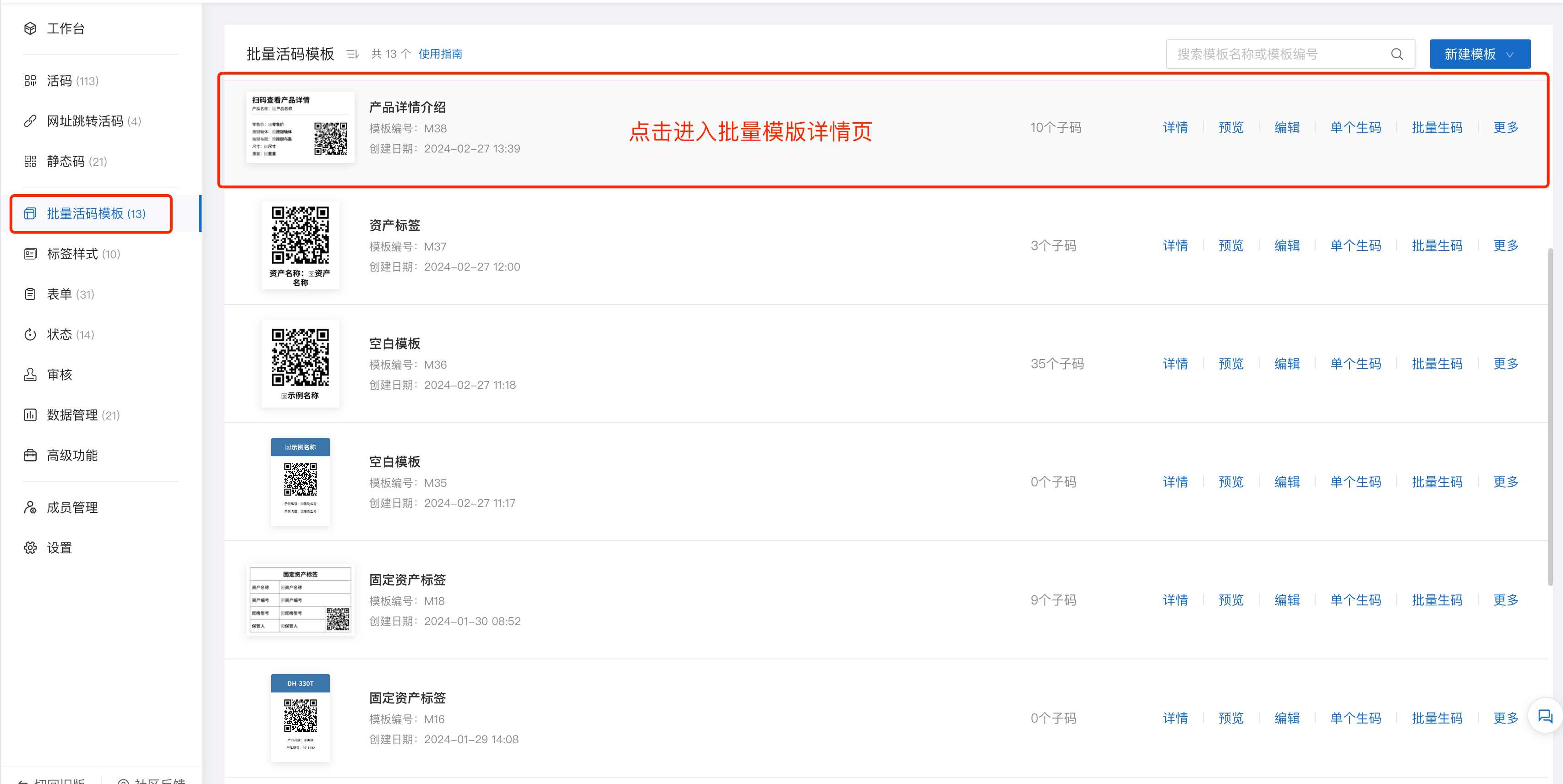
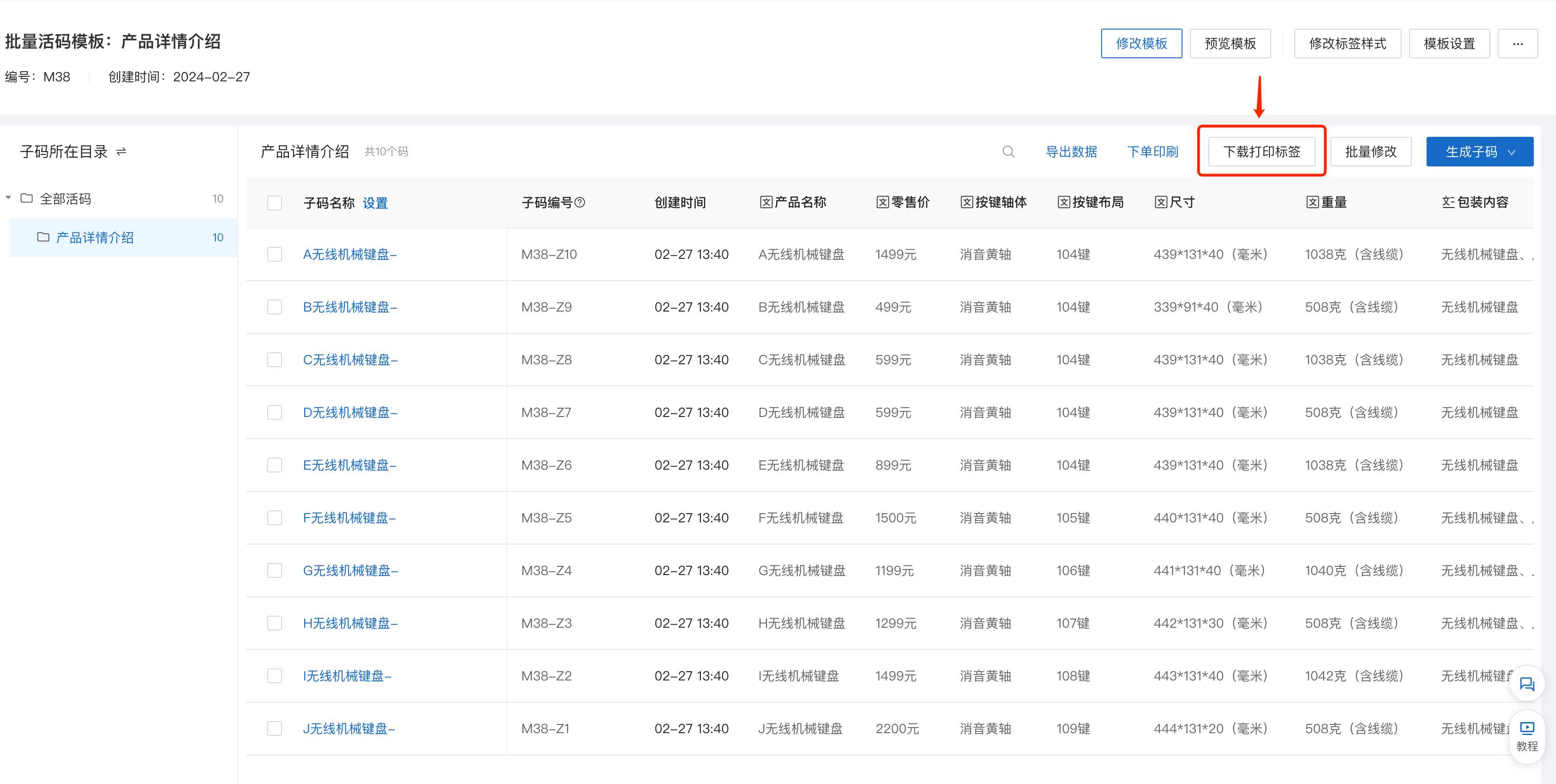
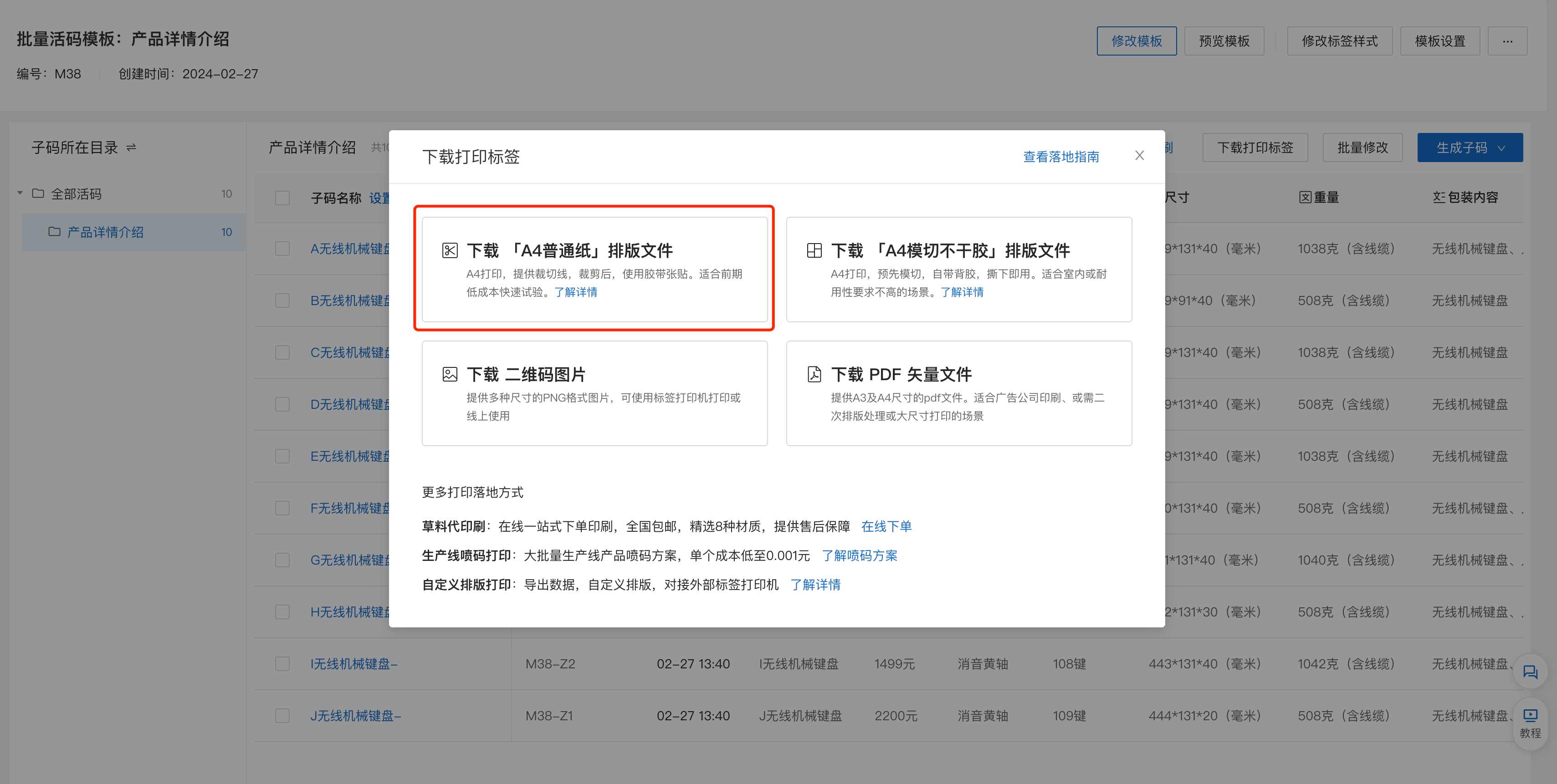
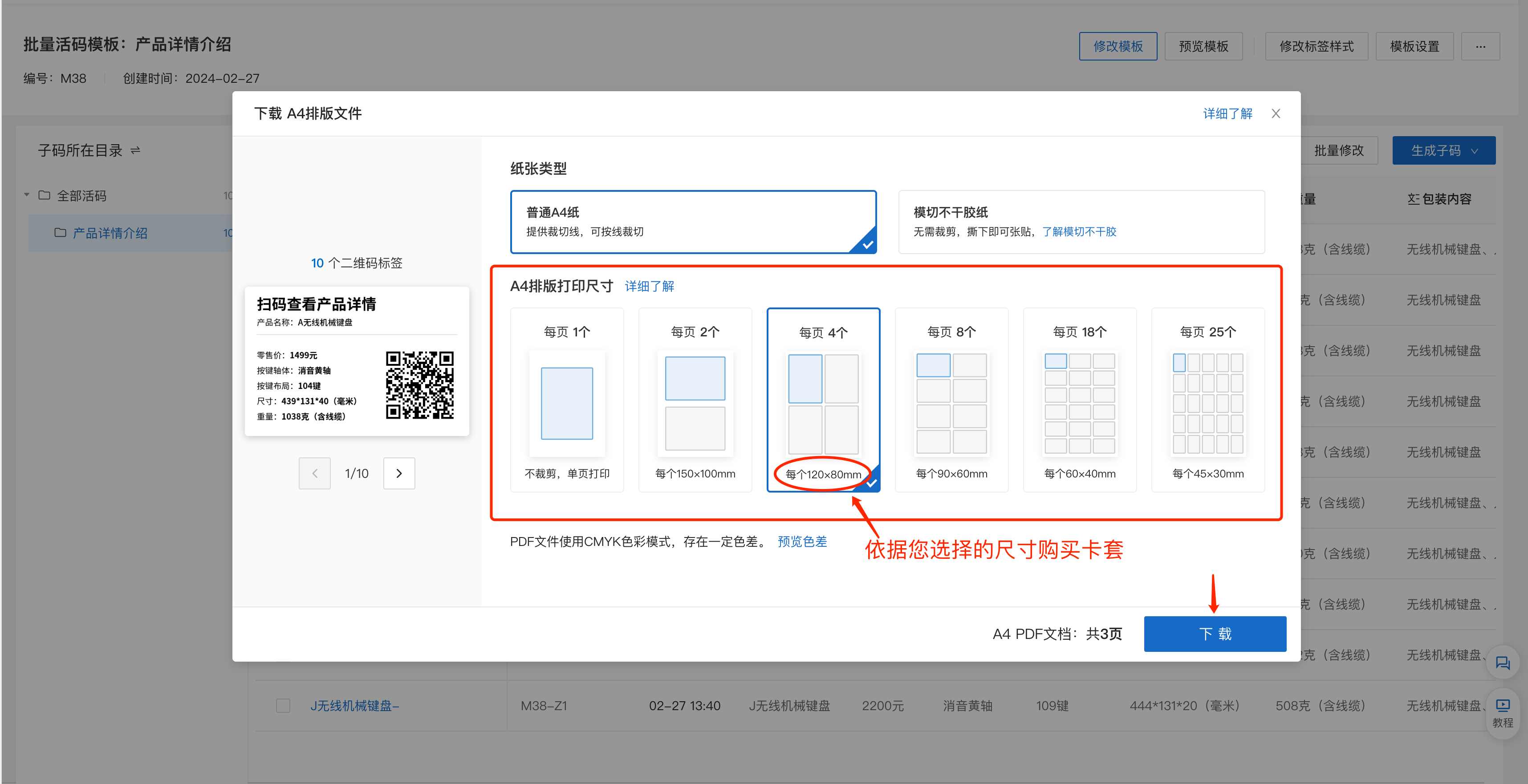
(2) Single QR Code
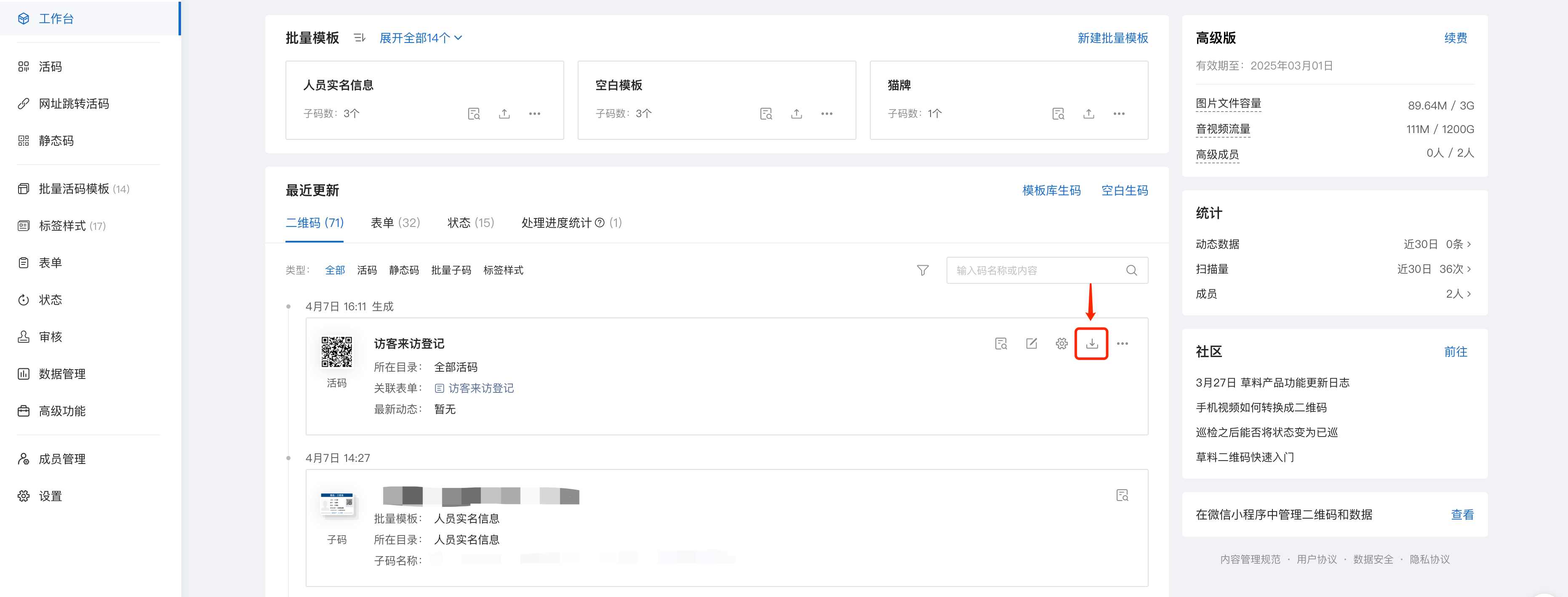
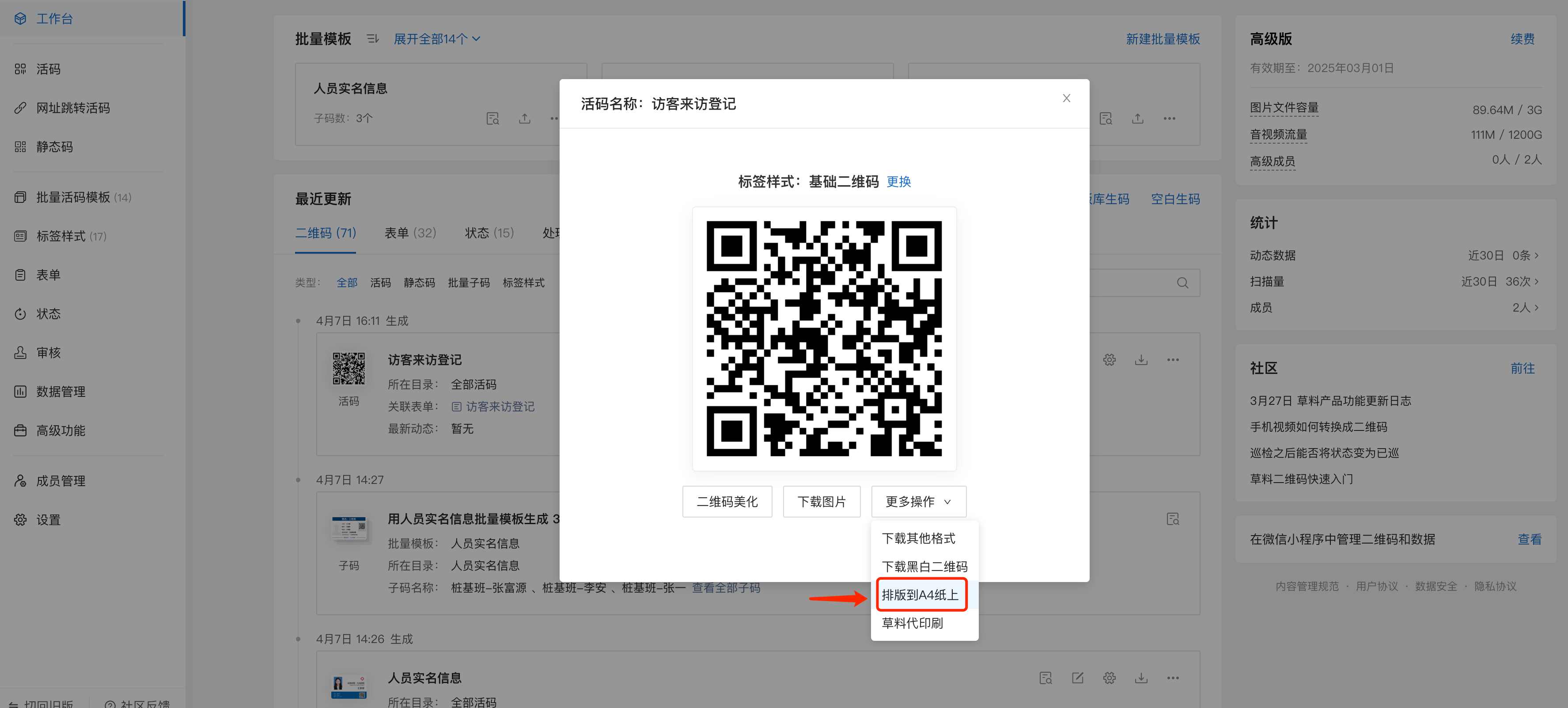
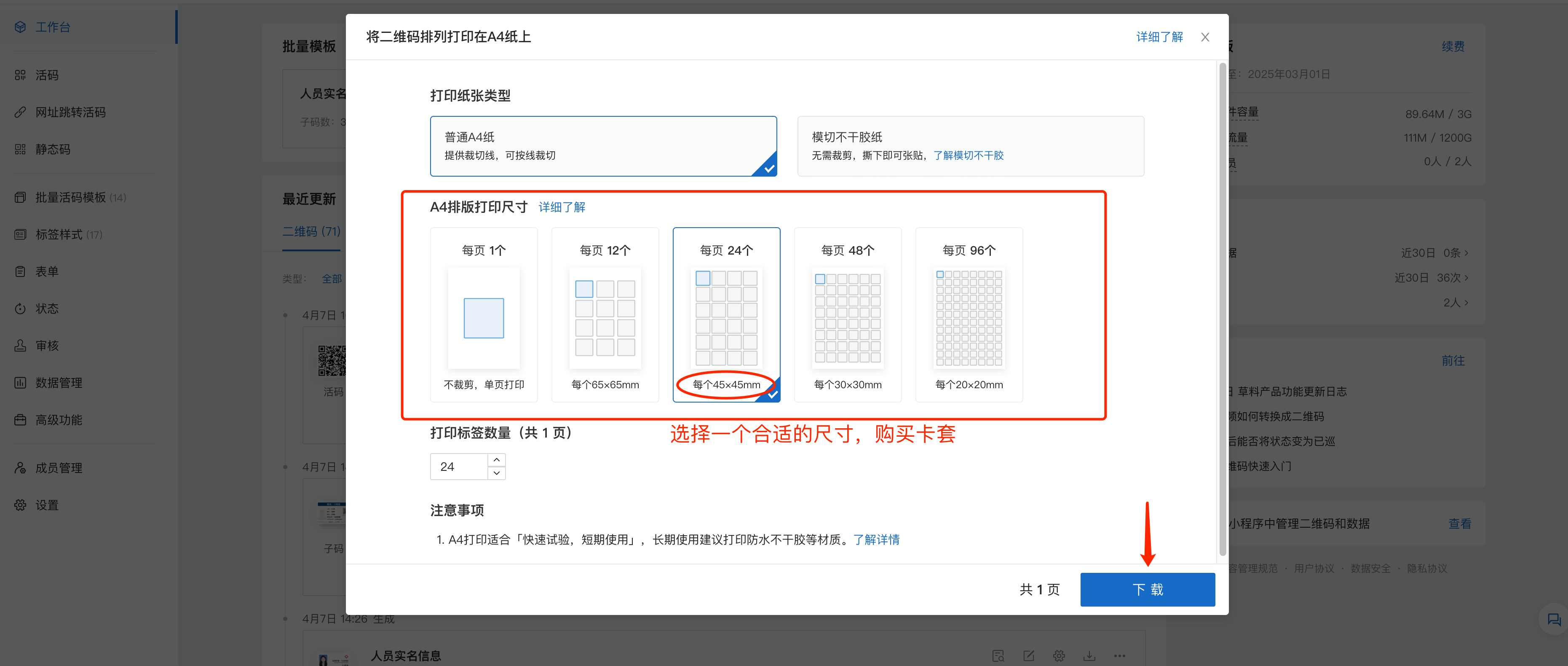
2. Before Printing — Must Read
(1) Open the PDF with Microsoft Edge
Right-click the downloaded PDF file and open it with Microsoft Edge.
Note: Other PDF readers are not recommended — they may have compatibility issues.
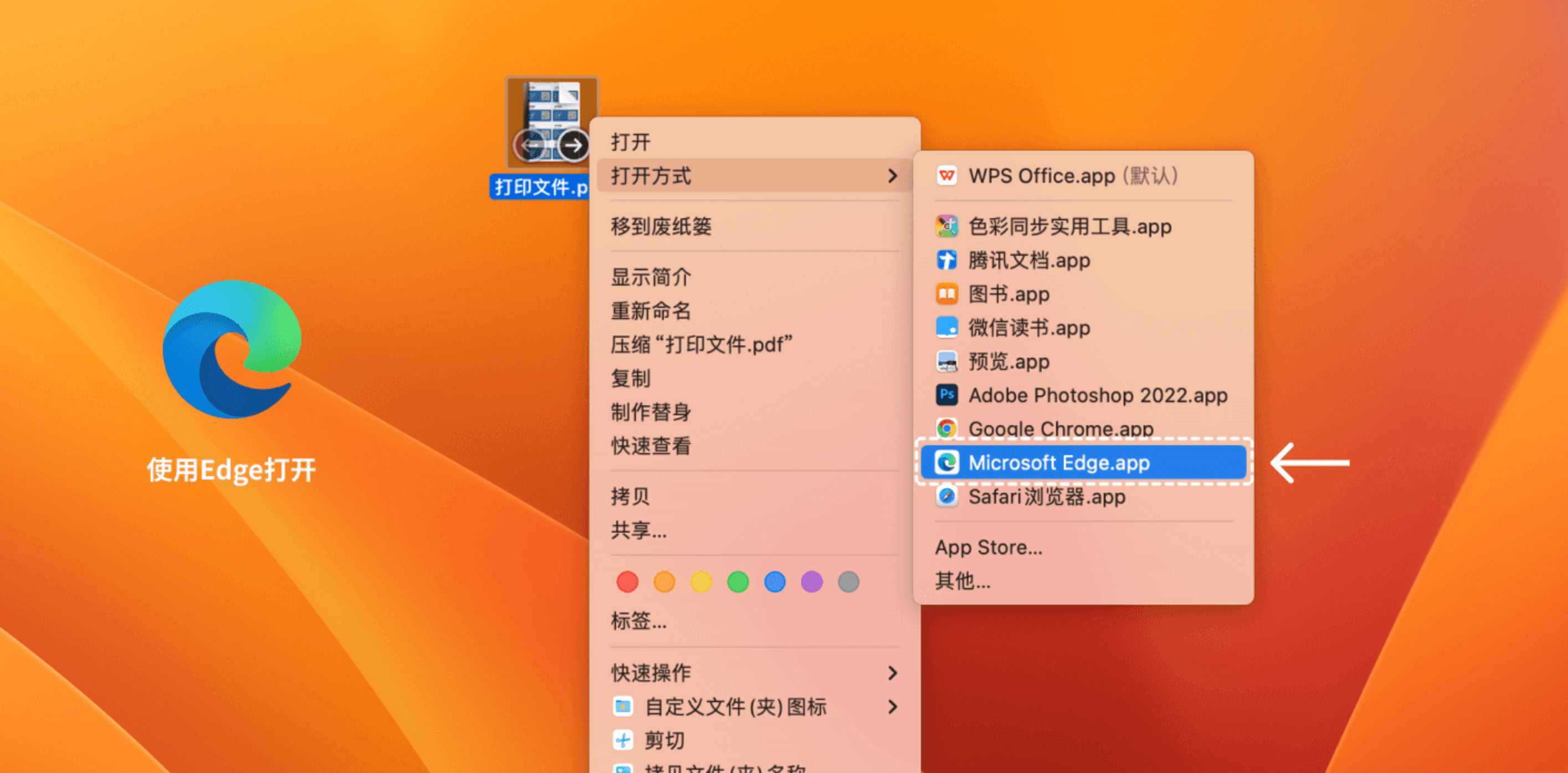
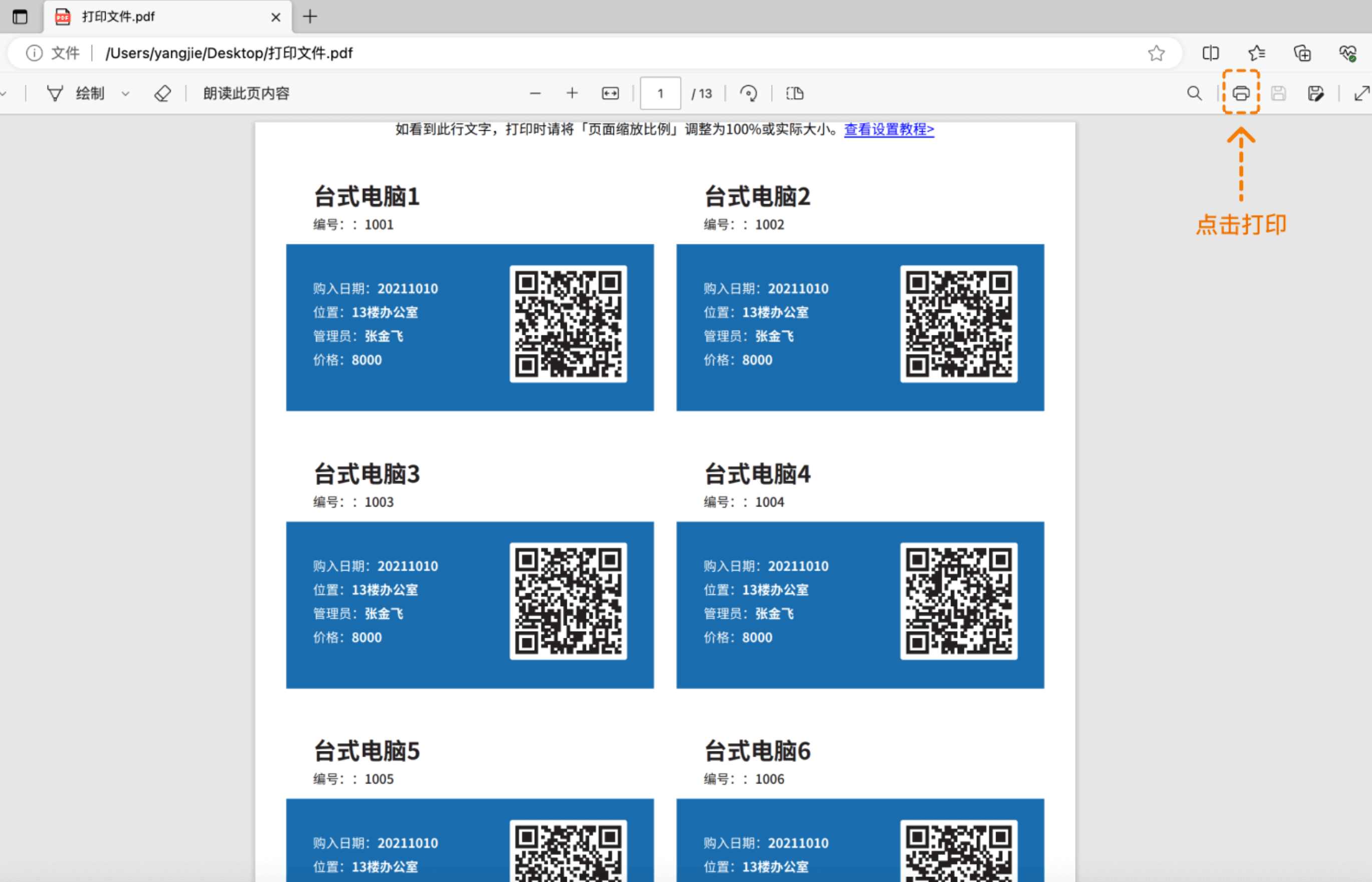
(2) Print Settings
In the Edge print dialog, click "Print using system dialog". Then set paper type and page scaling in the system print dialog.
Page Scaling:
When printing, make sure to set the page scaling to Actual Size or 100%.
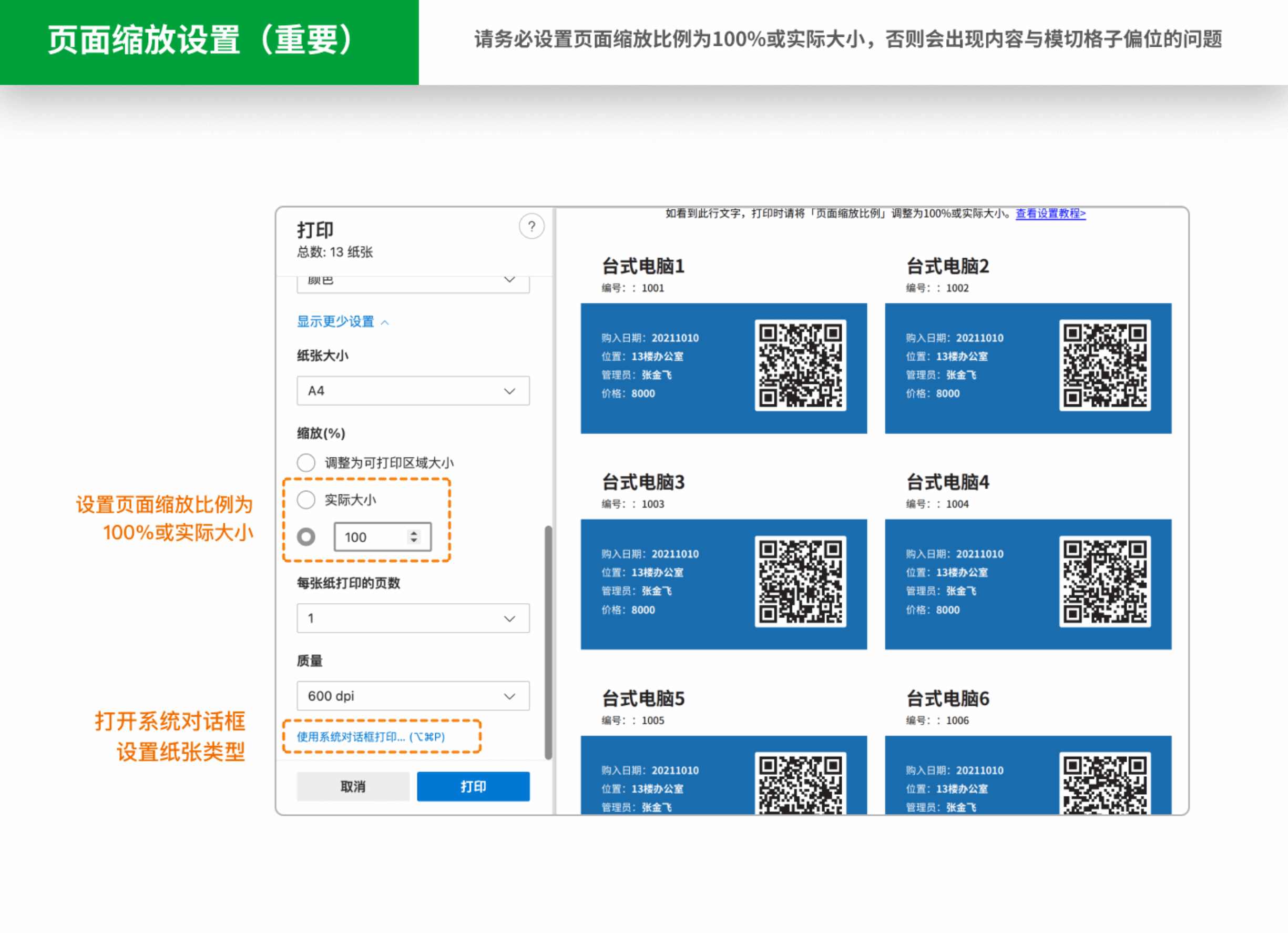
Paper Type:
If using standard A4 paper, no additional settings are needed. If using coated paper, set the printer paper type to Heavy Paper or Label Paper in the system dialog (if unavailable, choose Thick Paper or Photo Paper). Note that some printers may label this option as Media Type.
After printing, trim along the cut lines and insert into the card sleeve.

3. Additional Reinforcement
If the surface is rough or dusty, or if extra reinforcement is needed, apply glass glue / construction adhesive / AB glue for additional bonding.
