Notifications & Collaboration
1. Use Member Management for Member/Non-Member Distinction
The member feature is primarily used for managing personnel within a company or organization — grouping employees by department, role, and other dimensions for collaborative management, viewing, and operating QR codes.
The distinction between members and non-members safeguards internal information security, while different permissions can be granted based on actual needs. Learn more
1. Member Feature Applications
In day-to-day enterprise operations, you can configure member permissions to differentiate between internal and external personnel or designate specific members for relevant collaborative tasks.
| Feature | Anyone | Admins Only | All Members | Designated Group (Advanced and above) | Designated Advanced Members (Advanced and above) |
|---|---|---|---|---|---|
| QR code viewing permissions | ✔️ | ✔️ | ✔️ | ✘ | ✔️ |
| Dynamic data viewing permissions | ✔️ | ✘ | ✔️ | ✔️ | ✔️ |
| Status update permissions | ✔️ | ✘ | ✔️ | ✔️ | ✔️ |
| Edit sub-code variable content on mobile | ✘ | ✔️ | ✘ | ✔️ | ✔️ |
| Create a sub-code from a template on mobile | ✔️ | ✔️ | ✔️ | ✘ | ✔️ |
| Control panel permissions | ✘ | ✔️ | ✘ | ✘ | ✔️ |
| Notifications | ✔️ | ✔️ | ✔️ | ✔️ | ✔️ |
| Data review | ✘ | ✔️ | ✘ | ✘ | ✔️ |
| QR code footer collaboration permissions | ✔️ | ✔️ | ✔️ | ✘ | ✔️ |
| Mark processing progress | ✘ | ✔️ | ✘ | ✘ | ✔️ |
| Dynamic subscriptions | ✔️ | ✘ | ✔️ | ✔️ | ✔️ |
| Plan management | ✘ | ✘ | ✔️ | ✔️ | ✔️ |
Example: Restricting View Permissions
Restrict the view permissions for QR code content, dynamic data panels, and file QR codes to all organization members. External users who scan the code will not be able to view the content.

2. Use Permission Settings to Define Management Responsibilities
The super admin can assign basic or advanced member status based on each person's internal role. Basic members are free and unlimited in number, available on the free version. Advanced members are only available on the Advanced edition and above, and different editions include a limited number of advanced member seats with the option to purchase additional seats.
Specific permission details:
1. Basic Members
Basic members can participate in frontline collaboration on the mobile app, including filling out designated forms, updating statuses, receiving notifications, @-mentioning others, editing sub-code content on mobile, and signing organization documents. Learn more
Specific permissions include:
| Permission Type | Details |
|---|---|
| Scan to view and act | Fill in QR code content, view dynamic data, fill out forms, update statuses, edit variable content in sub-codes, etc. |
| Forward and collaborate | Forward form records, receive notifications, @-mention others for follow-up, subscribe to dynamic records, subscribe to form follow-up data, etc. |
| Basic management | In the QR code bottom "Management" panel or the mobile workbench, members can view their own submitted data. |
2. Advanced Members
Advanced members have all the permissions of basic members plus additional management permissions. The super admin assigns advanced member status to personnel with management responsibilities and can differentiate their permissions based on the QR codes and dynamic data they manage, ensuring clear division of duties. Learn more
This can be divided into three types: manage all content in the account, manage a specified partition, and manage specific dynamic QR codes / directories.
| Advanced Member Type | Details |
|---|---|
| Manage specific dynamic QR codes / directories | Manage a set of devices or area QR codes from mobile. View and export dynamic data for those codes, receive notifications, and handle tasks on the codes. Based on operation permissions, this can be further divided into "view-only" and "full management". |
| Manage a specified partition | Manage specified partition content in the organization. Log in to desktop and mobile workbench to view and manage QR codes in the responsible scope and view/export collected dynamic data. Based on operation permissions, further divided into "view-only" and "full management". |
| Manage all content in the account | Manage all content in the organization. Log in to desktop and mobile workbench to view and manage all QR codes and view/export all dynamic data. Based on operation permissions, further divided into "view-only" and "full management". |
3. Add Follow-Up Actions for Collaboration and Communication
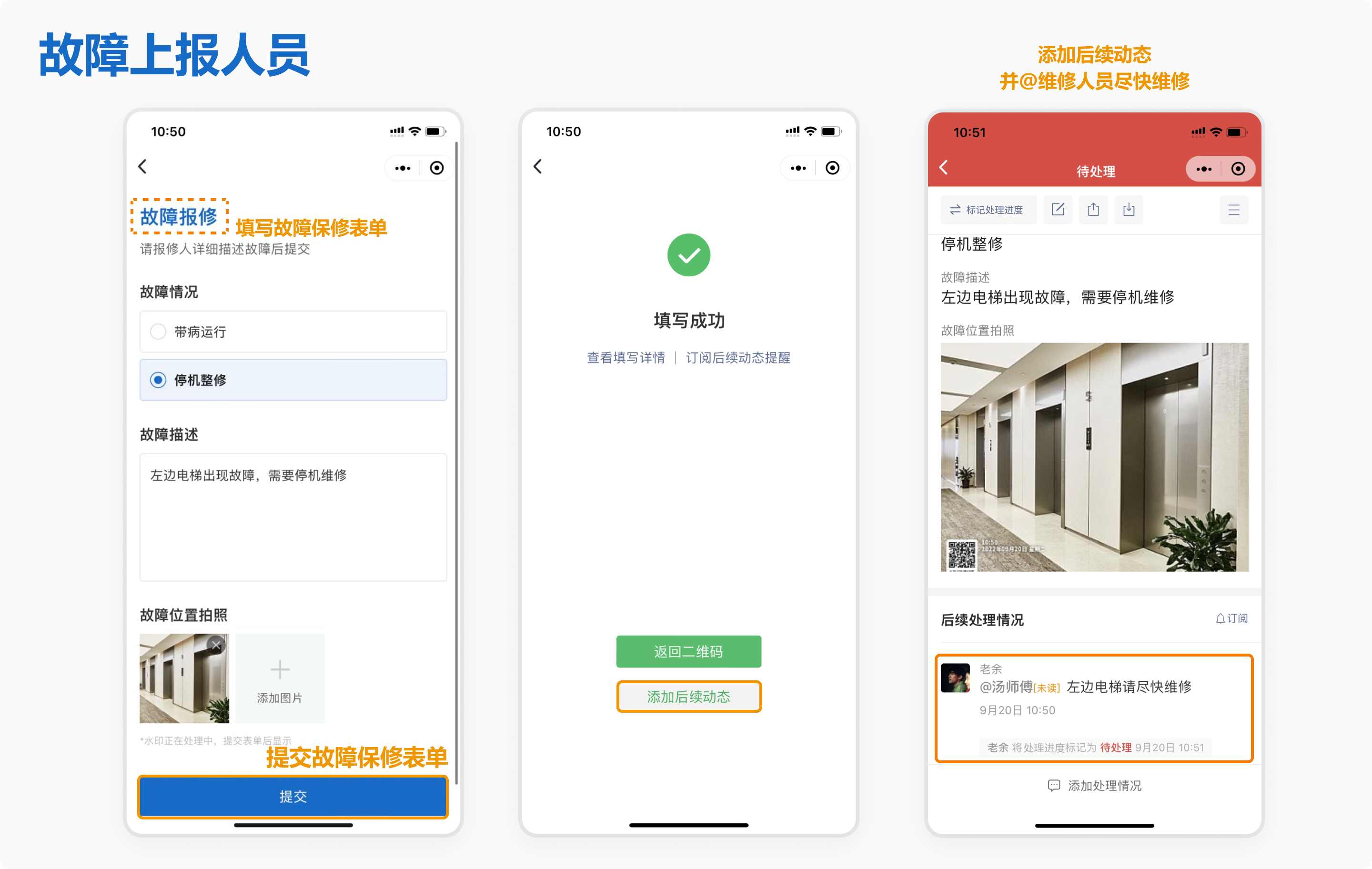
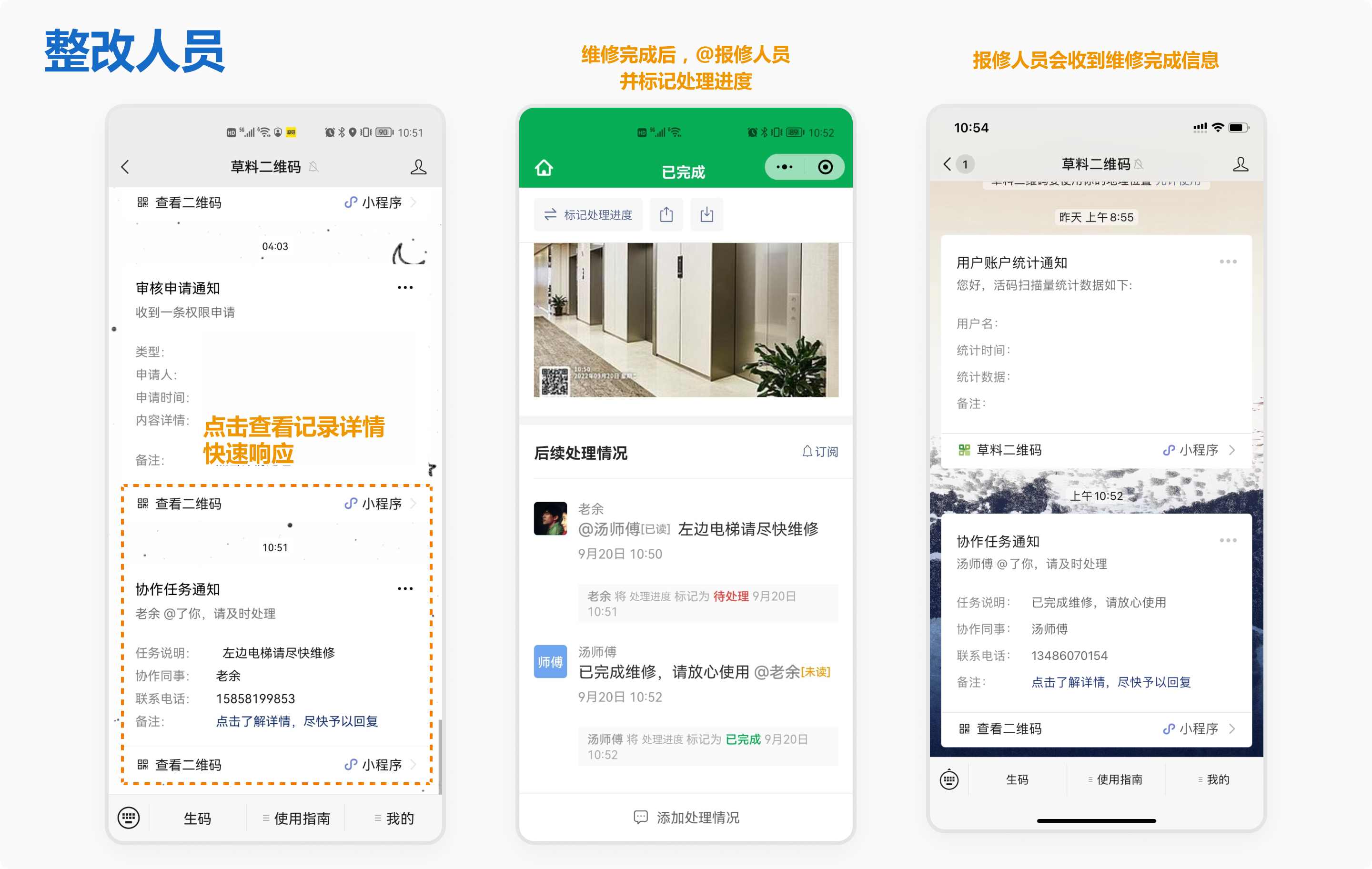
Enable the Add Follow-Up Actions feature in form settings. After a frontline worker submits a form record, team members can collaborate and communicate on the form data details page — supporting voice messages, text with images, @-mentions, form submissions, and handwritten signatures.
Suitable for multi-person collaboration scenarios, such as: equipment inspection → repair request → maintenance → acceptance — where multiple people need to follow up on a single inspection record. Learn about the feature
Elevator Inspection Example:
4. Mark Processing Progress for Follow-Up and Statistics
Enable the Mark Processing Progress feature in form settings. After a frontline worker submits a form record, each record can have its processing progress updated in real time for tracking and statistics. Applicable to feedback, fault handling, hazard rectification, anomaly resolution, and order delivery scenarios. Learn about the feature
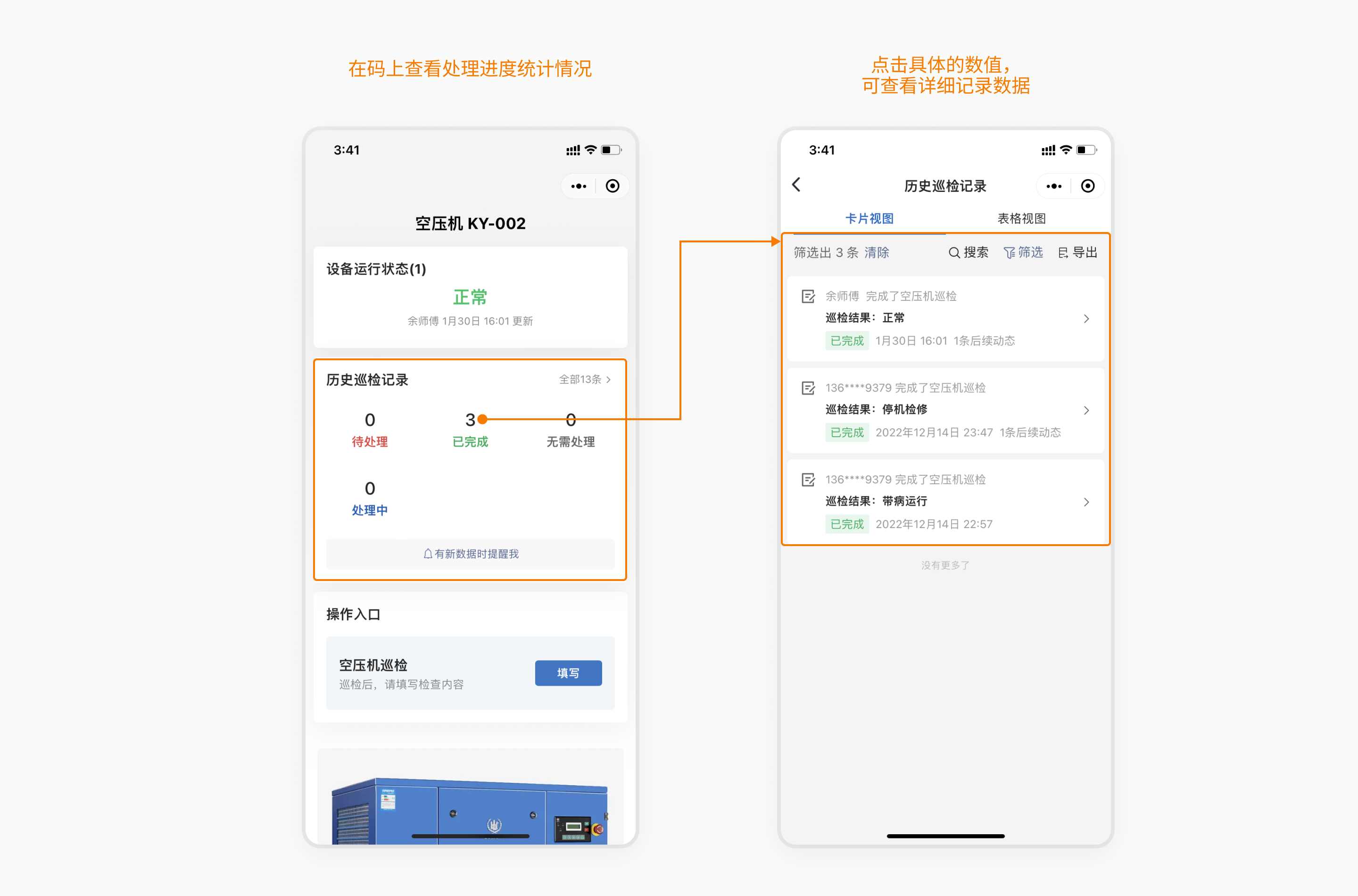
4.1 View Statistics on Mobile
In the dynamic QR code editor, set the dynamic data panel style to the processing progress summary style. All processing progress for that QR code will be counted. Learn about the feature
Scan the code to view — tapping a specific value navigates to the detailed record data.
4.2 View Statistics on Desktop
Log in to the desktop workbench. Under Workbench → Recent Updates, you can view processing progress statistics broken down by form.
Click a specific progress value to navigate to the form data details page and view the specifics.


5. Use Data Review to Receive Collaborative Feedback
1. Feature Overview
After a submitter submits a record, the super admin can review the submitted content (approve or reject), adding additional reply content.
After review, the submitter receives a WeChat service notification containing the review result and reply.
2. Service Appointment Example:

You can also enable [Allow submitter to edit the record and request re-review]. If a submission is rejected, the submitter can edit their record and wait for another review. Once approved, the submitter can no longer edit the record — if changes are needed, they must contact the admin.
Use cases: submitting quality inspection, acceptance, or selection materials; submitting evaluation work — where rejected submissions can be revised.

6. Scheduled Plans and Notifications for More Efficient Collaboration
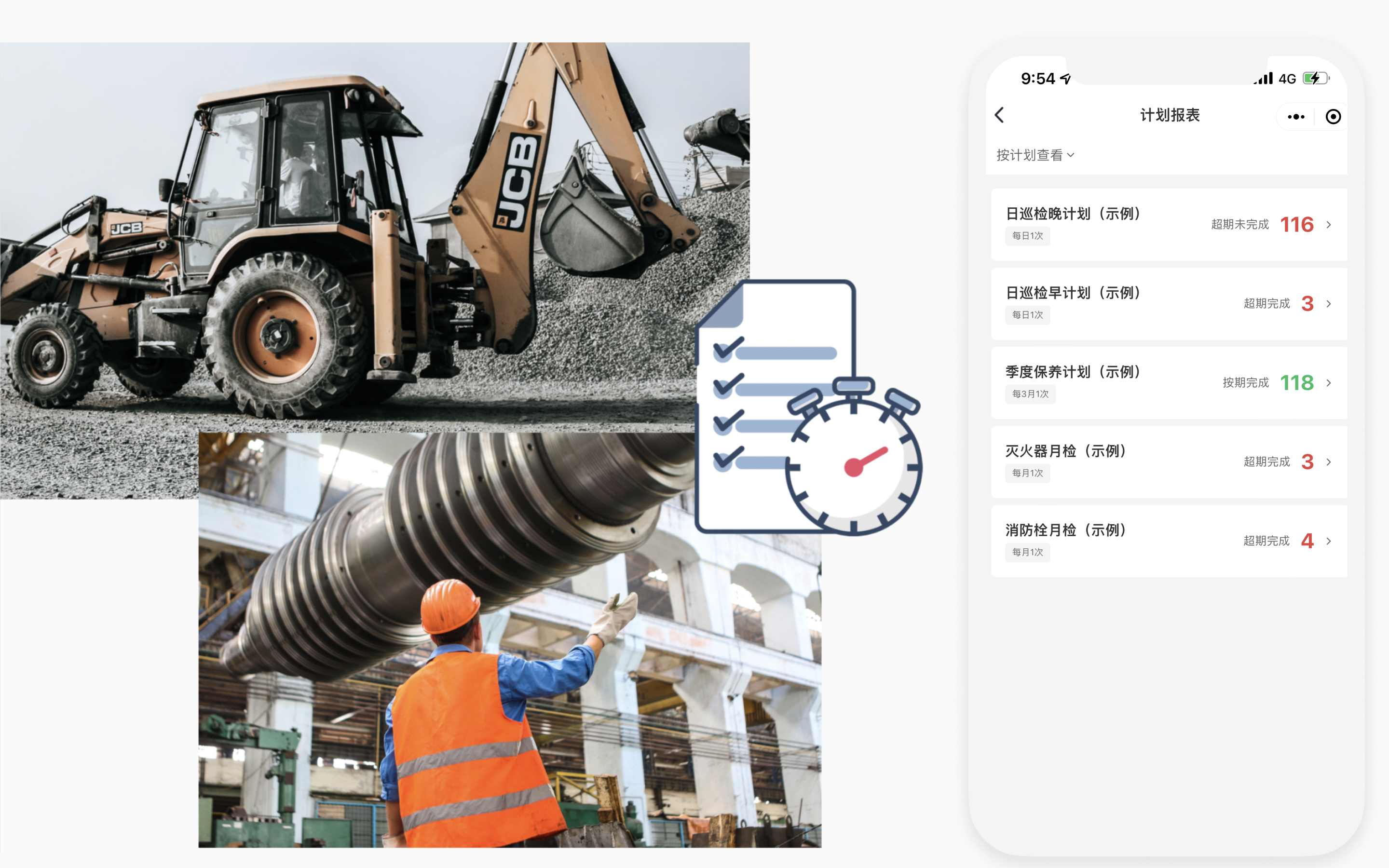
When equipment requires regular inspections and maintenance, use the Plan Management feature to monitor completion status in real time and avoid missed checks. View plan reports on mobile to know which plans are on track, behind, or about to expire. Receive [upcoming deadline reminders] on mobile to track which equipment inspection tasks are still pending. Plan management setup tutorial