WeChat Mini Program Parameter Code
Standard WeChat Mini Program codes can only open the Mini Program's home page when scanned — they cannot navigate to a specific page. CaoLiao supports generating WeChat Mini Program parameter codes, which allow users to scan and land directly on a designated page to access a service, making the experience faster and more convenient.

Advantages of WeChat Mini Program Parameter Codes
CaoLiao-generated WeChat Mini Program parameter QR codes encode specific channel and scenario parameter values directly into the QR code. Scanning the code navigates users directly to the corresponding channel or scenario page within the Mini Program, offering the following advantages:
- Shorter User Journey
Parameter-embedded Mini Program QR codes simplify the user flow by automatically routing users based on their context, eliminating extra steps and delivering a better user experience.
- Easier Channel Tracking and User Behavior Analytics
For each channel or scenario, user interactions with the Mini Program are recorded. Analyzing user behavior data across different parameters allows you to evaluate channel effectiveness and adjust your marketing strategy in a timely manner.
How to Generate a WeChat Mini Program Parameter Code
1. Prerequisites
First, you must have a published WeChat Mini Program, and the Mini Program administrator must authorize CaoLiao before parameter codes can be generated. If you are not the administrator of the Mini Program, or are only a project member, authorization will not succeed — you must contact the administrator to complete the authorization.
In addition, you need to ensure that the corresponding page has been registered in the Mini Program's app.json code and that the page files exist in the corresponding directory. Your Mini Program must also have a published online version (preview versions are not sufficient); otherwise, WeChat will display an error when the code is scanned.
2. Scan to Authorize
After registering and logging into your CaoLiao account on desktop, go to Workbench > Advanced Features > Mini Program Code Templates. Use the personal WeChat account of the Mini Program administrator to scan the QR code and authorize the corresponding Mini Program to CaoLiao.

3. Create a Parameter Template
Before creating a template, you first need to obtain the page path and parameter information. View the setup guide
A Mini Program page path with parameters typically follows this format: path?key1=value1&key2=value2

- The page path and parameters are separated by a
?- Each parameter consists of a key and a value, connected by
=- Multiple parameters are joined with
&
Template Setup Tutorial
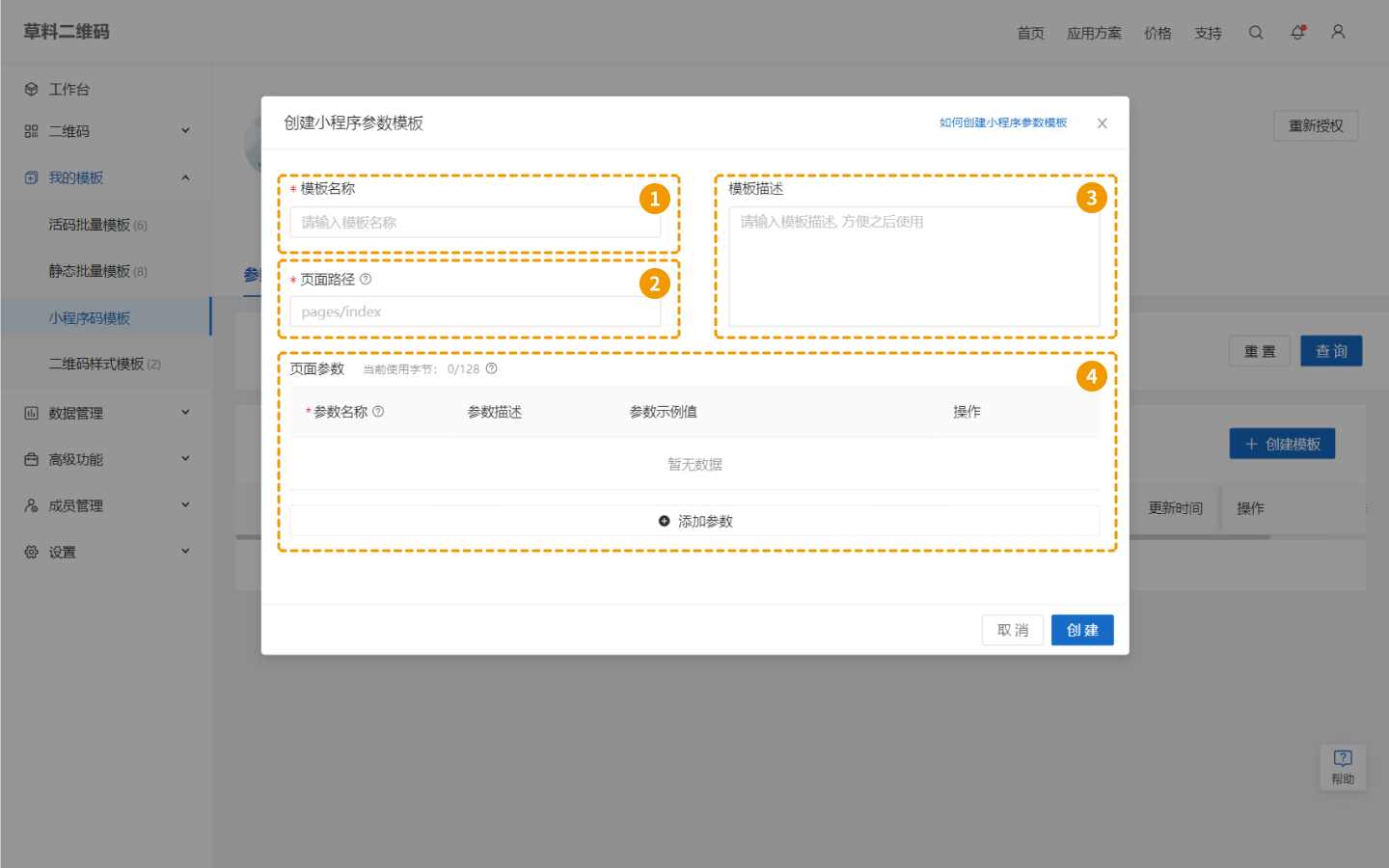
Step 1: Click Create Template, then fill in a template name and template description to distinguish the purpose of different templates.
Step 2: Enter the page path for this template.
Step 3: Enter the page parameters to be embedded in the QR code. If no parameters are added, a Mini Program QR code without parameters will be generated by default, scanning which will navigate directly to the Mini Program home page. Click Add Parameter and enter a "parameter name" (key1, key2, …); then set a "parameter description" and "example value" for each parameter to explain its meaning and purpose.
Page Path: This is the
pathportion before the?inpath?key1=value1&key2=value2. (If the path already contains parameter information, the system will automatically parse out the "parameter name" and "example value" and fill them into the page parameters below.)Page Parameters: This is the parameter portion after the
?inpath?key1=value1&key2=value2. One or more chained parameters can be configured.Note: The combined byte count of page path + page parameters must not exceed 128 characters.
You can later retrieve the parameter values in the
onLoadmethod of yourtext.jscode:onLoad: function (options) { var id = options[" "] },


4. Generate Codes Using the Template
In the template list, select the desired parameter template to enter its detail page. Click Generate Single Code or Upload Excel for Bulk Generation, fill in the parameter values, and the parameter-embedded Mini Program QR code will be generated.
Single Code Generation
Simply fill in the parameter values for each code and click Generate.

Bulk Generation via Excel Upload
CaoLiao supports bulk generation of WeChat Mini Program parameter codes. Download the Excel template, fill in the code names and parameter values — each row corresponds to one parameter code — with a single-batch limit of 500 codes. Import the completed Excel file into the system to generate the batch of Mini Program codes as a package.

5. Layout and Print Mini Program Parameter Codes
After bulk-generating Mini Program parameter codes, you can export an Excel file and use Photoshop for batch layout and design. Required software: any version of Photoshop / Office software. View detailed layout tutorial

Currently, Mini Program parameter QR codes only support downloading as image files for local Photoshop layout. A beautification and layout tool is under development — Mini Program parameter QR codes will also be able to use the quick, self-service design and layout features in the future. Stay tuned for updates on the CaoLiao QR Code homepage.
Mini Program Authorization Service Provider
After the Mini Program administrator authorizes CaoLiao to access Mini Program code permissions, "Ningbo Linjia Network Technology Co., Ltd." will appear as a service provider in the Mini Program's details page, indicating the technical source.