Feedback Handling Scenario
Government and public institutions can make a feedback QR code with CaoLiao QR Code to collect opinions or complaints from the public day to day, and let the public see how their feedback is being handled.
Examples: reporting illegal vehicles, complaints about unpaid migrant worker wages, feedback on city appearance problems, and similar scenarios.
I. The Illegal Vehicle Report Handling Flow
- Members of the public who see a traffic violation in daily life fill in a form to report it.
- After receiving the report form, the traffic lead compares the submitted content with the actual situation to judge whether it is a violation. Depending on the situation, they update the processing progress, for example: Illegal vehicle handled.
- The public can see the processing progress in the follow-up actions of the form record details. They can also subscribe, so they are reminded promptly when the processing progress changes.
- The traffic lead can scan to see the dynamic data panel and promptly handle reports that are "Unprocessed".
Use the template and start generating codes


II. How to Set It Up
1. Set Up Message Reminders and Choose Who Gets Reminded
Set this up on the complaint application form, so that when a new record is submitted, a specified person or identity group is reminded through WeChat. Learn about identity groups
You can also set the reminder type, so a reminder is sent only when a new record contains data that meets your condition. Learn about message reminders

2. Turn on the Form's Processing Progress Update
On the complaint form, turn on the follow-up processing progress feature.
With the Advanced Edition and above, you can rename the processing progress items to fit the scenario. Change the system's processing progress names to: Pending Acceptance, Accepted, Illegal Vehicle Handled, No Violation Found for Now. Set the default processing progress to "Pending Acceptance". You can update the handling progress of illegal vehicle reports in real time.
You can set that only a specified identity group or department can update the processing progress.

3. Turn on Follow-Up Actions for the Form
On the complaint form, turn on the follow-up actions feature. Finance staff can collaborate and communicate on the submitted record's detail page, using text and images, @mention reminders, and photos, recording the whole complaint handling process.
You can turn on "Allow others to subscribe to follow-up actions", so that whenever a new follow-up action is added to the form record details, subscribers get a message reminder through the Official Account.
With the Advanced Edition and above, you can designate a form for filling in follow-up actions, which makes the export format more standard, and you can also set message reminder rules for that form.

4. Set the Dynamic Data Panel Style to Show Processing Progress Statistics
In the dynamic data panel style settings, choose processing progress statistics. You can change the statistics metrics to show the processing progress totals right on the QR code.
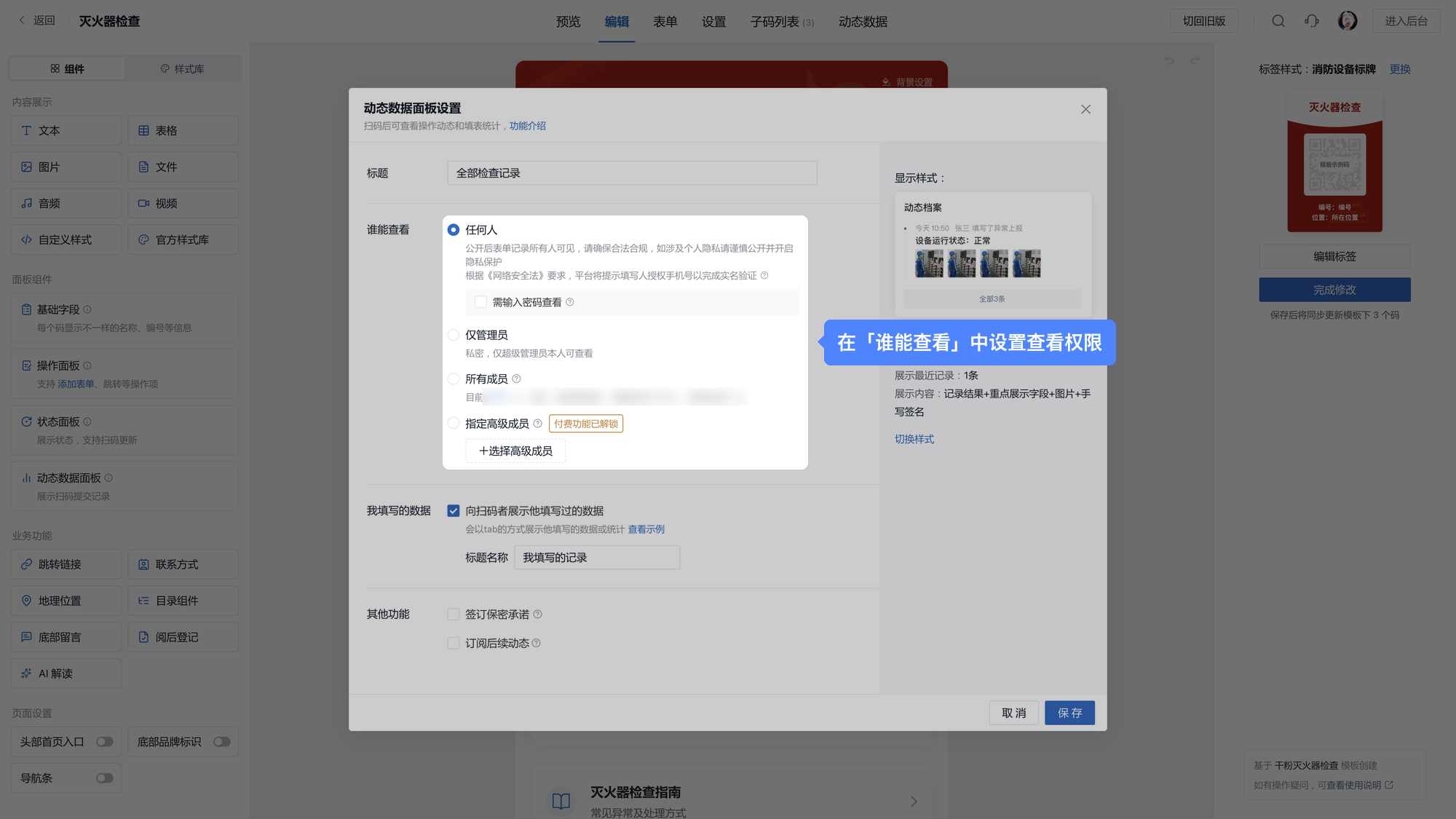
If you want the statistics to be seen only by insiders, select the dynamic data panel, click "Settings", and under "Who Can View" choose "All Members" or "Designated Advanced Members".