Editing a Form
This article explains how to edit form content and form settings.
1. How to Access
Select the individual QR code or QR code template you want to edit and click Edit to open the dynamic QR code editor.
Select the Control Panel and click Settings to enter the control panel settings page.
Select the form you want to change and click Edit Form to edit its content. To adjust the form settings, click Form Settings.
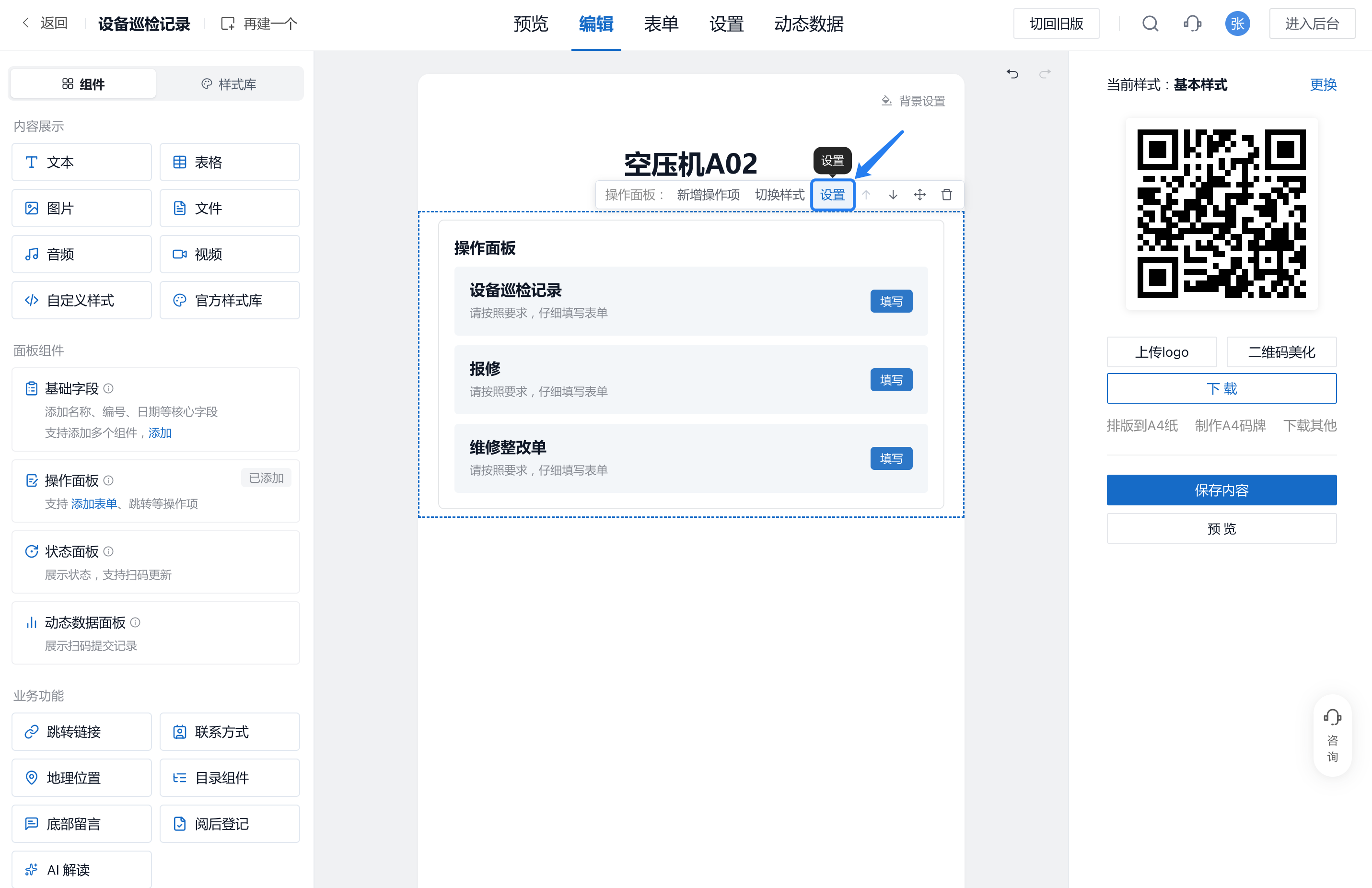
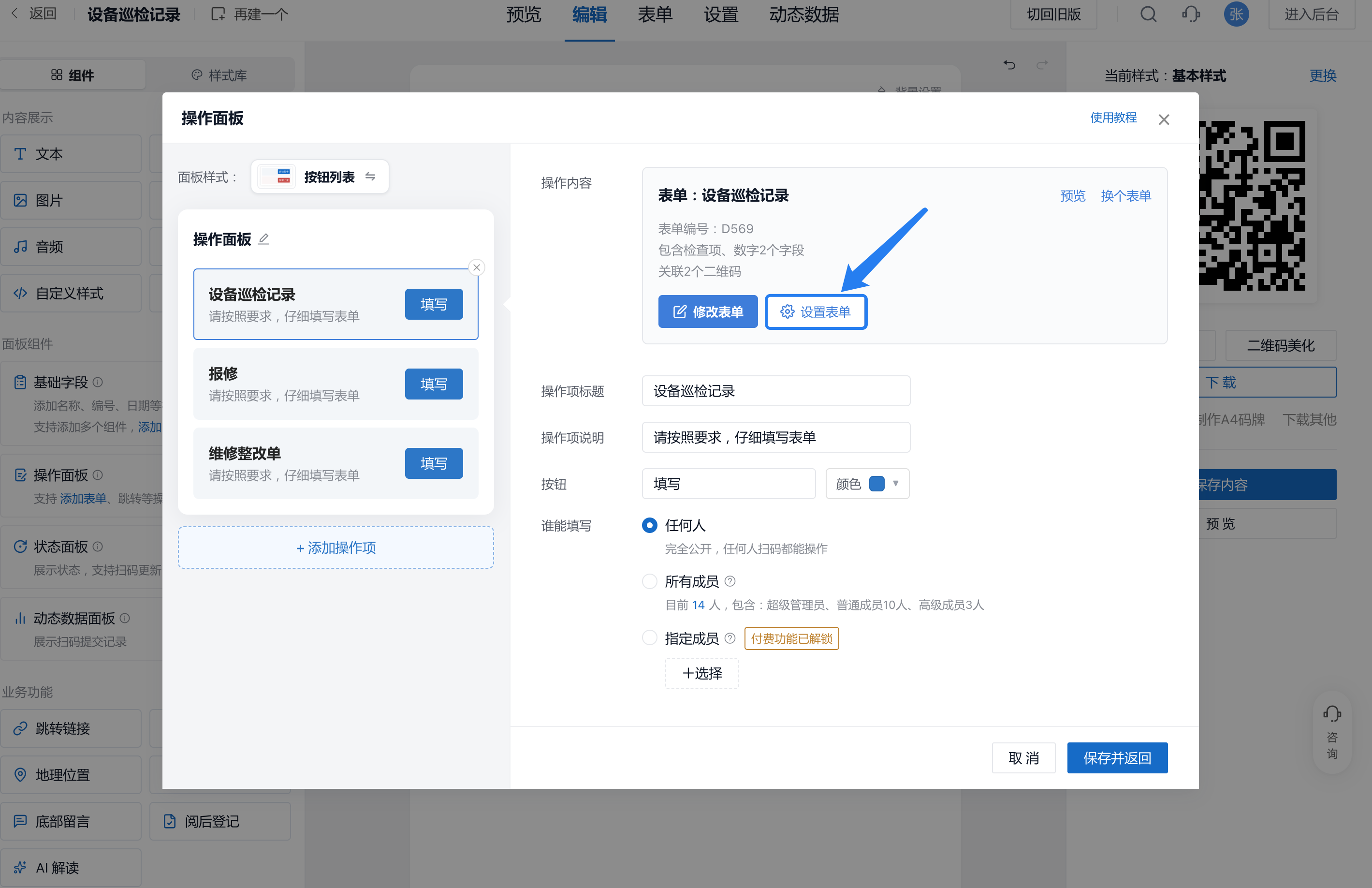
In addition to editing forms from within a QR code, you can also edit them directly from the workbench under Advanced Features → Form Settings.
Note: When you edit a form directly from the workbench, all QR codes associated with that form will have their form content and settings updated simultaneously.
2. Editing Form Content
Form content is edited in the forms editor (shown below). You can click or drag components from the Component Panel on the left to add them. Or click on an already-added component in the Form Preview Area to modify it.
For details on each component's settings and effects, see: Form Components Overview

You can also configure the submission success page, fill restrictions, notifications, data review, and more for the form. Submission success page settings | Form settings overview
