Label Printer Tutorials and FAQs
I. Printer Installation and Connection Issues
1. How Do I Install the Printer on My Computer?
- Connect via USB; some printers also support Bluetooth or Wi-Fi.
- Install the printer driver to start using it.
Obtain the driver file from the printer's official support service or the user manual. Follow the installation guide to ensure the driver is installed correctly. You can also request remote assistance from the vendor's customer support.
2. Printer Cannot Connect to Computer / Device Not Responding
Possible causes:
- USB or power cable not properly connected.
- Driver not installed correctly.
- Printer power not turned on.
Solutions:
- Check whether the USB and power cables are firmly plugged in; try replacing the cables.
- Download the correct driver for your model from the official website, or use the included disc. Alternatively, contact the vendor's support.
- Check whether the printer's power indicator is on; restart the printer and computer.
3. Driver Installation Fails
Possible causes:
- System incompatibility (e.g., 32-bit vs. 64-bit mismatch).
- Security software blocking the installation.
Solutions:
- Download the driver version matching your operating system.
- Temporarily disable antivirus software or firewall and reinstall.
4. Can Label Printers Print Color Labels?
Standard label printers can only print monochrome (black-and-white) labels.
Label printers capable of color printing are very expensive — typically ¥10,000/unit or more.
5. Can the Printer Directly Print QR Code Images or PDF Files?
Most thermal transfer printers can. However, always confirm with the vendor before purchasing.
If direct printing is not supported, install the printer's bundled label design software and use it to print. See tutorial
6. Maintenance and Care
- Clean the print head and platen roller weekly.
- Avoid using low-quality ribbons or label paper (they can shed debris).
7. Printer Error Codes
- Error: Paper Out → Check whether the label paper is empty or if the sensor is faulty.
- Error: Head Overheat → Pause printing and allow to cool for 10 minutes before resuming.
II. Consumables Issues
1. How to Select Consumables
Ribbon: Resin ribbon recommended
- Ribbon width must be greater than the label stock width but slightly less than the printer's maximum print width.
- Most printers use 300m ribbons (core diameter 25mm). Some printers use small rolls of 70m or 90m (core diameter 12.5mm). Check your printer's compatible core diameter before purchasing.
Label stock: PET material recommended
- The label stock size must match the size of the QR code labels you download. For example, if you are printing 40×60mm QR code labels, you must purchase 40×60mm single-row label stock.
- Only single-row label stock can be used — do not purchase double-row stock.
2. Ribbon Wrinkling or Tearing
Possible causes:
- Ribbon installed in the wrong direction.
- Uneven ribbon tension.
Solutions:
- Confirm the supply and takeup spool directions (typically the coated side faces outward).
- Adjust the ribbon tension knob to ensure the ribbon is flat and wrinkle-free.
3. Label Paper Jam
Possible causes:
- Paper roll installed too tight or too loose.
- Label paper edges sticking together.
Solutions:
- Reinstall the paper roll with moderate tension (the roll should rotate freely).
- Check whether the label backing is intact; peel apart any stuck labels.
III. Print Calibration Tutorials
1. My Label Paper Size Is Not Listed in the Paper Size Options — What Should I Do?
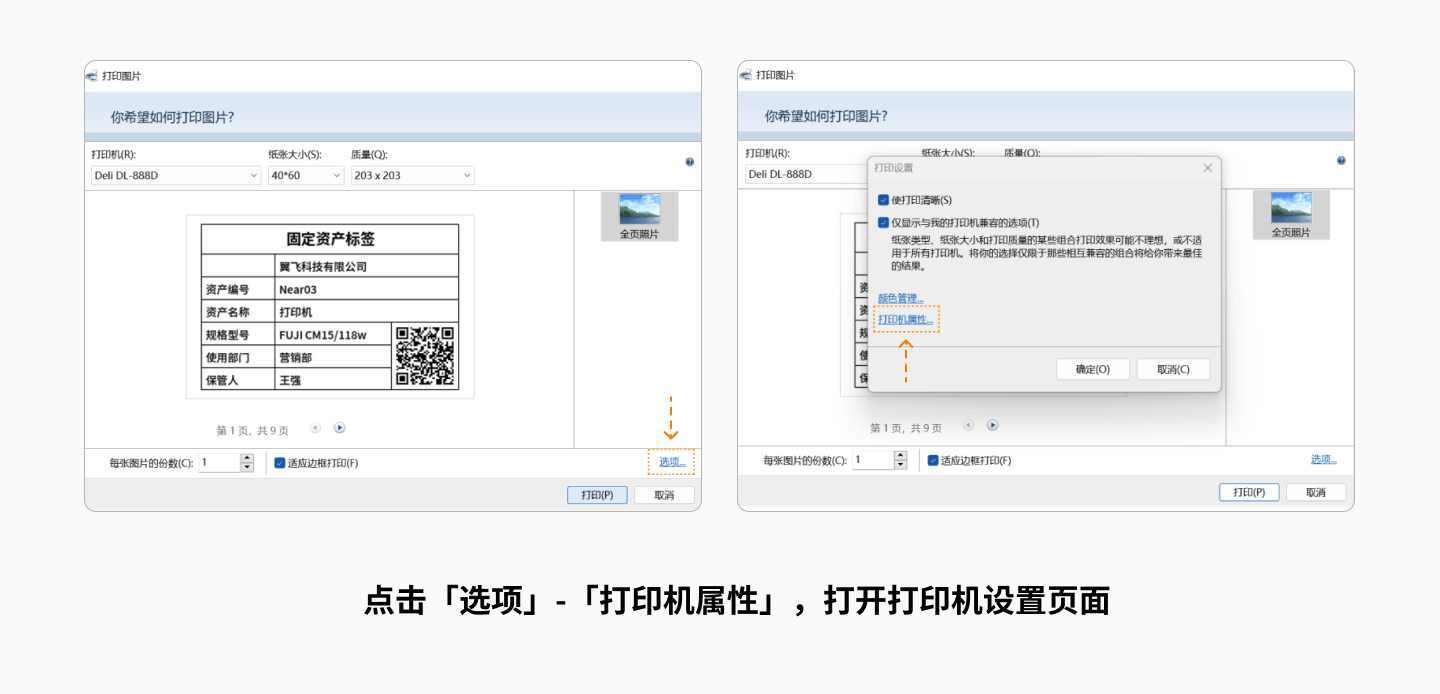
If the size of your label paper is not listed, you need to create a custom size. In the print settings, click Options and select Printer Properties.
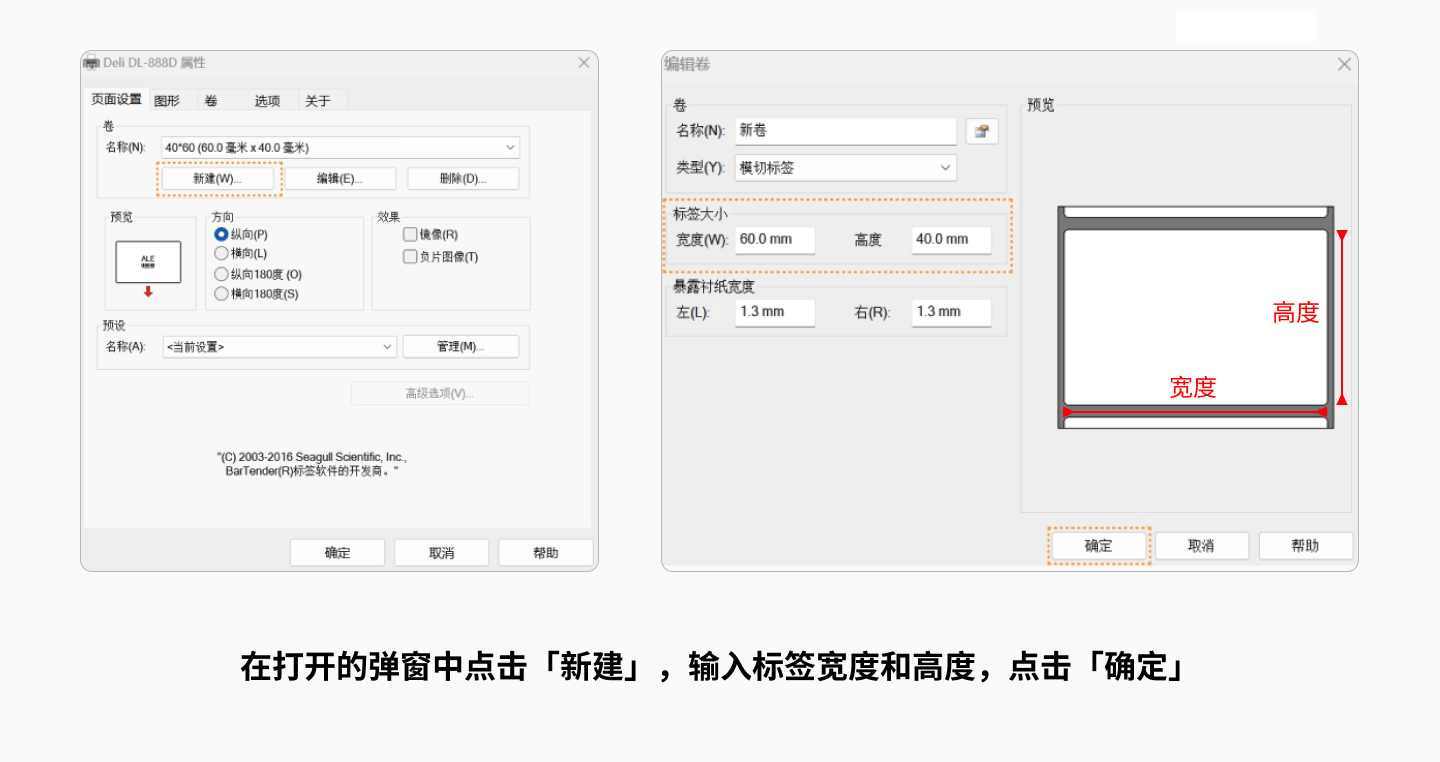
Click New, enter the dimensions of your label paper in the Label Size field (be careful not to swap width and height). Enter a memorable name, then click OK. The new size will be created and available in the Paper Size dropdown.
2. Print Output Is Blurry?
- Check settings: Make sure the printer's color mixing is set to "None."
- Clean the print head: A dirty or worn print head can cause blurring. Power off the printer and gently wipe the print head with a cotton swab dipped in alcohol (wipe in one direction only).
- Upgrade resolution: If using a 203dpi printer, consider upgrading to 300dpi. If the label size is smaller than 20×20mm, a 600dpi printer is required.
3. Print Content Is Shifted Up or to the Left?
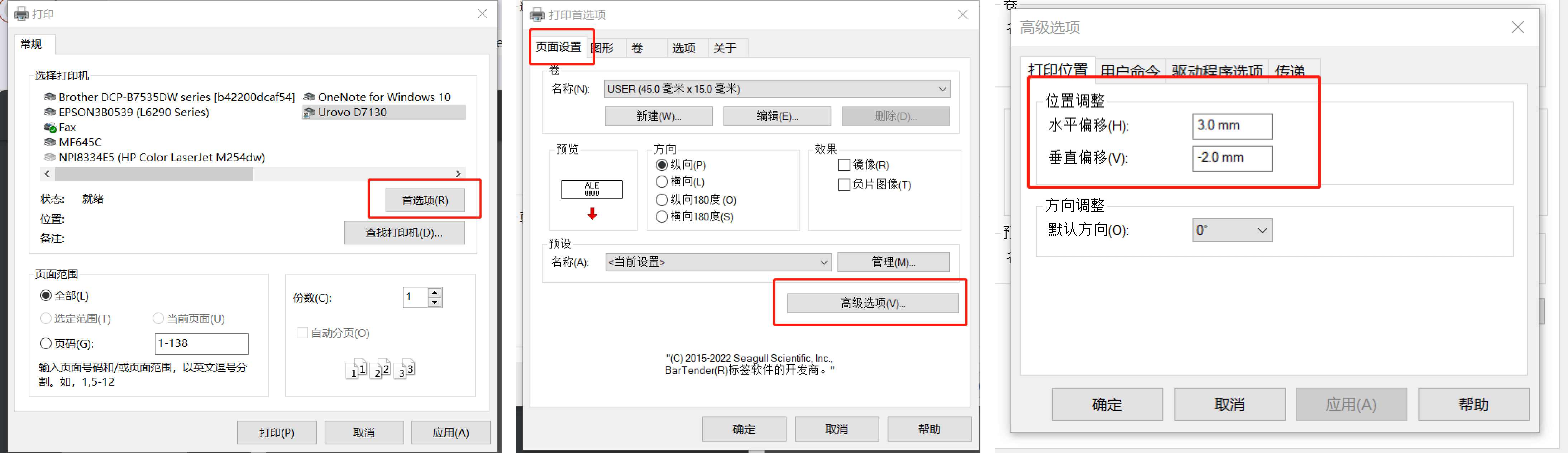
Adjust the paper settings in the print preferences to match your actual label paper size. Path: Print dialog → Options → Printer Properties → Page Setup → Advanced Options. Adjust the horizontal and vertical position settings.
The appropriate values depend on your current scaling factor — test and adjust as needed.
4. How to Print Multi-Row Label Sheets?
- Single-row limit: Images downloaded from CaoLiao as a batch can only be used for single-row label printing. Using double-row label stock will result in misalignment.
- Multi-row solution: For multi-row printing, use the printer's bundled layout software to import CaoLiao data. View tutorial