Image + Label Printer Printing Tutorial
Downloaded QR code images can be shared directly via WeChat for scanning, or quickly printed on a standard printer and applied with tape.
You can also use a label printer to print images onto adhesive label stock — print on demand.
Note:
- Before buying label paper, check the supported download image sizes and purchase the matching size. Mismatched sizes will affect print quality.
- Most mainstream label printers can only print black-and-white labels. If you need color labels, please choose a different printing method.
- CaoLiao also summarizes material selection, pricing references, and deployment tips for different QR code label scenarios. Use the navigation to find your scenario and view detailed content. Learn about the QR Code Label Printing Deployment Guide
Printing Process
Step 1: Install the Printer Driver on Your Computer
Connect the label printer to your computer via USB. Obtain the printer driver from the official support service or the printer manual. Follow the installation instructions to install the driver correctly.
Step 2: Download QR Code Label Images from the CaoLiao Workbench
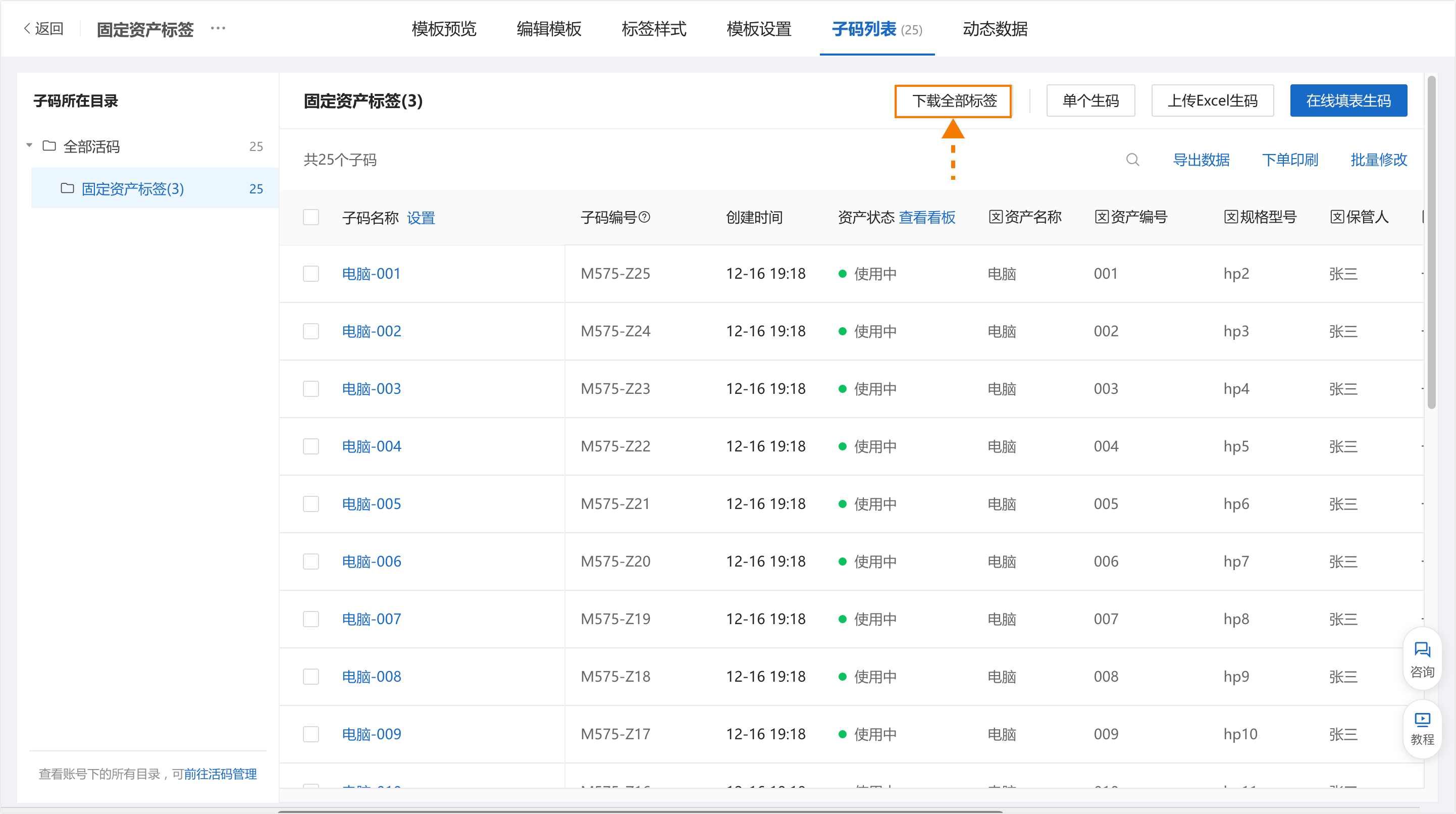
In the CaoLiao workbench, find the QR codes you have created. Go to the Template Detail Page and click Download Print Labels.
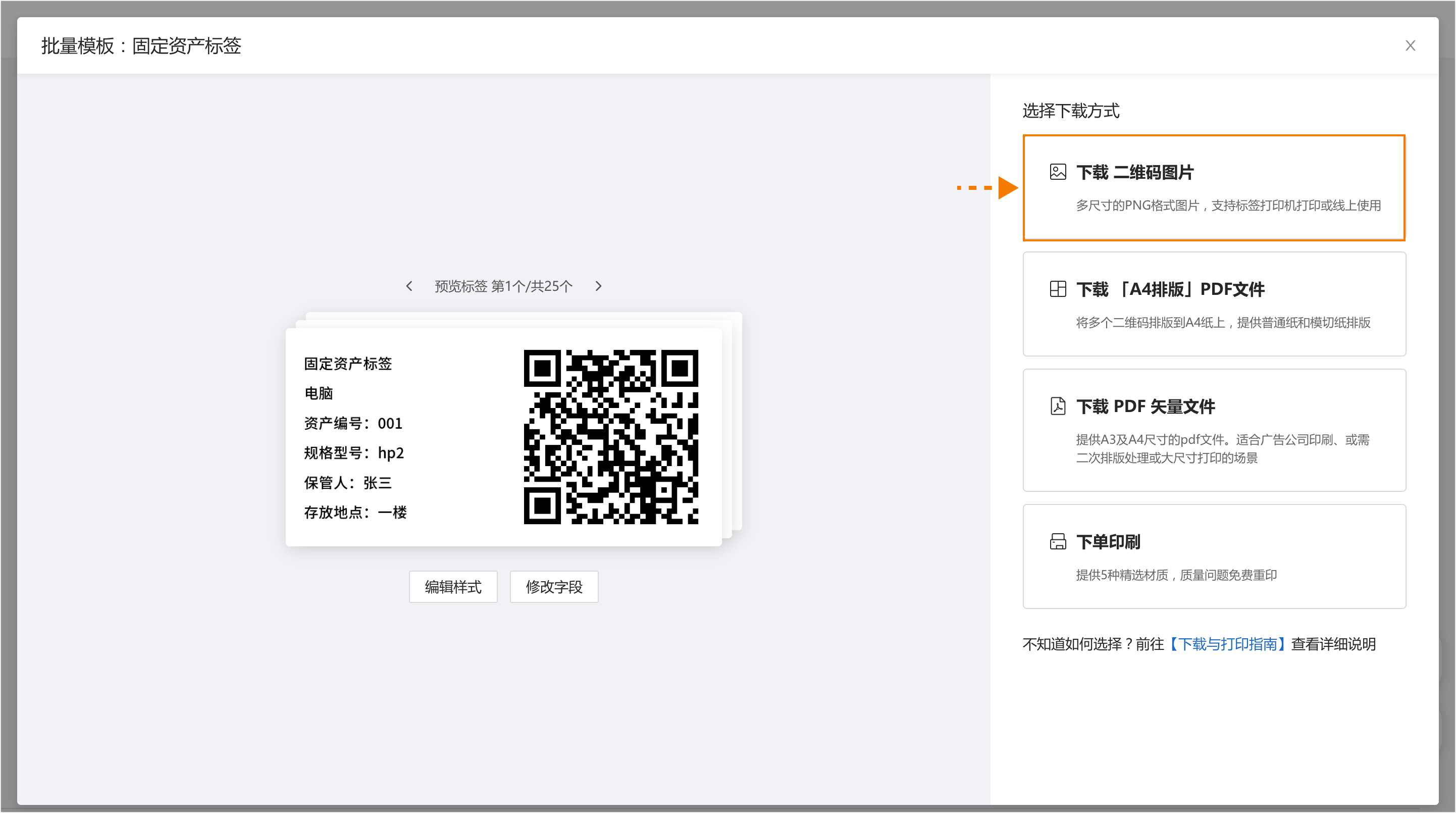
Select "Download QR Code Image".
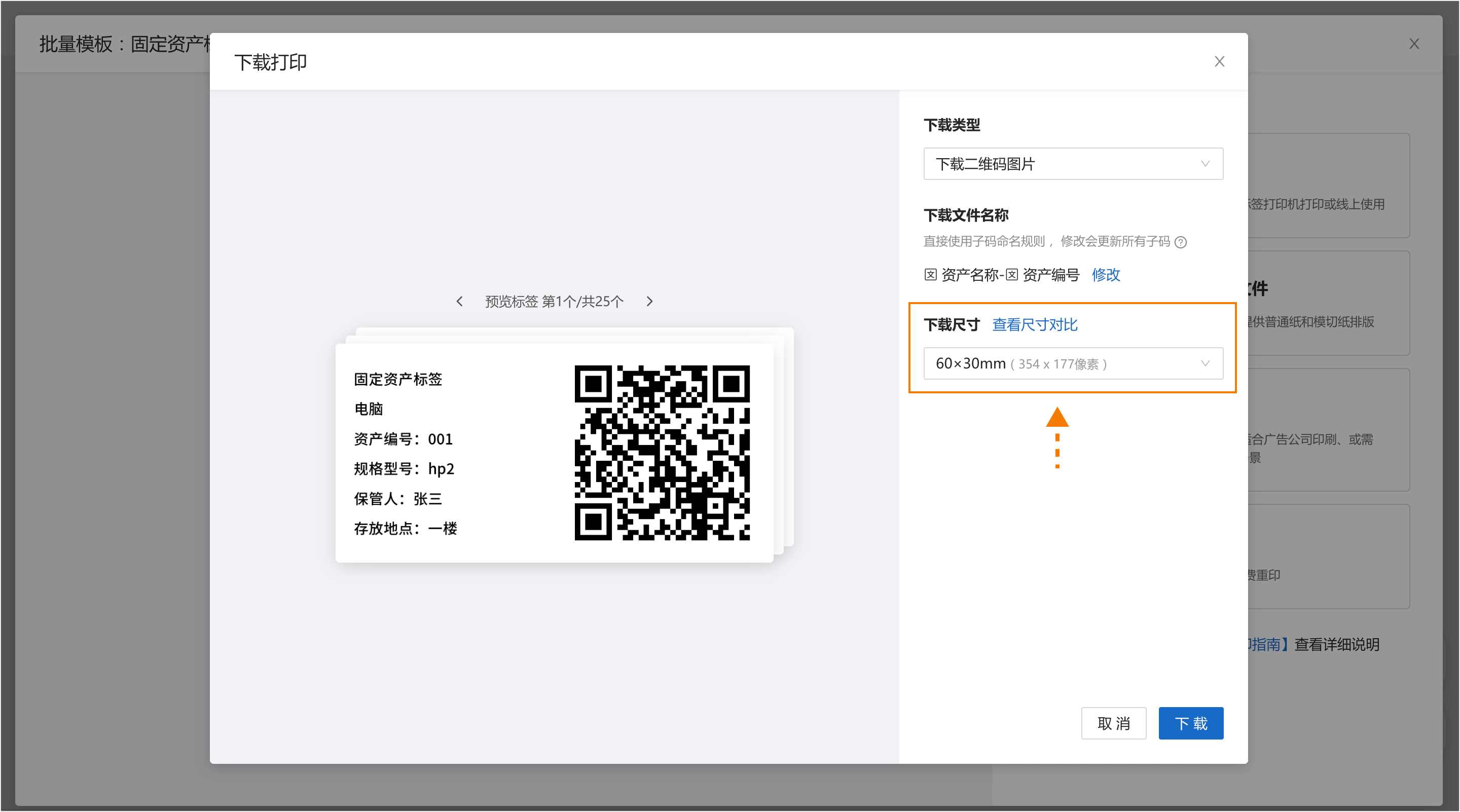
CaoLiao offers multiple image download sizes. Based on your label paper size, click to download the corresponding size. You will receive a ZIP archive of label images.
Step 3: Select the Images to Print
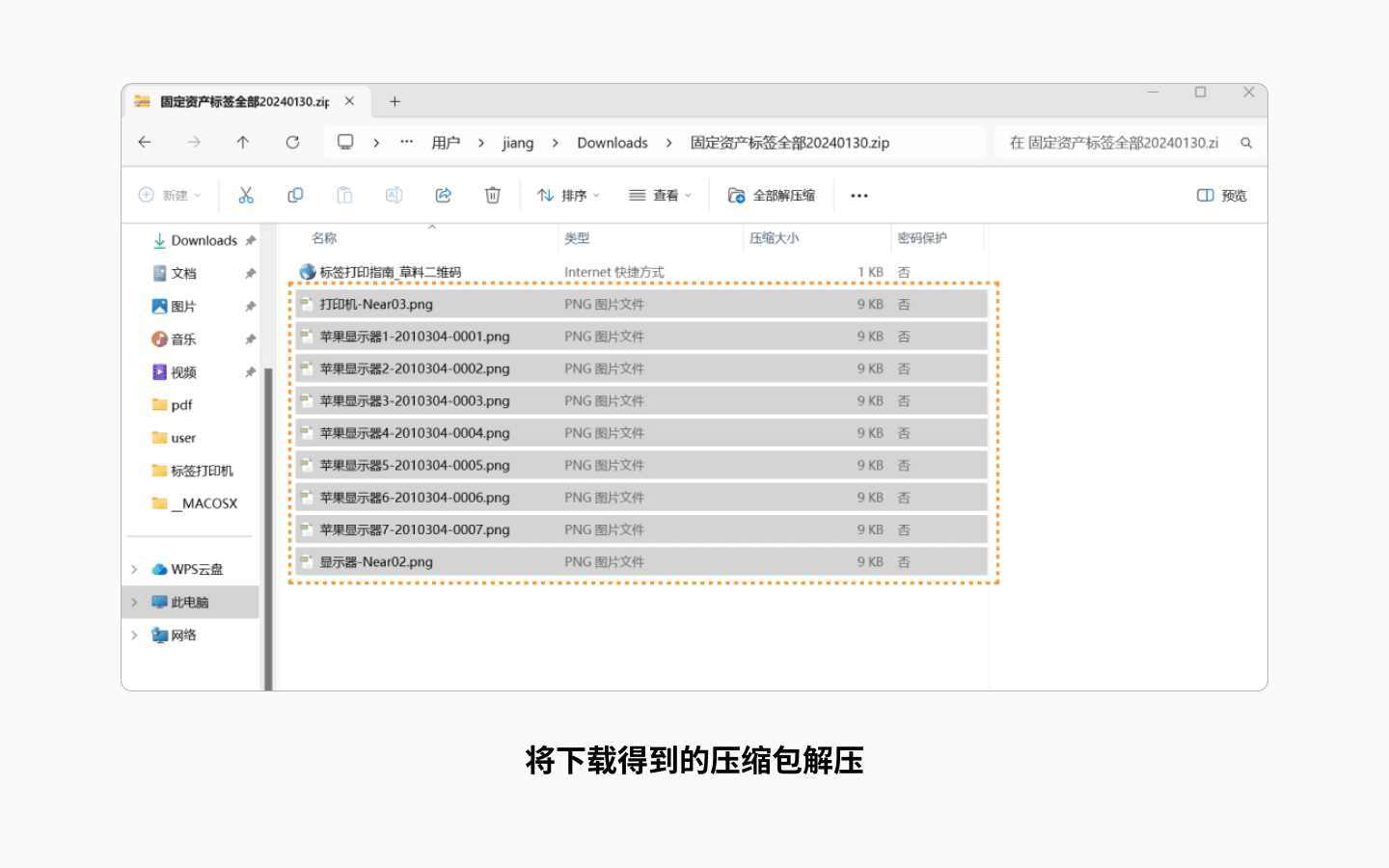
Extract the downloaded ZIP archive and select all label images you want to print.
Step 4: Start Printing
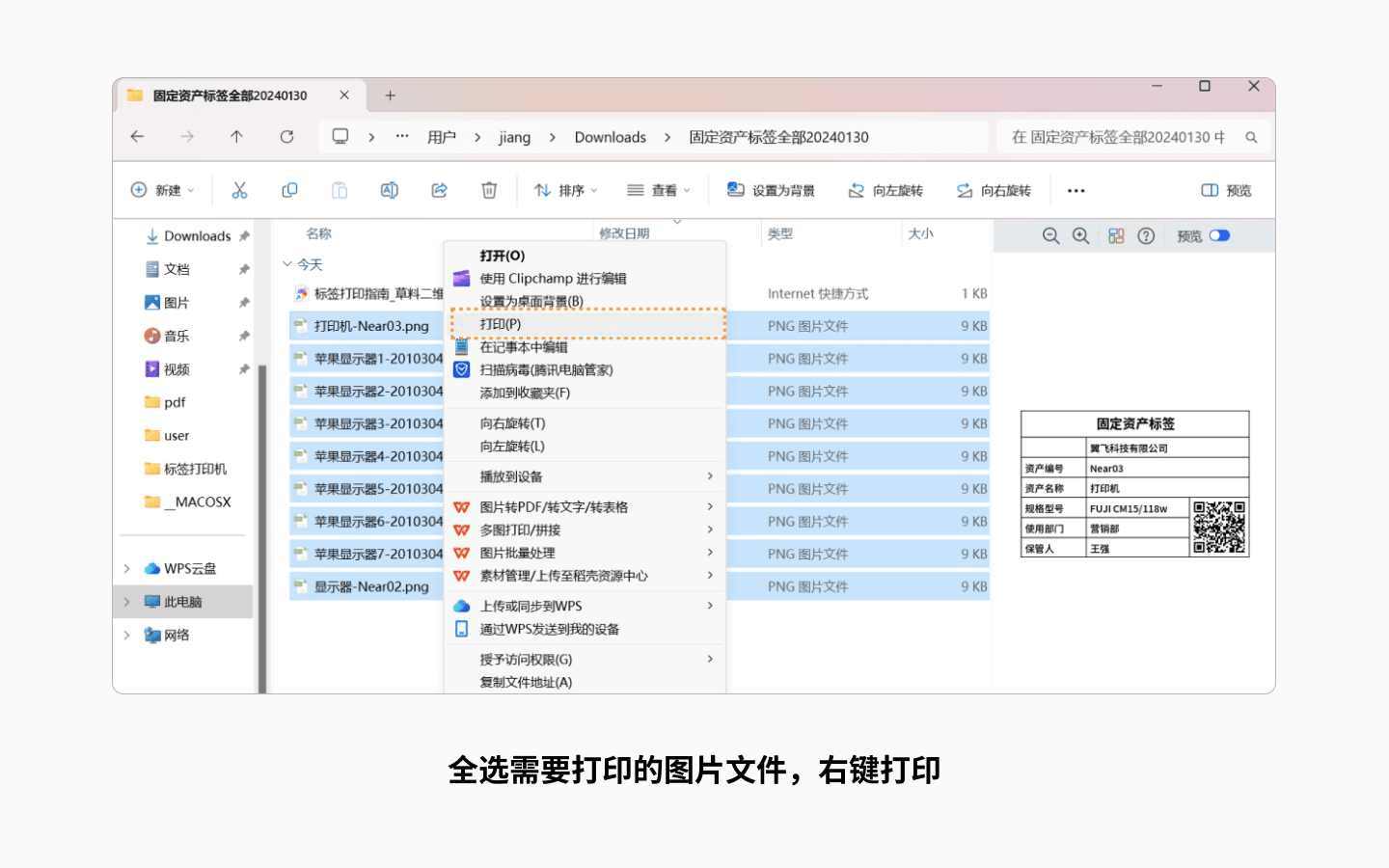
- Right-click the selected images and choose "Print" from the context menu to open the system print dialog.
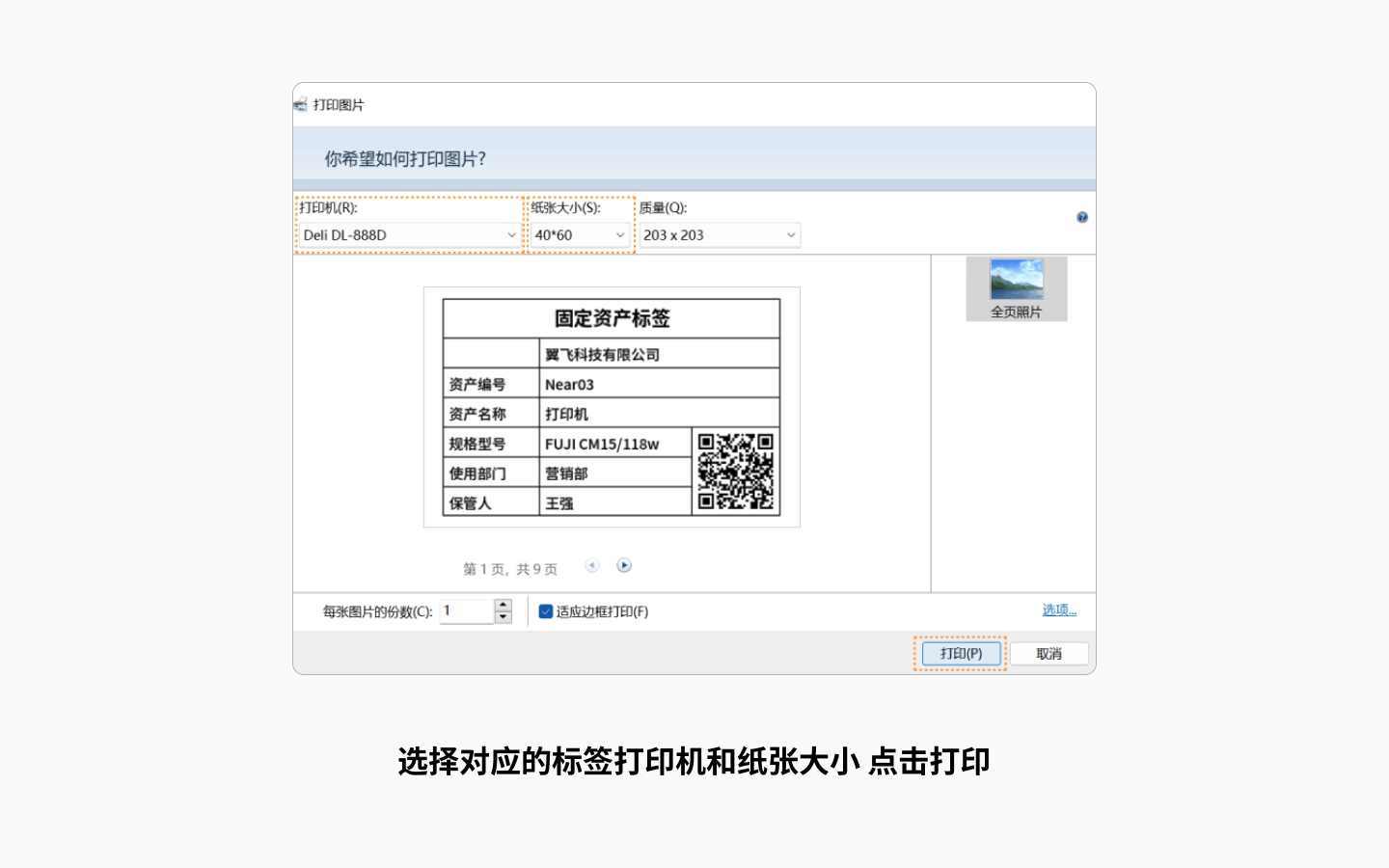
- In the print settings, select your label printer as the printing device. Set Paper Size to match your label paper size. Click Print.
FAQs
For more label printer tutorials and FAQs, click here for details.
1. My Label Paper Size Is Not Listed in the Paper Size Options — What Should I Do?
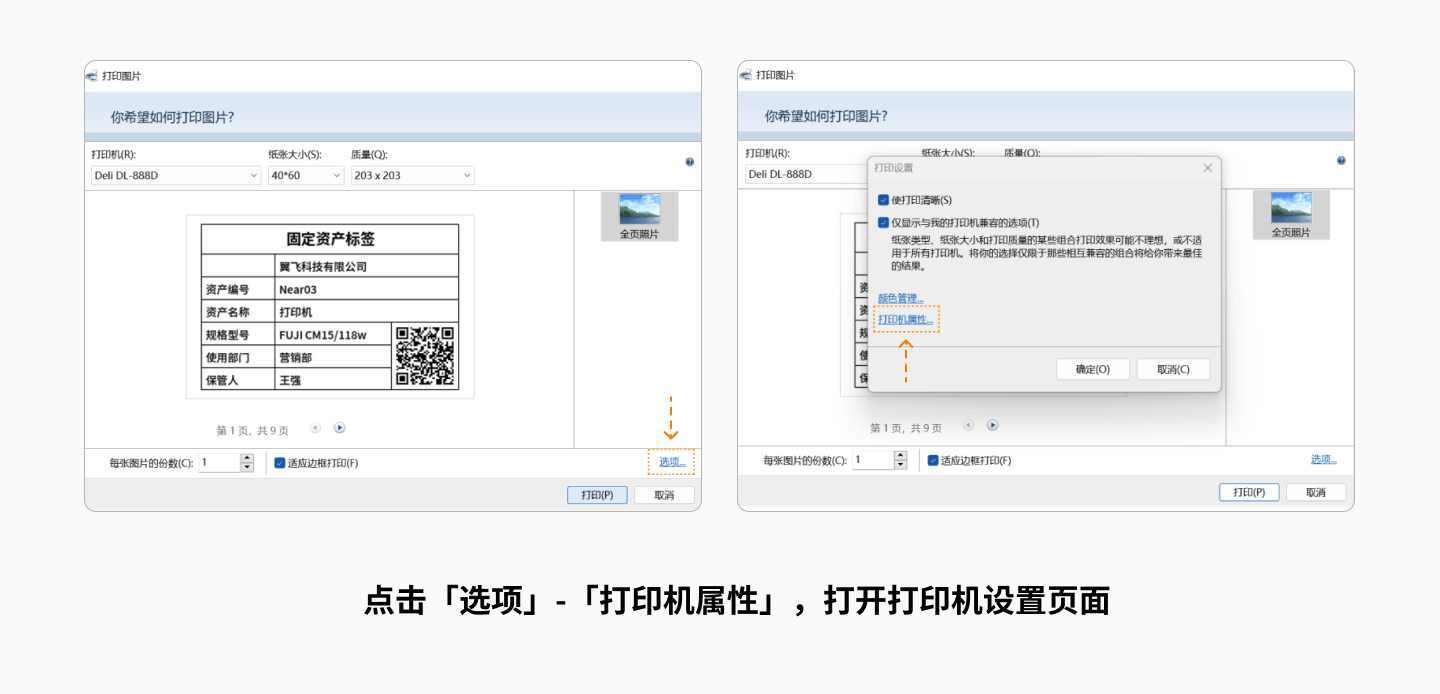
If the size of your label paper is not listed, you need to create a custom size. In the print settings, click Options and select Printer Properties.
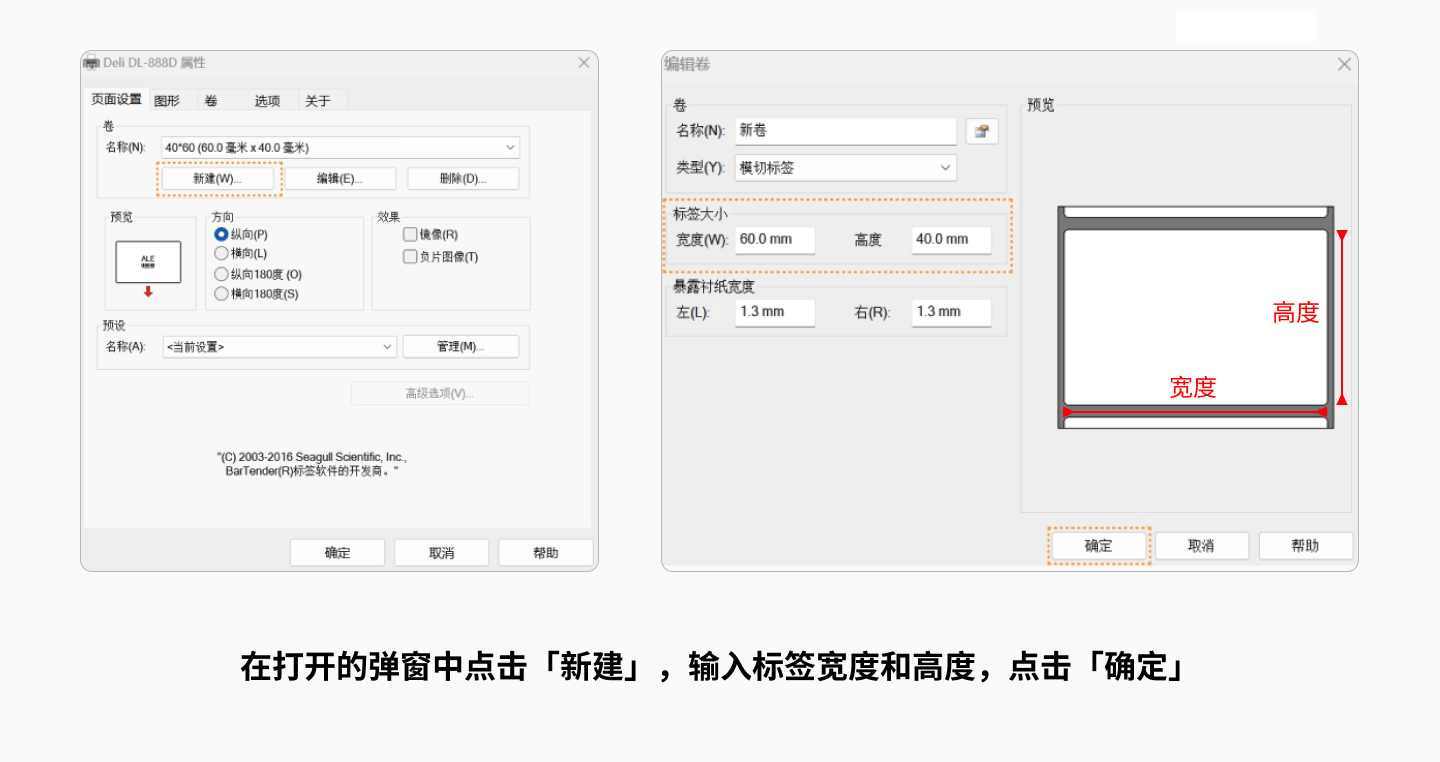
Click New, enter the dimensions of your label paper in the Label Size field (be careful not to swap width and height). Enter a memorable name, then click OK. The new size will be created and available in the Paper Size dropdown.
2. Print Output Is Blurry?
- Check settings: Make sure the printer's color mixing is set to "None."
- Clean the print head: A dirty or worn print head can cause blurring. Power off the printer and gently wipe the print head with a cotton swab dipped in alcohol (wipe in one direction only).
- Upgrade resolution: If using a 203dpi printer, consider upgrading to 300dpi for better clarity. If the label size is smaller than 20×20mm, a 600dpi printer is required.
3. How to Print Multi-Row Label Sheets?
- Single-row limit: Images downloaded from CaoLiao as a batch can only be used for single-row label printing.
- Multi-row solution: For multi-row printing, use the printer's bundled layout software to import CaoLiao data. View tutorial
Printer and Consumables Recommendations
There are two common types of label printers:
[Recommended] Thermal Transfer Printer:
- Requires PET/PVC adhesive label stock.
- Used with resin ribbon — clear printing, no fading for years.
- Different label stock materials are available for different environments. PET material is recommended — universal, stable performance.
Thermal Printer:
- Only requires thermal adhesive paper — no ribbon needed.
- Lower label quality and durability, not waterproof. Suitable for short-term use only.
CaoLiao provides purchase recommendations for label printers and consumables (adhesive label stock, ribbons). Choose based on your use case. For other questions, consult the vendor before ordering. View purchase recommendations