How to Edit a QR Code?
Log in to the CaoLiao workbench, find the dynamic QR code you want to edit, click Edit, update the content, and click Save Content. The QR code pattern never changes after editing — scanners immediately see the latest content. Static QR codes cannot be edited; you would need to create a new dynamic QR code instead.
1. How to Edit an Existing QR Code
Log in to your CaoLiao account, go to the workbench, find the target dynamic QR code, click Edit, update the content, and save.
Step-by-step:
-
Log in to the workbench: Log in to your CaoLiao account and click Workbench in the top-right corner of the page.
-
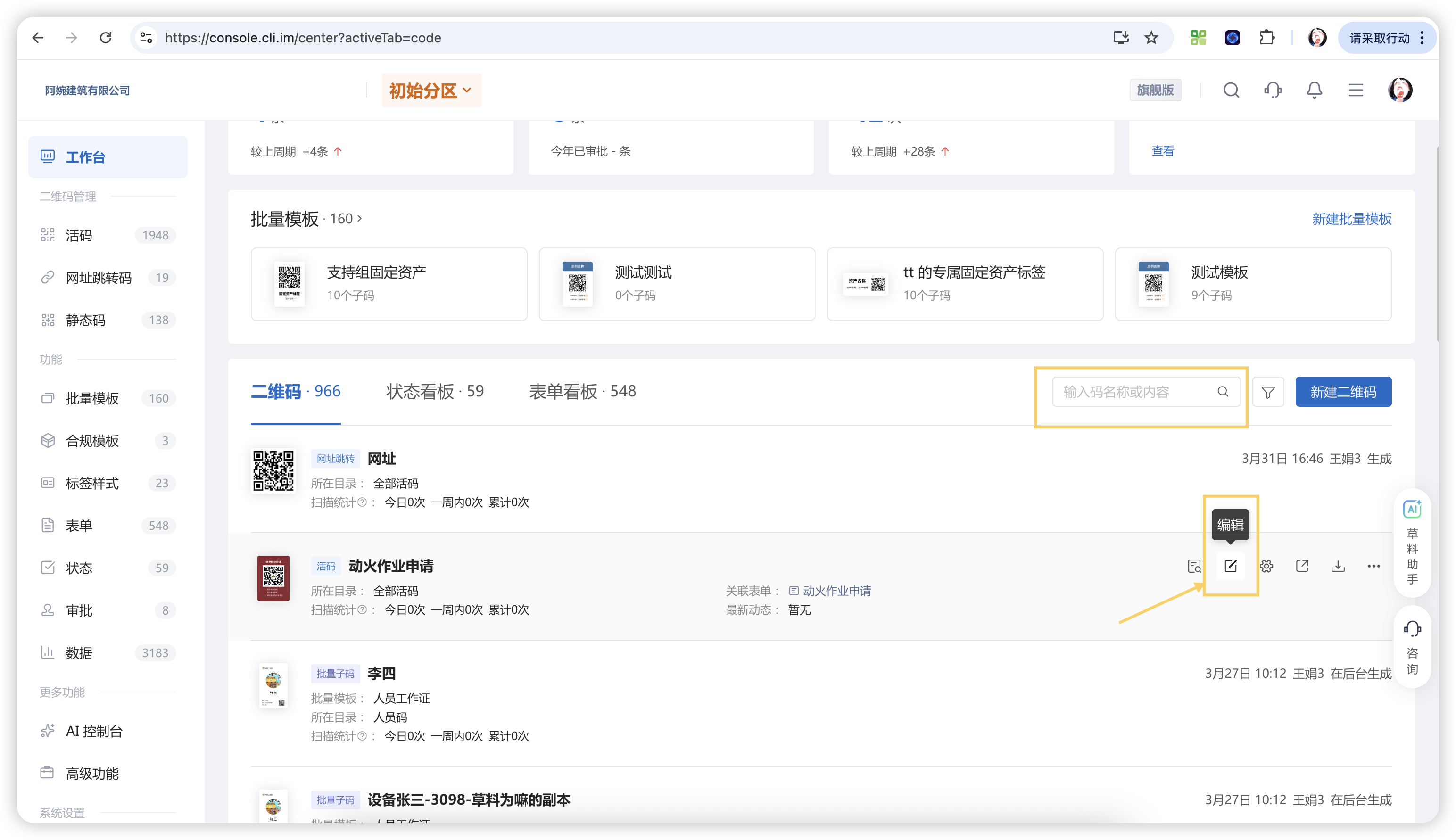
Find the QR code: Locate the dynamic QR code in the list. If you have many QR codes, use the search bar to find it by name.
-
Click Edit: Click the Edit button to the right of the QR code to open the editor.
-
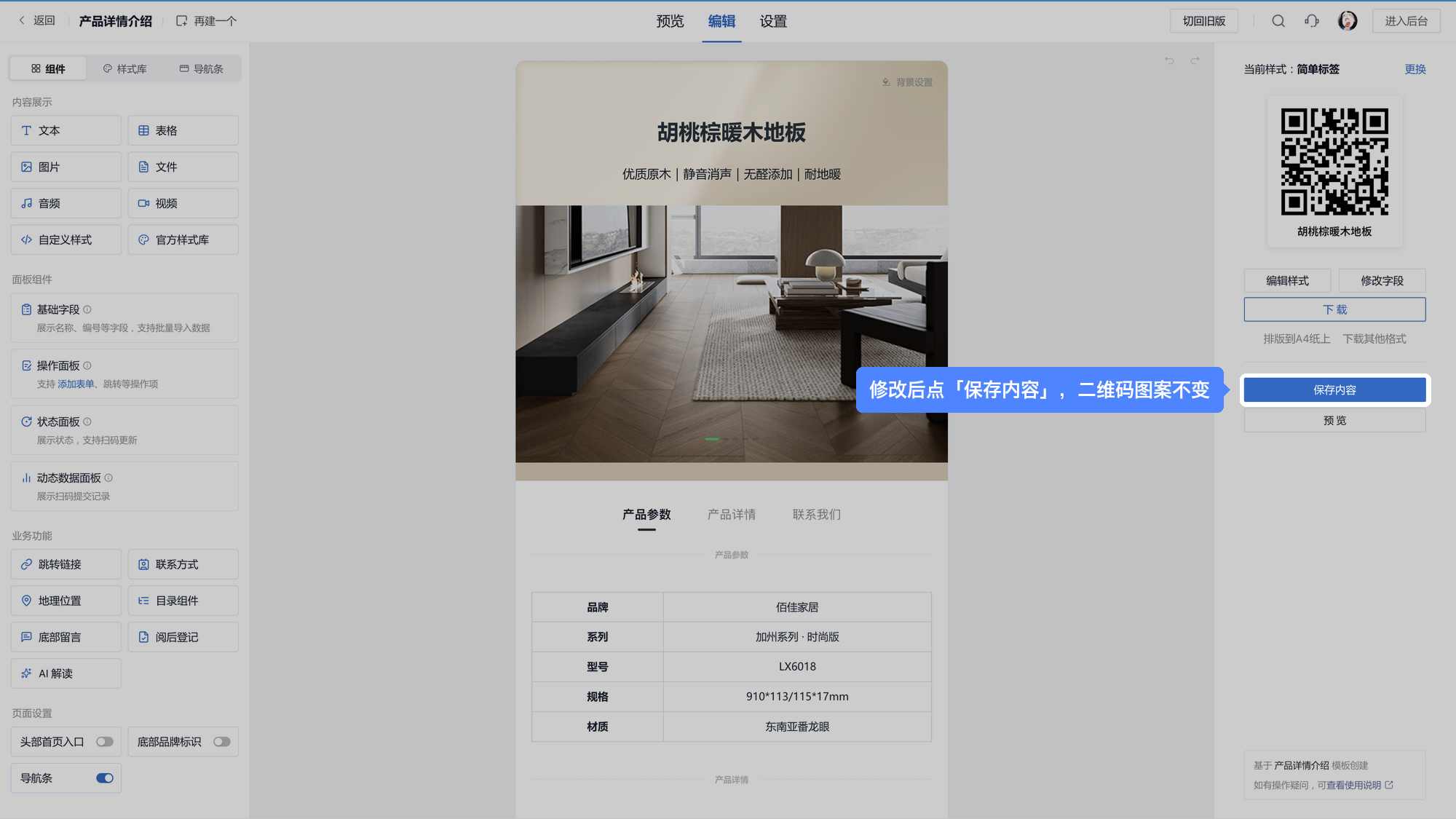
Update the content: Edit text, images, files, and other content in the editor.
-
Save: Click Save Content when done. The QR code is updated and scanners immediately see the latest content.
2. Does the QR Code Pattern Change After Editing?
No. Editing a dynamic QR code's content never changes its pattern. You do not need to re-download or reprint — just keep using the original QR code.
3. Can Static QR Codes Be Edited?
No. Once a static QR code is created, its content is fixed. Only dynamic QR codes support content editing. If you generated a static QR code on the CaoLiao homepage using text or a URL, you need to create a dynamic QR code to get an editable one. Learn the difference between dynamic and static QR codes
4. How to Edit Multiple QR Codes at Once?
If you are using a bulk template, you can edit the content of multiple sub-codes at once through the online spreadsheet. Go to Bulk Dynamic QR Code Templates in the workbench, click Details for the relevant template, then click Batch Edit. View batch edit tutorial
5. Who Can Edit a QR Code?
Edit permissions depend on the user's role:
- Super administrators and administrators: Can edit all QR codes in the account.
- Advanced members: Can edit QR codes they are responsible for or have been granted edit access to.
- Basic members: Can only view content and submit data — cannot edit QR codes.