I Already Have a QR Code — How Do I Update Its Content?
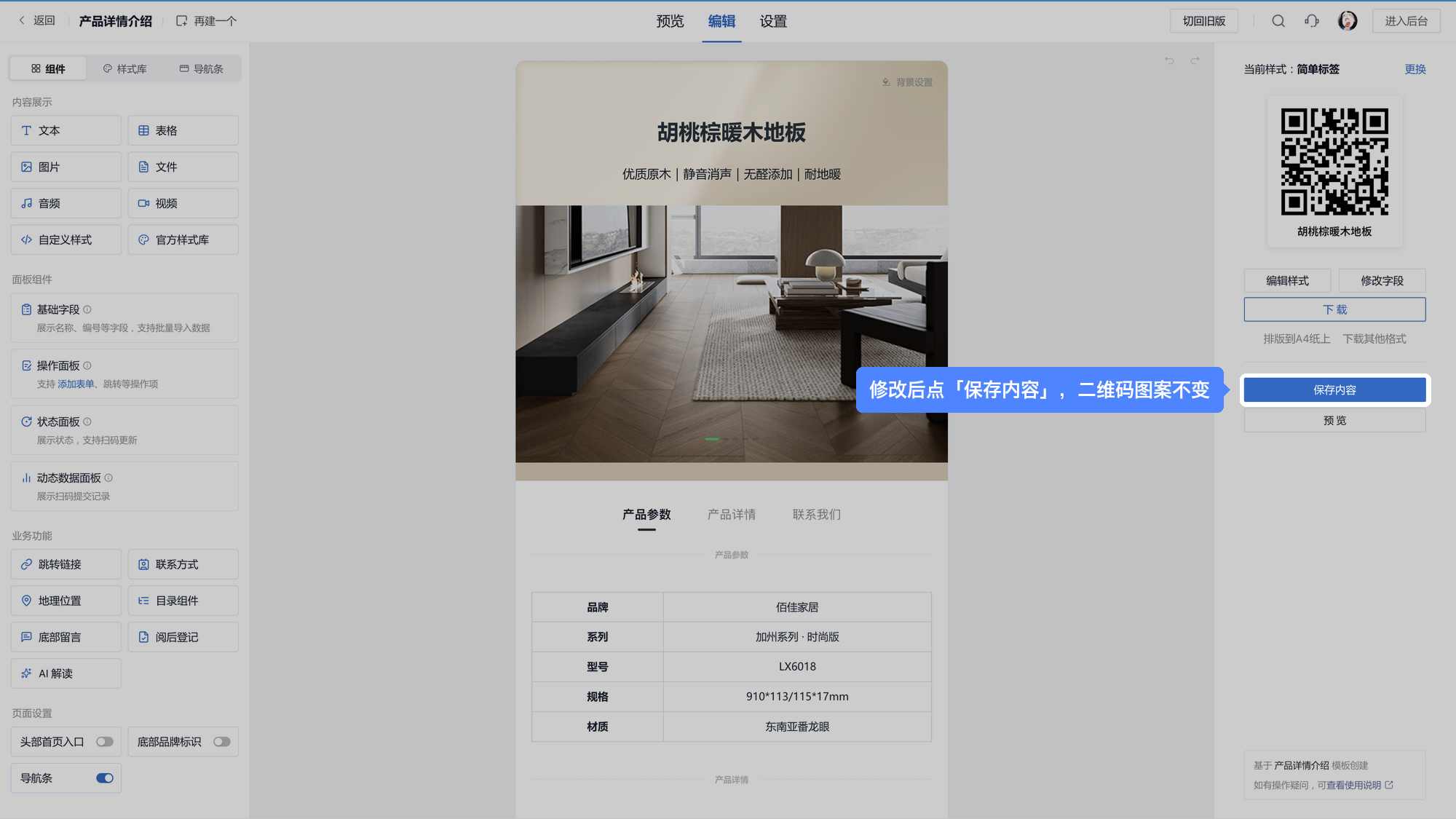
Log in to the CaoLiao workbench, find the dynamic QR code, click Edit, update the content, and click Save Content. The QR code pattern never changes — scanners immediately see the latest content.
Steps
-
Log in to the workbench: Open cli.im in a browser, log in to your CaoLiao account, and click Workbench in the top-right corner.
-
Find the QR code: Locate the dynamic QR code in the list. If you have many QR codes, use the search bar at the top to find it by name.

-
Click Edit: Click the Edit button to the right of the QR code to open the editor.
-
Update the content: Edit text, images, files, forms, and other content in the editor.
-
Save: Click Save Content when done. The QR code is updated and scanners immediately see the latest content.
Note: Only dynamic QR codes support content editing. Static QR codes (generated on the CaoLiao homepage using text or a URL) cannot be edited once created. If you need editable content, create a dynamic QR code. Learn the difference between dynamic and static QR codes
Who Can Edit?
- Super administrators and administrators: Can edit all QR codes in the account.
- Advanced members: Can edit QR codes they are responsible for or have edit access to.
- Basic members: Can only view content and submit data — cannot edit QR codes.