Create a Batch of Dynamic QR Codes with Bulk Templates
1. Overview
This guide is for users who are already familiar with CaoLiao's dynamic QR code features and need to create QR codes in bulk using a one-item-one-code approach.
This method not only lets you efficiently create a batch of dynamic QR codes but also significantly improves efficiency in subsequent label creation, QR code management, and data management tasks.
- New users are recommended to first follow the Create Your First Dynamic QR Code tutorial to get familiar with the basic creation process before using bulk templates.
- Essential reading for users with bulk creation needs such as personnel information, equipment inspection, fixed assets, and signage.
Bulk creation has two main steps: first create a bulk dynamic QR code template, then fill in data to generate a batch of dynamic QR codes. Each row of data generates one code.

2. Create a Bulk Template
A bulk template works like a "mold" for QR codes. You define the page structure in the template first, and every sub-code is then generated with that structure, each showing its own data.
1. Where to Start
On a computer, log in to the CaoLiao website and go to the workbench. Click Bulk Templates in the left menu to create a template, or go straight to the Template Library. CaoLiao supports 3 ways to create a template:
- Create Blank: Start from scratch and customize everything. This tutorial focuses on this method;
- Create from a Template: CaoLiao has preset some content. Choose a suitable scenario and edit it as needed;
- Create by Importing Excel: For when you already have a data file. The system automatically generates the matching fields and template structure.
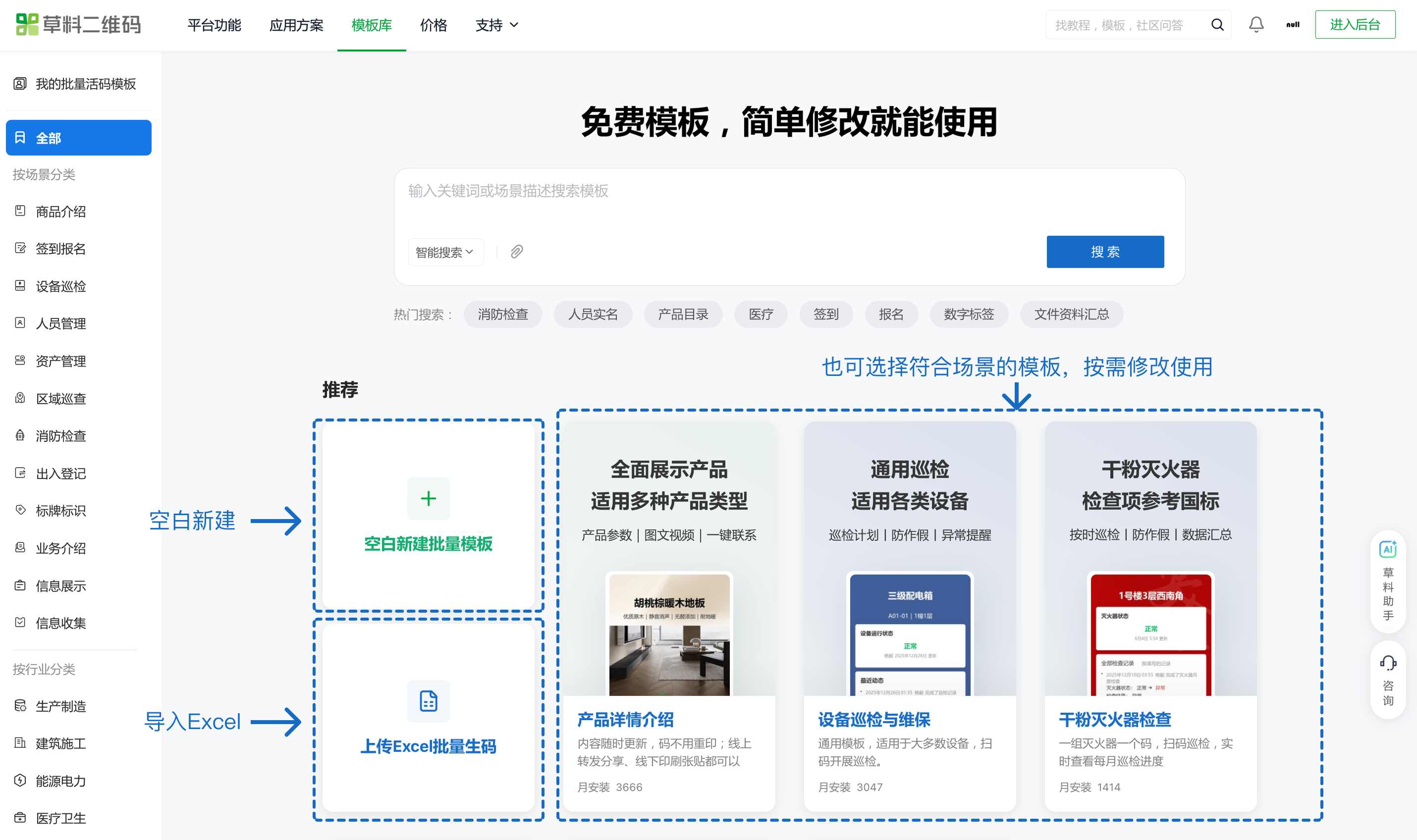
2. Build the Bulk Template
2.1 Add Basic Fields
Basic fields hold the information that differs from code to code, such as device name, number, and person in charge. In the template you only define each field's name and type without entering a value; the values are filled in from your data when you generate the codes.
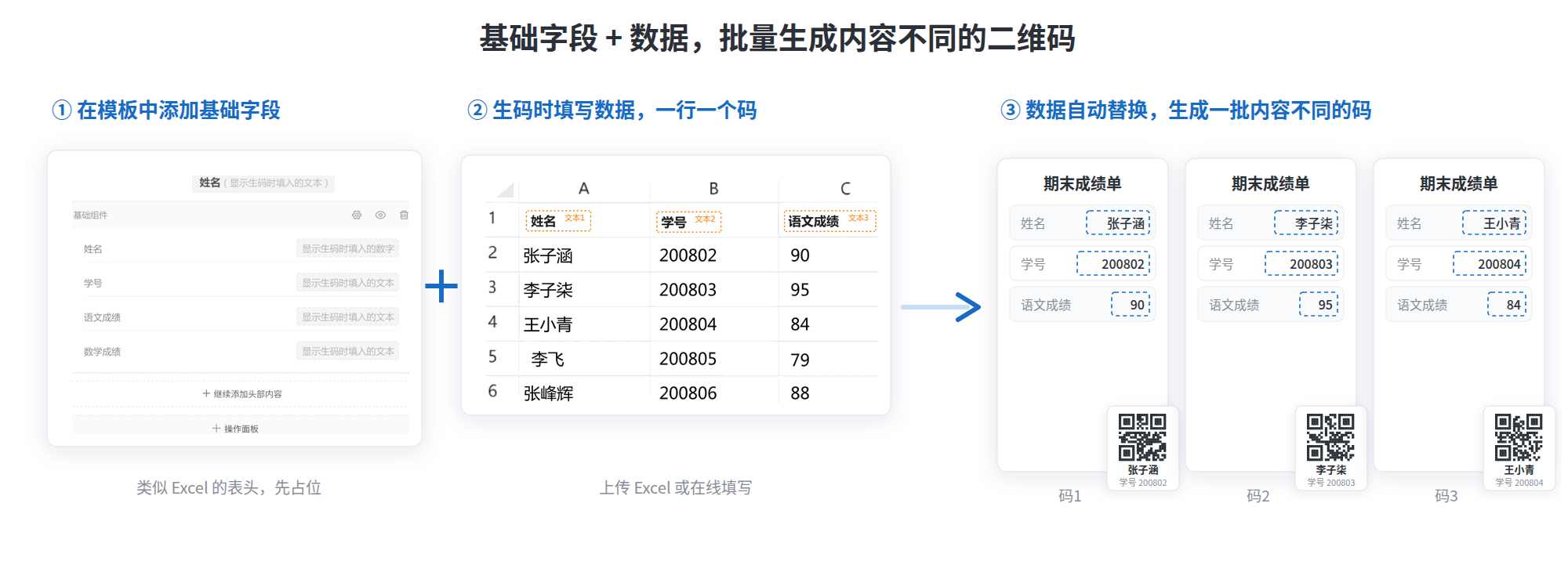
Steps:
- On the template editing page, add the Basic Fields component;
- Click "Add Field", then enter each field name and choose its type one by one. Field types include text, number, date, image, file, location, link, single choice, and multiple choice. Choose by the nature of the information, such as text for "Device Name", date for "Start Date", and image for "Device Photo";
- Drag fields to change their order; the scan page shows them in this order. If there are many fields, you can set groups such as "Basic Information" and "Maintenance Information", and the scan page shows them in separate blocks by group.
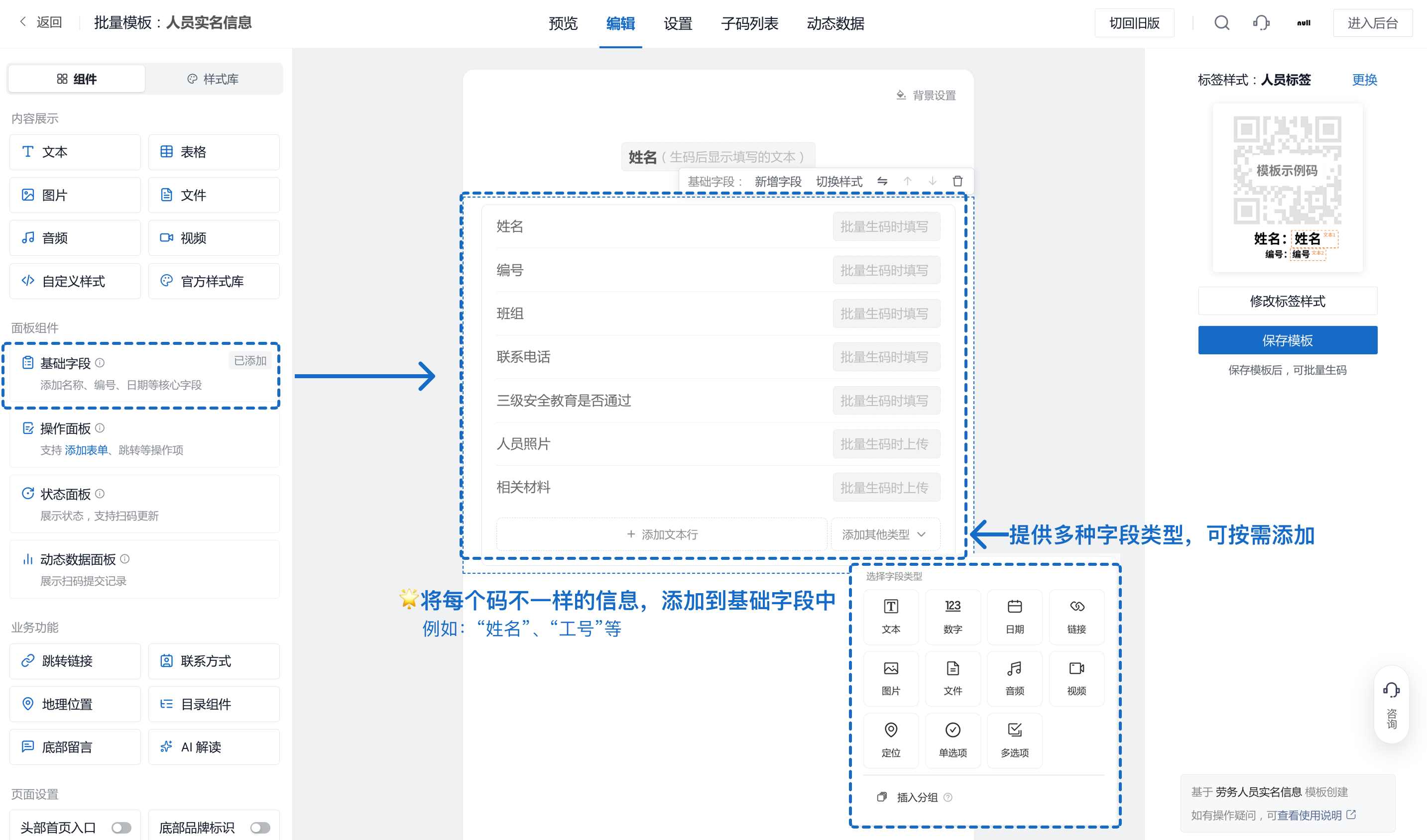
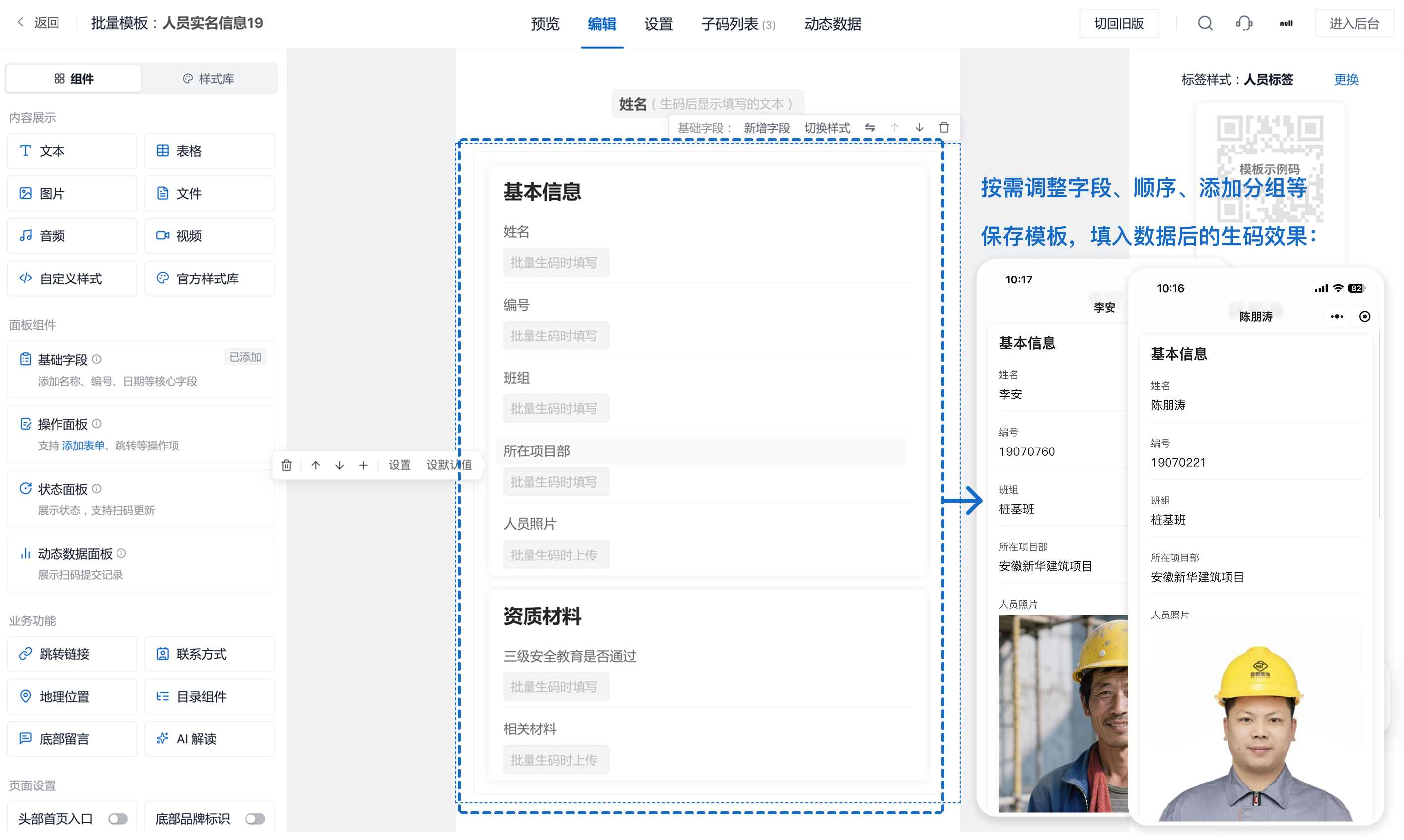
Field names become the column headers of the data table used when generating codes, so they are matched automatically when you import data. For more on fields, see Basic Fields Tutorial.
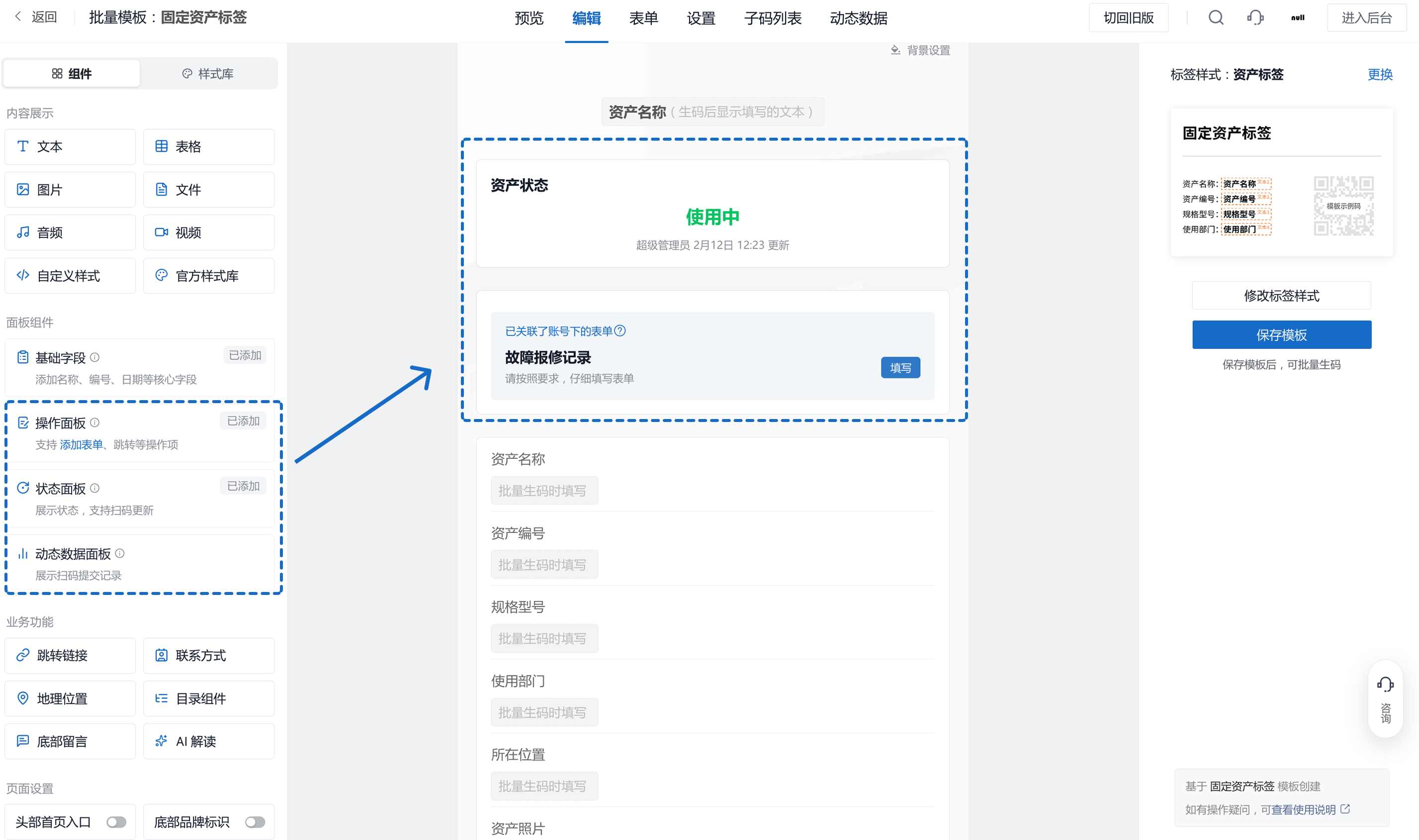
2.2 Edit the Template Content
Besides basic fields, you can add all kinds of components to the template page to complete the scan page:
- Text, images, videos, files: Content that is the same for every code, such as a company introduction, instructions, or an operation video. Edit it directly in the template;
- Forms: For scanners to fill in, such as inspection records or repair requests. Submitted data is collected automatically under the matching code;
- Status, buttons, and other functional components: Show a device's current status or jump to a specified page.
You can drag components to change their position and decide the order of each block on the scan page.
3. Design the Label Style
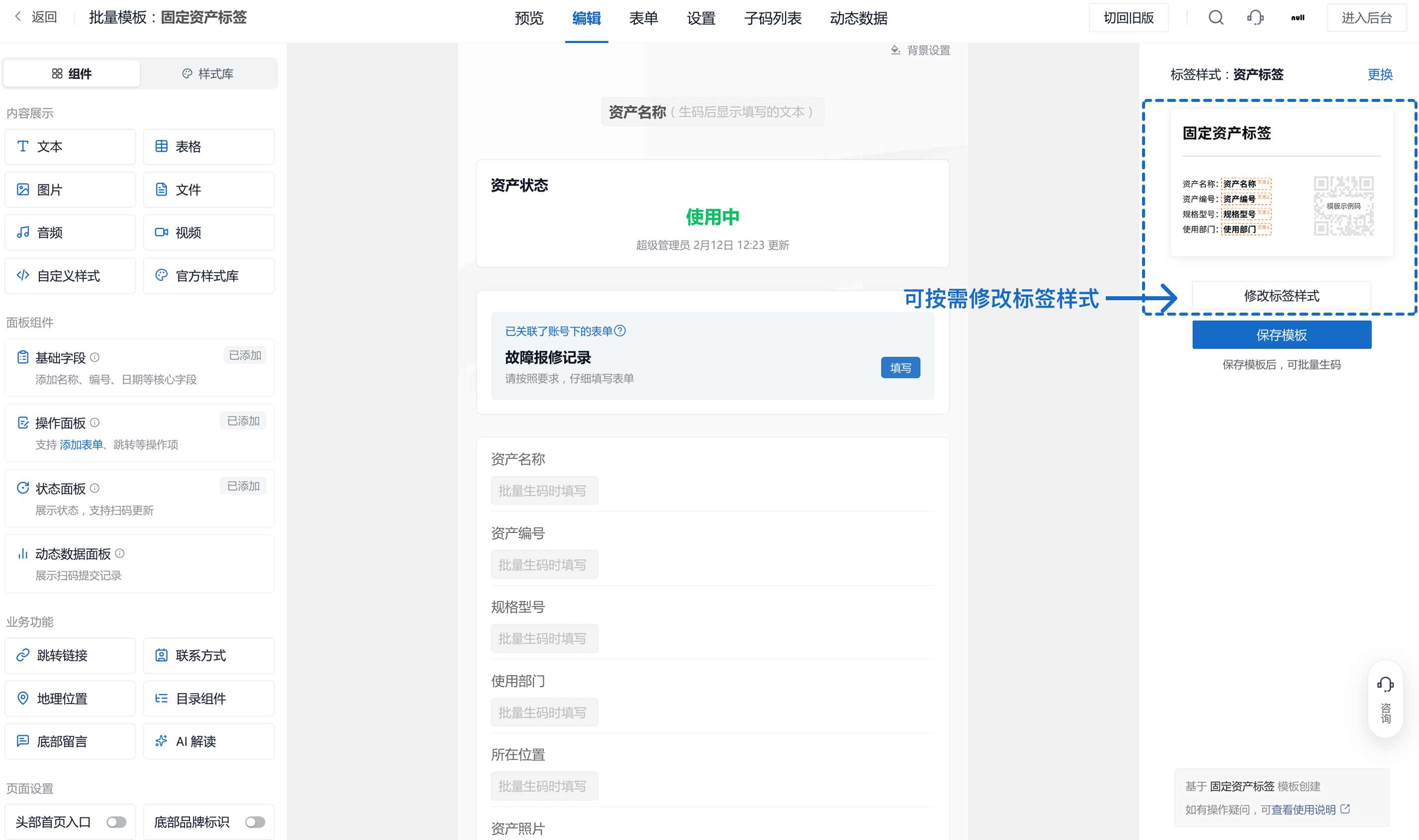
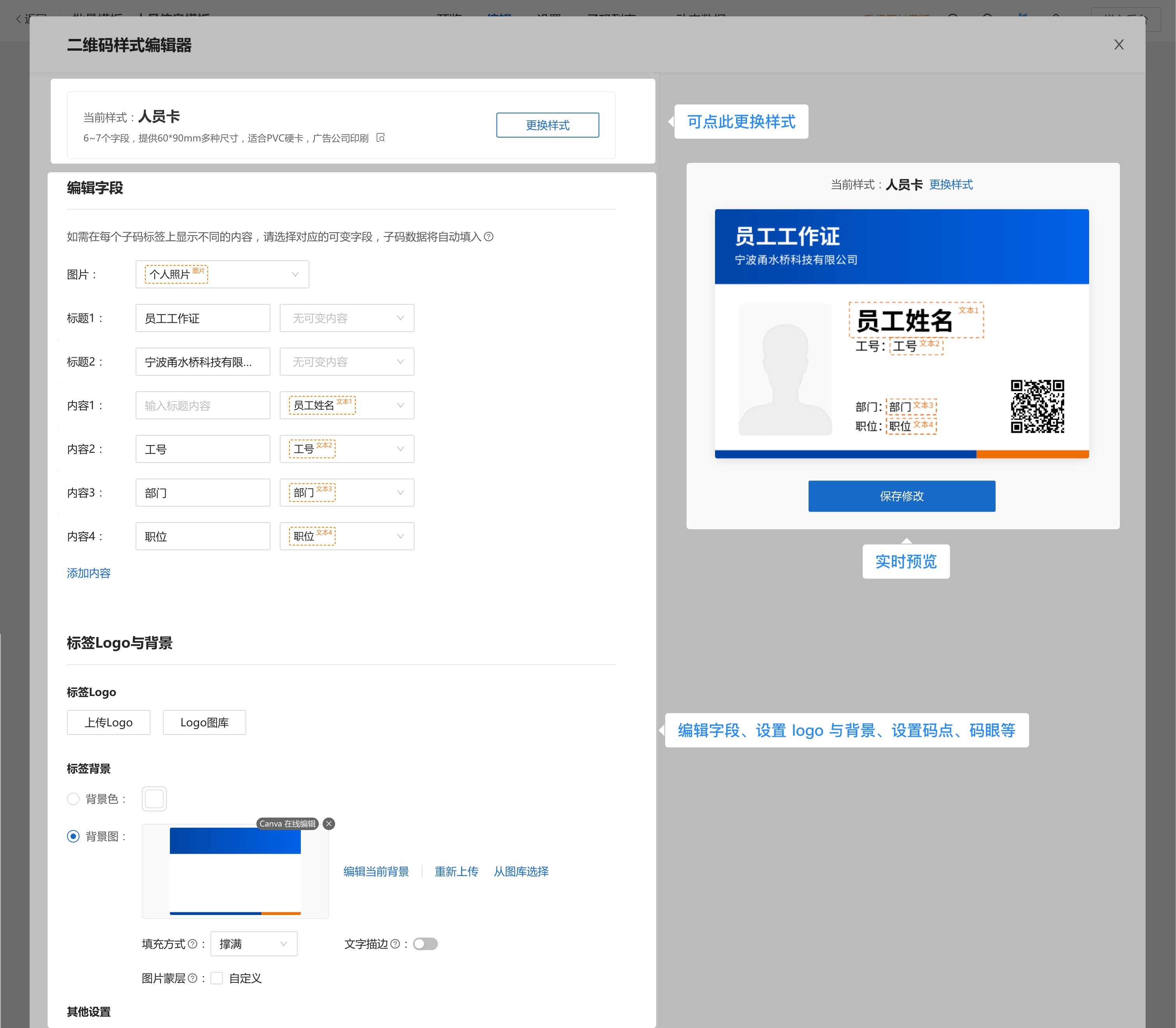
In the QR code area on the right of the editor, click "Change Label Style" to set what the printed label looks like:
- Choose a label style. CaoLiao has many built-in sizes and layouts, so you can pick by the size of your label paper;
- Edit the fields shown on the label, such as QR code + device name + number. The field content comes from the basic fields, and each code shows its own data automatically;
- Set the logo, background, dot style, and text size as needed.
Save the template when you are done.
3. Generate Dynamic QR Codes in Bulk from the Template
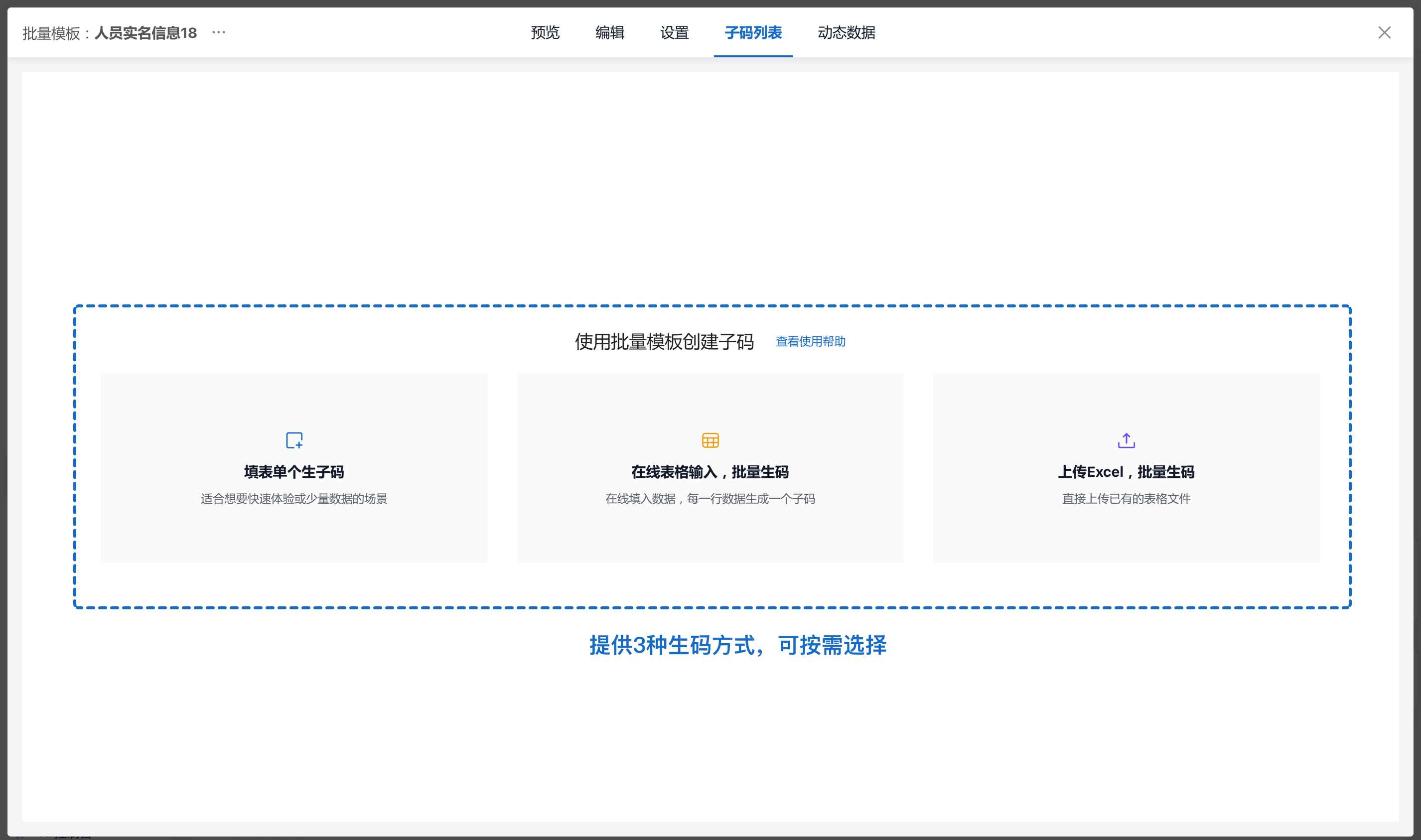
Once the template is saved, you can fill in data to generate codes. Each column of the table corresponds to one field, and each row generates one code. There are 3 ways to do it:
- Fill in a form to generate a single code: Fill in the field contents one by one on the generation page. Good for occasional additions, such as a newly purchased device. See Generate a Single Sub-Code by Filling in a Form;
- Generate in bulk with the online spreadsheet: Open the online spreadsheet. Its headers are generated from the template's fields automatically, so you can type directly on the web page or copy and paste from Excel. Save to generate the codes in bulk. See Online Spreadsheet Bulk Generation;
- Upload Excel to generate in bulk: Download the template spreadsheet first, organize your data into it, and upload it. The system matches headers to fields automatically, and you confirm before generating. Good for large amounts of data. See Bulk QR Code Generation from Excel.
You can also add sub-codes at any time on mobile by scanning. See Generate Codes on Mobile.
Each generated code is called a "sub-code". It belongs to this template and is managed together in the template's sub-code list.
4. Template Settings
In the template you can set the validity period, viewing permissions, how codes open when scanned, and more. These settings apply to all sub-codes under the template, so you don't have to set them one by one. For example, once you set a viewing permission, all sub-codes require logging in with a designated member's account to view.
5. QR Code Label Layout and Download
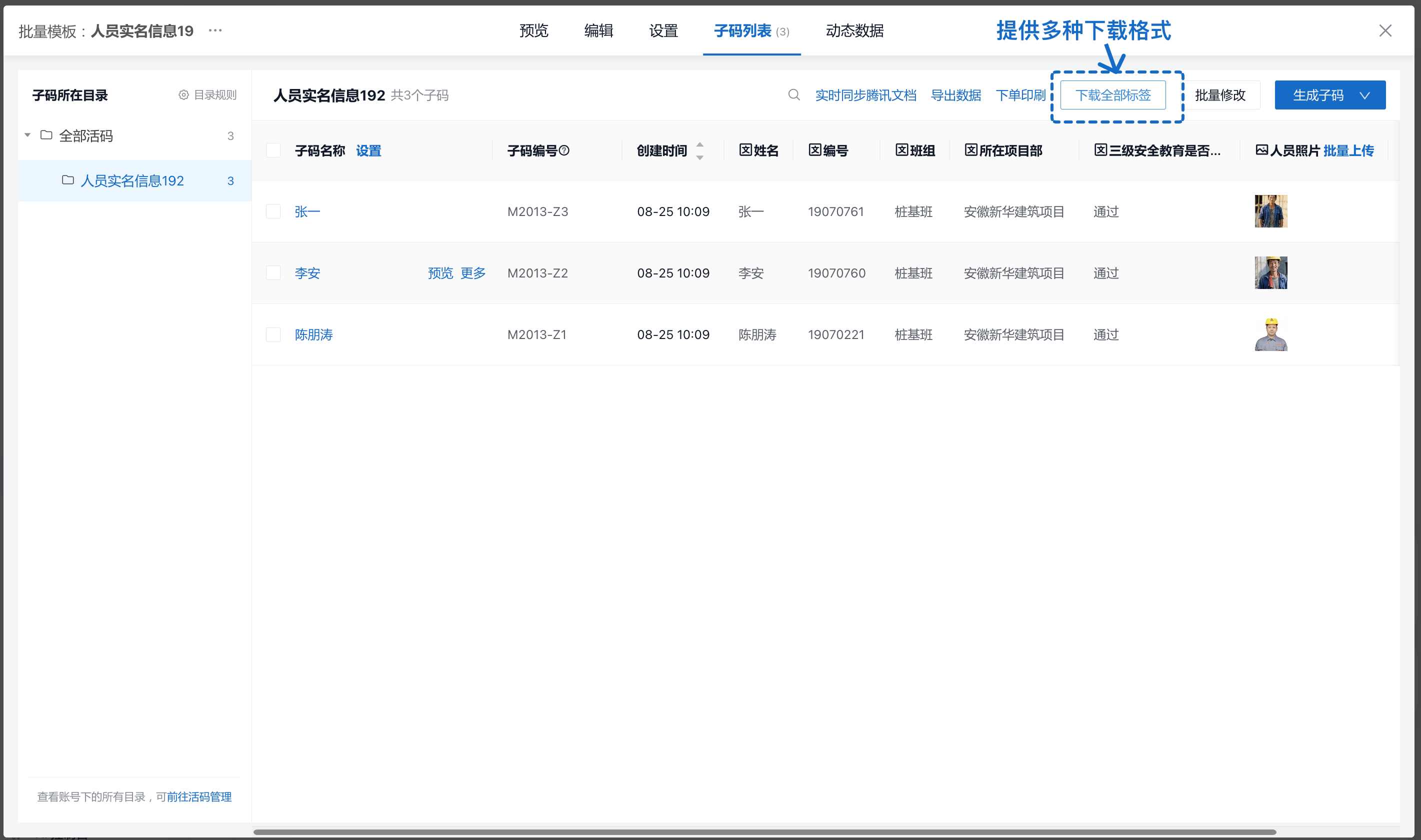
After the codes are generated, you go to the label download page, where all sub-codes are laid out automatically in the same label style. Choose the download format you need:
- QR code image: An image of a single code. Good for laying out yourself or putting into other systems;
- A4 layout file: Several labels on one page. Print on a regular printer and cut them out;
- PDF vector file: Stays sharp when enlarged. Good for sending to a print shop or a label printer.
After printing, stick the labels onto the corresponding devices or items and they are ready to use.
6. Sub-Codes and Data Management
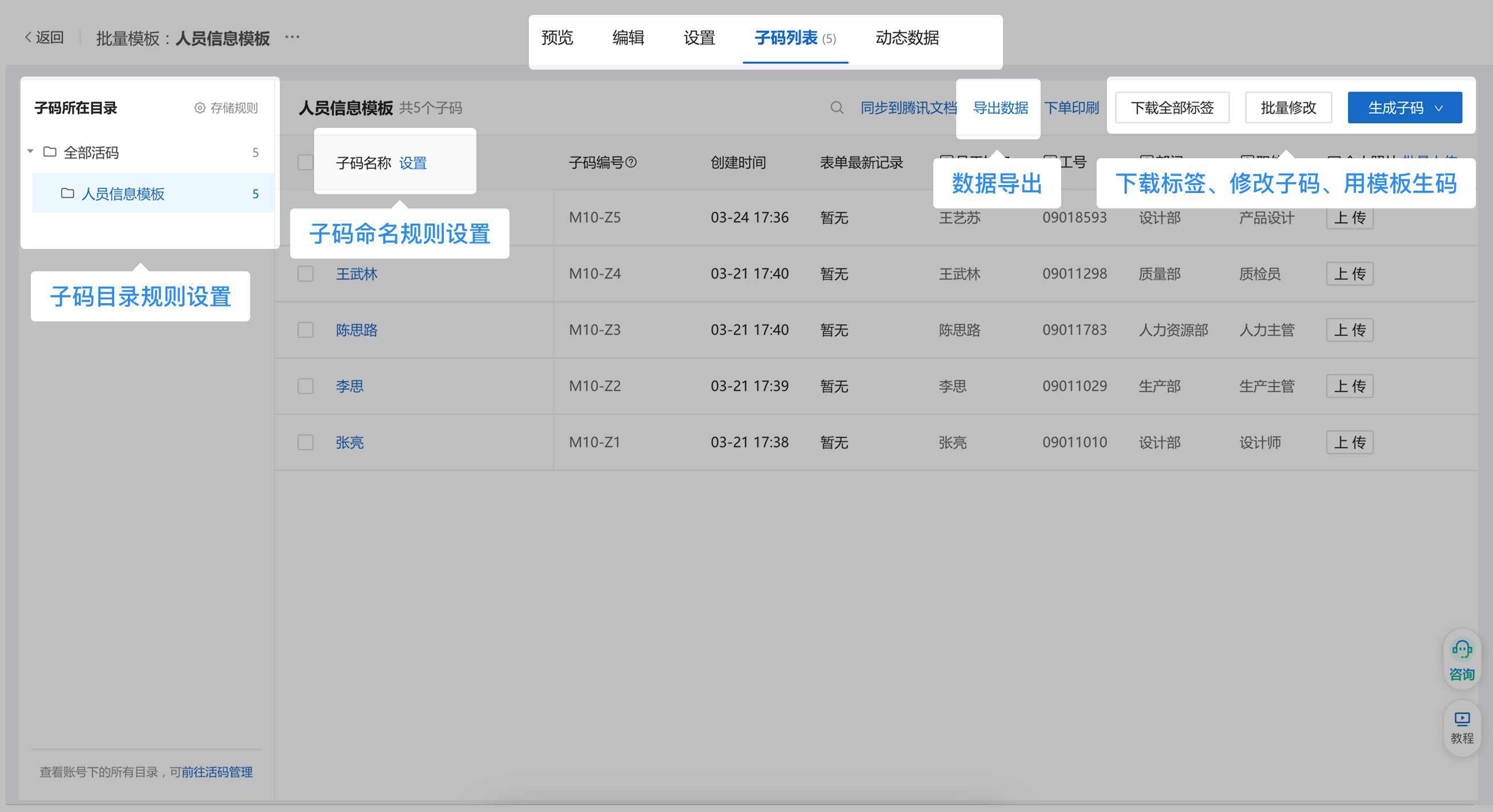
All sub-codes are managed together on the template's "Sub-Code List" page:
- Keep adding: Reuse the same template to import new data and add sub-codes at any time, without rebuilding the template;
- Bulk edit: Use the online spreadsheet to edit field data in bulk;
- Bulk naming: Set the rule for how sub-code names are composed, which makes them easier to find in the workbench;
- Export data: Export the sub-codes' field data and the data submitted by scanners as a spreadsheet;
- Organize and archive: Change the folder where sub-codes are stored, or delete them in bulk.
7. Edit Sub-Code Content
- Edit the field data of a single code: In the sub-code list, open the preview dialog and click "Edit Code Content". Sub-codes do not affect each other. For large amounts of data, edit in bulk with the online spreadsheet. You can also open a sub-code and edit it directly on mobile;
- Edit the content in the template: For things like descriptions, component layout, and the label style, edit and save in the template. All sub-codes are updated together.
8. FAQs
1. Can a Sub-Code Be Separated from Its Template and Become a Standalone Dynamic QR Code?
No. A sub-code must always stay attached to its template, which manages the page structure and style for all of its sub-codes. It cannot be converted into a standalone dynamic QR code.
2. I Made Equipment Inspection QR Codes with a Bulk Template. When I Export Data, Can I Combine the Basic Equipment Information with the Inspection Details?
Yes. When exporting on the dynamic data page, choose "Dynamic Data + Sub-Code Basic Fields". The exported spreadsheet will include each code's basic fields together with its inspection records.
3. Can I Generate a Batch of Codes First and Fill in the Content Later?
Yes. As long as one basic field has data, you can generate codes in bulk and leave the other fields empty. Print and post the codes first, then complete the content later by scanning, or fill it in in bulk with the online spreadsheet.
4. How Do I Upload Images and Files in Bulk?
First add image or file basic fields to the template. After generating the codes, go to the sub-code list, click "Edit Online", enter the image names in the matching column, then import the local files. The system matches them to each sub-code by name. See Bulk Generation with Image and File Fields.