Business Introduction QR Code Tutorial
Make an introduction QR code for your company, store, or team and print it on business cards, brochures, and display stands. Customers scan it in WeChat to see your profile, business, cases, and contact details. When content changes, edit it in the workbench, and codes already printed don't need replacing. It can be made on the free version.
1. Choose a Template and Enter the Editor
The templates are all in the Business Introduction category. Pick by what you want to introduce:
- Companies and brands: Company Business Introduction, Brand Introduction, Team Introduction, Campus Introduction
- Stores and projects: Store Introduction, Real Estate Project Introduction, Education and Training Business Introduction
- Individuals: Personal Business Card, Salesperson Business Card, Personal Profile
The steps below use "Company Business Introduction" as the example. Open the template and click [Generate Codes from Template] to enter the editor.
2. Replace It with Your Content
1. Change the Text and Images
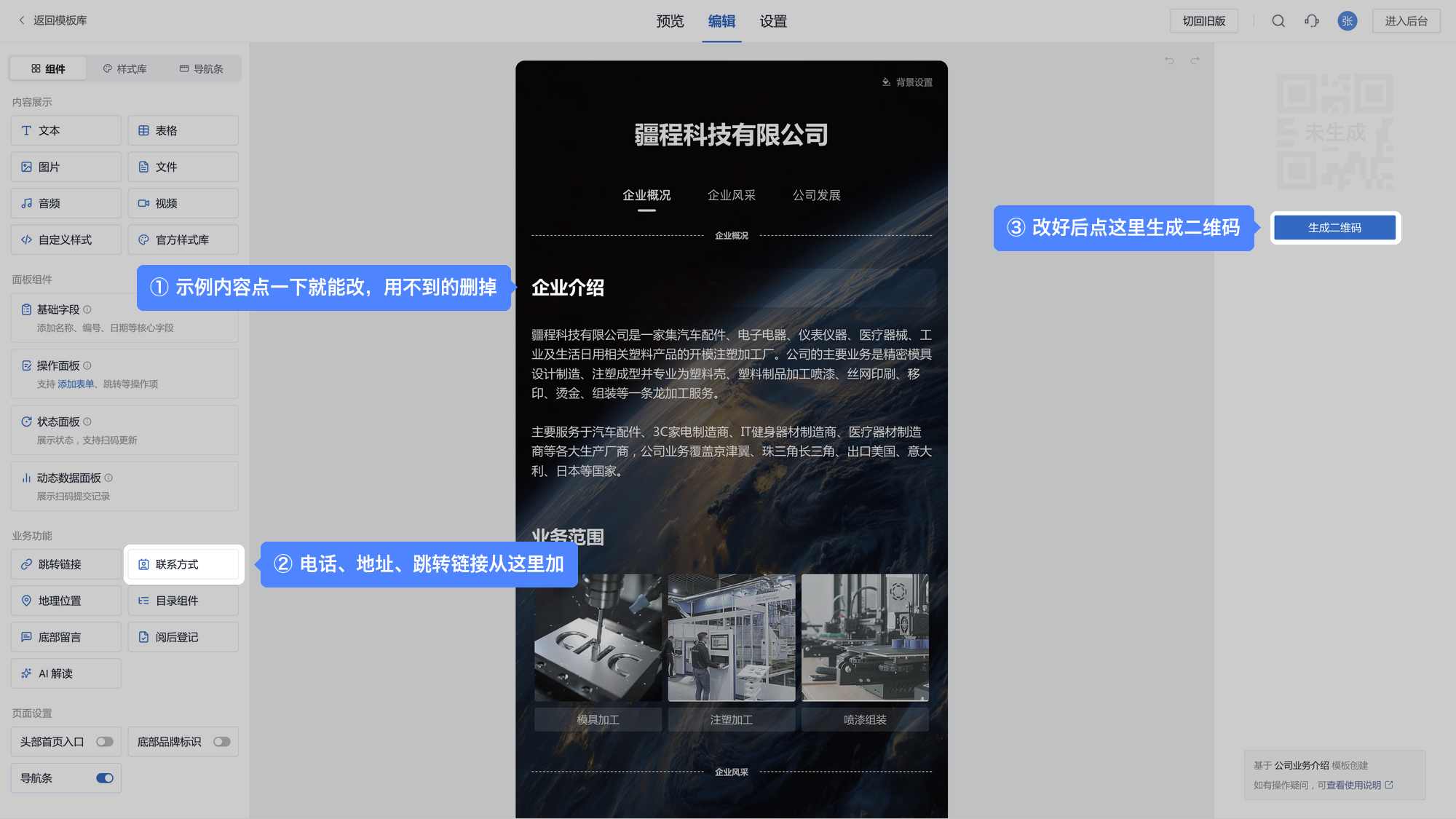
The middle shows the page customers see when they scan. Click the sample content to change it, and delete what you don't need:
- Change the company name and company introduction to yours.
- Replace the business scope, customer cases, and company qualifications with your own photos and descriptions.
- Update the company history timeline by year, or delete the whole block if you don't need it.
Type "/" in the body text to quickly insert images and files.
2. Add a Phone Number and Address
Don't write the phone number and address as plain text. Add them with components so customers can tap to call or navigate:
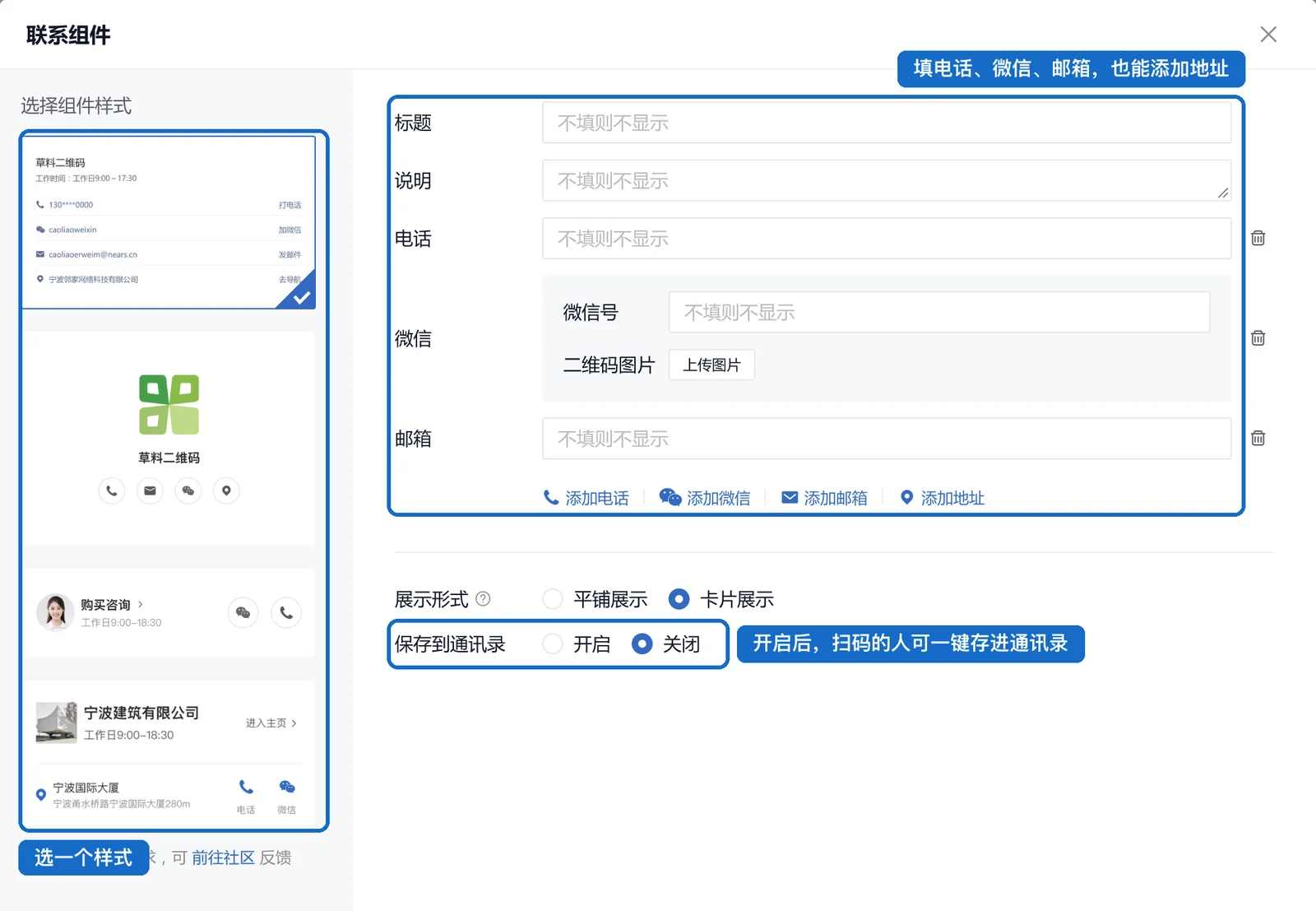
- Click "Contact Info" under "Components" on the left and enter a phone number, WeChat, and email. Turn on "Save to Contacts" so customers can save you to their phone in one tap.
- Click "Location", search for the address and pick the spot, and customers can tap to open map navigation.
3. Add Brochures, Videos, and Links
- Brochures and price lists: click "File" to upload a PDF, which customers can read online after scanning and also download.
- Company and workshop videos: click "Video" to upload.
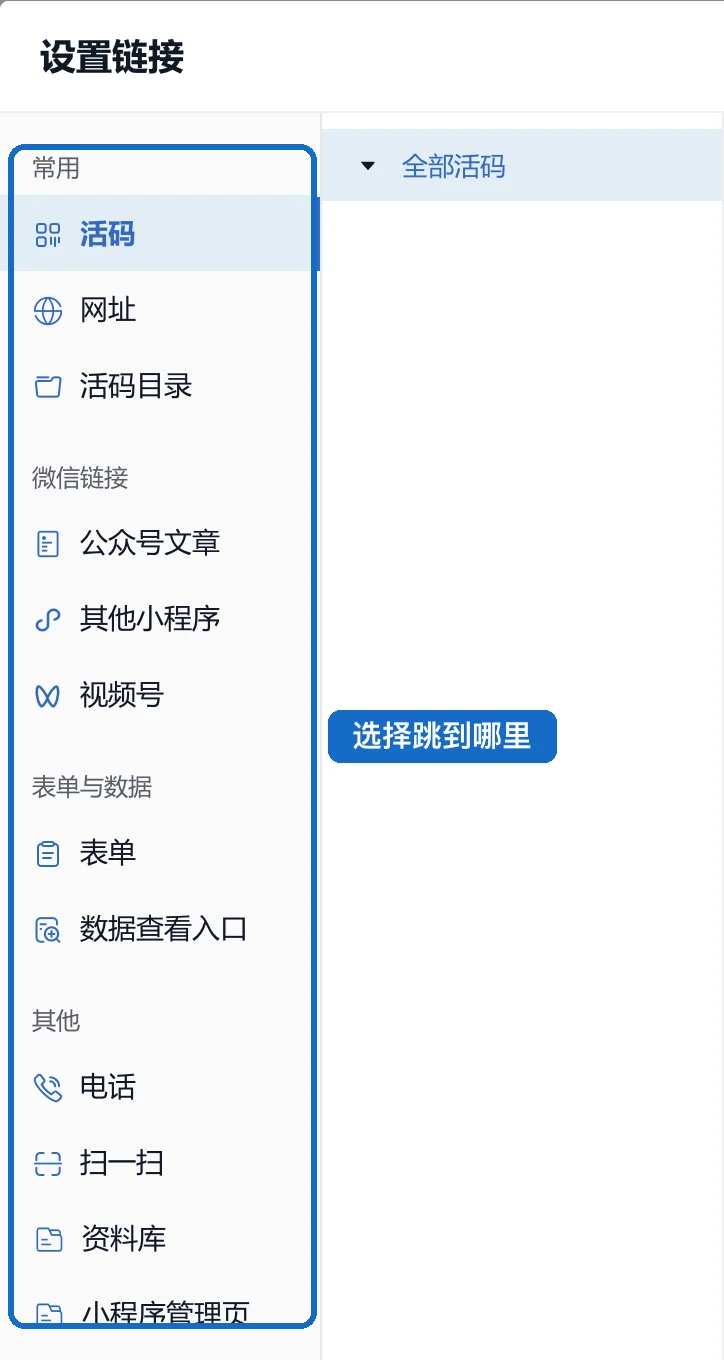
- Website, Official Account articles, purchase pages, and other codes: click "Redirect Link", choose a button or card style to place on the page, then click it to set where it goes.
4. Adjust the Layout
- If the page is long, the navigation bar at the top lets customers tap to jump to a section. Rename and add or remove sections under "Navigation Bar" on the left.
- The "Design Library" on the left has laid-out title, image-and-text, and table styles. Insert one and replace its text with yours.
- Use "Background Settings" in the upper right of the page to change the background image or color.
3. Generate the QR Code and Download
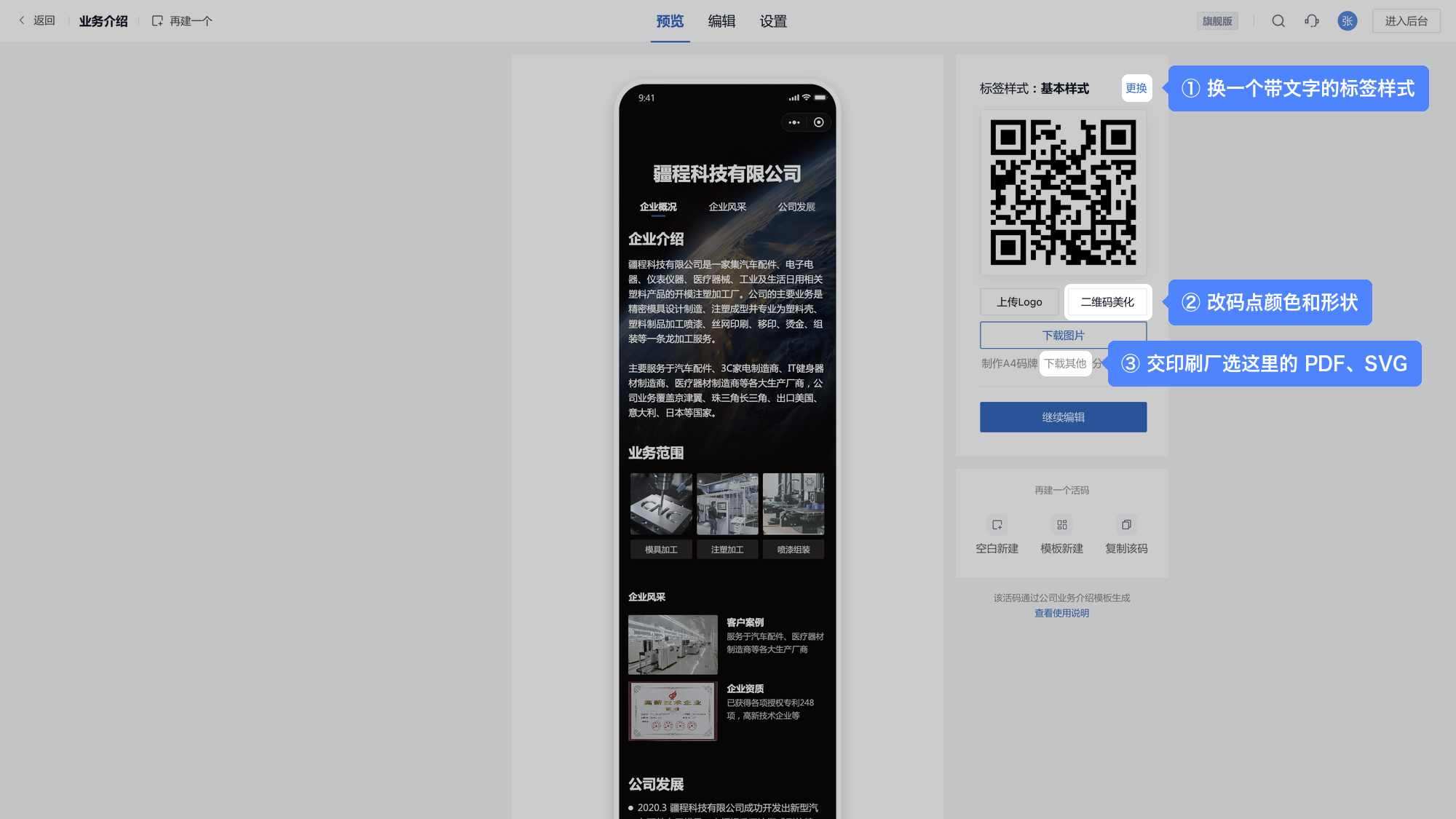
Click [Generate QR Code] on the right to enter the preview page. Scan the code on the screen with WeChat and confirm the phone number dials, the address navigates, and the files open.
On the right is the QR code label:
- Click [Change] next to "Label Style", choose a style with text, and change the text to "Scan to learn about us".
- Click [Upload Logo] to put your logo in the middle of the code, and click [QR Code Beautification] to change the dot color and shape.
- To send it on WeChat, use [Download Image]. To give it to a print shop, use [Download Other] and choose PDF or SVG.
4. Print and Share
1. Print It
- It can go on business cards, flyers, brochures, display stands, store entrances, and trade show materials. Before printing a large quantity, print one first and test-scan it with a few phones.
- For materials and sizes, see the QR Code Label Printing and Deployment Guide. If you don't want to look for a print shop yourself, you can order directly in the workbench and have CaoLiao QR Code print it for you.
2. Send It Out
- Send the QR code image directly on WeChat, in Moments, or in customer groups, or put it into slide decks and email signatures.
- If you have an Official Account, embed the code in the Official Account menu or an article: find the code in the workbench, click [More] → [Embed in Official Account], and copy the path. For the method, see Embed in an Official Account.
5. Daily Management
1. Change the Content Without Reprinting
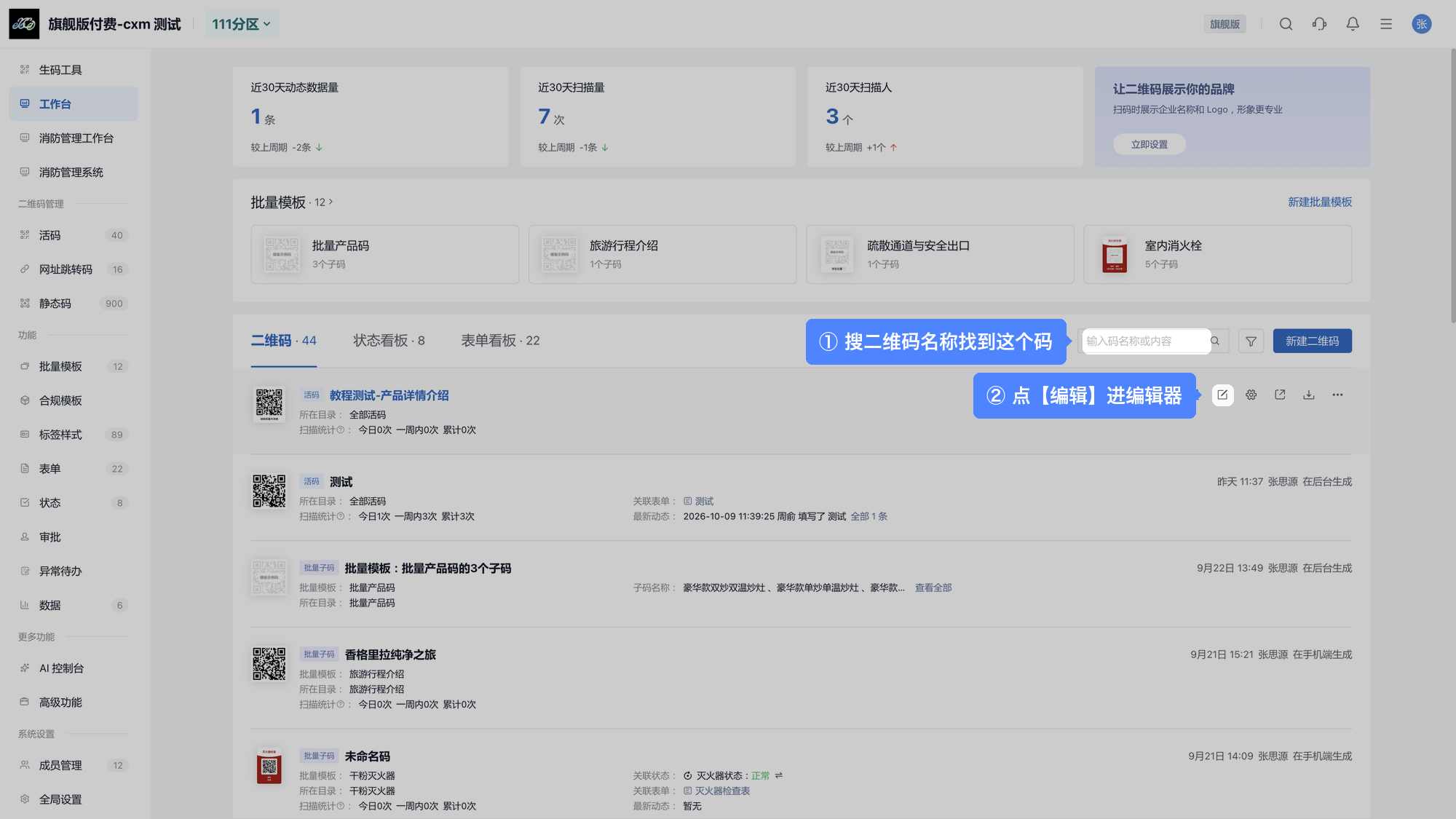
Search for the QR code name in the workbench, click [Edit], and click [Save Content] when done, and scanning the original code shows the new content. Use this for business changes, staff changes, and new phone numbers.
2. See How Many People Scanned
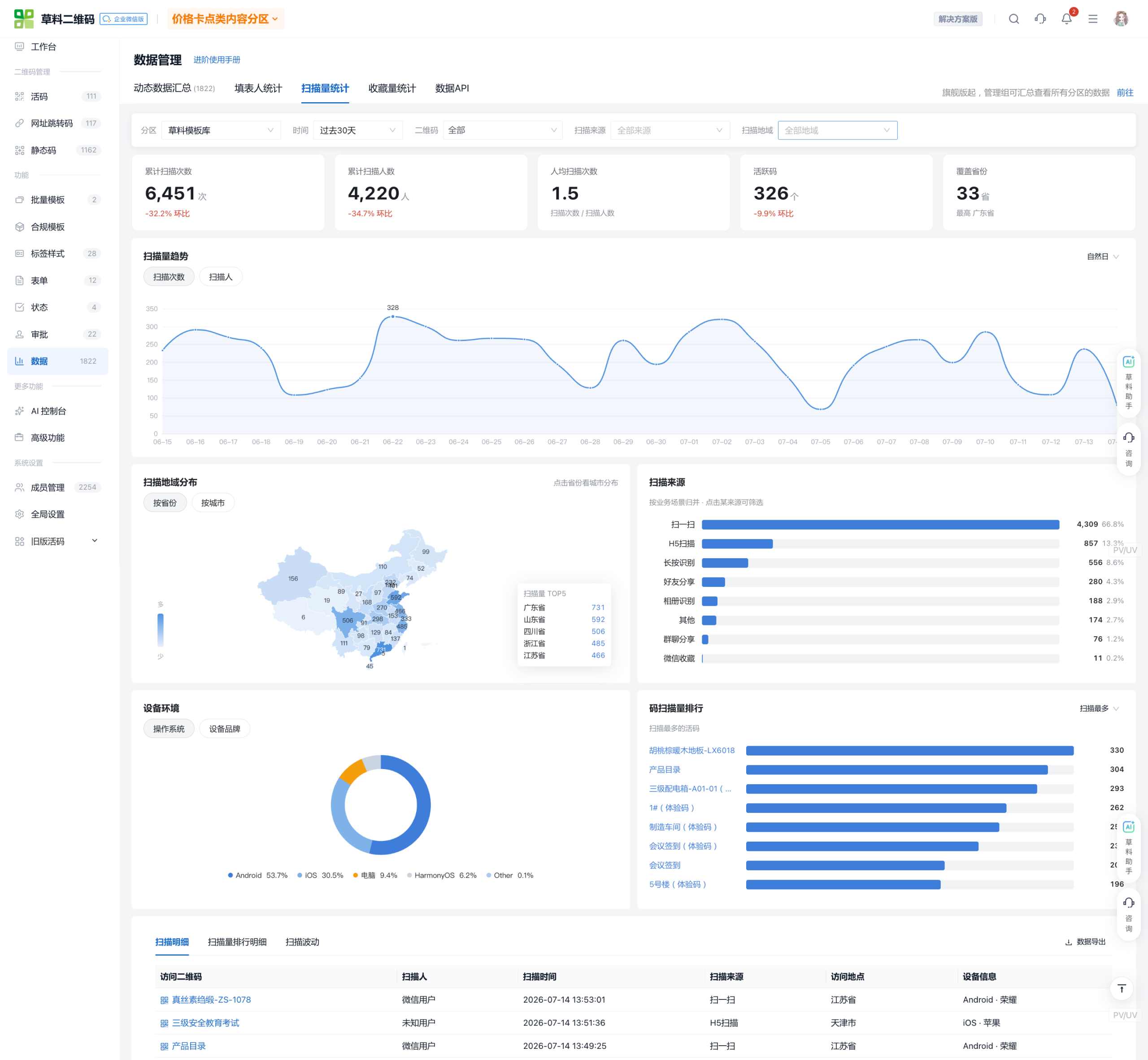
In the workbench, go to [Data] → [Scan Statistics] on the left to see scan counts, number of scanners, regions, and sources. You can't see scanners' WeChat IDs or phone numbers.
FAQs
1. How do the free and paid versions differ?
The free version can do the whole thing, can be used commercially, keeps codes valid long-term, and has no limit on scans. The difference is in how it displays and its capacity:
| Free version | Paid version | |
|---|---|---|
| Making codes, editing content, scanning to view | All available | All available |
| The "CaoLiao QR Code" mark at the bottom of the page | Shown | Removed from the Basic Edition |
| Images | CaoLiao watermark in the lower right and compressed clarity | No watermark and original clarity; HD space is 1 GB on the Basic Edition, 3 GB on the Advanced Edition, and 30 GB on the Flagship Edition |
| Audio/video | Each file limited to 1 minute, unlimited plays, long-term standard-definition playback | No length limit, with HD playback traffic |
| Single file size | Up to 50 MB | Up to 500 MB |
| File preview page | Standard-definition preview | HD preview, with optional custom watermark |
| Opened in WeChat | The "草料二维码" (CaoLiao QR Code) Mini Program | The "View QR Code" Mini Program, without the CaoLiao mark |
Codes you've already made don't need redoing after you pay. For a full comparison see the pricing page, and if you're not sure which edition to choose, see the edition selection guide.
2. Can I still change a code after it's printed?
Yes, and the QR code pattern stays the same when you change the content. You only need to reprint if you change "WeChat Open Method" under "Settings".
3. Do customers need to install an app or follow an Official Account?
No. WeChat Scan opens it directly, and Alipay, Douyin, and browsers can scan it too.
4. How do I set it up so only insiders or designated customers can see it?
Switch to "Settings" at the top of the editor. Under "Permission Settings", choose "All Members" so only people who have joined your organization can view it, or choose "Anyone" and turn on "Require a password to view". For details see QR Code Viewing Permission Settings.
5. Can I change the title and image on the card when it is forwarded in WeChat?
Yes. Under "Share Settings" in "Settings", fill in the WeChat share title and description, then upload a share image.
6. How do I stop customers from downloading or forwarding a price list?
In the editing page, click the file, click "File Actions" above, and untick "Download" and "Share". Each file is set separately.
7. How much content can one code hold?
There is no limit on the number of images, videos, and files, but more content loads more slowly, so we suggest staying at 30 or fewer. If you have more, split them across several codes and link them with redirect links.
8. Will the code expire?
No, unless you set a validity period yourself.